What Is the Best Size for Dual Monitors
When you're trying to figure out what is the best size for dual monitors, the honest answer is that there's no universal sweet spot. It depends on how deep your desk is, how far you sit from your screens, and what you actually do with them all day. A video editor and a stock trader both need dual setups, but their ideal sizes are completely different.
Research on multi-monitor productivity and manufacturer ergonomic guidelines point to 27 inches as the most commonly recommended middle ground. But that recommendation assumes a standard desk and typical viewing distance. Your situation might push you smaller or larger, and this guide will help you land on the right call.
Quick Answer
The best dual monitor size for most people is 27 inches at 1440p resolution. It balances screen real estate with desk space and viewing comfort. If your desk is shallow, drop to 24 inches.
If you have a deep desk or monitor arm, 32 inches works well.
Why There's No Single "Best" Dual Monitor Size
The reason you can't just Google a one-size-fits-all answer is that "best" changes based on your physical space and workload. A 32-inch dual setup looks incredible in photos, but it's a neck-strain nightmare on a shallow desk. Meanwhile, 24-inch monitors feel cramped if you're editing video or juggling spreadsheets all day.
Here's what actually drives the decision:
- Desk depth: This is the single biggest factor most people overlook.
- Viewing distance: How far your eyes are from the screen determines what size feels comfortable.
- Primary task: Coding, gaming, and video editing all have different sweet spots.
- Resolution: A 27-inch 4K screen and a 27-inch 1080p screen feel completely different to use.
- Scaling: Mismatched resolutions between two monitors cause real headaches with window management.
The goal isn't to pick the biggest screens that fit. It's to pick the size where you can work comfortably for hours without leaning, squinting, or craning your neck.
What Actually Determines the Right Size for You
Before you buy anything, you need to understand the three variables that matter most. Let's walk through each one.
Your Desk Depth and Viewing Distance
This is where most people go wrong. They see a killer dual 32-inch setup online and order two without measuring anything. Then they end up leaning forward all day because the screens are too big for how close they sit.
Here's a simple rule that holds up well across ergonomic guidelines:
| Desk Depth | Recommended Size | Comfortable Viewing Distance |
|---|---|---|
| Under 24 inches | 24" | 20-24 inches |
| 24-30 inches | 24" to 27" | 24-30 inches |
| 30+ inches (or monitor arm) | 27" to 32" | 30-40 inches |
If your desk is shallow, you don't need to abandon dual monitors. You just need to size down. Two 24-inch monitors on a 24-inch-deep desk work perfectly fine.
You still get the multitasking benefit without the ergonomic cost.
A monitor arm changes the equation entirely. It lets you push the screens back further and position them at the exact right height and angle. If you're mounting on an arm, you can comfortably go up to 27 or even 32 inches even on a moderately shallow desk.
Your Primary Workload Type
What you do all day should heavily influence your size choice.
- Coding and development: 27" at 1440p is the developer sweet spot. You get enough vertical lines of code without tiny text.
- Video editing: 27" or 32" at 4K. You need the resolution for timeline detail and the physical size for comfortable scrubbing.
- Office work and general productivity: 24" to 27" at 1080p or 1440p. Email, docs, spreadsheets, and browsers don't demand massive screens.
- Gaming: 27" at 1440p with a high refresh rate. Big enough to be immersive, small enough to track action across the screen.
- Financial trading: 24" to 27" at 1440p. You want density and screen real estate more than physical size.
Your Resolution and Scaling Preferences
Screen size without talking about resolution is like buying a car and only looking at the color. The two are inseparable.
A 27-inch 1080p monitor looks noticeably soft next to a 27-inch 1440p monitor. The pixel density difference is significant. At typical viewing distances, 1440p on a 27-inch screen hits a sweet spot where text is sharp and you don't need to mess with display scaling in Windows or macOS.
Here's how the common combinations stack up:
| Size | Resolution | PPI (Pixels Per Inch) | Best For |
|---|---|---|---|
| 24" | 1080p | 92 | Budget setups, shallow desks |
| 24" | 1440p | 122 | Sharp text, compact productivity |
| 27" | 1080p | 82 | Large text, casual use |
| 27" | 1440p | 109 | The all-around sweet spot |
| 27" | 4K | 163 | Sharp text, design work, scaling required |
| 32" | 1440p | 92 | Immersive, deep desks |
| 32" | 4K | 138 | Video editing, no scaling needed |
If you're running 4K on a 27-inch screen, expect to use display scaling at 150%. That's fine on modern operating systems, but it can cause occasional quirks with older applications. At 32 inches, 4K runs comfortably at 100% scaling, which means no compatibility headaches.
Your GPU and Port Situation
This one catches people off guard after they've already bought the monitors. Not every graphics card can drive two high-resolution displays at useful refresh rates.
Before you commit, check:
- Available ports: HDMI 2.0 or DisplayPort 1.2 minimum for 1440p at 60Hz. For higher refresh rates, you'll want DisplayPort 1.4 or HDMI 2.1.
- GPU capability: Most dedicated GPUs from the last five years handle dual 1440p without issue. Integrated graphics can be hit or miss.
- Cable quality: Cheap cables cause flickering and resolution caps. Use certified cables that match your port version.
If you're running a laptop with only one video output, you may need a docking station or a USB-C hub that supports dual display output. Not all docks handle dual high-resolution displays, so check the specs before you buy.
The Decision Tree: Finding Your Match
Let's cut through the noise. Answer these questions in order and you'll land on your answer.
Step 1: How deep is your desk?
- Under 24 inches: Go to 24" monitors.
- 24-30 inches: Continue to Step 2.
- 30+ inches or using a monitor arm: Skip to Step 3.
Step 2: What's your primary use?
- General office work, browsing, email: 24" at 1080p or 1440p.
- Coding, design, multitasking: 27" at 1440p.
- Gaming: 27" at 1440p with 144Hz or higher.
Step 3: What's your resolution preference?
- Want sharp text without scaling fuss: 32" at 4K.
- Want immersive screen real estate: 32" at 1440p.
- Want the proven all-rounder: 27" at 1440p.
Step 4: Are you matching both monitors?
- Yes: Buy two identical panels. Matching bezels, resolution, and color characteristics make life easier.
- No (mixed setup): Pair a primary 27" 1440p with a secondary 24" in portrait mode for documents and reference material.
This decision tree covers about 90% of real-world scenarios. The remaining edge cases usually involve ultrawide alternatives or specialized professional workflows, which we'll cover next.

Image source: Wikimedia Commons / Mack Male from Edmonton, AB, Canada (CC BY-SA)
Size-by-Size Breakdown: What Each Gets You
Let's get specific. Here's what each common dual monitor size actually feels like in daily use, based on aggregate user feedback and ergonomic research.
24-Inch Dual Setup
This is the compact workhorse. Two 24-inch monitors fit on almost any desk, even shallow ones around 20 inches deep. You get enough screen real estate for a primary workspace on one screen and reference material or communication apps on the other.
The trade-off is density. At 1080p, text and UI elements can feel a bit cramped, especially if you're used to a laptop with a high-DPI display. At 1440p, a 24-inch panel is razor-sharp, but you'll likely need display scaling at 125% to keep text comfortable.
Best for: Budget setups, shallow desks, secondary displays, and users who prefer a tighter viewing angle.
27-Inch Dual Setup
This is where most people land, and for good reason. A 27-inch panel at 1440p gives you roughly 110 PPI, which is sharp enough for text work without requiring aggressive scaling. The physical size is large enough to feel productive but small enough that you can see both screens without excessive head turning.
Two 27-inch monitors side by side span about 47 inches of total width. You need a desk at least 40 inches wide to accommodate them comfortably, plus room for a keyboard and mouse. If your desk is 24 to 30 inches deep, you'll want to push them back against the wall or use a monitor arm.
Best for: Developers, designers, office workers, and anyone with a standard-depth desk who wants a balanced setup.
32-Inch Dual Setup
This is the immersive option. Two 32-inch monitors deliver serious screen real estate. You can have three or four windows open side by side without any of them feeling squeezed.
The catch is space. Two 32-inch panels span about 56 inches of width. You need a deep desk or a sturdy monitor arm to make this work.
At 1440p, the pixel density drops to around 93 PPI, which is fine at arm's length but can look slightly soft up close. At 4K, you get around 138 PPI, which is excellent, but you'll want to sit at least 30 inches back.
Best for: Video editors, traders, data analysts, and deep-desk or arm-mounted setups.
Mixed Size Setup (Laptop + External, or Portrait + Landscape)
Not every dual setup needs matching monitors. A common practical approach is pairing a 27-inch primary monitor with a 24-inch secondary in portrait mode. The portrait screen is perfect for reading documents, viewing code, or scrolling through long web pages.
Another popular combo is using a laptop screen as the secondary display alongside a single large external monitor. This works well for remote workers who want a portable setup that expands when they're at their desk. The scaling mismatch between a laptop's high-DPI screen and a larger external monitor can be annoying, but both Windows and macOS handle it reasonably well as of 2026.
Best for: Writers, researchers, remote workers, and anyone who wants a flexible, space-efficient setup.
Matching Resolution to Screen Size (This Matters More Than You Think)
We touched on this earlier, but it deserves its own section because it's the most common mistake people make. Buying a monitor based on size alone, without considering resolution, leads to regret.
Here's the core issue. A 27-inch 1080p monitor and a 27-inch 4K monitor have the same physical dimensions but wildly different pixel densities. The 1080p panel spreads 2 million pixels across the same area that the 4K panel packs 8 million pixels into.
The difference is immediately visible.
When resolution and size don't match well, you get one of two problems:
- Too low PPI at your viewing distance: Text looks fuzzy. You lean in. Your eyes get tired.
- Too high PPI without scaling: Everything is microscopic. You crank up scaling and hope your apps behave.
The practical sweet spots as of 2026:
- 24" at 1080p (92 PPI): Acceptable for casual use. Text won't win awards, but it works.
- 24" at 1440p (122 PPI): Very sharp. Great for text-heavy work. Scaling at 110-125% recommended.
- 27" at 1440p (109 PPI): The gold standard. Sharp without scaling headaches for most people.
- 27" at 4K (163 PPI): Gorgeous. Requires 150% scaling on Windows. Some older apps look slightly blurry.
- 32" at 4K (138 PPI): Excellent. Runs at 100% scaling comfortably. No scaling quirks.
If you're buying two monitors, match the resolution. Running one 1440p panel and one 1080p panel side by side creates a jarring experience when you drag windows between them. The window resizes, text shifts, and nothing lines up.
It's fixable with third-party tools, but it's an unnecessary annoyance.
The Ultrawide Alternative: When One Screen Beats Two
Before you commit to dual monitors, consider whether a single ultrawide might serve you better. This isn't always the case, but for certain workflows it's a genuine upgrade.
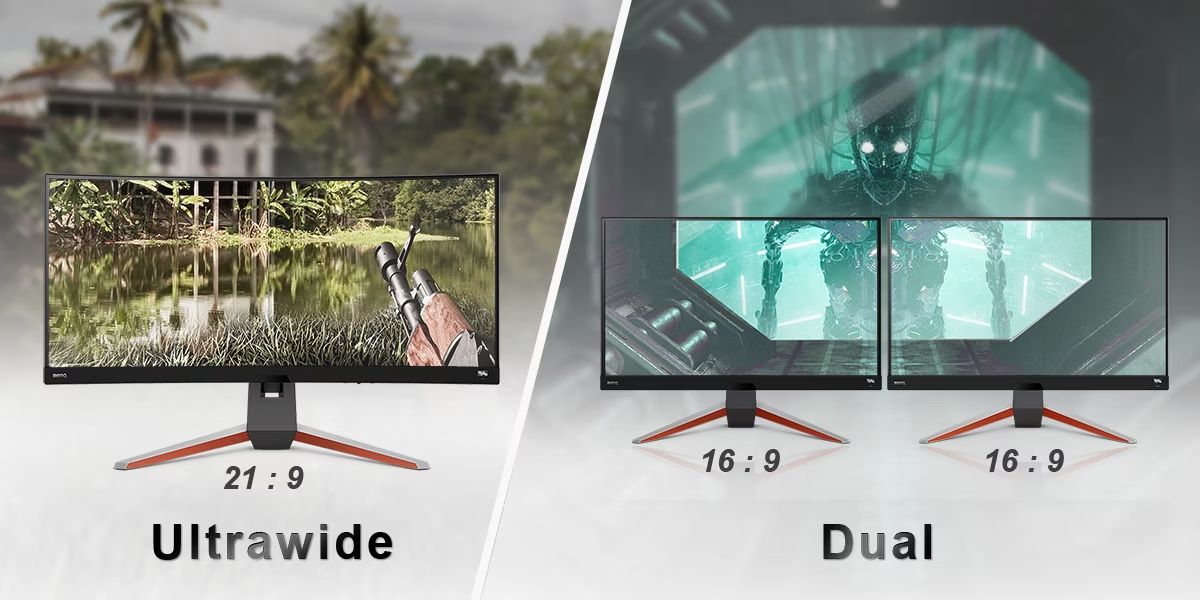
A 34-inch ultrawide at 3440×1440 gives you the equivalent of two 27-inch 1080p monitors side by side, with no bezel gap in the middle. A 38-inch at 3840×1600 pushes even further. And a 49-inch super-ultrawide at 5120×1440 is essentially two 27-inch 1440p monitors fused together.
When ultrawide wins:
- Video editing with a long timeline across the bottom
- Gaming across a wide field of view
- Anyone who hates bezel gaps in the middle of their workflow
- Cleaner desk with one cable instead of two
When dual monitors still wins:
- You need to full-screen an app on one display while working on the other
- You want to run different input sources (work laptop and personal PC, for example)
- Easier to position each screen at an optimal angle for your seating position
- Better for screen sharing on video calls (share one screen, keep the other private)
The price gap has narrowed significantly. A decent 34-inch ultrawide costs roughly the same as two mid-range 27-inch 1440p monitors. The choice really comes down to whether you value the seamless display or the flexibility of two independent screens.
Image source: Bing (Web (fair-use with source credit))
Common Mistakes People Make When Choosing Dual Monitor Size
After reviewing countless setups and user reports, the same mistakes keep showing up. Here's what to watch for.
Mistake 1: Ignoring desk depth. This is the big one. People see a setup online, buy the same monitors, and realize their desk can't handle it. Always measure before you buy.
Mistake 2: Buying size without resolution. A 32-inch 1080p monitor looks worse than a 27-inch 1440p monitor for most tasks. Pixel density matters more than raw inches.
Mistake 3: Mismatched monitors without a plan. Running two different sizes or resolutions can work, but it requires intentional setup. If you're not willing to tweak display settings, buy matching panels.
Mistake 4: Forgetting about bezels. Thick bezels eat into the usable space between screens. If you're going dual, look for monitors with thin bezels (under 5mm on three sides). The bezel gap becomes very noticeable when you span content across both screens.
Mistake 5: Skipping the monitor arm. Even on a standard desk, a dual monitor arm frees up desk space and lets you position each screen at the exact right height and angle. It's one of the best upgrades you can make to a dual setup.
Mistake 6: Placing monitors too high. The top of each screen should be at or slightly below eye level. Stacking monitors too high forces you to tilt your head back, which causes neck strain over time. A monitor arm makes proper positioning much easier than the fixed stands that come in the box.

Image source: Bing (Web (fair-use with source credit))
Real Scenarios: What Works for Different Workflows
Let's put this all together with some specific setups that work well for common use cases.
The Developer Setup
Two 27-inch 1440p IPS monitors on a dual monitor arm. Code editor on the primary screen, browser and documentation on the secondary. The 1440p resolution keeps text crisp at native scaling, and the IPS panel maintains color accuracy if you're also doing front-end work.
Total cost for two solid 27-inch 1440p panels typically runs $400 to $600 as of 2026.
The Video Editor Setup
A 32-inch 4K display as the primary monitor for timeline and preview work, paired with a 27-inch 1440p in a secondary position for project bins and effects panels. The 4K primary gives you enough resolution to see detail in your footage without constant zooming. This setup benefits from a deep desk or a heavy-duty monitor arm rated for both panel weights.
The Day Trader Setup
Two or three 24-inch 1080p monitors in a landscape orientation, with the center screen primary and the flanking screens showing charts, news feeds, and order windows. The smaller size keeps everything within a comfortable viewing angle. Some traders prefer a single 49-inch super-ultrawide instead, which eliminates bezel gaps entirely.
The WFH Generalist Setup
A 27-inch 1440p as the main display, with the laptop screen positioned to the side for Slack, email, or video calls. A USB-C dock connects everything with a single cable. This is the most common remote work setup because it's flexible, affordable, and doesn't demand a massive desk.
Quick Reference: Best Size by Situation
Here's a fast-lookup table for the most common scenarios.
| Your Situation | Best Size | Resolution | Notes |
|---|---|---|---|
| Shallow desk (<24") | 24" dual | 1080p or 1440p | Only option that truly fits |
| Standard desk, general use | 27" dual | 1440p | The default recommendation |
| Deep desk or arm mount | 27" to 32" dual | 1440p or 4K | Depends on personal preference |
| Video editing primary | 32" + 27" | 4K + 1440p | Mixed setup works best here |
| Programming / coding | 27" dual | 1440p | Minimum for comfortable reading |
| Gaming focused | 27" dual | 1440p at 144Hz+ | High refresh rate matters more than size |
| Budget conscious | 24" dual | 1080p | Cheapest entry point, totally functional |
| Laptop + one external | 27" external | 1440p | Use laptop as secondary |
| Clean minimal desk | 34" ultrawide | 3440×1440 | Replaces dual monitors entirely |
Frequently Asked Questions
Can I use two different size monitors together?
Yes, but it's not ideal. Windows and macOS support mixed setups, but dragging monitors between screens causes size and scaling jumps. Matching both size and resolution makes everything smoother.
If you must mix, put the larger one as your primary display.
Is 27 inches too big for dual monitors?
Not for most desks. Two 27-inch monitors fit comfortably on a desk that's at least 40 inches wide and 24 inches deep. If your desk is smaller, consider 24-inch panels or a monitor arm to reclaim space.
What's better, dual 27-inch or one 34-inch ultrawide?
Dual 27-inch monitors offer more flexibility. You can full-screen apps on each independently and angle them separately. A 34-inch ultrawide gives you a seamless display with no bezel gap.
It depends on whether you value seamlessness or flexibility.
How far should I sit from dual 27-inch monitors?
Aim for 24 to 30 inches from your eyes to the screen surface. If you sit closer than 24 inches, consider stepping down to 24-inch panels to reduce eye strain and head turning.
Do I need a monitor arm for dual monitors?
You don't need one, but it's the single best upgrade for a dual setup. A dual monitor arm frees desk space, lets you position each screen at the perfect height, and makes it easy to switch between landscape and portrait orientation.
Is 32-inch too big for office work?
Not if your desk is deep enough. At 30 inches or more of viewing distance, a 32-inch 4K panel is comfortable and incredibly productive. The key is having enough space that you're not turning your head constantly to see the edges.
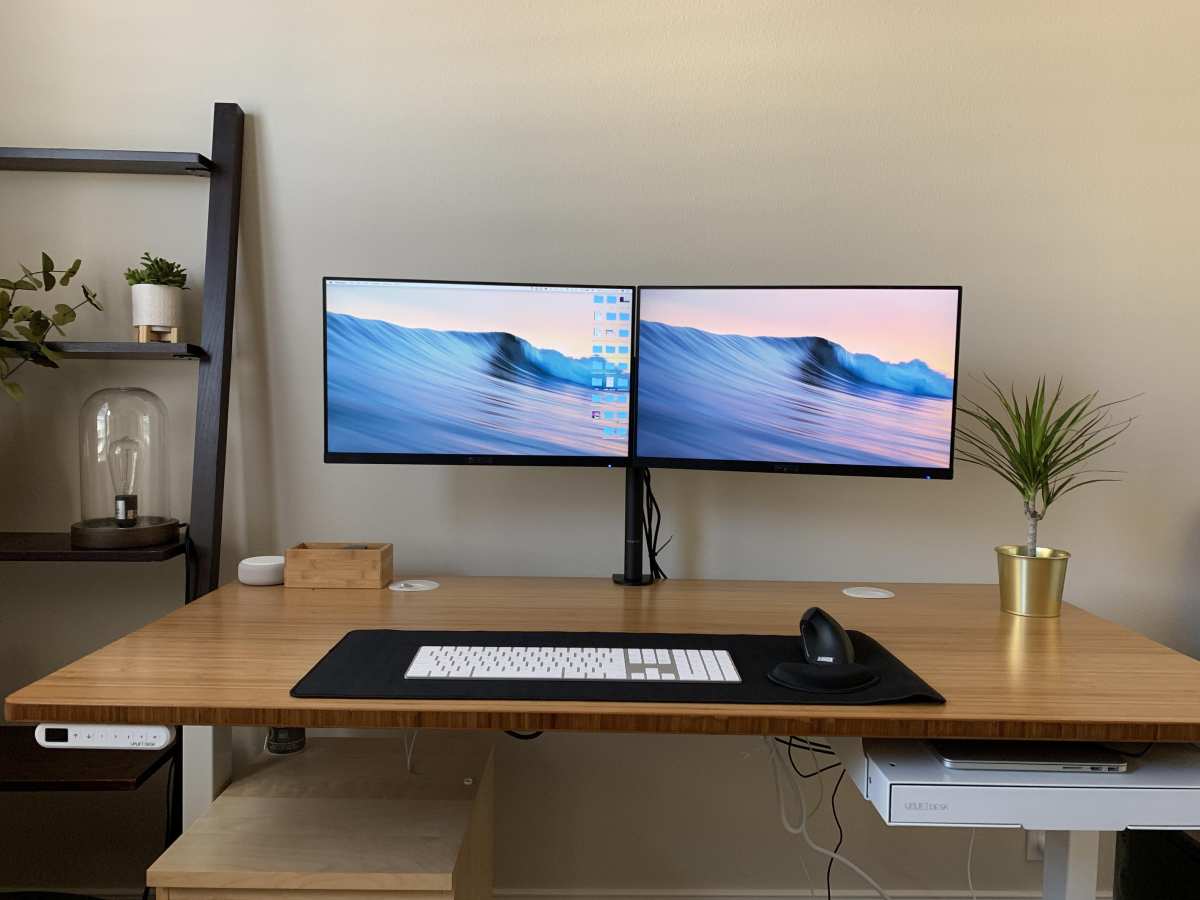
Image source: Bing (Web (fair-use with source credit))

Similar Posts