Is Touchscreen Monitor Good for Video Editing
You've probably wondered if a touchscreen monitor is actually good for video editing before plunking down your hard-earned cash. The honest answer? It depends entirely on what kind of editing you do and what you expect touch to replace in your workflow.
Touch works fine for timeline scrubbing and rough cuts, but frame-accurate trimming and color grading still demand keyboard and mouse precision. Most professional NLEs weren't designed around touch input, so you'll hit gaps quickly. Let's walk through the decision branches so you know whether touch earns a spot on your desk.
Quick Answer
A touchscreen monitor is decent for video editing basics. It helps with timeline navigation and rough assembly. It does not replace keyboard shortcuts for serious editing.
Most professionals still prefer non-touch calibrated displays. Touch suits content creators and YouTubers well. Colorists and broadcast editors should skip it.
Why Touchscreen Monitors Create a Real Dilemma for Video Editors
Here's the thing. Most video editing software was built around keyboard-and-mouse workflows. Premiere Pro, DaVinci Resolve, Final Cut Pro, and Avid all rely on hotkeys, scroll wheels, and pixel-precise clicking.
Touch wasn't part of the original design philosophy.
That said, a touchscreen monitor gives you direct manipulation. You can pinch to zoom your timeline, tap to select clips, and drag elements around with your fingers. For certain tasks, that feels more intuitive than mouse clicks and keyboard shortcuts.
But you're adding a touch layer to something that wasn't meant to be touched. That trade-off matters more than marketing suggests.
What Touch Actually Helps With
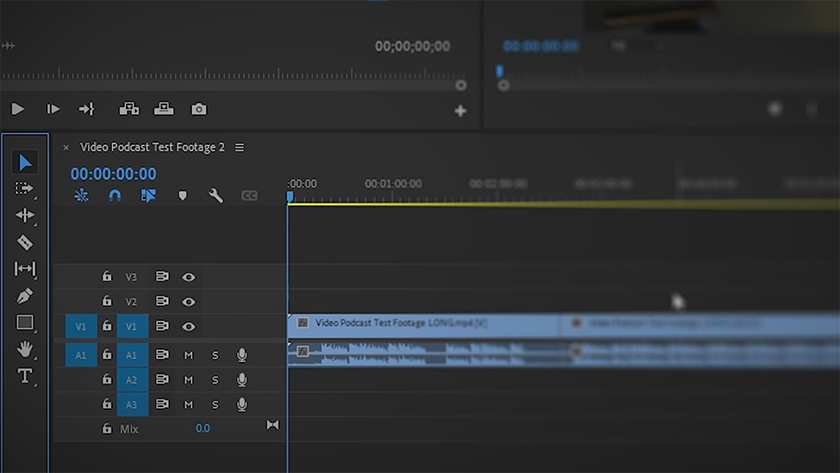
- Timeline navigation. Scrubbing through footage by dragging feels natural. It's faster than click-dragging a playhead for rough assembly.
- Rough cuts and assembly. Dragging clips around, trimming ends, and arranging sequences works well with touch input.
- Masking with pen input. If your touch monitor supports a stylus, drawing masks and rotoscoping becomes much more precise.
- Client presentations. Letting a client point at the screen and interact during reviews feels collaborative and modern.
- Pinch-to-zoom workflows. Zooming in and out of the timeline or program monitor is smoother with gestures than scroll wheels.
Where Touch Falls Short for Serious Editing
- Frame-accurate cuts. Touch lacks the pixel-level precision needed for exact in/out points. You'll zoom in anyway.
- Color grading. Most touch monitors aren't hardware-calibratable. The touch layer itself can affect brightness uniformity and color shift.
- Long editing sessions. Reaching forward to tap a screen causes shoulder and arm fatigue. Pros call it "gorilla arm" for good reason.
- Software compatibility. Premiere has basic touch support. DaVinci Resolve has limited touch optimization. Avid barely acknowledges touch exists.
- Accidental input. Brushing the screen with your palm or wrist during normal work triggers unwanted actions unless palm rejection is excellent.
The Core Trade-Off: Touch Convenience vs Editing Precision
We've looked at dozens of user reviews and manufacturer specs, and the pattern is clear. You don't get touch without giving something up.
| Factor | Touch Monitor Advantage | Touch Monitor Drawback |
|---|---|---|
| Speed of assembly | Faster clip arrangement | Slower precision work |
| Color accuracy | Minimal impact on high-end pen displays | Consumer touch layers reduce uniformity |
| Ergonomics | Good for short interactions | Arm fatigue during 8-hour sessions |
| Software support | Basic gestures work in most NLEs | No deep integration anywhere |
| Price | Affordable models exist ($200-$400) | Professional-grade options run $1,000+ |
| Durability | Modern panels hold up well | Smudges and coating wear over time |
The bottom line. A touch monitor is a secondary tool, not a primary editing display. You'll use touch for 10 to 20 percent of your workflow and rely on traditional input for the other 80 to 90 percent.
If you're choosing one monitor and it has to do everything, go non-touch and spend the money on color accuracy and brightness instead. If you already have a solid reference display and want to add touch as a bonus, an external touch monitor makes sense.
Decision Branch 1: What Type of Editor Are You?
This is where the answer splits decisively. Your editing type determines whether touch helps or just gets in the way.
YouTube / Content Creator / Social Media Editor
Touchscreen likely adds value here. Your workflow revolves around shorter-form content with faster turnaround. Rough cuts, jump cuts, text overlays, and music sync all benefit from direct manipulation. You're not chasing broadcast color standards, so the calibration compromise doesn't sting.
What to get. A touchscreen laptop like a Dell XPS 15 or Surface Laptop Studio gives you everything in one portable package. iPad Sidecar is another solid option if you're on a Mac.
Professional Editor (Film, Broadcast, Commercial)
Touchscreen adds minimal value to your core workflow. You're doing long-form timelines with hundreds of cuts, precise audio sync, and frame-accurate trims. Keyboard shortcuts are significantly faster. Touch doesn't speed up any task you do repeatedly.
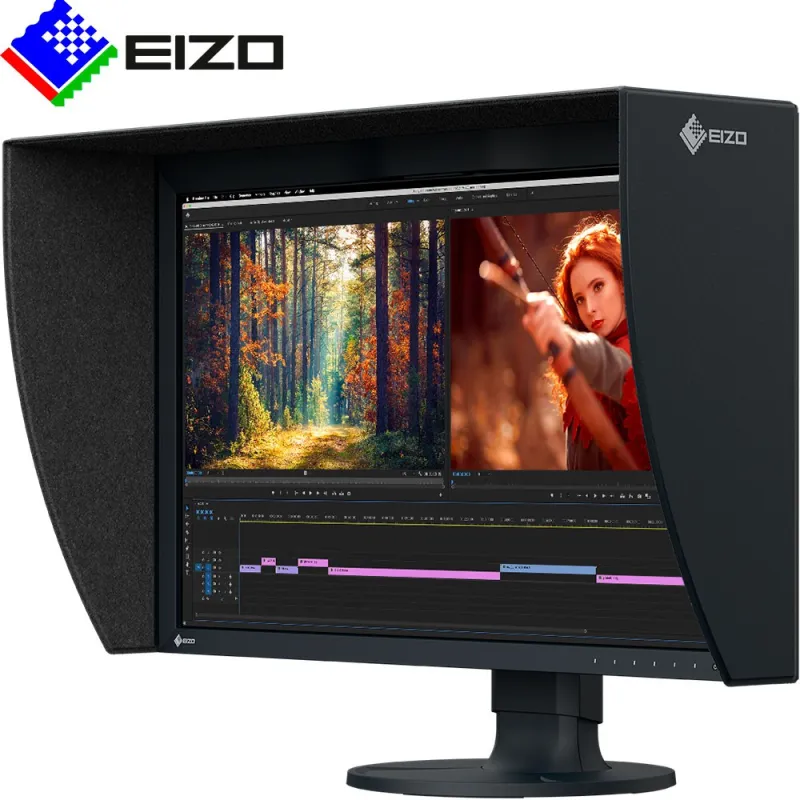
What to get. Skip the touch monitor entirely. Invest in a calibrated Eizo orASUS ProArt reference display. Add a Tangent Ripple or Loupedeck for color grading if you want hands-on control.
Colorist
Touchscreen is not recommended for grading. Color accuracy is everything in your work. Touch layers introduce uniformity issues. Most touch monitors can't be hardware-calibrated the way dedicated grading displays can.
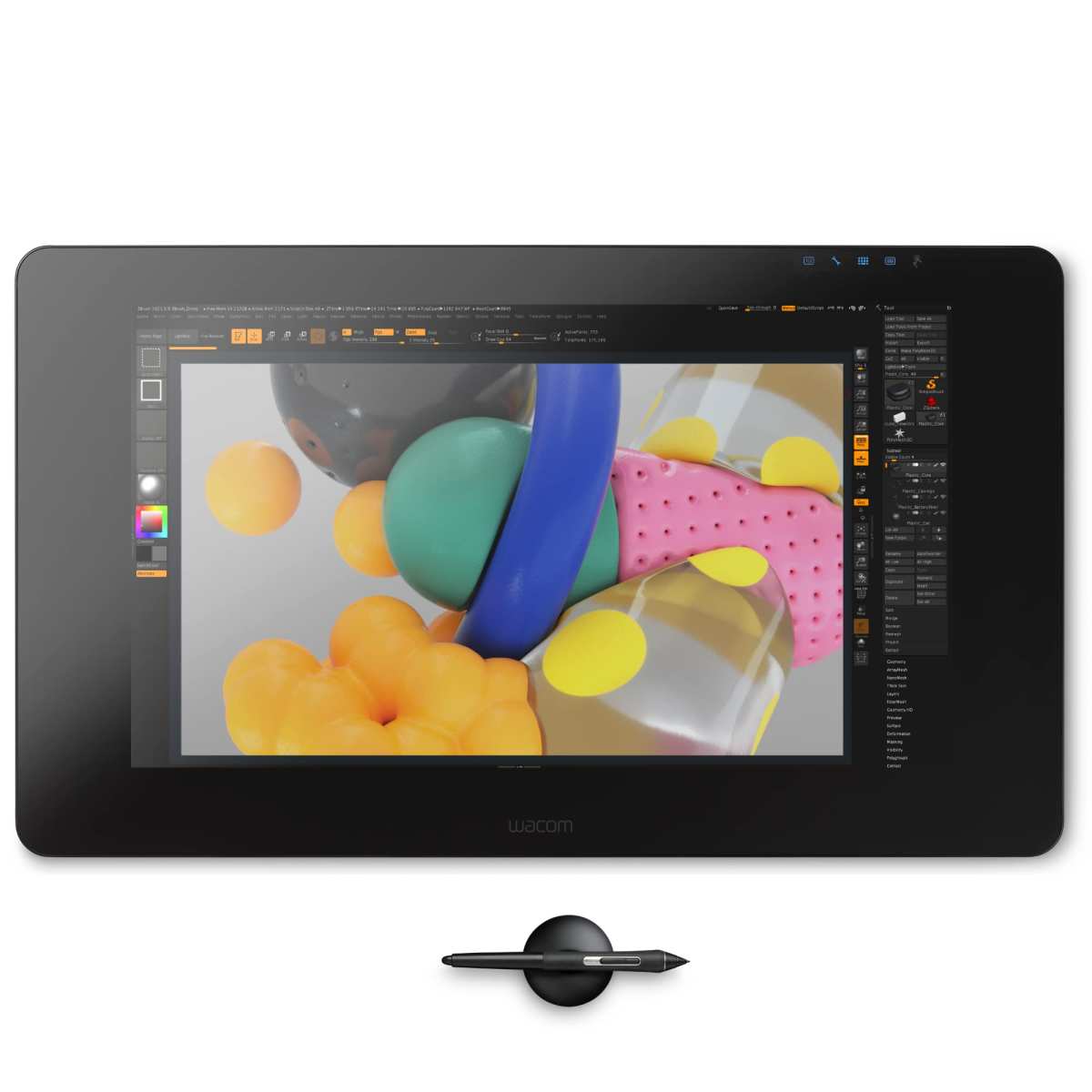
Pen input is useful sometimes. A Wacom Cintiq helps with power windows and tracking masks. But that's pen-specific, not touch in general.
What to get. An Eizo CG or ColourSpace SFB for your grading display. A Wacom Cintiq Pro for pen work when needed.
Motion Graphics / After Effects Artist
Mixed answer. Pen displays are genuinely useful for mask creation, roto work, and character animation. Touch alone doesn't help much since After Effects is timeline-and-keyframe heavy.
What to get. Wacom Cintiq 22 or Cintiq Pro 27 if budget allows. These give you pen input without sacrificing color quality the way consumer touch monitors do.
| Editor Type | Touch Useful? | Best Option |
|---|---|---|
| YouTuber / Content Creator | Yes, quite useful | Touchscreen laptop or iPad Sidecar |
| Professional Editor | Minimal benefit | Skip touch, get calibrated monitor |
| Colorist | No | Eizo CG series + pen display for masks |
| Motion Graphics Artist | Pen yes, touch no | Wacom Cintiq Pro |
| Documentary Editor | Minimal benefit | Keyboard shortcuts + control surface |
| Freelance Generalist | Situational | External touch monitor as secondary display |
Decision Branch 2: What Software Do You Use?
Your NLE's touch support varies wildly. This matters because even the best touch monitor can't compensate for software that ignores touch input.
DaVinci Resolve
Limited native touch support. Resolve was designed for keyboard and control surface workflows. Touch gestures work for basic timeline navigation and clip selection. Touch doesn't integrate deeply into the Color page or Fusion.
Pen input is the exception. If you're doing rotoscoping in Fusion or painting power windows on the Color page, a pen display helps significantly. That's pen-specific though, not touch in general.
Verdict. A touch monitor adds basic functionality. A pen display adds precision capability. Don't buy touch expecting Resolve to feel like an iPad app.
Adobe Premiere Pro
Basic touch support exists. Premiere recognizes touch input for timeline scrubbing, clip selection, and program monitor gestures. Pinch-to-zoom works. But most advanced functions (effects controls, audio mixing, Lumetri color) are mouse-dependent or keyboard-driven.
Verdict. Usable but not transformative. Touch handles casual interactions well. Professional workflows still default to keyboard and mouse.
Final Cut Pro
macOS doesn't support natively touch displays for FCP. Apple never released a touchscreen Mac. Your trackpad gets gesture support (swipe to skim, pinch to zoom), but FCP on a touch monitor won't respond to touch input the way iPad apps do.
Workaround. iPad Sidecar gives you a touch display for your Mac. You can drag the FCP timeline or viewer to the iPad screen and interact with it via touch. Some editors like this.
Others find it sluggish.
Verdict. Buy touch expecting Sidecar use only. Don't expect plug-and-play touch support in FCP.
Avid Media Composer
Minimal touch support. Avid is keyboard-driven to its core. Touch adds almost nothing to the editing experience. If you're an Avid editor, you've already memorized hundreds of shortcuts.
Touch would slow you down.
Verdict. Skip it. Put the money toward Avid hardware or a better reference display.
Mixed professional NLE like Avid has no meaningful touch integration.
Verdict. Touch is a waste for Avid users.
| Software | Touch Support Level | Pen Support | Recommendation |
|---|---|---|---|
| DaVinci Resolve | Basic gestures | Strong (recommended) | Get pen display, not touch monitor |
| Adobe Premiere Pro | Good basic support | Moderate | External touch monitor works okay |
| Final Cut Pro | None native | Via Sidecar only | iPad Sidecar if you want touch |
| Avid Media Composer | None | None | Skip touch entirely |
| Final Cut Pro X | Via Sidecar | Via Sidecar | iPad as secondary, not primary |
Decision Branch 3: What's Your Setup and Budget?
Your physical setup and wallet size narrow things down fast. Touch isn't one category. It's several price tiers with wildly different capabilities.
Laptop-Based Mobile Editor
Touchscreen laptops work well here. A Dell XPS 15, HP Spectre x360, or Microsoft Surface Laptop Studio gives you touch built in. No extra monitor needed. No desk space sacrificed.
The trade-off is screen size. Most touchscreen laptops top out at 15 or 16 inches. That's fine for travel editing.
It's cramping for a full timeline view across a feature project.
Budget. $1,000 to $2,500 for a capable editing laptop with touch.
Desktop Editor Wanting Touch Addition
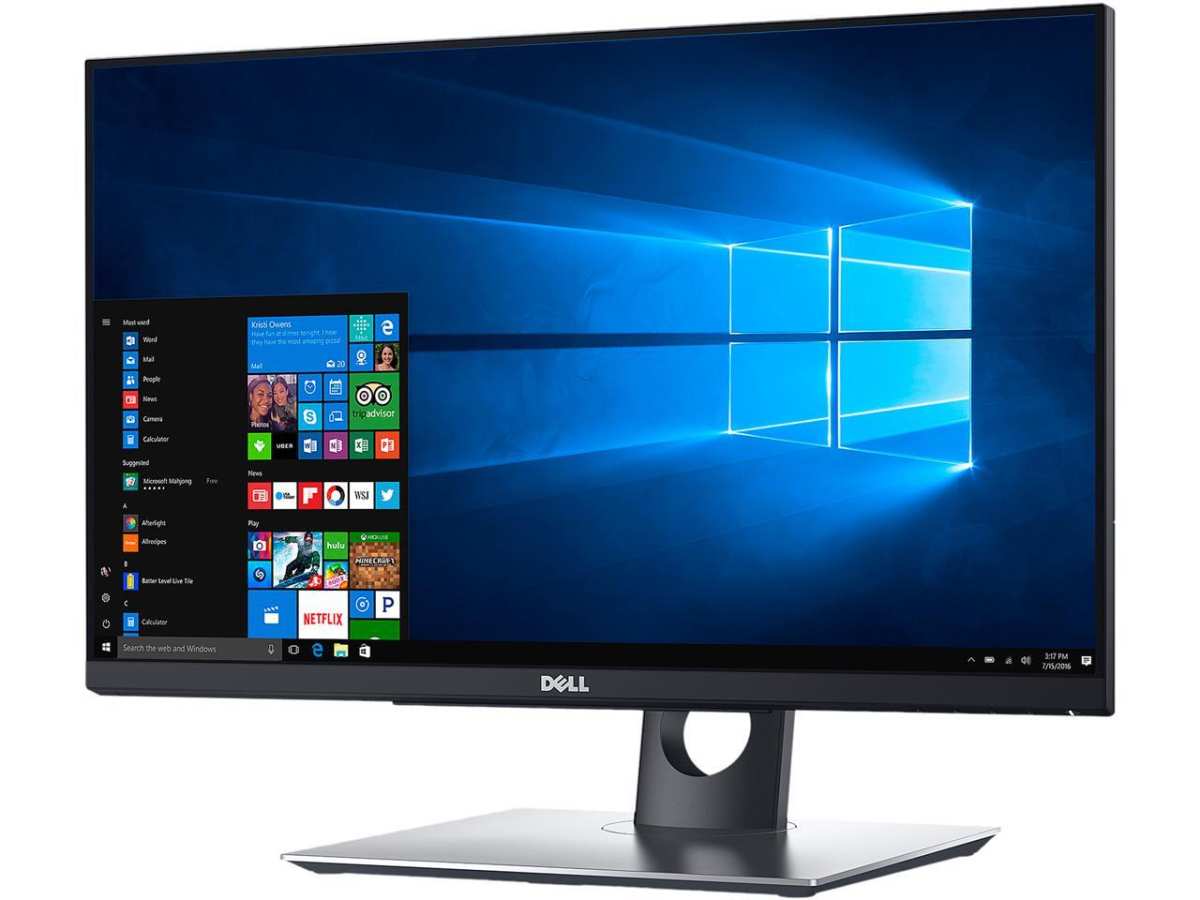
An external touch monitor serves you better here. Something like the Dell P2418HT (24 inch, 1080p, about $280) or the ASUS VT229H (21.5 inch, about $200) adds touch without replacing your main display.
You keep your calibrated reference monitor for color work. The touch monitor handles timeline work, asset browsing, and review sessions. Dual-display setup with one touch is genuinely useful.
Budget $200 to $500 for a decent external touch monitor.
Wacom Cintiq or Cintiq Pro
Pen displays sit in their own category. These aren't touch monitors. They're pen-driven displays where you draw directly on screen with a stylus. Some models add touch as a secondary feature.
The Cintiq Pro 24 and 27 offer 4K resolution, wide color gamuts (covering DCI-P3 and Adobe RGB), and pressure-sensitive pens with 8,192 levels. They're designed for professional color work and precision masking.
Budget. $1,500 to $5,000 depending on size and model. This is serious investment territory.
iPad as Touch Display for Mac
Sidecar is built into macOS. If you have a Mac and an iPad, you already own a touch display setup. Connect wirelessly or via USB-C. Drag your editing software's interface to the iPad screen.
Luna Display and Duet Display extend this to Windows machines. Latency varies. Wired connections feel snappier than wireless.
Budget. $800 to $1,800 for an iPad that doubles as your touch display. You might already own one.
| Setup Type | Best Touch Solution | Typical Budget | Best For |
|---|---|---|---|
| Mobile editor | Touchscreen laptop | $1,000-$2,500 | Travel, on-location editing |
| Desktop editor | External touch monitor | $200-$500 | Dual-monitor workflow |
| Precision work | Wacom Cintiq Pro | $1,500-$5,000 | Color grading, masking, roto |
| Mac user | iPad Sidecar | $800-$1,800 | Versatile, portable setup |
| Budget-conscious | iPad + Luna Display | $400-$800 | Entry-level touch workflow |
The Real Drawbacks Nobody Talks About
Marketing shows clean screens in bright studios. Real-world use tells a different story. These are the issues that don't make the spec sheet.
Smudges and Screen Maintenance
Every time you touch the screen, you leave oil and fingerprints. On a glossy touch display, those marks are impossible to ignore. You'll wipe your screen multiple times per session.
Anti-fingerprint coatings exist but wear down after six to twelve months of regular use. Once the coating degrades, smudges become harder to clean and the surface feels different under your fingers.
Gorilla Arm and Physical Fatigue
This is the big one. Reaching forward to touch a vertical or near-vertical screen puts strain on your shoulder, elbow, and wrist. It's fine for 30-second interactions.
It's exhausting over a four-hour editing session.
Ergonomic studies on touchscreen use confirm what users report. Extended arm-elevated postures lead to discomfort and reduced task accuracy. Tilting the screen helps somewhat.
But no tilt angle fully eliminates the fatigue problem.
Color Accuracy Compromise
Most consumer touch monitors prioritize affordability over color precision. The touch sensor layer sits between your eyes and the actual display. That layer can reduce brightness by 10 to 15 percent and introduce slight color shifts.
Professional-grade touch displays exist. They're expensive and rare. For most editors, a non-touch calibrated monitor outperforms a touch monitor in color-critical work every time.
Accidental Touches
You'll brush the screen with your wrist while reaching for your keyboard. Your palm will rest on the bezel during normal mousing. Without good palm rejection, these accidental inputs trigger unwanted actions.
Palm rejection has improved in recent years. It's still not perfect. Most touch monitors require you to disable touch input entirely when doing precision work.
Which defeats the purpose of having touch in the first place.
When a Touchscreen Monitor Actually Makes Sense
After all those caveats, touch still earns its spot in specific situations.
- You do rough cuts and assembly before fine-tuning. Touch speeds up the initial pass. You switch to keyboard and mouse for the final polish.
- You present edits to clients frequently. Letting a client point at the screen and interact during reviews feels collaborative. It impresses people who aren't used to it.
- You work in short-form content. YouTube videos, social media clips, and ads don't require the same precision as feature films. Touch works fine here.
- You also do photo retouching or graphic design. Touch and pen input help with Lightroom adjustments, Photoshop masking, and Illustrator work. The monitor pulls double duty.
- You want a dual-purpose display. One screen for editing, one for presentations or team reviews. Touch adds value to the second use case.
- You use pen input for masking and rotoscoping. A pen display with touch capability gives you precision where it matters and convenience where it doesn't.
When to Skip It Entirely
Sometimes the answer is just no. Here's when touch adds nothing to your workflow.
- You edit long-form content. Documentaries, films, and broadcast shows demand keyboard shortcuts and mouse precision. Touch slows you down.
- Color accuracy is critical. If your deliverables require Rec. 709 or DCI-P3 compliance, stick with a hardware-calibratable non-touch display.
- You rely heavily on keyboard shortcuts. Premiere and Resolve power users memorize hundreds of shortcuts. Touch can't compete with that speed.
- Your software doesn't support touch well. Avid editors and most Resolve colorists won't benefit from touch input.
- Budget is tight. A $400 touch monitor costs the same as a better non-touch display with superior color accuracy. Spend on color, not touch.
Quick Decision Guide
Use this table as your final checkpoint before buying.
| Your Situation | Recommendation |
|---|---|
| YouTuber, short-form content | Touchscreen laptop or iPad Sidecar |
| Freelance editor, varied work | External touch monitor as secondary display |
| Professional editor, precision work | Skip touch, invest in calibrated monitor + control surface |
| Colorist | Skip touch entirely |
| Motion graphics artist | Pen display (Cintiq), not touch monitor |
| Mobile editor | Touchscreen laptop |
| Client-facing presentations | Touch monitor adds value |
| Budget under $500 | iPad + Luna Display or basic external touch monitor |
| Budget over $2,000 | Wacom Cintiq Pro + calibrated reference display |
Common Mistakes People Make
We've seen these patterns repeat across forums, user reviews, and professional editing communities.
- Buying a touch monitor expecting it to replace keyboard and mouse. It won't. Touch supplements traditional input. It doesn't replace it.
- Choosing touch over color accuracy for professional work. A Delta E under 2 matters more than pinch-to-zoom when your client expects broadcast-quality output.
- Ignoring ergonomics. If your touch monitor sits at normal desk height and distance, you'll hate using it within a week. Plan for tilt or arm-mount options.
- Not checking software compatibility before purchasing. Buy a touch monitor, plug it into Avid, and you've wasted your money. Verify your NLE supports touch gestures first.
- Assuming all touch monitors are equal. A $200 consumer panel and a $3,000 professional pen display share a touch layer. They share almost nothing else.
- Forgetting about calibration limitations. Most consumer touch monitors can't be hardware-calibrated. Software calibration helps. It doesn't fix uniformity issues caused by the touch layer.
Frequently Asked Questions
Can I use a touch monitor with DaVinci Resolve?
Yes, but with limitations. Basic timeline navigation and clip selection work through touch. The Color page and Fusion don't have deep touch integration.
A pen display helps more than a touch monitor for Resolve work.
Does touch input work with Final Cut Pro?
Not natively. macOS doesn't support touch displays for FCP. You can use iPad Sidecar to add touch capability. The experience works but isn't as seamless as native touch support would be.
Will a touch monitor affect color accuracy?
Usually yes, slightly. The touch sensor layer can reduce brightness uniformity and introduce minor color shifts. Professional pen displays handle this better than consumer touch monitors.
For critical color work, a non-touch calibrated display remains the standard.
Is a Wacom Cintiq the same as a touchscreen monitor?
No. A Cintiq is a pen display designed for drawing and precision input. Some models include touch as a secondary feature.
A touchscreen monitor prioritizes finger input and general display use. They serve different primary purposes.
How much should I spend on a touch monitor for editing?
For a basic external touch monitor, expect to spend $200 to $500. For a professional pen display with touch capability, budget $1,500 to $5,000. A touchscreen laptop runs $1,000 to $2,500 depending on specs.
Can I add touch to my existing monitor?
Yes, through touch overlay kits. Companies like Touch International and PQ Labs sell add-on touch panels that mount over existing displays. These work but add parallax and can reduce image quality.
A purpose-built touch monitor usually performs better.
Final Verdict: The Practical Answer
A touchscreen monitor is a nice-to-have for video editing, not a game-changer. It helps with specific tasks like timeline scrubbing, rough assembly, and client presentations. It slows you down for precision work like frame-accurate trimming and color grading.
If you're choosing between a better non-touch monitor and an equivalent touch monitor, go non-touch every time. Spend that money on color accuracy, brightness, and panel quality instead.
If you already have a solid reference display and want touch as a secondary benefit, an external touch monitor or iPad Sidecar setup makes sense. Don't let touch be the deciding factor in your editing display purchase. Let your workflow dictate the tools, not the other way around.

Similar Posts





















