Is Ultrawide Better Than 4K Monitor
If you sit at a desk every day or game at night, the question "is ultrawide better than 4k monitor" keeps popping up. Both trackpads offer high-resolution, immersive visuals, but they attack the problem in opposite directions. One pushes raw pixel density.
The other feeds you width.
That choice decides how much you'll see on screen, how sharp small text looks, and what your graphics card has to push each frame. It's not a simple winner-takes-all. Let's break the whole thing down.
Quick Answer
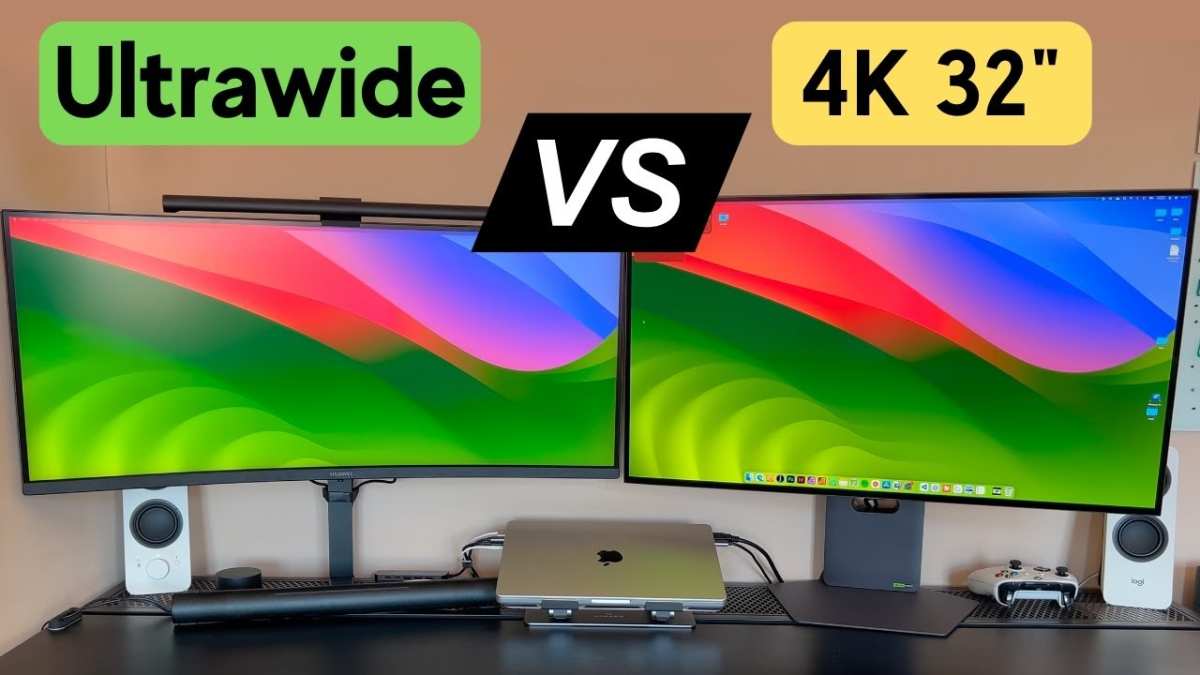
"Ultrawide" wins for multitasking and immersive peripheral vision. "4K" wins for crisp, detailed work and maximizing screen real estate per inch. You pick ultrawide for pure horizontal space and cinematic feel.
You go 4K when pixel-perfect sharpness matters more than width. Neither is objectively better for everyone.
Why Are You Really Trying to Decide Between Ultrawide and 4K?
Most folks aren't just buying a monitor. They're wrestling with how this screen fits their routine. Do you need three documents open at once?
Then horizontal space saves your sanity. Are you editing 4K footage or fine-tuning design layouts? Then pixel density crushes everything else.
Budget and desk space keep sneaking into the decision too. A full ultrawide panel sits heavy on wallets and desks alike. A 27-inch 4K monitor plays nice with tighter setups.
The "better" choice becomes very specific once you name what you'll actually do eight hours a day.
Manufacturers keep pushing both categories hard in 2026. Flat 4K displays dominate productivity segments. Curved ultrawides still define maximum immersion for racing and sim enthusiasts.
Knowing which one serves your actual needs solves this debate faster than any spec sheet.
What Ultrawide and 4K Actually Mean (Beyond the Specs)
Ultrawide refers to displays with a 21:9 aspect ratio. The common resolution is 3440×1440 on a 34-inch diagonal. You get 33% more horizontal pixels than standard QHD.
Super-ultrawide pushes further to 32:9, offering resolutions like 3840×1600 or 5120×1440. These act as dual-monitor replacements without a gap in the middle.
4K, technically Ultra-HD, delivers 3840×2160 pixels at the standard 16:9 aspect ratio. On a 27-inch screen, you get around 163 pixels per inch. That's noticeably sharper than the ultrawide equivalents.
Jump to a 32-inch 4K panel, and you still land at 140 PPI, slightly softer but far denser than a 21:9 panel of the same diagonal.
The naming gets muddy when ultrawide and 4K cross paths. Some ships call themselves "4K ultrawide" at 3840×1600. That's still ultrawide in aspect ratio, but the vertical pixel count falls short of true 2160-line 4K.
Always check the exact resolution, not just the marketing phrase.
How Ultrawide Monitors Perform in the Wild
Ultrawide monitors deliver glowing horizontal real estate. You can pin a research document on one side and live data or messaging on the other. Sim racers finally see their side mirrors and cockpit edges without running three screens.
Editors can collapse a full timeline across one display without constant scrolling.
The 21:9 ratio draws you into a game's environment. The field of view expands horizontally, making peripheral threats visible from the corner of your eye. Racing sims, flight simulators, and fast-paced RPGs feel dangerously alive.
The curve wraps around your natural line of sight and reduces neck strain during long sessions.
Where Ultrawide Shines
- Immersive gaming and simulation running native 21:9 support
- Wide timeline editing for video workflows
- Multitasking across two or more full-width windows
- Replacing a single display rather than a dual-monitor rig
Where Ultrawide Falls Flat
Text clarity takes a hard hit at lower pixel density. A 34-inch ultrawide sits around 110 PPI. Modern LCD rendering can't always hide its pixels at close range.
For general office work, the added width makes text slightly softer than a standard 27-inch 4K display.
Some older or poorly ported games don't support 21:9 aspect ratios. You'll see stretched HUD elements or awkward black bars. While titles from 2022 onward handle ultrawide well enough, older games can cause headaches.
Even if a game runs, the GPU must maintain those extra pixels.
The Real Numbers Behind Ultrawide
| Spec | Standard Ultrawide | Super Ultrawide |
|---|---|---|
| Resolution | 3440×1440 | 3840×1600 – 5120×1440 |
| Typical Diagonal | 34 inches | 43 – 49 inches |
| PPI Range | 109 – 111 | 100 (larger panels) |
| GPU Load | ~20% lighter than 4K | Closer to 4K demand |
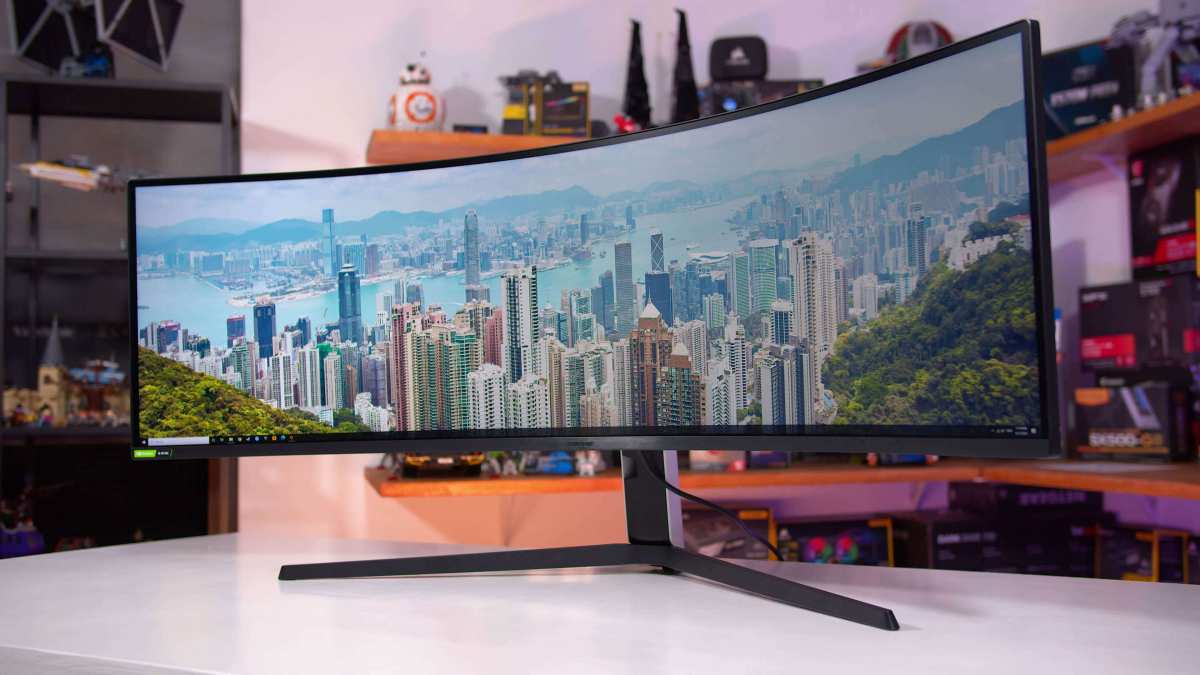
Manufacturer specs confirm panel differences beyond resolution. Curved ultrawides often use VA panels, which draw deep blacks. But IPS ultrawides are catching up fast, offering better color accuracy where creators need it.
How 4K Monitors Perform in the Wild
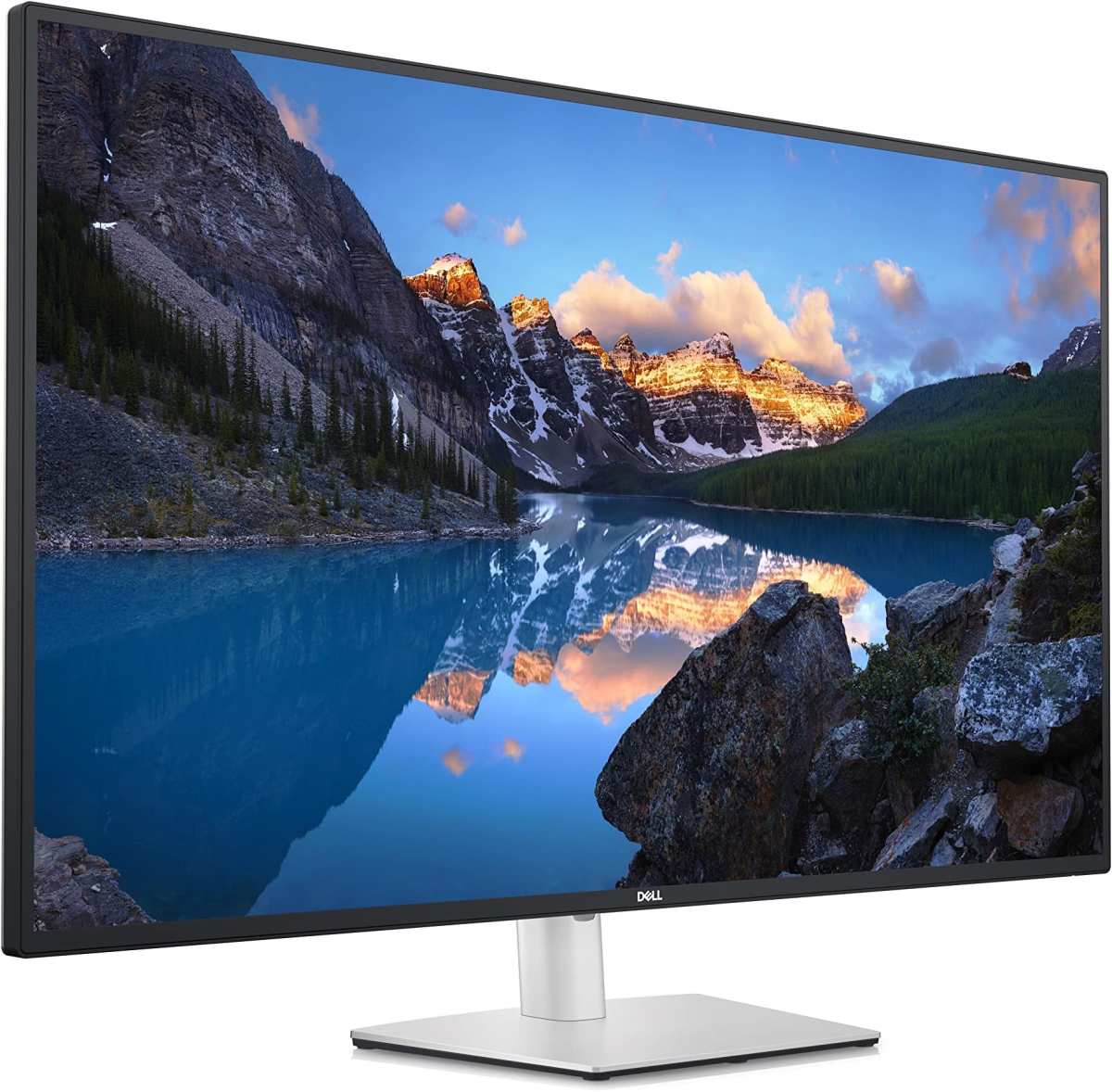
4K monitors bring something ultrawide can't: tiny, sharp pixels packed into smaller display sizes. On a 27-inch 4K panel, you land at approximately 163 PPI. That density feels just like modern laptops and productivity displays.
One glance makes everything look sharper.
On a 27-inch display, you inherit standard 16:9 ergonomics. Scaling settings become negligible, meaning no fiddling to get readable text. Windows sits at the expected readable size by default.
The move to 32-inch 4K lowers density slightly but keeps fonts legible without custom scaling.
Where 4K Crushes It
- Text and detail precision perfectly optimized for dense spreadsheets and heavy coding
- Working inside footage timelines frame by frame on a single screen
- Maintaining comfort while looking at intricate assets in CAD or design applications
- Requiring less GPU pushing high-resolution games (though still taxing)
Where 4K Feels Cramped
Information architects and data crunchers need horizontal space to represent their data. When you step out of a story or toggle browser tabs with 4K, the lack of side space becomes quickly apparent. The 16:9 ratio will always force more toggling and tab-switching than an ultrawide panel does.
Higher resolutions also demand more from your system. While ultrawide gaming pushes some extra pixels too, 4K asks even more questions of your GPU. The difference drives up hardware costs until the GPU can manage those heavy 8.3 million pixels each frame.
For pure media consumption, a 4K panel keeps its own with cinema footage. You're dealing with razor-sharp playback. Some ultrawide displays look soft in comparison unless you pay close attention to panel materials and natural color science.
Side-by-Side: Ultrawide vs 4K on the Metrics That Actually Matter
Pixel Density and Text Sharpness
4K wins this round at any diagonal under 32 inches. A 27-inch 4K panel sits confidently around 163 PPI. A 34-inch ultrawide drops to about 110 per inch.
The difference is huge for people reading text all day.
When scaled at 200% on a 32-inch 4K display, the workspace size mimics a 1440p screen but with crisp visuals intact. The ultrawide setup can't duplicate that density without shrinking fonts to illegible sizes. Heavy office users will almost always appreciate the sharper 4K screen.
Screen Real Estate and Multitasking
Ultrawide has the edge here. Should I need two full-size documents open, ultra-wide makes that happen without special geometry. Asymmetrical windows fit more applications, comfortably sized and visible.
Even using tools like Microsoft PowerToys FancyZones, the ultrawide forces less compromise.
4K matches the real estate on paper, but elements scale differently depending on resolution versus physical size. The ultrawide's wide aspect ratio doesn't require a dedicated dual-monitor arm or third-party monitors. You open something full-screen and maximize.
Gaming Immersion and Compatibility
For immersion-centric gamers, ultrawide displays win every time. The wider field of view in gaming outweighs the raw overhead of higher resolutions. Sim racing and flight simulators especially benefit from the additional visibility.
Ultrawide panels keep wider availability for different displays. You're left waiting to update games as they integrate proper support. Given the 16:9 standard for gaming on most releases, 4K gets first dibs on resolution and performance.
GPU Load and Hardware Demands
Resolution matters for GPU load. 3440×1440 at 120Hz gives your card breathing room for smoother frame rates at lower resolutions. A 4K 120Hz setup demands much higher quality hardware, squeezing components like the RTX 4070 Struggles hard around AAA games at 4K Ultra.
High-refresh ultrawide gaming requires lower overhead than the equivalent 4K setup. A slightly dated GPU gets breathing room on the 3400 side of the equation. If you're running a mid-range system right now, expect demands to rise quickly at 4K resolution.
Price Per Inch: Are You Overpaying?
A high-end 34-inch ultrawide gaming monitor around $800 to $1,000. 4K productivity displays frequently dip near that price. 4K 144Hz gaming displays routinely surpass $900 and trace up to $1,400.
For HDR gaming at silky refresh rates, OLED panels shock out costs. Samsung's 57-inch 7680×2160 dual 4K display hits thousands of dollars. Still, the flagship ultrawide and premium 4K markets meet and need similar spending ceilings.
Ultrawide vs 4K Monitor Comparison
When you cut past the marketing noise and look at side-by-side specifications ultrawide and 4K resolve rivalries very clearly. The table below tracks the actual overlap and distinctions.
| Metric | Ultrawide | 4K |
|---|---|---|
| Aspect ratio | 21:9 or 32:9 | 16:9 |
| Standard resolution | 3440×1440 | 3840×2160 |
| Vertical pixels | 1,440 | 2,160 |
| Gaming field of view | Expanded | Standard |
| Text sharpness | Good | Excellent |
| Desk footprint | Wide | Moderate |
| GPU requirement at 144Hz | Moderate | Very high |
| Typical price (gaming focus) | $500-$1,200 | $250-$2,000 |
Best Pick by Use Case
Gaming (Immersion and peripheral vision)
A high-refresh ultrawide with 3440×1440 resolution delivers immersive peripheral views without crushing mid-range GPUs. Sim racers and open-world RPG players see more of the world at native aspect ratios. The curve itself wraps the environment around your field of view.
For general gaming and average titles, 4K displays at 120Hz handle the action, but expect narrower scope. Ultrawide always brings the spectacle. If playing co-op or fast competitive games, 4K still offers its strengths.
Productivity and Content Creation (Detail and accuracy)
4K excels where dense detail and precise visuals are required. Photographers zoom into raw files without losing contrast. Designers can examine vector assets and CSS code with healthier visual legibility.
Browsers and Office applications scale on smaller 4K screens without missing any content.
Ultrawide setups fill secondary needs in productivity, but when pixel-level sharpness is the main requirement, a 4K screen gets priority alone. Horizontal space means little when the content demands sharp fidelity.
Mixed Use (A balance of both)
When gaming and working coexist, you must identify the dominant use pattern. If your work takes up most of the day but gaming means unwinding on weekends, prioritize 4K. If work is light switching but gaming drives the purchase, ultrawide takes the mantle.
Some newer screens hit the compromise. A 4K ultrawide like 3840×1600 at 37 inches elevates above full 4K 27-inch displays through hybrid screen width and sharpness. High-end HDMI 2.1 bandwidth hits 120 Hz refresh or even overclock-friendly settings, softening the tradeoff.
Common Mistakes People Make When Choosing
Buying Ultrawide Expecting Universal Game Support
Don't assume every newest or older game will support 21:9 or 32:9 textures. Older engines often output stretched field of views at unsupported aspect ratios. Picking a specific title may resolve the problem, but in many cases, you must check community forums for compatibility patches.
Buying 4K for a Smaller Desk
Larger 4K displays need substantial viewing distance to look natural. If you're settling in with a 16-inch laptop or compact table space at 32-inch resolution density, you'll end up scaling severely. Larger ultrawides face this struggle doubly if mounted on smaller desks or awkward positions.
Ignoring Viewing Distance and Curve Compatibility
Curved panels work best when aligned directly at eye level. Aggressive curvature ratios like 1000R demand you sit especially tight to take advantage of its encompassing perspective. Improper positioning ruins the immersion a curved screen supposedly offers.
Panels with 1500R up to 1900R curves offer flexibility. Keep in mind whether the added depth can fit comfortably in your workspace before selecting higher pitch curves.
Getting Tricked by Fake HDR on Either Display Type
Many displays have HDR capabilities listed at VESA DisplayHDR 400 certification as a marketing pull. These cannot effectively get worthwhile gamma shifts to brightness. Opt for a display rated above DisplayHDR 600 or True Black standards for true visual impact.
HDR support remains a bonus on either ultrawide or 4K categories. Without peak brightness and local dimming integration, a manufacturer's claim doesn't translate into bigger onscreen contrast. Real HDR rarely appears below company's specialized high-end machines.
Expert Tips Before You Buy
Before purchasing, you'll benefit from the following tips.
Test Your Desk Dimensions and Return Policy First
Width and depth matter enormously. Measure where the monitor's arc will sit and calculate how far it intrudes on your usable workspace. Many ultrawides extend aggressively forward from mounting points.
Return policies double as backup plans. Test screens may feel uncomfortable after hours of use in real environments. Don't get locked into a settlement that keeps pushing your display away.
Match Panel Type (IPS, VA, OLED) to Your Actual Use
IPS offers wider viewing angles ideal for people who shift positions or require accurate colors at offset angles. VA panels reach deep blacks ideal for viewing content at darker settings. OLED perfects every pixel individually, emitting clean color with flawless contrast.
Panel types ultimately overlap. Each connection between refresh rates, resolutions, and curvature gets influenced directly by the underlying display technology you choose.
Check Your GPU's Muscle Before Committing to 4K
Genuine 4K gaming at 144 frames per second is a monumental feat even for an RTX 4090. Most mid-range cards like the RTX 4070 and 4080 comfortably handle 4K at 60Hz or even 120Hz in AAA games.
An ultrawide resolution stresses the GPU to half the demand, especially if sub-rung cards like the 4070 can handle finer frame caps. Underspending at 4K will limit your visual peak across demanding titles.
FAQs
How does ultrawide compare to 4K in raw pixels?
A 4K display delivers just over 8.3 million pixels. Ultrawide standard 3440×1440 quantum tops at around 4.9 million pixels. The ultrawide panel defies the 4K standard with lower pixel draw demands and reduced GPU overhead.
Can an ultrawide replace dual monitors?
Most ultrawides succeed completely at replacing single setups with careful third-party tools like FancyZones. Advanced video editors and data analysts may still prefer dual real displays because of reliability factors, but for most productivity users the single canvas makes sense.
Are ultrawides still popular in 2024?
High expectations have been fixed around support from top-tier titles without sacrificing native refresh rates. Ultrawides dominate peripheral-centric genres including racing and flight simulators. Anything demanding higher resolutions stays targeted at 4K displays.
Does PS5 work with 4K monitors?
Sony's console offers native 4K output up to 80Hz at 3840×2160. PS5 ultrawide support remains painfully limited by typical aspect ratios. For console players, 4K displays make the most sense over ultrawide.
Real Scenarios That Make the Choice Obvious
Picture a day trader keeping six windows visible at once. Spreadsheets, news feeds, chat platforms, and live charts all demand horizontal space. An ultrawide display eliminates the need for dual screens entirely.
No bezel gap interrupts the workflow.
Think about a freelance photographer retouching high-resolution images. A 27-inch 4K panel gives those fine details room to breathe. Every texture and edge remains crisp during edits.
The ultrawide adds width but sacrifices the precision these professionals require.
A software developer's story splits the difference. Two side-by-side code editors feel natural on ultrawide. Debugging tools and documentation sit comfortably beside the main workspace.
When that developer also games at night, the ultrawide pulls double duty.
Frequently Asked Questions
How does scaling work on a 4K monitor for office work?
Windows lets you bump scaling to 150% or even 200% on 4K panels. This keeps text and interface elements readable without squinting. Most modern applications handle scaling well enough that daily work feels natural.
What happens when a game doesn't support ultrawide?
Many titles output black bars on the sides. Some stretch the image uncomfortably. Community fixes like Flawless Widescreen or game-specific patches resolve issues for older releases.
Playing games before buying often guarantees native support confirmation.
Do ultrawide monitors work well for spreadsheet work?
The extra horizontal space lets users load many columns without constant scrolling. Accountants and data analysts frequently prefer ultrawide aspect ratios. Full spreadsheets combine visible datasets without scrolling.
What size desk do I need for a 34-inch ultrawide display?
Desks at 55 inches or wider serve this purpose comfortably. Standard 48-inch desks fit but keep viewing distances short. Curved ultrawides intrude deeper because of their curvature extension.
Measuring depth beyond desk width becomes just as vital.
Which displays offer HDR generally across both standards?
True HDR requirements push both types practically above DisplayHDR 600 certification. Samsung's Odyssey OLED lines deliver excellent HDR natively. LG's UltraGear 4K series balances price effectively against improved HDR ratings.
Decision Flow: Which One Fits Your Situation Right Now
Walk through these scenarios to find your match.
Scenario 1: Your priority is competitive gaming at high refresh rates.
Mid-range card like the RTX 4070 picks ultrawide 3440×1440 resolution comfortably rendering 144Hz and above. Higher resolutions lower FPS more substantially.
Scenario 2: You own an RTX 4090 or RX 7900 XTX.
Either configuration serves you just as well. Ultrawide frames keep up if vertical edits require more focus. 4K panels deliver crisp designs and media playback comfortably.
Scenario 3: Your desk depth sits well under 24 inches.
Smaller pivots work with the physical footprint. Full ultrawide curves push closer to your face, creating worse viewing geometry. Compact 4K panels pair tighter since flat screens sit closer to walls.
Scenario 4: Budget sits firmly under $400 USD.
Shop 4K primary for this tier. Budget ultrawide panels drop to 1080p resolution feels limited at larger diagonals. Decent 4K displays from Dell and LG regularly reach discounted prices.
Scenario 5: You split half your screen between meetings and documents.
Ultrawide panels let both windows fill half-screen comfortably. 4K displays work too but keep windows smaller relative to monitor width. The sacrifice is straightforward tradeoffs.
What to Do Next
Both display types improve yearly at all prices. The steps help you start confidently.
- List your primary tasks. Write down the three things you'll spend most time doing daily right now.
- Check your GPU specs. Confirm if your card runs 4K at acceptable frame rates as of 2026 requirements.
- Measure your desk. Verify width and depth fit the configuration you're considering.
- Test in-store if possible. Retail displays show how ultrawide curves really feel versus flat panels.
The right choice depends entirely on your specific combination of needs. Pick ultrawide for immersion and multitasking. Pick 4K for detail work and future-proof sharpness.
Neither decision ever really goes wrong when it matches what you'll actually use it for.

Similar Posts





















