Is Dual Monitor Setup Better Than Single Ultrawide
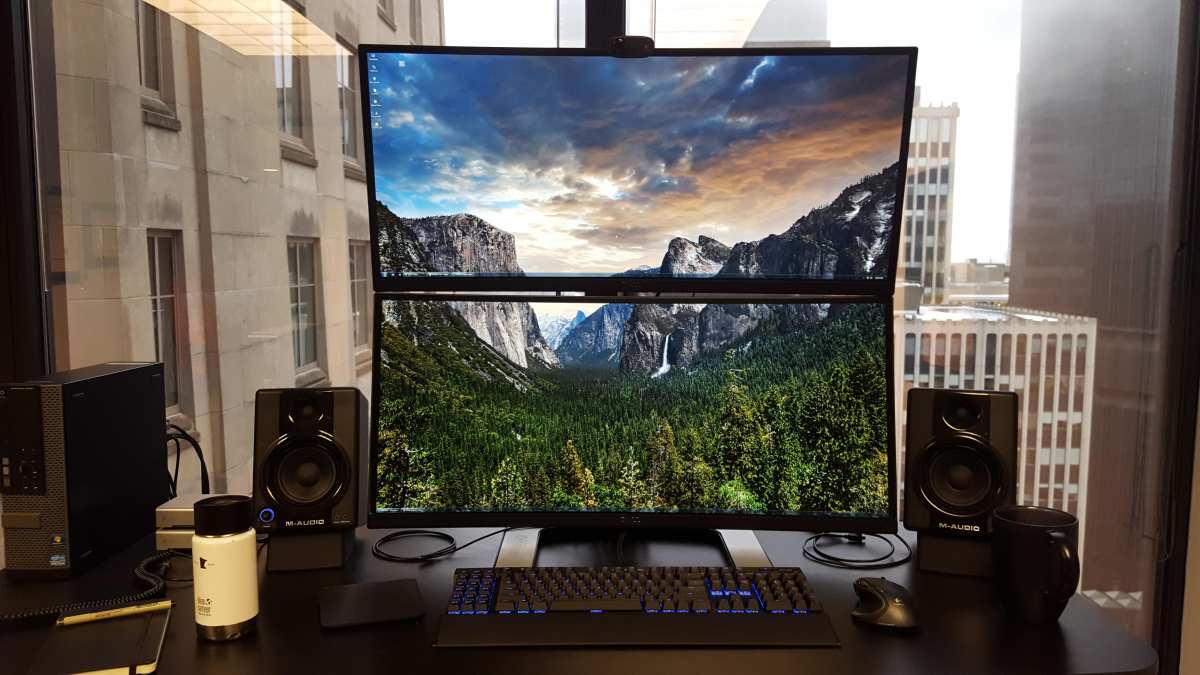
Image source: Bing (Web (fair-use with source credit))
Is dual monitor setup better than single ultrawide? The honest answer is that neither option wins across the board. Your choice should come down to what you actually do on your computer day to day, how much desk space you're working with, and whether you value raw flexibility or a clean, unified display more.
Research on multi-display setups consistently shows productivity gains of 20 to 30 percent for tasks involving multiple applications, but those studies don't isolate dual monitors from ultrawides specifically. Both setups offer more screen real estate than a single standard monitor, and both earn VESA compliance for modern display standards. The real differences show up in the details, which is exactly what we'll walk through here.
Quick Answer
Neither setup is universally better. Each works best for different workflows and spaces.
Dual monitors give you clear separation between tasks. They offer more flexibility and usually cost less. A single ultrawide gives you a bezel-free view that's better for immersion and video work.
Your best choice depends on what you do for hours at a time, not on a spec sheet. Choose based on your actual workflow.
What Each Setup Actually Gives You
Before we compare them head to head, let's get clear on what each setup actually is and what it offers in practice.
Dual Monitor Setup: Two Independent Screens
A dual monitor setup means two separate displays sitting side by side on your desk. Each monitor operates as its own independent screen with its own bezels, its own resolution, and its own connection to your computer. You can run them at different sizes, different resolutions, even different orientations (one landscape, one portrait).
The most common configuration people gravitate toward as of 2026 is dual 27-inch 2560×1440 (1440p) monitors with IPS panels. That gives you a combined resolution of 5120×1440 across two screens with a physical bezel gap right down the middle.
What you get:
- Two clearly separated workspaces (full-screen apps stay on one display)
- Flexibility to mix sizes, orientations, and resolutions
- Easier to replace or upgrade one screen at a time
- Redundancy if one monitor fails
- Typically lower total cost for comparable quality
What you deal with:
- Bezel gap right in the center of your field of view
- Potential for mismatched colors and brightness between the two panels
- More cables and more desk space consumed
- Your operating system treats them as separate displays (window management differs)
One thing worth noting: your GPU needs to support at least two displays. Almost every dedicated GPU made in the last decade handles that without issue, but some laptops with integrated graphics struggle with dual external monitors unless you use a docking station with DisplayPort MST (Multi-Stream Transport) daisy chaining or a USB-C dock with dual output.
Single Ultrawide: One Continuous Display
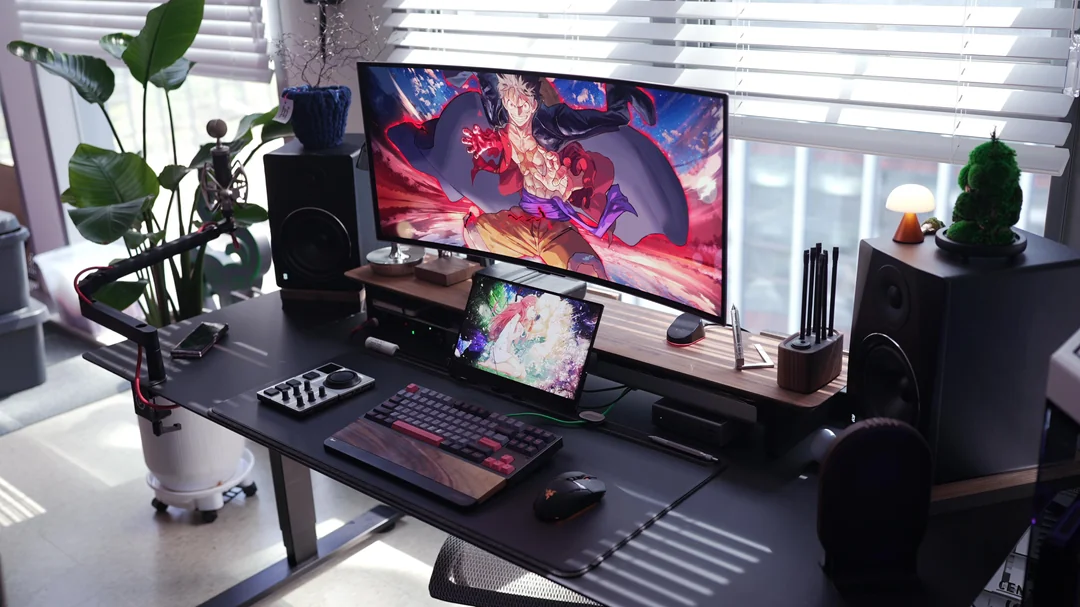
A single ultrawide monitor replaces both screens with one panoramic display. The most popular size is 34 inches at 3440×1440 resolution with a 21:9 aspect ratio, though 38-inch (3840×1600) and 40-inch (5120×2160) models have been gaining ground. On the extreme end, super ultrawides like the 49-inch 5120×1440 or the 57-inch Samsung Odyssey Neo G9 with its 7680×2160 resolution push into territory that genuinely replaces three standard monitors.
What you get:
- No bezel gap, one seamless field of view
- Simpler cable management (one display, one video input)
- Cleaner desk footprint
- Immersive gaming and video watching experience
- Easier laptop docking, often a single USB-C cable handles video, power, and data
What you deal with:
- Single point of failure (if the monitor dies, you have no display)
- Premium pricing at the high end, especially for OLED and Mini LED panels
- Not all games and applications support 21:9 or 32:9 aspect ratios natively
- Some ultrawides use PBP (Picture-by-Picture) to simulate dual screens, but it's a software workaround, not a native dual-display experience
A curvature of 1500R or 1000R is common on larger ultrawides. That curve helps reduce the head-turning required at the edges, which matters more as the screen gets wider. A flat 34-inch is fine for most people, but once you hit 38 inches and above, curved is almost mandatory for comfortable viewing.
Side-by-Side Comparison at a Glance
Here's a snapshot of how the two setups stack up across the factors that actually matter.
| Factor | Dual Monitor (e.g., 2x 27" 1440p) | Single Ultrawide (e.g., 34" 3440×1440) |
|---|---|---|
| Combined resolution | 5120 x 1440 (with bezel gap) | 3440 x 1440 (seamless) |
| Bezel | Center gap between screens | None |
| Full-screen apps per display | Native, one per screen | Requires PBP mode or software zones |
| Flexibility | Mix any two monitors | Locked into one panel |
| Cost (mid-range) | Often cheaper per inch of area | Premium for equivalent quality |
| Desk space needed | Moderate to high (two stands) | Lower (one stand or arm) |
| Cable management | More cables | Fewer cables |
| Gaming immersion | Good, but bezel breaks the view | Excellent, fills peripheral vision |
| Laptop docking | May need dock or two cables | Often single USB-C cable |
| Failure risk | One failure = still have a screen | One failure = no display |
Where Dual Monitors Win
Dual monitors hold a real advantage in specific situations. Here's where they make the most sense.
Developers running code on one screen with documentation or a browser on the other. This is probably the most popular dual-monitor use case. You keep your IDE on one display and your reference material on the other. The bezel gap isn't a problem because you're not trying to view a single continuous image.
Traders and financial analysts. Multi-screen setups with dedicated displays for charts, order books, news feeds, and communication tools are standard in trading. The ability to isolate a critical piece of data on its own physical screen reduces the chance of missing something important.
Writers and researchers. Having a word processor on one screen with research, PDFs, or notes on another keeps the writing workspace clean. You're not alt-tabbing every 30 seconds.
Anyone who relies on fullscreen applications. If you're running a fullscreen video call on one screen while working on another, dual monitors handle that natively. Ultrawides can do it with software window management, but it adds a step.
Budget-conscious buyers. Two solid 27-inch 1440p IPS monitors from a brand like Dell or LG can be had for $400 to $600 total. A quality 34-inch ultrawide at similar color accuracy and refresh rate often runs $350 to $800, and the premium models with OLED or Mini LED backlighting climb well past $1,000.
People who want a safety net. If one monitor dies, you still have another while waiting for a replacement. For anyone working on deadline-critical tasks, that redundancy matters.
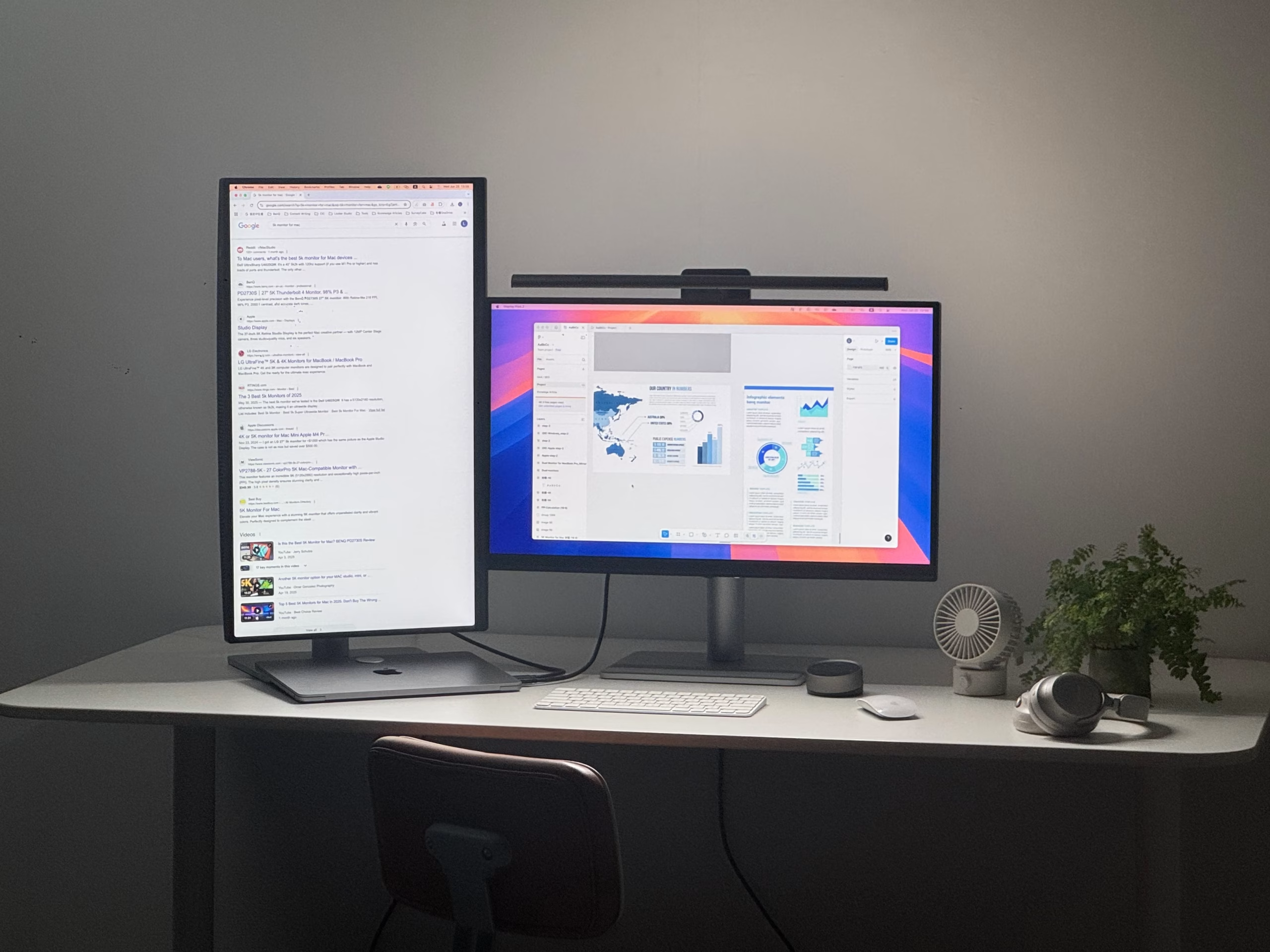
Image source: Bing (Web (fair-use with source credit))
Where a Single Ultrawide Wins
The ultrawide format shines in a different set of scenarios. These are the situations where a single panoramic display genuinely outperforms two separate screens.
- Video editing. This is the ultrawide's strongest suit. A long timeline stretching across a 21:9 or 32:9 display gives you far more horizontal room to see your edit without constant scrolling. DaVinci Resolve, Premiere Pro, and Final Cut Pro all benefit significantly from the extra width. The lack of a bezel gap means your preview window sits cleanly in the center with no interruption.
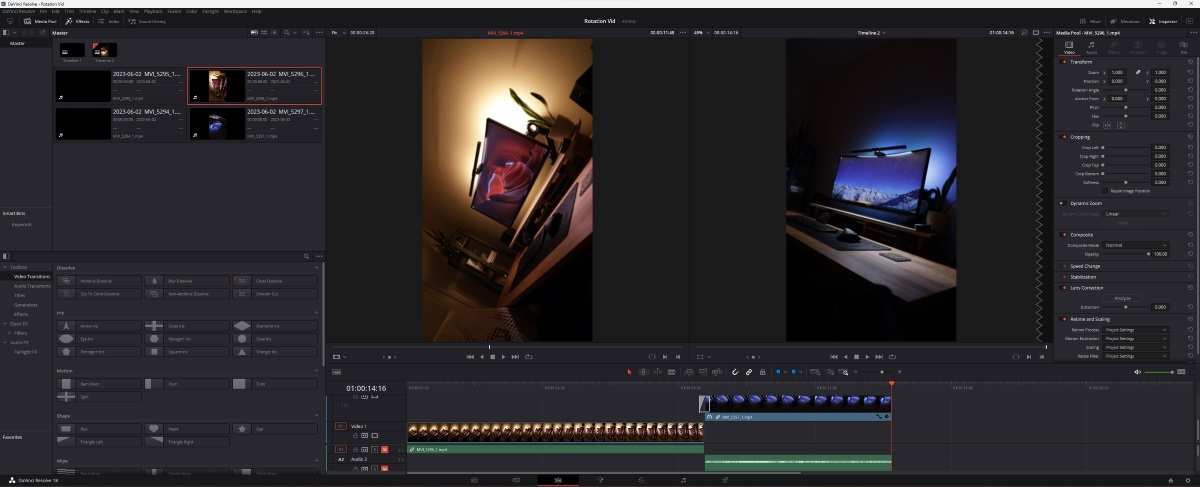
Image source: Bing (Web (fair-use with source credit))
Immersive gaming. First-person games, racing sims, flight sims, and open-world titles benefit enormously from the wider field of view. Your peripheral vision gets filled, which creates a level of immersion that dual monitors simply can't match (because the bezels break the image). As of 2026, support for 21:9 in modern AAA titles is widespread, though some competitive multiplayer games still crop or letterbox the image.
Remote workers who dock a laptop. A single USB-C or Thunderbolt cable connecting your laptop to an ultrawide can carry video signal, charge your laptop, and connect peripherals through the monitor's built-in USB hub. That's a genuinely cleaner desk experience than plugging in multiple cables for a dual-monitor arrangement.
Limited desk space. If your desk is shallow or narrow, a single ultrawide on one arm takes up less room than two monitors with two stands. Many VESA-mounted ultrawides free up the entire desk surface beneath them.
People who hate managing windows. If the idea of configuring FancyZones in PowerToys or manually dragging windows to the right display sounds tedious, an ultrawide with built-in PBP mode and native OS snap zones might actually be simpler. You still manage windows, but you're doing it on one continuous canvas rather than across two separate displays.
Sim racing and flight simulation. These genres crave horizontal field of view above almost everything else. A curved 49-inch super ultrawide puts the cockpit dash on one side, the road or runway ahead, and your mirrors or wing views on the other, all without a bezel splitting the scene.
One practical detail worth mentioning: many ultrawides now include KVM switches built into the monitor. That lets you connect two computers (say, a work laptop and a personal desktop) to one ultrawide and switch between them with a button press, using the same keyboard and mouse. It's a small feature that ends up being surprisingly useful day to day.
The Productivity Question: Does More Screen Space Actually Help?
Yes, but with a catch. Studies on multi-display setups consistently find that adding a second display improves productivity for multi-application workflows. The research points to output improvements in the 20 to 30 percent range for people who work across several documents, communication tools, and reference materials simultaneously.
However, those studies don't cleanly separate dual monitors from ultrawides. The benefit comes from having more usable screen area, not from the physical form factor. A single 49-inch super ultrawide at 5120×1440 provides the same total pixel count as dual 27-inch 1440p monitors.
The productivity difference between those two setups comes down to workflow fit, not raw screen area.
Where the research is clear: a single monitor of any size creates a bottleneck. You're constantly alt-tabbing, resizing windows, or losing track of information hidden behind other applications. Breaking past that bottleneck is where the gains come from.
Whether you break past it with two screens or one wide screen matters less than that you do it.
One nuance worth considering: physical head and neck movement. Research on workplace ergonomics suggests that frequent head turning across two monitors can contribute to neck fatigue over long sessions, especially if the monitors are angled sharply. A curved ultrawide keeps more of the display within a comfortable viewing arc, typically around 60 to 80 degrees of total horizontal coverage.
That's a real comfort factor for people who work 8-plus hours a day.
How Your Workflow Should Decide for You
Let's move past generalities. Here's what each setup looks like in the specific scenarios that actually drive this decision.
Software Development and Programming
Dual monitors edge ahead here. Most developers run an IDE on a primary display with a browser, terminal, documentation, or communication tool on the secondary. The physical separation makes it easier to mentally partition "writing code" from "managing context." Fullscreen a terminal on one screen, keep your IDE maximized on the other, and you rarely think about window management.
An ultrawide works too, especially with a tool like PowerToys FancyZones on Windows, which lets you snap predefined window layouts. But you're still managing everything on one display surface. When you want to push an app to true fullscreen, it either takes the whole ultrawide (wasteful) or you need to manually size it.
Dual monitors handle that automatically.
Creative Work (Video, Photo, Design)
Ultrawide wins for video editing. The timeline benefits are real and substantial. DaVinci Resolve, Premiere Pro, and Final Cut Pro all use horizontal space for their timelines, and having more of it visible means less scrolling and faster editing decisions.
Color grading panels and effect controls sit on one side while the preview stays centered, all without bezel interruption.
For photo editing and graphic design, the answer splits. If your work involves a lot of tool panels alongside your canvas (Photoshop, Illustrator), an ultrawide gives you a more natural layout. If you mostly work on a single image or layout without much panel clutter, dual monitors let you keep reference images on one screen and your work on the other, which some designers prefer.
Office and Productivity Tasks
This is where it gets boring, and boring workflows are exactly where this decision matters most. For email, spreadsheets, documents, and web browsing, neither setup has a decisive advantage. Both options dramatically outperform a single standard monitor.
The deciding factor here is usually ergonomics and desk setup. If you're fitting a workspace into a small home office, a single ultrawide on a monitor arm frees up desk real estate. If you're in a corporate office with standardized equipment, dual 24-inch monitors are often what IT provides, and they get the job done.
One practical note: if your workflow includes a lot of video calls, dual monitors let you dedicate one screen to the call and keep your work on the other. With an ultrawide, the call window floats over your workspace unless you use virtual desktop software to separate contexts. It's minor, but it's the kind of friction that adds up over months of daily use.
Gaming
Ultrwide wins this category for single-player gaming. The immersion factor is real. A curved 34-inch or 49-inch display at 21:9 fills your peripheral vision in a way that a single monitor simply can't.
Titles like Cyberpunk 2077, Elden Ring, and Baldur's Gate 3 are noticeably more enveloping on an ultrawide. Support for 21:9 resolution in modern games is widespread, though some older titles or competitive multiplayer games may default to 16:9 with black bars.
Competitive FPS players often disagree. Many esports-focused players prefer a single high-refresh-rate 24-inch or 26-inch monitor because it keeps everything in their direct field of view without requiring head movement. If you're playing Valorant or Counter-Strike at a competitive level, a single fast monitor beats an ultrawide for target acquisition speed.
For sim racing and flight simulation, ultrawide (or super ultrawide) is the clear choice. These genres are built around wide peripheral vision. The cockpit experience on a 49-inch curved display is genuinely transformative compared to a flat single screen.
Trading and Financial Analysis
Dual monitors remain the standard here, and for good reason. Traders typically run multiple data streams that need to be visible simultaneously but understood independently. Stock tickers on one screen, charting software on another, news wire on a third.
The physical separation helps the brain categorize information.
A super ultrawide like the 49-inch or 57-inch can replicate this with virtual desktops and PBP mode. Some traders prefer that setup because it removes bezel gaps and keeps everything within a single panoramic view. It works, but it requires deliberate window management discipline.
Without it, windows drift and the advantage disappears.
Setup, Cables, and the Annoying Stuff Nobody Tells You
The setup experience is where dual monitors and ultrawides diverge in ways that affect daily quality of life.
Dual monitor setup requires two video cables (DisplayPort or HDMI), two power cables if the monitors lack USB-C power delivery, and ideally a dual monitor arm to keep your desk clean. Most decent monitors come with a basic stand, but those stands eat desk space and make positioning harder. A VESA monitor arm rated for two displays (100x100mm pattern per arm) is a worthwhile investment.
Budget around $40 to $80 for a decent gas-spring dual arm.
DisplayPort 1.4 with DSC (Display Stream Compression) supports 2560×1440 at 144Hz per monitor over a single cable. That's more than sufficient for productivity and gaming. Just make sure your GPU has enough DisplayPort or HDMI outputs for both monitors at their native resolution and refresh rate.
Single ultrawide setup is simpler on the cabling side. One DisplayPort 1.4 or HDMI 2.1 cable connects the monitor. If the monitor supports USB-C Alt Mode with power delivery (common on 38-inch and larger models from Dell, LG, and Samsung), a single USB-C cable from your laptop handles video, data, and charging.
That's a massive convenience for people who dock and undock throughout the day.
The catch: larger ultrawides are physically demanding to set up. A 49-inch monitor weighs around 30 to 40 pounds depending on the model and stand. You'll probably need a second person to lift it onto a monitor arm.
Make sure your arm is rated for the weight. The Ergotron LX and HX series are commonly recommended for ultrawides up to 49 inches, but always check the weight capacity rating against your specific monitor.
One more thing: ultrawides need desk depth. A 34-inch ultrawide at 1500R curvature sits about 12 to 14 inches deep from the front edge of the screen to the wall behind it. A 49-inch super ultrawide needs even more.
If your desk is only 24 inches deep, you'll find yourself sitting too close to a large ultrawide, which causes eye strain and makes it harder to see the edges without turning your head.
Common Mistakes People Make When Choosing
These are the errors we see most often when people commit to one setup without thinking it through.
Buying two mismatched monitors and wondering why everything looks off. If you're going dual, try to match the model, panel type, and color profile. Mixing an IPS panel with a TN panel creates a visible color shift between screens that's distracting all day. Even two monitors of the same model from different production batches can have slight variation. Calibrate both with the same settings at minimum.
Ignoring GPU output limitations. Some integrated GPUs only support two displays total (the laptop screen plus one external). If you're trying to run two external monitors from a laptop with integrated graphics, you may need a USB-C dock with DisplayPort MST. Check your GPU specs before buying monitors, not after.
Underestimating the desk space a dual setup needs. Two 27-inch monitors on their included stands need roughly 48 inches of desk width minimum. Add a keyboard, mouse, and some breathing room, and you're looking at a 60-inch desk. Measure before you buy.
Assuming every game supports 21:9. Many do, especially AAA titles released in the last five years. But some older games, indie titles, and certain competitive multiplayer games will either letterbox to 16:9 or stretch the image. Check your game library before banking on ultrawide compatibility.
Ignoring the bezel gap as a real problem. People dismiss the bezel as trivial until they try to drag a spreadsheet or a timeline across it. The physical gap interrupts visual flow. For some workflows that's fine, for others it's a constant irritation. Be honest about which camp you fall into.
Overlooking ergonomics entirely. Neck position matters. With dual monitors, the center seam sits directly in front of you, and you'll naturally face the bezel gap. Split your work so the primary task is on the center of one display, not straddling both. With a large curved ultrawide, position it so the center of the screen aligns with your natural forward gaze, and keep the top of the screen at or slightly below eye level.
Realistic Pricing Breakdown (2024–2025)
Prices shift, but here's a realistic picture based on current manufacturer MSRPs and common street prices.
| Setup | Typical Price Range | What You Get |
|---|---|---|
| Dual 24" 1080p IPS monitors | $200 – $350 total | 1920×1080 per display, basic stands, 60-75Hz |
| Dual 27" 1440p IPS monitors | $400 – $700 total | 2560×1440 per display, IPS, 60-144Hz |
| 34" 1440p ultrawide (IPS) | $350 – $700 | 3440×1440, 21:9, curved or flat, 60-165Hz |
| 38" 1600p ultrawide (IPS) | $600 – $1,100 | 3840×1600, 21:9, typically curved, 60-165Hz |
| 49" 1440p super ultrawide (VA, Mini LED) | $800 – $1,500 | 5120×1440, 32:9, curved, up to 240Hz |
| 40" 5K2K ultrawide (IPS, OLED) | $800 – $1,300 | 5120×2160, 21:9, 72-120Hz |
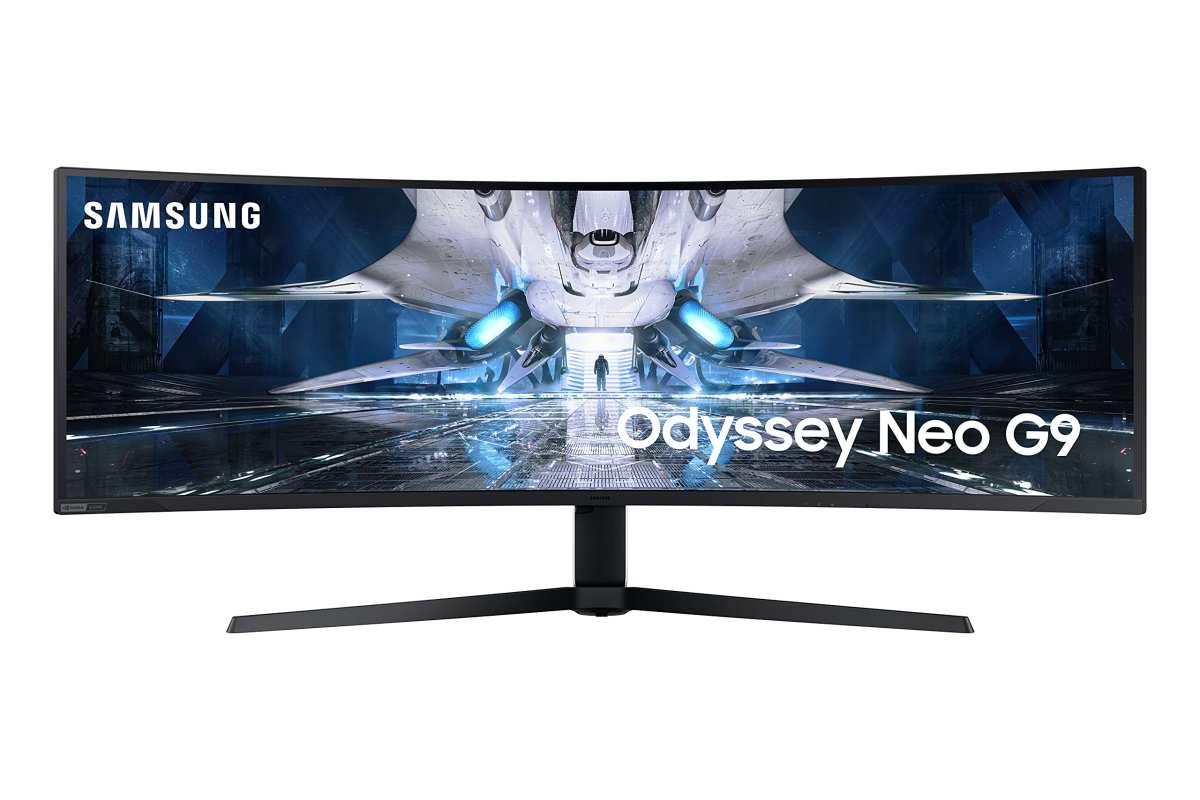
Image source: Bing (Web (fair-use with credit))
For most people doing knowledge work, the sweet spot is dual 27-inch 1440p monitors or a single 34-inch ultrawide. Either option lands in the $400 to $700 range and delivers a significant upgrade over a single standard monitor. The super ultrawide category is genuinely impressive but starts to look expensive unless you have a specific use case (sim racing, video editing, trading) that justifies the cost.
One cost consideration people miss: if one monitor in a dual setup fails out of warranty, you replace one. If an ultrawide fails, you replace the whole thing. Factor that into your long-term cost analysis if you tend to keep monitors for five or more years.
My Honest Recommendation: Who Should Pick What
Choose dual monitors if you're a developer, trader, writer, or anyone who benefits from physically separating tasks across screens. You want flexibility, redundancy, and the best bang for your buck. You don't mind managing a few extra cables.
Choose a single ultrawide if you edit video, play single-player games, dock a laptop daily, or have limited desk space. You value a clean setup and a seamless field of view. You're willing to pay a premium for that simplicity.
Choose a super ultrawide (32:9) if you're a sim racer, flight simmer, or financial analyst who would otherwise run three monitors. You want maximum immersion or data visibility in a single display. You have a deep desk and a strong GPU.
Frequently Asked Questions
Can I use an ultrawide as two separate monitors?
Yes. Most ultrawides support Picture-by-Picture mode, which splits the screen into two virtual displays. It works, but it's a software solution.
You lose the seamless experience that makes an ultrawide appealing in the first place.
Do dual monitors use more power than one ultrawide?
Generally yes. Two separate monitors with separate power supplies draw more total wattage than a single ultrawide of equivalent total screen area. The difference is modest, usually 20 to 40 watts under typical use.
Is a curved ultrawide good for photo editing?
It depends on the work. For color-critical work where straight lines matter, some professionals prefer flat displays to avoid any perceived distortion. For general photo editing and content creation, a 1500R or 1000R curve is comfortable and doesn't meaningfully affect output quality.
Will my GPU handle dual monitors?
Almost certainly, if it's a dedicated GPU from the last decade. Integrated graphics on some laptops may struggle with dual external displays. Check your GPU's maximum display output count and supported resolutions before buying.
What size desk do I need for dual 27-inch monitors?
Plan for at least 55 to 60 inches of desk width. Two 27-inch monitors side by side need about 48 inches alone. You'll want extra room for a keyboard, mouse, and some breathing space.
Is ultrawide or dual monitor better for a home office?
For most home office workers, either setup works well. If your desk is small or you value a clean setup, go ultrawide. If you want maximum flexibility and lower cost, go dual.
The productivity difference between them is negligible for standard office tasks.

Similar Posts