Do 4K Monitors Support G Sync
Let me start by clearing up the biggest misconception right away: not every 4K display with a high refresh rate will give you a tear-free experience just because it has an Nvidia logo on the product page. Do 4K monitors support G-Sync? The answer depends entirely on what's actually inside that specific panel and what GPU you're running.
Two displays that look identical on a spec sheet can behave completely differently when you hook them up.
Here's what trips most people up. Nvidia runs a qualification program and validates select displays, but only a smaller subset of those validated panels officially support 4K at 120Hz or higher over HDMI. When you're shopping or troubleshooting, that distinction matters more than any marketing badge.
Quick Answer
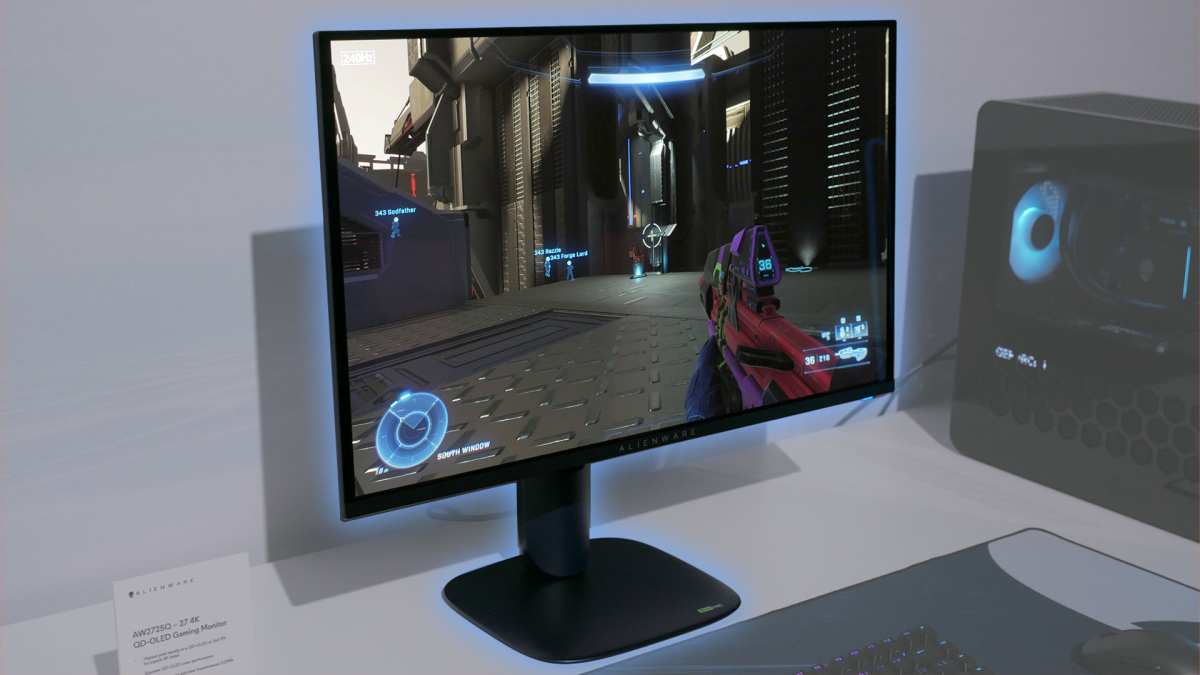
Yes, 4K monitors support G-Sync if they carry official Nvidia validation at the specific resolution and refresh rate you plan to use. G-Sync Compatible displays work over DisplayPort and often over HDMI 2.1, but you need to confirm both the connection type and your resolution target. Standard Adaptive-Sync panels may work at 4K 60Hz or 4K 120Hz with GeForce GPUs depending on the specific model, but support isn't universal.
Always verify against Nvidia's qualification database for your exact resolution and refresh combination.
What G-Sync Actually Means in a 4K Display
The Three Tiers You Need to Know
Let's break down what G-Sync actually means when you're shopping for a 4K display. There are three distinct tiers of adaptive sync support, and they're not interchangeable.
Dedicated G-Sync Module (Native G-Sync)
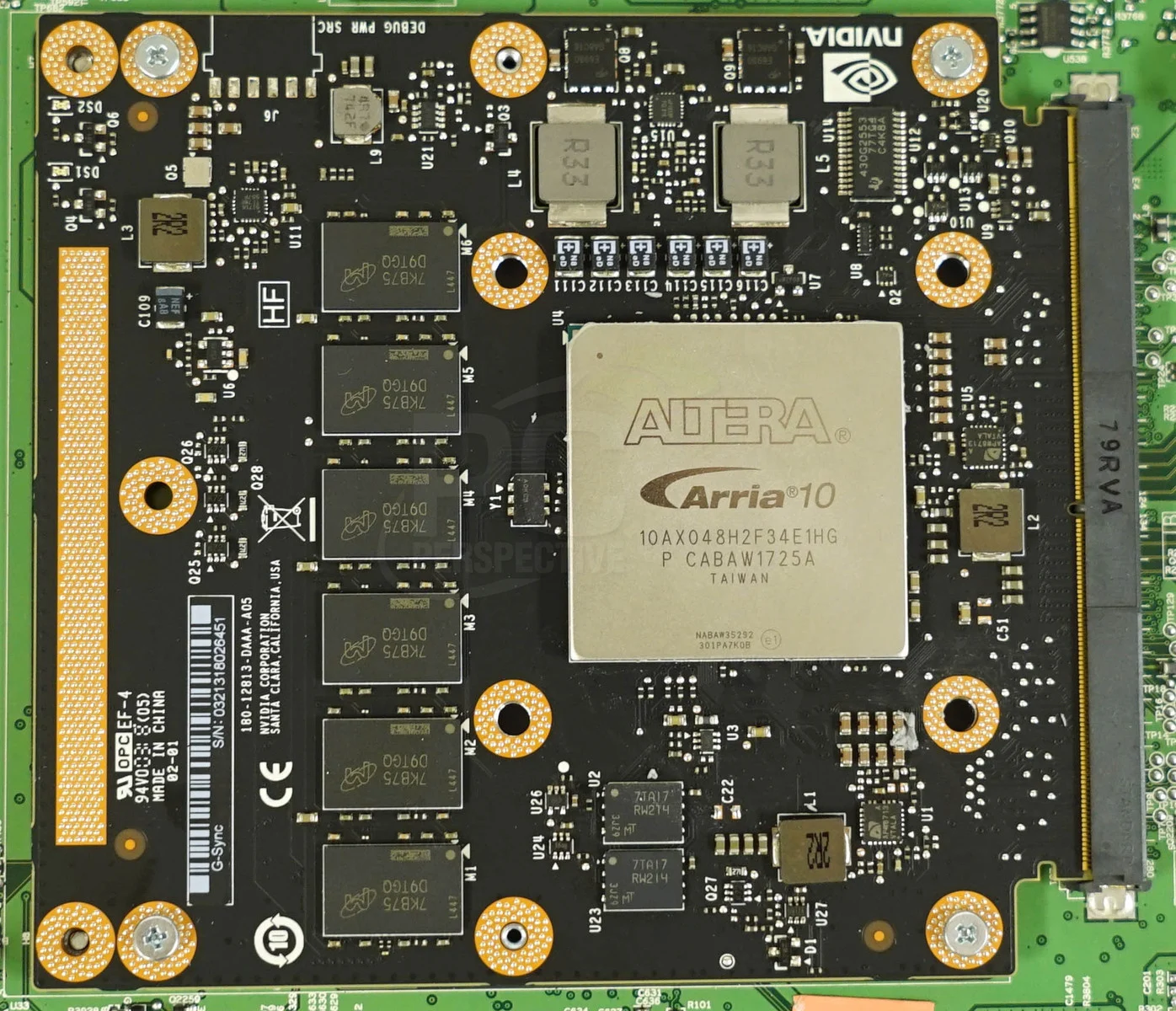
This is the real deal. A proprietary hardware chip manufactured by Nvidia sits inside the display and handles adaptive refresh. The module gives the manufacturer direct timing control, and the result is a wider refresh range (often 1Hz to the panel's maximum), consistent overdrive performance across frame rates, and built-in quality assurance.
As of 2026, these displays tend to sit in the premium tier. You're paying extra for reliability.
G-Sync Compatible (Certified Adaptive-Sync)
This is where most 4K displays land today. These panels run standard Adaptive-Sync protocols, the same signal structure that AMD FreeSync uses internally. Each model goes through Nvidia's validation process, which requires tests covering the full refresh range to check for blanking, pulsing, and artifacts.
If the panel passes, it gets added to Nvidia's qualified products list. Compatibility works automatically once you connect the right cable and toggle one setting. The price difference compared to a dedicated module can be $100 to $300+.
Uncertified Adaptive-Sync / FreeSync (Certification Unknown)
Some displays on the standard monitor list use genuine Adaptive-Sync chips but haven't gone through Nvidia's certification pipeline. Their behavior with GeForce GPUs is uncertain. Users have reported everything from flawless performance to flickering and blanking depending on the specific panel and connection type.
You're essentially beta testing with your own hardware.
Why This Matters More at 4K Than 1080p
At 3840 x 2160, you're pushing 8.3 million pixels per frame. That's four times the data of 1080p. The bandwidth requirements alone change how adaptive sync behaves.
Standard 4K displays can push 3840 x 2160 at 120Hz or 144Hz using Display Stream Compression over DisplayPort 1.4, and HDMI 2.1 handles it natively at up to 4K 120Hz uncompressed. But not every panel handles the full VRR (Variable Refresh Range) across the entire connection bandwidth. Some displays drop to a narrower refresh range, say 40 to 100Hz instead of 1 to 144Hz when running at 4K resolution.
Others enable full VRR only over DisplayPort and disable it over HDMI entirely.
The connection type and version determine what you actually get. Use the wrong port or cable and you may lose adaptive sync even though the chip itself is technically present. That's the band problem most reviews don't mention in their "G-Sync works!" headline.
Decision Tree: Does Your 4K Display Support G-Sync?
Here's where we walk through exactly what to check, in order.
Check 1: Does Your Display Have the G-Sync Module Built In?
Start by verifying whether there's actual G-Sync hardware inside the display. Don't rely on marketing. Check the specific model's spec sheet for words like "Nvidia G-Sync" (not "Compatible").
The G-Sync module has its own processor, so look for language about onboard hardware support rather than protocol support alone.
Physically, some displays show "G-Sync" on the product label or the on-screen display menu. The OSD may include a VRR option that specifically names it. When in doubt, search Nvidia's website for their list of qualified displays.
If the model appears under G-Sync Ultimate or G-Sync (not G-Sync Compatible), you've confirmed module presence.
Check 2: Is Your Display G-Sync Compatible?
Nvidia runs a qualification and validation program for displays using standard Adaptive-Sync chips. If your display model passes their tests, it's added to the qualified products list, a public database. Look up the specific model number and firmware revision on Nvidia's site.
If it appears, you have validated G-Sync Compatible support at the tested resolution and refresh rate.
Here's the subtle part. A display might be validated for G-Sync Compatible at 1080p 144Hz but not at 4K 120Hz. Always check the resolution and refresh rate you actually plan to use.
Those that are listed as qualified at 4K high refresh tend to be well-behaved across the range. If not, test it yourself or step to a different tier.
Check 3: What FreeSync / Adaptive-Sync Display Do You Actually Own?
If your display isn't on Nvidia's validated list, you need to check whether it has Adaptive-Sync support at all. Look for FreeSync, Adaptive-Sync, or VRR in the specs. If it has the display panel capability technically, you may be able to force-enable VRR in the driver settings.
But understand the risk. You might encounter blanking (screen goes black momentarily), pulsing (brightness flickering), or visible artifacts at certain frame rates. Some panels handle it fine.
Others are frustrating.
The honest truth is that forcing VRR on non-certified Adaptive-Sync displays is hit or miss. It works beautifully on enough displays to be worth trying once, but it's never a guarantee.
The Connection Problem Most People Miss
Here's the section that saves you an evening of troubleshooting. The physical connection matters tremendously for 4K G-Sync.
DisplayPort: Your Primary Option for G-Sync on 4K Displays
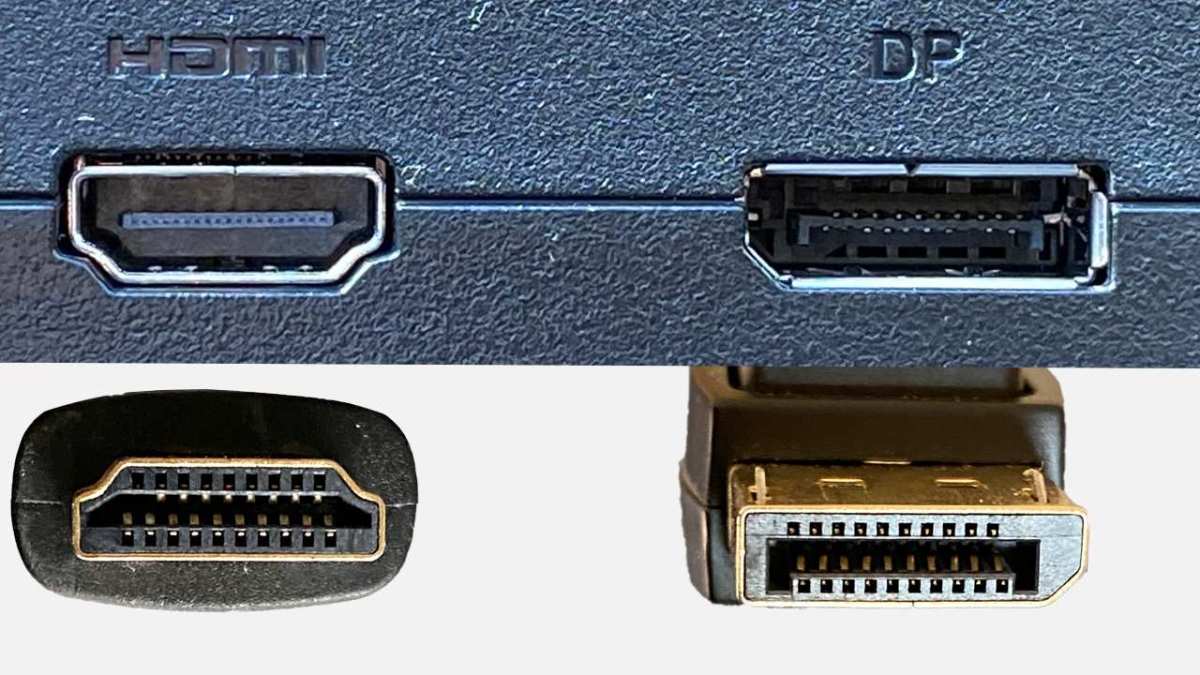
G-Sync was built on DisplayPort, and that hasn't changed. Almost all 4K displays that support adaptive sync do so over DisplayPort first. Here's what you need to know:
DisplayPort 1.4 with DSC (Display Stream Compression): This is the most common standard for 4K 120Hz and 4K 144Hz gaming displays today. DSC handles the bandwidth. Most GeForce GTX 10-series and newer (including RTX 20/30/40-series) output DP 1.4.
Use a VESA-certified DisplayPort 1.4 cable, not the cheap one that came in the box. Aggregate reviews consistently show that out-of-spec cables cause handshake failures and blank 4K screens.
DisplayPort 1.2: Found on some budget 4K displays. You're locked to 4K 60Hz maximum here, and G-Sync will work within that 30-60Hz range. Acceptable for cinematic gaming, but not ideal for fast-paced titles.
DisplayPort 2.0/2.1: Newer standard that supports 4K 240Hz without compression. Found on premium displays like the Samsung Odyssey Neo G8 and some newer Alienware panels. Full VRR support over DP native.
HDMI 2.1: Mixed Support for G-Sync
Nvidia added HDMI VRR support to GeForce drivers a few years ago, but the experience varies. Many 4K 120Hz displays with HDMI 2.1 don't actually support G-Sync over HDMI. Some handle it beautifully.
Others deliver zero VRR functionality.
The key principle: HDMI Forum VRR is the underlying standard, and Nvidia piggybacks on it. If the display was validated over HDMI, you'll see it on Nvidia's qualified list with the specific port noted. If not, assume G-Sync works over DisplayPort on that model until proven otherwise.
For console gamers, this is mostly irrelevant. PlayStation 5 and Xbox Series X use HDMI Forum VRR natively. You don't need G-Sync branding for smooth gameplay on console if your 4K display supports HDMI 2.1 VRR.
How to Actually Enable G-Sync on Your 4K Display
Step 1: Monitor OSD Settings
Before touching any GPU software, dive into the display's on-screen display menu. Look for settings labeled: Adaptive-Sync, FreeSync, or VRR. Enable it.
This activates the panel's variable refresh capability and tells the chip to accept VRR timing from the GPU signal. Without this step, the system may default to a fixed refresh rate and ignore G-Sync entirely.
Some displays have this enabled by default. Many don't. Check it early.
Step 2: Nvidia Control Panel Setup
Go to the Nvidia Control Panel (right-click desktop). Under Display, click "Set up G-Sync." Check "Enable G-Sync, G-Sync Compatible" and select your display. Choose either "Enable for full screen mode" (most compatible) or "Enable for windowed and full screen mode" (works in more scenarios but can cause issues with some applications).
Apply and restart the display. The "Setup" submenu often needs another restart to activate the module's full range on first enable.
Step 3: Verify It's Actually Running
Don't assume it works because you enabled it. Use Nvidia's built-in tools: search "Pendulum Demo" in the Nvidia folder on your system, or enable the G-Sync indicator in the Nvidia Control Panel under Display > G-Sync Indicator. A floating "G-Sync On" banner in the top-right corner confirms the module is active.
The Pendulum Demo lets you see tear-free motion without VSync lag. Run it with G-Sync on vs off, the difference is immediate and obvious. No tearing, no stutter, crisp frame transitions from the chip's variable overdose tuning.
What You're Actually Getting: Benefits & Genuine Pros
Tear-Free 4K Gaming
Screen tearing is caused by the display refreshing out of sync with the GPU's frame output. At lower resolutions and refresh rates, your eye can gloss over a tear. At 4K on a 27-32 inch panel, tears are razor-sharp and distracting.
Variable refresh matches the panel's refresh rate to the GPU's frame output in real time, so each frame shows fully and completely. The result: a stable picture that feels more immersive and less fatiguing over gaming sessions.
Reduced Stutter with Precision Tuned Variable Overdrive
On certified G-Sync displays, multiple overdrive presets adjust pixel response across the refresh range. At 100 Hz, one overdrive calibration applies; at 40 Hz, another takes over. The result is consistently fast pixel response with smeader frame transitions than you'd get from a single overdrive setting locked at one refresh rate.
4K displays running below 60 FPS in demanding titles benefit especially. The lower frame rate actually feels smoother because overdrive is tuned for it rather than smeared by an overdrive setting designed for a faster refresh rate.
Wider Refresh Range on Module-Based Displays
Dedicated G-Sync modules typically target a VRR range from 1 Hz to the panel's maximum. If the display is rated at 4K 144Hz, the chip aims to cover that entire range. Nvidia's qualification range is typically noted in the display specs, and many validated panels actually meet or exceed their conservative ratings.
Why does this matter? Low Framerate Compensation (LFC) is the answer. When your frame rate drops below the chip's minimum refresh, the display multiplies the refresh to keep VRR active.
For example, if you're rendering 35 FPS on a 144Hz display, each frame displays roughly four times. No tearing, no VSync stutter. Validated G-Sync Compatible panels have passed Nvidia's eye-check testing for LFC behavior; they genuinely deliver tear-free gameplay across the validated range.
The Downsides Nobody Tells You
Pay for the Right Features or Don't Pay
The cost difference between a G-Sync module display and a free Adaptive-Sync display can run $100 to $300 or more. That's not random pricing. The module itself has a cost, and the quality validation process is extensive.
You're not buying magic, you're buying consistency. If you're budget-conscious and running a mainstream GeForce GPU, a G-Sync Compatible validated display gives you the same tearing prevention at a lower price. The module matters mostly when you want the absolute widest refresh range or hardware-level quality assurance.
Compatibility Isn't Guaranteed
Buying a brand you trust doesn't guarantee G-Sync support. Two displays from the same manufacturer, even with similar specs, can have different internal versions entirely. One might be G-Sync Compatible while the other isn't.
Always verify the specific model number, not just the product name. There's also a difference between having Adaptive-Sync hardware and having it work with GeForce GPUs. Testing and validation are what separate those two situations.
The worst scenario is buying 4K 120Hz capability, enabling G-Sync in the driver, and getting blanking every few seconds because the panel wasn't certified. It happens more than the marketing suggests.
HDMI Support Is Surprisingly Spotty
This bears repeating because it's the number one support query. Many 4K displays with HDMI 2.1 ports absolutely do not support VRR over HDMI in practice. The port physically exists, but the handshake between the GPU signal and the display chip fails.
Before you commit to an HDMI-only console-plus-PC setup, verify on Nvidia's qualified database that the model specifically supports G-Sync over HDMI. Fall back to DisplayPort if there's any doubt. DisplayPort remains the safe, universal compatibility choice for GeForce GPUs at 4K.
4K G-Sync Displays vs Alternatives: What Should You Actually Buy?
When to Choose Dedicated G-Sync Displays
If you want zero compatibility guesswork, buy a display with the G-Sync module inside. You're paying for the widest refresh range, consistent overdrive quality at all frame rates, and built-in quality assurance at up to 1000 nits brightness. Ideal for users who plan to keep the display for five-plus years and don't want to re-validate settings after driver updates.
When G-Sync Compatible Is the Smart Move
For most people, this is the sweet spot. Check Nvidia's qualified list, verify the specific model and firmware version, buy the display, and enjoy validated VRR. The savings go toward a better GPU or a larger game library.
GTX 10-series and newer (including RTX 20/30/40-series) support G-Sync Compatible without issue. Make sure the display is validated for the exact resolution and refresh rate you plan to use.
When Standard FreeSync Displays Work on GeForce GPUs
A number of Adaptive-Sync displays work well with GeForce GPUs despite not appearing on Nvidia's qualification list. This is wild west territory. You may get perfect VRR at 4K 60Hz, or you may see occasional blanking.
If the price difference is significant and you're comfortable testing and returning if necessary, it's a reasonable gamble. Just know you're skipping the quality validation safety net.
When HDMI 2.1 VRR Makes More Sense
If your primary gaming device is a PlayStation 5 or Xbox Series X, skip the G-Sync conversation entirely. Consoles use HDMI Forum VRR natively. Find a display with a verified VRR range over HDMI 2.1, check that your specific console's VRR range matches the display's supported range, and enjoy smooth gameplay without worrying about Nvidia's ecosystem at all.
Common Mistakes That Waste Your Money
Believing Marketing Over Specs
"Nvidia G-Sync inside!" sometimes means the module. Sometimes it means G-Sync Compatible validation. Sometimes it means nothing more than a co-marketing deal.
Look beyond the sticker. Check the specific tier: module, certified compatible, or uncertified Adaptive-Sync. The difference in behavior between these tiers is real and measurable.
Brand claims can be confusing. Always verify against the qualification list, not the banner ad.
Buying Without Verifying Compatibility
Mismatching your GPU to the display's capabilities is easy to do. A GeForce GTX 10-series or newer (RTX 20/30/40-series) supports G-Sync Compatible. Older GeForce GPUs might not.
On the display side, check the specific connection scenario you'll use: 4K 60Hz over HDMI, 4K 144Hz over DisplayPort 1.4 with DSC. Bandwidth limits change what's possible.
Skipping Verification Tests
Assuming it works because the OSD says "VRR enabled" is a mistake. Verify with a tear test or a frame analysis tool. If you're seeing tearing with G-Sync enabled, something is misconfigured.
Common culprits: Adaptive-Sync not enabled in the monitor OSD, wrong connection type, or windowed mode running without windowed G-Sync enabled. Spend five minutes confirming. It saves hours of frustration later.
Quick Decision Guide
"I Want the Guaranteed, Zero-Hassle 4K G-Sync Experience"
Look for a 4K display with the G-Sync module. Expect to pay a premium, sometimes $100 to $300+ over similar Adaptive-Sync models. Install a VESA-certified DisplayPort cable, enable Adaptive-Sync in the OSD, and it's done.
Quality assurance is built into the spec.
"I'm Comforted by Validation and Want to Save Money"
Search Nvidia's qualified products list for 4K models you're considering. If the exact model appears, buy with confidence. If not, consider whether you're comfortable testing an uncertified Adaptive-Sync panel yourself.
The savings are real, but so is the risk of occasional blanking or pulsing.
"I Already Own a 4K Display and Want to Know If I Can Use G-Sync"
Search the qualified products list by your specific model and firmware version. If it appears, enable it following the steps above. If it doesn't appear but the specs note Adaptive-Sync at your target resolution and refresh rate, try forcing VRR in the driver.
Test thoroughly for blanking or pulsing. If you see problems, disabling VRR and using VSync output or an alternative sync method like Nvidia Fast Sync is your fallback.
Frequently Asked Questions
Does my expensive 4K 144Hz display support G-Sync?
Not automatically. That depends on whether you're looking at a G-Sync module version, an Adaptive-Sync variant, or a specific 21:9 panel. Verify against Nvidia's qualified products list for your exact model.
Panel names and sync capabilities vary even within the same brand's product line. The price tag alone doesn't guarantee VRR certification.
Can G-Sync work over HDMI on 4K displays?
Yes, on select models. Look for displays specifically listed as validated for HDMI VRR in Nvidia's database. Many displays support G-Sync over DisplayPort only, with HDMI VRR non-functional despite the port being physically present.
If guaranteed HDMI 2.1 VRR is critical for your setup, confirm support before buying.
Do I need Nvidia's validation or can I buy any FreeSync 4K display?
You can buy a validated G-Sync Compatible display on the qualified list, or a non-validated Adaptive-Sync panel that may work imperfectly. The difference is reliability. Non-certified panels carry a risk of blanking or pulsing at certain frame rates.
Know whether you're comfortable with that risk before saving the money.
Is G-Sync better at 4K than at lower resolutions?
The visual benefit is more obvious at 4K on high-refresh displays. Frame pacing inconsistencies are more visible with four times the pixel count, and 4K gaming more often lands below 60 FPS where G-Sync's advantages shine. Bandwidth at 4K also varies significantly depending on cable quality and DSC implementation, making verified compatibility more important.
Does VSync vs G-Sync matter at 4G?
Yes. VSync imposes input lag that your hands feel, especially when your frame rate can't sustain the display's refresh rate. G-Sync gives you tear-free output without that lag penalty.
The difference is measurable and immediately noticeable in fast-paced titles.
What's the cheapest way to get G-Sync working on a 4K display?
Find a G-Sync Compatible validated display on Nvidia's qualified list. These Adaptive-Sync panels offer VRR performance without the module premium. Alternatively, if you already own a 4K display with Adaptive-Sync support at your target resolution and refresh rate, try enabling VRR in the driver and test for stability.
Many displays perform well without formal certification, but your experience may vary.
I've already covered most practical angles in earlier sections, but a few helpful details remain for getting the best out of a 4K display with a GeForce GPU.
Tear-Free Output Without VSync Latency
If you're running a game that pushes frame rates above your display's maximum refresh, G-Sync alone may not prevent all tearing. Combine it with an FPS cap set a few frames below the maximum. This keeps the display within its range and delivers a consistently smooth input feel.
Cable Quality Matters
Always use a VESA-certified DisplayPort cable for 4K 120Hz+ setups. Non-certified cables cause handshake failures that can manifest as flickering or no signal. A cable swap often solves issues that look like GPU problems.
Driver Updates Add Support Over Time
New Nvidia drivers occasionally add validated support to previously unlisted models. If a display isn't on the qualified products list today, check again after a few driver updates.

Similar Posts





















