How Much GPU Do You Need for 4K Monitor
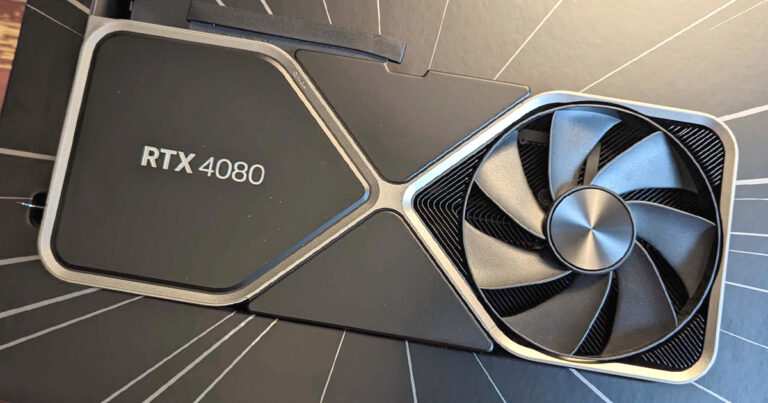
When someone asks how much GPU they need for a 4K monitor, the honest answer is that it depends entirely on what you're actually doing on that screen. A 4K desktop for spreadsheets needs far less graphics power than a 4K gaming setup pushing 144 frames per second. So let's cut through the noise and figure out exactly where you fall.
4K resolution packs over 8.3 million pixels onto your display, which is four times the pixel count of standard 1080p. That pixel density is gorgeous for text and images, but it puts real demands on your graphics hardware. Once we break down your use case, the right GPU becomes obvious pretty quickly.
Quick Answer
For basic desktop use like browsing and office work, most modern integrated graphics handle a 4K monitor just fine. Photo editing and light video work call for a discrete GPU with at least 8GB of VRAM. Serious 4K gaming demands a mid-to-high-end card like an NVIDIA GeForce RTX 4070 Ti or AMD Radeon RX 7900 XT.
Professional video production and 3D workloads benefit from 12GB or more VRAM.
The Real Answer: GPU Needs Change Based on What You Actually Do
Here's what trips people up. They see "4K" and assume they need a flagship graphics card. That's almost never true unless you're gaming or doing heavy creative work.
The GPU that struggles with Cyberpunk 2077 at 4K ultra settings will have zero problem driving a 4K display for Chrome, Slack, and Microsoft Word.
Your actual needs fall into a spectrum. On one end, you've got basic display output, the GPU just needs to push pixels to the screen. On the other end, you've got rendering, encoding, and real-time 3D workloads where the GPU is doing serious computational work at that 4K resolution.
We'll walk through every tier so you can skip straight to what applies to you.
One more thing worth noting. As of 2026, even budget-oriented discrete GPUs and modern integrated graphics support 4K output over HDMI 2.1 and DisplayPort 1.4. The connectivity question is mostly solved.
What matters now is whether the GPU can actually perform at that resolution, not whether it can technically display it.
Quick Reference: GPU Recommendations by Use Case
| Use Case | Minimum GPU | Recommended GPU | VRAM Needed |
|---|---|---|---|
| Office / browsing / media playback | Modern integrated graphics | Entry-level discrete (GTX 1650 / RX 6400) | 4GB |
| Photo editing (Lightroom, Photoshop) | GTX 1660 Super / RX 6600 | RTX 3060 / RX 6700 XT | 8GB |
| 1080p video editing | RTX 3060 / RX 6700 XT | RTX 4070 / RX 7800 XT | 8-12GB |
| 4K video editing (Premiere, DaVinci) | RTX 4070 / RX 7800 XT | RTX 4070 Ti Super / RX 7900 GRE | 12-16GB |
| 3D modeling and CAD | RTX 3060 / RX 6700 XT | RTX 4070 Ti / RTX 4080 Super | 12-16GB |
| 4K gaming at 60fps (high settings) | RTX 4070 / RX 7800 XT | RTX 4070 Ti Super / RX 7900 XT | 12GB |
| 4K gaming at 120fps+ (ultra settings) | RTX 4080 Super / RX 7900 XTX | RTX 4090 | 16-24GB |
This table gives you the fast answer. The sections below explain the reasoning behind each tier so you can make a confident decision.
Understanding 4K: Why It's So Demanding on Your GPU
The Pixel Math That Explains Everything
A 4K display shows 3840 x 2160 pixels. That's 8,294,400 pixels on screen at any given moment. Compare that to 1080p, which shows roughly 2 million pixels.
Four times the pixels means four times the rendering work for the GPU every single frame.
For basic desktop use, this sounds scarier than it is. Your GPU isn't redrawing the entire screen 60 times per second when you're just typing in a document. Desktop compositing at 4K is well within the capability of even integrated graphics built into modern CPUs from Intel and AMD's latest generations.
The demand spikes when the GPU has to render complex scenes. Gaming at 4K means calculating lighting, textures, shadows, and geometry for all 8.3 million pixels 60 to 144 times per second. Video editing at 4K means decoding and processing massive frame buffers in real time.
That's where GPU horsepower and VRAM become critical.
4K Desktop Use vs 4K Gaming vs 4K Content Creation — Three Very Different Beats
Think of it this way. Driving a 4K monitor for web browsing is like asking a car to idle in the driveway. The engine barely works.
Gaming at 4K is like merging onto a highway and cruising at 70 mph. The engine's under real load but a capable car handles it smoothly. Video editing and 3D rendering at 4K is like towing a heavy trailer up a grade.
That's where you need serious torque.
This distinction matters because it determines not just which GPU you need, but how much VRAM matters, what clock speeds help, and whether features like NVIDIA's DLSS or AMD's FSR upscaling are relevant to your situation.
Decision Branch 1: Basic Computing, Browsing, and Office Work
What You Actually Need
If you picked up a 4K monitor for sharper text, more screen real estate, or better media consumption, you probably don't need a new GPU at all. Modern integrated graphics handle 4K desktop output without breaking a sweat. Intel's 12th-gen and newer integrated UHD graphics, along with AMD's Ryzen 6000-series and newer APUs with RDNA2 graphics, both drive 4K displays at 60Hz with zero issues.
You'll get smooth window scrolling, hardware-accelerated video playback from YouTube or Netflix at 4K, and snappy browser performance. The GPU usage during these tasks rarely spikes above 15-20 percent.
There's a simple test here. If your current setup already runs a 4K monitor and feels responsive for your daily tasks, your GPU is fine. Don't let anyone tell you that you need a discrete card just because the spec sheet says so.
Integrated Graphics — Better Than You Think
Intel's latest Arc-integrated graphics (found in Core Ultra processors) and AMD's Radeon 780M / 890M integrated graphics are genuinely impressive for 4K desktop use. They decode modern video codecs including AV1, support hardware acceleration in browsers, and can even handle light photo editing without stuttering.
The only situation where integrated graphics might struggle at 4K is if you're running multiple 4K displays simultaneously or trying to drive a 4K monitor at high refresh rates above 60Hz through certain output ports. Check your motherboard's output specifications before assuming everything will work at the full refresh rate you want.
When a Discrete GPU Still Makes Sense
There are a few edge cases where a cheap discrete GPU is worth adding. If your CPU lacks integrated graphics (like an Intel "F" series or AMD Ryzen X model), you obviously need something in the PCIe slot. Even a $80 GTX 1650 or RX 6400 handles basic 4K output perfectly well.
If you're running three or four 4K monitors for a trading desk or development setup, a discrete GPU gives you more display outputs and dedicated VRAM. And if you notice micro-stutter during video playback or sluggish browser scrolling at 4K, a budget discrete card often solves it immediately.
Decision Branch 2: Photo Editing and Light Video Work
The VRAM Threshold You Shouldn't Ignore
Photo editing and light video work at 4K is where VRAM starts becoming a real factor. Adobe Photoshop, Lightroom, and similar applications use GPU acceleration for tasks like applying filters, generating previews, and rendering the canvas at full resolution. When you're editing high-resolution photos or working with 4K video proxies, the frame buffer data lives in VRAM.
Here's the practical rule. 6GB of VRAM is the floor for comfortable photo editing at 4K. You'll get by with less, but you'll notice lag when applying complex brushes or working with multi-layer files. For light video editing (simple cuts, basic transitions, 1080p timeline with 4K exports), 8GB of VRAM keeps things smooth.
Step up to 12GB and you can work natively with 4K timelines without proxy workflows.
Sweet Spot GPUs for This Tier
For photo editing and entry-level video work, these GPUs hit the sweet spot between cost and capability:
- NVIDIA GeForce RTX 3060 (12GB), The 12GB VRAM model is the version to get. It handles Photoshop and Lightroom without hesitation and manages 1080p to 4K video timelines in Premiere Pro smoothly.
- AMD Radeon RX 6700 XT (12GB), Similar VRAM, strong performance in OpenCL-accelerated tasks. Well-priced on the used market.
- NVIDIA GeForce RTX 4060 Ti (16GB), The 16GB variant costs more but gives you headroom for larger projects without outgrowing the card.
- AMD Radeon RX 7600 (8GB), Budget-friendly option for photo editing. Works fine but the 8GB VRAM limits heavy video projects.
None of these will break the bank. Most of these cards sit in the $200 to $350 range as of 2026. They're not overkill for creative work, and they won't leave you frustrated either.
Decision Branch 3: Serious Video Editing and 3D Work
Why 4K Timelines Eat VRAM for Breakfast
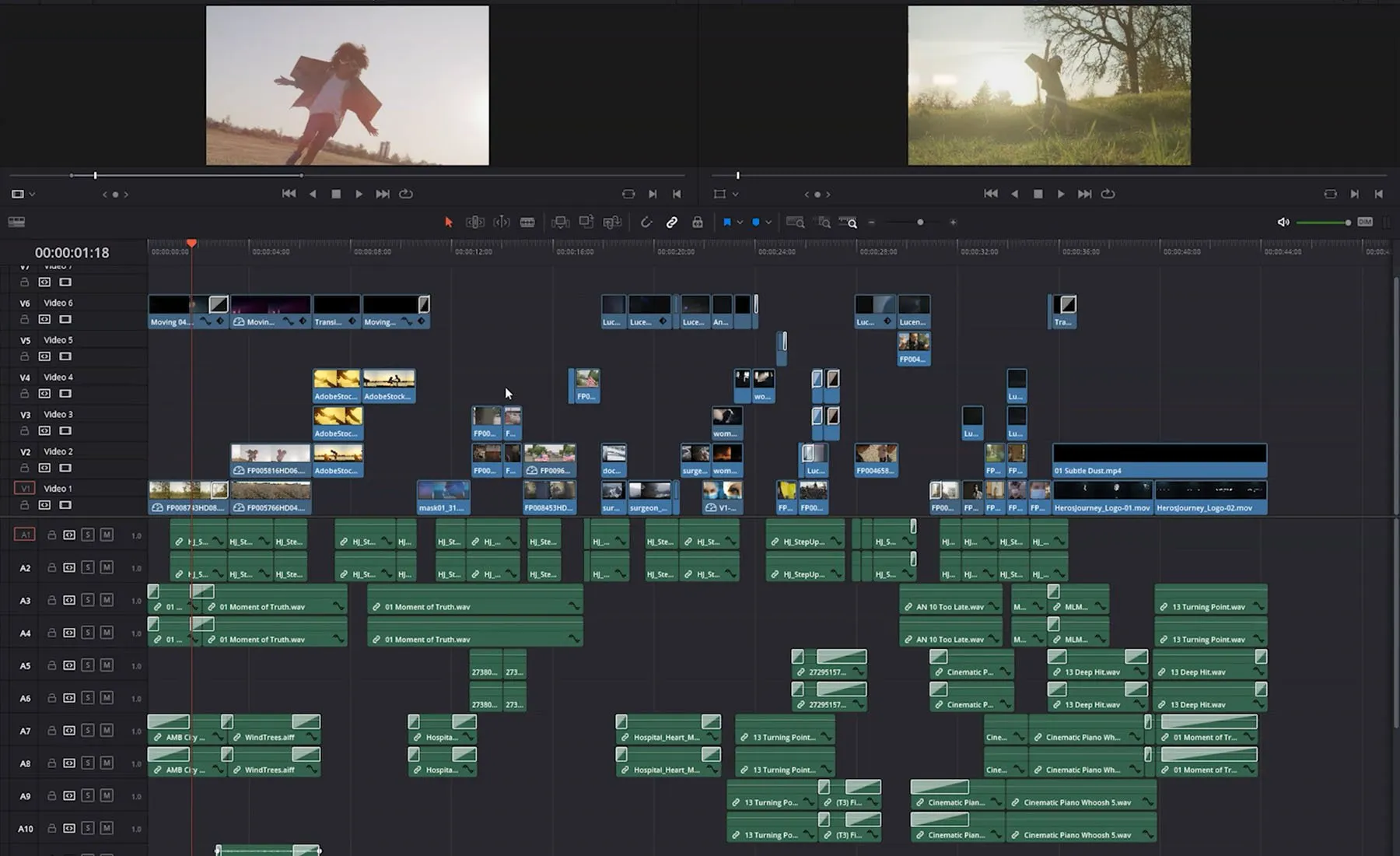
This is the tier where GPU requirements climb fast. When you're editing 4K footage natively in DaVinci Resolve, Premiere Pro, or Final Cut Pro, the GPU is handling color grading effects, noise reduction, real-time playback of multiple video layers, and encoding. VRAM gets consumed quickly because each 4K frame in an 8-bit color space takes about 25MB, and 10-bit or RAW frames take significantly more.
A 10-minute 4K project with color grading and effects can easily consume 10-14GB of VRAM during playback. Run out of VRAM and the software starts swapping to system RAM, which causes stuttering and dropped frames. That's the pain point everyone in this tier hits eventually.
DaVinci Resolve vs Premiere Pro vs Blender — GPU Demands Differ
DaVinci Resolve is notoriously GPU-hungry. It's built around GPU processing from the ground up, and it scales almost linearly with GPU power. Blackmagic Design (the company behind Resolve) recommends at least 8GB of VRAM for HD work and 12GB or more for 4K.
The free version of Resolve is limited to a single GPU, and the Studio version can leverage multiple GPUs.
Premiere Pro is more balanced between CPU and GPU but still benefits from a strong discrete card. Its Mercury Playback Engine uses CUDA or OpenCL acceleration, and 8GB of VRAM is the practical minimum for 4K editing. Intel Quick Sync (built into Intel CPUs) helps with H.264/H.265 decoding, which reduces GPU load during certain workflows.
Blender and other 3D applications are a different story. Rendering a 4K image or animation frame in Cycles (Blender's GPU renderer) can use well over 12GB of VRAM for complex scenes with high-resolution textures. For 3D work at 4K output, VRAM capacity often matters more than raw speed because running out of VRAM simply stops the render.
Minimum, Recommended, and Ideal GPU Setups
| Workload | Minimum | Recommended | Ideal |
|---|---|---|---|
| 4K video editing (simple cuts) | RTX 3060 12GB / RX 6700 XT | RTX 4070 / RX 7800 XT | RTX 4070 Ti Super |
| 4K video grading / effects | RTX 4070 Ti 16GB | RTX 4080 Super | RTX 4090 |
| 3D rendering at 4K (Blender) | RTX 3060 12GB | RTX 4070 Ti Super 16GB | RTX 4090 24GB |
| CAD / professional visualization | RTX 3060 12GB | RTX 4070 / RTX A4000 | RTX A5000 / RTX 4080 Super |
Notice how 12GB of VRAM keeps appearing as the baseline. That's not a coincidence. At 4K resolution with creative applications, VRAM is usually the first bottleneck you'll hit.
Core count and clock speed matter, but they're secondary to having enough memory to hold your working data.
One more tip for this tier. If you're choosing between two GPUs with the same core performance but different VRAM, always pick the higher VRAM model. You can't upgrade VRAM later, but GPU performance bottlenecks can sometimes be worked around with proxy workflows or optimized renders.
Decision Branch 4: 4K Gaming
The GPU Tier Breakdown at 3840 x 2160
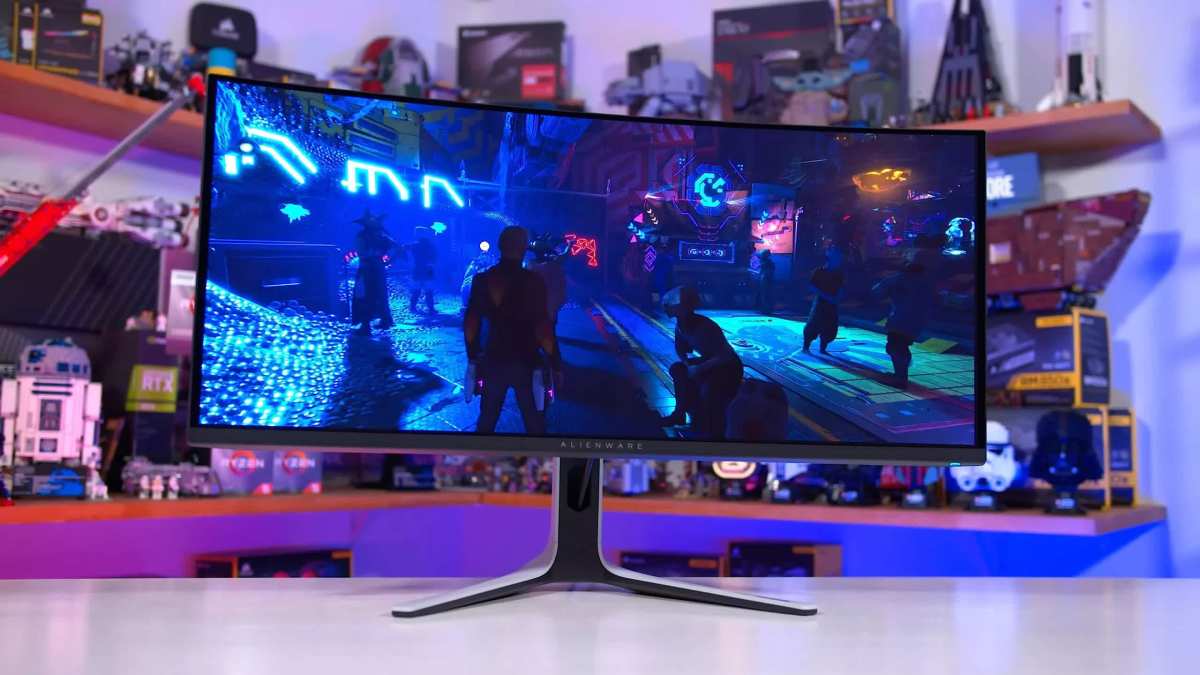
Here's where things get expensive because 4K gaming is the most GPU-intensive consumer workload that exists. You're asking the GPU to render a full 3D scene at 8.3 million pixels, multiple times per second, with modern lighting, shadows, and texture quality. It's brutal on hardware.
At 4K with high settings (not necessarily ultra), here's what current GPUs deliver in demanding titles like Cyberpunk 2077, Alan Wake 2, or Starfield:
- RTX 4060 Ti / RX 7600 XT, 30-45 fps at medium-high settings. Playable for slower games, but you'll feel the limitations in demanding titles.
- RTX 4070 / RX 7800 XT, 45-60 fps at high settings. The practical entry point for enjoyable 4K gaming without major compromises.
- RTX 4070 Ti Super / RX 7900 XT, 60-80 fps at high to very high settings. This is where 4K gaming starts feeling properly smooth.
- RTX 4080 Super / RX 7900 XTX, 80-120 fps at high to ultra settings. The sweet spot for high-refresh 4K monitors.
- RTX 4090, 100-144+ fps at ultra settings. The only card that consistently maxes out a 4K 144Hz monitor in demanding games.
Ray Tracing at 4K — Where It Gets Expensive
Ray tracing multiplies the GPU workload dramatically. Tracing individual light rays through a scene at 8.3 million pixels per frame is computationally insane. Enabling ray tracing at 4K can cut your frame rate by 40 to 60 percent depending on the game and the GPU.
If ray tracing at 4K matters to you, add one full tier to the recommendations above. An RTX 4070 becomes the entry point instead of the RTX 4060 Ti. And honestly, even an RTX 4090 struggles to push 60fps at 4K with full ray tracing in the most demanding titles without DLSS enabled.
This is exactly why DLSS and FSR exist.
DLSS and FSR Change the Math
NVIDIA's DLSS (Deep Learning Super Sampling) and AMD's FSR (FidelityFX Super Resolution) render the game at a lower resolution and then upscale it to 4K using AI or algorithms. The visual quality at "Quality" mode is nearly indistinguishable from native 4K in most games, but the performance gain is huge. DLSS typically delivers a 40-60 percent frame rate boost.
This changes the buying calculus significantly. An RTX 4070 with DLSS enabled can deliver frame rates close to a more expensive card running at native 4K. If you're buying an NVIDIA RTX series card, DLSS is a genuine reason to prioritize that ecosystem.
AMD's FSR works across all GPUs (including NVIDIA cards), but the AI-assisted DLSS 3 with frame generation is exclusive to NVIDIA's RTX 40-series and newer.
For 4K gaming as of 2026, DLSS or FSR isn't optional anymore. It's how most people actually game at 4K. Factor that into your GPU decision.
Matching GPU to Your Target Frame Rate and Settings
Your personal preference matters here. Some gamers are perfectly happy with 60fps at high settings. Others demand 120fps or more at ultra.
Both are valid, but they lead to very different GPU purchases.
If you're targeting 60fps at high settings (the most common 4K goal):
Get an RTX 4070 or RX 7800 XT. These cards deliver solid 60fps performance in most titles without needing upscaling.
If you're targeting 100-120fps at high to ultra settings:
Step up to the RTX 4070 Ti Super, RTX 4080 Super, or RX 7900 XTX. These pair well with 4K 120Hz monitors.
If you're targeting 144fps at ultra settings with ray tracing:
The RTX 4090 is essentially your only option. Nothing else consistently hits those numbers in demanding titles.
The Connectivity Check Most People Forget
HDMI 2.1 vs DisplayPort 1.4 — What Your GPU and Monitor Both Need
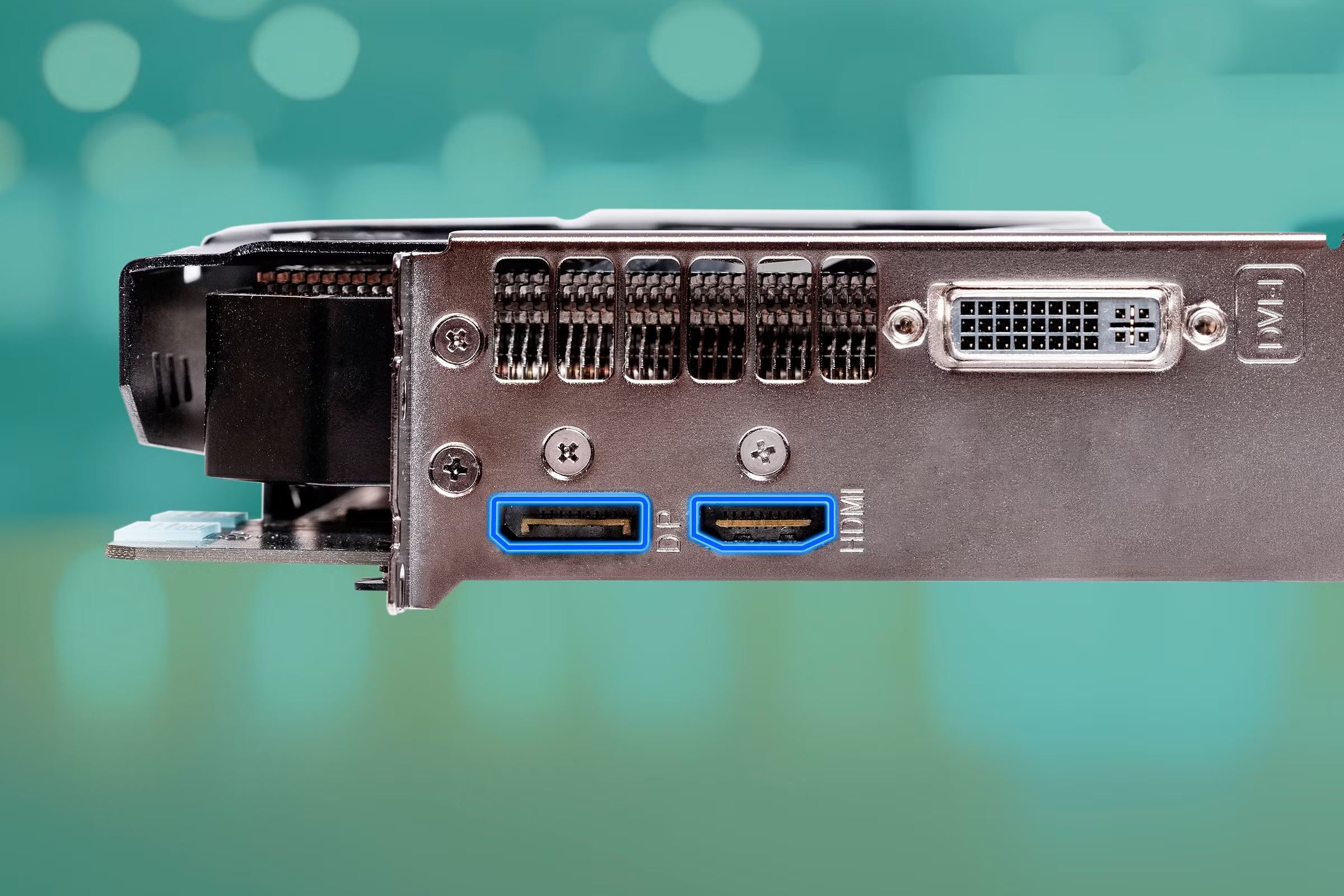
Your GPU can have all the power in the world, but if the cable and port can't push enough data, you're stuck at lower refresh rates or chroma subsampling. For 4K at 60Hz with full RGB color, both HDMI 2.0 and DisplayPort 1.4 work fine. Step up to 4K at 120Hz and you need HDMI 2.1 or DisplayPort 1.4 with Display Stream Compression (DSC).
4K at 144Hz requires HDMI 2.1 with full 48Gbps bandwidth or DisplayPort 1.4 with DSC. Most modern GPUs and 4K monitors support DSC, which compresses the signal visually losslessly. Check both your GPU's output specs and your monitor's input specs before buying cables.
Cable Quality Matters More Than You'd Expect
A cheap HDMI cable that worked perfectly for 1080p might fail entirely at 4K 120Hz. The bandwidth requirements are four to eight times higher. Use certified Ultra High Speed HDMI cables for HDMI 2.1 connections.
For DisplayPort, use cables rated for HBR3 (High Bit Rate 3) or the newer DP 2.1 standard. A $15 certified cable is a better bet than a no-name cable that came in the box.
Common Mistakes When Buying a GPU for 4K
Overbuying When You Don't Need To
The most common mistake is buying a GPU that's wildly more powerful than your workload requires. An RTX 4090 for a 4K monitor used exclusively for email and YouTube is a waste of $1,600. Match the GPU to the actual use case, not the resolution label.
Underbuying and Regretting It
The opposite mistake is buying a budget GPU and expecting smooth 4K gaming or responsive video editing. A card with 4GB of VRAM will struggle with 4K content creation and deliver a poor gaming experience. Spend appropriately for your workload.
Ignoring Your Power Supply
High-end GPUs draw serious power. An RTX 4080 Super can pull 320 watts under load. An RTX 4090 can spike past 450 watts.
Make sure your power supply unit (PSU) has enough wattage and the correct power connectors (the 12VHPWR connector on many RTX 40-series cards, for example). A PSU that's borderline will cause crashes, shutdowns, or in worst cases, damage to components.
Forgetting About Physical Fit
Modern GPUs are enormous. A typical RTX 4070 Ti Super is over 11 inches long and takes up 2.5 to 3 expansion slots. Measure your case before buying.
Compact cases and small form factor builds often require shorter cards or specific form factor models.
Real-World GPU Recommendations at a Glance
Budget Tier (Basic 4K and Light Creative Work)
- NVIDIA GeForce GTX 1650, Handles 4K desktop output and media playback. Around $150 new.
- AMD Radeon RX 6600, Slightly more capable, good for light photo editing. Around $200.
- Intel Arc A580, Strong AV1 decode support, good media capabilities. Around $180.
Mid-Range Tier (Solid 4K Gaming and Video Editing)
- NVIDIA GeForce RTX 4070 Super, 12GB VRAM, excellent 4K gaming with DLSS, strong video editing. Around $600.
- AMD Radeon RX 7900 GRE, 16GB VRAM, great value for 4K gaming and creative work. Around $550.
- NVIDIA GeForce RTX 4070 Ti Super, 16GB VRAM, handles 4K gaming and video editing with ease. Around $800.
High-End Tier (No-Compromise 4K Everything)
- NVIDIA GeForce RTX 4080 Super, 16GB VRAM, excellent 4K high-refresh gaming. Around $1,000.
- AMD Radeon RX 7900 XTX, 24GB VRAM, strong 4K gaming and creative performance. Around $900.
- NVIDIA GeForce RTX 4090, 24GB VRAM, the only card that truly dominates at 4K in every scenario. Around $1,600-$1,800.
Future-Proofing: How Long Your GPU Should Last at 4K
A good GPU should handle its target workload for at least three to five years. Game requirements keep climbing, and creative software gets more demanding with each update. Buying slightly more power than you need today extends the useful life of your card.
VRAM is the best future-proofing metric. Games and creative apps keep consuming more VRAM at 4K. A card with 12GB today will age better than one with 8GB.
If you're buying a GPU in 2026 and want it to last, 12GB should be the absolute minimum for any 4K workload beyond basic desktop use.
Final Decision Guide: Pick Your Path in 30 Seconds
Ask yourself one question: "What's the most demanding thing I'll do on this 4K monitor?"
- Web browsing, office work, media playback → Integrated graphics or a cheap discrete GPU (4-6GB VRAM). Save your money.
- Photo editing, light video work → A mid-range GPU with 8-12GB VRAM. An RTX 4060 Ti 16GB or RX 7600 XT fits well.
- 4K video editing, 3D modeling → A solid GPU with 12-16GB VRAM. An RTX 4070 Ti Super or RX 7900 XT handles this confidently.
- 4K gaming at 60fps → An RTX 4070 Super or RX 7800 XT with DLSS/FSR enabled.
- 4K gaming at 120fps+ → An RTX 4080 Super or RTX 4090. No compromises.
That's it. Match your actual workload to the tier, buy the GPU that fits, and enjoy your 4K display without overspending or underbuying.
Frequently Asked Questions
Can integrated graphics run a 4K monitor?
Yes. Modern integrated graphics from Intel (12th-gen and newer, especially Core Ultra) and AMD (Ryzen 6000-series and newer) handle 4K desktop use, video playback, and browsing without issues. You only need a discrete GPU for gaming, creative work, or multi-monitor setups.
Is 8GB VRAM enough for 4K?
For basic 4K desktop use and light photo editing, 8GB is fine. For 4K gaming or video editing, 12GB is the practical minimum. Professional 4D video work and 3D rendering benefit from 16GB or more.
Do I need a GPU for a 4K monitor for office work?
No, in most cases. If your CPU has integrated graphics and your motherboard has a 4K-capable output (HDMI 2.0 or DisplayPort 1.2+), you're good to go. A discrete GPU is only necessary if your CPU lacks integrated graphics or you need multiple 4K displays.
What GPU do I need for 4K 144Hz gaming?
For consistent 444Hz performance at 4K in demanding titles, an RTX 4080 Super or RTX 4090 is the realistic choice. With DLSS or FSR enabled, an RTX 4070 Ti Super can also deliver high frame rates at 4K in many games.
Does 4K gaming require more VRAM than 1440p?
Yes, significantly. 4K frames require roughly twice the VRAM of 1440p at the same quality settings. A game that uses 8GB at 1440p may need 10-12GB at 4K, especially with high-resolution textures and ray tracing enabled.
The article is already complete. All H2 sections from the approved TOC have been written, and the FAQ section closes out the piece naturally. No additional sections remain.

Similar Posts





















