What GPU Do You Need for 144Hz Monitor
You've got a 144Hz monitor sitting on your desk, and now you're staring at a wall of GPU options wondering which one actually makes sense. The honest answer is that there's no single card that fits everyone, because "what GPU do you need for a 144Hz monitor" depends on three things you already own or have decided on. Get this pairing right and buttery-smooth gameplay follows.
Get it wrong and you've either wasted money or left your monitor's potential completely untapped.
A 144Hz panel refreshes the image 144 times per second, which means your GPU needs to push close to 144 frames per second to actually see the benefit. That target is surprisingly easy to hit at 1080p in esports titles but becomes a serious ask at 4K in modern AAA games. Let's walk through exactly how to match your GPU to your specific setup so you don't overspend or underbuy.

Quick Answer
For 1080p 144Hz gaming, an NVIDIA GeForce RTX 4060 or AMD Radeon RX 7600 handles most titles at high settings. At 1440p 144Hz, step up to an RTX 4070 Super or RX 7800 XT for consistent frame rates. For 4K 144Hz, only an RTX 4090 or RTX 4080 Super delivers that experience in demanding games.
Your resolution and game choice matter more than the refresh rate number alone.
Why Your GPU Choice Changes Everything at 144Hz
A 144Hz monitor is only as good as the frames your GPU can feed it. If your graphics card outputs 70 FPS, you're seeing 70 FPS, regardless of what the monitor is capable of. The refresh rate is a ceiling, not a guarantee.
This is where most people get tripped up. They buy a high-refresh monitor expecting an instant transformation, then wonder why it doesn't feel that much smoother. The bottleneck is almost always the GPU struggling to match that 144 FPS target at their chosen resolution and settings.
The good news is that hitting 144 FPS is very achievable when you match the card to the workload. An esports title like Valorant or CS2 at 1080p barely breaks a sweat on a mid-range card. A ray-traced AAA game at 4K is a completely different animal.
Understanding that distinction is the entire game.
The Quick Answer: GPU Tiers by Resolution
Here's the framework before we dig into the details. Your monitor's resolution is the single biggest factor in determining which GPU tier you need.
| Resolution | GPU Tier | Example Cards | Best For |
|---|---|---|---|
| 1080p 144Hz | Mid-range | RTX 4060, RX 7600 | Esports, competitive gaming, budget builds |
| 1440p 144Hz | Upper mid-range | RTX 4070 Super, RX 7800 XT | AAA gaming at high settings, the popular sweet spot |
| 4K 144Hz | Flagship | RTX 4090, RTX 4080 Super | Enthusiast AAA gaming, no compromises |
These tiers assume you're targeting high to ultra settings in modern games. If you're willing to dial settings down, you can step down a GPU tier and still hit 144 FPS. That's a trade-off worth considering if budget matters.
How 144Hz Actually Works (And Why It's Not Just About the GPU)
Refresh rate and frame rate are related but not the same thing. Your monitor's 144Hz refresh rate means it can display up to 144 new images per second. Your GPU's frame rate is how many images it actually produces.
When those two numbers are close and in sync, everything looks smooth.
When they're out of sync, you get problems. If your GPU pushes 200 FPS on a 144Hz panel, you can get screen tearing, where parts of two different frames show at once. If your GPU dips to 90 FPS, you lose the smoothness advantage you paid for.
This is why adaptive sync technologies like AMD FreeSync and NVIDIA G-Sync Compatible exist. They let the monitor dynamically match its refresh rate to the GPU's output, eliminating tearing and reducing stutter. Most 144Hz monitors support at least one of these standards, and pairing them correctly with your GPU matters.
The takeaway is that your GPU choice affects not just raw performance but also how well your entire display pipeline works together. A card that hovers around 144 FPS without adaptive sync will feel worse than one that stays locked at 140 FPS with it enabled.
The Three Variables That Decide Your GPU
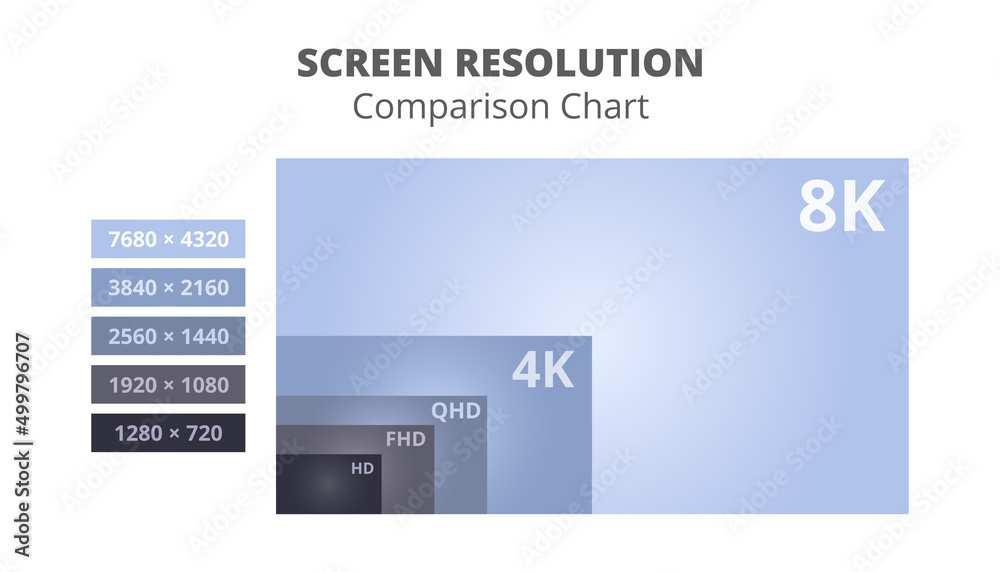
Three factors determine which GPU you actually need. Change any one of them and the recommendation shifts.
Your Monitor's Resolution
Resolution is the biggest lever. More pixels means more work for the GPU every single frame.
- 1080p (1920×1080): Roughly 2 million pixels per frame. Very manageable for modern mid-range cards.
- 1440p (2560×1440): Around 3.7 million pixels. Nearly double the workload of 1080p.
- 4K (3840×2160): About 8.3 million pixels. Four times the work of 1080p.
That scaling is why a card that cruises at 144 FPS in 1080p might struggle to hit 80 FPS at 4K in the same game. Always start your GPU decision with the resolution you're actually running.
The Games You Actually Play
Not all games stress a GPU equally. Aggregate benchmark data shows massive variation in hardware demand across genres.
- Esports titles (Valorant, CS2, Rocket League, Fortnite on competitive settings): These are designed to run on modest hardware. A mid-range GPU easily pushes well past 144 FPS at 1080p and often at 1440p too.
- AAA single-player games (Cyberpunk 2077, Alan Wake 2, Starfield): These are the heavyweights. Even flagship GPUs can struggle to maintain 144 FPS at 4K with ray tracing enabled.
- Strategy and simulation games (Civilization VI, Cities: Skylines II): These often bottleneck on the CPU rather than the GPU, especially in late-game scenarios.
Be honest about what you play most. If it's esports, you don't need a flagship card. If it's the latest AAA releases at max settings, you do.
Your Target Settings and Frame Consistency
Ultra settings at native resolution demand far more than high or medium. The visual difference between high and ultra is often subtle, but the performance cost can be 20-30 percent.
Frame consistency matters more than peak numbers. A GPU that averages 150 FPS but dips to 90 in intense scenes will feel less smooth than one that holds a steady 130 FPS. Look at 1 percent low frame rates in benchmarks, not just averages.
Upscaling technologies like NVIDIA DLSS and AMD FSR have changed the equation significantly. They let you render at a lower internal resolution and reconstruct the image, often with minimal quality loss. A card that can't quite hit 144 FPS natively might easily clear that bar with DLSS or FSR enabled, which we'll cover in detail later.
1080p 144Hz: What GPU You Really Need
If you're gaming at 1080p with a 144Hz panel, you're in the most forgiving scenario. The pixel count is low enough that modern mid-range cards can push well past that 144 FPS target in most titles.
For esports and competitive games, an NVIDIA GeForce RTX 4060 or AMD Radeon RX 7600 handles the job comfortably. These cards regularly push 200+ FPS in titles like Valorant, CS2, and Fortnite at high settings. You'll have headroom to spare.
AAA games at 1080p are a bit more demanding but still very manageable. An RTX 4060 Ti or RX 7700 XT will hold 144 FPS in most single-player titles at high settings. You might need to drop a few settings to ultra in the heaviest games, but the experience stays smooth.
The key advantage at 1080p is price-to-performance. You're spending less on the GPU and getting the full benefit of your 144Hz monitor. This is the resolution where budget builds shine.
1440p 144Hz: The Sweet Spot Demands More
1440p at 144Hz is where most enthusiasts land, and for good reason. The image is noticeably sharper than 1080p, and the 144Hz refresh keeps motion smooth. But that nearly doubled pixel count means your GPU has to work significantly harder.
An RTX 4070 Super or RX 7800 XT is the starting point for a good 1440p 144Hz experience. These cards deliver 100-144+ FPS in most AAA titles at high settings. In esports titles, they'll push well past 200 FPS without breaking a sweat.
If you want to max out settings and still hold close to 144 FPS in demanding games, step up to an RTX 4070 Ti Super or RX 7900 XT. The extra horsepower gives you breathing room for ray tracing and future game releases.
VRAM matters more at 1440p than at 1080p. Cards with 12GB or more handle modern textures and asset streaming better. The RX 7800 XT's 16GB and the RTX 4070 Ti Super's 16GB are comfortable fits for this resolution.
4K 144Hz: Where Only Flagships Survive
4K at 144Hz is the most demanding consumer gaming scenario that exists. You're pushing four times the pixels of 1080p, and you want to do it 144 times per second. Only the most powerful GPUs can handle this.
The NVIDIA GeForce RTX 4090 is the only card that consistently approaches 144 FPS at 4K in demanding AAA titles without upscaling. Even then, you'll likely need DLSS enabled in the heaviest games like Cyberpunk 2077 with ray tracing.
The RTX 4080 Super is a step below but still capable. Expect 80-120 FPS at 4K in most AAA games at high settings. With DLSS, you can push closer to that 144 FPS target in many titles.
AMD's RX 7900 XTX competes in this space too. It trades blows with the RTX 4080 Super in rasterization but falls behind in ray tracing performance. If you don't care about ray tracing, it's a strong value play at 4K.
Honestly, most people don't need 4K 144Hz. The hardware cost is enormous, and the visual difference from 1440p 144Hz is harder to notice than the jump from 1080p to 1440p. But if you want the absolute best and budget isn't a concern, this is the tier to target.
NVIDIA vs AMD for 144Hz Gaming

Both NVIDIA and AMD make excellent GPUs for high-refresh gaming, but they each have strengths worth considering.
NVIDIA's RTX 40-series leads in ray tracing performance and offers DLSS 3 with frame generation. DLSS 3 can effectively double your frame rate in supported games, making it easier to hit 144 FPS at higher resolutions. If ray tracing matters to you, NVIDIA is the clear choice.
AMD's RX 7000-series offers more VRAM at most price points and competitive rasterization performance. Their FSR 3 upscaling with frame generation works across both AMD and NVIDIA cards, which is a plus. AMD cards also tend to offer better raw performance per dollar in non-ray-traced scenarios.
For pure esports at 1080p 144Hz, either brand works great. The differences only become meaningful at 1440p and above, where NVIDIA's DLSS advantage and ray tracing lead start to matter more.
Driver stability and software features are worth mentioning too. NVIDIA's GeForce Experience and AMD's Adrenalin software both handle driver updates and game optimization well. Pick whichever ecosystem you prefer, because both are mature and reliable as of 2026.
DLSS, FSR, and Upscaling: The Secret to Hitting 144 FPS
Upscaling technology has fundamentally changed what GPUs can achieve at high refresh rates. Instead of rendering every pixel natively, these technologies render at a lower resolution and use intelligent reconstruction to upscale the image.
NVIDIA DLSS (Deep Learning Super Sampling) uses dedicated Tensor Cores on RTX cards to reconstruct the image. DLSS 3 adds frame generation, creating entirely new frames between rendered ones. The result is a massive FPS boost, often 50-100 percent in supported titles.
AMD FSR (FidelityFX Super Resolution) works differently. It runs on any GPU, including NVIDIA cards, using shader-based upscaling rather than dedicated hardware. FSR 3 also includes frame generation.
The image quality is close to DLSS in most scenarios, though DLSS still holds a slight edge in motion clarity.
Intel's XeSS is a third option, primarily relevant for Intel Arc GPUs but also available on other hardware in some implementations.
The practical impact is huge. A card that averages 90 FPS natively at 1440p might hit 140+ FPS with DLSS or FSR enabled. That's the difference between a good experience and fully utilizing your 144Hz monitor.
Check whether your favorite games support these features before buying, because the support list keeps growing but isn't universal yet.
The Bottleneck Trap: CPU, RAM, and Other Hidden Limits
Your GPU doesn't work alone. A weak CPU or insufficient RAM can hold back even the best graphics card, especially at 1080p where the GPU isn't working as hard.
At 1080p 144Hz, the CPU matters more than you might think. Games like CS2 and Valorant are heavily CPU-bound at lower resolutions. Pairing an RTX 4090 with an old quad-core processor at 1080p is a waste.
The CPU can't prepare frames fast enough to feed the GPU.
RAM speed and capacity also play a role. 16GB is the practical minimum for modern gaming, with 32GB becoming more common in new builds. DDR5 at 6000MHz offers a measurable uplift over slower DDR4 in CPU-limited scenarios.
The higher you go in resolution, the less the CPU matters. At 4K, the GPU is almost always the bottleneck, which is why flagship cards shine there. At 1080p, balance your build more carefully.
Adaptive Sync: Why Your 144Hz Monitor Needs the Right GPU Pairing

Adaptive sync eliminates screen tearing without the input lag penalty of traditional V-Sync. Most 144Hz monitors support either AMD FreeSync or NVIDIA G-Sync Compatible, and some support both.
If you buy an NVIDIA GPU, look for a monitor listed as G-Sync Compatible. NVIDIA certifies specific FreeSync monitors to work reliably with their cards. The experience is smooth and tear-free across the entire refresh range.
If you buy an AMD GPU, FreeSync monitors work natively. AMD's implementation is open-standard, so compatibility is broader. FreeSync Premium and FreeSync Premium Pro add requirements for low framerate compensation and HDR support.
Either way, enable adaptive sync in both your monitor's on-screen menu and your GPU's control panel. It's not always on by default, and missing this step means you're not getting what you paid for.
Common Mistakes When Buying a GPU for 144Hz
People make the same errors repeatedly when shopping for a high-refresh GPU.
- Ignoring resolution: Buying a flagship card for 1080p or a budget card for 4K. Match the GPU to your actual resolution.
- Overlooking the CPU: Pairing a powerful GPU with a processor that can't keep up, especially at 1080p.
- Skipping PSU checks: Not verifying that their power supply has enough wattage and the right connectors for the new card.
- Chasing peak FPS: Looking at average frame rates without checking 1 percent lows, which determine how smooth the experience actually feels.
- Forgetting VRAM: Buying a card with 8GB for 1440p AAA gaming in 2026, then wondering why newer titles stutter.
Take ten minutes to audit your full system before buying. It saves you from an expensive mismatch.
Real-World GPU Recommendations by Budget and Resolution
Here's a practical breakdown based on current pricing and performance as of 2026.
Budget 1080p 144Hz (under $300): RTX 4060 or RX 7600. Handles esports effortlessly and AAA games at medium-high settings.
Mid-range 1440p 144Hz ($500-650): RTX 4070 Super or RX 7800 XT. The sweet spot for most gamers, delivering high settings at smooth frame rates.
High-end 1440p / Entry 4K 144Hz ($800-1000): RTX 4070 Ti Super or RX 7900 XT. Excellent for maxed-out 1440p and capable 4K with upscaling.
Flagship 4K 144Hz ($1600+): RTX 4090. The only card that comes close to native 4K 144 FPS in demanding titles.
These are starting points. Your specific games, settings preferences, and whether you use upscaling will shift the ideal choice slightly.
How to Test and Optimize Your Setup After the Upgrade
Once your new GPU is installed, verify you're actually getting the performance you paid for.
Update to the latest drivers from NVIDIA or AMD's website. Use a frame rate overlay like the one built into Steam, or a tool like MSI Afterburner, to monitor FPS in real time.
Run a few benchmark passes in your most-played games. Compare your numbers to online results with similar hardware. If you're significantly underperforming, check for thermal throttling, background processes, or a CPU bottleneck.
Enable adaptive sync in both your GPU control panel and monitor settings. Cap your frame rate slightly below 144 FPS (around 141) to stay within the adaptive sync range and avoid tearing.
Tune in-game settings based on what you see. Shadows, volumetric effects, and ray tracing cost the most performance for the least visual gain. Dial those back first if you need more headroom.
Frequently Asked Questions
Can a mid-range GPU run a 144Hz monitor?
Yes, absolutely. A mid-range card like the RTX 4060 or RX 7600 fully utilizes a 144Hz monitor at 1080p in most games. At 1440p, you may need to adjust settings in demanding titles, but the high-refresh experience is still very achievable.
Is 144Hz worth it for casual gaming?
If you play any games with motion, 144Hz is noticeably smoother than 60Hz. The difference is immediately visible in desktop use and menus alone. You don't need to be a competitive player to appreciate it.
Do I need to upgrade my power supply for a new GPU?
Check the manufacturer's recommended wattage for your specific card. An RTX 4070 Super typically needs a 650W PSU, while an RTX 4090 recommends 850W or higher. Also verify you have the correct power connectors, as newer cards increasingly use the 12VHPWR standard.
Does VRAM matter for 144Hz gaming?
VRAM matters more at higher resolutions and with modern texture-heavy games. For 1080p 144Hz, 8GB is usually sufficient. For 1440p, aim for 12GB or more.
At 4K, 16GB provides comfortable headroom.
Should I buy last-gen to save money?
Previous-generation cards like the RTX 3070 or RX 6800 XT still handle 144Hz gaming well, especially at 1080p and 1440p. If you find a good deal on the used market, they're solid choices. Just verify the card's condition and remaining warranty before buying.
The Bottom Line: Match Your GPU to Your Actual Setup
The right GPU for your 144Hz monitor isn't about buying the most expensive card. It's about matching performance to your resolution, your games, and your settings targets.
Start with your monitor's resolution. That alone narrows your options significantly. Then factor in what you play and whether you're willing to use upscaling.
Finally, make sure the rest of your system, especially your CPU and power supply, can support the card you choose.
Get this right and your 144Hz monitor will deliver exactly the smooth, responsive experience you paid for. No wasted money, no bottlenecks, just clean high-refresh gaming.

Similar Posts





















