Is 144Hz Monitor Good for Streaming
Image source: Bing (Web (fair-use with source credit))
Is 144Hz monitor good for streaming? The honest answer is: it depends entirely on what you're streaming and what hardware you're running. A 144Hz monitor displays up to 144 frames per second, which is a massive jump from the standard 60Hz.
But whether that extra smoothness actually helps your stream, or just taxes your system, comes down to your specific situation.
Here's the thing most guides skip. There are two separate experiences at play here: what you see as the streamer, and what your viewers actually watch. Your broadcast is almost always encoded at 60 frames per second or lower on platforms like Twitch, which caps recommended output at 6000 Kbps for 1080p60 as of 2026.
So that buttery-smooth 144fps gameplay you're enjoying? Your audience sees a version of it. Let's break down when that matters and when it doesn't.
Quick Answer
A 144Hz monitor is good for streaming if you play competitive fast-paced games. It reduces input lag and makes gameplay feel smoother for you. Your viewers won't see above 60fps on most platforms though.
If you stream casual or single-player games, 144Hz offers less benefit. Your system also works harder to drive those extra frames while encoding.
Why 144Hz Matters for Streaming (And When It Doesn't)
Let's get the basics straight. Refresh rate, measured in Hertz (Hz), tells you how many times per second your monitor updates the image. A 144Hz monitor refreshes 144 times every second.
That's 2.4 times more than a standard 60Hz display. The result is noticeably smoother motion and lower input lag.
For the streamer sitting in front of the screen, this is a genuine competitive advantage. In fast-paced titles like Valorant, CS2, or Apex Legends, being able to track targets more smoothly can meaningfully improve your gameplay. You react faster.
You aim more precisely. Your stream benefits because you're simply playing better.
But here's where it gets tricky. Your viewers don't see your raw 144fps output. Streaming platforms like Twitch and YouTube Gaming encode and deliver content at specific frame rates.
Twitch's broadcasting guidelines recommend outputting at 60fps maximum for most streamers. That means your encoding software, whether it's OBS Studio or Streamlabs, is taking those 144 frames and compressing them down to 60 for the broadcast.
So the benefit splits into two lanes:
- Your experience as the player: Absolutely improved at 144Hz. Smoother visuals, less motion blur, lower input lag.
- Your viewers' experience: Capped at the frame rate you encode at, typically 30fps or 60fps.
This doesn't mean 144Hz is wasted on streaming. It means you need to understand where the value actually sits before you spend the money.
The Two Different Experiences: Streamer vs. Viewer
This is the part most people get confused about, so let's make it crystal clear.
When you're gaming at 144Hz, your GPU is rendering up to 144 frames per second. Your monitor is displaying all of them. You perceive incredibly smooth motion.
Your inputs feel almost instant because the time between frames drops to just 6.94 milliseconds at 144Hz, compared to 16.67 milliseconds at 60Hz.
Now, on the viewer's side, they're watching an encoded stream. Even if you're outputting at 60fps, their experience depends on their own internet connection, the platform's transcoding quality, and their display. Most viewers are watching on 60Hz monitors or even mobile screens.
They will never see the raw smoothness you're enjoying.
Here's a practical way to think about it:
| Aspect | Streamer (You) | Viewer (Audience) |
|---|---|---|
| Refresh rate experienced | Up to 144Hz | Typically 60Hz max |
| Frame rate seen | Up to 144fps | 30fps or 60fps (encoded) |
| Input lag | Reduced at 144Hz | Depends on their setup |
| Motion smoothness | Significantly improved | Limited by stream encode |
| Hardware demand | High (GPU + encoding) | None (just decoding) |
The takeaway? A 144Hz monitor primarily benefits you, the person playing the game. If you're streaming competitive shooters and every millisecond of reaction time counts, that's a legitimate reason to invest.
If you're streaming slower-paced content, the value drops off quickly.
When 144Hz Is Worth It for Streaming
Not all streaming setups benefit equally from a high refresh rate. Let's walk through the scenarios where 144Hz actually makes a difference.
Competitive FPS and Fast-Paced Games
If you're streaming competitive first-person shooters, battle royales, or fast-moving titles, 144Hz is a genuine upgrade. Games like Valorant, Counter-Strike 2, Apex Legends, Call of Duty: Warzone, and Rainbow Six Siege all reward quick target tracking and snap reactions.
At 144Hz, moving targets appear clearer. Camera pans feel smoother. Your mouse movements translate to on-screen action with less perceived delay.
When you're playing at a high level, this isn't just a luxury. It's a measurable edge.
Multiple hardware reviews and aggregate testing consistently show that players running 144Hz or higher monitors report improved aim accuracy and reaction times compared to 60Hz. The exact numbers vary by individual, but the trend is clear.
For streamers in this category, the 144Hz monitor serves double duty. It makes you a better player, which makes your stream more entertaining to watch. Even though viewers see a 60fps encode, your improved gameplay shows up in the results.
Single-Player and Casual Streaming
Streaming Elden Ring, Baldur's Gate 3, Stardew Valley, or Minecraft? A 144Hz monitor still makes your personal experience smoother, but the competitive advantage is minimal. These games don't demand split-second reactions.
The visual improvement is nice, but it's not transformative.
That said, if you're already gaming at high frame rates and your GPU can handle it without breaking a sweat, there's no reason not to use a 144Hz monitor. The question is whether it's worth the premium over 60Hz specifically for this use case. For most casual streamers, a solid 60Hz IPS panel with good color accuracy might serve you better, especially if you're also doing facecam overlays and chat interaction where visual fidelity matters more than motion smoothness.
Non-Gaming Streams (Just Chatting, Creative, Music)
If your primary content is Just Chatting, art production, music performance, or any non-gaming category, a 144Hz monitor offers virtually no benefit. Your content doesn't involve fast motion. Your facecam is typically captured at 30fps or 60fps.
Your screen shares are static or slow-moving.
In these cases, invest your budget elsewhere. A better webcam, improved lighting, or a higher-quality microphone will do far more for your stream's production value than a gaming-grade refresh rate.
When 144Hz Doesn't Help Your Stream
Let's be honest about the situations where 144Hz is more hype than help.
If your PC can't consistently push 144 frames per second in the games you play, you're paying for capability you can't use. A 144Hz monitor running at 80fps in your game isn't delivering the full benefit. You'll still see some improvement over 60Hz, but you're not getting what you paid for.
Here's a quick decision framework:
- Your GPU consistently pushes 144+ fps in your games: 144Hz is worth it.
- Your GPU pushes 80-130 fps: You'll see partial benefit, but consider whether a 144Hz monitor is the best use of your budget.
- Your GPU struggles to hit 60 fps: Stick with 60Hz and upgrade your GPU first.
Another overlooked issue: streaming on a single PC setup means your GPU is handling both game rendering and video encoding simultaneously. If your GPU is already running near its limit to hit 144fps, adding encoding overhead on top can cause frame drops, stuttering, or force you to lower in-game settings. That trade-off might not be worth it.
Streamers running a dedicated two-PC setup avoid this problem entirely. The gaming PC focuses purely on rendering frames. The streaming PC handles encoding and broadcast.
If you're running two PCs, 144Hz is a no-brainer for the gaming rig. On a single PC, you need to verify your hardware can handle both workloads without compromise.
The Hidden Cost: System Performance Impact
Here's where a lot of streamers get caught off guard. Running a 144Hz monitor while streaming on a single PC puts real pressure on your hardware.
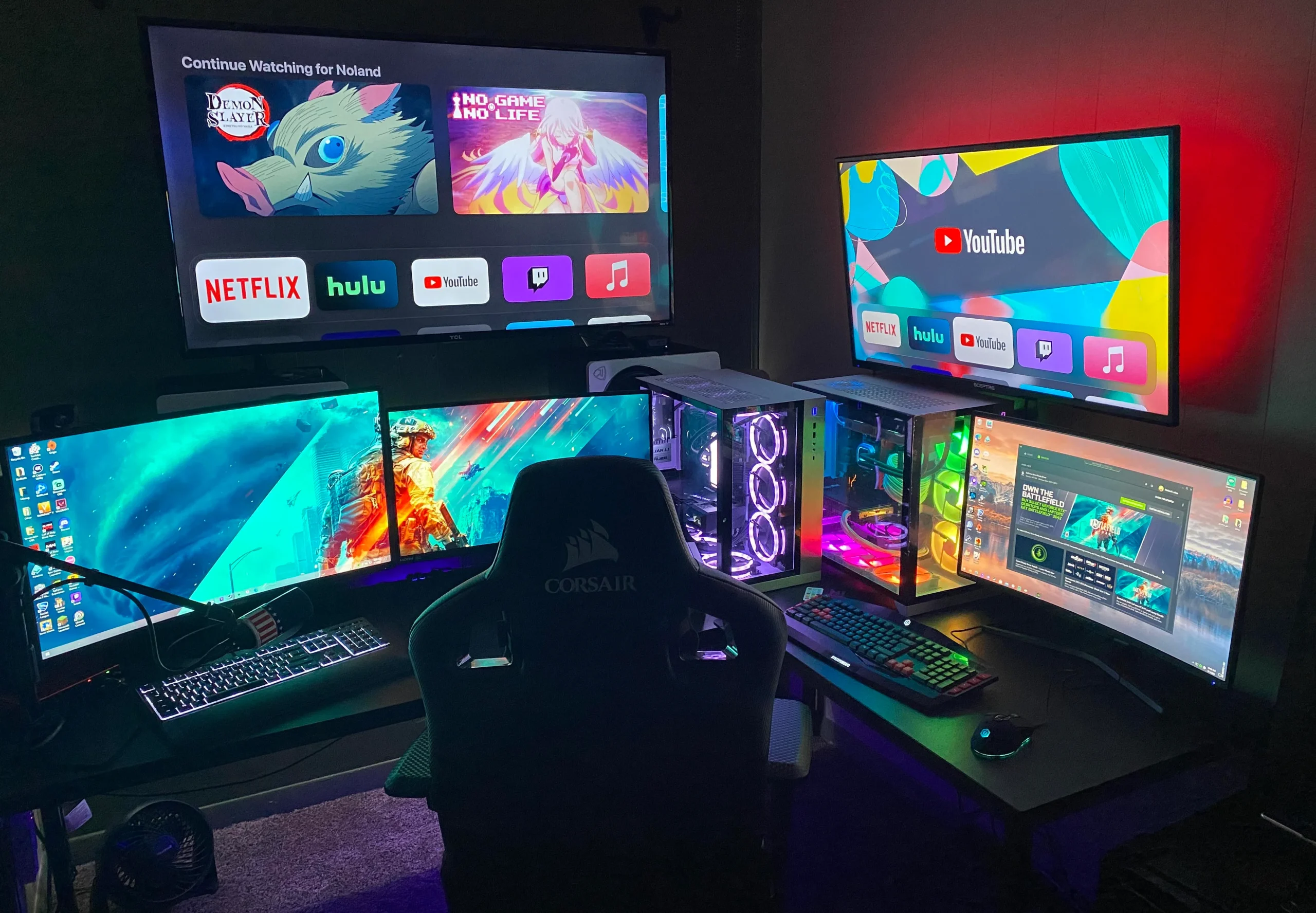
Image source: Bing (Web (fair-use with source credit))
GPU Load at 144Hz
Your GPU has to render every single frame your monitor displays. At 144Hz, that's 144 frames per second your graphics card is pushing out. Compare that to 60Hz, where it only needs to render 60.
That's more than double the rendering workload just for the display output.
Now layer encoding on top of that. When you stream, your GPU (or CPU) is also compressing and encoding that video output in real time. On a single PC setup, both tasks share the same hardware.
If you're using NVIDIA NVENC encoding, the dedicated encoding cores on your GPU handle most of the compression work. But the GPU's main rendering cores are still pushing all those frames to your monitor.
The practical impact? Aggregate testing from hardware review outlets shows that driving a 144Hz display while encoding can reduce your in-game frame rates by 10 to 20 percent compared to gaming without streaming. That's a meaningful hit, especially if your system is already near its performance ceiling.
Encoding Overhead on a Single PC Setup
If you're running a single PC for both gaming and streaming, you need to be strategic. Here's what typically happens:
- GPU-bound games (most modern titles): Your GPU is the bottleneck. Adding encoding load can cause frame drops or force you to lower settings.
- CPU-bound games (some simulation or strategy titles): Your CPU handles encoding if you're using x264 software encoding. This can cause stuttering if the CPU is already maxed out.
The solution for many streamers is to cap their in-game frame rate slightly below 144. For example, capping at 120fps or 130fps gives your GPU some breathing room for encoding tasks. You still get most of the smoothness benefit without pushing your hardware to its absolute limit.
Streamers using a dual PC setup don't face this issue. The gaming PC renders frames at full speed. A second dedicated machine handles all the encoding and streaming tasks.
If you're running two PCs, 144Hz on the gaming rig is pure upside with no performance trade-off.
144Hz vs 60Hz vs 240Hz: Which Makes Sense for Streaming?
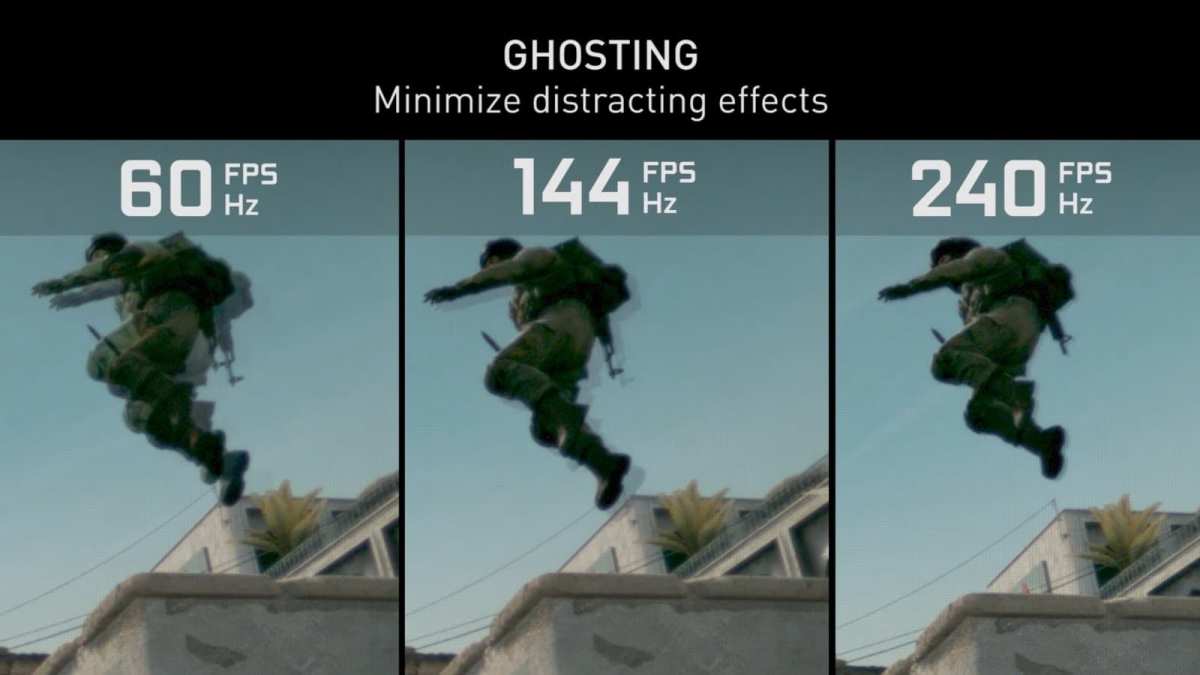
Image source: Bing (Web (fair-use with source credit))
Let's put the three most common refresh rate options side by side so you can see where each one lands for streaming use cases.
| Factor | 60Hz | 144Hz | 240Hz |
|---|---|---|---|
| Frame time | 16.67ms | 6.94ms | 4.17ms |
| Price range (1080p, 2026) | $80-$150 | $150-$300 | $250-$500+ |
| Best for | Casual/non-gaming streams | Competitive gaming streams | Professional/esports |
| GPU demand | Low | Moderate-High | Very High |
| Streaming benefit | Minimal | Strong for FPS gamers | Diminishing returns |
| Input lag reduction | Baseline | Significant | Slightly better than 144Hz |
60Hz: The Budget Pick
A 60Hz monitor is perfectly fine if you stream casually, play slower-paced games, or focus on non-gaming content. It's affordable, puts minimal strain on your system, and still delivers a perfectly watchable experience for your viewers. If your budget is tight or your GPU is mid-range, 60Hz is a smart choice.
144Hz: The Sweet Spot
For most gaming streamers, 144Hz hits the best balance of performance and price. The jump from 60Hz to 144Hz is dramatic. You'll notice it immediately in how smooth everything feels.
The jump from 144Hz to 240Hz is much smaller and harder to perceive. Unless you're competing at the highest levels, 144Hz gives you the most benefit for your dollar.
240Hz: Overkill for Most Streamers
A 240Hz monitor is designed for professional esports players who need every possible advantage. The difference between 144Hz and 240Hz is real but subtle. For streaming purposes, the extra cost and GPU demand rarely justify the marginal improvement.
Unless you're a professional competitor who also streams, save your money.
How to Set Up 144Hz Properly for Streaming
Buying a 144Hz monitor is only half the battle. You need to actually configure it correctly, or you'll be running at 60Hz without realizing it.
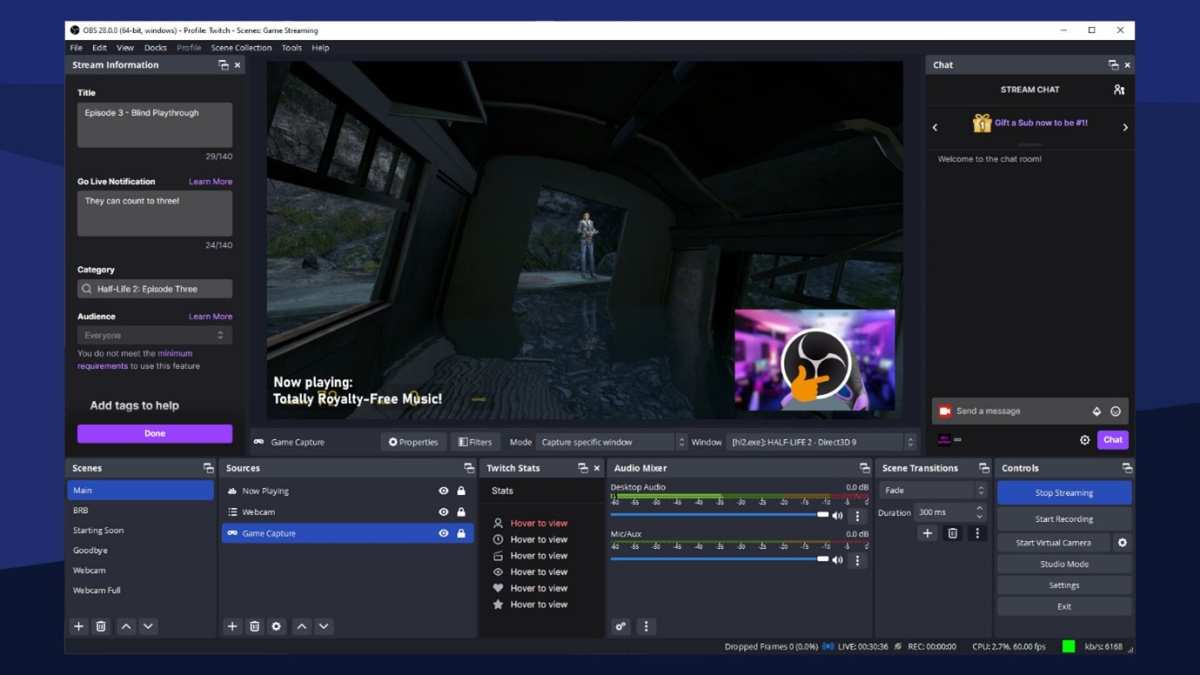
Image source: Bing (Web (fair-use with source credit))
Verify Your Monitor Is Actually Running at 144Hz
This catches more people than you'd think. You plug in your new 144Hz monitor, and it defaults to 60Hz. Here's how to check and fix it:
On Windows 10/11:
- Right-click your desktop and select "Display settings."
- Scroll down and click "Advanced display settings."
- Look at the "Refresh rate" dropdown. If it says 60Hz, click it and select 144Hz.
- If 144Hz isn't listed, check your cable and port. You need DisplayPort 1.2 or higher, or HDMI 2.0 or higher. Older HDMI cables cap out at 60Hz at 1080p.
On NVIDIA GPUs:
- Open NVIDIA Control Panel.
- Navigate to "Change resolution" under Display.
- Select 144Hz from the refresh rate dropdown.
On AMD GPUs:
- Open AMD Radeon Software.
- Go to Display settings.
- Enable your monitor's maximum refresh rate.
Configure OBS for High Refresh Rate Gaming
Your streaming software needs to know what to do with all those frames. In OBS Studio, head to Settings > Video and check these settings:
- Output (Scaled) Resolution: 1920×1080 (or your preferred stream resolution).
- Common FPS Values: Set this to 60 for most streams. This is what your viewers see.
- Encoder: Use "NVIDIA NVENC H.264" if you have an NVIDIA GPU. This offloads encoding to dedicated hardware cores, reducing the impact on your game performance.
The key thing to understand: OBS captures your game at whatever frame rate you're playing, but it outputs at whatever FPS you set in the video settings. So you can play at 144fps and stream at 60fps simultaneously. That's the normal and correct setup.
Adaptive Sync Settings
If your monitor supports G-Sync or FreeSync, enable it in your GPU's control panel. This synchronizes your monitor's refresh rate with your GPU's frame output, eliminating screen tearing without adding input lag.
However, some streamers report that adaptive sync can occasionally cause minor capture issues in OBS. If you notice stuttering or frame pacing problems in your stream preview, try disabling G-Sync or FreeSync temporarily to see if that resolves it.
Common Mistakes Streamers Make With High Refresh Rate Monitors
Let's run through the errors we see most often.
Forgetting to change the refresh rate in Windows. Your monitor doesn't auto-detect. You have to manually select 144Hz in your display settings. Plenty of people use a 144Hz panel at 60Hz for months before realizing.
Using the wrong cable. Not all HDMI cables support 144Hz at 1080p. You need at least HDMI 2.0 or DisplayPort 1.2. That old HDMI cable from your old monitor might cap you at 60Hz without any warning.
Ignoring GPU headroom. If your GPU is already running at 95% utilization to hit 144fps, adding streaming encoding on top will cause problems. Monitor your GPU usage with tools like MSI Afterburner or the performance overlay in OBS. If you're maxed out, cap your frame rate or lower in-game settings.
Setting OBS to capture at 144fps. Your stream output should be 30fps or 60fps. Capturing at 144fps in OBS just wastes encoding resources for no viewer benefit. Set your base canvas to your game's resolution, but keep the output FPS at 60 or lower.
Expecting viewers to see 144fps. They won't. Twitch and YouTube don't support playback above 60fps for most users. Your stream is encoded and delivered at your output frame rate.
The 144Hz benefit is for you, not your audience.
Overlooking dual-monitor refresh rate issues. If you run a 144Hz primary monitor alongside a 60Hz secondary monitor, Windows can sometimes force both displays to sync to the lower refresh rate, or cause stuttering when moving between screens. This is a known Windows quirk. The fix is usually to run both monitors at compatible refresh rates or ensure your GPU can handle the mixed setup without issue.
Real Scenarios: What Type of Streamer Are You?
Let's put this all together with some practical profiles. Find the one that matches your situation.
Competitive FPS streamer (Valorant, CS2, Apex): Get the 144Hz monitor. You need every advantage in reaction time and target tracking. Make sure your GPU can push 144+ fps consistently.
Use NVENC encoding and cap your stream output at 60fps.
Casual variety streamer (mix of games, Just Chatting): 144Hz is nice to have but not essential. If your budget allows, go for it. If you're choosing between a 144Hz monitor and a better webcam or microphone, prioritize the audio-video quality.
Your viewers notice those upgrades more.
Single-PC streamer with mid-range hardware (RTX 3060, Ryzen 5): Be cautious. Your GPU might handle 144Hz in lighter games but struggle in demanding titles, especially while encoding. Consider capping your frame rate at 100-120fps to leave headroom for streaming.
Dual-PC streamer: 144Hz is a no-brainer on your gaming rig. Your streaming PC handles all the encoding, so there's zero performance trade-off on the gaming side.
Non-gaming content creator: Save your money. Put it toward lighting, audio, or a better camera. Refresh rate is irrelevant for Just Chatting, art, or music streams.
Final Decision Guide: Should You Use 144Hz for Streaming?
Here's a simple framework to make your decision. Answer these three questions:
1. What games do you primarily stream?
- Competitive FPS or fast-paced: Yes, 144Hz is worth it.
- Single-player, strategy, or casual: Nice to have, not essential.
- Non-gaming: Not needed.
2. Can your GPU push 144+ fps in those games while also encoding?
- Yes, with headroom to spare: Go for it.
- Mostly, but with some drops: Cap at 120fps or consider 144Hz with settings adjustments.
- No, your GPU struggles: Upgrade your GPU first, then revisit the monitor.
3. Are you running a single PC or dual PC setup?
- Single PC: Verify your hardware can handle both workloads before committing.
- Dual PC: 144Hz on the gaming PC is pure benefit.
If you answered "competitive FPS," "yes with headroom," and either single or dual PC, a 144Hz monitor is a solid investment for your stream. If your answers don't align with that profile, consider whether your budget would be better spent elsewhere in your setup.
Frequently Asked Questions
Does a 144Hz monitor improve stream quality for viewers?
No. Your viewers see the frame rate you encode at, typically 30fps or 60fps. The 144Hz benefit is entirely on your end as the player.
It makes your gameplay smoother for you, which can indirectly improve your stream through better performance.
Can I stream at 144fps on Twitch?
Twitch's broadcasting guidelines recommend a maximum output of 60fps. While technically you could output at higher frame rates, most viewers can't see the difference, and it wastes bandwidth and encoding resources. Stick with 60fps for your stream output.
Will a 144Hz monitor cause lag while streaming?
The monitor itself won't cause lag. But driving 144 frames per second while simultaneously encoding a stream puts extra load on your GPU. If your system isn't powerful enough, you may experience frame drops or stuttering in your stream.
Is 144Hz enough for professional esports streaming?
Most professional esports players and tournament streamers use 240Hz or even 360Hz monitors. However, 144Hz is more than sufficient for the vast majority of competitive streamers. The difference between 144Hz and 240Hz is much smaller than the jump from 60Hz to 144Hz.
Do I need a special cable for 144Hz?
You need at least DisplayPort 1.2 or HDMI 2.0 to run 1080p at 144Hz. Older HDMI cables (1.4) max out at 60Hz at 1080p. Check your cable version and your GPU's output ports before setup.
Should I use G-Sync or FreeSync when streaming?
Adaptive sync technologies like G-Sync and FreeSync are great for eliminating screen tearing during gameplay. However, some streamers report minor capture issues in OBS when adaptive sync is active. Test both configurations and keep whichever gives you the smoothest stream output.

Similar Posts





















