Is Dual Monitor Setup Good for Streaming
Is dual monitor setup good for streaming? The honest answer is: it depends on what you're streaming, what hardware you're running, and how you actually work during a live broadcast. For a lot of streamers, a second screen is a genuine game-changer.
For others, it's an unnecessary expense that creates more clutter than clarity.
Research into streaming workflows and aggregate creator feedback consistently point to one thing: the value of a second monitor comes down to how much you need to watch while you perform. If you're juggling chat, alerts, OBS controls, and your content all at once, a dual setup solves real problems. If you're just starting out or streaming casual content, you might be better off with a simpler arrangement.
Let's walk through it.
Quick Answer
A dual monitor setup is good for streaming if you actively manage chat, monitor stream health, or run complex scenes during live broadcasts. It reduces alt-tabbing mistakes and keeps your workflow organized. However, it adds GPU load, desk space requirements, and cost.
If you're streaming casually or have limited hardware, a single monitor with smart software tools can work just as well.
The Real Question: What Problem Are You Trying to Solve?
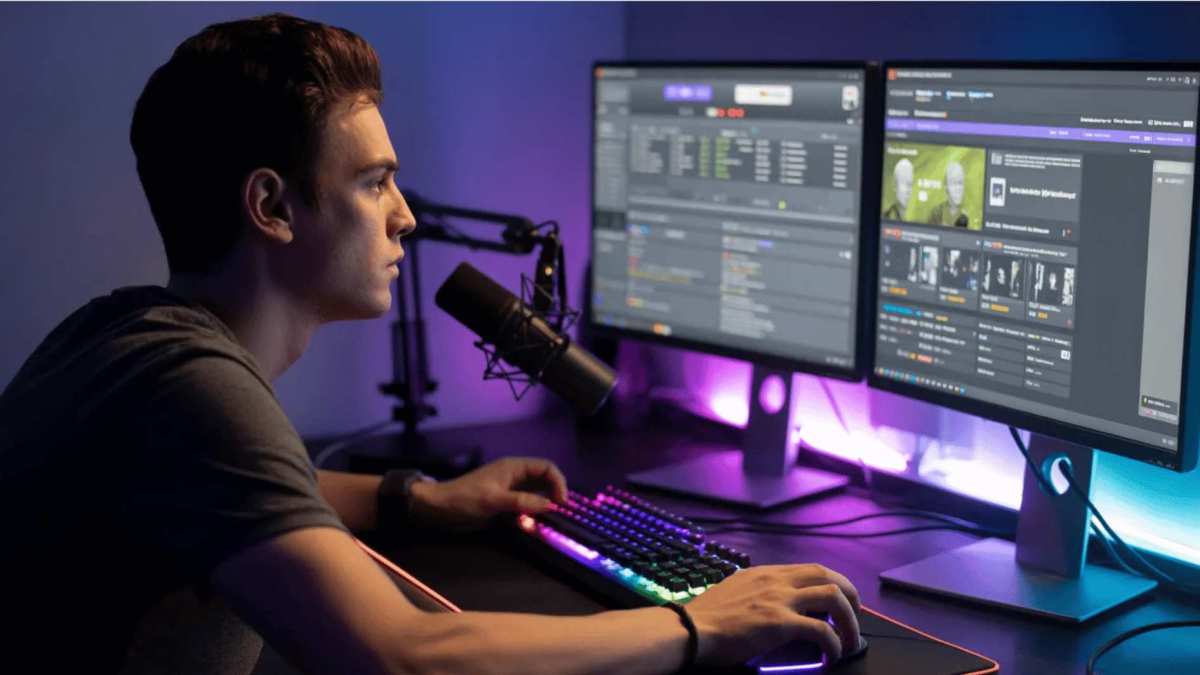
Before you spend money on another screen, get clear on what's actually frustrating you right now. Most streamers who consider a dual setup are running into one of these problems.
- You keep alt-tabbing out of your game and your viewers see your desktop.
- You can't read chat without minimizing what you're doing.
- You're fumbling with OBS or Streamlabs controls mid-stream because everything's crammed onto one screen.
- You want to monitor stream health (bitrate, dropped frames) without interrupting your flow.
If any of that sounds familiar, a second monitor probably makes sense for you. But here's the thing: not every streamer faces these problems. If you're doing IRL streams from a phone, running a podcast-style show with no gameplay, or just broadcasting music production software, one screen might genuinely be enough.
The decision tree is pretty straightforward. The more live elements you need to watch simultaneously, the stronger the case for dual monitors. The simpler your stream, the less you benefit.
How Dual Monitors Actually Work for Streaming
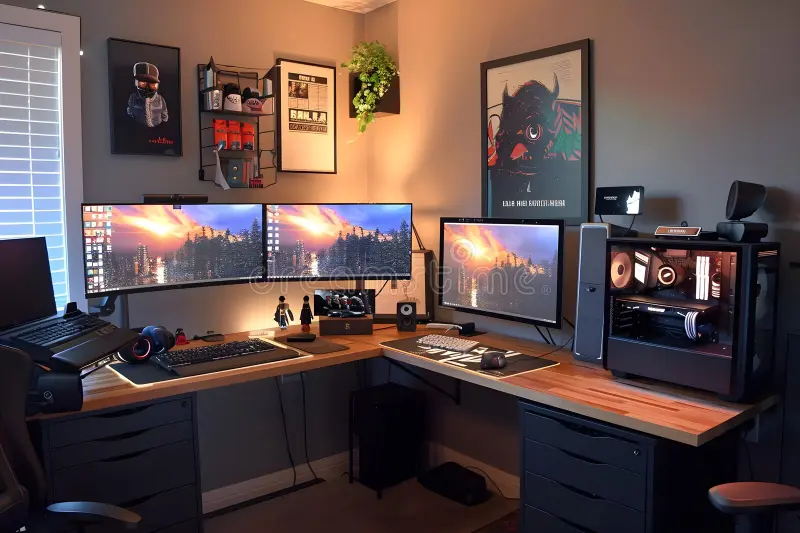
A dual monitor setup means connecting two separate displays to your GPU and extending your desktop across both. Each screen becomes its own workspace. You decide what lives where.
What Each Screen Typically Handles
Most experienced streamers split their setup like this.
- Primary monitor: Your main content. This is your game, your camera preview, your presentation slides, or whatever your audience is watching.
- Secondary monitor: Your behind-the-scenes tools. OBS or Streamlabs controls, Twitch or YouTube chat, stream health stats, alert dashboards, music playlists, and Discord all live here.
This separation is the whole point. Your viewers see one thing. You see everything else on the other screen without ever overlaying it on the broadcast.
Where the GPU Load Comes From
Here's what a lot of people overlook. Driving a second monitor does use additional GPU resources. Manufacturer specifications from NVIDIA and AMD indicate that a second display typically adds around 5 to 10 percent GPU load, depending on what's being shown on that screen.
If you're just displaying a static chat window, the impact is minimal. If you're running a hardware-accelerated browser with animated alerts on your second screen, it's more noticeable. For most modern GPUs with 6GB or more VRAM, this isn't a dealbreaker.
But if you're already pushing your card to its limits with a demanding game at high settings, that extra load can cause frame drops in your stream.
The encoding method matters too. If you're using NVENC (NVIDIA's hardware encoder), the encoding load is handled by a dedicated chip on your GPU, so the second monitor's impact on your game performance is smaller. If you're using x264 software encoding, your CPU is already under heavy pressure, and any additional GPU overhead from a second display can make things worse.
When a Dual Monitor Setup Makes Sense
Let's get specific. Here are the situations where a second monitor pays for itself quickly.
You're a Full-Time or Serious Hobbyist Streamer
If you stream more than three times a week and you're actively building an audience, efficiency matters. Every second you spend squinting at a tiny chat window or accidentally clicking the wrong thing costs you engagement. A second monitor lets you run your stream the way professionals do, with dedicated space for every tool.
You Stream Games That Require Immersion
Fast-paced competitive games like first-person shooters, racing games, or fighting games demand your full attention. Alt-tabbing out of these to check chat breaks your focus and can actually cost you the match. With a second screen, chat is always visible in your peripheral vision.
You never have to leave the game.
You Manage Chat Actively During Streams
If audience interaction is a big part of your stream's appeal, you need to see chat constantly. Reading messages, responding to new subscribers, and acknowledging donations all happen faster when chat is right there on a dedicated screen. You're not relying on a phone propped up against your keyboard or hoping you catch messages during loading screens.
You Run Alerts, Overlays, or Widgets
Streamlabs and similar platforms let you display follower alerts, donation tickers, subscriber goals, and other widgets. On a single monitor, you either clutter your main display with these or never see them yourself. A second screen lets you preview exactly what your audience sees and confirm that alerts are firing correctly.
You Multi-Stream or Restream
If you're broadcasting to multiple platforms simultaneously using tools like Restream.io, you may need to monitor chat from Twitch, YouTube, and Facebook Gaming all at once. That's three or more browser tabs that each need attention. A second monitor makes this manageable without constant tab-switching.
When a Single Monitor Is Actually Enough
Dual monitors aren't automatically better. Plenty of successful streamers run a single screen and do just fine. Here's when you should probably skip the second monitor.
You're Just Starting Out
If you've done fewer than ten streams, your money and energy are better spent elsewhere. A decent microphone, a reliable internet connection, and basic lighting will improve your stream quality far more than a second screen. Learn your workflow first.
Add complexity later when you actually feel the pain.
You Stream Casual or Mobile Content
IRL streamers, mobile gamers, and creators who do talk-show-style broadcasts often don't need a second monitor at all. Your content is you, your camera, and maybe a chat overlay on a phone. Adding a second monitor to that setup is overkill.
Your Hardware Is Already Pushed Thin
If your GPU has less than 4GB of VRAM or your CPU is already maxing out during streams, a second monitor will make performance worse, not better. You'll see frame drops, encoding lag, and a worse experience for your viewers. In this case, upgrading your GPU or switching to hardware encoding is a smarter move than adding another display.
You Use a Stream Deck or Tablet as a Second Screen
An Elgato Stream Deck gives you physical buttons for scene switching, audio mixing, and macro commands. A tablet running a chat app or OBS remote can handle monitoring. These alternatives take up less desk space, cost less than a full monitor, and don't add GPU load.
For a lot of streamers, they're the better solution.
Desk Space or Budget Is Tight
A decent second monitor costs between $100 and $250 as of 2026. You also need the desk space to fit it and a monitor arm or stand if you want proper ergonomics. If your setup is cramped or your budget is focused on other gear, one good monitor beats two mediocre ones.
The Alternatives Worth Considering
A second traditional monitor isn't your only option for getting more screen space into your streaming workflow. Here are the alternatives that experienced streamers actually use.
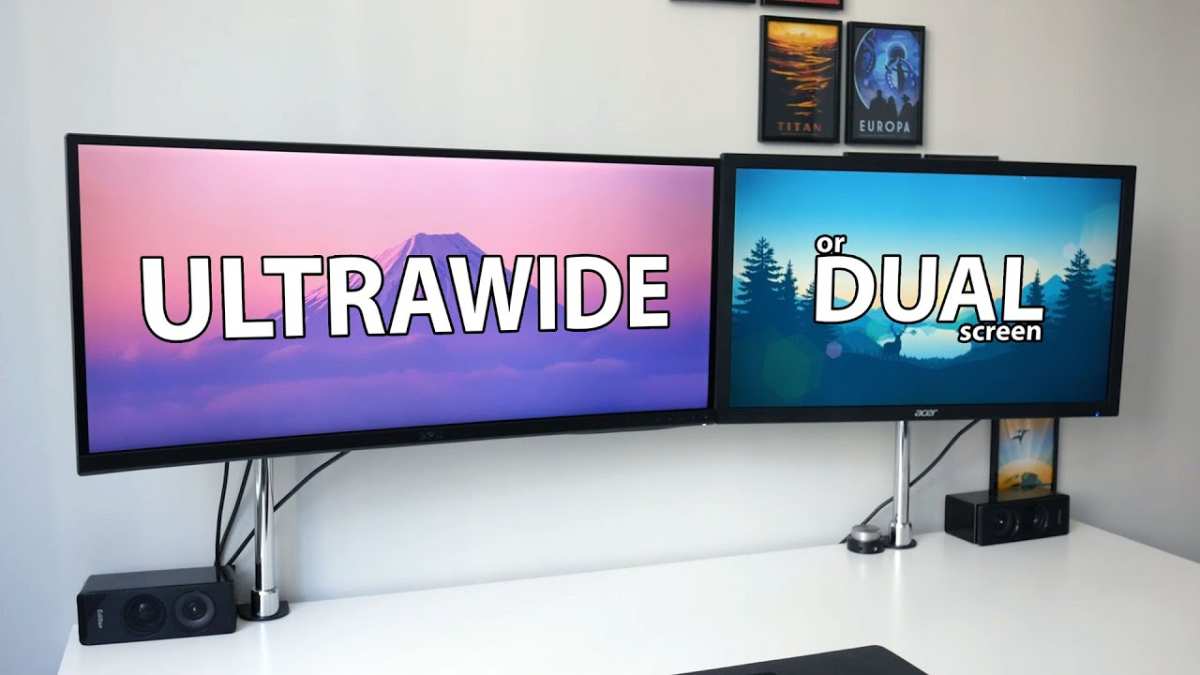
Ultrawide Monitor
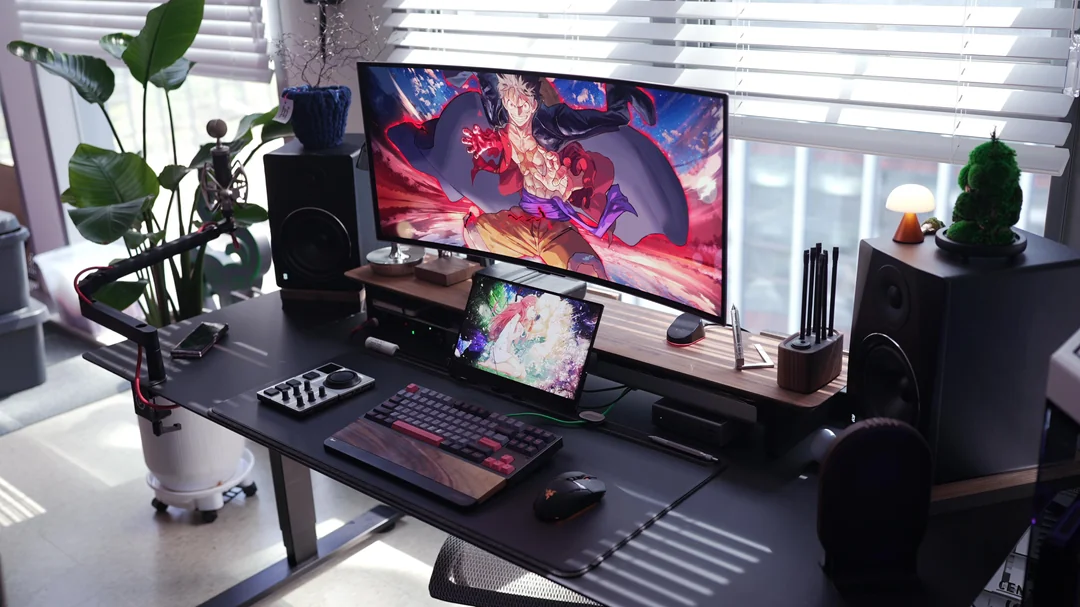
An ultrawide monitor (typically 34" to 38" with a 21:9 aspect ratio) gives you the screen real estate of two monitors without a bezel gap in the middle. You can run your game across the center and dock chat or OBS on one side using window management tools like PowerToys FancyZones on Windows or Magnet on macOS.
The downside: most ultrawides are 1440p tall, which is great, but they're not cheap. A good 34" IPS ultrawide with decent color accuracy runs $350 to $600 as of 2026. You also lose the ability to dedicate one screen entirely to your broadcast preview.
Everything shares one display, which can still lead to accidental desktop reveals if you're not careful with window placement.
Laptop + External Monitor
If you game or create on a decent laptop, pairing it with one external monitor keeps things compact. Your laptop screen becomes your secondary display for chat and OBS. The external monitor handles your primary content.
No extra tower, less cable clutter.
Tablet or Phone as Chat Monitor
A tablet mounted below or beside your main monitor works as a dedicated chat screen. Apps like the Twitch or YouTube Studio mobile apps give you full chat access with no meaningful GPU impact on your streaming PC. Some streamers also use Duet Display or Spacedesk to turn a tablet into a true second monitor over USB.
This works well, though it does add a small amount of CPU overhead for the display extension.
Stream Deck for Controls
An Elgato Stream Deck doesn't give you more screen space, but it eliminates the reason many people think they need a second monitor. Physical buttons for scene switching, muting audio sources, triggering ads, and launching overlays mean you don't need OBS visible at all. You just press a button.
Many dual-monitor streamers end up adding a Stream Deck later and then find they barely look at the second screen anymore.
Side-by-Side: Dual Monitor vs Alternatives at a Glance
| Setup Option | Best For | GPU Impact | Approximate Cost (2026) | Desk Space Needed |
|---|---|---|---|---|
| Dual Monitor (2x 24" 1080p) | Serious streamers managing multiple live tools | Low to moderate (5-10%) | $200 – $400 | Large |
| Ultrawide Monitor (34" 3440×1440) | Streamers who want seamless workspace | Same as single monitor | $350 – $600 | Medium |
| Laptop + External Monitor | Portable creators, small desk setups | Low | Varies (own laptop + $150 – $250 monitor) | Medium |
| Tablet/Phone as Second Screen | Budget streamers, minimal setups | Negligible | $0 – $50 (if already owned) | Minimal |
| Stream Deck Only | Streamers who only need OBS controls | None | $100 – $250 | Minimal |
How to Set Up Dual Monitors for Streaming (Step by Step)
Once you've decided to go dual, setting it up correctly prevents most of the headaches people run into. Here's the process that works reliably.
Step 1: Check Your GPU Outputs
Look at the back of your PC. Your GPU should have at least two output ports, typically a mix of HDMI and DisplayPort. Most modern GPUs from NVIDIA (GTX 16-series and newer) and AMD (RX 5000-series and newer) support three or more displays natively.
If you only have one output, you'll need a new GPU or a USB display adapter for the second screen.
Step 2: Connect and Configure in Windows or macOS
Plug both monitors into your GPU. In Windows, right-click the desktop and select Display Settings. You'll see both screens.
Make sure "Extend these displays" is selected, not "Duplicate." Arrange the monitors to match their physical position on your desk. On macOS, go to System Settings > Displays and arrange them the same way.
Step 3: Assign Roles to Each Screen
Decide which monitor is primary. Set your main content screen as the primary display in your OS settings. This is where your game or main application will open by default.
The secondary screen becomes your utility space. Open OBS or Streamlabs, your chat dashboard, and any monitoring tools on the secondary screen.
Step 4: Configure OBS or Streamlabs for Dual Display
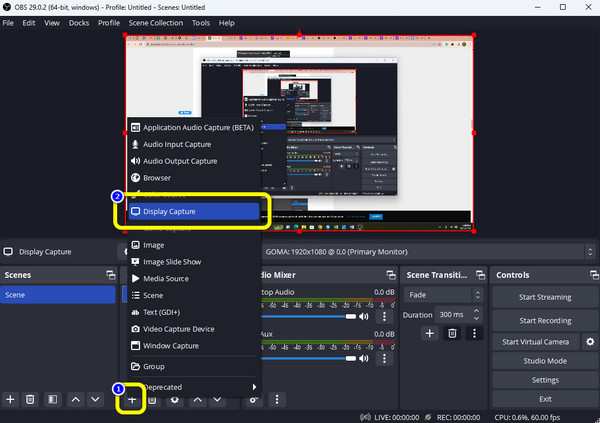
In OBS Studio, go to Settings > Video and set your base canvas resolution to match your primary monitor. If you want to see a full preview of your stream without it taking up your main screen, you can undock the preview panel and drag it to your secondary monitor. Some streamers also use OBS's "Projector" feature to send a specific scene or source to the second screen via a fullscreen projector output.
Step 5: Set Up Hotkeys So You Don't Have to Look Away
In OBS or Streamlabs, assign hotkeys for switching scenes, muting audio, starting streams, and triggering ads. This lets you control your broadcast without looking at the secondary screen or moving your mouse. Keep the hotkeys consistent and avoid conflicts with game keybinds.
Step 6: Do a Test Stream Before Going Live
Use OBS's record feature or Twitch's test stream option to record a few minutes. Watch it back. Check that your game capture is clean, your audio levels are balanced, and nothing from your secondary screen accidentally appeared in the broadcast.
This catches mistakes before your audience sees them.
Common Mistakes That Ruin the Dual Monitor Experience
Even with the right gear, a few mistakes can make dual monitors more trouble than they're worth.
- Duplicating instead of extending your display: If both screens show the same thing, you gain nothing. Always set your displays to "Extended" mode.
- Placing the secondary monitor too far to the side: You'll crane your neck constantly and miss chat messages. Keep both screens within your natural field of vision.
- Forgetting to disable hardware acceleration on secondary screen browsers: If you have a browser with animated alerts open on your second screen and hardware acceleration is on, it can steal GPU cycles from your game. Disable hardware acceleration in your browser settings for the secondary display.
- Not setting up hotkeys: If you have to look at your second screen and click buttons to switch scenes, you've lost the advantage. Hotkeys keep your eyes on your content.
- Using mismatched resolutions: Running one 1080p screen and one 1440p screen can cause window sizing issues and cursor movement quirks. Matching resolutions makes everything smoother.
- Ignoring cable quality: A cheap HDMI cable might not support the resolution and refresh rate you need. Use certified cables that match your monitor's specs.
What It Actually Costs: Budget Breakdown
Here's what you're looking at financially for a proper dual monitor streaming setup as of 2026.
| Component | Budget Option | Mid-Range Option | Notes |
|---|---|---|---|
| Secondary Monitor (24" 1080p IPS) | $100 – $130 | $150 – $200 | IPS panels offer better color for preview monitoring |
| Monitor Arm / Stand | $25 – $40 | $50 – $80 | Frees desk space and improves ergonomics |
| HDMI or DisplayPort Cable | $8 – $12 | $15 – $25 | Match cable to your monitor's max spec |
| Stream Deck (optional) | $100 (Mini) | $150 (standard) | Replaces need to see OBS controls |
| Total (without Stream Deck) | $133 – $182 | $215 – $305 | |
| Total (with Stream Deck Mini) | $233 – $242 | $315 – $355 |
If you already own a second monitor from a previous setup, your cost drops to nearly zero. That's worth checking before you buy anything.
The Decision Guide: Should You Go Dual Monitor?
Ask Yourself These 5 Questions
If you're still on the fence, run through these questions honestly. Your answers will tell you what to do.
- Do you stream at least three times per week? If yes, the efficiency gains from a second screen compound quickly. If no, hold off.
- Do you actively read and respond to chat during streams? If chat interaction matters to your content, a dedicated screen for it is one of the best quality-of-life upgrades you can make.
- Does your GPU have at least 6GB of VRAM? If yes, the performance hit from a second display is manageable. If no, consider upgrading your GPU first.
- Do you have at least 24 inches of desk depth? Dual monitors need room. A cramped desk makes things worse, not better.
- Can you afford $150 or more for a decent secondary monitor? If the budget is tight, put that money toward a better microphone or lighting first.
If you answered yes to at least three of these, a dual monitor setup will likely improve your streams. If you answered yes to one or fewer, stick with a single screen for now and explore the alternatives we covered earlier.
Final Verdict: Who Should Make the Jump and Who Should Wait
A dual monitor setup is genuinely good for streaming if you're past the beginner stage and you're managing multiple live elements during your broadcasts. It reduces mistakes, keeps your workflow smooth, and makes you look more professional because you're not fumbling with windows on air.
It's not good for streaming if you're just starting out, running a tight budget, or streaming content that doesn't require constant monitoring of multiple tools. In those cases, the money is better spent elsewhere, and a single screen with a Stream Deck or tablet for chat will serve you well.
The bottom line: a second monitor is a quality-of-life upgrade, not a quality upgrade. Your content won't look better just because you have two screens. But your experience as the person running that content will be significantly less stressful.
And when streaming is less stressful, you perform better, your audience has more fun, and you're more likely to stick with it long enough to grow.
Frequently Asked Questions
Does a second monitor increase stream latency?
A second monitor adds minimal GPU load, typically 5 to 10 percent depending on what's displayed. This rarely causes noticeable stream latency on modern hardware. If you're already using x264 encoding with a CPU near maximum usage, the additional display load could contribute to encoding lag.
Switching to NVENC hardware encoding resolves this in most cases.
What size monitor is best for a secondary streaming screen?
A 24-inch 1080p monitor works perfectly as a secondary screen for chat, OBS controls, and stream monitoring. You don't need high refresh rates or 4K resolution for utility tasks. IPS panels are preferable because they offer better color accuracy if you're previewing your stream output on that screen.
Can I use two different monitor brands or sizes together?
Yes, you can mix different brands, sizes, and resolutions. Windows and macOS both handle mixed setups. However, mismatched resolutions can cause windows to resize awkwardly when moving between screens.
Matching at least the resolution (even if the physical size differs) makes the experience smoother.
Do I need a dedicated GPU for dual monitors?
Most modern GPUs support at least two displays. Even mid-range cards from the NVIDIA GTX 16-series and AMD RX 5000-series onward handle dual monitors without issues. Some CPUs with integrated graphics also support dual displays, but streaming while relying on integrated graphics is not recommended due to performance limitations.
Is a dual monitor setup worth it for console streaming?
If you're streaming from a PlayStation or Xbox using a capture card, a dual monitor setup is very useful. One screen shows your gameplay through the capture card feed. The other screen runs OBS and chat on your PC.
Without the second screen, you'd need to rely on a TV for gameplay and your PC screen for everything else, which works but is less efficient.
How do I stop my mouse from getting lost between monitors?
In Windows Display Settings, make sure the monitor arrangement matches their physical positions on your desk. If your second monitor is to the left of your primary, drag the display icon to the left in the settings panel. This ensures your mouse moves between screens in the direction you expect.

Similar Posts