Can Dual Monitors Increase FPS
Can dual monitors increase fps? It's one of those questions that sounds simple but actually depends on your specific hardware, settings, and what you're doing on that second screen. The short version: dual monitors won't boost your FPS, and in some scenarios they'll actually cost you a few frames per second.
But the real story is more nuanced than that, and understanding why will help you get the best performance out of your setup.
Research into multi-display configurations and GPU behaviour shows that the performance impact typically ranges from negligible to around 5-10% in most gaming scenarios. That number can climb higher though, depending on your GPU, resolution, and display settings. Let's break down exactly what's happening under the hood so you can make the right call for your rig.

The Quick Answer: Do Dual Monitors Affect FPS?
Dual monitors cannot increase your FPS. They can slightly decrease performance in some scenarios. The impact ranges from 0% to roughly 10% depending on your setup.
Integrated graphics suffer the most. Discrete GPUs handle multi-display configurations with minimal loss.
Why People Ask This Question
Gamers have been running dual monitor setups for years now, and it's become the norm rather than the exception. You've got your game on one screen, Discord or a web browser on the other, maybe a stream chat window open too. It just makes sense.
But then you notice your frame rate dipping and you start wondering if that second display is the culprit.
Here's the thing. Your GPU has to work to push pixels to every connected display, even when nothing demanding is happening on that second screen. The Windows Desktop Window Manager (DWM) composites your desktop across all active monitors, which means there's always some baseline GPU overhead just from having two displays connected.
For most modern dedicated graphics cards, that overhead is tiny. We're talking maybe 1-3% of your GPU's total capacity. You'd never notice it in normal use.
The confusion really kicks in when people see FPS drops after adding a second monitor and assume causation. Sometimes the second monitor is the problem. Sometimes it's a driver update, a background process, or a thermal issue that just happened to coincide with the new display.
Sorting out what actually matters requires looking at your specific situation, not just blanket statements from forum posts.
How Your PC Actually Handles Multiple Displays
To understand whether your dual monitor setup is hurting your FPS, you need to know what's actually happening behind the scenes. Your GPU doesn't just "know" how to handle multiple displays. There's a whole pipeline involved, and each step has a small performance cost.
The Desktop Compositor Factor
Windows uses the Desktop Window Manager (DWM) to render your desktop. It composites all your open windows into a single frame before sending it to your display. When you add a second monitor, DWM has to composite across two displays instead of one.
That means more pixels to process every single frame.
On a modern discrete GPU, this extra compositing work is trivial. Your GPU is probably pushing billions of operations per second. Adding a second 1080p display means roughly 2 million more pixels to composite, and DWM handles that without breaking a sweat.
But if you're running integrated graphics, like Intel UHD or AMD's basic APU graphics, those shared resources are already stretched thin. The extra compositing overhead can become noticeable.
What Happens to Your GPU
Your GPU has a fixed amount of processing power, VRAM, and bandwidth. Every active display consumes a portion of those resources just to maintain the desktop image. This is called the "framebuffer," and it's a dedicated chunk of VRAM that holds the image being sent to each display.
Here's a quick breakdown of what that costs:
| Resolution | Pixels Per Frame | VRAM Per Display (32-bit color) |
|---|---|---|
| 1920×1080 (1080p) | 2,073,600 | ~8 MB |
| 2560×1440 (1440p) | 3,686,400 | ~14 MB |
| 3840×2160 (4K) | 8,294,400 | ~32 MB |
On paper, those numbers look tiny. And for VRAM consumption alone, they are. But the GPU also needs to refresh those framebuffers at your display's refresh rate.
A 1440p 144Hz primary display plus a 1080p 60Hz secondary display means your GPU is pushing a combined total of over 400 million pixels per second just for the desktop. Add a game on top of that, and the total pixel throughput requirement climbs fast.
The real bottleneck isn't usually the framebuffer itself. It's the additional rendering work, the memory bandwidth used to move those pixels around, and the way your GPU's scheduling handles multiple display outputs simultaneously. Modern GPUs handle this well, but it's not free.
When Dual Monitors WILL Impact Your FPS
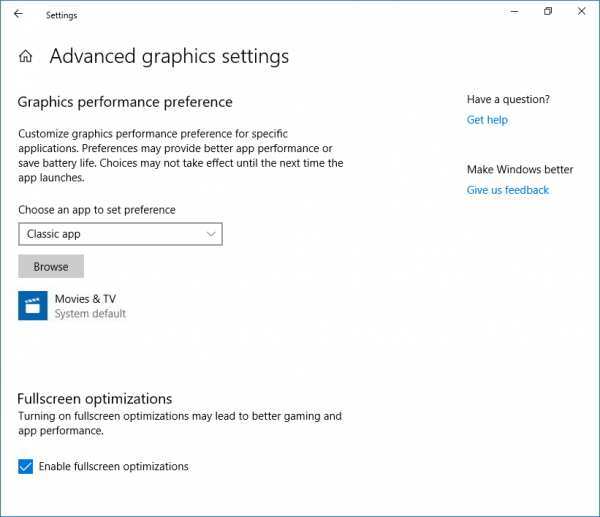
Not every dual monitor setup causes problems. But there are specific scenarios where you'll almost certainly see a performance hit. If any of these match your situation, your second display is likely costing you frames.
You're Running Integrated Graphics
This is the big one. Integrated GPUs, like Intel Iris Xe or AMD Radeon Graphics on APUs, share system memory and have far less processing power than discrete cards. They're already working hard to push a single display at decent performance.
Adding a second monitor can push them over the edge.
If you're gaming on integrated graphics with a second display connected, expect noticeable FPS drops. We're not talking 1-2%. You could see 10-20% losses in some titles because the iGPU simply doesn't have enough rendering horsepower to handle both the game and the desktop compositing across two outputs.
The VRAM is shared with system RAM too, so you're competing for memory bandwidth on multiple fronts.
You're Playing in Borderless Windowed Mode
This is probably the most common cause of dual monitor FPS drops. When you run a game in borderless windowed mode, the game's output goes through the Windows DWM compositor before reaching your display. That means your GPU is rendering the game, then DWM is compositing it with your desktop, then sending the final frame to your monitor.
In exclusive fullscreen mode, the game takes direct control of the display output. DWM gets bypassed entirely, and the game's frames go straight to the monitor with minimal overhead. But the moment you switch to borderless windowed, that DWM compositing layer comes back into play, and it has to work harder with two displays connected.
The performance difference between borderless and exclusive fullscreen is usually small on a single monitor. With dual monitors, it can become more pronounced because DWM is doing more work across both displays.
Your Second Monitor Is Doing Heavy Work
A second monitor displaying a static desktop wallpaper costs almost nothing. A second monitor streaming a 4K YouTube video, running a hardware-accelerated browser with 20 tabs, or displaying a real-time dashboard with animations? That's a different story.
Hardware acceleration in browsers like Chrome and Edge uses your GPU to render video and web content. When that's happening on your second monitor while you're gaming on your primary, your GPU is splitting its attention. Video decode engines on modern GPUs are separate from the main rendering cores, but they still consume memory bandwidth and can create scheduling conflicts.
Mismatched Refresh Rates Are Causing Problems
If your primary monitor runs at 144Hz and your secondary at 60Hz, Windows DWM can have trouble with frame pacing. The compositor needs to synchronize across both displays, and mismatched refresh rates can cause the DWM to run at the lower common denominator in some scenarios. This won't show up as a lower average FPS number, but it can cause micro-stuttering and inconsistent frame delivery that feels worse than a simple FPS drop.
This is a known issue with Windows 10 and Windows 11. Microsoft has improved it over the years, but it hasn't been fully resolved as of 2026. If you're experiencing stuttering with dual monitors and your FPS counter looks fine, mismatched refresh rates are a prime suspect.
You're Maxing Out Your VRAM
If your game is already using most of your GPU's VRAM, the additional framebuffer allocation for a second display can push you over the edge. When VRAM fills up, your GPU starts swapping textures and data to system RAM, which is dramatically slower. This causes sudden FPS drops and hitching that feel terrible.
This is more common than people think. Modern games at high textures on 1440p or 4K can easily consume 8-12 GB of VRAM. If you're on an 8 GB card and adding a second 4K display, that extra 32 MB framebuffer might seem trivial, but it can be the straw that breaks the camel's back when you're already at the limit.
When Dual Monitors WON'T Hurt Your FPS
Now for the good news. In a lot of common scenarios, adding a second monitor has essentially zero impact on your gaming performance. If your setup matches these conditions, you probably don't need to worry.
You're on a modern discrete GPU with 8 GB or more VRAM. You're running your game in exclusive fullscreen mode. Your second monitor is just showing a static desktop, a lightweight app, or a simple browser page.
Your primary and secondary displays have the same or similar refresh rates. In this situation, the performance impact is typically within the margin of error for benchmark runs. You might lose 1-2 FPS in a game running at 144 FPS, which is completely imperceptible.
Mid-range and high-end GPUs from the last few generations, like the NVIDIA RTX 4060 and above or the AMD RX 7600 and above, handle multi-display setups with ease. The rendering overhead for desktop composicing across two displays is a rounding error compared to the GPU's total capability. If you're in this boat, game on with both monitors and don't lose sleep over it.
The Real Numbers: What Benchmarks Actually Show
Let's talk actual performance impact. Independent testing and hardware analysis outlets have measured this repeatedly, and the results are pretty consistent across different GPU tiers.
| Scenario | Typical FPS Impact |
|---|---|
| Discrete GPU, game in exclusive fullscreen, idle second monitor | 0-2% |
| Discrete GPU, game in borderless windowed, idle second monitor | 2-5% |
| Discrete GPU, game in borderless windowed, video on second monitor | 5-10% |
| Integrated GPU, game in any mode, any second monitor activity | 10-20%+ |
| Mismatched refresh rates with borderless windowed | Variable stuttering, not always captured by FPS averages |
These numbers come from aggregate testing data across multiple hardware review outlets. Your specific results will vary depending on the game, your GPU driver version, and what's running in the background. But the pattern is clear: discrete GPUs barely notice, integrated GPUs definitely do, and borderless windowed mode is the biggest avoidable performance penalty.
One thing worth noting is that FPS averages don't tell the whole story. Frame time consistency matters just as much for perceived smoothness. A setup averaging 120 FPS with inconsistent frame delivery can feel worse than a locked 100 FPS with smooth frame times.
Dual monitor setups can introduce frame time variance even when the average FPS looks fine, especially in borderless windowed mode.
How to Check If Your Setup Is Affected
You don't have to guess whether your second monitor is costing you performance. A few simple checks will tell you exactly what's going on with your specific hardware.
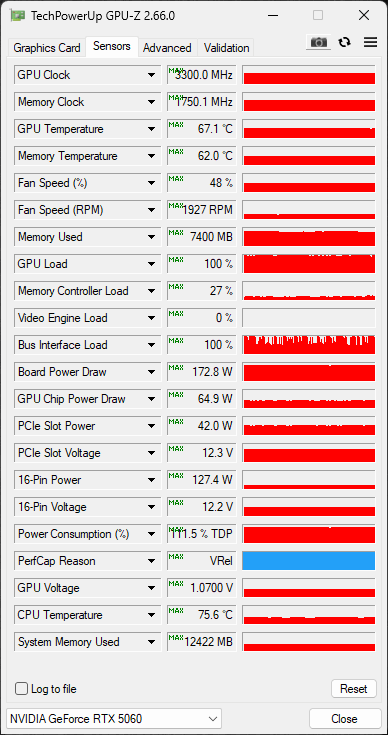
Monitor your GPU utilization. Open GPU-Z or MSI Afterburner while gaming on a single monitor. Note your GPU usage percentage, VRAM usage, and average FPS. Then connect your second monitor, replicate the same test scenario, and compare the numbers.
If GPU usage jumps by more than 3-5%, your second display is adding meaningful load.
Check your VRAM allocation. In GPU-Z, look at the "Memory Used" sensor on the Sensors tab. With one display connected, note the value. Then connect the second display and check again.
The difference is your framebuffer overhead for the additional monitor. It should be small, but if you're already near your VRAM limit, even a small increase can cause problems.
Compare frame times, not just FPS. Use CapFrameX or the frame time graph in MSI Afterburner. If your frame time graph gets noticeably more erratic with the second monitor connected, you've got a pacing issue even if the average FPS looks acceptable.
Test with your actual workload. Synthetic benchmarks are useful, but the real test is your actual gaming session. Play your most demanding game with your typical second monitor usage. If you notice stuttering or lower FPS compared to a single monitor, your setup is affected.
Step-by-Step: Optimizing Your Dual Monitor Gaming Setup
If you've confirmed that your second monitor is impacting performance, or you just want to minimize any potential overhead, here's how to optimize your setup.
Step 1: Switch to Exclusive Fullscreen
This is the single most impactful change you can make. In your game's display settings, select "Fullscreen" instead of "Borderless Windowed" or "Windowed." This bypasses the DWM compositor and lets your game output directly to your primary display. The performance gain varies by game and GPU, but it's often the difference between a noticeable impact and no impact at all.
Some games don't offer exclusive fullscreen anymore, especially newer titles using modern rendering APIs. In that case, borderless windowed is your only option, and you'll need to optimize elsewhere.
Step 2: Match Your Refresh Rates (If Possible)
If your secondary monitor supports it, set it to the same refresh rate as your primary display. This eliminates the DWM synchronization issues that cause stuttering. If matching isn't possible, try setting your secondary to a divisor of your primary's rate.
For example, if your primary is 144Hz, set the secondary to 72Hz if available.
This won't always be practical. Many people have a high-refresh gaming monitor paired with a basic 60Hz secondary. But if you can get closer to matching, it helps with frame pacing.
Step 3: Move Heavy Apps to Your iGPU
If your CPU has integrated graphics and your motherboard supports it, you can connect your secondary monitor to the motherboard's video output instead of your discrete GPU. This offloads all secondary display rendering to the iGPU, leaving your dedicated graphics card focused entirely on gaming.
You may need to enable the iGPU in your BIOS settings. Look for options like "Integrated Graphics" or "Multi-Monitor Support" and set them to enabled. Not all motherboards support this, so check your specific board's manual.
Step 4: Take Hardware Acceleration Seriously
Hardware acceleration in browsers and apps uses your GPU. If you're seeing FPS drops while gaming with a browser open on your second monitor, try disabling hardware acceleration in that browser's settings. In Chrome, go to Settings > System and toggle off "Use hardware acceleration when available."
This shifts the rendering work from your GPU to your CPU. On a modern multi-core processor, this is usually fine for basic browsing. But if your CPU is already heavily loaded by your game, it might not help.
Step 5: Update Your Drivers
GPU driver updates frequently include optimizations for multi-display configurations. NVIDIA and AMD both regularly improve how their drivers handle multi-monitor setups. Make sure you're running the latest stable driver from your GPU manufacturer's website, not whatever Windows Update installed for you.
Step 6: Monitor Your VRAM Usage
Keep an eye on your VRAM usage during gaming. If you're consistently above 90% of your GPU's VRAM capacity, consider lowering in-game texture quality or closing unnecessary applications on your second monitor. Freeing up VRAM headroom can eliminate hitching and maintain consistent performance.
Common Mistakes That Cost You FPS
Even after optimizing, some common mistakes can sneak in and eat your performance. Here's what to watch out for.
Leaving resource-heavy apps open on the second monitor. OBS, Chrome with multiple video tabs, Wallpaper Engine, and RGB control software all consume GPU resources. Close what you don't need while gaming.
Using two monitors on the same GPU output type without checking bandwidth. If both monitors are connected via HDMI to the same GPU, make sure the HDMI version supports your resolution and refresh rate combination. Running a 4K 144Hz display requires HDMI 2.1 or DisplayPort 1.4 with Display Stream Compression.
Ignoring thermal throttling. A second monitor increases your GPU's baseline workload, which means higher idle and load temperatures. If your GPU is already running hot, the extra load from a second display could push it into thermal throttling territory. Keep an eye on your temps.
Assuming the second monitor is always the culprit. Sometimes FPS drops after adding a second monitor are coincidental. A driver update, a Windows update, or a new game patch could be the real cause. Always test before and after to confirm the second monitor is actually responsible.
Single Ultrawide vs. Dual Monitors: The Better Gaming Choice?
If you're considering a multi-display setup and gaming performance is your top priority, you might be weighing a single ultrawide monitor against a dual monitor configuration. Both have trade-offs.
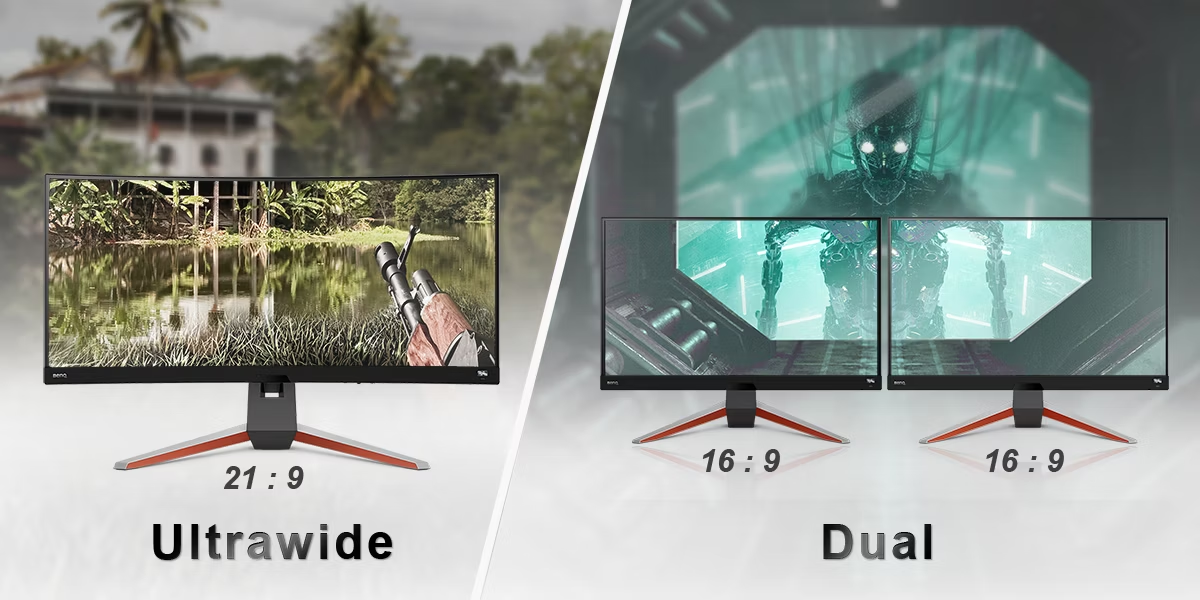
A single ultrawide monitor, like a 34-inch 3440×1440 display, gives you an expanded field of view without the bezel gap or multi-display overhead. Your GPU treats it as one display, so there's no DWM compositing penalty across multiple outputs. For gaming, this is arguably the cleaner solution.
Dual monitors offer more flexibility though. You can angle them independently, use one in portrait mode, and the total screen real estate is often larger. For productivity and multitasking, dual monitors usually win.
But for pure gaming performance, a single ultrawide or super-ultrawide is typically more efficient.
The pixel count matters too. A 3440×1440 ultrawide is about 4.9 million pixels. Two 1080p monitors total about 4.1 million pixels.
So the ultrawide actually pushes more pixels than dual 1080p, but it does so as a single display output, which avoids the multi-display compositing overhead.
Final Verdict: Should You Game on Dual Monitors?
Here's the bottom line. If you have a modern discrete GPU with adequate VRAM, gaming on a dual monitor setup will cost you very little performance. Maybe 1-5% in the worst case, and often nothing at all.
The convenience of having Discord, a browser, or streaming tools on a second screen far outweighs the tiny FPS hit for most people.
If you're on integrated graphics or a lower-end discrete GPU with limited VRAM, a second monitor can meaningfully impact your gaming performance. In that case, you'll want to follow the optimization steps above or consider saving up for a GPU upgrade.
The decision tree is pretty straightforward. Got a mid-range or better GPU? Run dual monitors without worry.
On integrated graphics? Optimize aggressively or game on a single display. Playing competitive esports where every frame matters?
Single monitor, exclusive fullscreen, and close everything else.
Frequently Asked Questions
Does a second monitor lower FPS on a laptop?
It can, especially if the laptop uses integrated graphics or routes the external display through the same GPU that handles gaming. Many laptops with NVIDIA Optimus route the external display through the iGPU, which can help. Check your laptop's specific GPU routing to understand the impact.
Does using two monitors use more GPU VRAM?
Yes, each active display requires a framebuffer in VRAM. A single 1080p display uses about 8 MB, and a 4K display uses about 32 MB. This is negligible on GPUs with 6 GB or more VRAM but can matter on cards with tight memory budgets.
Will disconnecting my second monitor improve FPS?
In most cases with a modern discrete GPU, disconnecting the second monitor will improve FPS by 0-3%. On integrated graphics or in borderless windowed mode, the improvement can be more noticeable, potentially 5-10% or more depending on the game and settings.
Does refresh rate affect FPS on a second monitor?
Your game's FPS is determined by your GPU's rendering capability, not your monitor's refresh rate. However, mismatched refresh rates between monitors can cause DWM compositing issues that lead to stuttering, which affects perceived smoothness even if the FPS counter doesn't change much.
Is it better to use HDMI or DisplayPort for dual monitors?
For gaming, DisplayPort is generally preferred because it supports higher refresh rates at higher resolutions and features like Adaptive Sync more universally. HDMI 2.1 is capable too, but DisplayPort 1.4 with Display Stream Compression handles 4K high-refresh scenarios more reliably across a wider range of hardware.
Frequently Asked Questions
Does a second monitor lower FPS on a laptop?
It can, especially if the laptop uses integrated graphics or routes the external display through the same GPU that handles gaming. Many laptops with NVIDIA Optimus route the external display through the iGPU, which can help. Check your laptop's specific GPU routing to understand the impact.
Does using two monitors use more GPU VRAM?
Yes, each active display requires a framebuffer in VRAM. A single 1080p display uses about 8 MB, and a 4K display uses about 32 MB. This is negligible on GPUs with 6 GB or more VRAM but can matter on cards with tight memory budgets.
Will disconnecting my second monitor improve FPS?
In most cases with a modern discrete GPU, disconnecting the second monitor will improve FPS by 0-3%. On integrated graphics or in borderless windowed mode, the improvement can be more noticeable, potentially 5-10% or more depending on the game and settings.
Does refresh rate affect FPS on a second monitor?
Your game's FPS is determined by your GPU's rendering capability, not your monitor's refresh rate. However, mismatched refresh rates between monitors can cause DWM compositing issues that lead to stuttering, which affects perceived smoothness even if the FPS counter doesn't change much.
Is it better to use HDMI or DisplayPort for dual monitors?
For gaming, DisplayPort is generally preferred because it supports higher refresh rates at higher resolutions and features like Adaptive Sync more universally. HDMI 2.1 is capable too, but DisplayPort 1.4 with Display Stream Compression handles 4K high-refresh scenarios more reliably across a wider range of hardware.
 ✓
✓Chris Nolan
Senior Hardware & Tech Editor · Lead Benchmark SpecialistChris Nolan leads consumer electronics benchmarking and hardware diagnostics at TechBink. With over 15 years of laboratory stress-testing experience across mobile silicon, PC computing architectures, and cutting-edge gadgetry, Chris provides objective, data-backed hardware reviews and teardowns.

Similar Posts