Do 144Hz Monitors Need DisplayPort
Not always, but in many situations, yes, you'll want DisplayPort to reliably hit 144Hz. The real answer depends on what resolution you're running, what ports your GPU and monitor have, and what version of HDMI or DisplayPort those ports support. HDMI can absolutely handle 144Hz in certain setups, but DisplayPort is the safer bet for most gaming rigs as of 2026.
The confusion is understandable. Monitor boxes don't spell this out clearly, cable versions are a mess to keep straight, and GPU manufacturers don't always label their ports with version numbers. Let's walk through exactly what you need based on your specific situation.
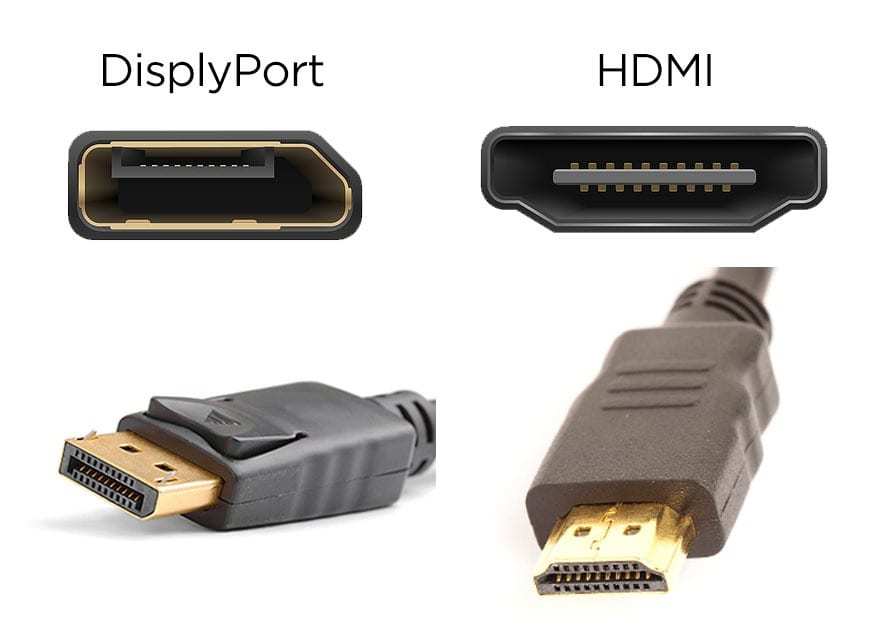
Quick Answer
No, 144Hz monitors do not always need DisplayPort. HDMI 2.0 supports 144Hz at 1080p. HDMI 2.1 handles 144Hz at 1440p and even 4K.
DisplayPort remains the most reliable choice for high refresh gaming. It guarantees compatibility across all standard resolutions up to 4K at 144Hz.
Why This Question Doesn't Have a Simple Yes/No Answer
The reason there's no clean answer is that "144Hz monitor" tells us almost nothing about what's actually required under the hood. A 1080p 144Hz monitor has vastly different bandwidth needs than a 4K 144Hz panel. The cable and port version on both ends of the connection matter just as much as the monitor itself.
Think of it like asking whether a truck needs diesel fuel. It depends on the truck, the engine, and what you're hauling. Same logic applies here.
Your GPU's output version, your monitor's input capabilities, and the cable sitting between them all determine whether you'll actually see that 144Hz in your display settings or get stuck at 60Hz wondering what went wrong.
Manufacturer specifications from VESA and the HDMI Licensing Administrator make this clear. The interface version on each end must support enough data bandwidth for your target resolution and refresh rate combination. Mismatch any one piece and the whole chain falls back to the lowest common denominator.
The Decision Tree: What Cable Do You Actually Need?
Here's where we get practical. Walk through these four steps and you'll know exactly what cable belongs in your setup.
Step 1: What Resolution Are You Running?
This is the single biggest factor. Higher resolutions demand more data bandwidth, and that determines which cable interface can keep up.
- 1080p at 144Hz requires approximately 5.63 Gbps of bandwidth. Almost any modern cable can handle this.
- 1440p at 144Hz requires approximately 9.54 Gbps. Now we need at least HDMI 2.0 or DisplayPort 1.2.
- 4K at 144Hz requires approximately 21.25 Gbps. This demands DisplayPort 1.4 with DSC or HDMI 2.1.
Write down your target resolution and refresh rate. Everything else flows from this.
Step 2: What Ports Does Your GPU Have?
Check your graphics card's output panel. Most modern GPUs from NVIDIA, AMD, and Intel include at least one DisplayPort and one HDMI port, but the versions vary by card generation and model.
Here's a quick reference for what each GPU output version supports:
| GPU Output | Max Bandwidth | 1080p 144Hz | 1440p 144Hz | 4K 144Hz |
|---|---|---|---|---|
| DisplayPort 1.2 | 17.28 Gbps | Yes | Yes | No |
| DisplayPort 1.4 | 25.92 Gbps | Yes | Yes | Yes (with DSC) |
| DisplayPort 2.1 | 77.37 Gbps | Yes | Yes | Yes |
| HDMI 1.4 | 8.16 Gbps | Yes (reduced) | No | No |
| HDMI 2.0 | 14.4 Gbps | Yes | Yes | No |
| HDMI 2.1 | 42.6 Gbps | Yes | Yes | Yes |
If your GPU only has HDMI 2.0, you're capped at 1440p 144Hz. For 4K 144Hz, you'll need either DisplayPort 1.4 or HDMI 2.1 on the GPU side.
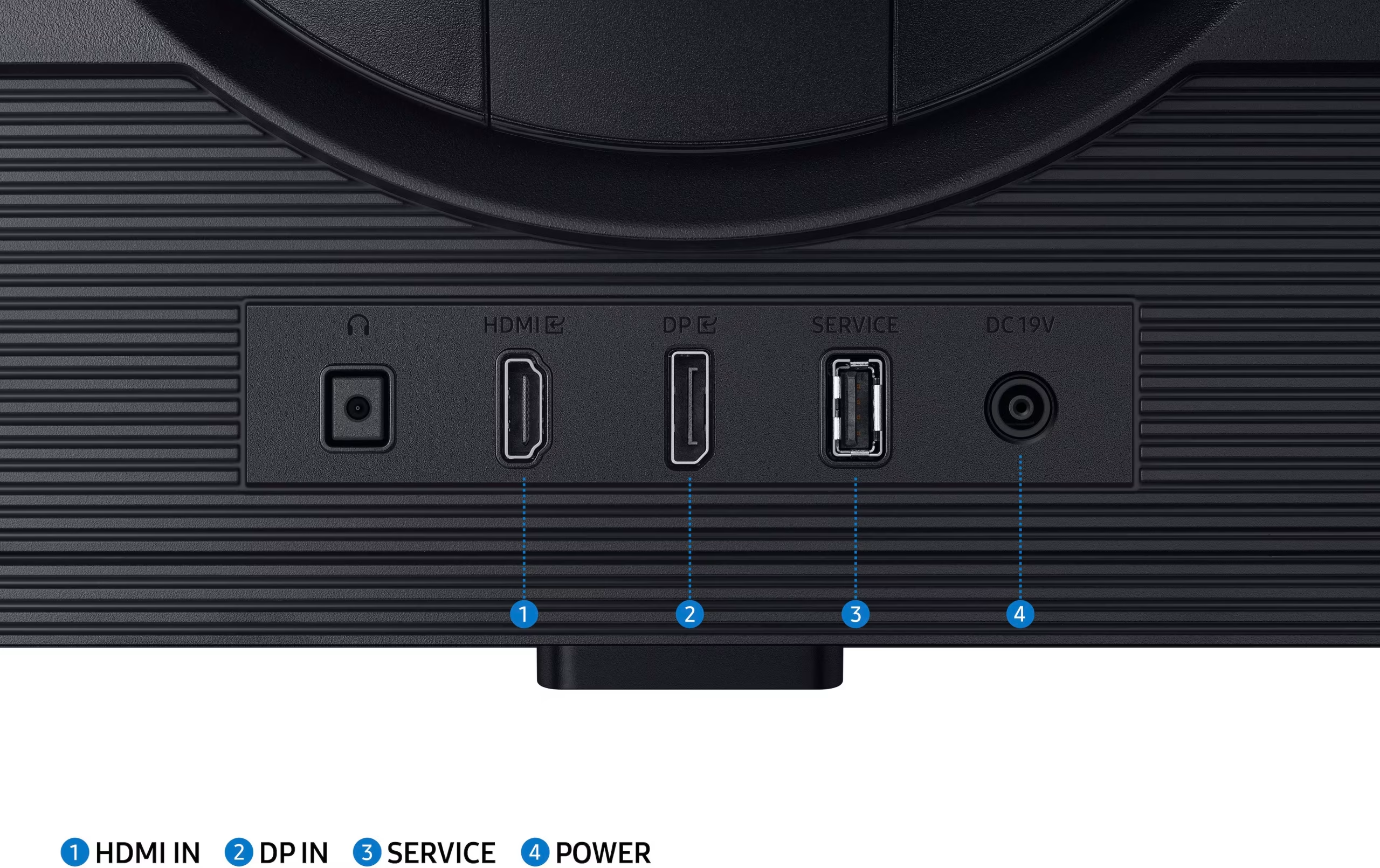
Step 3: What Ports Does Your Monitor Have?
Here's where things get tricky. Many monitors have multiple input ports, but not all of them support the same maximum refresh rate. A monitor might hit 144Hz over DisplayPort but only 120Hz over HDMI, or only on one specific HDMI port.
Always check your monitor's manual or spec sheet for per-port refresh rate limits. Don't assume all ports are equal. Budget and mid-range monitors are especially likely to limit HDMI to lower refresh rates even when the panel itself supports 144Hz.
Step 4: Match Cable Version to Your Required Bandwidth
Now connect the dots. You know your resolution target, your GPU's output version, and your monitor's input capabilities. Pick a cable that meets or exceeds the bandwidth requirement.
- For 1080p 144Hz: Any HDMI 1.4 or newer cable works. DisplayPort 1.2 or newer also works.
- For 1440p 144Hz: Use HDMI 2.0 or newer, or DisplayPort 1.2 or newer.
- For 4K 144Hz: Use DisplayPort 1.4 (with DSC support on the monitor) or HDMI 2.1.
Don't cheap out on cables. A poorly made cable that doesn't meet its rated spec can cause flickering, signal drops, or failure to reach the advertised refresh rate. Look for certified cables from reputable manufacturers.
DisplayPort vs HDMI: The Real Breakdown
Both interfaces can drive a 144Hz monitor, but they're not equally suited for every situation. Let's break down where each one shines and where it falls short.
Where DisplayPort Wins for 144Hz
DisplayPort was designed from the ground up for PC monitor use cases. It consistently delivers the full bandwidth your monitor needs without caveats.
- Guaranteed high refresh support across all standard resolutions up to 4K 144Hz (with DP 1.4 and DSC).
- Adaptive Sync reliability. FreeSync and G-Sync were built around DisplayPort first. Compatibility is more consistent.
- Multi-monitor setups. DisplayPort supports daisy-chaining multiple monitors from a single GPU output, which HDMI cannot do.
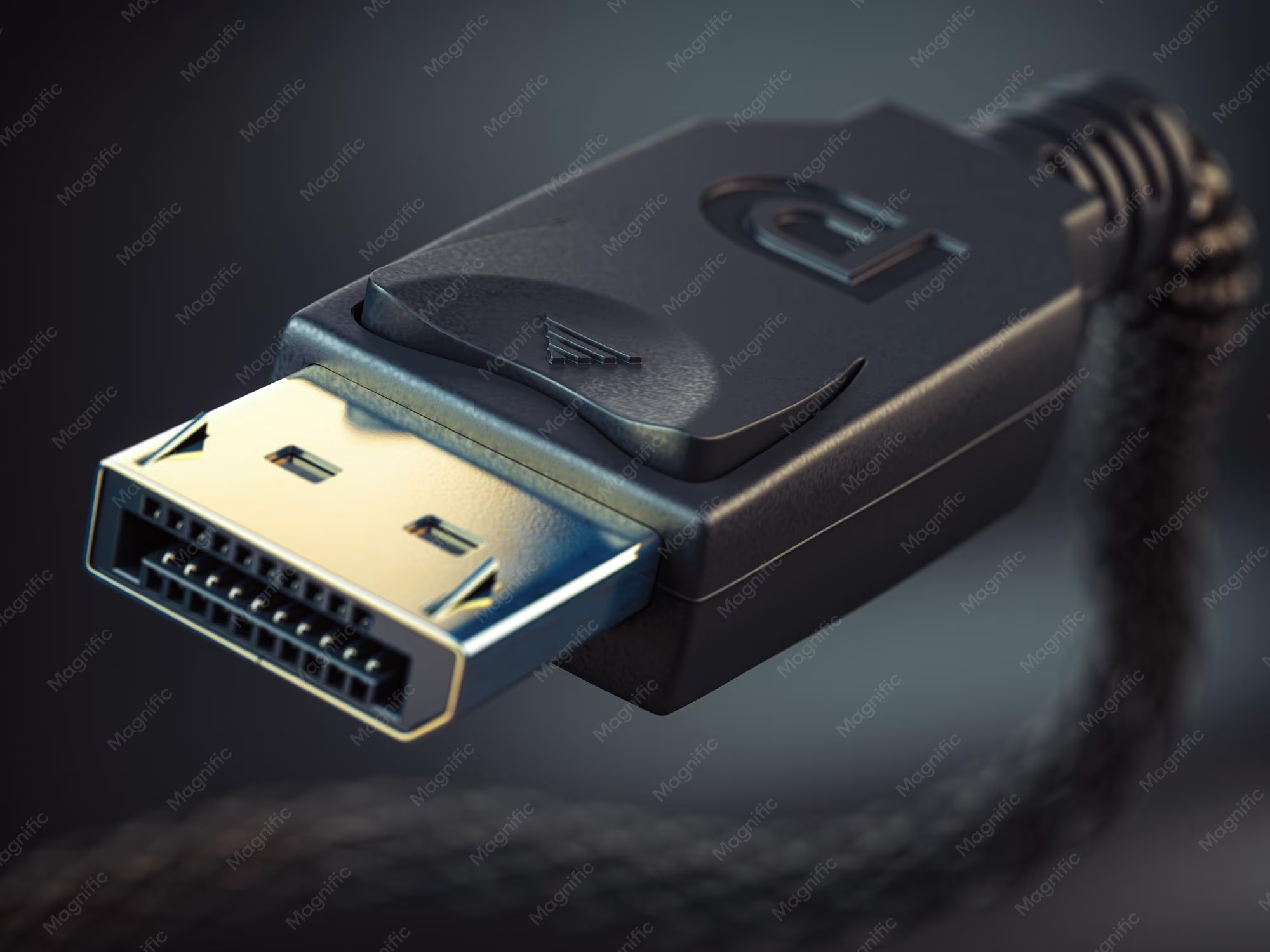
- Locking connector design. DisplayPort cables have a latch that prevents accidental disconnection, a small but meaningful detail for desk setups.
For competitive gaming and high refresh rate use, DisplayPort remains the gold standard. It's the path of least resistance.
Where HDMI Can Work Fine
HDMI 2.1 changed the game. With 42.6 Gbps of bandwidth, it matches or exceeds DisplayPort 1.4 in raw throughput.
- 1080p and 1440p 144Hz work perfectly over HDMI 2.0 and newer.
- 4K 144Hz works over HDMI 2.1 without needing compression.
- Console gaming. The PlayStation 5 and Xbox Series X only have HDMI outputs. No DisplayPort on consoles at all.
- USB-C and Thunderbolt. Many laptops output DisplayPort signals over USB-C using DP Alt Mode, but HDMI is often more universally recognized by docks and adapters.
If you're connecting a console to a 144Hz monitor, HDMI is your only option and it works great for 1080p and 1440p.
Where HDMI Falls Short
The limitations show up when you're working with older hardware or trying to push higher resolutions.
- HDMI 2.0 caps at 144Hz for 1080p and 1440p only. No 4K 144Hz on HDMI 2.0.
- HDMI 1.4 can barely manage 1080p 144Hz and often requires reduced blanking or chroma subsampling. 1440p at 144Hz is out of the question.
- Adaptive Sync over HDMI is less standardized. While HDMI 2.1 supports VRR, implementation varies more between manufacturers than over DisplayPort.
- No daisy-chaining. Each monitor needs its own cable run back to the GPU.
If your GPU or monitor has HDMI 2.0 or older, you're leaving performance on the table at 1440p and above.
Common Mistakes That Leave You Stuck at 60Hz
This is the frustration zone. You bought a 144Hz monitor, connected it, and Windows is showing 60Hz. Here's why that happens and how to fix it.
- Using the cable that came in the box. Many monitors ship with an HDMI cable that may not support the monitor's full refresh rate. Always check the cable version.
- Assuming all HDMI ports are the same. A monitor might have one HDMI 2.1 port and one HDMI 1.4 port. Plugging into the wrong one caps your refresh rate.
- Not checking your GPU's port version. A GPU from 2016 might only have HDMI 1.4 and DisplayPort 1.2. Know what your hardware actually supports.
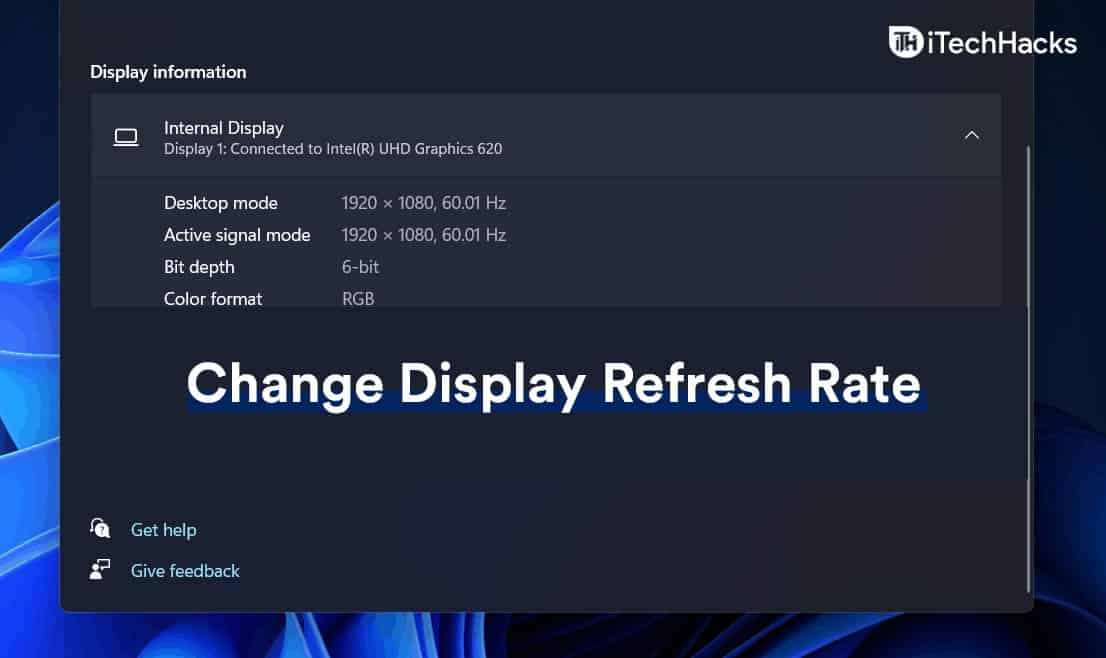
- Forgetting to change the refresh rate in Windows. Even with the right cable and ports, Windows often defaults to 60Hz. You have to manually set it to 144Hz in Display Settings.
- Buying a monitor then realizing your laptop only has HDMI 2.0. Laptops are frequently behind desktop GPUs in port versions. Check before you buy.
To change your refresh rate in Windows, right-click the desktop, select Display Settings, click Advanced Display, then choose 144Hz from the refresh rate dropdown. If 144Hz doesn't appear, your cable, port, or settings are the bottleneck.
Real-World Scenarios: What Works and What Doesn't
Let's put this all together with four common setups people ask about.
Scenario 1: 1080p 144Hz Budget Gaming Setup
You have a mid-range GPU with HDMI 2.0 and DisplayPort 1.2, plus a 1080p 144Hz monitor. Either cable works fine here. HDMI 2.0 handles 1080p 144Hz without breaking a sweat.
DisplayPort 1.2 also works perfectly. Use whichever cable you have handy. No need to overthink this one.
Scenario 2: 1440p 144Hz Mid-Range Build
This is where cable choice starts to matter. You need at least HDMI 2.0 or DisplayPort 1.2. If your GPU has DisplayPort 1.4, use that.
It gives you headroom for HDR and Adaptive Sync without compression. HDMI 2.0 works for 1440p 144Hz but leaves little bandwidth to spare. Avoid HDMI 1.4 entirely here.
It simply can't push enough data.
Scenario 3: 4K 144Hz High-End Setup
You need serious bandwidth. DisplayPort 1.4 with DSC is the most common solution on desktop GPUs. HDMI 2.1 also works and is actually preferred if both your GPU and monitor support it, since it handles 4K 144Hz without compression.
Make sure your cable is certified for the required bandwidth. Not all DisplayPort cables support HBR3 speeds needed for 4K 144Hz with DSC.
Scenario 4: Laptop to External 144Hz Monitor
This is the trickiest scenario. Many laptops only have HDMI 2.0 or even 1.4. Check your laptop's specs carefully.
If it has a USB-C port with DP Alt Mode, use a USB-C to DisplayPort cable. That often gives you access to DisplayPort 1.4 speeds even when the HDMI port is limited. If you're stuck with HDMI 2.0, you'll hit a wall at 1440p 144Hz. 1080p 144Hz will still work fine.
Quick Reference: Cable Version Compatibility Table
Bookmark this. It tells you exactly what each cable version can handle at 144Hz.
| Cable Interface | Max Bandwidth | 1080p 144Hz | 1440p 144Hz | 4K 144Hz |
|---|---|---|---|---|
| DisplayPort 1.2 | 17.28 Gbps | Yes | Yes | No |
| DisplayPort 1.4 | 25.92 Gbps | Yes | Yes | Yes (DSC) |
| DisplayPort 2.1 | 77.37 Gbps | Yes | Yes | Yes |
| HDMI 1.4 | 8.16 Gbps | Limited | No | No |
| HDMI 2.0 | 14.4 Gbps | Yes | Yes | No |
| HDMI 2.1 | 42.6 Gbps | Yes | Yes | Yes |
If your target isn't listed as "Yes," you need a higher-tier cable interface or you need to drop your resolution or refresh rate target.
Final Decision Guide: What Should You Buy?
Here's the bottom line. For most PC gamers running a 144Hz monitor, DisplayPort is the safest choice. It works reliably across all resolutions, supports Adaptive Sync without fuss, and gives you the most consistent experience.
Use HDMI if you're on a console, if your laptop only has HDMI, or if you're running 1080p or 1440p and already have a certified HDMI 2.0 or 2.1 cable. There's no reason to force DisplayPort when HDMI meets your bandwidth needs.
The one thing you should never do is guess. Check your GPU specs, check your monitor's per-port refresh rate limits, and use a cable that's certified for the version you need. Five minutes of checking saves you an hour of troubleshooting why your shiny new 144Hz monitor is stuck at 60Hz.
Frequently Asked Questions
Can HDMI run 144Hz?
Yes. HDMI 2.0 supports 144Hz at 1080p and 1440p. HDMI 2.1 supports 144Hz at 4K.
Older HDMI versions like 1.4 can manage 1080p 144Hz only with compromises.
Is DisplayPort better than HDMI for 144Hz gaming?
For PC gaming, generally yes. DisplayPort offers more consistent Adaptive Sync support, higher effective bandwidth at the 1.4 tier, and daisy-chaining for multi-monitor setups. HDMI 2.1 matches or beats DP 1.4 in raw bandwidth but isn't available on all hardware.
Why is my 144Hz monitor only showing 60Hz?
Most commonly, you're using a cable or port that doesn't support 144Hz at your current resolution. Check your cable version, your GPU output specs, and your monitor's per-port limits. Then manually set the refresh rate in Windows Display Settings.
Do I need DisplayPort for 1440p 144Hz?
Not necessarily. HDMI 2.0 handles 1440p 144Hz. DisplayPort 1.2 or newer also works.
Either interface supports this resolution and refresh rate combination without issues.
Does cable length affect refresh rate?
Yes, longer cables can degrade signal quality. For high bandwidth needs like 4K 144Hz, keep cable lengths under 3 meters. Shorter cables are more reliable at maximum rated speeds.
Will a DisplayPort cable work with an HDMI monitor?
Not directly. You need an active adapter to convert DisplayPort to HDMI, and these adapters may limit your maximum resolution and refresh rate. It's better to use a native connection whenever possible.
Common Mistakes That Leave You Stuck at 60Hz
We've already touched on a few of these, but the mistakes below are the ones we see over and over again. Avoiding them saves you a headache.
- Using the cable that came in the box. Many monitors ship with a basic HDMI cable that may not support the panel's full refresh rate. Always verify the cable version printed on the cable itself.
- Assuming all HDMI ports are equal. A monitor might have one HDMI 2.1 port and one HDMI 1.4 port. Plugging into the wrong one caps your refresh rate immediately.
- Ignoring your GPU's port version. A GPU from 2016 might only have HDMI 1.4 and DisplayPort 1.2. Know what your hardware actually supports before buying cables.
- Forgetting to change the refresh rate in Windows. Even with the perfect cable and ports, Windows often defaults to 60Hz. You have to manually select 144Hz in Display Settings.
- Buying a monitor without checking your laptop's outputs. Laptops frequently lag behind desktop GPUs in port versions. Check before you spend money.
Real-World Scenarios: What Works and What Doesn't
Let's walk through four setups we see constantly. Each one has a different answer.
Scenario 1: 1080p 144Hz Budget Gaming Setup
You have a mid-range GPU with HDMI 2.0 and DisplayPort 1.2, plus a 1080p 144Hz monitor. Either cable works fine here. HDMI 2.0 handles 1080p 144Hz without breaking a sweat.
DisplayPort 1.2 also works perfectly. Use whichever cable you have handy.
Scenario 2: 1440p 1440Hz Mid-Range Build
Cable choice starts to matter here. You need at least HDMI 2.0 or DisplayPort 1.2. If your GPU has DisplayPort 1.4, use that.
It gives you headroom for HDR and Adaptive Sync without compression. HDMI 2.0 works for 1440p 1440Hz but leaves little bandwidth to spare. Avoid HDMI 1.4 entirely.
Scenario 3: 4K 144Hz High-End Setup
You need serious bandwidth. DisplayPort 1.4 with DSC is the most common solution on desktop GPUs. HDMI 2.1 also works and is preferred if both your GPU and monitor support it, since it handles 4K 144Hz without compression.
Make sure your cable is certified for the required bandwidth.
Scenario 4: Laptop to External 144Hz Monitor
This is the trickiest scenario. Many laptops only have HDMI 2.0 or even 1.4. Check your laptop's specs carefully.
If it has a USB-C port with DP Alt Mode, use a USB-C to DisplayPort cable. That often gives you DisplayPort 1.4 speeds even when the HDMI port is limited. If you're stuck with HDMI 2.0, you'll hit a wall at 1440p 144Hz.
Quick Reference: Cable Version Compatibility Table
Bookmark this. It tells you exactly what each cable version can handle at 144Hz.
| Cable Interface | Max Bandwidth | 1080p 144Hz | 1440p 144Hz | 4K 144Hz |
|---|---|---|---|---|
| DisplayPort 1.2 | 17.28 Gbps | Yes | Yes | No |
| DisplayPort 1.4 | 25.92 Gbps | Yes | Yes | Yes (DSC) |
| DisplayPort 2.1 | 77.37 Gbps | Yes | Yes | Yes |
| HDMI 1.4 | 8.16 Gbps | Limited | No | No |
| HDMI 2.0 | 14.4 Gbps | Yes | Yes | No |
| HDMI 2.1 | 42.6 Gbps | Yes | Yes | Yes |
If your target isn't listed as "Yes," you need a higher-tier cable interface or you need to drop your resolution or refresh rate.
Final Decision Guide: What Should You Buy?
Here's the bottom line. For most PC gamers running a 144Hz monitor, DisplayPort is the safest choice. It works reliably across all resolutions, supports Adaptive Sync without fuss, and gives you the most consistent experience.
Use HDMI if you're on a console, if your laptop only has HDMI, or if you're running 1080p or 1440p and already have a certified HDMI 2.0 or 2.1 cable. There's no reason to force DisplayPort when HDMI meets your bandwidth needs.
The one thing you should never do is guess. Check your GPU specs, check your monitor's per-port refresh rate limits, and use a cable that's certified for the version you need. Five minutes of checking saves you an hour of troubleshooting why your shiny new 144Hz monitor is stuck at 60Hz.
Frequently Asked Questions
Can HDMI run 144Hz?
Yes. HDMI 2.0 supports 144Hz at 1080p and 1440p. HDMI 2.1 supports 144Hz at 4K.
Older HDMI versions like 1.4 can manage 1080p 144Hz only with compromises.
Is DisplayPort better than HDMI for 144Hz gaming?
For PC gaming, generally yes. DisplayPort offers more consistent Adaptive Sync support, higher effective bandwidth at the 1.4 tier, and daisy-chaining for multi-monitor setups. HDMI 2.1 matches or beats DP 1.4 in raw bandwidth but isn't available on all hardware.
Why is my 144Hz monitor only showing 60Hz?
Most commonly, you're using a cable or port that doesn't support 144Hz at your current resolution. Check your cable version, your GPU output specs, and your monitor's per-port limits. Then manually set the refresh rate in Windows Display Settings.
Do I need DisplayPort for 1440p 144Hz?
Not necessarily. HDMI 2.0 handles 1440p 144Hz. DisplayPort 1.2 or newer also works.
Either interface supports this resolution and refresh rate combination without issues.
Does cable length affect refresh rate?
Yes, longer cables can degrade signal quality. For high bandwidth needs like 4K 144Hz, keep cable lengths under 3 meters. Shorter cables are more reliable at maximum rated speeds.
Will a DisplayPort cable work with an HDMI monitor?
Not directly. You need an active adapter to convert DisplayPort to HDMI, and these adapters may limit your maximum resolution and refresh rate. It's better to use a native connection whenever possible.

Similar Posts





















