Is 27 Inch Monitor Good for Streaming
Is 27 inch monitor good for streaming? Yes, for most solo streamers it hits a practical balance of size, desk fit, and price. The real answer depends on your resolution choice, viewing distance, and whether you're running a single or dual-screen setup.
Let's break it down.
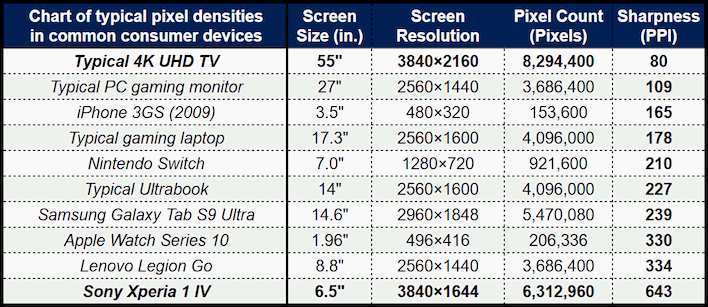
At 27 inches, a 1440p panel gives you roughly 109 pixels per inch at normal desk viewing distance. That's sharp enough for gaming, readable text in chat windows, and a comfortable OBS layout, all without taxing your GPU the way 4K does.
Quick Answer
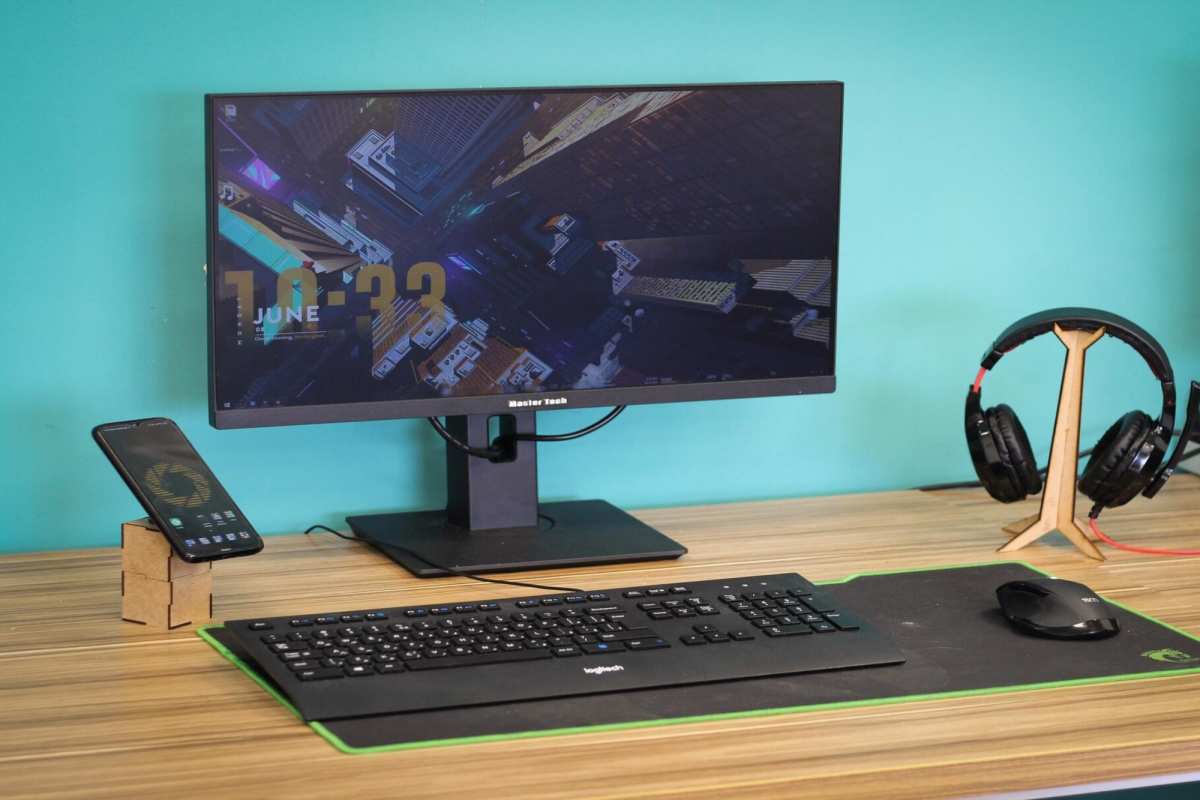
A 27-inch monitor works well for streaming. It suits most single-screen setups. Pair it with 1440p resolution for best results.
Avoid 1080p at this size, it looks soft. For serious multi-tasking, consider going dual or larger.
Why 27-Inch Monitors Hit a Sweet Spot for Streaming
A 27-inch monitor sits in a practical middle ground. It's big enough to see game details clearly. It's small enough to fit on most desks without dominating your space.
Most 27-inch panels ship in the $150 to $400 range as of 2026. That's accessible for first-time streamers. You get decent panel technology, good color accuracy, and enough room for a game plus a chat window on one screen.
The physical footprint matters too. A 27-inch display typically needs about 24 inches of desk width. That leaves room for a keyboard, mouse, and maybe a small webcam.
Bigger screens start crowding your setup.
For console streamers especially, 27 inches feels natural. You're sitting a bit farther back than at a desk. The screen fills your field of view without requiring head turning.
The catch? Resolution matters more than size here. A 27-inch 1080p panel looks noticeably softer than a 24-inch 1080p screen.
Same pixel count, just spread larger. That's where most people go wrong.
The Resolution Question: 1080p vs 1440p at 27 Inches
Resolution is the single biggest factor in whether a 27-inch monitor works for your stream. The screen size itself is fine. The pixel density is what makes or breaks it.
Here's the math that matters:
| Spec | 27" 1080p | 27" 1440p | 24" 1080p |
|---|---|---|---|
| Resolution | 1920 x 1080 | 2560 x 1440 | 1920 x 1080 |
| Pixel Density | ~81 PPI | ~109 PPI | ~92 PPI |
| Text Clarity | Soft | Sharp | Sharp |
| GPU Load | Low | Moderate | Low |
| Typical Price | $150–$220 | $250–$400 | $120–$180 |
Why 1080p Looks Soft at 27" (And What That Means for Your Stream)
At 81 pixels per inch, a 27-inch 1080p display shows visible pixelation. Text looks slightly fuzzy. Edges aren't crisp.
You'll notice it most when reading chat, browsing, or editing stream overlays.
For streaming specifically, this creates two problems. First, your OBS preview and source text won't look clean up close. Second, if you're capturing your screen for tutorials or creative content, the softness carries through to the recording.
A 24-inch 1080p panel gives you 92 PPI. Same resolution, tighter pixel packing, sharper image. If you're set on 1080p, 24 inches is the better choice for desktop use.
Some streamers sit 3+ feet from their monitor. At that distance, the softness becomes less noticeable. But most desk setups put you 2 to 2.5 feet away.
You'll see the difference.
Why 1440p Is the Real Sweet Spot
At 1440p on a 27-inch panel, you get 109 PPI. Text is sharp. Game details are clear.
OBS layouts look clean. This is where 27 inches starts making sense for streaming.
The extra pixels give you real workspace too. You can run your game at 1440p, keep OBS open on the side, and still have room for a browser or chat client. It's tight but workable on a single screen.
GPU load is manageable. Streaming at 1440p gaming plus encoding requires a mid-range card. Think NVIDIA RTX 3060 or AMD RX 6600 and up. 4K gaming plus streaming demands significantly more horsepower.
Most quality 27-inch 1440p monitors also ship with 144Hz or higher refresh rates. That's a bonus for gaming between streams. IPS panels at this size offer good color accuracy for content creation too.
The price jump from 1080p is worth it. You're paying $80 to $150 more for a noticeably better experience. For streaming, where you're staring at this screen for hours, that investment pays off.
27-Inch vs 32-Inch: The Streaming Setup Showdown
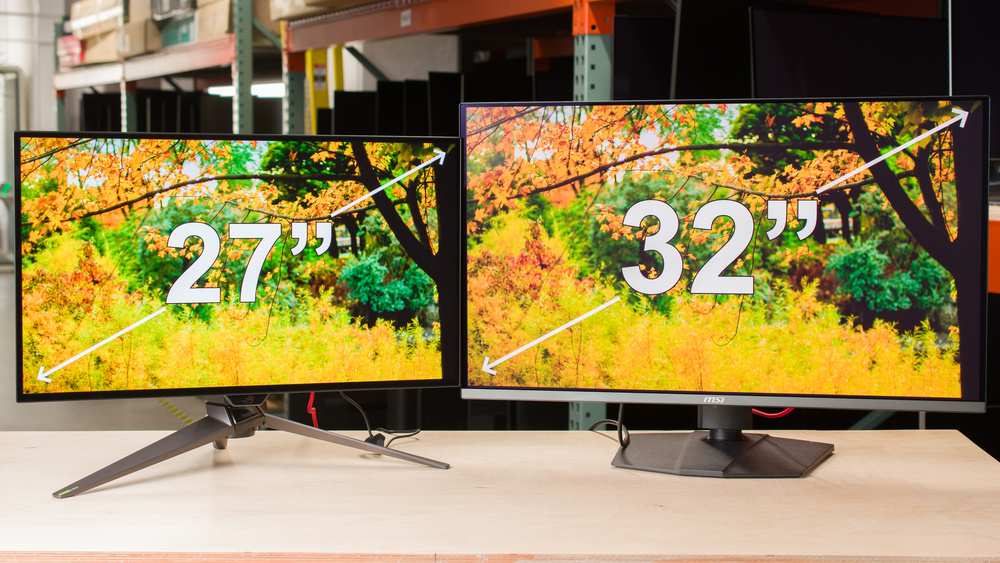
This is the comparison most streamers actually need. Both sizes work. They serve different setups and preferences.
When 27-Inch Wins
A 27-inch monitor works better when your desk is 24 to 30 inches deep. You sit close. The screen fills your view without overwhelming it.
Your eyes don't have to scan across a massive panel.
It's also the better choice if you're on a budget. Quality 27-inch 1440p panels start around $250. Good 32-inch 4K options run $350 to $500 and up.
The savings add to your mic, lighting, or webcam budget.
For console streaming from a desk, 27 inches feels proportional. A PS5 or Xbox Series X outputting 1440p or 4K downscaled looks great at this size. You're not sitting couch-distance where a bigger screen would help.
Streamers who use a laptop as a second screen also benefit from 27 inches. Your laptop handles chat, alerts, and stream monitoring. The external display runs your game or main content.
No need for a massive panel competing for desk space.
When 32-Inch Wins
Go 32 inches if you have a deep desk, 30 inches or more. You sit farther back. A 27-inch screen would feel small at that distance.
The larger panel matches your viewing angle.
Multi-taskers benefit from 32 inches too. Running OBS, a game, chat, and a dashboard simultaneously feels cramped on 27 inches. At 32, you can actually arrange windows without constant resizing.
Content creators who edit video alongside streaming should consider 32 inches. Timeline editing, preview windows, and asset panels all need space. A 27-inch screen forces constant window juggling.
The resolution caveat: 32-inch 1440p panels have lower pixel density than 27-inch 1440p. You're at about 92 PPI versus 109. For gaming and streaming it's fine.
For text-heavy work, 4K at 32 inches gives you 138 PPI and that's ideal.
27-Inch vs Dual Monitor: Which Streaming Workflow Actually Works Better?
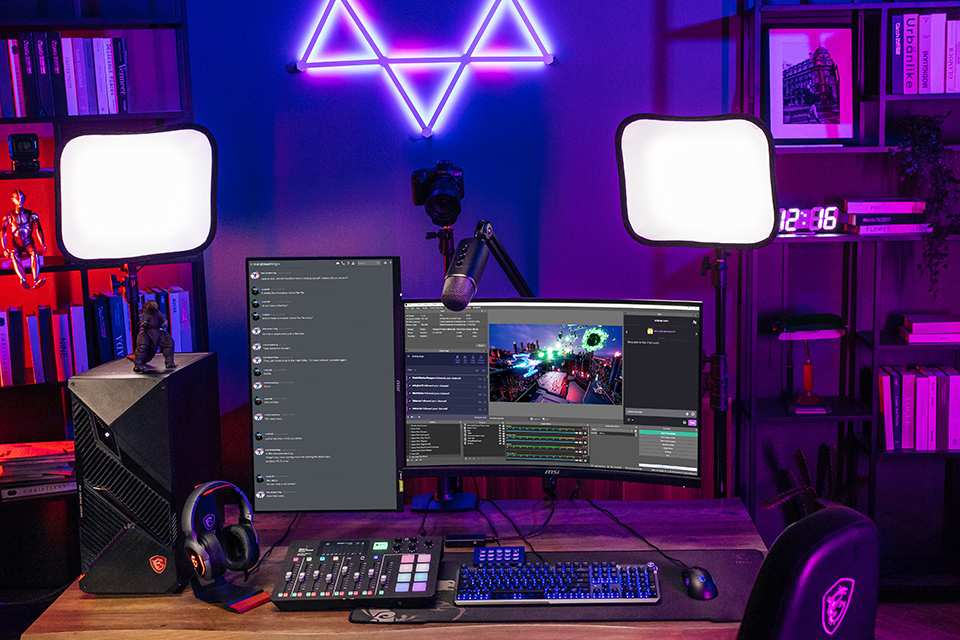
This is where the decision gets interesting. A single 27-inch screen forces you to manage window space carefully. A dual-monitor setup gives you breathing room but costs more and takes more desk space.
Single 27-inch monitor works when:
- You're streaming casually or part-time
- Your content is mostly gaming with chat overlay
- You use a laptop as a secondary screen for chat and alerts
- Desk space is limited
- You want a clean, minimal setup
Dual monitor setup works when:
- You're a full-time or serious hobby streamer
- You need OBS, chat, alerts, and dashboard visible simultaneously
- You create content beyond gaming (tutorials, creative, podcasts)
- You have the desk width for two screens
- You want to see your stream output while gaming
A common effective setup: 27-inch 1440p as your main gaming and capture display, plus a cheaper 24-inch 1080p in portrait mode for chat, OBS controls, and stream analytics. The secondary doesn't need high specs. It just needs to display information.
Some streamers prefer a single ultrawide instead. A 34-inch 3440 x 1440 ultrawide gives similar workspace to dual monitors without the bezel gap. It's a different price bracket though, typically $400 to $700.
For first-time streamers, starting with a single 27-inch 1440p monitor is a solid approach. You can always add a secondary later. Trying to run dual monitors before you've established your workflow often leads to wasted money on a setup you don't fully use yet.
What Panel Type and Refresh Rate Actually Matter for Streamers
Not all 27-inch monitors are equal. Panel technology and refresh rate affect your gaming experience and how your stream looks to viewers.
Panel types at a glance:
- IPS (In-Plane Switching): Best color accuracy and viewing angles. Ideal for streamers who also create content or edit video. Slightly slower response times historically, but modern IPS panels have closed the gap. This is the go-to choice for most streamers.
- VA (Vertical Alignment): Better contrast ratios, good for dark room viewing. Color accuracy is decent but not quite IPS level. Some VA panels exhibit ghosting in fast-paced games. Fine for casual streaming.
- TN (Twisted Nematic): Fastest response times, cheapest prices. Poor viewing angles and washed-out colors. Not recommended for streaming unless you're purely competitive and prioritize speed over everything else.
Refresh rate considerations:
60Hz works for streaming. Your output to Twitch or YouTube is typically 30 or 60 frames per second anyway. But 144Hz or higher makes a noticeable difference in how smooth your gameplay feels locally.
Your viewers won't see the difference directly, but you'll play better and enjoy the experience more.
If you're gaming at 144Hz while streaming at 60fps, your GPU handles both simultaneously. Make sure your card can manage the encoding load. NVIDIA's NVENC and AMD's AMF encoders handle this well on mid-range and above cards.
Other specs that matter for streaming:
- HDR: Nice to have, not essential. True HDR requires HDR600 or higher certification. Most monitors in this price range have basic HDR400 support that's more marketing than meaningful.
- Adaptive sync: G-Sync or FreeSync reduces screen tearing during gameplay. Helpful for smooth gameplay, doesn't affect your stream output directly.
- Connectivity: DisplayPort 1.4 for PC, HDMI 2.0 or 2.1 for console. Make sure your monitor has the right inputs for your setup. USB-C with power delivery is a bonus if you're using a laptop.
Who Should Pick a 27-Inch Monitor for Streaming
Not every streamer needs the same setup. Here's who benefits most from going 27 inches.
Budget-First-Time Streamers
If you're just starting out, a 27-inch 1440p monitor gives you quality without overspending. You can allocate more budget to audio (a good mic matters more than a big screen) and lighting. Add a second monitor later when your workflow demands it.
Console Streamers
PS5 and Xbox Series X support 1440p output. A 27-inch 1440p monitor matches that natively. You're sitting desk-distance, not couch-distance, so 27 inches fills your view appropriately.
It's a clean, single-cable setup.
PC Gamers Who Stream Casually
If streaming is secondary to gaming, a single 27-inch 1440p high-refresh monitor serves both purposes. Game at 144Hz for yourself, output 60fps to your audience. Use a laptop or phone for chat monitoring.
Simple and effective.
Multi-Tasking Content Creators
Streamers who also edit video, manage social media, or run a community benefit from the workspace 1440p provides. It's not as spacious as dual monitors, but it's workable if you're organized with your window layout.
Who Should Skip 27-Inches and Go Bigger (or Smaller)
Some situations call for a different approach entirely.
Go smaller (24-inch) if:
- You're strictly competitive and want the highest frame rates with the least GPU load
- Your desk is narrow, under 22 inches deep
- You already run a dual-monitor setup and need a compact primary
- You're on a very tight budget and 1080p is what you can afford
Go bigger (32-inch or ultrawide) if:
- You stream full-time and need OBS, chat, alerts, and dashboards visible simultaneously
- You edit video on the same machine
- You have a deep desk, 30 inches or more
- You want a more immersive gaming experience at desk distance
- You're coming from a TV-as-monitor setup and find 27 inches too small
Go dual monitor if:
- Your streaming workflow requires monitoring multiple sources at once
- You're a Just Chatting streamer who needs chat, alerts, and interactive tools visible
- You want to see your actual stream output while creating content
- You have the desk space and budget for two quality displays
Common Mistakes People Make When Choosing a Streaming Monitor
These are the errors we see most often. Avoiding them saves money and frustration.
Buying 27-inch 1080p for desk use. The pixel density is too low for comfortable close-up use. You'll notice the softness. Spend the extra for 1440p or drop to 24 inches.
Ignoring viewing distance. A monitor that's perfect at 2 feet feels tiny at 4 feet. Measure your actual sitting distance before deciding. 27 inches works best at 2 to 3 feet.
Prioritizing size over panel quality. A big TN panel with bad colors makes your game look worse and your content creation harder. IPS at a smaller size beats a larger TN panel for most streamers.
Forgetting about stand adjustability. You'll be at this screen for hours. Height adjustment, tilt, and swivel matter for comfort. Budget monitors often skimp here.
Factor in a monitor arm if needed.
Assuming one screen is enough. If you're serious about streaming, plan for a secondary display eventually. Whether it's a cheap 24-inch in portrait or a tablet running a chat app, you'll want a second view.
Overlooking GPU requirements. 1440p gaming plus streaming is more demanding than 1080p. Make sure your GPU can handle both. Check that your encoder (NVENC, AMF, or x264) is set up correctly in OBS.
Real Streaming Setups: What Actually Works at 27 Inches
Here are configurations that streamers report working well with a 27-inch primary monitor.
Casual gaming streamer: 27-inch 1440p 144Hz IPS as the single display. Game in borderless windowed mode. Chat overlay built into the stream, not displayed separately.
Phone or tablet for reading chat. Works for part-time streamers who stream a few times a week.
Full-time gaming streamer: 27-inch 1440p as the main display for gaming and OBS preview. Secondary 24-inch 1080p in portrait mode for chat, stream analytics, and Discord. This is the most common "serious hobbyist" setup we see.
Console streamer: 27-inch 1440p with HDMI 2.0 input. Capture card handles the stream encoding on a separate PC or laptop. The monitor displays the console output directly.
Clean, simple, effective.
Just Chatting / creative streamer: 27-inch 1440p for main content and camera monitoring. Secondary display for chat, alerts, and stream controls. Some use an ultrawide instead but 27 inches plus secondary works well and costs less.
Frequently Asked Questions
Is a 27-inch monitor too big for streaming?
No, 27 inches is a common and practical size for streaming. It fits most desks comfortably and provides enough screen space for gaming plus basic chat monitoring. It's actually the recommended starting point for most new streamers.
Is 27-inch 1080p good for streaming?
It's usable but not ideal. At 81 PPI, text and details look soft at typical desk viewing distances. For streaming, 1440p at 27 inches is a much better choice.
If budget is tight, consider a 24-inch 1080p instead.
What's the best resolution for a 27-inch streaming monitor?
1440p (2560 x 1440) is the sweet spot. It gives you sharp text, clear game details, and enough workspace for streaming applications. Your GPU can handle 1440p gaming plus encoding without requiring top-tier hardware.
Should I use one 27-inch or two monitors for streaming?
It depends on your workflow. A single 27-inch works for casual streaming and gaming-focused content. If you need OBS, chat, alerts, and dashboards visible simultaneously, a dual-monitor setup is worth the extra cost and desk space.
How far should I sit from a 27-inch monitor?
Aim for 24 to 36 inches (about arm's length). This viewing distance lets you see the full screen without excessive head movement and keeps text readable, especially at 1440p resolution.
Is a 27-inch monitor good for PS5 streaming?
Yes, it works well. The PS5 supports 1440p output, which matches a 27-inch 1440p monitor natively. You get a sharp image without scaling artifacts.
Just make sure the monitor has HDMI 2.0 or 2.1 for proper signal support.
Final Verdict: Is 27-Inches Right for Your Stream?
A 27-inch monitor is a solid choice for most streamers. It balances size, desk fit, and price better than smaller or larger alternatives. The key is pairing it with the right resolution and understanding its limits.
Go 27-inch 1440p if you're a solo streamer with a standard desk. It handles gaming, casual content creation, and basic multi-tasking well. Add a secondary monitor when your workflow outgrows a single screen.
Skip 27 inches if you need serious multi-window workspace or have a very deep desk. In those cases, 32 inches or a dual-monitor setup serves you better.
Start with what fits your space and budget. You can always expand later. The monitor size matters less than your content, audio quality, and consistency.
Get the screen, then focus on what actually grows your stream.

Similar Posts





















