How Far Should You Sit from a 27 Inch Monitor
Most people never think about their monitor distance until their eyes burn or their neck aches at 4 PM. If that's you, you're not alone.
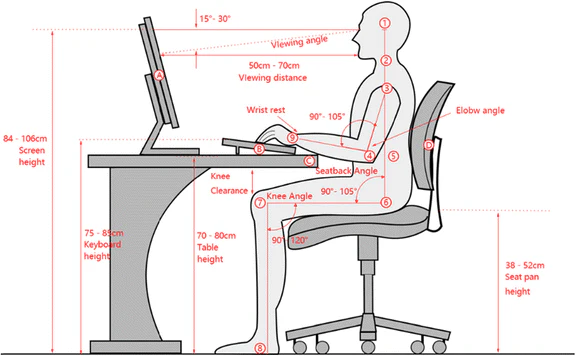
The short answer: start at arm's length, around 24 to 30 inches, then adjust based on panel resolution and desk depth. A 20/20 eye resolves fine detail at roughly 1 arcminute, and ISO 9241-5:1998 provides ergonomic guidance for display positioning. But the honest answer is that panel resolution, desk depth, and what you actually do at the screen change everything.
Let's walk through it step by step.
Quick Answer
Sit 24 to 30 inches from a 27-inch monitor as your default. Push back to 30 to 36 inches if running 4K resolution. Move closer to 18 to 24 inches for competitive gaming.
Your panel's pixel density determines whether this distance feels crisp or causes eye strain.
What Actually Determines Your Ideal Distance
Here's the thing nobody tells you when they throw out a blanket distance number: the panel's resolution matters just as much as screen size at 27 inches.
A 27-inch display is 27 inches diagonally regardless of resolution. That's fixed. But squeeze 1920×1080 pixels into that panel and you get a completely different viewing experience than placing 3840×2160 pixels in the same space.
Resolution changes everything at 27 inches
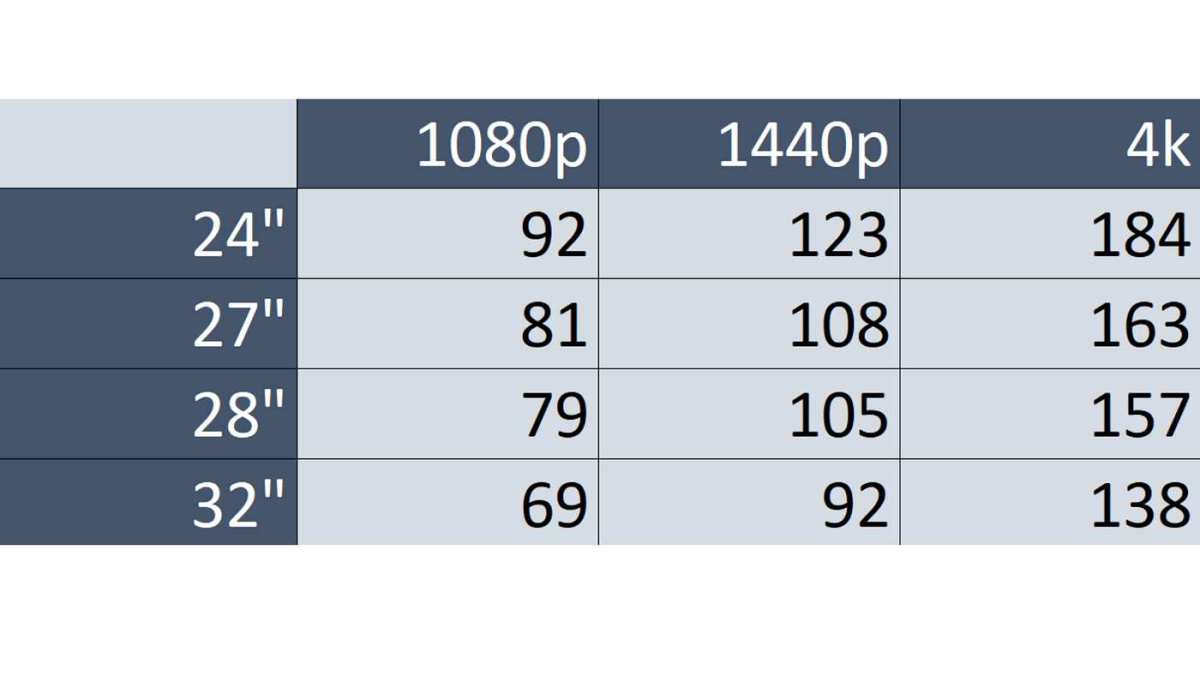
Let's put real numbers on this. A 27-inch 1080p panel delivers roughly 82 pixels per inch. At typical desk distance, you can see the pixel grid.
Text looks slightly fuzzy. Most consumers in aggregate reviews report leaning forward unconsciously to read smaller fonts.
Now compare that to a 27-inch 1440p panel at approximately 109 PPI. The pixel structure vanishes at normal sitting distance. Text renders sharp.
You stop squinting.
And 4K at 27 inches? That's around 163 PPI. Pixels become essentially invisible at any reasonable desk distance.
At that density your operating system likely needs display scaling set above 100% to keep text readable.
The PPI numbers you need to know
Here's a snapshot you can reference when figuring out where to park your chair.
| Resolution | PPI (approx.) | Pixel visibility | Text clarity | Recommended distance |
|---|---|---|---|---|
| 1920×1080 (Full HD) | 82 PPI | Visible at 24" | Soft, some fringing | 28–36 inches |
| 2560×1440 (QHD) | 109 PPI | Barely visible at 24" | Sharp, clean | 24–30 inches |
| 3840×2160 (4K UHD) | 163 PPI | Invisible at normal range | Extremely sharp | 30–36 inches |
Notice the pattern. Higher pixel density lets you sit closer without seeing individual pixels or jagged edges on text. If you're running a budget 1080p panel, don't let anyone tell you to sit at 18 inches.
Your eyes will punish you by lunchtime.
How your eyes actually resolve detail
Standard 20/20 visual acuity resolves details at roughly 1 arcminute of angular size. That's the benchmark ergonomics standards reference when calculating "retina" distance thresholds, the point where individual pixels stop being distinguishable.
For a 27-inch 1080p panel, that retina threshold sits around 42 inches. Closer than that and your eye starts picking up pixel structure. For 1440p, it drops to roughly 28 inches.
For 4K, it sits near 20 inches.
This means a 27-inch 1440p monitor at typical desk distance sits right at the boundary where most consumers cannot resolve individual pixels. That's precisely why 1440p has become the consensus sweet spot resolution among professionals who work at 27 inches.
Your field of view matters too
Beyond pure acuity, your horizontal field of view determines whether a screen feels comfortable or causes excessive head movement. THX recommends a 35-degree field of view for cinematic content. SMPTE references 30 degrees.
For close-up desktop work, most professionals find comfort somewhere in that 30 to 35 degree sweet spot.
At 27 inches diagonal (roughly 23.5 inches wide), sitting at about 32 inches lands you near that 30-degree angle. Sitting closer, say 20 inches, pushes past 40 degrees and you may find yourself turning your head during multi-window workflows.
Decision Framework: Find Your Distance Step by Step
Rather than memorize a number, work through these five steps in order. Each answer narrows down your ideal distance.
Step 1: Check your panel's resolution
Look up your monitor model. Find its native resolution in the specs panel or on the manufacturer's product page.
- 1920×1080: You need more distance to avoid seeing pixels.
- 2560×1440: Baseline arm's length works great for most consumers.
- 3840×2160: You can sit closer, but you also need to increase operating system scaling above 100% to keep text comfortable.
Step 2: Know your desk depth
Grab a tape measure. Desk depth from wall (or monitor shelf) to the front edge is the physical space you're working with.
Standard office desks run 24 to 30 inches deep. If yours is on the shallow end, 24 inches or less, you physically cannot achieve the ideal range for a 27-inch panel at 1080p. In that scenario, consider one of these adjustments.
- Reposition the monitor on a wall mount to reclaim desk depth.
- Choose a 24-inch monitor instead for that desk width.
- If keeping the 27-inch panel, accept that you'll sit on the closer end of the recommended range and increase text scaling.
Step 3: Identify what you actually do most
This matters more than most people realize. Different activities place different demands on your eyes and posture.
- Office productivity, spreadsheets, documents: Consumers in workplace ergonomics surveys consistently report preferring slightly greater distances, around 28 to 34 inches, to reduce head movement across wide documents.
- Competitive gaming: The gaming community widely reports sitting closer, around 18 to 24 inches, to maximize peripheral awareness on a single screen.
- Photo editing, design, video work: Most creative professionals report a preference for 24 to 30 inches to balance detail visibility with comfortable eye focus at fine pixel structures.
Step 4: Factor in your vision and glasses
If you wear corrective lenses, your effective comfortable focus distance may shift.
- Single-vision distance glasses: Designed for roughly 3 to 6 feet. You may find yourself pushing slightly closer to see fine text clearly.
- Progressive or bifocal lenses: The reading portion sits lower in the lens. If you tilt your chin up to see the monitor through the intermediate zone, neck strain follows. Adjust monitor height before adjusting distance.
- No correction: You have the most flexibility. Start at the standard recommended range for your resolution.
Step 5: Set, test, and fine-tune
Set your initial position based on the previous steps. Then load real content.
- Open your typical work document or game.
- Read at your normal pace for 5 minutes.
- Check three things: can you read comfortably without leaning forward, can you see full-screen content without turning your head, and after 5 minutes do your eyes feel calm or fatigued?
If you're leaning in, move the monitor back. If you're squinting, either move closer or check your scaling settings. If your neck hurts after half an hour, revisit monitor height before touching distance.
Situation-Based Recommendations
Sometimes you just want someone to tell you where to sit based on what you own and what you do. Here it is.
For 27-inch 1080p panels
Sit 28 to 36 inches away. This resolution at 27 inches looks soft up close. If you sit at 24 inches or less, visible pixel structure causes eye fatigue for most consumers in extended sessions.
Increase operating system scaling to 110% or 125% and accept the slightly reduced screen real estate.
For 27-inch 1440p panels
Sit 24 to 30 inches away. This is the resolution where 27 inches becomes genuinely sharp at standard desk depth. Most consumers find 26 to 28 inches ideal.
Text renders cleanly, games look detailed, and you're not fighting your panel's limitations.
For 27-inch 4K panels
Sit 24 to 32 inches away, and crank your scaling to 150% or 200%. Without scaling adjustment, everything renders absurdly small at native 4K on a 27-inch panel. With proper scaling, you get retina-quality sharpness at comfortable distance.
Beware the temptation to sit closer than 20 inches to "appreciate the detail. At that distance, your field of view exceeds 40 degrees and head-turning during normal work becomes tiresome.
For competitive gaming
Sit 18 to 24 inches away regardless of resolution. Competitive players gain meaningful reaction-time advantage from seeing the full screen in tighter peripheral view. Text clarity takes a back seat to spatial awareness in ranked matches.
If you're playing casually or single-player games, standard ergonomic distance still applies.
For creative and detail work
Sit 24 to 30 inches away. Photo retouchers, video editors, and 3D modelers need to evaluate fine detail without leaning in every 10 seconds. At 1440p or 4K resolution on a 27-inch panel, this distance lets most consumers resolve fine detail comfortably while maintaining full-screen awareness in editing software panels.
| Situation | Resolution | Recommended distance | Scaling |
|---|---|---|---|
| Office, documents, email | 1080p | 28–36 inches | 110–125% |
| Office, documents, email | 1440p | 24–30 inches | 100% |
| Office, documents, email | 4K | 28–32 inches | 150–200% |
| Competitive gaming | Any | 18–24 inches | 100% |
| Casual / single-player gaming | Any | 24–30 inches | 100% |
| Photo / video editing | 1440p or 4K | 24–30 inches | 100–150% |
| General home use | Any | 24–30 inches | Per resolution |
Monitor Setup Details That Change the Equation
Distance doesn't exist in a couple of panel characteristics change how that distance feels and what your body does to compensate.
Curved vs. flat panels
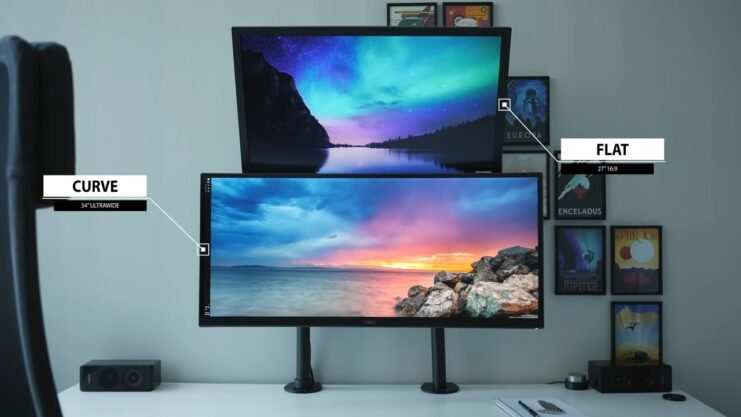
Curved monitors at 27 inches typically come in 1500R or 1800R curvature ratings. The "R" stands for radius in millimeters, so 1500R means a 1500mm radius arc.
A curved panel brings the edges of the screen slightly closer to your eyes while the center stays at roughly the same distance. This reduces the head turning needed to see peripheral content. For some users this means sitting slightly closer without discomfort, around 22 to 28 inches instead of 24 to 30.
Flat panels at 27 inches work fine at standard distance but require more lateral head movement in wide documents and multi-window layouts.
Monitor height and tilt
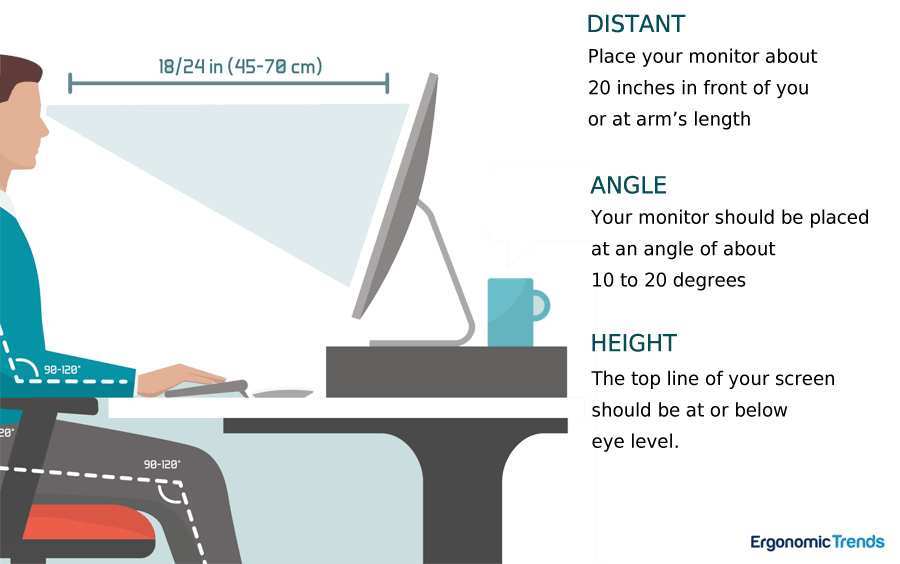
Before chasing the perfect distance, get your monitor height right. The top edge of the screen should sit at or slightly below eye level, roughly on a line with your brows.
If your monitor sits too low, you slouch. Too high, and your neck tilts back uncomfortably. Both mistakes cause consumers to unconsciously adjust distance to compensate, which throws off their entire setup.
Use a monitor arm or stand with height adjustment. Tilt the screen up 10 to 15 degrees to meet your gaze angle naturally.
Scaling and operating system text size
Operating system scaling directly affects how far you can comfortably sit from a high-resolution panel.
Windows recommends 150% scaling at 4K on a 27-inch display. macOS uses its own "default for display" setting that typically renders as equivalent to 2x pixel density. Linux desktop environments vary, but GNOME and KDE both support fractional scaling.
If text is too small at your natural distance, don't lean forward. Increase scaling. The trade-off is fewer elements on screen, but you'll actually be able to work for more than an hour without eye fatigue.
Many professionals set Windows scaling to 125% at 1440p on 27 inches. It slightly reduces workspace but makes extended reading sessions noticeably less punishing.
Common Mistakes That Cause Eye Strain and Neck Pain
Most people set up their monitor once and never revisit it. Then they wonder why their neck aches after a long workday. Here's what goes wrong.
Sitting too close. Your ciliary muscles lock in a contracted state to maintain close focus. After extended sessions, those muscles fatigue. That heavy, dull feeling behind your eyes isn't mysterious.
It's your eye muscles genuinely cramping.
Sitting too far. When the screen sits beyond comfortable reading distance, you lean forward unconsciously. That forward head posture loads your cervical spine with roughly three times the weight of your head. Neck pain follows.
Shoulder tension follows that.
Ignoring operating system scaling. Running a 4K 27-inch panel at 100% scaling without adjusting distance causes most consumers to tilt forward and squint. The content is simply too small. Bump scaling to 150% and you reclaim comfortable reading distance without sacrificing panel quality.
Using the wrong text size application-side. Bumping text size in individual applications rather than changing operating system scaling creates inconsistent rendering across the desktop. Some interface elements stay tiny while others look ballooned. Use system-level scaling first.
Forgetting to check after resolution changes. Switching from 1440p to 4K on the same panel without revisiting your sitting distance causes most users to strain within the first few sessions. Higher PPI changes what your eyes can resolve at any given distance. Adjust accordingly.
Quick Reference Table by Use Case
Pull this up when you need a fast answer and don't have time to read the full decision framework.
| Scenario | Panel PPI | Distance range | Scaling | Notes |
|---|---|---|---|---|
| 1080p, office work | 82 PPI | 30–36 in | 110–125% | Pixel structure visible closer than 28 in |
| 1080p, gaming | 82 PPI | 24–30 in | 100% | Accept softer image for better performance |
| 1440p, office work | 109 PPI | 24–30 in | 100% | Sharp at standard desk depth |
| 1440p, gaming or photo editing | 109 PPI | 24–28 in | 100% | Sweet spot for most consumers |
| 4K, office work | 163 PPI | 28–34 in | 150–175% | Do not run 4K at 100% scaling on 27 in |
| 4K, creative professional | 163 PPI | 26–32 in | 150% | Ideal for pixel-level detail review |
| Competitive gaming, any resolution | Any | 18–24 in | 100% | Peripheral awareness priority |
| Shallow desk (under 20 in depth) | <109 PPI | Desk depth minus 6 in | Per resolution | Consider 24-in monitor instead |
Questions People Keep Asking
Can sitting too close to a monitor damage your vision?
No credible research shows that close monitor viewing causes permanent structural damage to healthy eyes. Prolonged near-focus work causes temporary accommodative spasm that makes distance vision blurry for a few minutes afterward. This resolves with rest.
Follow the 20-20-20 rule to reduce the frequency of these episodes.
Does a blue light filter change the ideal distance?
Blue light filters, whether software-based Night Light modes or physical screen protectances, do not affect focus distance. They shift color temperature and may reduce some consumers' subjective perception of eye fatigue late at night, but your eyes still work just as hard to maintain focus at the same physical distance.
Do I need a monitor arm to get the right distance?
Not necessarily, but monitor arms help enormously in fine-tuning position without losing desk surface. If your shipped stand doesn't allow height adjustment within your target range, a basic gas-spring monitor arm offers a practical solution. Models supporting VESA 100×100 mount patterns cover most 27-inch displays.
What if I use two monitors at different distances?
Set your primary monitor at the target distance for your most-used content. Place the secondary at the same distance only if you reference it constantly. If it's a reference screen you glance at occasionally, angle it inward at the same plane.
Avoid placing one monitor noticeably farther than the other because that forces your eyes to refocus each time you switch.
Does screen brightness affect ideal distance?
Brightness does not change your eye's focus distance. However, excessive brightness relative to ambient room light causes discomfort that many consumers unconsciously try to fix by moving closer or farther. Match monitor brightness to the surrounding environment and the distance decision becomes purely about focus and field of view.
Final Setup Checklist
Before you wrap up, confirm these five points:
- Desk depth measured and your distance target fits within the space.
- Monitor resolution confirmed and operating system scaling set appropriately.
- Top edge of the panel sits at or just below eye level with a 10 to 15 degree upward tilt.
- Initial body position at arm's length, with torso supported and feet flat on the floor.
- Five-minute comfort check using real content confirms no leaning, squinting, or head turning.
If any item needs attention, fix it before your next work session. Small adjustments compound over thousands of hours in front of the display. Get it right once and your neck and eyes will thank you indefinitely.

Similar Posts





















