How Far to Sit from a Curved Gaming Monitor
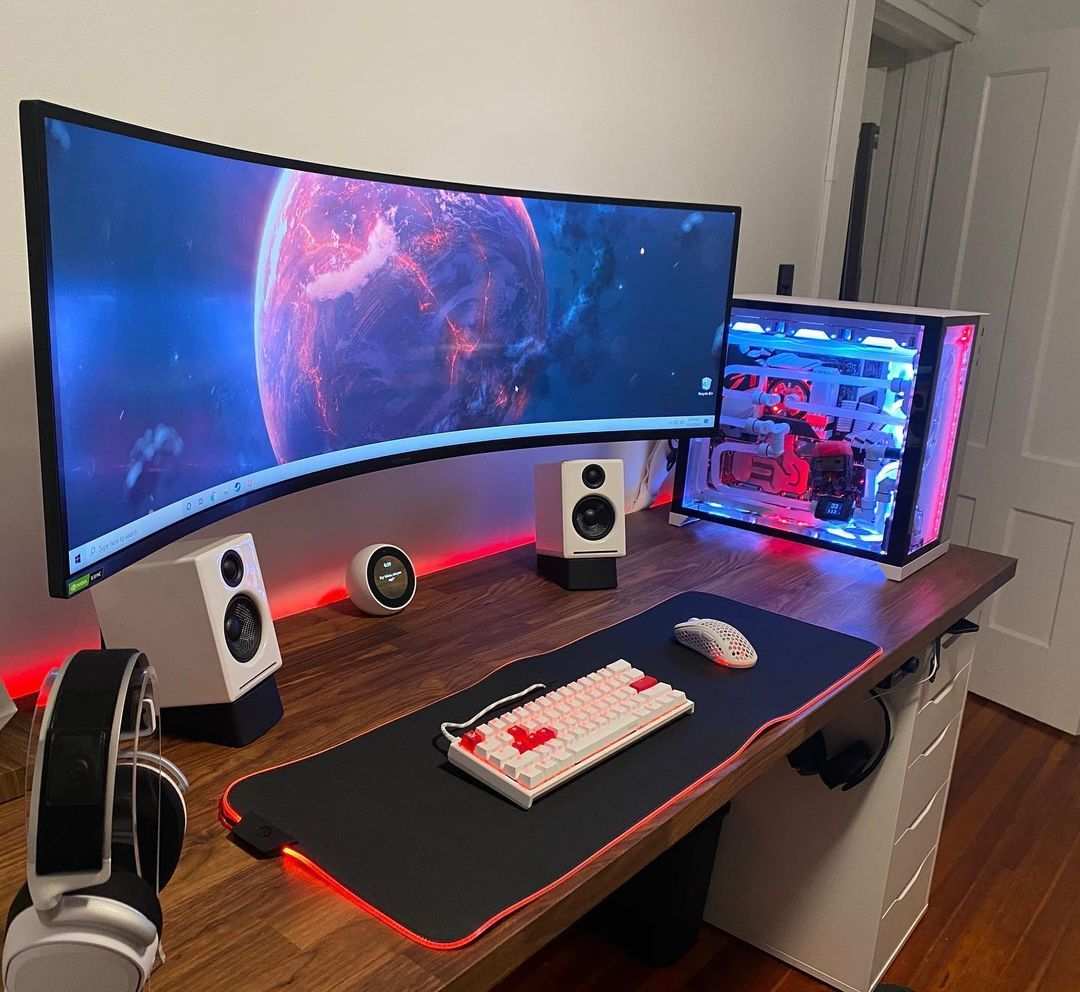
Figuring out how far to sit from a curved gaming monitor isn't as straightforward as plopping down at your desk and hoping for the best. Sit too close and you'll crank your neck trying to see the edges. Sit too far and you lose the entire reason you bought a curved display in the first place.
The sweet spot depends on a handful of specific factors tied to your exact monitor, and getting it wrong means eye strain, wasted immersion, or both.
The good news is that once you understand the relationship between curvature rating, screen size, and viewing distance, dialing in your setup takes about two minutes. Manufacturer specifications and display research from organizations like the Society of Motion Picture and Television Engineers (SMPTE) give us solid baselines to work from. As of 2026, the math hasn't changed, but the range of monitor options has, so let's break it down properly.
")
Quick Answer
Most curved gaming monitors work best at 2 to 4 feet from your eyes. The exact distance depends on your monitor's curvature rating and screen size. A 32-inch 1000R monitor needs roughly 3 feet.
A 34-inch 1500R ultrawide sits best at 3 to 4 feet. Measure your desk and adjust from there.
What the "R" Number Really Means for Where You Sit
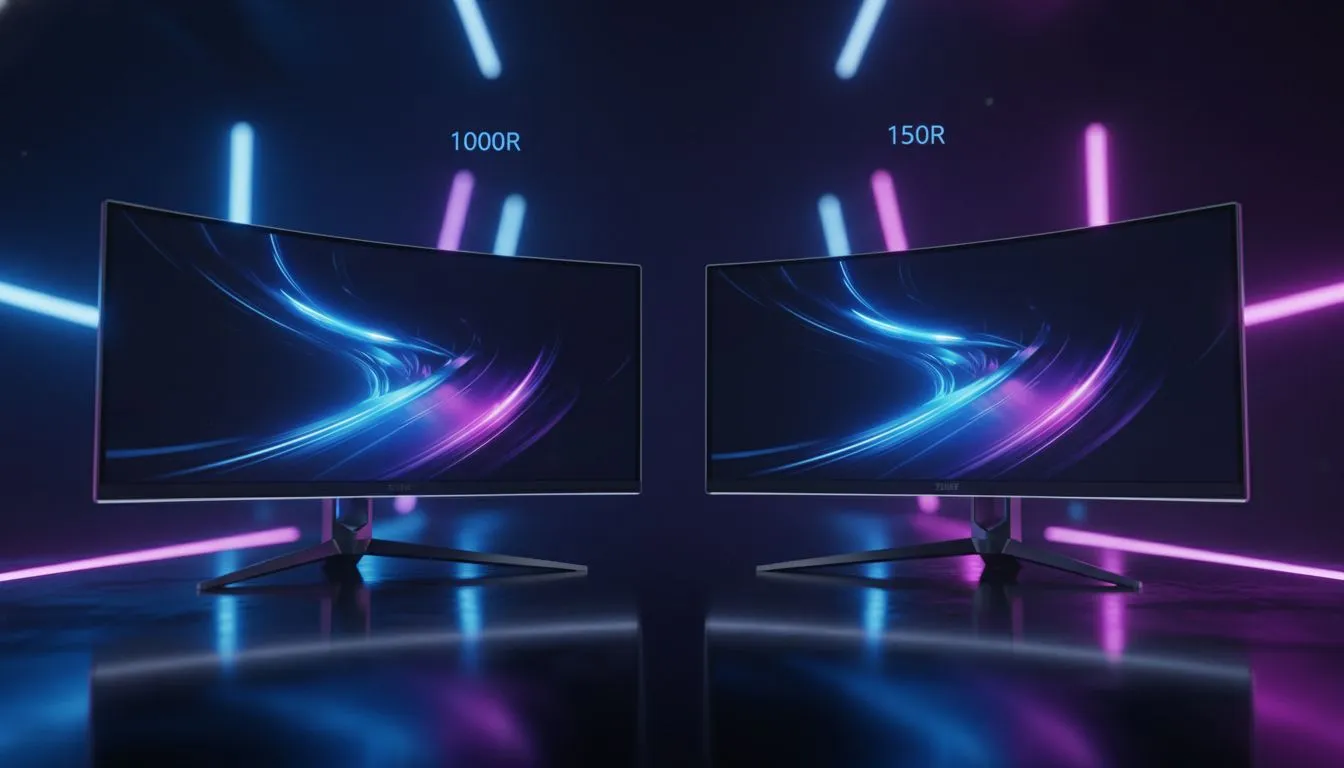
The "R" you see in monitor specs stands for radius, and it's the single most important number for figuring out your ideal sitting distance. A 1000R monitor curves more aggressively than a 1500R, which curves more than an 1800R, and so on. The lower the number, the tighter the curve, and the closer you need to sit for it to feel natural.
Think of it this way. A 1000R curve matches the natural curvature of the human eye almost exactly. That's why Samsung and other manufacturers pushed 1000R so hard starting around 2020.
It means your eyes stay at a roughly uniform distance from every point on the screen. But it also means if you sit too far back, the curve feels wasted, almost like you're looking at a flat panel from across a large room.
Here's the practical breakdown:
| Curvature Rating | Curve Aggressiveness | Ideal Distance Range | Best For |
|---|---|---|---|
| 1000R | Very tight | 2.5 to 3.5 feet | Immersive gaming, single-user desk setups |
| 1500R | Moderate | 3 to 4.5 feet | General gaming, mixed use, most desk depths |
| 1800R | Gentle | 4 to 6 feet | Larger desks, multi-monitor setups, office use |
| 3000R+ | Very subtle | 6+ feet | Display-style setups, conference rooms |
Most gaming monitors sold today sit at 1000R or 1500R. If you've got a 1000R panel and your desk is 30 inches deep, you're going to feel like you're practically nose-to-screen. That's by design.
The curve is meant to wrap around you. But it does mean desk depth matters a lot more than people realize.
")
How Screen Size Changes the Distance Formula
Screen size and curvature work together. A 27-inch 1000R monitor and a 49-inch 1000R monitor have the same curve radius, but the 49-inch spans way more of your peripheral vision. That means the bigger screen pushes your ideal distance back even though the curve rating is identical.
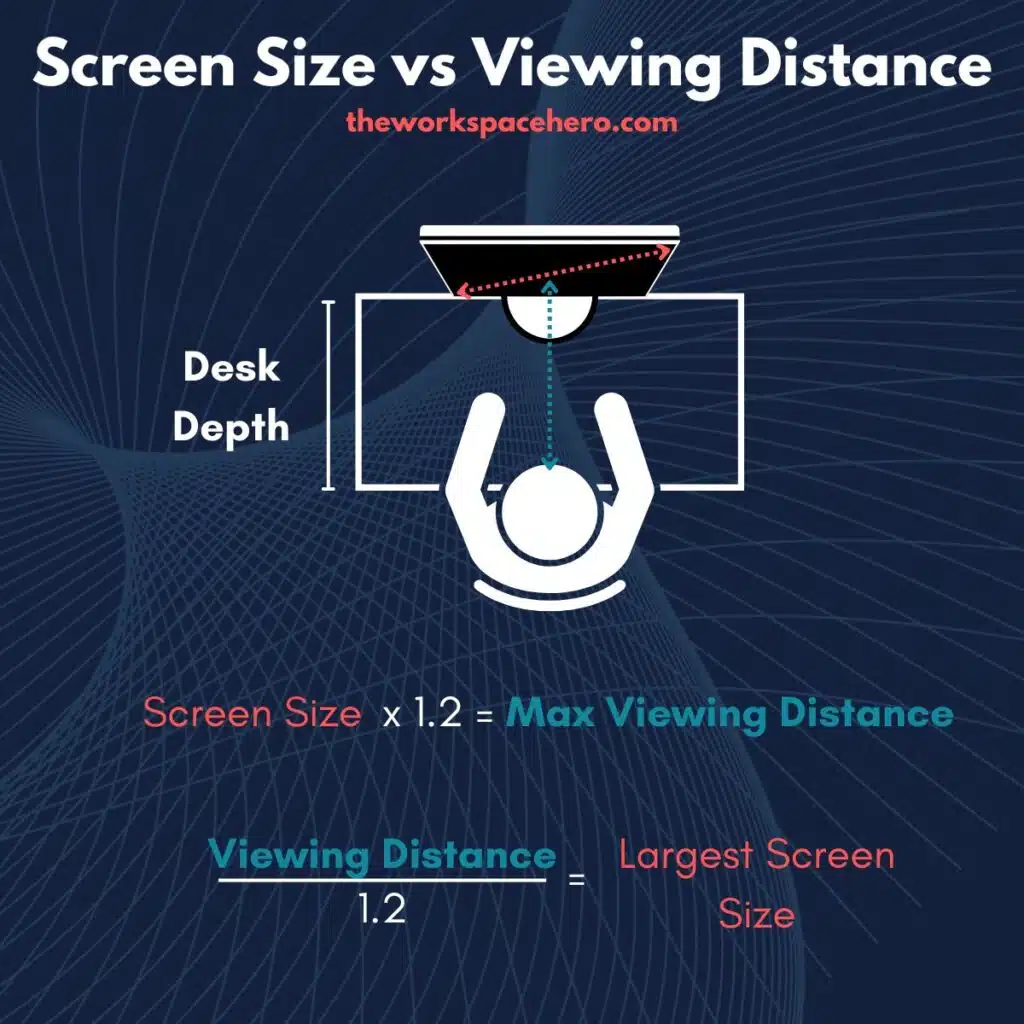
Here's a practical way to think about it. Take your screen's diagonal measurement in inches. Multiply by 1.2 for aggressive 1000R curves.
Multiply by 1.5 for 1500R. Multiply by 2.0 for 1800R or higher. That gives you a rough minimum distance in inches.
So for a 32-inch 1000R monitor, you'd want at least 38 inches, or about 3.2 feet. For a 34-inch 1500R ultrawide, you're looking at around 51 inches, or roughly 4.25 feet. These aren't hard rules, but they're solid starting points.
Screen resolution plays a role too. At 1080p on a large curved panel, sitting too close makes pixels visible and text looks soft. At 1440p or 4K, you can sit a bit closer without noticing pixel structure.
That's why 32-inch 1440p curved monitors have become the sweet spot for most gamers in 2025 and 2026. The pixel density hits around 93 PPI, which is sharp enough at 2.5 to 3 feet without any fuzziness.
Matching Distance to Curvature Rating (1000R, 1500R, 1800R, and Beyond)
Let's get specific. If you know your curvature rating, here's where to start before fine-tuning.
1000R monitors demand you sit close. We're talking 2.5 to 3.5 feet for screens between 27 and 34 inches. This curve was designed to match the human eye's natural field curvature, and it only works when you're within that range.
Sit at 5 feet and a 1000R 32-inch panel looks and feels almost flat. You paid for the curve. Use it.
1500R monitors are the most forgiving. They work across a wider range of distances, roughly 3 to 4.5 feet. This is why most ultrawide gaming monitors from LG, Dell, and ASUS use 1500R.
It's aggressive enough to feel immersive but gentle enough that you don't need to reposition your entire desk to make it work.
1800R monitors are common in larger 34 to 38-inch ultrawides. You'll want 4 to 6 feet. These are popular for productivity and mixed-use setups where you're not always gaming.
The curve is subtle enough that it doesn't distort spreadsheets or text, but you still get a slight immersion benefit.
3000R and above barely qualify as curved for gaming purposes. At 6 feet or more, the effect is minimal. These are fine for office environments or situations where the monitor doubles as a display for presentations, but they won't give you the wraparound feel most gamers are after.
The key takeaway: tighter curve equals closer sitting position. If your desk is shallow, say 24 inches, a 1500R or 1800R panel will serve you better than a 1000R. If you've got a deep desk at 36 inches or more, 1000R starts making a lot more sense.
Resolution and Panel Type: The Hidden Factors Nobody Mentions
Resolution changes the distance equation more than most people realize. A 32-inch 1080p curved monitor looks fine from 4 feet away, but at 2.5 feet the pixel structure becomes obvious. Text fringes.
Edges look soft. It's not a curve problem. It's a PPI problem.
Here's a quick reference for common curved gaming monitor sizes and their pixel densities:
| Screen Size | Resolution | PPI | Minimum Comfortable Distance |
|---|---|---|---|
| 27" | 1920×1080 | ~82 | 2.5 feet |
| 27" | 2560×1440 | ~109 | 2 feet |
| 32" | 2560×1440 | ~93 | 2.2 feet |
| 32" | 3840×2160 | ~138 | 1.5 feet |
| 34" (ultrawide) | 3440×1440 | ~110 | 2 feet |
| 38" (ultrawide) | 3840×1600 | ~111 | 2 feet |
| 49" (super ultrawide) | 5120×1440 | ~108 | 2 feet |
Panel type matters for a different reason. VA panels, which are the most common in curved gaming monitors, have narrower optimal viewing angles than IPS panels. If you sit off-center on a curved VA panel, the far edges can look washed out or color-shifted.
IPS curved panels handle off-axis viewing better but cost more. OLED curved monitors, like the Alienware AW3225QF, handle viewing angles exceptionally well, which gives you more flexibility in sitting position.
The practical takeaway: if you go VA panel, your distance and centering matter more. Sit dead center at the recommended distance. If you go IPS or OLED, you've got a bit more wiggle room for leaning or shifting in your chair without the image falling apart.
Step-by-Step: How to Find Your Exact Sweet Spot Right Now
Grab a tape measure for this. It takes two minutes and saves you weeks of neck strain.
Step 1. Check your monitor's curvature rating. It's in the spec sheet or manual. Look for "1000R," "1500R," "1800R," or similar.
Step 2. Measure the distance from your eyes to your current monitor position. Have your normal sitting posture, then measure from the bridge of your nose to the center of the screen.
Step 3. Compare your measurement against the recommended range for your curvature rating. If you're outside that range, move your monitor or chair.
Step 4. Check for distortion. Open a document with straight lines and small text. If the edges look warped or blurry, you're too close.
Pull back six inches and check again.
Step 5. Verify your eye level. The top third of the screen should align roughly with your eyes. If you're looking up, raise the monitor.
If you're looking down, lower it or get a monitor arm.
Step 6. Fine-tune for your primary use. Gamers benefit from leaning slightly closer. People who split time between gaming and work should set distance for comfort during work sessions, then lean in when gaming.
")
The Best Distance for Your Use Case
Competitive FPS and Fast-Paced Gaming
Competitive players want to see the full screen without excessive head turning. For a 27-inch 1000R monitor, sitting at 2 to 2.5 feet gives you maximum peripheral awareness and minimum reaction time to enemies on the periphery. You sacrifice some Comfort for awareness, but competitive play demands it.
A 27-inch 1440p panel at this distance works particularly well. The pixel density stays sharp, and the aggressive curve fills your field of view without requiring you to turn your head to check corners. Players in verified reviews on forums frequently report improved spatial awareness when sitting within this range on 1000R panels.
Immersive Single-Player and Story Games
For RPGs, open-world games, and atmospheric titles, sitting slightly further back, around 2.5 to 3.5 feet on a 32-inch 1000R, lets you take in the full scene without scanning. The curve enhances depth perception and makes environments feel more enveloping. This is the distance range that made curved monitors popular in the first place.
If you're playing cinematic games at 4K on a 32-inch 1000R OLED, you can sit as close as 2 feet without pixel issues. The high PPI supports it. The increased field of view at that range makes story games feel almost VR-adjacent.
Sim Racing and Flight Sims
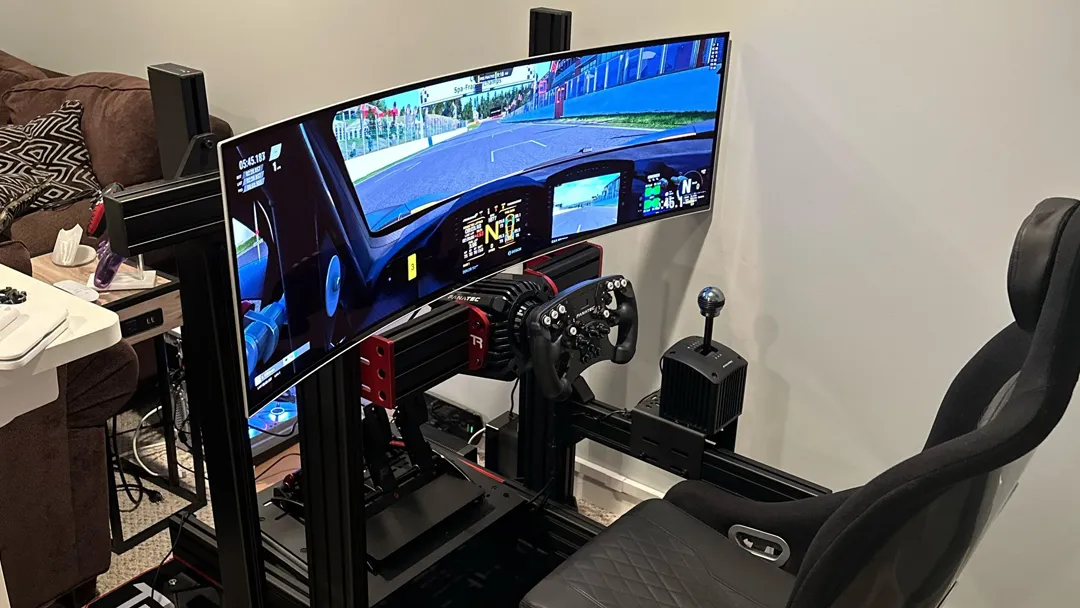
Sim setups are a different beast. The curve matters, but the distance is heavily influenced by your rig. Wheel stands and desk-mounted setups typically place a 34 to 49-inch ultrawide at 3 to 4 feet from your eyes.
Cockpit-style sim rigs can push super ultrawides to 4 to 5 feet due to seating position.
The key here is matching the monitor's field of view to your in-game FOV settings. Most sim racing communities recommend setting your in-game FOV so the screen fills roughly 60 to 80 degrees of your vision. At 3 to 4 feet on a 34-inch 1500R ultrawide, you're right in that zone.
")
Productivity, Multitasking, and Ultrawide Users
If you're using a curved ultrawide for work, email, coding, and occasional gaming, set your distance for work comfort first. That usually means 3 to 4 feet on a 34-inch 1500R. Text stays readable, windows don't require head swiveling, and you can work for hours without fatigue.
Leaning in for gaming sessions is fine. The beauty of a 1500R curve is that it tolerates a range of distances without breaking the experience. You don't need to physically move your chair back and forth.
Console Gaming on PS5 or Xbox
Console gamers often sit further from their displays because of room layout and controller cable or wireless range. If you're on a couch with a 32-inch 1000R monitor on a TV stand, 4 to 5 feet is realistic. The curve still helps with immersion, though not as dramatically as the closer desk position.
A 1500R panel is arguably the better choice for console setups where you can't control distance as precisely. It's more forgiving at 4 to 6 feet and still provides a noticeable curve benefit.
Flat vs. Curved: Why the Distance Rules Change
Flat monitors don't have a curve-based distance requirement. The general recommendation for a flat panel is 1 to 1.5 times the diagonal screen size. A 27-inch flat monitor works from 2.25 to 3.5 feet with no curve considerations.
Curved panels tighten that range because the curve is designed for a specific viewing geometry. Sit too far from a curved monitor and the edges appear to pull away from you. Sit too close and the edges feel like they're wrapping too far around, causing distortion.
The practical difference: a flat 32-inch monitor gives you a 2.7 to 4-foot comfort zone. A curved 32-inch 1000R narrows that to 2.5 to 3.5 feet. The curve demands more precision in positioning, but rewards you with better immersion when you nail it.
Common Mistakes That Cause Eye Strain, Neck Pain, and Distortion
The most common mistake is sitting too close on an aggressive curve. A 32-inch 1000R at 18 inches forces your eyes to converge unnaturally at the edges. This causes fatigue within 30 to 60 minutes for most people.
Another frequent error is ignoring desk depth. Standard desks are 24 to 30 inches deep. If you put a 34-inch 1500R ultrawide on a 24-inch desk with your chair pushed in, you're at roughly 20 inches from the screen.
That's too close for that size and curve. Either get a deeper desk, use a monitor arm to push the display back, or step up to an 1800R panel that tolerates closer distances.
Ignoring eye level is the third big one. If the center of the screen is below your natural eye line, you tilt your head forward. That strains your neck over long sessions.
A monitor arm or stand with height adjustment fixes this in seconds.
Finally, people forget to adjust their in-game FOV. If your FOV is set too low for your sitting distance, the image feels like you're looking through binoculars. Too high and it creates a fish-eye distortion.
Match your FOV to your distance and the curve does the rest.
Quick Distance Reference Chart by Monitor Size and Curve
| Monitor Size | Resolution | 1000R Distance | 1500R Distance | 1800R Distance |
|---|---|---|---|---|
| 27" | 1080p | 2.0 to 3.0 ft | 2.5 to 3.5 ft | 3.0 to 4.5 ft |
| 27" | 1440p | 2.0 to 2.5 ft | 2.5 to 3.5 ft | 3.0 to 4.0 ft |
| 32" | 1440p | 2.5 to 3.5 ft | 3.0 to 4.5 ft | 4.0 to 5.5 ft |
| 32" | 4K | 1.5 to 2.5 ft | 2.5 to 3.5 ft | 3.0 to 4.5 ft |
| 34" UW | 1440p | 2.5 to 3.5 ft | 3.0 to 4.0 ft | 4.0 to 5.0 ft |
| 38" UW | 1600p | 2.5 to 3.5 ft | 3.5 to 4.5 ft | 4.5 to 5.5 ft |
| 49" SUW | 1440p | 3.0 to 4.0 ft | 3.5 to 5.0 ft | 4.5 to 6.0 ft |
These ranges assume standard desk depths of 24 to 36 inches and a single-user setup. Adjust proportionally if your desk is shallower or deeper than that.
Expert Tips Most Guides Skip
Use a monitor arm instead of the included stand. Most curved gaming monitors ship with stands that sit at a fixed depth. A monitor arm lets you push the screen back 4 to 8 inches, which can be the difference between an uncomfortable setup and a perfect one.
Account for glasses wearers. If you wear prescription glasses, your effective viewing distance changes slightly because the lenses alter how your eyes converge on curved surfaces. Glasses wearers often benefit from sitting 2 to 3 inches further back than the standard recommendation.
Consider your room lighting. Curved monitors reflect ambient light differently than flat panels. If you've got a window behind you, the curve can focus reflections toward your eyes. Position your setup so light sources are to the side, not behind or directly in front.
Re-evaluate when upgrading. Moving from a 27-inch to a 32-inch curved monitor doesn't mean you sit at the same distance. The larger screen requires proportionally more distance. Most people underestimate this and end up sitting too close to their new display.
Find Your Distance in 60 Seconds: Simple Decision Guide
Answer three questions and you'll know exactly where to sit.
What's your curvature rating? 1000R means sit close. 1500R means mid-range. 1800R means further back.
What's your screen size? Under 30 inches, subtract about half a foot from the standard range. Over 38 inches, add half a foot.
What's your primary use? Gaming means lean closer. Mixed use means set for work and lean in for games. Console gaming from a couch means add 1 to 2 feet.
Combine those three answers and you've got your range. Start at the middle of that range, then adjust by feel over a few days. Your eyes and neck will tell you when you've found the right spot.
Frequently Asked Questions
Is sitting too close to a curved monitor bad for your eyes?
Yes. Sitting too close forces your eyes to work harder to converge on the edges of the curve. This causes eye fatigue, headaches, and discomfort within 30 to 60 minutes for most people.
Pull back to the recommended distance for your curvature rating and the strain goes away.
Does the curve matter if I'm sitting 5 feet away?
It depends on the curvature rating. A 1000R curve at 5 feet provides minimal benefit. The curve is essentially wasted at that distance.
A 1500R or 1800R panel at 5 feet still offers a subtle immersion advantage over flat, but it's less dramatic than the closer sweet spot.
Can multiple people share one curved monitor comfortably?
Not really. Curved monitors are optimized for a single viewer sitting at the center of the curve. Off-axis viewers see color shift on VA panels and geometric distortion on all panel types.
If multiple people use the same screen, a flat monitor is more practical.
Do I need a deeper desk for a curved ultrawide?
Ideally yes. A 34-inch 1500R ultrawide works best at 3 to 4 feet. If your desk is only 24 inches deep, you'll struggle to hit that range without a monitor arm.
An arm extends the effective depth by letting you push the screen toward the back edge or even slightly behind the desk plane.
Should I sit closer for 4K than 1080p on the same size curve?
Yes. Higher resolution means higher pixel density, which means you can sit closer without seeing pixels or softness. A 32-inch 4K curved monitor supports sitting as close as 1.5 to 2 feet comfortably.
The same size at 1080p needs at least 2.5 feet to avoid visible pixel structure.
Quick Answer
Most curved gaming monitors work best at 2 to 4 feet from your eyes. The exact distance depends on your monitor's curvature rating and screen size. A 32-inch 1000R monitor needs roughly 3 feet.
A 34-inch 1500R ultrawide sits best at 3 to 4 feet. Measure your desk and adjust from there.
What the "R" Number Really Means for Where You Sit
The "R" you see in monitor specs stands for radius, and it's the single most important number for figuring out your ideal sitting distance. A 1000R monitor curves more aggressively than a 1500R, which curves more than an 1800R, and so on. The lower the number, the tighter the curve, and the closer you need to sit for it to feel natural.
Think of it this way. A 1000R curve matches the natural curvature of the human eye almost exactly. That's why Samsung and other manufacturers pushed 1000R so hard starting around 2020.
It means your eyes stay at a roughly uniform distance from every point on the screen. But it also means if you sit too far back, the curve feels wasted, almost like you're looking at a flat panel from across a large room.
Here's the practical breakdown:
| Curvature Rating | Curve Aggressiveness | Ideal Distance Range | Best For |
|---|---|---|---|
| 1000R | Very tight | 2.5 to 3.5 feet | Immersive gaming, single-user desk setups |
| 1500R | Moderate | 3 to 4.5 feet | General gaming, mixed use, most desk depths |
| 1800R | Gentle | 4 to 6 feet | Larger desks, multi-monitor setups, office use |
| 3000R+ | Very subtle | 6+ feet | Display-style setups, conference rooms |
Most gaming monitors sold today sit at 1000R or 1500R. If you've got a 1000R panel and your desk is 30 inches deep, you're going to feel like you're practically nose-to-screen. That's by design.
The curve is meant to wrap around you. But it does mean desk depth matters a lot more than people realize.
")
How Screen Size Changes the Distance Formula
Screen size and curvature work together. A 27-inch 1000R monitor and a 49-inch 1000R monitor have the same curve radius, but the 49-inch spans way more of your peripheral vision. That means the bigger screen pushes your ideal distance back even though the curve rating is identical.
Here's a practical way to think about it. Take your screen's diagonal measurement in inches. Multiply by 1.2 for aggressive 1000R curves.
Multiply by 1.5 for 1500R. Multiply by 2.0 for 1800R or higher. That gives you a rough minimum distance in inches.
So for a 32-inch 1000R monitor, you'd want at least 38 inches, or about 3.2 feet. For a 34-inch 1500R ultrawide, you're looking at around 51 inches, or roughly 4.25 feet. These aren't hard rules, but they're solid starting points.
Screen resolution plays a role too. At 1080p on a large curved panel, sitting too close makes pixels visible and text looks soft. At 1440p or 4K, you can sit a bit closer without noticing pixel structure.
That's why 32-inch 1440p curved monitors have become the sweet spot for most gamers in 2025 and 2026. The pixel density hits around 93 PPI, which is sharp enough at 2.5 to 3 feet without any fuzziness.
Matching Distance to Curvature Rating (1000R, 1500R, 1800R, and Beyond)
Let's get specific. If you know your curvature rating, here's where to start before fine-tuning.
1000R monitors demand you sit close. We're talking 2.5 to 3.5 feet for screens between 27 and 34 inches. This curve was designed to match the human eye's natural field curvature, and it only works when you're within that range.
Sit at 5 feet and a 1000R 32-inch panel looks and feels almost flat. You paid for the curve. Use it.
1500R monitors are the most forgiving. They work across a wider range of distances, roughly 3 to 4.5 feet. This is why most ultrawide gaming monitors from LG, Dell, and ASUS use 1500R.
It's aggressive enough to feel immersive but gentle enough that you don't need to reposition your entire desk to make it work.
1800R monitors are common in larger 34 to 38-inch ultrawides. You'll want 4 to 6 feet. These are popular for productivity and mixed-use setups where you're not always gaming.
The curve is subtle enough that it doesn't distort spreadsheets or text, but you still get a slight immersion benefit.
3000R and above barely qualify as curved for gaming purposes. At 6 feet or more, the effect is minimal. These are fine for office environments or situations where the monitor doubles as a display for presentations, but they won't give you the wraparound feel most gamers are after.
The key takeaway: tighter curve equals closer sitting position. If your desk is shallow, say 24 inches, a 1500R or 1800R panel will serve you better than a 1000R. If you've got a deep desk at 36 inches or more, 1000R starts making a lot more sense.
Resolution and Panel Type: The Hidden Factors Nobody Mentions
Resolution changes the distance equation more than most people realize. A 32-inch 1080p curved monitor looks fine from 4 feet away, but at 2.5 feet the pixel structure becomes obvious. Text fringes.
Edges look soft. It's not a curve problem. It's a PPI problem.
Here's a quick reference for common curved gaming monitor sizes and their pixel densities:
| Screen Size | Resolution | PPI | Minimum Comfortable Distance |
|---|---|---|---|
| 27" | 1920×1080 | ~82 | 2.5 feet |
| 27" | 2560×1440 | ~109 | 2 feet |
| 32" | 2560×1440 | ~93 | 2.2 feet |
| 32" | 3840×2160 | ~138 | 1.5 feet |
| 34" (ultrawide) | 3440×1440 | ~110 | 2 feet |
| 38" (ultrawide) | 3840×1600 | ~111 | 2 feet |
| 49" (super ultrawide) | 5120×1440 | ~108 | 2 feet |
Panel type matters for a different reason. VA panels, which are the most common in curved gaming monitors, have narrower optimal viewing angles than IPS panels. If you sit off-center on a curved VA panel, the far edges can look washed out or color-shifted.
IPS curved panels handle off-axis viewing better but cost more. OLED curved monitors, like the Alienware AW3225QF, handle viewing angles exceptionally well, which gives you more flexibility in sitting position.
The practical takeaway: if you go VA panel, your distance and centering matter more. Sit dead center at the recommended distance. If you go IPS or OLED, you've got a bit more wiggle room for leaning or shifting in your chair without the image falling apart.

Similar Posts





















