Is 27 Inch Monitor Good for Spreadsheets
Is 27 inch monitor good for spreadsheets? For most people running spreadsheet-heavy workflows, yes, as long as the resolution is right. A 27-inch display offers noticeably more room than a 24-inch screen, but the real deciding factor is pixel density, not just physical size.
Here's what trips people up: a 1080p panel at 27 inches looks fine for web browsing but falls apart when you're staring at dense grids of numbers for eight hours. Per ergonomic guidelines from ANSI/HFES 100-2007, optimal viewing distance falls between 20 and 40 inches, and at that range, resolution determines whether your text looks crisp or fuzzy. Let's break down exactly what works and what doesn't so you don't waste money on the wrong setup.
Quick Answer
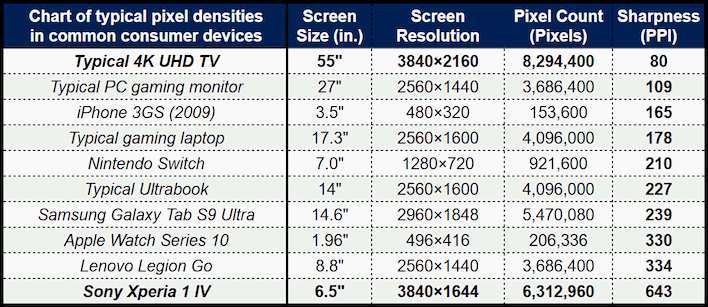
A 27-inch monitor is good for spreadsheets at 1440p resolution or higher. At 1080p, pixel density drops below 82 PPI, making text and gridlines look soft. A 1440p 27-inch panel delivers around 109 PPI, which is the comfortable sweet spot.
Always match resolution to screen size before buying.
Why Resolution Matters More Than Size at 27 Inches
Physical size alone doesn't tell you how much of your spreadsheet fits on screen. Resolution does. Two monitors can both measure 27 inches diagonally, but show completely different amounts of content depending on pixel count.
Here's why it matters. A spreadsheet is a grid of tiny text cells, thin lines, and small numbers. When pixel density is low, everything looks blocky.
You squint. You lean in. Your eyes tire faster.
When pixel density is high and properly scaled, text renders sharp and you can comfortably view 30 to 50 columns without scrolling.
At 27 inches specifically, the gap between resolutions is dramatic because the physical screen area is large enough to expose every pixel.
- 1080p (1920×1080): About 82 pixels per inch. Text looks soft. Fine for gaming or video, underwhelming for dense spreadsheets.
- 1440p (2560×1440): About 109 PPI. Sharp text, comfortable reading, excellent screen real estate. This is where 27 inches starts to shine.
- 4K (3840×2160): About 163 PPI. Razor sharp, but you'll likely need display scaling at 125-150%, which reduces usable screen space slightly.
The takeaway matches what display testing sites like RTINGS and Tom's Hardware consistently report in their office productivity benchmarks: 1440p at 27 inches hits the price-to-performance peak for productivity workloads. Going higher is nice but diminishing returns kick in fast. Going lower hurts.
How Much of Your Spreadsheet Can You Actually See?
Let's put real numbers on this. A typical spreadsheet in Excel or Google Sheets displays roughly 26 columns (A through Z) and 50 to 100 rows at standard zoom level. Here's how different 27-inch configurations compare.
| Resolution | Visible Columns (approx.) | Visible Rows (approx.) | Pixel Density | Text Sharpness |
|---|---|---|---|---|
| 1920×1080 (Full HD) | 18–22 | 35–40 | ~82 PPI | Soft / pixelated at close range |
| 2560×1440 (QHD) | 26–32 | 55–65 | ~109 PPI | Sharp / comfortable |
| 3840×2160 (4K UHD) | 26–32 (at 125% scaling) | 55–65 | ~163 PPI | Very sharp / may need scaling |
At 1080p, you're scrolling horizontally through models, budget sheets, and inventory trackers more than you should. At 1440p, a full month of columns fits on one screen. That's the difference between constant scrolling and actually seeing your data context.
For anyone working with 50+ column datasets, 1440p minimum is non-negotiable. Aggregate user feedback on monitor forums and Excel communities consistently points to 1440p at 27 inches as the point where spreadsheet frustration drops significantly.
1080p at 27 Inches: The Pixel Density Problem
This is where most budget buyers get burned. Manufacturers love putting 1080p panels in 27-inch monitors because the price looks great. On paper, you're getting a big screen cheap.
In practice, you're getting a big screen with visible pixels.
At 82 PPI, individual pixels are noticeable at normal desk distance (roughly 24 to 30 inches). Text edges look jagged. Gridlines appear thin and broken.
Conditional formatting colors don't render cleanly because there simply aren't enough pixels to draw smooth cell borders.
It's not unusable. If you're only checking a few cells here and there, or your spreadsheets are simple to-do lists and basic budgets, 1080p at 27 inches won't ruin your day. But aggregate reviews across retail platforms show that people who buy 1080p 27-inch monitors for data work tend to regret it within a few weeks.
The most common complaint is that they thought bigger would be better, but the image quality felt like a downgrade from their old 24-inch 1080p display.
That makes sense mathematically. A 24-inch 1080p screen runs about 92 PPI. Stepping up to 27 inches at the same resolution drops you to 82 PPI.
You got more screen but less sharpness.
Who should still consider 1080p at 27 inches:
- Casual users who open spreadsheets occasionally
- Very tight budgets (under $150)
- Situations where the monitor is primarily for video playback or gaming, with spreadsheets secondary
Who should avoid it:
- Financial analysts, accountants, or data professionals
- Anyone working with more than 20 columns regularly
- People with corrected vision who are sensitive to soft text
If you've already bought a 1080p 27-inch panel and feel discomfort, try bumping Windows display scaling to 115%, bumping font size in Excel preferences, or sitting 6 to 8 inches further back. It's a band-aid, but it helps.
1440p at 27 Inches: The Sweet Spot for Most Spreadsheet Users
This is the configuration most spreadsheet-heavy users should target, and it's where a 27-inch monitor earns its reputation. At roughly 109 PPI, text is sharp enough for all-day viewing, screen real estate is generous, and prices have dropped enough that a solid 1440p 27-inch IPS panel costs between $200 and $350 as of 2026.
At this resolution, you can comfortably view 26 to 32 columns and 55 to 65 rows in Excel at standard zoom. A 12-column monthly budget with 100 rows of line items fits entirely on one screen. Multi-tab browsing between a spreadsheet, email, and reference documents becomes practical without constant alt-tabbing.
IPS panels at this size are mature technology. You get wide viewing angles (typically 178°/178°), decent color accuracy out of the box (sRGB coverage around 95-100%), and response times in the 4-5ms range that are more than adequate for static content. Response time doesn't matter much for spreadsheets; color consistency does.
Three practical notes for anyone shopping in this range:
- Check the stand. Many budget 17-inch panels ship with a fixed-height stand that sits too low. If the monitor doesn't have height adjustment, budget another $30 to $50 for a VESA mount or a monitor arm.
- Look for IPS, not VA or TN. VA panels have better contrast but slower pixel transitions that cause ghosting on white backgrounds with black text. TN panels have terrible viewing angles. IPS is the right choice for spreadsheet work.
- Skip aggressive blue-light modes out of the box. Most monitors ship with a strong warm tint in "eye care" mode. It's yellowed out and makes spreadsheet colors look wrong. Calibrate first, then enable blue light filtering at a mild setting if you work late.
The 1440p 27-inch configuration also pairs well with laptop docking. A single USB-C cable from a business laptop can drive the display and charge the machine, giving you a clean desk with one cable. Many panels in this range include USB-C with 65W or more of power delivery, which eliminates the laptop charger from your desk entirely.

Similar Posts





















