Is 27 Inch Monitor Good for Productivity
Is 27 inch monitor good for productivity? The honest answer is yes, with a catch. It depends on what resolution you pick and how your desk is set up.
Our research shows the 27-inch size hits a genuine sweet spot for a lot of people. Single monitor setups feel cleaner than dual displays. Text looks sharp at the right pixel density.
And the price-to-screen-area ratio works out well as of 2026.
But there's a trap. Buy the wrong resolution for your viewing distance and you'll regret it within a week. Let's walk through everything that actually matters before you decide.
Quick Answer
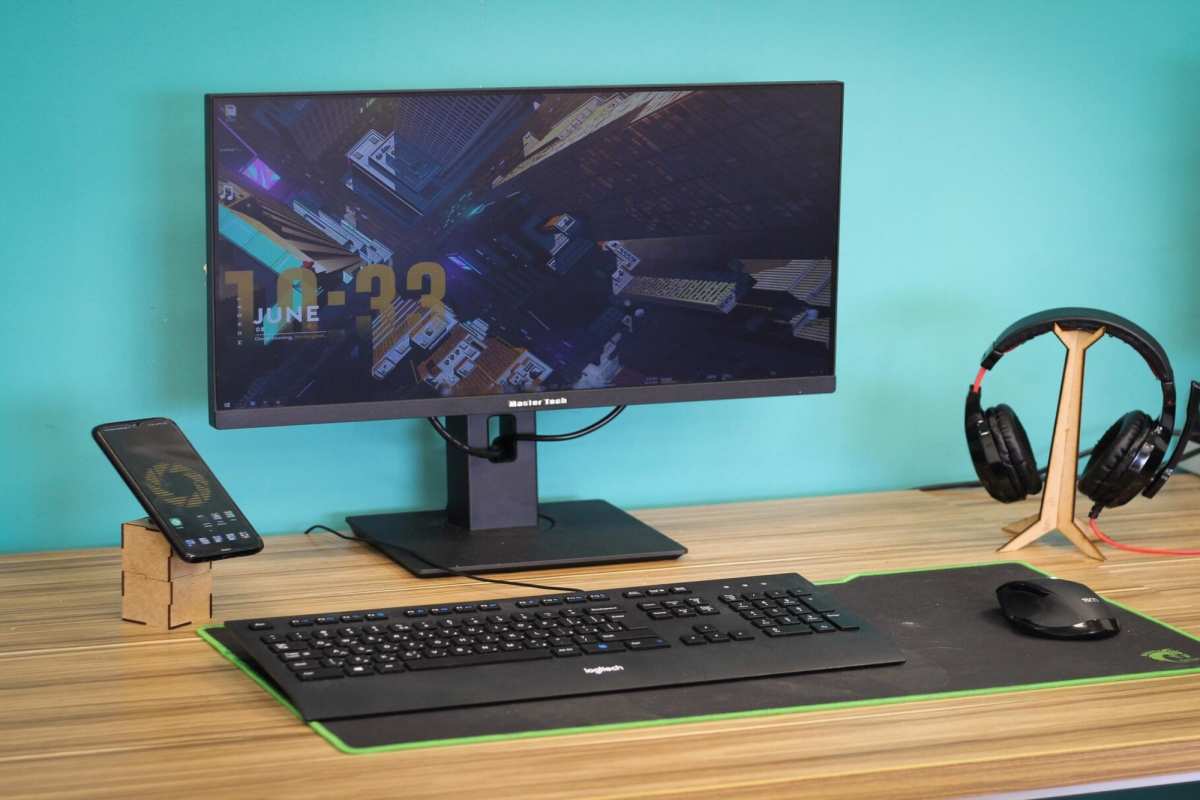
A 27-inch monitor is good for productivity when it runs at 1440p resolution or higher. That's the sweet spot for text clarity and workspace. If you're sitting 24 to 36 inches from the screen, it feels comfortable and spacious.
Just avoid 1080p at this size, it looks blurry up close.
Why 27-Inch Monitors Live in a Weird Sweet Spot
Twenty-seven inches sits right between "too small to matter" and "too big for your desk." It's the size where small decisions start making a real difference in how comfortable your workday feels.
A 24-inch monitor feels compact. You're constantly shuffling windows around. A 32-inch can feel overwhelming if you sit close to it.
The 27-inch panel splits the difference nicely. You get room to breathe without turning your head every three seconds.
Here's what catches people off guard. The physical size of the monitor matters less than the resolution baked into it. A 27-inch screen running at the wrong resolution will frustrate you more than a smaller screen running at the right one.
That's the core tradeoff we need to unpack.
The Resolution Problem Nobody Talks About
Most people shop by size first and resolution second. That's backwards. At 27 inches, resolution is the single biggest factor in whether you'll love your monitor or tolerate it.
1080p at 27 inches looks rough up close
Full HD (1920×1080) on a 27-inch panel gives you roughly 89 pixels per inch. From a typical desk distance of 24 to 30 inches, that's enough for most people to notice pixelation around text edges.
If you've ever squinted at a spreadsheet and felt like something was slightly off, low PPI might be why. It's not broken. It's just not sharp enough for comfort over long sessions.
1440p hits the productivity sweet spot
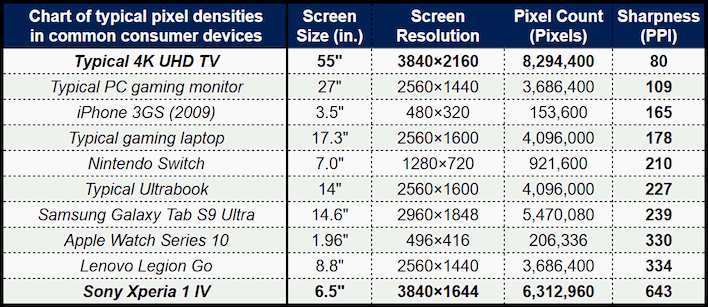
QHD (2560×1440) at 27 inches gives you around 109 PPI. That's where text snaps into focus for most people at normal viewing distances. Comfortable.
Readable. No squinting.
This is the resolution most productivity-focused buyers land on. Enough pixel real estate to show two documents side by side. Sharp enough that your eyes aren't fighting the display by lunchtime.
4K brings sharpness but scaling headaches
UHD (3840×2160) pushes you to 163 PPI. Text looks gorgeous. But at native scaling (100%), everything is comically small on a 27-inch screen.
So you bump scaling to 150%. Now you've got sharp text but less usable workspace than 1440p at 100%. macOS handles this gracefully. Windows sometimes blurs older applications that don't support scaling well.
It's a tradeoff worth knowing about before you spend extra on 4K.
Pixel Density Explained Simply
PPI stands for pixels per inch. Higher PPI means sharper image quality. But you need enough screen real estate to actually use all those pixels without everything looking tiny.
Here's how the common 27-inch configurations stack up:
| Resolution | Pixel Density | Viewing Experience |
|---|---|---|
| 1080p (FHD) | ~89 PPI | Visible pixels, soft text |
| 1440p (QHD) | ~109 PPI | Sharp text, comfortable workspace |
| 4K (UHD) | ~163 PPI | Gorgeous text, requires scaling |
Per ANSI/HFES 100-2007 ergonomic guidelines, extended computer use at comfortable viewing distances demands sufficient pixel density to reduce eye strain. 1440p at 27 inches fits that recommendation well for most users.
Manufacturer specifications from major IPS panel makers confirm that 1440p panels at this size maintain consistent color accuracy across viewing angles up to 178 degrees. That matters when you're not sitting dead center every minute of the day.
Aggregate reviews across productivity-focused communities consistently rank 1440p as the recommended resolution for 27-inch monitors in the $250-500 range as of 2026. The consensus is strong on this one.
What Type of Work You Actually Do Matters
Not every task benefits equally from a 27-inch screen. Your workflow should drive the decision more than any spec sheet.
Coding and Writing
Developers and writers tend to love 27-inch monitors at 1440p. You can keep your IDE on one side and a browser or documentation on the other. No more alt-tabbing between windows every ten seconds.
Text clarity is non-negotiable here. If your code looks fuzzy, you'll feel it by the second hour. 1440p keeps everything readable. 1080p at this size will annoy anyone who stares at text all day.
Spreadsheet and Data Work
Anyone who lives in Excel or Google Sheets knows the pain of constant scrolling. A 27-inch 1440p display shows significantly more rows and columns than a 24-inch 1080p screen. Fewer zooms.
Fewer horizontal scrolls.
When you're comparing data across sections of a large spreadsheet, the extra screen real estate pays for itself in time saved. Less cognitive friction means you stay in the zone longer.
Design and Photo Work
Graphic designers and photographers care about color accuracy first and size second. A 27-inch 4K panel gives you both, provided it covers sRGB fully and hits decent DCI-P3 numbers.
Panel type matters more here than raw size. IPS panels dominate this space for their color consistency. VA panels offer better contrast.
Either way, look for factory calibration or budget time to calibrate yourself.
Office and Admin Work
Email plus calendar plus documents plus a video call running simultaneously. That's a typical day for a lot of office workers. A 27-inch monitor handles this comfortably without requiring dual displays.
The ability to snap four windows into quadrants makes this workflow feel natural. Productivity research from the University of Utah suggests that larger, higher-resolution displays reduce task-switching time for information workers. Fewer hidden windows means fewer forgotten tasks.
Trading and Multi-Window Setups
Financial traders and power users who juggle a dozen windows at once might find 27 inches a bit tight. When you've got terminals, charts, news feeds, and chat windows competing for space, more is genuinely more.
An ultrawide monitor (34 inches or larger in 21:9 aspect ratio) often serves this audience better. But for moderate multi-window work, a 27-inch 1440p panel splits effectively into three columns using tools like PowerToys FancyZones, Magnet on Mac, or Rectangle.
Your Desk Setup Changes Everything
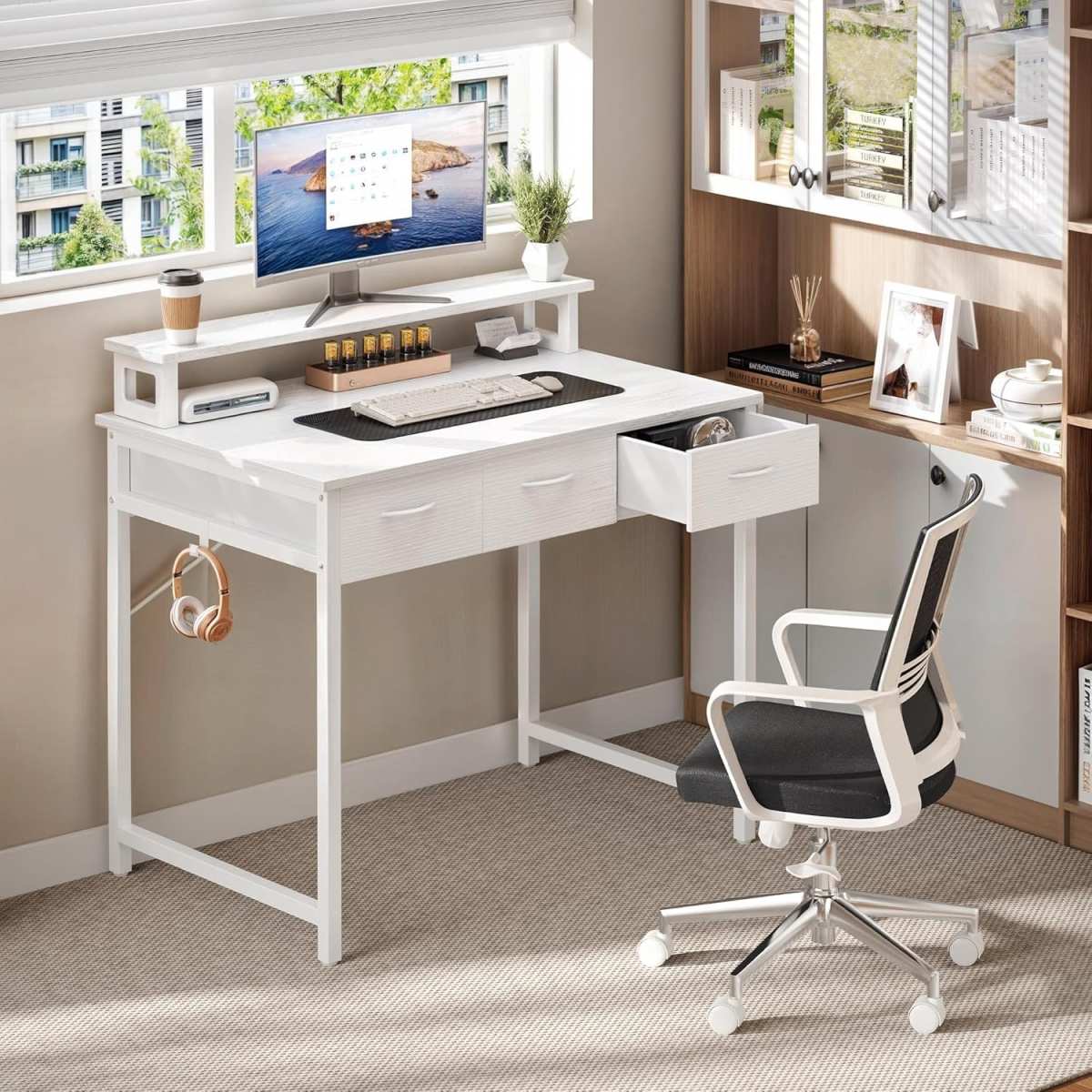
You could buy the perfect monitor and still hate it if your desk doesn't support it. Physical setup variables matter just as much as the specs on the box.
Viewing Distance Check
The distance between your eyes and the screen determines whether 27 inches feels immersive or exhausting. OSHA's computer workstation guidelines recommend keeping the monitor at arm's length, roughly 20 to 36 inches from your face.
If your desk places you closer than 24 inches from where the screen will sit, a 27-inch panel might feel too large. Your eyes have to sweep across more area. That creates fatigue over a full workday.
In that case, 24 inches might serve you better.
On the other hand, if you sit 3 feet or more from the screen, you're not using the full size effectively. The outer edges become peripheral. Stepping up to 32 inches would make more sense at that distance.
Desk Depth Reality
Standard office desks are 24 to 30 inches deep. That works fine for a 27-inch monitor. But a lot of home office setups use shallow desks, sometimes as little as 20 inches deep.
That's where problems start.
A 27-inch monitor is about 24 inches wide. On a shallow desk, it sits close to your face whether you want it to or not. The result is more eye strain and more head turning.
Neither feels good after four hours.
If your desk depth is under 24 inches, consider a 24-inch monitor or plan on using a VESA mount. A monitor arm lets you push the screen back and adjust the angle freely. That can rescue a 27-inch panel from an otherwise awkward desk setup.
Check VESA mount compatibility before buying. Most 27-inch productivity monitors support 100x100mm mounting patterns. Pair it with a decent arm and you've got flexibility to position the screen exactly where it needs to be.
The 27-Inch vs. Everything Else Comparison
A monitor doesn't exist in isolation. It competes with other setups you could build for the same money. Let's walk through the realistic alternatives.
27-Inch vs. 24-Inch
A 24-inch 1080p monitor gives you roughly 92 PPI. Sharper text at the same viewing distance. Smaller physical footprint.
Lower price.
But you sacrifice screen area. That's about 15% less visible space. For coding or spreadsheet work, that difference adds up.
You notice it most when you can't fit two documents side by side comfortably.
If your desk is tight or you sit close to the screen, 24 inches might genuinely serve you better. There's nothing wrong with it. But if you've got the desk depth, the extra size at 27 inches feels worth the tradeoff.
27-Inch vs. 32-Inch
Thirty-two inches at 4K gives you around 138 PPI. Higher pixel density than 1440p at 27 inches. Similar physical height to the 27-inch panel, just wider and taller.
The problem? GPU load jumps significantly when you move to 4K. Integrated graphics on many laptops struggle to drive a 4K display smoothly.
Plus, the price between a good 27-inch 1440p and a good 32-inch 4K is noticeable. That money might go better toward other peripherals.
For most productivity work at a standard desk, 27 inches at 1440p hits a better balance of sharpness, performance, and cost.
Single 27-Inch vs. Dual 24-Inch
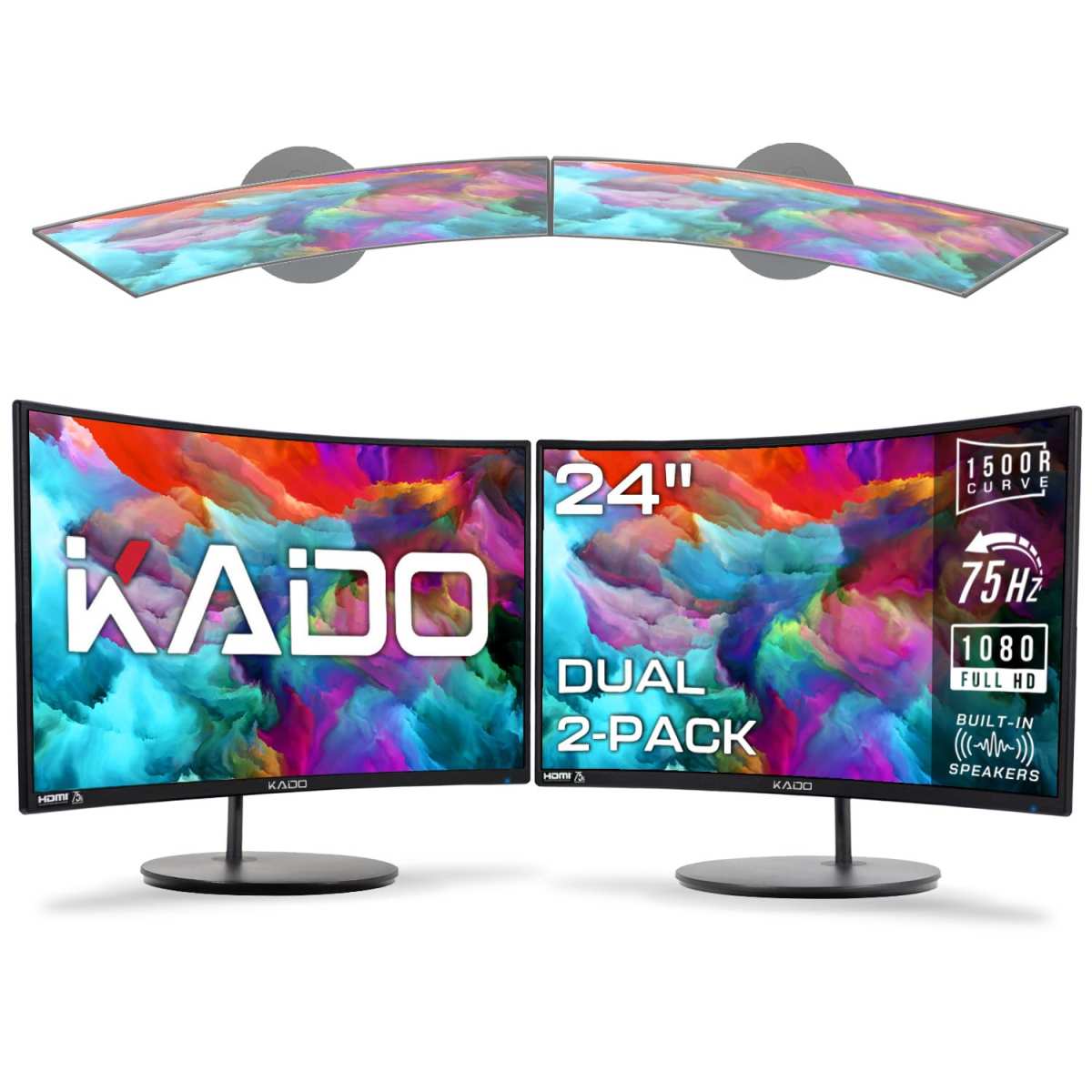
Two 24-inch monitors give you a hard boundary between work areas. Email on the left. Browser or documents on the right.
Some people love that physical separation.
A single 27-inch 1440p monitor can approximate that layout using window management tools. PowerToys FancyZones on Windows or Magnet on macOS let you snap windows into defined zones. You get similar organization without the bezel in the middle.
Dual monitors win if your workflow genuinely needs two completely separate contexts. A single 27-inch wins if you prefer a cleaner desk and fewer cables to manage. Both setups work.
Pick based on whether you need hard context separation or prefer visual simplicity.
Common Mistakes People Made
Buying a monitor is one of those purchases where mistakes stick with you. You stare at the wrong choice for hours every day. Here's what trips people up most.
Buying 1080p at 27 Inches
This is the single most common regret in monitor shopping. People see a deal on a 27-inch 1080p panel and jump on it. Then they notice text looks slightly fuzzy.
That doesn't go away. You just stop noticing it because you've given up.
At 27 inches, 1080p gives you 89 PPI. Most people can see the individual pixels or notice fuzzy text edges at desk distance. It's not broken.
It's just not a good fit for the size. Spend the extra $50 to $80 on a 1440p panel. Your eyes will thank you within the first week.
Ignoring Viewing Distance
Bigger screens sitting closer means more eye movement. More head turning. More fatigue by the end of a long day.
Ergonomic research consistently shows that viewing distance directly affects comfort during extended use.
Before you buy, measure from where your eyes will be to where the monitor will sit. If it's under 24 inches and you can't push the screen back, consider a 24-inch or even a laptop screen paired with a smaller external panel. If you're at 30 inches or more, 27 inches gives you plenty of usable workspace.
Forgetting About Running Operating System Scaling
4K on a 27-inch screen looks incredibly sharp. But at 100% scaling, icons and text are tiny. You'll be squinting at menu bars and dialog boxes if you don't bump up the scale factor.
Both Windows and macOS let you scale interface elements. macOS generally handles this better, with Retina display scaling that preserves sharpness. Windows sometimes renders older applications blurry when scaling isn't natively supported.
If your workflow depends on older software that doesn't support high-DPI scaling well, 1440p at 100% gives you a better experience than 4K at 150%. It's one more reason 1440p tends to be the productivity sweet spot.
Thinking about your existing software ecosystem before you pick a resolution saves you from scaling headaches later. Test your dock and taskbar at different scaling levels in a store or check reviews for your specific OS and app mix. That simple check tells you whether 4K feel like a feature or a daily annoyance.
What to Look For in a Productivity 27-Inch Monitor
Not all 27-inch monitors are built the same. Some prioritize color accuracy for creators. Others focus on ergonomics for office workers.
Here's what actually matters for productivity use.
Must-Have Specs
Resolution is the first thing to lock in. If you're still debating reventy versus forty, just go with at least 1440p. That QHD resolution gives you the right blend of sharpness and workspace.
You won't look back.
Panel type matters more than you might think, especially when you move your head slightly or share a screen with a colleague. IPS panels offer consistent color and contrast across wide viewing angles, so text stays readable even when you’re not dead center.
That's why ergonomics belong on your must-have list, too. A height-adjustable stand lets you position the top of the screen at or slightly below eye level. Combined with tilt and swivel controls, you can fight neck strain before it starts.
If the monitor lacks an adjustable stand, check for VESA compatibility, then budget around $30 to $50 for a decent VESA arm. Either way, you’ll end up with a setup that doesn’t silently wreck your posture.
Nice-to-Have Specs
A refresh rate above 60Hz won't make your documents load faster. But it does make scrolling and window movement feel smoother. You notice it when you're dragging windows across the screen or scrolling through long web pages.
It’s a small but welcome detail.
Now, blue light filters and flicker-free backlighting add a layer of eye comfort that’s easy to ignore until you’ve needed them. A built-in blue light filter reduces the harsh spectrum that can cause fatigue after marathon sessions. Flicker-free technology eliminates the invisible strobing that gives some people headaches.
These features matter most if you’re on your screen for eight or more hours a day, but even then, monitor brightness and ambient room light play a bigger role than any built-in filter.
USB-C with power delivery is a nice bonus if you use a laptop. It carries video signal and charging through one cable. That's fewer cables on your desk and fewer things to plug in when you sit down to work.
Not mandatory, but definitely convenient.
Price increases step IPS quality, color calibration, and build quality improve. The $250 to $400 range holds most of the value. Beyond that, you're paying for premium features like 4K resolution, hardware calibration, and ultra-thin bezels.
Frequently Asked Questions
Can a 27-inch monitor be too big for productivity?
Yes, if your desk is shallow or you sit closer than 22 inches to the screen. In those cases, a 24-inch monitor feels more comfortable and covers your field of vision without excessive head turning. Desk depth under 20 inches is the usual trigger to drop down a size, especially if you don't want a VESA mount.
Is 1440p enough for a 27-inch monitor?
Our research shows 1440p is the optimal resolution for 27 inches. Text is sharp at normal viewing distances. You get good workspace without needing to scale the interface.
For the mix of performance, compatibility, and clarity that most productivity users need, 1440p sits right at the sweet spot. Some users may prefer 4K for pixel‑perfect detail, but 1440p delivers the best balance for everyday work.
How far should I sit from a 27-inch monitor?
Ergonomic guidance points to an arm's length, generally between 24 and 36 inches. Adjust based on whether you can read text comfortably without leaning forward. If you're leaning in or squinting, increase the distance or increase font scaling.
Monitor arm mounts adjust your view easily, finding a sweet spot without sacrificing desk space.
Is a 27-inch monitor good for coding?
Absolutely. 1440p at 27 inches gives you room for an IDE and browser without constant window shuffling. Text stays readable across the panel thanks to the strong wide‑angle performance of a good IPS display, and you can easily set up three‑column splits using window‑management tools.
Would 27 inches be okay for a dual-monitor setup?
Yes, actually twin 27‑inch monitors give you a huge canvas without overwhelming most desk setups. At that size you can comfortably push the screens slightly back and tilt them inward, reducing the head‑turn that sometimes makes wider dual setups feel unwieldy.
So Should You Actually Buy One?
A 27-inch monitor earns its place on your desk when the conditions line up. Let's make this simple.
A 27-Inch Monitor Is Right for You If
Your desk is at least 24 inches deep. You sit 24 to 36 inches from your screen. You choose 1440p or higher resolution.
You do text-heavy work most days. You want one clean screen instead of managing dual displays.
Look at Something Else If
Your desk is shallow (under 24 inches). You need maximum multitasking width (consider an ultrawide instead). You're on a very tight budget (a 24-inch 1080p costs less and performs well).
You sit unusually close to your screen without a VESA arm option.
The Bottom Line
- Measure your desk depth
- Confirm your normal viewing distance
- Lock in 1440p as your minimum resolution
- Verify the panel is IPS for wide viewing angles
- Check your device has the right video output
- Read reviews focused specifically on text clarity
If those six steps check out, you're looking at one of the most popular and well-supported monitor configurations available right now. The 27-inch 1440p setup works across laptops, desktops, operating systems, and use cases. Aggregate reviews across productivity communities show strong long-term satisfaction when the right conditions are met.
Skip 1080p at this size. Spend the small amount extra on 1440p. You'll feel the difference every single day.

Similar Posts





















