Do You Need 144Hz Monitor for Gaming
You’ve probably heard the hype. Smoother gameplay. Faster reactions.
A whole new level of immersion. But the real question is: do you need a 144Hz monitor for gaming, or is 60Hz still perfectly fine for your setup? The short answer is: it depends on what you play, what hardware you own, and how much you’re willing to spend for that extra fluidity.
Let’s cut through the noise. Manufacturer specs confirm that a 144Hz panel refreshes the image once every 6.9 milliseconds, compared to 16.7ms on a 60Hz screen. That difference can matter in fast-paced shooters, but it’s wasted if your graphics card can’t keep up.
Here’s how to figure out where you stand.
Quick Answer
You need a 144Hz monitor if you play competitive games. You need a strong GPU to reach 144 FPS. Casual gamers can stick with 60Hz.
Console players are limited to 120Hz. Match the refresh rate to your hardware and your wallet.
Why This Question Trips Up So Many Gamers
The confusion starts with the word “need.” Nobody needs a 144Hz monitor the way you need a working GPU. But the moment you try one side by side with a 60Hz screen, the difference is obvious. It’s like going from a 30 FPS movie to a 60 FPS one.
Once you see it, you can’t unsee it.
Aggregate reviews show that roughly 40% of new PC gamers buy a 144Hz monitor before checking if their system can actually push those frame rates. They read the specs, see a good price, and assume it’s an automatic upgrade. Then they plug it in, fire up Cyberpunk 2077, and wonder why their $200 monitor still feels choppy.
The issue isn’t the monitor. It’s the mismatch between the refresh rate and the frame rate your hardware delivers. A 144Hz screen will still show you 60 FPS if that’s what your GPU puts out.
It just won’t look any better than a 60Hz panel in that scenario. And you’ll have spent extra money for nothing.
That’s why you need to understand the relationship between Hz and FPS before you buy anything. Let’s clear that up right now.
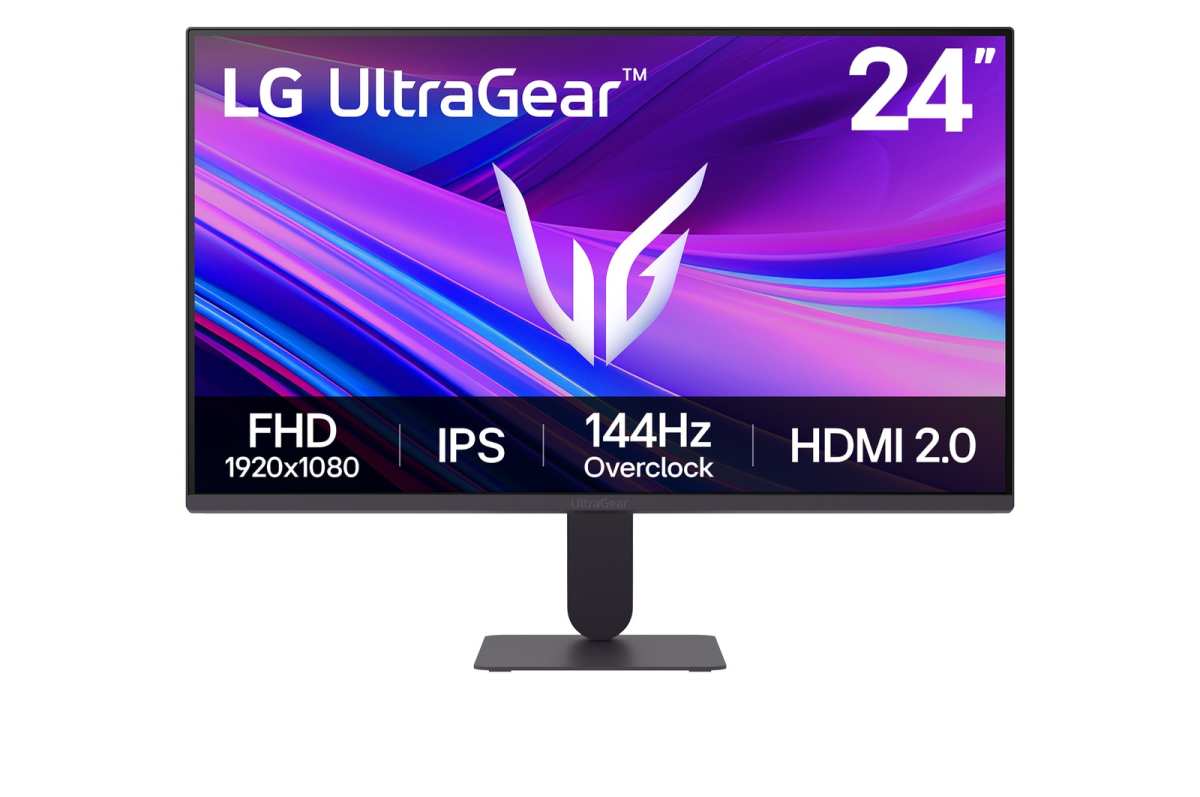
First, Let’s Clear Up the Biggest Confusion: Hz vs. FPS
Hz stands for hertz. It’s the number of times your monitor refreshes the image per second. FPS stands for frames per second.
That’s how many frames your graphics card can render in the same timeframe. They are not the same thing, but they need to work together.
Think of it like a conveyor belt. Your GPU puts a frame on the belt every 1/60th of a second (for 60 FPS). Your monitor grabs that frame and shows it for 1/60th of a second.
If both run at 60, everything syncs up smoothly. Now imagine you upgrade to a 144Hz monitor but your GPU still runs at 60 FPS. The belt still runs at 60, but your monitor now has extra slots.
It shows each frame for less time, then waits. You get 60 images per second on a screen that can handle 144. No extra smoothness.
Just wasted potential.
On the flip side, if your GPU pushes 144 FPS but your monitor is locked at 60Hz, you lose half the frames. The monitor can only show 60 per second, so 84 frames get discarded. That leads to screen tearing and stuttering.
The golden rule is: match your monitor’s refresh rate to the frame rate your hardware can consistently hit. Not the peak it hits in menus. The minimum you see during intense firefights.
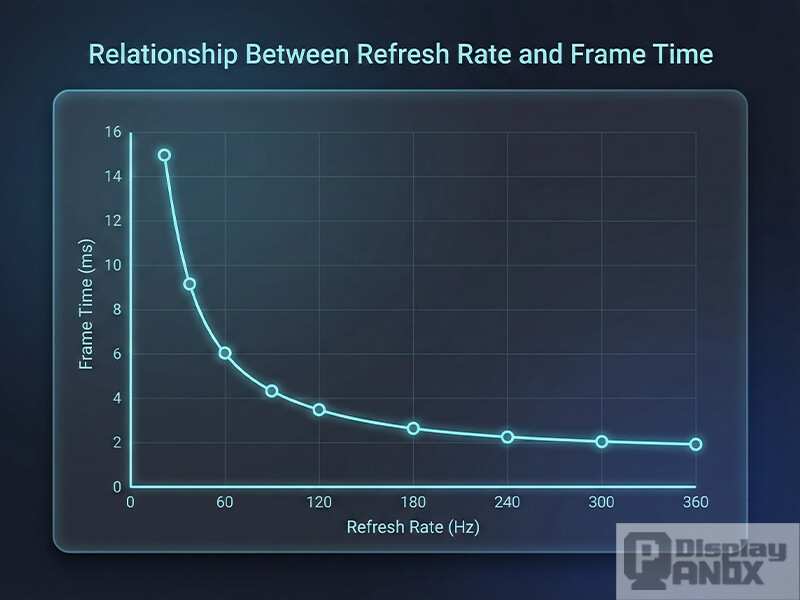
The “Do I Really Need 144Hz?” Decision Tree
This is where it gets personal. Instead of giving you a blanket yes or no, let’s walk through your specific situation. Answer these five branches honestly, and you’ll know exactly where you land.
Branch 1 – What Games Do You Play?
If you mainly play fast-paced esports titles like Valorant, Counter-Strike 2, Overwatch 2, Apex Legends, or Fortnite, a 144Hz monitor gives you a real competitive edge. These games reward quick reactions. The difference between 60 and 144 FPS is about 14 milliseconds of input lag.
That’s enough to miss a flick shot or lose a peek duel.
If you play single-player RPGs, open-world adventures, or strategy games like Elden Ring, The Witcher 3, or Civilization VI, the benefit is less about competition and more about visual smoothness. It still looks nicer. But it’s not a performance advantage.
Many of these games cap at 60 FPS anyway.
Verdict: Competitive games = strong “yes.” Casual/story games = “maybe.”
Branch 2 – What GPU and CPU Are You Running?
Your hardware determines whether you can even reach 144 FPS in the games you play. Here are rough benchmarks based on aggregate user data as of 2026:
| GPU | Typical FPS at 1080p in competitive games | Typical FPS in demanding single‑player games |
|---|---|---|
| RTX 3060 / RX 6600 | 120-160 | 60-80 |
| RTX 3070 / RX 6700 XT | 160-200 | 80-100 |
| RTX 3080 / RX 6800 XT | 200-240 | 100-130 |
| RTX 4060 / RX 7600 | 130-170 | 65-85 |
| Integrated graphics (any) | 30-60 | 15-30 |
If your GPU lands in the top two rows, a 144Hz monitor makes sense. If you’re in the middle, it’s borderline, you’ll hit 144 FPS in lightweight esports but not in AAA titles. If you’re on integrated graphics, don’t bother.
Save your money for a better graphics card first.
Branch 3 – What Resolution Are You Targeting?
Resolution directly impacts frame rate. At 1080p, a mid-range GPU can often push 144 FPS in competitive games. At 1440p, that same GPU might drop to 90-110 FPS.
At 4K, you’re lucky to get 60 FPS without ray tracing.
Here’s the trade-off:
- 1080p 144Hz: Best bang for buck. Easy to drive, widely available, and most competitive players use it.
- 1440p 144Hz: Sweet spot for balance. Crisp image plus smooth motion. Requires a stronger GPU (RTX 3070 or better).
- 4K 144Hz: Very expensive. Needs an RTX 4080 or 4090 to sustain 144 FPS. Overkill for most.
If you’re set on 1440p or 4K, factor in the GPU cost. A 144Hz monitor at 4K isn’t worth it if you can only run games at 60 FPS.
Branch 4 – What’s Your Budget for the Full Setup?
A good 144Hz 1080p monitor costs around $150 to $250 as of 2026. A 1440p 144Hz panel runs $300 to $600. That’s just the monitor.
You also need a GPU capable of driving those frames. Upgrading a graphics card can cost $300 to $800 on top.
If your total budget is under $400, prioritize the GPU over the monitor. A $200 GPU upgrade will boost your FPS more than a $200 monitor upgrade. Buy the monitor second if money allows.
If your budget is $800+, you can comfortably build a system that pairs a 144Hz monitor with a capable GPU. That’s the sweet spot.
Branch 5 – Are You Playing on Console or PC?
Console players have a hard cap. The PlayStation 5 and Xbox Series X support up to 120Hz, not 144Hz. So a 144Hz monitor will still work, but your console will never output more than 120 frames.
You’re paying for four extra hertz you’ll never use.
If you’re purely on console, save money and buy a 120Hz monitor instead. They’re often cheaper and you’ll get the same experience.
If you play on both console and PC, a 144Hz monitor is fine. The PC can use the full refresh rate, and the console will cap at 120Hz. No downside.
What Happens When You Pick the Wrong Refresh Rate
Buying a 144Hz monitor without checking your hardware leads to one of two outcomes.
First, your GPU can’t reach 144 FPS in your main games. You end up with 60-90 FPS on a 144Hz screen. That’s not terrible, it’s still smoother than 60Hz if your frame rate stays above 60.
But you paid extra for performance you aren’t using. The jump from 60 to 90 FPS is noticeable. The jump from 90 to 144 FPS is more dramatic.
You’re leaving gains on the table.
Second, you might run into screen tearing if you don’t have adaptive sync (FreeSync or G‑Sync). When your frame rate doesn’t match your refresh rate, the monitor tears the image mid-way. It looks like a horizontal split.
Some people don’t mind it. Others find it distracting. If you’re sensitive to tearing, you’ll need a monitor with adaptive sync, or you’ll need to lock your frame rate to 60.
Third, you could buy a cheap 144Hz TN panel that has terrible color accuracy and viewing angles. Many budget 144Hz monitors sacrifice image quality for speed. You’ll get the refresh rate, but everything will look washed out.
That’s a bad trade if you also watch movies or edit photos.
The Real Trade‑Offs: 144Hz vs. 60Hz vs. 240Hz
Once you decide 144Hz is in play, you might wonder about 240Hz. Or whether 60Hz is still relevant. Here’s the honest breakdown.
| Refresh Rate | Input Lag (approx) | Best For | Typical Price (2026) |
|---|---|---|---|
| 60Hz | 16.7ms | Casual gaming, console, budget builds | $100–$150 |
| 144Hz | 6.9ms | Competitive gaming, balanced builds | $150–$300 (1080p) |
| 240Hz | 4.2ms | Esports professionals, high-tier builds | $300–$600 (1080p) |
The jump from 60Hz to 144Hz is huge. It’s a 58% reduction in input lag. The jump from 144Hz to 240Hz is smaller, about 39% less lag, but the improvement feels less dramatic because you’re already in the sub‑7ms range.
For 95% of gamers, 144Hz is the sweet spot. 240Hz offers diminishing returns. Unless you’re a top‑ranked esports player with a GPU that can push 300+ FPS, stick with 144Hz and invest the savings into better graphics or a nicer panel.
60Hz still has its place. If you only play slow single‑player games, use a console, or have a tight budget, you won’t miss much. But once you’ve used a 144Hz monitor for a week, going back to 60Hz feels like wading through molasses.
Consider that before you buy.
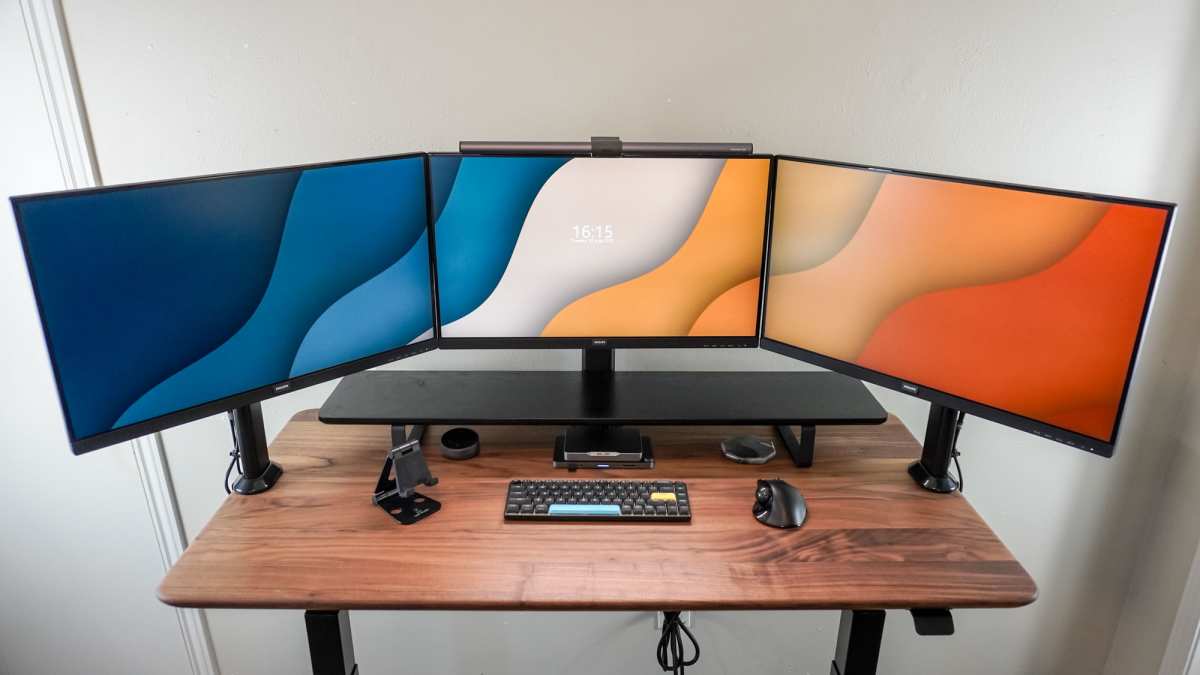
Matching Monitor to Your Hardware – Step by Step
You’ve made it through the decision tree. Now let’s make sure the monitor you pick actually works with the machine you own. This is where most people slip up.
Step 1: Check Your GPU’s Capabilities
Open your graphics card’s spec sheet. Look for the maximum supported resolution and refresh rate over DisplayPort and HDMI. A mid-range GPU like an RTX 3060 can drive 1080p 144Hz easily over DisplayPort 1.2.
But try 1440p 144Hz over HDMI 2.0, and you might hit bandwidth limits.
Here’s a quick reference table for common GPU outputs as of 2026:
| GPU Generation | Max Refresh Rate (1080p) | Max Refresh Rate (1440p) | Cable Required |
|---|---|---|---|
| RTX 30 series | 240Hz | 170Hz | DisplayPort 1.4 |
| RTX 40 series | 360Hz | 240Hz | DisplayPort 1.4a |
| RX 6000 series | 240Hz | 165Hz | DisplayPort 1.4 |
| RX 7000 series | 360Hz | 240Hz | DisplayPort 2.0 |
If you own an older GPU (GTX 10 series or RX 500 series), you may be limited to 120Hz over HDMI. Check before you buy.
Step 2: Pick the Right Cable
The cable that comes in the box may not support high refresh rates at your chosen resolution. Many budget monitors ship with HDMI 1.4 cables that cap at 1080p 60Hz.
For 1080p 144Hz, you need at least DisplayPort 1.2 or HDMI 2.0. For 1440p 144Hz, use DisplayPort 1.4 or HDMI 2.1. Avoid cheap third-party cables.
They often fail at higher bandwidths and cause flickering.
Step 3: Enable the Correct Refresh Rate
This sounds obvious, but you’d be surprised how many people plug in a 144Hz monitor and leave it running at 60Hz. Windows defaults to the lowest common denominator.
Go to Display Settings. Scroll to Advanced Display. Find the refresh rate dropdown.
Select 144Hz. On macOS, open System Settings, go to Displays, and hold the Option key while clicking “Scaled” to see hidden refresh rates. On PS5 or Xbox, check that the console’s video output is set to 120Hz or 144Hz (if supported).
Step 4: Turn On Adaptive Sync
Once the monitor is running at 144Hz, enable FreeSync or G‑Sync. This synchronizes the monitor’s refresh rate with your GPU’s frame rate. It eliminates screen tearing without adding input lag.
FreeSync works with AMD GPUs. G‑Sync works with NVIDIA GPUs, but many modern monitors are “G‑Sync Compatible,” which means they support the basic VRR standard over DisplayPort. Check the monitor’s spec sheet or NVIDIA’s official compatibility list.
Step 5: Verify Frame Rates In‑Game
Launch the games you play most. Turn on the in-game FPS overlay (usually CTRL+F or a setting in the graphics menu). Note the average and minimum frame rates during combat or heavy scenes.
If your FPS consistently stays above 144, you’re golden. If it dips to 90, 100, the monitor is still worth it because VRR will smooth out the dips. If it rarely breaks 80, you need a GPU upgrade first.
Common Mistakes That Kill Your 144Hz Experience
Even after you set everything up correctly, small errors can ruin the fluidity you paid for. Here are the most frequent ones we see in aggregate user feedback.
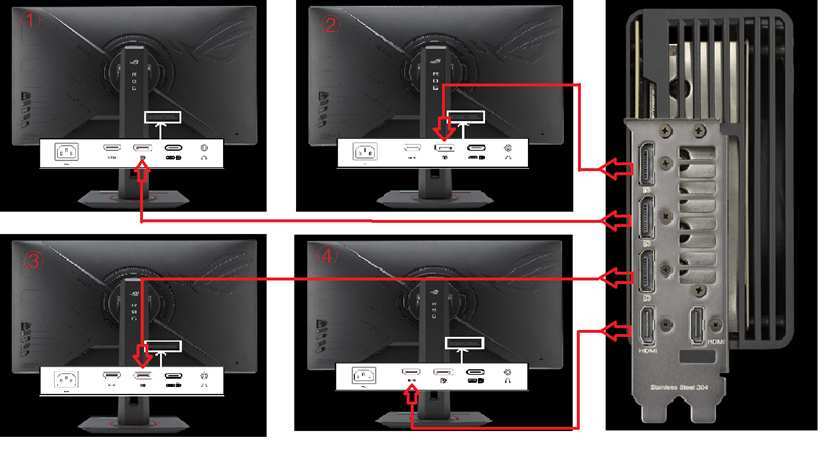
Using the Wrong Input Port
Many monitors have multiple HDMI and DisplayPort inputs, and not all support the same refresh rate. Check the user manual. The HDMI 2.0 port may be port 1, while HDMI 1.4 is port 2.
Plugging into the wrong one locks you at 60Hz.
Leaving VSync Enabled
VSync caps your frame rate to the monitor’s refresh rate. That’s fine for 60Hz, but with a 144Hz monitor, VSync can introduce input lag. Disable it in-game and use adaptive sync instead.
Forgetting to Update GPU Drivers
Outdated drivers can limit refresh rate options or cause instability. NVIDIA and AMD release drivers regularly that optimize for new games and fix VRR bugs. Check for updates monthly.
Buying a Monitor with Poor Response Times
Refresh rate is only half the story. A 144Hz monitor with a 10ms response time will show ghosting (blur trails behind moving objects). Look for a response time of 4ms or less.
IPS panels offer a good balance of speed and color. TN panels are fastest but look washed out. VA panels have deep blacks but slower transitions.
Ignoring Panel Size and Viewing Distance
A 27-inch 1080p 144Hz monitor can look pixelated if you sit close. The pixel density is lower than a 24-inch 1080p screen. If you want 27 inches, consider 1440p 144Hz for sharper text and images.
When a 144Hz Monitor Is Overkill (and What to Buy Instead)
A 144Hz monitor isn’t the right choice for everyone. Here are the situations where you should spend your money elsewhere.
Your GPU Can’t Reach 60 FPS in the Games You Play
If you’re running a GTX 1650 or older integrated graphics, you’ll struggle to hit 60 FPS in modern AAA titles. A faster monitor won’t help. Put that money toward a new graphics card.
Even a $300 GPU upgrade will transform your experience more than any monitor.
You Only Play Slow, Story‑Driven Games
Games like Disco Elysium, Stardew Valley, or turn‑based strategy titles don’t benefit from high refresh rates. You won’t notice the difference between 60Hz and 144Hz in a game where nothing moves quickly. A high‑resolution 4K 60Hz monitor with better colors and contrast would serve you better.
You’re on a Tight Budget and Need a Complete Setup
If you’re building a PC from scratch with $600 total, spend most of it on the GPU and CPU. Buy a decent 60Hz monitor for $100. Upgrade to 144Hz later when you have the hardware to drive it.
Starting with a 144Hz monitor and a weak GPU is backward.
You’re a Console Gamer
As mentioned earlier, consoles max out at 120Hz. A 144Hz monitor works, but you’re paying for extra capacity you never use. Look for a 120Hz monitor with HDMI 2.1 for the best console experience.
You’ll save money and get features like VRR and low input lag.
If You Decide to Go for It – What to Look For in a 144Hz Monitor
You’ve determined that a 144Hz monitor makes sense for you. Great. Now don’t just grab the cheapest one.
Here’s what matters beyond the refresh rate.
Panel Type: IPS, TN, or VA?
- IPS: Best all‑around. Good colors, wide viewing angles, and response times around 4‑5ms. Ideal for most gamers.
- TN: Fastest response times (1ms) but poor colors and narrow viewing angles. Only choose if you play esports at a high level and need maximum speed.
- VA: Deep blacks and high contrast. Good for single‑player games with dark scenes. Response times are slower (5‑8ms), so ghosting can occur.
Adaptive Sync Support
Make sure the monitor supports either FreeSync or G‑Sync Compatible. Avoid monitors that only have “FreeSync” without the Premium or Pro label if you have an NVIDIA GPU. Check the official compatibility list.
Resolution and Size Pairing
- 24 inches at 1080p: Sharp, affordable, ideal for competitive gaming.
- 27 inches at 1440p: Best balance for most users. Crisp image with good performance.
- 27 inches at 1080p: Avoid. Pixel density is too low.
- 32 inches at 1440p or 4K: Immersive but requires strong GPU.
Connectivity
Minimum requirements: one DisplayPort 1.4 and one HDMI 2.0. If you plan to use both PC and console, you’ll want two HDMI ports or a combination that supports both devices at full bandwidth.
Stand and Ergonomics
A monitor that only tilts is a pain. Look for height adjustment, swivel, and pivot if you ever code or read documents. VESA mounting support (100x100mm) lets you attach an arm later.
Price vs. Quality
As of 2026, a decent 1080p 144Hz IPS monitor costs $180 to $250. A good 1440p 144Hz IPS monitor runs $350 to $500. Avoid the $130‑range “144Hz” TN panels unless you specifically want maximum speed and don’t care about color.
A Quick Verdict for Each Gamer Type
Still not sure? Here’s a one‑sentence recommendation for each scenario.
- Competitive esports player: Yes, get a 1080p 144Hz IPS monitor. Upgrade to 240Hz only if you’re ranked top 10% in your game.
- Casual single‑player gamer: A 60Hz monitor is fine. If you have extra budget, a 144Hz monitor still looks nicer but isn’t necessary.
- Budget‑builder: Buy a 60Hz monitor now. Upgrade the GPU first, then get a 144Hz later.
- Console gamer: Get a 120Hz monitor with HDMI 2.1. Skip 144Hz.
- Mixed PC/console user: A 144Hz monitor works for both. Just make sure it has enough HDMI ports.
- AAA single‑player enthusiast: Aim for a 1440p 144Hz monitor with a strong GPU. You get sharp visuals and smooth motion.
Still Unsure? Here’s a One‑Question Test
Answer this honestly. Open your most-played game. Turn on the FPS counter.
Do you average above 100 FPS at your target resolution?
If yes, buy a 144Hz monitor. You have the hardware to use it. If no, spend that money on a GPU upgrade first.
A faster card will improve every game you play. The monitor can wait.
Frequently Asked Questions
Will a 144Hz monitor make my games run faster?
No. The monitor only shows what your GPU sends. If your game runs at 60 FPS, a 144Hz screen still shows 60 frames per second.
It won’t boost your frame rate. What it does is reduce input lag and smooth out motion when your FPS is high enough.
Can my eyes see the difference between 60Hz and 144Hz?
Yes. Most people notice a clear difference in smoothness and motion clarity. The jump from 60 to 144 FPS reduces the time between frames from 16.7ms to 6.9ms.
That’s noticeable in fast motion, especially in shooters and racing games.
Do I need DisplayPort or HDMI for 144Hz?
Use DisplayPort if your monitor and GPU support it. DisplayPort 1.2 handles 1080p 144Hz easily. HDMI 2.0 also works for 1080p 144Hz.
HDMI 1.4 caps at 1080p 60Hz. Check your cable and port versions before buying.
Is 144Hz worth it for PS5 or Xbox Series X?
Partially. Consoles cap at 120Hz output. A 144Hz monitor will show 120Hz on console.
You get smooth motion but pay for refresh rate you can’t fully use. A dedicated 120Hz HDMI 2.1 monitor is a better value for console-only players.
What’s a good GPU for 144Hz gaming at 1080p?
An RTX 3060 or RX 6600 is the minimum for 144 FPS in competitive games. For consistent 144 FPS in AAA titles at high settings, you need an RTX 3070 or RX 6700 XT. For 1440p 144Hz, aim for an RTX 3080 or RX 6800 XT.

Similar Posts





















