Can Claude Analyze Pdf Files
Can Claude analyze PDF files? Yes, absolutely, but the real answer depends on which version of Claude you're using, what kind of PDF you've got, and what you're trying to pull out of it. That's where most articles stop, and where most readers get stuck.
Whether you've got a 200-page research paper or a stack of scanned receipts, we've broken down exactly what works, what doesn't, and how to get the best results. As of 2026, Claude handles PDFs across its web interface and API, but the experience isn't identical everywhere. Let me walk you through it.
Quick Answer
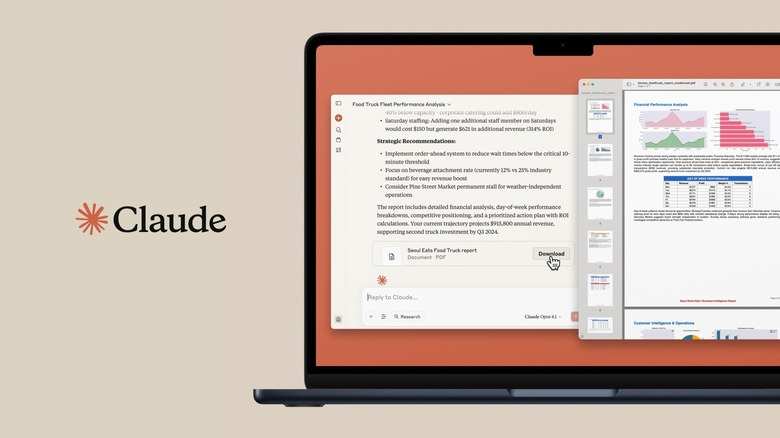
Claude can analyze PDF files, including text extraction, summarization, data parsing, and targeted question-answering. The Claude.ai web interface and Claude API both support PDF uploads natively. Claude's vision capabilities also allow it to read scanned, image-based PDFs.
Your results depend on the PDF quality and the specific Claude product you're using.
What Kind of PDF Are You Working With?
Not all PDFs are created equal, and Claude treats different types very differently. Knowing what you're working with before you upload saves a ton of frustration.
Native PDFs are born-digital documents. Think reports exported from Word, research papers downloaded from JSTOR, or contracts generated by legal software. These contain actual text layers underneath the visual layout.
Claude reads these cleanly and accurately.
Scanned PDFs are essentially photographs of pages. Someone ran a physical document through a scanner, and what you've got is a series of images with no text layer. Claude can still work with these using its vision capabilities, but accuracy depends heavily on scan quality.
Mixed PDFs combine both. Maybe pages 1 through 10 are native text, but page 11 is a scanned appendix. Claude handles these on a page-by-page basis, which usually works fine.
Here's a quick breakdown of what to expect:
| PDF Type | Claude's Accuracy | Best Use Case |
|---|---|---|
| Native (text-based) | Very high | Contracts, reports, research papers |
| Scanned (image-based) | Moderate to high | Old documents, signed forms, receipts |
| Mixed | Varies by page | Documents with both digital and scanned sections |
| Image-heavy (charts, diagrams) | Moderate | Presentations, technical manuals |
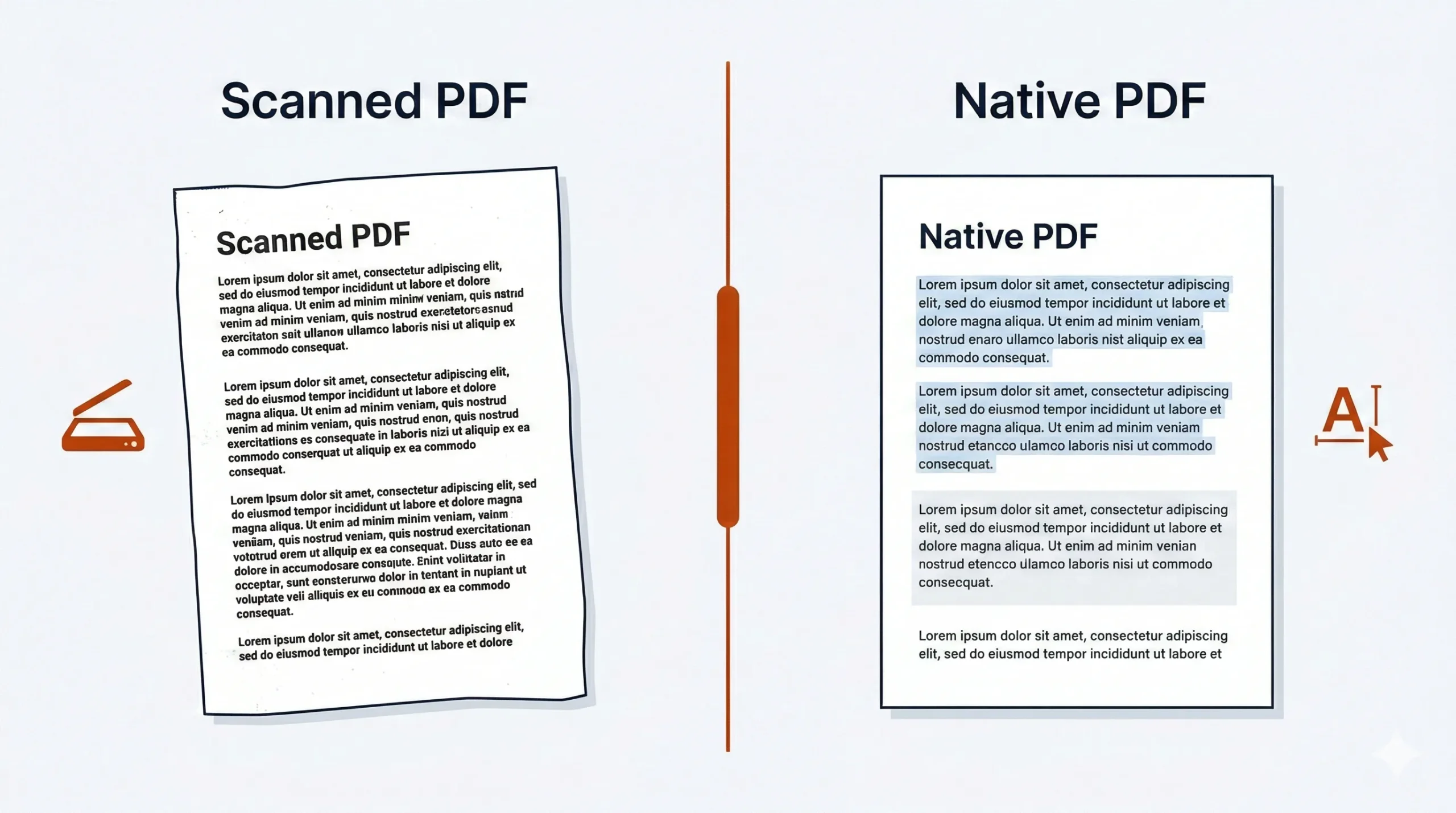
If you're unsure which type you have, try selecting text with your cursor. If you can highlight individual words, it's native. If you can only select the whole page as an image, it's scanned.
Which Claude Product Are You Using?
This matters more than most people realize. Claude isn't one single product, and PDF handling varies across the lineup.
Claude.ai (web interface) is where most people start. You go to claude.ai, start a conversation, and click the paperclip or upload button to attach a PDF. Free accounts can upload files, but Pro and Team accounts get higher limits and priority processing.
This is the simplest path for casual or one-off PDF analysis.
Claude API is the developer route. If you're building an application that processes PDFs at scale, or you want to automate document workflows, the API is where you'll live. You send the PDF content as part of your API request, and Claude returns structured responses.
This requires some technical setup but gives you full control.
Claude Pro and Team plans bump up your limits significantly. More files per conversation, larger file sizes, and better handling of complex documents. If you're doing this regularly, the upgrade pays for itself quickly.
The key difference comes down to control versus convenience. The web interface is point-and-click simple. The API lets you build PDF analysis into automated pipelines.
Most readers of this article will be using the web interface, so that's where we'll focus the practical steps.
What Can Claude Actually Do With a PDF?
Claude doesn't just "read" PDFs in the way a human would skim a page. It processes the content and lets you interact with it conversationally. Here's what that looks like in practice.
Summarization is the most common use case. Upload a 50-page report and ask Claude to give you the key findings, executive summary, or main arguments. It'll distill the content down to what matters for your specific question.
Targeted Q&A is where Claude really shines. Instead of reading an entire contract, you can ask "What's the termination clause?" or "What are the payment terms in section 4?" Claude pulls the relevant sections and answers directly.
Data and table extraction works well for native PDFs with structured data. Financial statements, survey results, and tabular reports all parse reliably. Claude can pull numbers, identify trends, and even reformat data into lists or summaries.
Multi-document comparison lets you upload several PDFs and ask Claude to compare them. Think "What changed between the Q3 and Q4 reports?" or "Find the differences between these two contract versions."
Reformatting and rewriting takes the content and transforms it. Ask Claude to convert a dense technical document into plain language, or turn meeting notes into a structured action item list.
The catch is that Claude works best when you tell it exactly what you want. Vague prompts like "analyze this PDF" give vague results. Specific questions get specific, useful answers.
Step-by-Step: How to Upload and Analyze a PDF on Claude.ai
Here's the practical walkthrough for getting your PDF into Claude and extracting what you need.
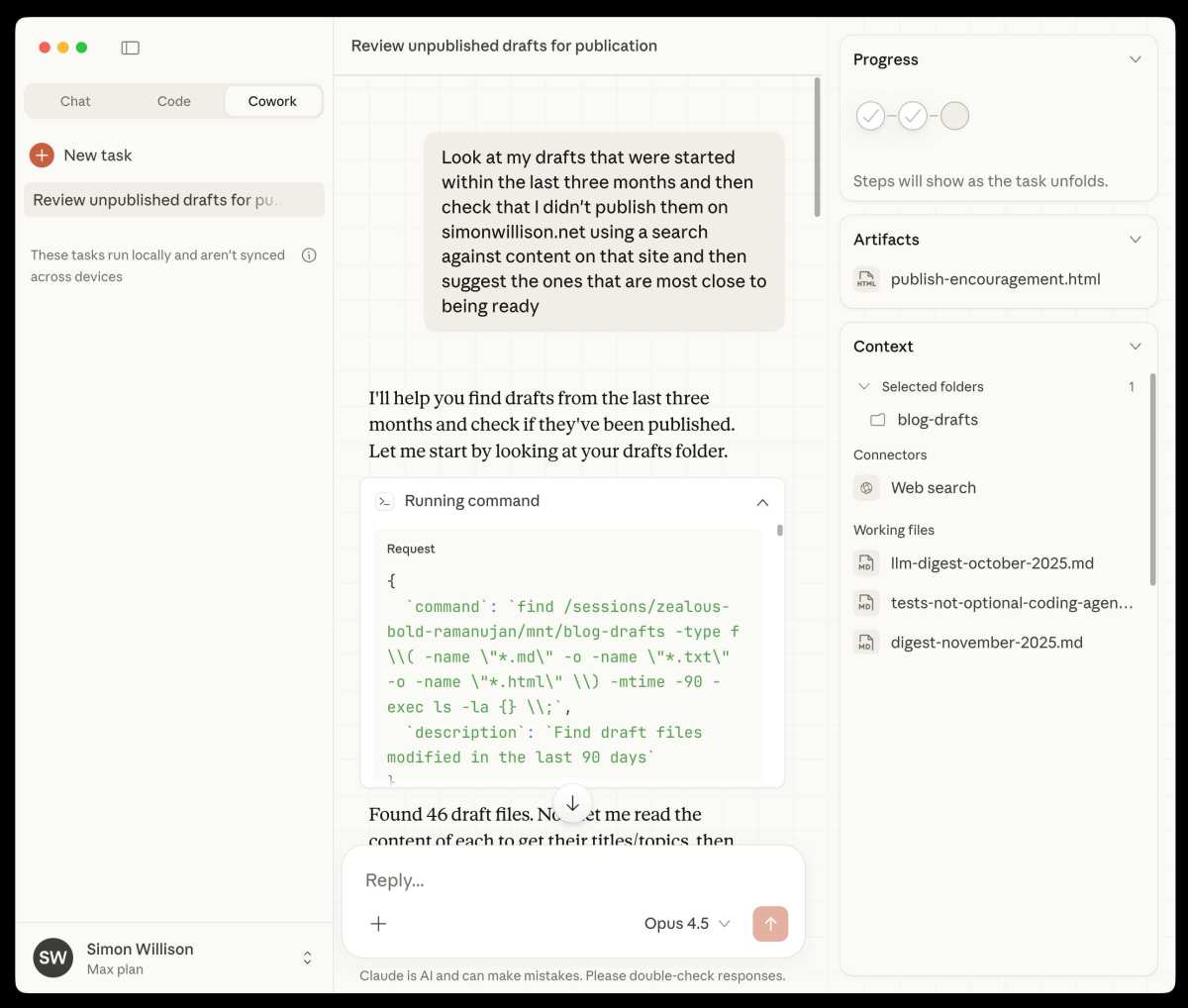
Step 1: Open a new conversation on Claude.ai. Start fresh so previous context doesn't interfere with your document analysis.
Step 2: Click the attachment icon. It looks like a paperclip or plus sign near the message input field. Select your PDF file from your computer.
Step 3: Wait for the upload to complete. Larger files take a few seconds. You'll see the file appear in your message before you send it.
Step 4: Write a specific prompt. Don't just say "read this." Try something like "Summarize the key findings in 5 bullet points" or "What are the three main risks identified in this document?"
Step 5: Review and follow up. Claude's first response is a starting point. Ask follow-up questions to dig deeper into specific sections or clarify anything that seems off.
A few tips that make a real difference. Keep your PDFs under 10MB for the smoothest experience on the web interface. If you've got a massive document, consider splitting it into sections.
And always double-check critical numbers or legal language against the original, especially with scanned documents where OCR accuracy can vary.
File Size Limits, Context Windows, and Real Constraints
Claude's 200K token context window sounds enormous, and it is, but it's not infinite. Understanding the limits helps you work within them instead of fighting against them.
A token is roughly three-quarters of a word in English. So 200K tokens translates to about 150,000 words, or roughly 500 pages of dense text. For most single PDFs, you won't hit this limit.
But if you're uploading multiple large documents in one conversation, you might.
The web interface caps individual file uploads at approximately 10MB. That's plenty for most text-based PDFs, which are usually just a few megabytes. Image-heavy or scanned PDFs can exceed this, especially if they're high-resolution scans.
When you hit the context window limit, Claude starts losing the earliest parts of the conversation. Your PDF analysis might miss the introduction or first sections. The fix is simple: start a new conversation for each major document, or break large PDFs into smaller chunks.
For API users, the limits are more flexible but come with pricing implications. You're billed per token for both input and output, so processing a 300-page document costs more than a 30-page one. The API documentation on Anthropic's site has the current pricing tiers if you're budgeting for high-volume processing.
What Works Well and What Doesn't
Let's be honest about where Claude excels and where you might hit friction.
Strengths:
- Long-form document analysis is genuinely impressive. Claude maintains context across hundreds of pages better than most alternatives.
- Conversational follow-up means you can drill into specifics without re-uploading.
- Multi-document tasks like comparison and cross-referencing work smoothly.
- Native PDFs with clean text layers are processed with near-perfect accuracy.
Weaknesses:
- Scanned documents with poor image quality will give you garbled or incomplete results.
- Dense, complex tables sometimes lose their structure in translation.
- Multi-column academic papers can confuse the reading order.
- Formatting-heavy documents (magazines, brochures) don't preserve layout in Claude's output.
The pattern is clear: Claude works best with text-heavy, logically structured documents. It struggles with documents where visual layout carries meaning. If your PDF is mostly words arranged in a standard flow, you'll get great results.
If it's a visual design piece, temper your expectations.
Common Mistakes That Waste Your Time
After looking at how people actually use Claude for PDF analysis, a few patterns of frustration come up again and again.
Uploading without checking the PDF type first. If you've got a scanned document, run it through a quality check before uploading. Blurry, skewed, or low-resolution scans will give you poor results no matter how good the AI is.
Asking vague questions. "What do you think about this document?" gets you a generic response. "Identify the three strongest arguments and the evidence supporting each" gets you something actionable.
Ignoring the context window. Uploading 15 PDFs into one conversation and wondering why Claude seems to forget the first ones. It's not a bug, it's the limit working as designed.
Not verifying critical information. Claude is good, but it's not infallible. Always cross-check important numbers, dates, and legal language against the original document.
Forgetting about privacy. Uploading sensitive documents to any cloud service carries risk. We'll cover this more in the privacy section, but it's worth mentioning here as a common oversight.
Claude vs. Other AI Tools for PDF Analysis
Claude isn't the only option for AI-powered PDF analysis, and it's worth knowing how the alternatives stack up.
ChatGPT (GPT-4o) handles PDFs similarly through its web interface. It's a solid alternative, though Claude's larger context window gives it an edge for very long documents. ChatGPT sometimes feels more conversational in its responses, while Claude tends toward more structured output.
Google Gemini also supports PDF uploads and has strong multilingual capabilities. It's a good choice if you're working with documents in multiple languages, though its context window is smaller than Claude's.
Dedicated PDF AI tools like Adobe Acrobat's AI features are purpose-built for document work. They often handle formatting preservation better than general-purpose AI, but they lack the conversational flexibility of Claude.
The honest take: Claude is among the best general-purpose options for PDF analysis, especially for long documents and complex extraction tasks. If your workflow is entirely PDF-focused, a dedicated tool might complement it. For most people doing occasional or moderate PDF analysis, Claude covers the bases well.
Real Scenarios Where Claude Handles PDFs Well
Let's ground this in actual use cases where Claude delivers real value.
Contract review is a standout. Lawyers and business owners upload agreements and ask Claude to flag unusual clauses, summarize obligations, or compare terms against a standard template. It doesn't replace legal review, but it catches things people miss when skimming.
Academic research benefits enormously. Researchers upload papers and ask Claude to extract methodology, summarize findings, or identify gaps in the literature. The ability to upload multiple papers and ask for synthesis across them is particularly powerful.
Financial analysis works well with structured reports. Upload quarterly earnings, annual reports, or audit summaries and ask Claude to pull key metrics, identify trends, or highlight risks.
Policy and compliance teams use Claude to parse regulatory documents, compare policy versions, and extract requirements. The conversational format makes it easy to ask "What does this mean for our specific situation?"
In each of these scenarios, the common thread is that the user has a specific question or task in mind. Claude rewards directed, purposeful interaction with documents.
Privacy, Security, and Sensitive Document Concerns
This is the section people skip, and it's arguably the most important one.
When you upload a PDF to Claude.ai, that file is processed on Anthropic's servers. According to Anthropic's published policies, free-tier conversations may be used for model improvement unless you opt out. Pro and Team accounts have different handling, and Enterprise plans offer enhanced data controls.
Don't upload documents containing:
- Personal identifiable information (PII) like Social Security numbers or medical records
- Protected health information (PHI) covered by HIPAA
- Trade secrets or proprietary business information unless you're on an Enterprise plan with appropriate agreements
- Client-attorney privileged communications
If you're working in a regulated industry, check with your compliance team before uploading anything to a third-party AI service. The convenience of AI analysis isn't worth a data breach or compliance violation.
For sensitive documents, consider redacting identifying information before uploading, or use the API with appropriate data handling configurations. Anthropic's Enterprise plan offers business associate agreements and enhanced security features for organizations that need them.

Decision Guide: Is Claude the Right Tool for Your PDF Work?
Here's a straightforward way to figure out if Claude fits your situation.
Claude is a great fit if:
- You work with text-heavy documents like reports, contracts, or research papers
- You need to analyze documents longer than 50 pages
- You want conversational follow-up without re-uploading
- You're comparing or synthesizing information across multiple documents
- You're comfortable with cloud-based tools and your documents aren't highly sensitive
Consider alternatives if:
- Your PDFs are primarily visual (design files, heavily formatted layouts)
- You're working with highly sensitive data and can't use cloud services
- You need perfect formatting preservation in the output
- You're processing thousands of PDFs daily and need a fully automated pipeline
The API route makes sense if:
- You're a developer building document analysis into an application
- You need programmatic access to PDF processing at scale
- You want to integrate Claude's analysis into existing workflows
For most individual users and small teams doing occasional to moderate PDF analysis, the Claude.ai web interface with a Pro subscription hits the sweet spot of capability and simplicity.
Frequently Asked Questions
Can Claude read scanned PDFs?
Yes, Claude can read scanned PDFs using its vision capabilities. Accuracy depends on scan quality. Clean, high-resolution scans work well.
Blurry or skewed scans may produce errors.
How many PDFs can I upload to Claude at once?
On the Claude.ai web interface, you can upload up to 5 files per message. Each file should be under approximately 10MB for best results.
Is there a file size limit for PDFs on Claude?
The web interface caps individual uploads at roughly 10MB. The API has different limits based on token count rather than file size. Very large PDFs may need to be split into sections.
Can Claude extract tables from PDFs?
Claude can extract table data from native PDFs with reasonable accuracy. Complex or nested tables may lose some structure. Scanned tables depend on image quality for accurate extraction.
Is it safe to upload confidential documents to Claude?
It depends on your plan and sensitivity level. Free-tier conversations may be used for model training. Pro, Team, and Enterprise plans offer better data handling.
Highly sensitive documents should be redacted or processed through Enterprise with appropriate agreements.
Does Claude work with other document formats besides PDF?
Yes, Claude can analyze various file formats including text files, images, and other document types supported on the platform. PDF is one of the most commonly used formats for document analysis.
Using the Claude API for PDF Processing
The Claude API opens up possibilities that the web interface can't match, especially if you're handling documents at scale or building automated workflows.
You send PDF content to the API as part of your message payload. The standard approach encodes the document as base64 or extracts the text beforehand and includes it in your prompt. Anthropic's API documentation outlines the specific endpoints and parameters for document handling.
When the API makes sense:
- You're processing hundreds or thousands of PDFs regularly
- You need to integrate PDF analysis into an existing application
- You want structured, programmatic output rather than conversational responses
- You're building a document processing pipeline that runs on a schedule
Pricing is per token for both input and output, so a 100-page document costs more than a 10-page one. Budget accordingly if you're processing high volumes.
The tradeoff is complexity. The web interface is point-and-click. The API requires development work.
For most individual users, the web interface covers their needs. For teams building document-centric tools, the API is worth the investment.
What Works Well and What Doesn't
We touched on this briefly earlier, but let's get more specific about where Claude genuinely shines and where you'll hit walls.
Where Claude delivers:
- Maintaining coherence across very long documents, often 300+ pages without losing track
- Answering specific, targeted questions about document content
- Summarizing dense material into clear, structured output
- Working across multiple languages within the same document
Where you'll struggle:
- Scanned documents with handwritten annotations or poor contrast
- PDFs with complex multi-column academic layouts where reading order matters
- Documents relying heavily on visual formatting to convey meaning
- Spreadsheet-heavy PDFs where cells merge across rows and columns
The honest pattern: Claude excels when the document is primarily text arranged in a logical flow. It struggles when visual structure carries essential meaning. If your PDFs are mostly words, you're in great shape.
If they're design-heavy or image-dependent, set realistic expectations.
Common Mistakes That Waste Your Time
Let's expand on the earlier list with specific fixes.
Fix your scanned PDFs before uploading. If the original scan is crooked, faint, or shadowed, run it through a tool like Adobe Scan or your phone's document scanner first. Five seconds of prep saves minutes of confused re-reading.
Give Claude context about what you need. Instead of "analyze this," tell it your role and goal. "I'm a procurement manager reviewing this vendor contract. Flag any terms that expose us to unlimited liability." The specificity transforms the output.
Don't upload sensitive data without a plan. We covered privacy earlier, but it bears repeating. Redact personal identifiers or use the Enterprise tier if confidentiality matters. Once a document hits Anthropic's servers, you're trusting their data handling policies.
Split enormous documents strategically. If you've got a 500-page manual, don't upload it all at once. Break it into logical sections and run separate focused analyses. You'll get better results and avoid context window issues.
Always spot-check critical information. Claude is reliable but not perfect. Verify dates, dollar amounts, and legal clauses against the original before acting on them.
Real Scenarios Where Claude Handles PDFs Well
The use cases we discussed earlier deserve specific, concrete examples of what success looks like.
Legal teams upload supplier contracts and ask Claude to compare liability clauses against their standard template. What used to take a junior associate two hours now takes ten minutes of review. Claude flags the differences, and a human lawyer makes the final call.
Researchers working on literature reviews upload 15 to 20 papers and ask Claude to synthesize the methodologies. It identifies whether studies used similar sample sizes, measurement tools, or statistical approaches. The overview saves days of manual cross-referencing.
Finance departments feed quarterly reports into Claude and ask it to extract revenue, margin, and cash flow figures into a structured summary. The numbers feed directly into their tracking spreadsheets without manual transcription errors.
Compliance officers upload updated regulations and ask Claude to identify changes from the previous version. The targeted diff highlights exactly what their team needs to address.
Across every scenario, the pattern is the same: Claude handles the heavy lifting of reading and organizing, and humans apply judgment to the results. That combination is where the real value lives.
Privacy, Security, and Sensitive Document Concerns
We covered the basics earlier, but let's go deeper on what actually happens to your files and how to protect yourself.
Anthropic states that API inputs and outputs are not used to train their models by default. The web interface is different. Free-tier conversations may be flagged for quality review unless you opt out in your settings.
Pro and Team accounts have clearer boundaries around data usage.
Enterprise customers get the strongest protections. Business associate agreements, data processing agreements, and custom retention policies are available. If your organization handles regulated data, this is the tier to evaluate.
Practical steps for sensitive documents:
- Redact names, account numbers, and identifiers before uploading
- Use the API with opt-out flags rather than the web interface for confidential work
- Check your organization's AI usage policy before uploading anything work-related
- Delete conversations containing sensitive content after you're done
No cloud-based AI service offers perfect privacy. If your documents contain trade secrets, classified information, or legally privileged material, think carefully before uploading. The convenience is real, but so is the risk.
Decision Guide: Is Claude the Right Tool for Your PDF Work
Here's a final framework for making your choice.
Go with Claude if:
- Your documents are text-heavy and logically structured
- You need conversational follow-up across long documents
- You're comparing or synthesizing multiple PDFs
- Your privacy requirements fit within Anthropic's published policies
Look elsewhere if:
- You need perfect formatting preservation
- Your documents are primarily visual or design-focused
- You can't upload sensitive data to any third-party service
- You need real-time processing of thousands of files daily
Start with the web interface. It's free to try, and you'll quickly learn whether Claude handles your specific document types well. Upgrade to Pro if you hit limits. Move to the API only if you need automation.
The bottom line: Claude is one of the strongest options for PDF analysis right now, especially for long documents and complex extraction tasks. It's not perfect, and it's not right for every situation. But for most people asking whether it can handle their PDFs, the answer is a solid yes, with the right setup and realistic expectations.

Similar Posts





















