How to Upload Files to Claude
Figuring out how to upload files to Claude shouldn't feel like solving a puzzle, but plenty of people get stuck on it anyway. The upload feature is right there, but it's not always obvious where to look, especially if you're new to the platform or switching between devices.
Claude supports a wide range of file types, including PDFs, images, spreadsheets, and code files, with a context window of 200,000 tokens as of 2025. That's enough to handle hefty documents in a single conversation. Let's walk through exactly how the upload process works on every platform, what you can and can't upload, and how to fix the most common issues.
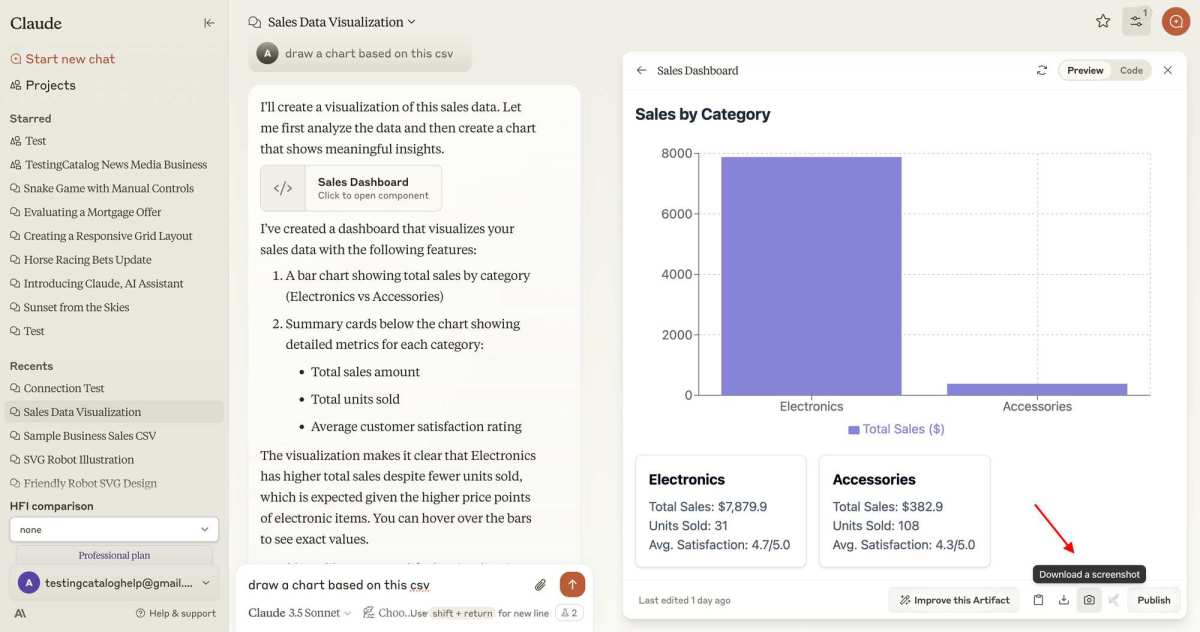
Quick Answer
Upload files to Claude by clicking the paperclip or attachment icon in the message input area. Select your file from the file browser, or drag and drop it directly into the chat window. You can upload up to five files per message on the web interface.
Supported formats include PDFs, images, spreadsheets, and common text or code files.
What You Can (and Can't) Upload to Claude
Claude handles a solid variety of file types, but it's not a free-for-all. The platform is built to process documents, images, and structured data files. What you can't upload are things like video files, audio files, or executable programs.
Here's a breakdown of what works and what doesn't:
Supported file types:
- Documents: PDF, DOCX, TXT, MD, HTML
- Spreadsheets: CSV, XLSX
- Code and data: JSON, XML, JS, PY, and other common code file extensions
- Images: PNG, JPG, GIF, WebP
Not supported:
- Video files (MP4, MOV, AVI)
- Audio files (MP3, WAV, AAC)
- Executable files (EXE, DMG)
- Archive files (ZIP, RAR)
If you try to upload an unsupported file, Claude will typically reject it before you even hit send. That's actually helpful because it saves you the frustration of waiting for a response that won't come.
Where to Find the Upload Button on Every Platform
The upload button exists on every version of Claude, but it looks slightly different depending on where you're using it. Let's cover each platform so you know exactly what to look for.
Web Interface (claude.ai)
On the web version, look at the bottom of your screen where the text input box sits. You'll see a small paperclip icon or a plus (+) symbol on the left or right side of that box. Click it, and a file browser window opens.
You can also just drag a file directly from your desktop or folder and drop it into the chat area. The interface will show a visual highlight when you're hovering over a valid drop zone.
Desktop App (Mac and Windows)
The desktop app works almost identically to the web version. The paperclip icon sits in the message input area at the bottom of the window. Drag-and-drop works here too.
One advantage of the desktop app is that file paths are shorter and easier to navigate compared to a browser's file picker.
Mobile App (iOS and Android)
Mobile is where things get a little different. On iOS, you'll see a plus (+) button next to the text field. Tapping it gives you options to attach a photo from your gallery, take a new photo, or browse files through the iOS file picker.
Android works similarly, though the exact layout depends on your device and app version. Mobile uploads tend to be more limited in file type support compared to desktop and web.
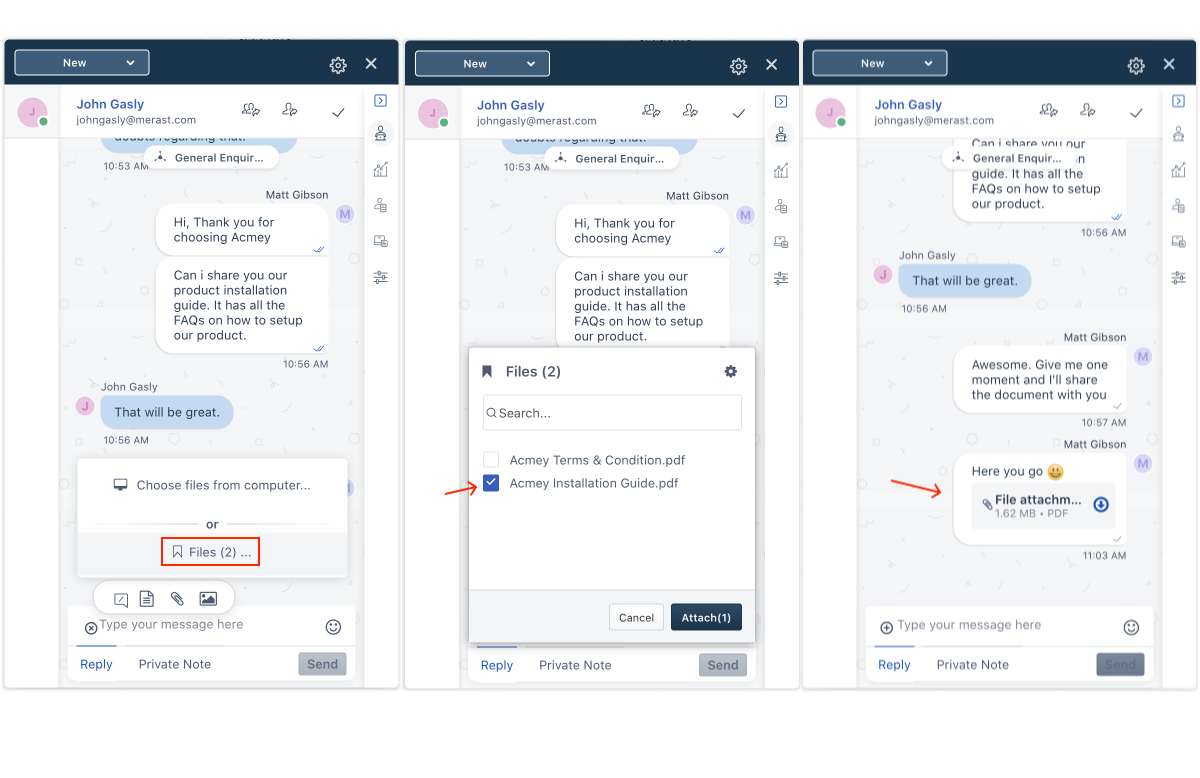
Supported File Types and Size Limits
Not all file types are created equal when it comes to Claude. Here's a detailed look at what's supported and the limits you'll run into.
Documents
Claude handles PDFs, DOCX files, plain text, and markdown without issue. PDFs are probably the most common upload type because people use them for reports, contracts, and research papers. Claude reads the text content of a PDF, but its ability to interpret complex layouts, tables, or embedded images depends on the file's structure.
Scanned PDFs that are essentially images of text may not work as well unless they include OCR-processed text layers.
Images
Claude's vision capability lets it analyze photos, screenshots, diagrams, and charts. Supported formats include PNG, JPG, GIF, and WebP. The practical file size limit for images hovers around 10 MB.
If you upload a screenshot of a document instead of the actual PDF, Claude can often read it, but accuracy drops with low-resolution or cluttered images.
Code and Data Files
This is where Claude really shines for developers. You can upload Python scripts, JavaScript files, JSON data, CSV spreadsheets, XML configs, and more. Claude reads these as plain text, so formatting and syntax are preserved.
For spreadsheets, CSV is more reliable than XLSX because Claude parses it directly without needing to interpret Excel's proprietary formatting.
| File Type | Supported | Max Size (Approx.) | Notes |
|---|---|---|---|
| Yes | ~10 MB | Text-based PDFs work best | |
| DOCX | Yes | ~10 MB | Standard Word documents |
| TXT / MD | Yes | ~10 MB | Plain text, no formatting issues |
| CSV | Yes | ~10 MB | Best spreadsheet format for Claude |
| XLSX | Yes | ~10 MB | May not parse complex formulas |
| PNG / JPG | Yes | ~10 MB | Vision analysis supported |
| GIF / WebP | Yes | ~10 MB | Animated GIFs treated as static |
| JSON / XML | Yes | ~10 MB | Structured data parsed as text |
| MP4 / MOV | No | N/A | Video not supported |
| MP3 / WAV | No | N/A | Audio not supported |
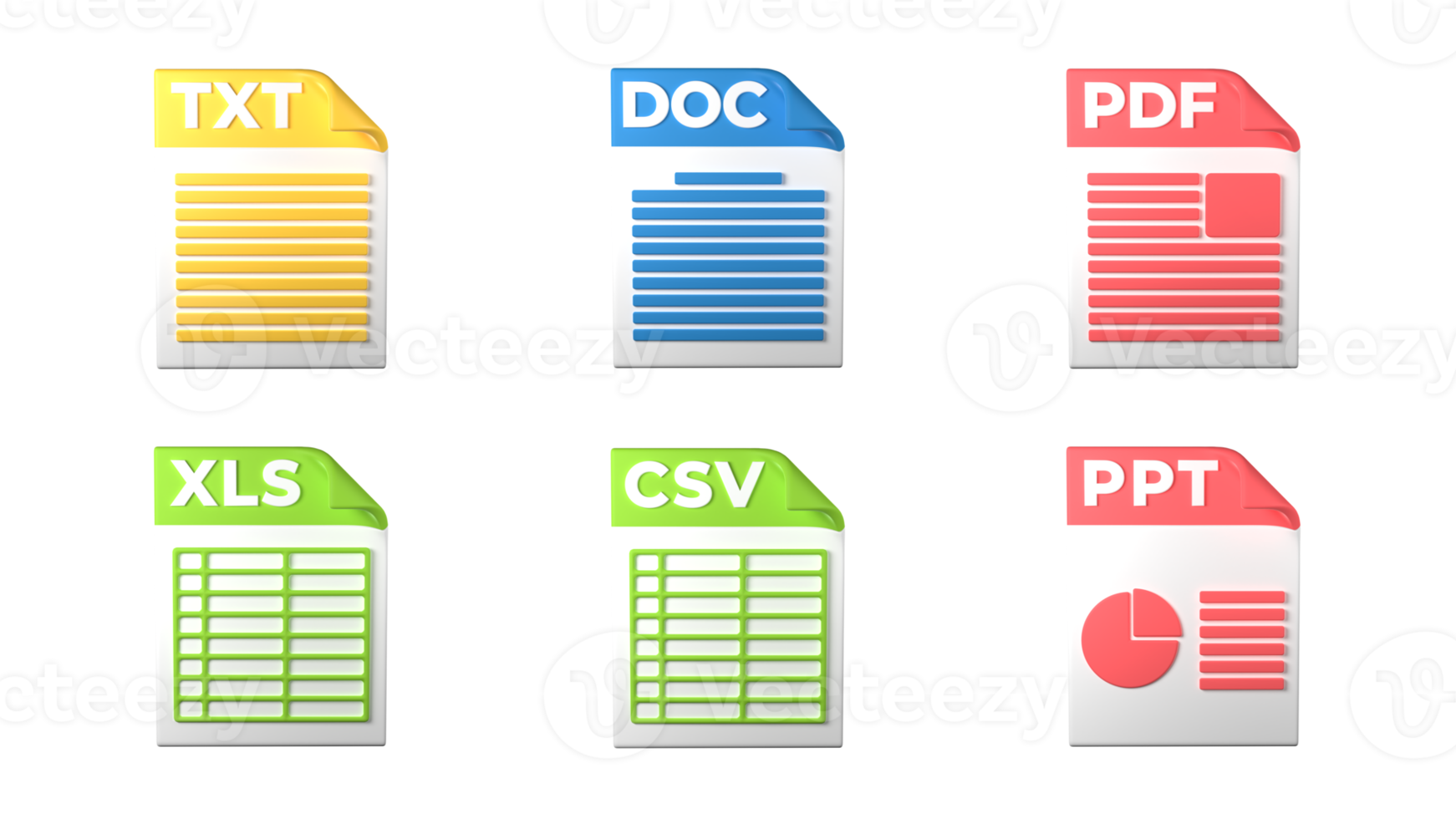
Step-by-Step: Uploading Your First File
If you've never uploaded a file to Claude before, here's the full process from start to finish.
Prepare Your File
Before you even open Claude, make sure your file is ready. Check that it's in a supported format and under the size limit. If you're uploading a PDF, confirm it contains selectable text rather than just scanned images.
For spreadsheets, consider exporting as CSV if the XLSX version has complex formatting or macros.
Upload and Send
- Open Claude on your preferred platform (web, desktop, or mobile).
- Start a new conversation or open an existing one.
- Locate the upload button (paperclip icon or plus symbol) in the message input area.
- Click the button and select your file from the file browser, or drag and drop the file directly into the chat window.
- Wait for the upload to complete. You'll typically see a preview or file name appear in the input area.
- Type your prompt or question about the file. Something like "Summarize this document" or "What are the key findings in this report?"
- Hit send.
What Happens After You Upload
Claude processes the file content into its context window. For text-based files, it reads and analyzes the content directly. For images, it uses its vision capabilities to interpret visual elements.
You can then ask follow-up questions, request summaries, extract specific data, or have Claude compare multiple files you've uploaded in the same message.
The file stays available for the duration of that conversation. Once you start a new chat, the file is gone from Claude's accessible memory.
What the Upload Button Looks Like (and Where People Miss It)
The upload button is simple, but people overlook it more often than you'd think. Here's what to look for on each platform.
The Paperclip Icon
On the web and desktop versions, the upload button is almost always a small paperclip icon. It sits inside or next to the text input box at the bottom of the screen. It's usually gray or muted in color, which makes it easy to miss if you're not looking for it.
Some versions use a plus (+) sign instead, but the function is identical.
Drag-and-Drop Zone
On the web and desktop apps, you don't even need to click the button. You can drag a file from your computer's file explorer or Finder window and drop it anywhere in the chat area. When you're dragging a valid file over the interface, you'll see a highlighted border or overlay indicating the drop zone is active.
Release the file there, and it uploads automatically.
Screenshot Paste (Ctrl+V / Cmd+V)
Here's a trick most people don't know. If you've copied a screenshot to your clipboard, you can paste it directly into Claude using Ctrl+V on Windows or Cmd+V on Mac. This works on the web and desktop apps.
Claude treats it like any other image upload and can analyze the screenshot content immediately.
This paste method is especially handy for quick image sharing when you don't want to save a file first. It's one of those small workflow shortcuts that saves real time once you get used to it.
Common Upload Problems and How to Fix Them
Uploads usually work smoothly, but when they don't, the fix is almost always straightforward. Here are the most common issues and what to do about them.
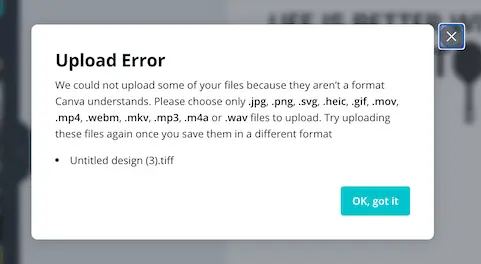
"File Type Not Supported" Error
This means you tried to upload something Claude doesn't recognize. Double-check the file format against the supported list above. A quick fix is converting the file.
For example, export a Word document as PDF, or save an Excel sheet as CSV. If the file extension looks right but still gets rejected, the file might be corrupted or saved in an unusual encoding.
Upload Button Not Showing Up
If you can't see the upload button at all, try refreshing the page or restarting the app. On the web version, browser extensions or ad blockers sometimes interfere with UI elements. Try disabling them temporarily or opening Claude in an incognito window.
On mobile, make sure your app is updated to the latest version.
File Too Large
Claude rejects files that exceed the size limit, which is roughly 10 MB for most file types. If your file is too big, try compressing it. For PDFs, tools like Adobe Acrobat or online compressors can reduce file size significantly.
For images, resizing or lowering the resolution does the trick. For documents, splitting the content into smaller chunks works well.
Upload Fails Silently on Mobile
Mobile uploads can be finicky. If you tap the upload button and nothing happens, check your app permissions. On iOS, Claude needs access to your photos and files.
On Android, make sure storage permissions are granted. Also, switching from Wi-Fi to cellular data (or vice versa) can resolve connectivity-related upload failures.
What Happens to Your Files After You Upload
This is a question that matters more than most people realize, especially if you're uploading work documents or anything sensitive.
Are Files Stored Between Conversations?
No. Files you upload are only available within the specific conversation where you uploaded them. Once you close that conversation or start a new one, Claude no longer has access to the file.
This is by design, but it also means you need to re-upload files if you continue the discussion in a new chat.
Can Anthropic Access My Uploaded Files?
Per Anthropic's privacy documentation, uploaded files are processed to generate responses but are not used to train their models by default for consumer accounts. Enterprise and Team plans offer additional data handling controls. That said, the files do pass through Anthropic's servers during processing, which is worth keeping in mind.
Should You Upload Sensitive Documents?
Use common sense here. Avoid uploading files that contain personal identification numbers, financial account credentials, medical records, or anything you wouldn't want stored on a third-party server, even temporarily. If you're working with sensitive data, consider redacting personal information before uploading or using a plan that offers enhanced privacy controls.
Pro Tips for Getting the Best Results from File Uploads
Uploading a file is the easy part. Getting Claude to give you useful output takes a little more thought.
Ask Specific Questions About the File
Don't just upload a document and say "What do you think?" Claude works best when you give it a clear task. Try prompts like "Summarize the three main arguments in this paper" or "Extract all the action items from these meeting notes" or "Identify any errors in this code." The more specific your prompt, the better the response.
Upload Multiple Files for Comparison
You can upload up to five files in a single message on the web interface. This is perfect for comparing documents, analyzing different datasets, or reviewing multiple drafts of the same project. Just make sure your prompt references all the files so Claude knows to analyze them together.
Watch Your Context Window
Claude's 200,000 token context window is generous, but it's not infinite. If you upload several large documents in one conversation, you might hit the limit. When that happens, Claude starts losing track of earlier content.
If you're working with very large files, consider breaking the analysis into separate conversations or uploading one file at a time.
Frequently Asked Questions
Can I upload files to Claude on the free plan?
Yes, the free tier supports file uploads, but with usage limits. You get a limited number of messages per day, and heavy file analysis can eat through those quickly. Upgrading to Claude Pro or Max gives you significantly more usage and priority access.
Does Claude read PDFs accurately?
Claude reads text-based PDFs well. Scanned PDFs without OCR text layers are less reliable because Claude can't extract text from flat images of documents. If accuracy matters, use a PDF with embedded text rather than a scanned copy.
Can I upload multiple files at once?
On the web and desktop interfaces, you can upload up to five files per message. Mobile may be more limited depending on the app version. All files in a single message share the same context, so Claude can analyze and compare them together.
What happens if I upload a file and then start a new chat?
The file is no longer accessible in the new conversation. You'll need to re-upload it. Claude doesn't retain files between conversations, so plan your analysis within a single chat session.
Can Claude analyze charts and graphs in uploaded files?
Yes, if the charts are part of a PDF or image file that Claude can process. Its vision capability lets it interpret visual data like bar charts, line graphs, and diagrams. However, complex charts with tiny labels or overlapping data points may not be read perfectly.
Is there a way to upload files using the Claude API?
Yes, the Claude API supports file content through content blocks in messages. You can pass base64-encoded file data or reference files via the API's document processing capabilities. This is more technical than the web interface but enables automated workflows and integrations.

Similar Posts





















