Do You Need DisplayPort for 4K Monitor
You've plugged in your new 4K monitor and now you're staring at the cable options, wondering which one actually matters. The short answer is no, you don't strictly need DisplayPort for a 4K monitor. What you need is the right combination of port version and cable that delivers enough bandwidth for your target resolution and refresh rate.
Here's where it gets more interesting. The HDMI 2.1 specification supports up to 48 Gbps of bandwidth, which is enough to drive 4K at 144Hz uncompressed. That means for most modern setups, HDMI handles 4K just fine.
The connection you choose comes down to what your specific hardware supports and what you're trying to do with that display.
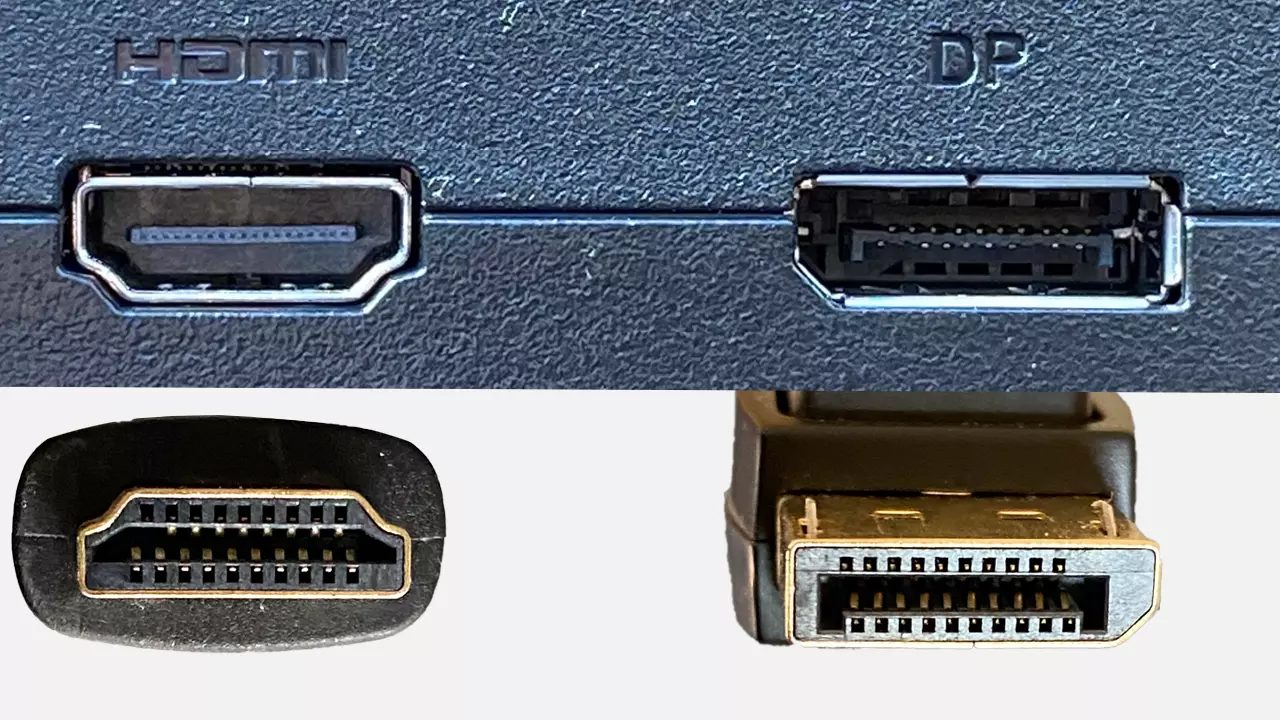
Quick Answer
No, you don't need DisplayPort for a 4K monitor. HDMI 2.1 fully supports 4K at 144Hz. DisplayPort offers the same capability plus multi-monitor daisy chaining.
Choose whichever port matches your graphics card and monitor. Check both port versions first.
What DisplayPort Actually Gives You at 4K
DisplayPort, developed by VESA, has been the go-to connection for PC monitors for years. The reason comes down to bandwidth and feature support. Let's break down what each version of DisplayPort can handle at 4K resolution.
DisplayPort 1.2, which is still found on some older graphics cards and monitors, delivers up to 21.6 Gbps. That's enough for 4K at 60Hz with standard 8-bit color. If your setup involves basic office work or media consumption, this handles it.
DisplayPort 1.4 jumps to 32.4 Gbps and introduces Display Stream Compression (DSC). DSC is visually lossless, meaning you won't see a quality difference. With DSC enabled, DP 1.4 drives 4K at 120Hz or even 144Hz with full 4:4:4 chroma and HDR.
Without DSC, you're capped at 4K at 98Hz with 8-bit color or 4K at 60Hz with 10-bit HDR.
DisplayPort 2.0 and 2.1 push things much further. DP 2.1 with UHBR20 reaches 80 Gbps, handling 4K at 240Hz uncompressed or even 8K at 60Hz with DSC. As of 2026, DP 2.1 is appearing on newer GPUs and high-end monitors, though it hasn't become the mainstream default yet.
Here's the practical breakdown:
| DisplayPort Version | Max Bandwidth | 4K Capability |
|---|---|---|
| 1.2 | 21.6 Gbps | 4K at 60Hz (8-bit, no HDR) |
| 1.4 (no DSC) | 32.4 Gbps | 4K at 98Hz (8-bit) |
| 1.4 (with DSC) | 32.4 Gbps effective | 4K at 120-144Hz (10-bit, HDR) |
| 2.1 (UHBR20) | 80 Gbps | 4K at 240Hz uncompressed |
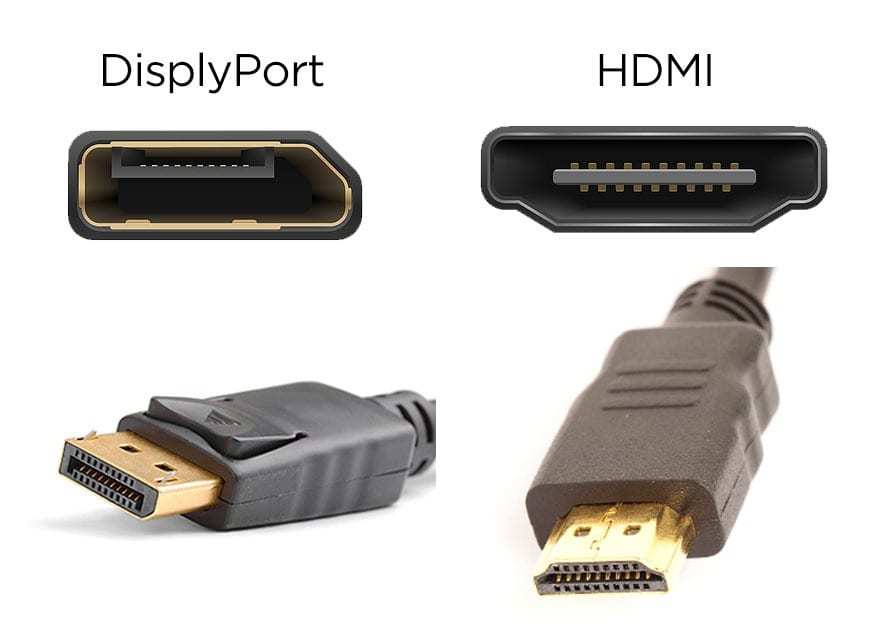
One feature DisplayPort has that HDMI doesn't match natively is Multi-Stream Transport (MST). MST lets you daisy chain multiple monitors from a single DisplayPort output on your graphics card. You connect the first monitor to your GPU, then a second monitor to the first monitor's DisplayPort output.
This is genuinely useful for productivity setups with two or three displays, especially on laptops with limited ports. HDMI doesn't support daisy chaining at all. You'd need a separate HDMI output for each display.
Adaptive Sync also tends to work more reliably over DisplayPort. AMD FreeSync and NVIDIA G-Sync both support DP natively across virtually every compatible monitor. FreeSync works over HDMI too on most modern displays, but G-Sync Compatible mode on some monitors requires a DisplayPort connection.
If G-Sync compatibility matters to you, that's worth checking your monitor's specific specs.
What HDMI Can Do at 4K (It's More Than You Think)
HDMI has carried a reputation as the "lesser" connection for PC monitors. That reputation made sense around 2015 when HDMI 1.4 topped out at 4K at 30Hz. It's outdated advice now.
HDMI 2.0 supports 18 Gbps and handles 4K at 60Hz with 8-bit color. For HDR content at 60Hz, it drops to 4:2:0 chroma subsampling, which slightly reduces color detail but isn't noticeable for video playback. Most 4K monitors and mid-range GPUs from the last several years include HDMI 2.0 ports.
For productivity, streaming, and casual gaming at 60Hz, HDMI 2.0 is perfectly adequate.
HDMI 2.1 is where things change completely. At 48 Gbps, it handles 4K at 120Hz with full 4:4:4 chroma, 10-bit color, and HDR. Several monitors now support 4K at 144Hz over HDMI 2.1.
That matches or exceeds what DisplayPort 1.4 can do without compression. For anyone connecting a PlayStation 5 or Xbox Series X to a 4K monitor, HDMI 2.1 is the only option those consoles support.
| HDMI Version | Max Bandwidth | 4K Capability |
|---|---|---|
| 1.4 | 10.2 Gbps | 4K at 30Hz (8-bit) |
| 2.0 | 18 Gbps | 4K at 60Hz (8-bit, 4:2:0 for HDR) |
| 2.1 | 48 Gbps | 4K at 120-144Hz (10-bit, HDR) |
The most common mistake people make is assuming their HDMI cable or port is the latest version. A 2020 television might have HDMI 2.0 ports even though the box says "4K ready." Same with monitors and graphics cards. Always verify the specific port version in the manufacturer's spec sheet, not just the marketing description.
The Real Limitation: Bandwidth, Not the Port Label
Whether you use DisplayPort or HDMI, the actual constraint is bandwidth. 4K resolution at 3840 × 2160 pixels carries a lot of data. Push in a high refresh rate, HDR, and deep color, and the numbers climb fast.
An uncompressed 4K signal at 60Hz with 8-bit color and full 4:4:4 chroma requires roughly 12.5 Gbps. That fits comfortably on both HDMI 2.0 and DisplayPort 1.2. Step that up to 4K at 120Hz with 10-bit HDR, and you need around 25 Gbps.
That's where HDMI 2.0 falls short and why HDMI 2.1 or DisplayPort 1.4 (with DSC) becomes necessary.
Chroma subsampling is another lever the system pulls. 4:4:4 means full color detail on every pixel. 4:2:0 halves the color information, which saves significant bandwidth. For text-heavy work like coding or spreadsheets, 4:2:0 can cause visible fringing on sharp edges. For video playback or gaming, it's typically fine.
Some monitors and GPUs let you choose the chroma mode in settings, so you can prioritize bandwidth or sharpness based on what you're doing.
The takeaway is simple. Match the version of your connection to the refresh rate and color settings you want. If you need a decision framework, here it is:
- 4K at 60Hz, office or media use: HDMI 2.0 or DisplayPort 1.2 works. Either port is fine.
- 4K at 60Hz, HDR content creation: DisplayPort 1.4 or HDMI 2.0 (with 4:2:0). True 10-bit HDR at 60Hz demands DP 1.4.
- 4K at 120Hz or higher, gaming or fast motion: HDMI 2.1 or DisplayPort 1.4 (with DSC). Check that both your GPU and monitor support the specific version.
- Multi-monitor daisy chain: DisplayPort 1.4 with MST. HDMI can't do this.
- Console gaming (PS5, Xbox Series X): HDMI 2.1. The consoles don't have DisplayPort.
Where DisplayPort Still Wins
Despite HDMI 2.1 closing the bandwidth gap, DisplayPort holds a few advantages that matter in specific scenarios.
Multi-monitor daisy chaining through MST remains a DisplayPort exclusive. If you're running a dual 4K monitor setup for work, a single DisplayPort 1.4 cable from your laptop can drive both displays. No docking station required, no USB-C adapter needed.
The first monitor must support MST output, which many business-class Dell, HP, and Lenovo displays do.
G-Sync Compatible mode over HDMI varies by monitor model. FreeSync over HDMI is widely supported, ensuring smoother gameplay for AMD GPU users. G-Sync Compatible via DP remains universally reliable.
If you're using an NVIDIA GPU and want Adaptive Sync, DisplayPort is the safer bet.
Headroom on DP 2.1 gives you significantly more bandwidth than current 4K monitors need. That extra capacity means you won't need to think about compression or chroma subsampling decisions for years. DP 2.1 at 80 Gbps also future-proofs your setup for 4K at 240Hz or higher resolutions later.
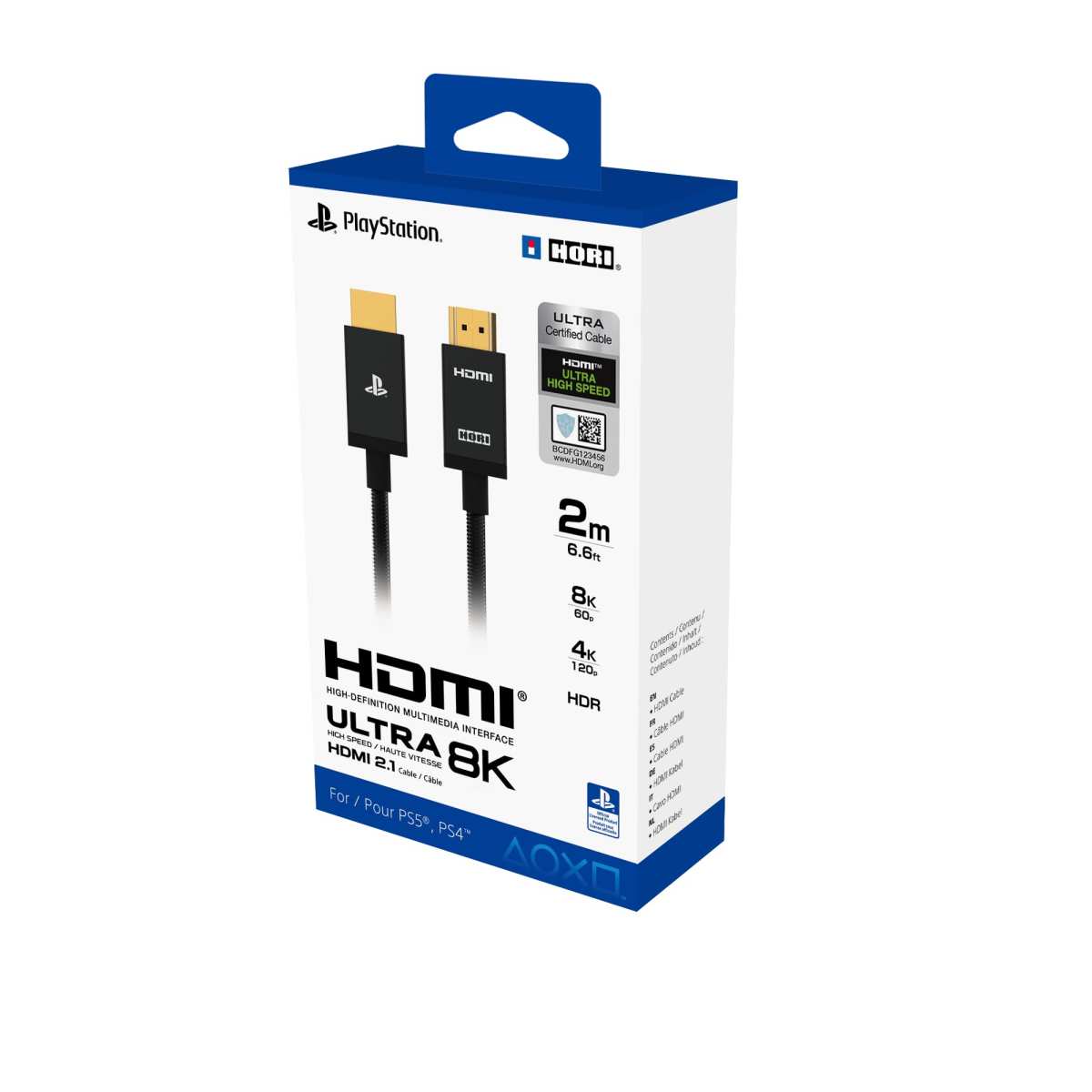
Where HDMI Wins (Especially If You're Coming From Console)
If you're connecting a PlayStation 5 or Xbox Series X to a 4K monitor, HDMI is your only option. Neither console includes a DisplayPort output. For console gaming at 4K 120Hz, you need an HDMI 2.1 port on your monitor and an Ultra High Speed HDMI cable.
This is the most common scenario where HDMI isn't just equal to DisplayPort, it's mandatory.
HDMI also wins on cable simplicity. The same HDMI cable you use for your TV, soundbar, and console works across all of them. DisplayPort cables are primarily a PC ecosystem standard.
If you're regularly swapping a monitor between a laptop and a console, or sharing cables between devices, HDMI reduces the cable clutter.
For home theater setups where the 4K display doubles as a media screen, HDMI has better compatibility with audio receivers and surround sound systems. DisplayPort does carry audio, but HDMI's consumer electronics integration is broader. ARC and eARC features for soundbar connectivity are HDMI standards.
How to Check Your Hardware Before You Buy a Cable
This is the step most people skip, and it's the one that causes the most headaches. Your DisplayPort or HDMI connection is only as fast as the lowest version among three components: your graphics card's output port, your cable, and your monitor's input port.
Check your graphics card specs first. Look up your specific GPU model on the manufacturer's site. For NVIDIA cards, the product spec page lists the supported DisplayPort and HDMI versions. For AMD Radeon cards, the same information appears on their product pages.
Integrated graphics on Intel and AMD processors also have port version limits listed in the processor specifications. A GPU with HDMI 2.0 ports cannot output HDMI 2.1 signals regardless of the cable you use.
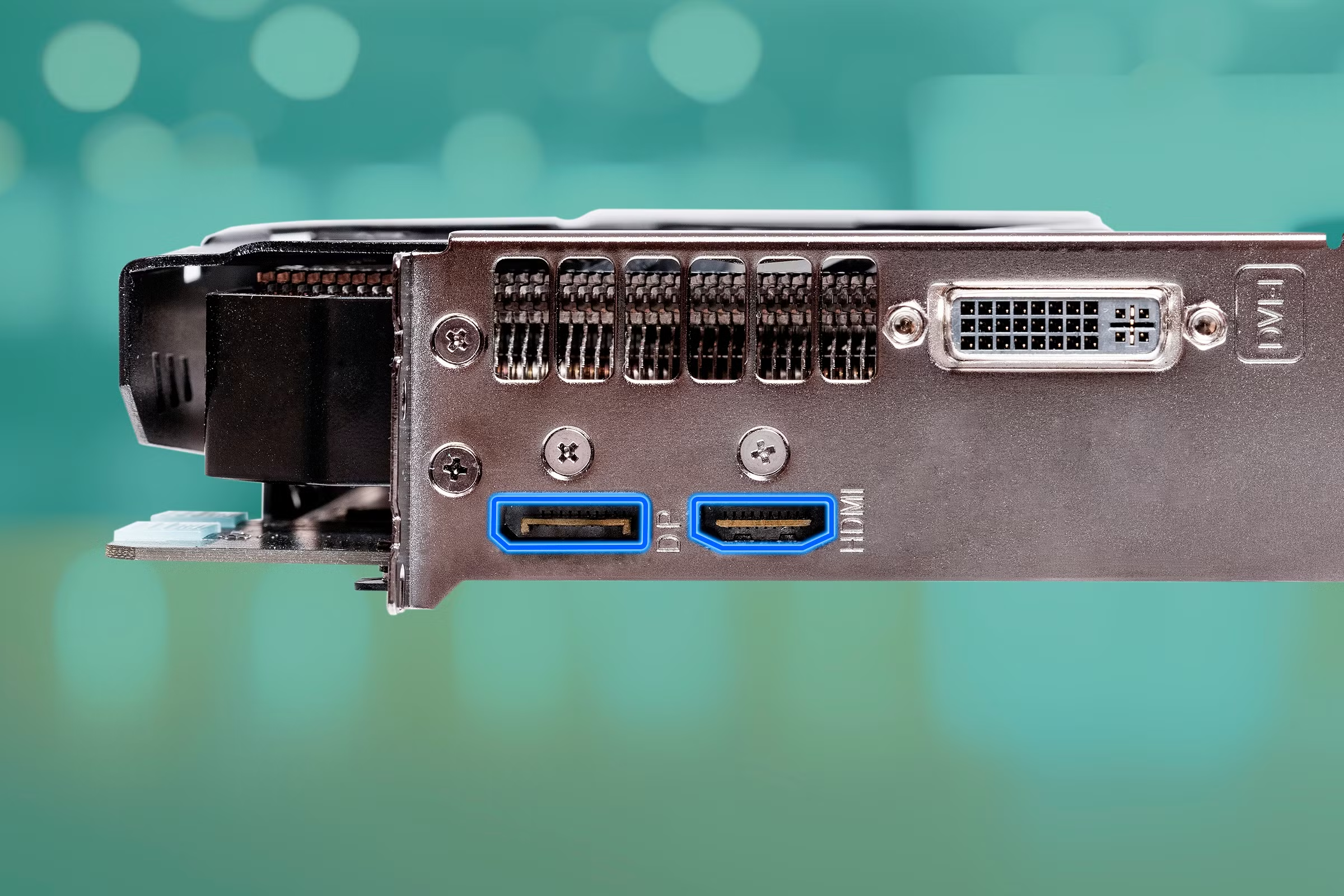
Check your monitor's input specs next. The manual or spec sheet should list the HDMI and DisplayPort versions for each port. Some monitors mix versions, with one HDMI 2.1 port and one HDMI 2.0 port for example. Use the right port for your target refresh rate.
Verify your cable matches. Look for labeling on the cable itself or the packaging. For HDMI, an "Ultra High Speed HDMI" cable is certified for HDMI 2.1. For DisplayPort, a DP 1.4 cable will support DSC.
Using a DP 1.2 cable in a DP 1.4 setup may work but caps your bandwidth at the older standard. Quality matters more than price. A well-built $10 cable outperforms a poorly manufactured premium-priced one.
VESA-certified DisplayPort cables and HDMI Forum-certified Ultra High Speed cables are the reliable choices.
If you're still unsure after checking your hardware, here's a practical approach. Connect your monitor with whichever cable you have available. Then check your operating system display settings.
In Windows, go to Settings > System > Display > Advanced Display. In macOS, hold Option and click "Scaled" in Displays preferences. The reported refresh rate tells you what the connection is actually delivering.
If you selected 4K at 144Hz and it shows 60Hz, something in your chain is limiting the bandwidth.
Matching Your Use Case to the Right Connection
Your specific situation determines the best cable choice more than any general rule. Let's walk through the most common setups and what works best for each.
Office and productivity work: If your 4K monitor is for spreadsheets, documents, web browsing, and email, 60Hz is perfectly comfortable. HDMI 2.0 or DisplayPort 1.2 both handle this without any compromise. Use whichever cable came with the monitor.
There's no visible benefit to upgrading your cable for this use case.
Content consumption and streaming: Watching 4K movies, streaming video, and general media at 60Hz works over HDMI 2.0. Most 4K video content is mastered at 24fps or 30fps anyway, so refresh rate isn't a factor. HDR is the bigger consideration.
If you want 10-bit HDR at 60Hz, DisplayPort 1.4 gives you full 4:4:4 chroma. HDMI 2.0 can do HDR at 60Hz but drops to 4:2:0 subsampling, which is fine for video.
PC gaming at 4K 60Hz: Either connection works. If your monitor supports Adaptive Sync, DisplayPort tends to have broader G-Sync compatibility. FreeSync typically works over both.
For pure 60Hz gaming without variable refresh, pick whichever port version is higher on your hardware.
PC gaming at 4K 120Hz or higher: HDMI 2.1 or DisplayPort 1.4 with DSC. Check that your GPU supports the specific version. NVIDIA RTX 30-series and newer GPUs include HDMI 2.1.
AMD Radeon RX 6000-series and newer do as well. For DP 1.4 at high refresh rates, DSC is required and works invisibly. You won't see compression artifacts in normal use.
Console gaming (PS5, Xbox Series X): HDMI 2.1 only. Both consoles output HDMI exclusively. For 4K at 120Hz, your monitor needs an HDMI 2.1 port and you need an Ultra High Speed HDMI cable.
Note that some monitors advertise HDMI 2.1 but only support 4K at 60Hz over HDMI due to port implementation. Check the detailed specs.
Multi-monitor productivity setup: DisplayPort 1.4 with MST daisy chaining is the cleanest solution. One cable from your GPU to the first monitor, then a second cable between monitors. This reduces clutter and works well with laptops that have limited output ports.
Your monitors need MST support on the DisplayPort output, which is common on business and professional displays.
Connecting a laptop via USB-C: Many modern laptops output DisplayPort Alt Mode over USB-C. This carries a DisplayPort signal natively. A USB-C to DisplayPort cable or USB-C to HDMI adapter works, but check your laptop's USB-C port specifications.
Not all USB-C ports support video output. Thunderbolt 3 and 4 ports always do.
Common Mistakes That Kill Your 4K Experience
The number one issue isn't choosing the wrong connection type. It's using the wrong version of a cable or port. These mistakes account for the vast majority of "my 4K monitor won't run at its rated refresh rate" complaints.
Using an old or unlabeled cable: That HDMI cable you've had since 2016 might only support HDMI 1.4 or 2.0. Without visible labeling, there's no way to tell by looking. If you bought a 4K 144Hz monitor but only see 60Hz available, swap the cable first.
The cable is the cheapest component in your chain and the most frequently overlooked.
Assuming all ports on your GPU are the same: Some graphics cards include a mix of port versions. A card might have DisplayPort 1.4 and HDMI 2.0, or multiple DisplayPort versions across different outputs. Use the port that matches your target refresh rate.
Don't assume because one port is HDMI 2.1, they all are.
Missing DSC enablement on DisplayPort 1.4: Some monitors require you to explicitly enable DisplayPort 1.4 or DSC in the on-screen display menu. If your monitor defaults to DP 1.2, you won't get the higher refresh rates until you change this setting. Check the monitor's input settings menu.
Plugging into the motherboard instead of the graphics card: If your CPU has integrated graphics and your GPU is installed, the HDMI port on your motherboard outputs from the integrated GPU. This often caps you at lower resolutions and refresh rates. Use the ports on your dedicated graphics card.
Ignoring chroma subsampling settings: If you're stuck at 4K 60Hz with HDR but the image looks fine, your connection might be using 4:2:2 or 4:2:0 chroma. For text and fine detail work, switch to 4:4:4. For video content, the subsampling is usually acceptable.
Forcing a refresh rate the connection doesn't support: Windows and macOS sometimes let you select refresh rates that exceed your bandwidth. This results in a blank screen, flickering, or the display falling back to a lower mode. Start at 60Hz and increase in steps until you find the stable maximum.
Does the Cable Version Actually Matter?
Yes, significantly. Not all DisplayPort or HDMI cables are built to the same specification. The cable version determines the maximum bandwidth it can carry, and using an older cable caps you at its limit regardless of your GPU and monitor capabilities.
For HDMI, the hierarchy is clear. A Standard HDMI cable handles up to 1080p at 60Hz. A High Speed HDMI cable reaches 4K at 30Hz with HDMI 1.4 bandwidth.
A Premium High Speed HDMI cable supports HDMI 2.0 at 18 Gbps. An Ultra High Speed HDMI cable is required for HDMI 2.1 at 48 Gbps. The packaging should state the certification level.
Unlabeled cables are a gamble.
For DisplayPort, the situation is slightly different. DP 1.2 and DP 1.4 cables use the same physical connector and are often interchangeable visually. However, a DP 1.2 cable won't reliably carry the full 32.4 Gbps signal of DP 1.4, especially over longer distances.
For 4K at high refresh rates with DSC, use a VESA-certified DP 1.4 cable. The certification logo appears on the cable or packaging.
Cable length also affects signal quality over DisplayPort. Passive DP cables up to about 2 meters reliably carry full bandwidth. Beyond that, active cables or shorter runs are preferable.
HDMI cables face similar distance limitations, though active HDMI cables are more common for longer runs.
Price isn't a reliable indicator of quality. A certified cable from a reputable manufacturer at $12 is a safer bet than an uncertified cable at $40 marketed with premium branding. Certification from VESA or the HDMI Forum means the cable has been tested to meet the specification.
When You Don't Need DisplayPort at All
There are several everyday scenarios where HDMI handles everything perfectly and DisplayPort adds no value. Recognizing these situations saves you from unnecessary cable purchases or port confusion.
Single 4K monitor at 60Hz for office work: HDMI 2.0 is standard on virtually every 4K monitor and every modern GPU. If you're not gaming at high refresh rates and not chaining monitors, HDMI is all you need.
Connecting a console to a monitor or TV: PlayStation 5 and Xbox Series X use HDMI exclusively. Switching to DisplayPort is impossible without an active converter, which adds cost and potential compatibility issues. Stick with HDMI for console setups.
Home theater or media room displays: HDMI dominates the AV ecosystem. Soundbars, AV receivers, streaming devices, and Blu-ray players all use HDMI. Using DisplayPort in this environment requires adapters and introduces unnecessary complexity.
Laptop docking through USB-C: Many laptops connect to external monitors through USB-C docks that output HDMI natively. If the dock supports 4K at 60Hz over HDMI, there's no functional benefit to a DisplayPort output on the same dock.
Situations where Adaptive Sync doesn't matter: If you're not using variable refresh rate features, DisplayPort's primary gaming advantage disappears. For static productivity work or media playback, both connections deliver the same image quality.
Expert Tips for the Cleanest 4K Setup
Small choices in how you set up your connection can prevent persistent issues. These are the recommendations that save troubleshooting time later.
Set your refresh rate manually after connecting. Windows doesn't always default to the maximum supported refresh rate. After connecting your monitor, go to Settings > System > Display > Advanced Display Settings and select the correct refresh rate from the dropdown. macOS handles this more automatically but still benefits from verification in Displays preferences.
Enable the correct color depth in your GPU control panel. NVIDIA's control panel and AMD's Radeon Software both have settings for output color depth, color format, and dynamic range. Set color depth to 10-bit if your monitor supports it and your cable connection has the bandwidth. Set output dynamic range to "Full" for PC displays rather than "Limited," which is the TV standard.
Update your GPU drivers when a new monitor isn't detected properly. EDID communication between the monitor and GPU occasionally fails with older drivers. A driver update resolves detection issues in most cases.
Use the shortest practical cable length. Signal degradation increases with cable length, especially for high-bandwidth 4K signals. A 1-meter cable is preferable to a 3-meter cable if both reach your setup. This applies to both HDMI and DisplayPort.
Check your monitor's on-screen display for input-specific settings. Some monitors have separate picture profiles, Adaptive Sync toggles, or HDR settings for each input port. Switching from HDMI to DisplayPort might require reconfiguring these settings for the new input.
Frequently Asked Questions
Can I use HDMI for 4K at 120Hz?
Yes, if your HDMI version is 2.1 or later on both your GPU and monitor. HDMI 2.1 provides 48 Gbps, enough for 4K at 144Hz. HDMI 2.0 limits you to 4K at 60Hz.
Check the port specifications on both devices before assuming 120Hz is supported.
Is DisplayPort better than HDMI for 4K gaming?
Not dramatically. Both handle 4K at high refresh rates. DisplayPort offers daisy chaining and broader G-Sync compatibility.
HDMI 2.1 matches DP 1.4 in bandwidth. Choose DisplayPort for multi-monitor setups or G-Sync. Choose HDMI for consoles or home theater integration.
What happens if I use a DisplayPort 1.2 cable for a 4K 144Hz monitor?
You'll be limited to DisplayPort 1.2 bandwidth at 21.6 Gbps. That caps you at 4K at 60Hz with standard color, regardless of what your GPU and monitor support. Swap to a VESA-certified DP 1.4 cable to unlock the higher refresh rates.
Do I need a special cable for 4K HDR?
For 4K HDR at 60Hz with full 4:4:4 chroma, DisplayPort 1.4 is required. HDMI 2.0 handles HDR at 60Hz but uses 4:2:0 subsampling, which is fine for video but not ideal for text. For 4K HDR at 120Hz or higher, HDMI 2.1 or DP 1.4 with DSC works.
Use certified cables to ensure reliable signal delivery.
Can I use a USB-C to DisplayPort adapter for 4K?
Yes, if your USB-C port supports DisplayPort Alt Mode. Most Thunderbolt 3 and 4 ports do, as do many USB-C ports on modern laptops. Check your laptop's specifications to confirm video output support through USB-C.
The Bottom Line: Your Decision Guide
You don't need DisplayPort for a 4K monitor. HDMI 2.1 handles the same resolutions and refresh rates for most use cases. The right connection depends on what you're connecting and what you need from it.
Use DisplayPort if you're running multiple monitors through daisy chaining, need reliable G-Sync compatibility, or want the extra headroom of DP 2.1 for future high-refresh displays.
Use HDMI if you're connecting a console, setting up a home theater display, or running a single 4K monitor at 60Hz for everyday work. It's simpler and universally compatible.
Whatever you choose, verify the port versions on both ends, use a certified cable rated for that version, and manually confirm your refresh rate in the operating system settings. That three-step check prevents most 4K display problems before they start.

Similar Posts





















