Do USB C Monitors Support G Sync
Do USB-C monitors support G-Sync? It's one of those questions that sounds like it should have a simple yes-or-no answer, but the reality is messier. The connector shape has nothing to do with whether variable refresh rate works. What matters is what's happening inside the signal path between your GPU and the panel.
Here's the short version: some USB-C monitors do support G-Sync, but only when the monitor's scalar, the GPU's USB-C implementation, and the cable all align. DisplayPort Alt Mode over USB-C can carry a full DP 1.4 signal with enough bandwidth for G-Sync, but manufacturers have to actually wire it up that way. Let's walk through exactly what determines whether your setup qualifies.
Quick Answer
Some USB-C monitors support G-Sync. The monitor must explicitly route DisplayPort Alt Mode through a G-Sync compatible scalar. Your NVIDIA GPU needs to drive that USB-C port directly.
The cable must support full DP Alt Mode, not just USB data. If any link in that chain breaks, G-Sync won't appear as an option.
Why "It Depends" Is the Only Honest Answer
The USB-C Video Path Explained
USB-C is just a connector shape. It can carry USB data, DisplayPort video, Thunderbolt data, power delivery, or some combination of all four. The feature that matters here is DisplayPort Alt Mode, which lets the USB-C port output a native DisplayPort signal.
When a monitor receives video over USB-C DP Alt Mode, that signal is electrically identical to what comes through a standard DisplayPort cable. The DP 1.4 specification supports up to 25.92 Gbps across four lanes, enough bandwidth for 4K at 144Hz with Display Stream Compression. G-Sync rides on top of that DP signal, so in theory, there's no technical barrier.
The problem is implementation. A monitor manufacturer has to choose whether to route the USB-C input through the same scalar that handles the DisplayPort input for G-Sync processing. Some do.
Some route USB-C through a separate USB hub controller that has nothing to do with the display pipeline. You won't know unless you check the spec sheet carefully.
How G-Sync Detection Actually Works Over USB-C
NVIDIA's driver looks for a few things when deciding whether to offer G-Sync. First, it needs to see a valid EDID from the monitor that reports VESA Adaptive-Sync support. Second, the monitor has to be on NVIDIA's validated list (for G-Sync Compatible) or contain a physical G-Sync module (for G-Sync Ultimate).
Third, the connection path can't strip or alter the DP signal in a way that breaks the handshake.
Over USB-C, that handshake happens the same way as over native DisplayPort, assuming the signal actually reaches the monitor's scalar intact. If you're going through a dock, a hub, or a laptop's USB-C port that's wired to the integrated GPU instead of the discrete NVIDIA GPU, the driver won't see what it needs. G-Sync simply won't appear in the NVIDIA Control Panel.
This is where most people get tripped up. They assume the USB-C port on their laptop is equivalent to the DisplayPort on their desktop GPU. It's not.
The physical port is just the endpoint. What matters is which GPU drives it and whether that GPU supports DP Alt Mode output.
The Decision Tree: Does Your Setup Support G-Sync Over USB-C?
This is where we stop talking in generalities and start narrowing down your specific situation. Work through these steps in order.
Step 1: Does Your Monitor Explicitly List G-Sync Over USB-C?
This is the most important step, and it's the one most people skip. A monitor can support G-Sync over its native DisplayPort and HDMI inputs while completely lacking G-Sync support on the USB-C input. Manufacturers don't always make this clear, so you need to check the official spec sheet or manual.
Look for language like "G-Sync Compatible over USB-C" or "Adaptive-Sync supported via USB-C." If the spec sheet only mentions G-Sync in the context of the DisplayPort input, assume USB-C doesn't support it until you find explicit confirmation otherwise.
Some monitors that do support G-Sync over USB-C as of 2026 include certain models from ASUS (like specific ROG Swift USB-C models), Dell/Alienware (select S-series and AW-series panels), and Acer (certain Predator USB-C monitors). But model numbers change yearly, so always verify against the current spec sheet for your exact model and firmware version.
If your monitor doesn't explicitly list G-Sync over USB-C, stop here. It won't work, and no amount of cable swapping or driver updates will change that.
Step 2: Is Your Source Device Outputting DP Alt Mode?
Your laptop or desktop needs to output DisplayPort Alt Mode through its USB-C port. Not all USB-C ports support video output. Some are data-only.
Some support Thunderbolt but not DP Alt Mode natively (though Thunderbolt 4 and USB4 do tunnel DisplayPort).
On laptops, the USB-C port might be driven by the integrated Intel or AMD GPU rather than the discrete NVIDIA GPU. This is a common issue with NVIDIA Optimus configurations. If the iGPU handles the USB-C output, the NVIDIA driver never sees the connection, and G-Sync won't be available.
You can usually check this in your laptop's BIOS or UEFI settings. Look for options like "USB-C DP Alt Mode," "dGPU direct output," or "MUX switch." Some laptops let you disable Optimus entirely and route the USB-C port directly to the NVIDIA GPU. If that option exists, enable it.
On desktops, very few GPUs have USB-C outputs. Some RTX 20-series Founders Editions and certain RTX A-series professional cards include USB-C. If your desktop GPU has USB-C, it's almost certainly driven by the NVIDIA GPU itself, so this step is usually fine.
Step 3: Is Your NVIDIA GPU Actually Driving the USB-C Port?
This ties directly into Step 2, but it's worth calling out separately because it's the single most common reason G-Sync fails over USB-C on laptops.
If your laptop has an NVIDIA GPU but the USB-C port is wired to the Intel or AMD integrated GPU, the NVIDIA driver has no direct connection to the display. The iGPU acts as a middleman, and that middleman doesn't pass through the adaptive sync information NVIDIA needs.
Some high-end gaming laptops and creator laptops include a MUX switch or advanced Optimus that can route the dGPU directly to the USB-C port. If yours can, you'll need to enable that mode, often requiring a reboot. Check your laptop manufacturer's documentation or control software (like ASUS Armoury Crate, Lenovo Vantage, or Dell Alienware Command Center) for GPU switching options.
Step 4: Are You Using the Right Cable and Connection Path?
Not all USB-C cables are created equal. A cable that only supports USB 2.0 data and charging won't carry any video signal. A cable that supports USB 3.2 data but not DP Alt Mode also won't work for G-Sync.
You need a full-featured USB-C cable that explicitly supports DisplayPort Alt Mode. These are sometimes labeled as "USB-C to USB-C DP 1.4" or "8K USB-C" cables. The cable doesn't need to be expensive, but it does need to be wired for all the pins that carry video lanes.

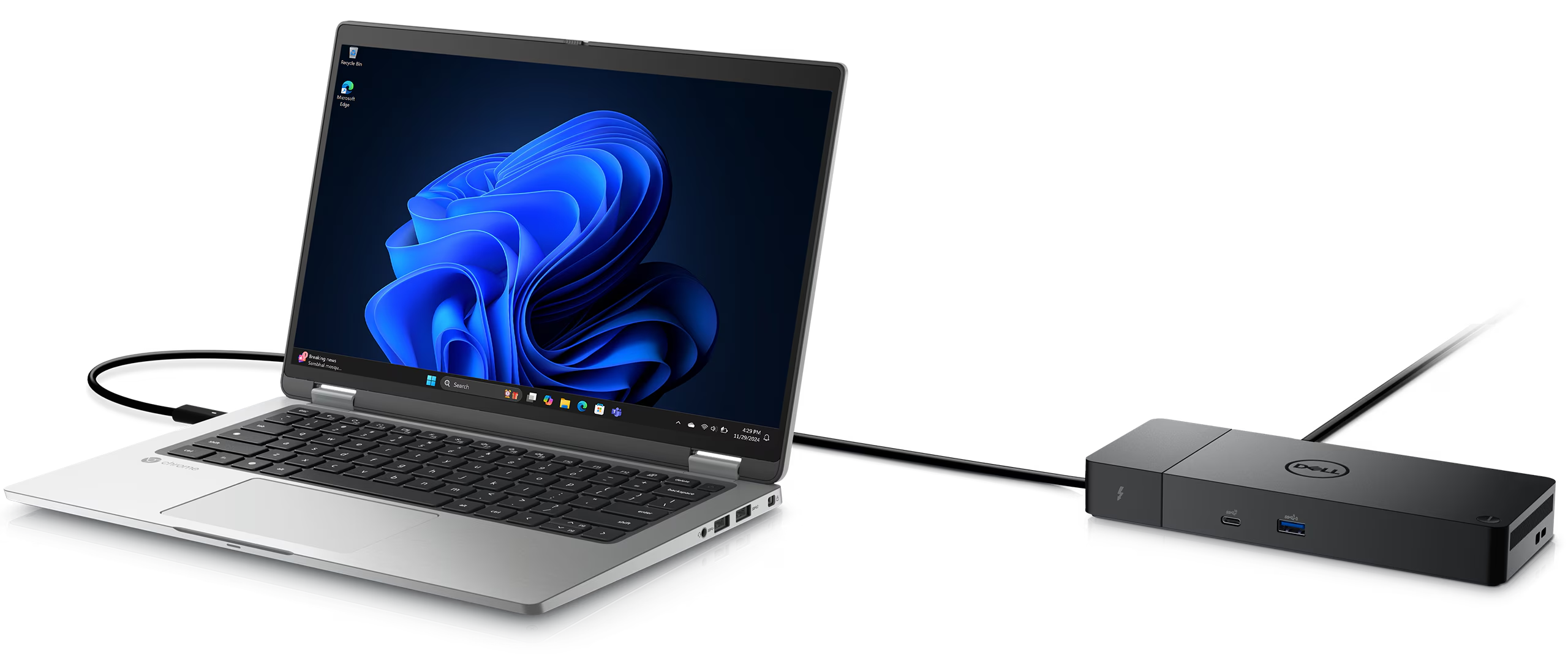
Also, avoid daisy-chaining through docks or hubs if possible. Many USB-C docks and hubs don't pass through adaptive sync signals. Some high-end Thunderbolt 4 docks do, but it's not guaranteed.
For the most reliable G-Sync experience over USB-C, connect directly from your laptop to the monitor with a single cable.
Monitors Known to Support G-Sync Over USB-C
This isn't a buying guide, but it helps to know which product lines have historically supported G-Sync over their USB-C inputs. Manufacturers change implementations between hardware revisions, so always verify your specific model.
| Monitor Series | G-Sync Over USB-C | Notes |
|---|---|---|
| ASUS ROG Swift PG27UCDM | Yes | Full G-Sync Compatible over USB-C DP Alt Mode |
| Dell Alienware AW3225QF | Yes | G-Sync Compatible confirmed on USB-C input |
| Acer Predator X27U | Yes | Requires firmware update for G-Sync over USB-C |
| LG 27GP950-B | Partial | FreeSync over USB-C; G-Sync Compatible works in some cases |
| Samsung Odyssey G7/G8 (USB-C models) | Varies by model | Check specific model's adaptive sync specs |
| Gigabyte M27U | Yes | G-Sync Compatible over USB-C as of firmware F05+ |
The pattern here is that monitors with high-end scalers and explicit "creator" or "hybrid" marketing tend to support G-Sync over USB-C more often. Budget USB-C monitors that use simpler scalers usually don't bother routing adaptive sync through the USB-C input.
Common Reasons G-Sync Doesn't Work Over USB-C (And How to Fix Them)
You've checked your monitor specs, confirmed your GPU drives the USB-C port, and you're using a proper cable. G-Sync still isn't showing up. Here's where to look.
Using a USB-C Cable That Doesn't Support DP Alt Mode
This catches more people than you'd think. Many USB-C cables bundled with phones, accessories, or even some monitors are charge-only or USB 2.0 data cables. They physically fit the port but don't have the wiring for DisplayPort lanes.
Fix: Use a cable certified for DP Alt Mode. Look for "DisplayPort 1.4" or "8K@60Hz" in the cable's specs. Cables certified by USB-IF are your safest bet.
Your Laptop Routes USB-C Through the iGPU, Not the NVIDIA dGPU
As discussed earlier, this is the most common dealbreaker. If your laptop's USB-C port is wired to the Intel Iris Xe or AMD Radeon integrated graphics, the NVIDIA driver can't detect the display for G-Sync purposes.
Fix: Check your BIOS for a MUX switch or dGPU direct output option. If your laptop doesn't have one, you may be out of luck for G-Sync over USB-C. Some laptops let you disable Optimus in BIOS, which routes all outputs through the dGPU.
You're Going Through a Dock or Hub That Strips VRR
USB-C docks and Thunderbolt hubs are convenient, but many of them don't pass through the adaptive sync information in the DisplayPort signal. The dock's internal controller may handle the display output in a way that breaks the VRR handshake.
Fix: Connect your monitor directly to your laptop's USB-C port. If you must use a dock, look for one that explicitly advertises "G-Sync passthrough" or "adaptive sync support." These exist but they're rare and usually expensive.
Your Firmware or Drivers Are Out of Date
Monitor manufacturers sometimes add or fix G-Sync over USB-C support through firmware updates. Similarly, NVIDIA driver updates occasionally improve USB-C DP detection and G-Sync compatibility.
Fix: Update your monitor's firmware (check the manufacturer's support page) and install the latest NVIDIA Game Ready driver. This won't fix a hardware limitation, but it can resolve detection issues on monitors that do support G-Sync over USB-C.
You're Pushing a Resolution/Refresh Combo That Exceeds Bandwidth
DP 1.4 over USB-C with four lanes gives you 25.92 Gbps. That's enough for 4K at 144Hz with DSC, but if you're trying to run 4K at 240Hz or an ultrawide at high refresh rates with full color depth, you might exceed what the USB-C connection can handle. When bandwidth is maxed out, the monitor may fall back to a mode that doesn't support VRR.
Fix: Lower your refresh rate or enable Display Stream Compression if your monitor supports it. Check your monitor's OSD for a DSC option and make sure it's enabled.
G-Sync Over USB-C vs. Native DisplayPort: Is There a Difference?
When everything is wired correctly, there's no perceptible difference in G-Sync performance between USB-C and a direct DisplayPort connection. The DP Alt Mode signal over USB-C is electrically the same DisplayPort signal. It carries the same adaptive sync data, the same VRR range, and the same latency characteristics.
The only practical difference is bandwidth allocation. A native DisplayPort connection on a desktop GPU always dedicates all four lanes to video. USB-C implementations on laptops sometimes run at two lanes only, which limits maximum resolution and refresh rate.
At two lanes, you're limited to about 17.28 Gbps, enough for 4K at 60Hz but not much beyond that.
For most gaming scenarios at 1440p or 4K at up to 144Hz, a four-lane USB-C DP connection handles G-Sync without any compromise. The variable refresh range, frame skipping behavior, and input lag remain identical to what you'd get over a standard DisplayPort cable.
G-Sync Over USB-C vs. HDMI 2.1 VRR: Which Should You Use?
If your monitor and laptop both support HDMI 2.1, you might wonder whether that's a better path for variable refresh. The answer depends on your GPU and monitor's implementation.
HDMI 2.1 supports VRR natively, and NVIDIA GPUs with HDMI 2.1 support G-Sync Compatible over HDMI. However, HDMI VRR implementation varies more between monitors than DisplayPort Adaptive-Sync does. Some monitors have narrow VRR ranges over HDMI, some don't support Low Framerate Compensation over HDMI, and some have inconsistent behavior with frame doubling.
DisplayPort (including over USB-C) tends to have more reliable and consistent G-Sync behavior because NVIDIA has tighter control over the DP adaptive sync spec. If G-Sync over USB-C is available and confirmed on your monitor, it's generally the better choice over HDMI for variable refresh gaming.
Use HDMI 2.1 if your monitor doesn't support G-Sync over USB-C, if you need CEC or ARC features for media use, or if your laptop's USB-C port doesn't support DP Alt Mode but its HDMI port is 2.1. Otherwise, USB-C DP gives you the more consistent G-Sync experience.
What If You Have an AMD GPU? (FreeSync Over USB-C)
If you're running an AMD Radeon GPU, you're in a different situation. G-Sync is NVIDIA's technology. AMD uses FreeSync, which is built on the VESA Adaptive-Sync standard.
Over USB-C DP Alt Mode, FreeSync generally works more easily than G-Sync because it doesn't require NVIDIA's proprietary validation or scalar.
Many USB-C monitors that don't list explicit G-Sync support do support FreeSync or generic Adaptive-Sync over their USB-C input. If you have an AMD GPU, look for "FreeSync over USB-C" or "Adaptive-Sync over USB-C" in the monitor's specs. AMD's driver typically detects Adaptive-Sync support automatically over any DP connection, including USB-C.
The catch is that not all Adaptive-Sync monitors play nicely with AMD's FreeSync implementation. VRR ranges can be narrower, and LFC may not kick in reliably. Check your monitor's FreeSync compatibility on AMD's official list for the best experience.
Setup Checklist: Getting G-Sync Working Over USB-C
If you've confirmed your hardware supports G-Sync over USB-C, here's the correct setup sequence.
Connect directly. Plug a full-featured DP Alt Mode USB-C cable from your laptop to your monitor. Avoid docks and hubs during initial setup.
Set the correct input. Select the USB-C input on your monitor's OSD. Some monitors don't auto-switch.
Update firmware and drivers. Install the latest monitor firmware and NVIDIA Game Ready driver before proceeding.
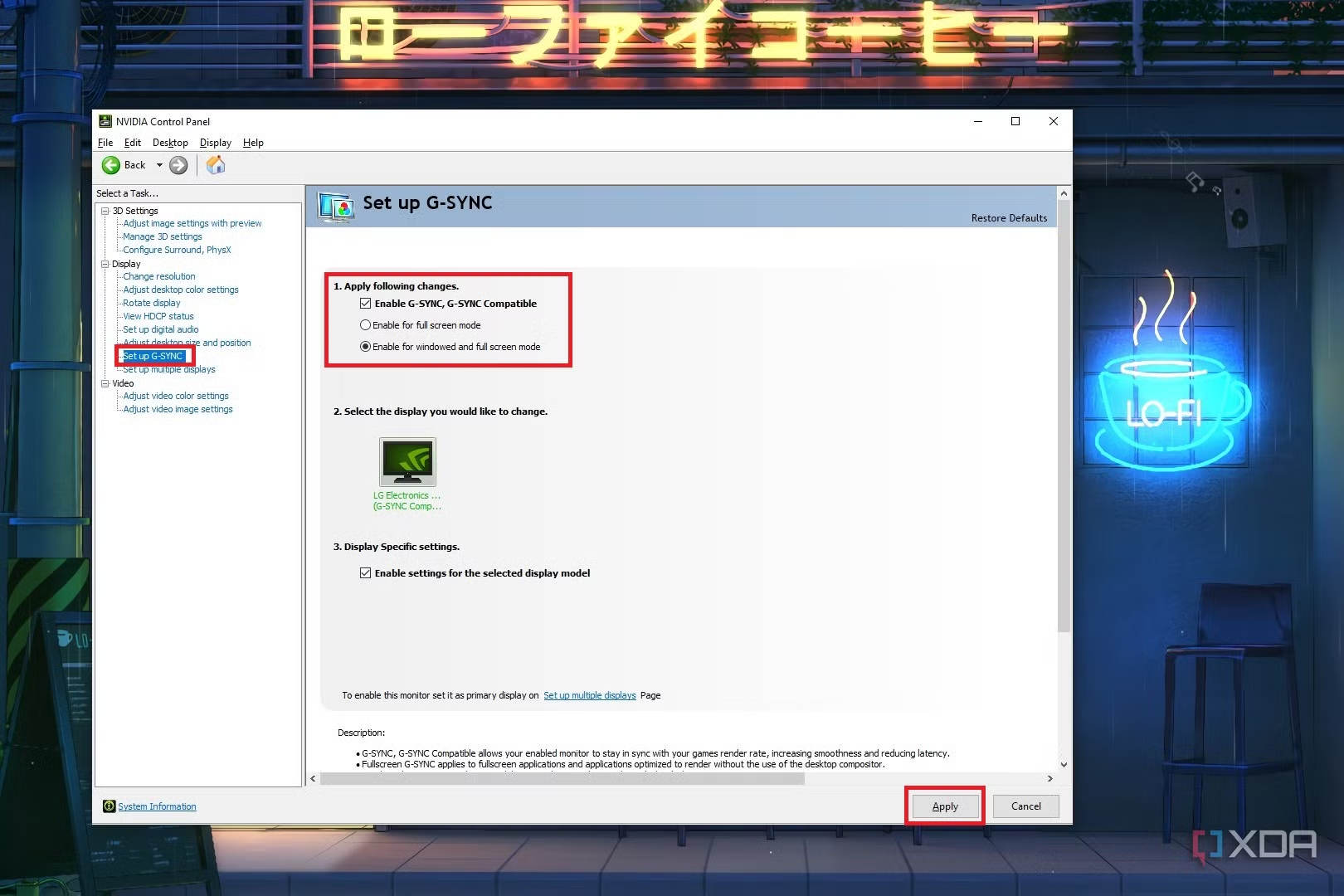
Open NVIDIA Control Panel. Navigate to Display, then Set up G-Sync. If the option appears, enable it and select your monitor.
Enable G-Sync for full-screen or windowed mode. Choose based on your preference. Full-screen mode is the safest for compatibility.
Verify VRR is active. Use NVIDIA's built-in refresh rate indicator in the monitor's OSD or the NVIDIA Pendulum Demo to confirm refresh rate changes with frame rate.
Test for tearing. Run a fast-paced game or the UFO Test at testufo.com. The refresh rate should fluctuate with your frame count.
If G-Sync doesn't appear in the NVIDIA Control Panel, go back and re-check Steps 1 through 4 from the decision tree earlier. Something in your signal chain isn't passing the adaptive sync data through.
Expert Tips Most Guides Skip
Check your monitor's USB-C input latency specifically. Some monitors have higher input latency on the USB-C input compared to the DisplayPort input, even when resolution and refresh rate are identical. Manufacturer specs sometimes list best-case numbers from the lowest-latency input. If you notice the display feels slightly less responsive over USB-C, this could be why, even if G-Sync works perfectly.
USB-C power delivery can introduce ground loop issues. When your monitor is charging your laptop over the same cable carrying video, some setups exhibit subtle flickering or momentary blackouts during high-load gaming. This isn't a G-Sync issue per se, but it can look like one. If you see intermittent display drops, try running the laptop on its charger separately and see if the problem disappears.
Don't assume USB4 or Thunderbolt 4 guarantees G-Sync support. These standards tunnel DisplayPort, but the host device and monitor still need to implement DP Alt Mode correctly for VRR. USB4 certification guarantees video capability but not adaptive sync capability. Always verify G-Sync specifically.
Monitor OSD settings can block G-Sync. Some monitors have a "FreeSync" or "Adaptive-Sync" toggle in the on-screen display that must be enabled for VRR to work over any input, including USB-C. If G-Sync isn't appearing in NVIDIA Control Panel, check your monitor's OSD for a VRR toggle and make sure it's on.
Real-World Scenarios: Who This Works For
The Laptop Gamer With One USB-C Cable
This is the ideal use case. A gaming laptop with a USB-C port wired to the NVIDIA GPU connects to a G-Sync Compatible USB-C monitor with a single cable. The same cable carries video, charges the laptop, and delivers variable refresh rate gaming.
No dock, no separate power brick, no trade-offs. You just need to confirm your specific laptop model routes the USB-C port to the dGPU, as discussed in the decision tree earlier.
The Clean-Desk Desktop User
Some desktop GPUs with USB-C outputs (certain RTX-series cards with VirtualLink or USB-C) can drive a USB-C gaming monitor directly. This eliminates a DisplayPort cable from your desk setup. The experience is identical to using a native DisplayPort connection, assuming the GPU's USB-C implementation supports full DP 1.4 bandwidth.
Fewer cables, same performance.
The Content Creator Who Also Needs Variable Refresh
Creators who edit video by day and game at night benefit from USB-C's power delivery passthrough. The monitor charges the laptop during editing work and handles G-Sync gaming after hours, all through one cable. The key is confirming G-Sync over USB-C on the specific creator monitor you're considering, since many prioritize color accuracy over VRR support.
Frequently Asked Questions
Does G-Sync work over USB-C on macOS?
No. macOS doesn't support G-Sync. NVIDIA hasn't released GeForce drivers for macOS since the 180 series. If you're on a Mac with an external NVIDIA GPU (eGPU), driver support remains limited.
For adaptive sync on Mac, look at FreeSync over USB-C with compatible monitors on Apple Silicon.
Can I use a USB-C to DisplayPort adapter for G-Sync?
Yes, in most cases. A quality USB-C to DisplayPort adapter that supports DP Alt Mode preserves the adaptive sync signal. Connect the adapter to your laptop's USB-C DP Alt Mode port, then run a standard DisplayPort cable to your monitor.
G-Sync should work normally. Cheap passive adapters may not pass through all DP lanes, so use an adapter rated for DP 1.4.
Why doesn't G-Sync show up in NVIDIA Control Panel when connected via USB-C?
The most common cause is that your laptop's USB-C port connects to the integrated GPU rather than the NVIDIA dGPU. Another possibility is that your monitor doesn't support G-Sync over its USB-C input despite supporting it over DisplayPort. Check both the monitor specs and your laptop's GPU routing before troubleshooting further.
Is G-Sync over Thunderbolt 4 the same as over USB-C?
Thunderbolt 4 tunnels DisplayPort 1.4, so G-Sync behavior is the same. However, Thunderbolt 4 hubs and the host controller must properly pass through adaptive sync. Some Thunderbolt monitors have had issues with VRR detection due to the additional protocol layer.
Direct USB-C DP Alt Mode connections are generally more reliable for G-Sync than Thunderbolt paths.
Final Verdict: Should You Rely on USB-C for G-Sync?
USB-C can absolutely deliver a full G-Sync experience, but only when the entire chain supports it. The monitor must explicitly route adaptive sync through its USB-C input. Your NVIDIA GPU must drive that port directly.
The cable must carry full DP Alt Mode. The moment any link in that chain breaks, G-Sync disappears.
If you're buying a monitor specifically for G-Sync over USB-C, verify the spec sheet. Don't assume. If you already own a USB-C monitor and G-Sync isn't showing up, work through the decision tree in this guide step by step.
The answer is almost always one of three things: the monitor doesn't support G-Sync over USB-C, the laptop routes the port through the iGPU, or the cable isn't full-featured.
For most people, the safest path to G-Sync is still a native DisplayPort connection. USB-C G-Sync works, but it demands more setup knowledge. If you're willing to verify every link in the chain, you get the convenience of a single cable with zero compromise on variable refresh performance.

Similar Posts





















