Do USB C Monitors Support Daisy Chaining
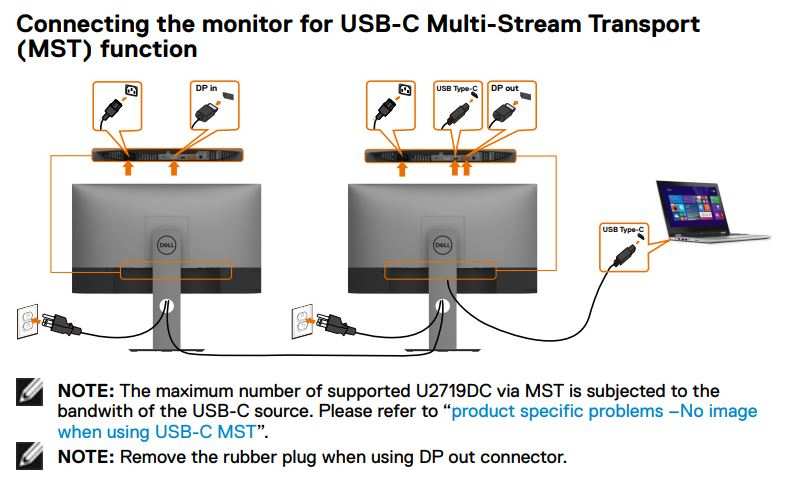
Do USB-C monitors support daisy chaining? Yes, but only if your specific monitor has built-in DisplayPort MST, your laptop's USB-C port carries enough bandwidth, and your operating system actually supports multi-stream transport. Miss any one of those three conditions and you're stuck with a single external display or a rat's nest of cables.
The confusion is understandable. USB-C as a connector standard supports DisplayPort Alt Mode, which is the foundation daisy chaining relies on. But the VESA DisplayPort standard and the USB-C specification are two different things.
A monitor having a USB-C input tells you almost nothing about whether it can pass video through to a second screen. Let's break down exactly what you need, what you don't, and how to figure out your specific situation before you buy the wrong cable or the wrong monitor.
The Quick Answer
USB-C monitors can support daisy chaining, but most don't. You need a monitor with built-in DisplayPort MST (Multi-Stream Transport) and a dedicated DP output port. Your laptop's USB-C port must support DisplayPort Alt Mode with enough bandwidth for both displays. macOS does not support MST daisy chaining at all, so this setup only works on Windows or Linux.
Why Most People Get This Wrong (And Waste Money on the Wrong Monitor)
Here's the core problem. You see "USB-C monitor" on a product listing and assume it can daisy chain. Most can't.
The USB-C port on the vast majority of monitors is an input only. It receives video and power from your laptop. It does not pass video through to another monitor.
Daisy chaining requires a specific feature called Multi-Stream Transport, part of the DisplayPort 1.2 standard and later. MST takes a single DisplayPort signal and splits it into multiple independent video streams. Some monitors have an MST hub built right into the chassis, giving you a DisplayPort output or a second USB-C output that carries video.
Those monitors can daisy chain. The ones without it cannot.
Manufacturers don't always make this obvious. You'll see a monitor with USB-C, HDMI, and DisplayPort inputs and assume it's daisy-chain capable. It's not.
You need to look for explicit MST support in the specs, usually listed as "DP out" or "MST hub" or "daisy chain capable" in the product documentation.
The other big misconception is about cables. People buy a single USB-C cable, plug it into their laptop and monitor, then wonder why a second monitor won't work. Even if your monitor supports MST, the cable between your first and second monitor often needs to be a DisplayPort cable, not a USB-C cable.
Some monitors do support USB-C passthrough, but many don't. The cable that worked from your laptop to monitor one might not carry the DP signal out to monitor two.
The Three Conditions That Determine If Daisy Chaining Will Work for You
Think of this as a checklist. Every item must pass. If any one fails, daisy chaining won't work with your setup.
Condition 1: Your Monitor Must Have Built-In MST (DisplayPort Output)
This is the dealbreaker for most people. Your monitor needs either a DisplayPort output port or a second USB-C port that specifically supports video output, not just input. This port carries the second video stream from the MST hub built into the monitor.
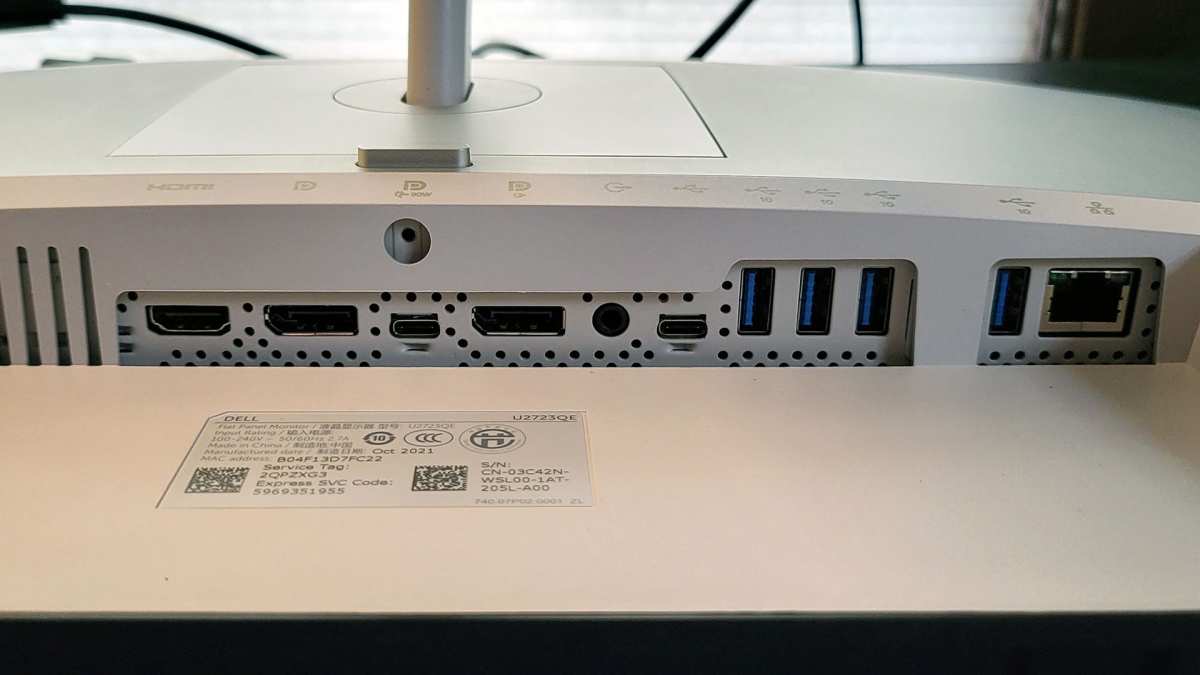
How to check your monitor's specs:
- Look for "DP out" or "DisplayPort out" in the port listing
- Check for "MST" or "Multi-Stream Transport" in the product specifications
- Search the manual for "daisy chain" or "multi-monitor"
- Look at the physical ports on the back or bottom of the monitor
Monitors that typically include MST capability tend to be business and professional models. Dell's UltraSharp USB-C Monitor series, certain HP EliteDisplay models, and some Lenovo ThinkVision monitors include DP output ports specifically for daisy chaining. Gaming monitors and budget displays almost never include this feature.
If your monitor only has USB-C input, HDMI input, and DisplayPort input, it cannot daisy chain. Period. You'd need an external MST hub, which is a separate device that sits between your laptop and the first monitor.
Condition 2: Your Laptop's USB-C Port Must Support DisplayPort Alt Mode with Enough Bandwidth
Not all USB-C ports are created equal. Your laptop's USB-C port needs to support DisplayPort Alt Mode, which is the protocol that carries DisplayPort video over the USB-C connector. Most modern laptops with USB-C support this, but some cheaper models or older ones don't.
You also need enough bandwidth. DisplayPort 1.2 with HBR2 gives you 17.28 Gbps. DisplayPort 1.4 with HBR3 gives you 25.92 Gbps.
The amount of bandwidth you need depends on the resolution and refresh rate of both monitors in your chain.
How to verify your laptop's USB-C capabilities:
- Check your laptop's technical specifications for "DisplayPort over USB-C" or "DP Alt Mode"
- Look for a DisplayPort icon or lightning bolt icon next to the USB-C port
- Consult your laptop manufacturer's documentation or support pages
- Check the chipset and GPU specifications, since DP Alt Mode is handled by the GPU
If your laptop only supports USB-C for data and charging, daisy chaining won't work. You'd need a different approach, like a USB-C docking station with multiple video outputs.
Condition 3: Your Operating System Must Support MST (macOS Users, Stop Here)
This is the one that catches a lot of people off guard. Even if your hardware fully supports daisy chaining, your operating system needs to support MST. And here's the problem: macOS does not support DisplayPort MST for daisy chaining external monitors.
Apple uses its own display connection architecture. macOS will not recognize a daisy chain of DisplayPort MST monitors. If you plug a second monitor into your first monitor's DP output on a Mac, nothing happens. The second monitor stays black.
Windows 10 and 11 fully support MST daisy chaining. Linux also supports it, though the experience can vary depending on your desktop environment and GPU driver. If you're a Mac user who wants dual external monitors from a single USB-C port, you need a USB-C docking station with dual video outputs, not a daisy chain.
This is a hard limitation. No cable, adapter, or monitor feature will make MST daisy chaining work on macOS. It's an operating system decision Apple made and hasn't changed as of 2026.
How to Check If Your Current Monitor Supports Daisy Chaining
Before you buy anything or start troubleshooting, let's figure out what you're working with. Grab your monitor's model number, usually found on a sticker on the back or bottom, and check these things.
Step 1: Look at the physical ports. If your monitor has a DisplayPort output (not just input) or a second USB-C port labeled with a video icon, it might support MST. If it only has inputs, it doesn't.
Step 2: Search the manual or spec sheet. Look for any mention of "daisy chain," "MST," "Multi-Stream Transport," or "DP out." Manufacturers that include this feature usually mention it because it's a selling point for business customers.
Step 3: Check the manufacturer's product page. Look under specifications or features. If MST isn't listed, the monitor almost certainly doesn't support it.
Step 4: Look in the monitor's on-screen display (OSD) menu. Some monitors with MST have a setting in the OSD to enable or disable MST mode. If you don't see this option, the monitor likely doesn't have MST hardware.
Here's a quick reference table to help you identify whether your monitor likely supports daisy chaining:
| What You See | Daisy Chain Support? |
|---|---|
| Monitor has "DP out" or "DisplayPort out" port | Yes, likely |
| Monitor has second USB-C port with video icon | Yes, likely |
| Monitor spec sheet mentions "MST" or "daisy chain" | Yes |
| Monitor only has USB-C input, HDMI, DP input | No |
| Monitor is a gaming or budget model | Almost certainly no |
| Monitor is a business/professional model (Dell UltraSharp, HP EliteDisplay, Lenovo ThinkVision) | Check specs, many do |
If your monitor doesn't support MST, you have two options. You can buy a monitor that does, or you can use an external MST hub. An external MST hub connects to your laptop's USB-C port and splits the signal to two or more monitors.
It works, but it's another device on your desk and another thing to troubleshoot.
How to Check If Your Laptop or PC Can Drive a Daisy Chain
Your laptop's USB-C port needs to do more than just carry data. It needs to output DisplayPort video with enough bandwidth for two monitors. Here's how to check.
Check the port symbols. Look at the USB-C port on your laptop. A DisplayPort icon (a "D" shape with a "P" inside) or a lightning bolt (indicating Thunderbolt) next to the port is a good sign. No icon doesn't necessarily mean no support, but it's less certain.
Look up your laptop's specs. Go to your manufacturer's support page, find your exact model, and check the port specifications. You're looking for "DisplayPort over USB-C," "DP Alt Mode," or "Thunderbolt 3/4."
Check your GPU. DisplayPort Alt Mode is handled by your graphics processor. If you're on a Windows laptop with discrete graphics (NVIDIA or AMD), the USB-C port needs to be wired to that GPU, not the integrated Intel graphics. Some laptops route the USB-C port to the integrated GPU only, which can cause issues.
Thunderbolt changes everything. If your laptop has Thunderbolt 3 or Thunderbolt 4, daisy chaining is built into the Thunderbolt protocol itself, separate from DisplayPort MST. Thunderbolt supports daisy chaining up to six devices, including monitors, through a single port. You don't need MST-capable monitors for Thunderbolt daisy chaining.
You just need Thunderbolt monitors or a Thunderbolt dock.
Here's a quick breakdown of what different USB-C implementations can do:
| USB-C Implementation | Daisy Chain Support |
|---|---|
| USB-C with DP 1.4 Alt Mode | Yes, if monitors support MST |
| USB-C with DP 1.2 Alt Mode | Limited, lower resolutions only |
| Thunderbolt 3 | Yes, native daisy chain support |
| Thunderbolt 4 | Yes, native daisy chain support |
| USB-C data only (no DP Alt Mode) | No |
| USB4 | Yes, with DP tunneling support |
If you're unsure about your specific laptop, the safest bet is to look up the exact model's technical specifications on the manufacturer's website. Don't rely on marketing materials that just say "USB-C port." That tells you nothing about what the port can actually do.
Bandwidth Math: Why Your Dual 4K Setup Might Not Work
Even if your monitor supports MST and your laptop supports DP Alt Mode, you can still hit a wall. The single DisplayPort connection from your laptop to your first monitor has a finite amount of bandwidth. Two high-resolution, high-refresh-rate monitors can exceed that limit.
This is where the math matters. DisplayPort 1.2 (HBR2) provides 17.28 Gbps of total bandwidth. DisplayPort 1.4 (HBR3) provides 25.92 Gbps.
Each monitor in the chain consumes a portion of that bandwidth based on its resolution, refresh rate, and color depth.
Here's what common configurations require:
| Resolution and Refresh Rate | Approximate Bandwidth Required |
|---|---|
| 1920×1080 at 60Hz | ~3.58 Gbps |
| 2560×1440 at 60Hz | ~5.93 Gbps |
| 3840×2160 (4K) at 60Hz | ~12.54 Gbps |
| 3840×2160 (4K) at 120Hz | ~25.08 Gbps |
| 2560×1440 at 144Hz | ~11.52 Gbps |
Now let's look at what happens when you chain two monitors:
| Dual Monitor Configuration | Total Bandwidth Needed | Works on DP 1.2 (17.28 Gbps)? | Works on DP 1.4 (25.92 Gbps)? |
|---|---|---|---|
| Two 1080p 60Hz monitors | ~7.16 Gbps | Yes | Yes |
| Two 1440p 60Hz monitors | ~11.86 Gbps | Yes | Yes |
| Two 4K 60Hz monitors | ~25.08 Gbps | No | Barely, no headroom |
| One 4K 60Hz + one 1440p 60Hz | ~18.47 Gbps | No | Yes |
| Two 4K 120Hz monitors | ~50.16 Gbps | No | No |
The dual 4K 60Hz scenario is the tricky one. It technically fits within DP 1.4's 25.92 Gbps, but there's almost no headroom for blanking intervals, overhead, and audio. In practice, many dual 4K daisy chain setups either fail, drop to 30Hz on one monitor, or require DisplayStream Compression (DSC).
DSC is supported in DP 1.4 but both your GPU and monitors need to support it.
If you're planning a dual 4K daisy chain, verify that your laptop's GPU, your first monitor, and your second monitor all support DSC. If any link in the chain doesn't, you'll likely be limited to one 4K 60Hz and one 1440p 60Hz, or you'll need to drop the refresh rate.
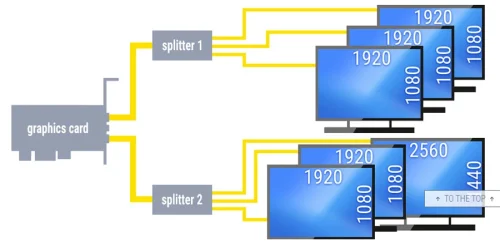
For most people running dual 1440p or 1080p monitors, bandwidth isn't a problem on DP 1.4. The issue is almost always the monitor's MST capability or the operating system's support, not raw bandwidth. But if you're trying to push two high-resolution displays, the numbers above tell you exactly where the ceiling is.
Step-by–Step: How to Set Up USB-C Monitor Daisy Chaining
If you've confirmed that your monitor supports MST, your laptop supports DP Alt Mode with enough bandwidth, and you're running Windows or Linux, here's how to set it up.
Step 1: Connect your laptop to the first monitor via USB-C. Use the USB-C cable that came with your monitor or a certified USB-C cable that supports DisplayPort Alt Mode. Not all USB-C cables support video. Cheap charge-only cables won't work.
Step 2: Connect the first monitor to the second monitor. Use a DisplayPort cable from the first monitor's DP output to the second monitor's DisplayPort input. Some monitors support USB-C passthrough, but DisplayPort cables are more reliable for MST chains.
Step 3: Enable MST on the first monitor. Many MST-capable monitors have a setting in their on-screen display menu to enable MST or DP output. Check the monitor's input or display settings. If MST is disabled, the DP output port won't send a signal to the second monitor.
Step 4: Configure your displays in Windows. Right-click the desktop, select Display Settings. Both monitors should appear. If the second monitor isn't detected, click "Detect." Arrange the monitors to match their physical positions on your desk.
Step 5: Set resolution and refresh rate for each monitor. Click on each monitor in Display Settings and set the desired resolution and refresh rate. Make sure the combined bandwidth doesn't exceed your DisplayPort version's limit.
Step 6: Update your GPU drivers if needed. MST detection issues are often caused by outdated graphics drivers. Download the latest drivers from NVIDIA, AMD, or Intel depending on your GPU.
Troubleshooting tips if the second monitor isn't detected:
- Verify MST is enabled in the first monitor's OSD
- Try a different DisplayPort cable between monitors
- Check that your laptop's USB-C port supports DP Alt Mode
- Update your GPU drivers
- Try connecting the second monitor directly to your laptop first to verify it works
- Restart your laptop with both monitors connected and powered on
What Cables You Actually Need (And Why the Wrong Cable Breaks Everything)
Cable selection matters more than you'd think. The wrong cable is one of the most common reasons daisy chaining fails.
Laptop to first monitor: Use a USB-C cable that explicitly supports DisplayPort Alt Mode. These cables have full pin connectivity for video signals. Many cheap USB-C cables only support USB 2.0 data and charging.
They won't carry video. Look for cables certified for "USB-C with DisplayPort" or "Thunderbolt 3/4" which guarantees DP Alt Mode support.
First monitor to second monitor: In most cases, use a standard DisplayPort cable. DisplayPort to DisplayPort is the most reliable connection for MST chains. Some monitors support USB-C passthrough, but this is less common and sometimes less reliable.
Cable quality matters. For 4K signals, use DisplayPort cables rated for HBR3 (DisplayPort 1.4). Cheap cables that worked fine for 1080p might fail at higher resolutions. If you're getting flickering, black screens, or intermittent detection, try a different cable before assuming your hardware is broken.
Avoid adapters in the chain. DisplayPort to HDMI adapters can break MST functionality. The chain works best when it's DisplayPort all the way through. If your second monitor only has HDMI, you may need to connect it directly to your laptop instead of daisy chaining.
macOS vs Windows vs Linux: The MST Support Problem Nobody Warns You About
This deserves its own section because it's the single biggest source of confusion and wasted money.
macOS does not support DisplayPort MST daisy chaining. This is not a hardware limitation. It's a software decision by Apple. macOS will not recognize a second monitor connected through an MST hub or a monitor's DP output port. If you're a Mac user, daisy chaining via DisplayPort MST is not an option, period.
Apple's own solution for multi-monitor setups on Mac is to connect each monitor separately to your Mac, either directly or through a Thunderbolt dock with multiple video outputs. Some third-party display link adapters can add monitor support on Mac, but they use USB graphics technology, not MST, and they add latency.
Windows 10 and 11 fully support MST. Windows has built-in MST support through its display driver model. When you daisy chain monitors on Windows, the operating system sees each monitor in the chain as an independent display and lets you configure them separately in Display Settings.
Linux supports MST through the kernel's DRM (Direct Rendering Manager) subsystem. The experience varies by distribution and desktop environment. GNOME and KDE Plasma generally handle MST daisy chains well on modern kernels.
If you're running Linux and daisy chaining isn't working, check your kernel version and GPU driver.
Here's the bottom line. If you're buying a monitor specifically for daisy chaining and you use a Mac, don't bother. Buy a Thunderbolt dock instead.
If you're on Windows or Linux, daisy chaining is a viable option as long as your hardware supports it.
Daisy Chaining vs Docking Station vs Separate Cables: Which Setup Actually Makes Sense
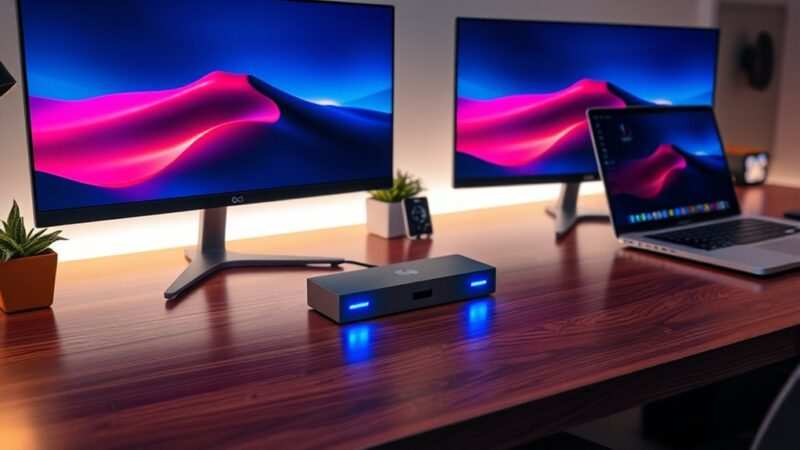
Daisy chaining is one of three ways to run dual external monitors from a single USB-C port. Here's how they compare.
Daisy chaining uses one USB-C cable from your laptop to the first monitor, then a DisplayPort cable from the first monitor to the second. It's clean, uses fewer cables, and doesn't require a separate dock. But it requires MST-capable monitors and doesn't work on macOS.
USB-C docking station connects to your laptop via one USB-C cable and provides multiple video outputs (usually HDMI and/or DisplayPort) for two or more monitors. It works with any monitor, any laptop with DP Alt Mode, and any operating system. The downside is cost and desk space.
A good dock runs $150 to $300.
Separate cables means connecting each monitor directly to your laptop, using either its built-in HDMI/DisplayPort outputs or a USB-C to HDMI/DisplayPort adapter for each monitor. This is the simplest approach but requires your laptop to have enough ports or you to use adapters.
| Setup | Cable Complexity | Cost | macOS Support | Monitor Requirements |
|---|---|---|---|---|
| Daisy chain | Lowest | Low (cables only) | No | MST-capable monitors required |
| Docking station | Medium | $150-$300+ | Yes | Any monitors |
| Separate cables | Highest | Low (adapters only) | Yes | Any monitors |
Daisy chaining wins on simplicity and cost if your hardware supports it. A docking station is the most flexible option and the only real choice for Mac users. Separate cables work if your laptop has enough native video outputs.
Real Scenarios: When Daisy Chaining Works Perfectly vs When It's a Headache
When it works great: A software developer using a Windows laptop with two Dell UltraSharp U2723QE monitors. Both monitors have MST built in. One USB-C cable from the laptop to the first monitor handles video and power.
One DisplayPort cable connects the first monitor to the second. Clean desk, single cable to the laptop, dual 4K displays. This is the ideal daisy chain scenario.
When it fails: A designer using a MacBook Pro buys a USB-C monitor hoping to daisy chain a second display. The second monitor stays black. macOS doesn't support MST. The designer ends up returning the monitor and buying a Thunderbolt dock instead.
When it's frustrating: A Windows user has two monitors that both support MST, but the second monitor flickers intermittently. The issue is a cheap DisplayPort cable that can't handle the bandwidth at the desired resolution. Replacing it with a certified DP 1.4 cable fixes the problem.
When it's impossible: A user with a budget laptop that has a USB-C port for charging and data only, no DisplayPort Alt Mode. Daisy chaining won't work regardless of what monitors they buy. The USB-C port simply can't output video.
Common Mistakes That Cause Flickering, Black Screens, or Complete Failure
Using a charge-only USB-C cable from laptop to monitor. These cables lack the pin connectivity for video signals. Your monitor gets power but no image.
Forgetting to enable MST in the monitor's OSD. The DP output port on many MST-capable monitors is disabled by default. You need to turn it on in the monitor's settings menu.
Exceeding bandwidth limits. Two 4K 60Hz monitors on a DP 1.2 connection won't work. The math doesn't add up. Drop the resolution or refresh rate on one monitor.
Using a DisplayPort to HDMI adapter in the chain. MST relies on DisplayPort protocol end-to-end. An adapter breaks the chain. Connect the second monitor via DisplayPort if possible.
Outdated GPU drivers. Windows sometimes fails to detect MST chains with old graphics drivers. Update to the latest version from your GPU manufacturer.
Assuming all USB-C monitors support daisy chaining. They don't. Check the specs before buying. The presence of a USB-C port means nothing by itself.
The Monitors That Actually Support USB-C Daisy Chaining
As of 2026, these monitor lines are known to include MST capability with DP output ports. Always verify the specific model, since manufacturers sometimes change configurations between revisions.
- Dell UltraSharp USB-C Monitor series (U2723QE, U3223QE, and similar models with "USB-C" in the name)
- HP EliteDisplay and ZDisplay models with USB-C and DP out
- Lenovo ThinkVision USB-C monitors with DP output
- Philips Brilliance USB-C monitors with MST support
These are business and professional monitors. They're designed for office environments where clean desk setups and multi-monitor productivity matter. They cost more than consumer monitors, but the MST hardware is built in.
Gaming monitors, budget displays, and most consumer monitors do not include MST. If daisy chaining is important to you, check the specifications carefully before buying. Don't assume.
Frequently Asked Questions
Can I daisy chain USB-C monitors on a Mac?
No. macOS does not support DisplayPort MST daisy chaining. You need a Thunderbolt dock with multiple video outputs or separate connections for each monitor.
Do I need special cables for USB-C daisy chaining?
You need a USB-C cable that supports DisplayPort Alt Mode from your laptop to the first monitor, and typically a DisplayPort cable between the first and second monitors. Not all USB-C cables carry video signals.
Can I daisy chain two 4K monitors over USB-C?
Yes, but only with DisplayPort 1.4 and DisplayStream Compression, or with Thunderbolt. Without DSC, dual 4K 60Hz exceeds the bandwidth of a single DP 1.4 link with no headroom.
What happens if my monitor doesn't have MST?
You can't daisy chain through it. You'd need an external MST hub or a different setup like a docking station or separate cable connections to your laptop.
Does daisy chain affect display quality or latency?
No. MST splits the signal without adding latency or degrading image quality. Each monitor receives an independent video stream.
The only limitation is total bandwidth shared across the chain.
Can I daisy chain three or more monitors?
Yes, in theory. MST supports up to monitors in a single chain. In practice, bandwidth limits usually cap you at two high-resolution displays.
Three 1080p monitors work fine. Three 4K monitors won't fit in a single DP 1.4 link.
Common Mistakes That Cause Flickering, Black Screens, or Complete Failure
Using a charge-only USB-C cable from laptop to monitor. These cables lack the pin connectivity for video signals. Your monitor gets power but no image.
Forgetting to enable MST in the monitor's OSD. The DP output port on many MST-capable monitors is disabled by default. You need to turn it on in the monitor's settings menu.
Exceeding bandwidth limits. Two 4K 60Hz monitors on a DP 1.2 connection won't work. The math doesn't add up. Drop the resolution or refresh rate on one monitor.
Using a DisplayPort to HDMI adapter in the chain. MST relies on DisplayPort protocol end-to-end. An adapter breaks the chain. Connect the second monitor via DisplayPort if possible.
Outdated GPU drivers. Windows sometimes fails to detect MST chains with old graphics drivers. Update to the latest version from your GPU manufacturer.
Assuming all USB-C monitors support daisy chaining. They don't. Check the specs before buying. The presence of a USB-C port means nothing by itself.
The Monitors That Actually Support USB-C Daisy Chaining
As of 2026, these monitor lines are known to include MST capability with DP output ports. Always verify the specific model, since manufacturers sometimes change configurations between revisions.
- Dell UltraSharp USB-C Monitor series (U2723QE, U3223QE, and similar models with "USB-C" in the name)
- HP EliteDisplay and ZDisplay models with USB-C and DP out
- Lenovo ThinkVision USB-C monitors with DP output
- Philips Brilliance USB-C monitors with MST support
These are business and professional monitors. They're designed for office environments where clean desk setups and multi-monitor productivity matter. They cost more than consumer monitors, but the MST hardware is built in.
Gaming monitors, budget displays, and most consumer monitors do not include MST. If daisy chaining is important to you, check the specifications carefully before buying. Don't assume.
Frequently Asked Questions
Can I daisy chain USB-C monitors on a Mac?
No. macOS does not support DisplayPort MST daisy chaining. You need a Thunderbolt dock with multiple video outputs or separate connections for each monitor.
Do I need special cables for USB-C daisy chaining?
You need a USB-C cable that supports DisplayPort Alt Mode from your laptop to the first monitor, and typically a DisplayPort cable between the first and second monitors. Not all USB-C cables carry video signals.
Can I daisy chain two 4K monitors over USB-C?
Yes, but only with DisplayPort 1.4 and DisplayStream Compression, or with Thunderbolt. Without DSC, dual 4K 60Hz exceeds the bandwidth of a single DP 1.4 link with no headroom.
What happens if my monitor doesn't have MST?
You can't daisy chain through it. You'd need an external MST hub or a different setup like a docking station or separate cable connections to your laptop.
Does daisy chain affect display quality or latency?
No. MST splits the signal without adding latency or degrading image quality. Each monitor receives an independent video stream.
The only limitation is total bandwidth shared across the chain.
Can I daisy chain three or more monitors?
Yes, in theory. MST supports up to monitors in a single chain. In practice, bandwidth limits usually cap you at two high-resolution displays.
Three 1080p monitors work fine. Three 4K monitors won't fit in a single DP 1.4 link.
Final Decision Guide: Should You Daisy Chain Your USB-C Monitors?
Daisy chaining is elegant when it works. One cable to your laptop, one cable between monitors, done. But it only works if every piece of the chain supports it.
Daisy chain if: You're on Windows or Linux, your monitor has MST with a DP output port, your laptop supports DP Alt Mode with enough bandwidth, and your resolution/refresh rate targets fit within that bandwidth.
Don't daisy chain if: You're on macOS, your monitor lacks MST, or you're trying to push two 4K 60Hz displays without DSC support.
Consider a docking station if: You need guaranteed compatibility across devices, you use a Mac, or you want to connect more than two monitors without worrying about MST monitor requirements.
The cleanest answer is this. Check your monitor's specs for MST. Check your laptop's specs for DP Alt Mode.
Check your operating system for MST support. If all three check out, daisy chaining is a great solution. If any one doesn't, save yourself the frustration and go with a dock or separate cables.
Final Decision Guide: Should You Daisy Chain Your USB-C Monitors?
Daisy chaining is elegant when it works. One cable to your laptop, one cable between monitors, done. But it only works if every piece of the chain supports it.
Daisy chain if: You're on Windows or Linux, your monitor has MST with a DP output port, your laptop supports DP Alt Mode with enough bandwidth, and your resolution/refresh rate targets fit within that bandwidth.
Don't daisy chain if: You're on macOS, your monitor lacks MST, or you're trying to push two 4K 60Hz displays without DSC support.
Consider a docking station if: You need guaranteed compatibility across devices, you use a Mac, or you want to connect more than two monitors without worrying about MST monitor requirements.
The cleanest answer is this. Check your monitor's specs for MST. Check your laptop's specs for DP Alt Mode.
Check your operating system for MST support. If all three check out, daisy chaining is a great solution. If any one doesn't, save yourself the frustration and go with a dock or separate cables.

Similar Posts





















