Do OLED Monitors Support Daisy Chaining

If you've been eyeing a clean dual-monitor setup with OLED panels, you've probably wondered: do OLED monitors support daisy chaining? The honest answer is that most of them don't, and the ones that do come with real limitations you need to understand before buying. OLED technology and multi-stream transport (MST) daisy chaining have largely lived in separate worlds, but that's slowly changing as of 2026.
The core issue comes down to hardware design. Daisy chaining requires a DisplayPort Out port on the first monitor, and most OLED panels skip that to keep costs down and prioritize gaming features. Per the VESA DisplayPort standard, MST allows one source to drive multiple displays through a single cable, but the monitor itself has to support it at the hardware level.
Let's break down exactly what's going on and what your options are.
Image source: Bing (Web (fair-use with source credit))
Quick Answer
Most OLED monitors do not support daisy chaining. They lack the DisplayPort Out port required for MST chaining. A small number of professional and newer models do support it through USB-C or DisplayPort 1.4.
If your OLED monitor has no DP Out port, daisy chaining is not possible. You would need an MST hub or direct GPU connections instead.
The Short Answer: Most OLED Monitors Don't Support Daisy Chaining
Here's the reality. If you pick up a typical OLED gaming monitor, like the LG UltraGear 27GR95QE or the Samsung Odyssey OLED G8, you won't find a DisplayPort Out port on the back. That single missing port is what kills daisy chaining right there.
Manufacturers know their target buyers want high refresh rates and low input lag, not multi-display productivity features.
The monitors that do support daisy chaining tend to fall into the professional or creator category. Some ASUS ProArt OLED models and certain Dell UltraSharp panels include MST support because their users actually need multi-display workflows. But these are the exception, not the rule.
So before you buy a second OLED monitor and a handful of cables, check the spec sheet for "DisplayPort Out" or "MST support." If it's not listed, you're looking at a single-display connection only.
Why Daisy Chaining OLED Monitors Is Complicated
Daisy chaining sounds simple in theory. One cable from your PC to the first monitor, another cable from the first monitor to the second, and you're done. But several things have to line up perfectly for it to work.
First, the monitor hardware needs an MST hub built in. This is extra circuitry that splits the DisplayPort signal into separate streams. Most OLED monitor manufacturers leave this out because it adds cost and complexity to a product where buyers care more about response times and color accuracy.
Second, bandwidth becomes a real constraint. A single DisplayPort 1.4 connection carries up to 25.92 Gbps. Driving one 4K OLED panel at 60Hz uses roughly half of that.
Add a second 4K display and you're pushing the limit, which means compromises on refresh rate, color depth, or resolution.
Third, the GPU has to support MST. Most modern NVIDIA and AMD cards do, but integrated graphics and some older GPUs may not. Even when the GPU supports it, driver issues can break the chain unexpectedly.
How DisplayPort MST Daisy Chaining Actually Works
DisplayPort MST is part of the VESA DisplayPort standard starting from version 1.2. It works by embedding multiple video streams into a single DisplayPort signal. The first monitor in the chain receives the combined signal, extracts its own stream, and passes the rest downstream to the next display.
Think of it like a train. Your GPU is the engine, the first monitor is the first car that unhooks itself at the station, and the second monitor is the next car that continues to the following stop. The cable between monitors carries everything until each display grabs what it needs.
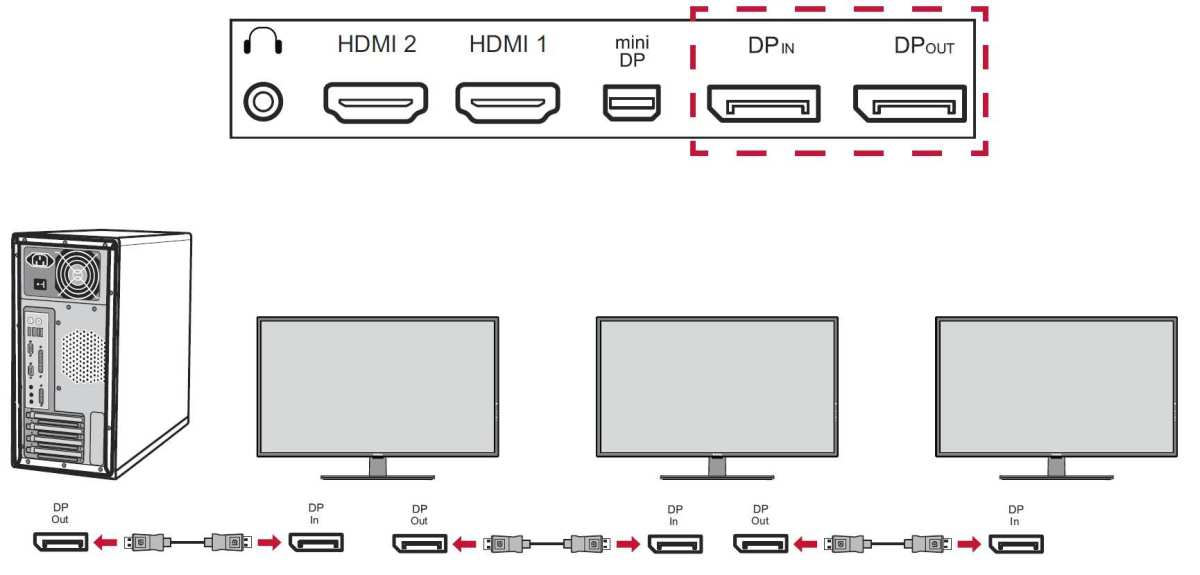
Image source: Bing (Web (fair-use with source credit))
For this to work, every link in the chain has to support MST. Your GPU outputs an MST signal, the first monitor has an MST hub to split it, and the second monitor receives its portion. If any one of those links only supports Single-Stream Transport (SST), the chain breaks.
Thunderbolt daisy chaining works differently. It uses a packet-based protocol that's more flexible but requires Thunderbolt-specific hardware. Some OLED monitors with USB-C Thunderbolt ports can chain this way, but that's separate from DisplayPort MST.
What Your OLED Monitor Needs to Daisy Chain
Three things have to be true for daisy chaining to work with an OLED monitor. Miss any one of them and you're stuck.
The DP Out Port Requirement
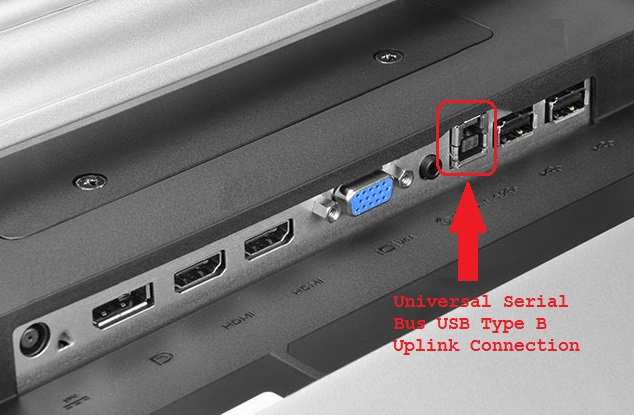
This is the dealbreaker for most OLED monitors. You need a physical DisplayPort Out port on the first monitor. Without it, there's no way to send a signal to the second display.
Check the back panel or spec sheet. If you only see DisplayPort In, HDMI, and USB-C, daisy chaining isn't happening.
MST Support in the Monitor Hardware
Having a DP Out port isn't enough on its own. The monitor needs an internal MST hub chip to split the signal. Some monitors have a DP Out that only mirrors the input, which isn't true daisy chaining.
Look for explicit "MST support" in the specifications or user manual.
Bandwidth Limits That Affect Your Setup
Even with MST hardware in place, you're sharing a single DisplayPort connection between multiple displays. Here's what that looks like in practice:
| Setup | Bandwidth Required | DisplayPort 1.4 Headroom |
|---|---|---|
| One 4K OLED at 60Hz | ~12.54 Gbps | Comfortable |
| Two 4K OLED at 60Hz | ~25.08 Gbps | At the limit |
| Two 4K OLED at 120Hz | ~50+ Gbps | Not possible without DSC |
| Two 1440p OLED at 120Hz | ~24 Gbps | Tight but feasible |
DSC (Display Stream Compression) can help by compressing the signal visually losslessly, but not all monitors and GPUs support it. Without DSC, you'll likely need to drop refresh rates or resolution on one or both displays in the chain.
How to Check If Your OLED Monitor Can Daisy Chain
Before you commit to a daisy chain setup, verify compatibility. Here's how.
Reading the Specs Sheet Correctly
Look for these specific terms on the manufacturer's product page or spec sheet:
- DisplayPort Out or DP Out: The physical port you need.
- MST (Multi-Stream Transport): Confirms the monitor can split the signal.
- Daisy Chain Support: Some manufacturers state this explicitly.
- DisplayPort 1.2 or higher: MST requires at least DP 1.2.
If the spec sheet only lists "DisplayPort 1.4 In" with no mention of an output port or MST, the monitor doesn't support daisy chaining.
Checking Your Monitor's Physical Ports
Look at the back of your OLED monitor. A DisplayPort Out port looks identical to a DisplayPort In port, so check the labels printed near the ports. Some monitors use a specific icon or labeling like "DP Out" or an arrow pointing away from the monitor.
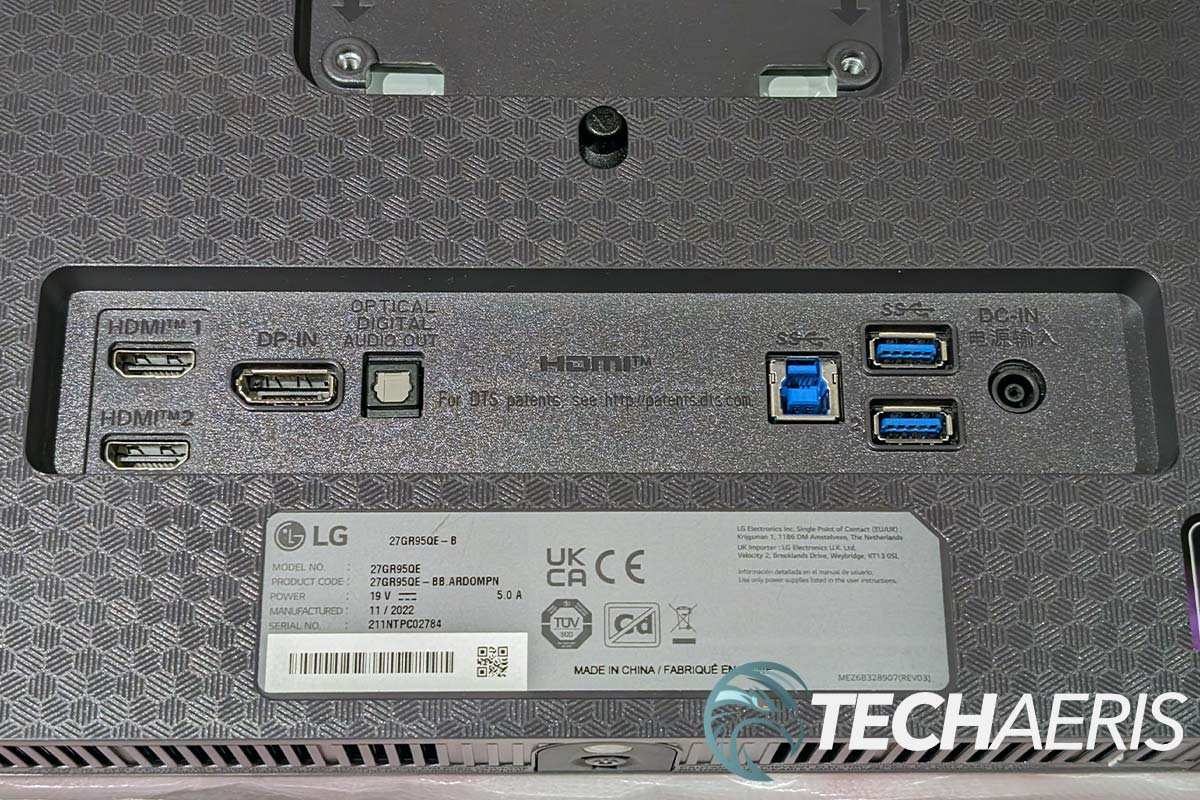
Image source: Bing (Web (fair-use with source credit))
If you only see HDMI, USB-C, and a single DisplayPort input, that confirms no daisy chaining support. USB-C with DisplayPort Alt Mode can sometimes carry a downstream signal, but that depends on the specific implementation.
Verifying Your GPU Supports MST
Most dedicated GPUs from NVIDIA (GTX 900 series and newer) and AMD (RX 400 series and newer) support MST. Intel integrated graphics from the 10th generation onward generally support it too.
To check on Windows:
- Open Device Manager.
- Expand Display adapters.
- Right-click your GPU and select Properties.
- Check the driver details and look for MST support in the NVIDIA Control Panel or AMD Radeon Software.
On macOS, MST support has been historically limited. Apple's DisplayPort implementation on Macs often only supports SST, which means daisy chaining typically doesn't work even if the monitors support it. This is a known limitation that catches a lot of Mac users off guard.
Step-by-Step: Setting Up an OLED Daisy Chain
If you've confirmed your OLED monitor supports MST and you have the right hardware, here's how to get it working.
What You Need Before You Start
Gather these items before you start connecting things:
- Two MST-capable OLED monitors (the first must have DP Out)
- One certified DisplayPort 1.4 cable (DP80 rated) from GPU to Monitor 1
- One certified DisplayPort 1.4 cable from Monitor 1 DP Out to Monitor 2 DP In
- A GPU that supports MST (check your specs)
- Updated GPU drivers installed
Don't cheap out on cables. A non-certified DisplayPort cable is the number one cause of chain failures, flickering, and resolution drops.
The Connection Order That Matters
Connect everything in this specific sequence:
- Turn off both monitors and your PC.
- Connect your GPU's DisplayPort output to the DisplayPort In on Monitor 1.
- Connect Monitor 1's DisplayPort Out to Monitor 2's DisplayPort In.
- Power on Monitor 1 first, then Monitor 2.
- Power on your PC.
The order matters because the MST handshake happens during boot. If Monitor 2 is on before Monitor 1, the chain may not initialize correctly.
Enabling MST in Your Monitor's Settings
Many monitors with MST support ship with it disabled by default. You'll need to dig into the on-screen display (OSD) menu. Look for settings labeled "MST," "DP Out," "Daisy Chain," or "DisplayPort Out" in the System or Input settings.
Enable MST, then check that the DP Out port shows as active. Some monitors display a small indicator or status message when the output is live.
Configuring Displays in Your Operating System
Once the hardware chain is active, your operating system should detect both displays. On Windows, open Settings > System > Display to arrange them. On macOS, as mentioned earlier, MST support is limited, so this step may not work even with compatible hardware.
Set your preferred resolution and refresh rate for each display. Remember that bandwidth is shared, so you may need to lower settings on one or both monitors to maintain stability.
What Happens When You Daisy Chain: Real Limitations
Daisy chaining works, but it comes with tradeoffs that affect your daily experience.
Resolution and Refresh Rate Trade-Offs
The biggest compromise is bandwidth. A single DisplayPort 1.4 connection has finite capacity, and you're splitting it between two displays. If you want 4K at 144Hz on your primary OLED, there's almost nothing left for a second display at the same spec.
Most people end up running their primary panel at full spec and the second at a reduced refresh rate or resolution. For productivity work, that's usually fine. For gaming across both panels, it's a problem.
HDR and Color Depth in a Chain
HDR requires additional bandwidth for the wider color gamut and metadata. Running HDR on both displays in a chain is often impossible without DSC. Even with DSC enabled, some monitors drop from 10-bit to 8-bit color when daisy chained.
If color accuracy is critical for your work, test your specific setup before committing. What looks fine in SDR may fall apart in HDR.
The Two-Monitor Ceiling
Practical daisy chaining tops out at two monitors for most OLED setups. Trying to chain three displays at 4K resolution exceeds DisplayPort 1.4 bandwidth even with DSC. Some professional IPS panels can handle three in a chain at lower resolutions, but OLED panels with their higher refresh rate targets make this unrealistic.
If you need three or more displays, an MST hub or direct GPU connections are a better path.
Common Reasons Daisy Chaining Fails on OLED Monitors
When daisy chaining doesn't work, it's usually one of these issues.
Missing or Disabled MST in Monitor OSD
The most common mistake is assuming the DP Out port is active by default. Many monitors require you to manually enable MST in the on-screen menu. If you haven't toggled that setting, the DP Out port is dead.
Check your monitor's manual for the exact menu path. It's often buried under "System" or "Display" settings.
Cable Quality and Certification Issues
Not all DisplayPort cables are created equal. For MST daisy chaining at 4K, you need DP80-certified cables that support the full 32.4 Gbps bandwidth of DisplayPort 1.4. Older or uncertified cables may work for a single display but fail when asked to carry a split signal.
If you're troubleshooting, swap both cables with known DP80-certified replacements before anything else.
GPU Driver and Firmware Problems
GPU drivers occasionally break MST functionality after updates. If your chain worked before and suddenly doesn't, roll back your driver to the previous version. Check the GPU manufacturer's release notes for known MST issues.
Monitor firmware can also cause problems. Some OLED monitors received firmware updates specifically to fix MST bugs. Check the manufacturer's support page for your model.
HDCP Handshake Failures
Protected content like streaming services requires HDCP authentication through the entire chain. If one monitor in the chain doesn't properly pass HDCP handshakes, you'll get a black screen or error when trying to play protected content.
This is particularly annoying because the chain works fine for desktop use but fails the moment you open a streaming app. There's no easy fix beyond ensuring both monitors have up-to-date firmware and using certified cables.
Alternatives When Your OLED Monitor Won't Daisy Chain
If your OLED monitor lacks MST support, you still have options for a clean multi-display setup.
Using an MST Hub Instead
An external MST hub splits the DisplayPort signal outside the monitor. You connect one cable from your GPU to the hub, then separate cables from the hub to each monitor. It's not as elegant as true daisy chaining, but it achieves the same single-cable-to-PC result.
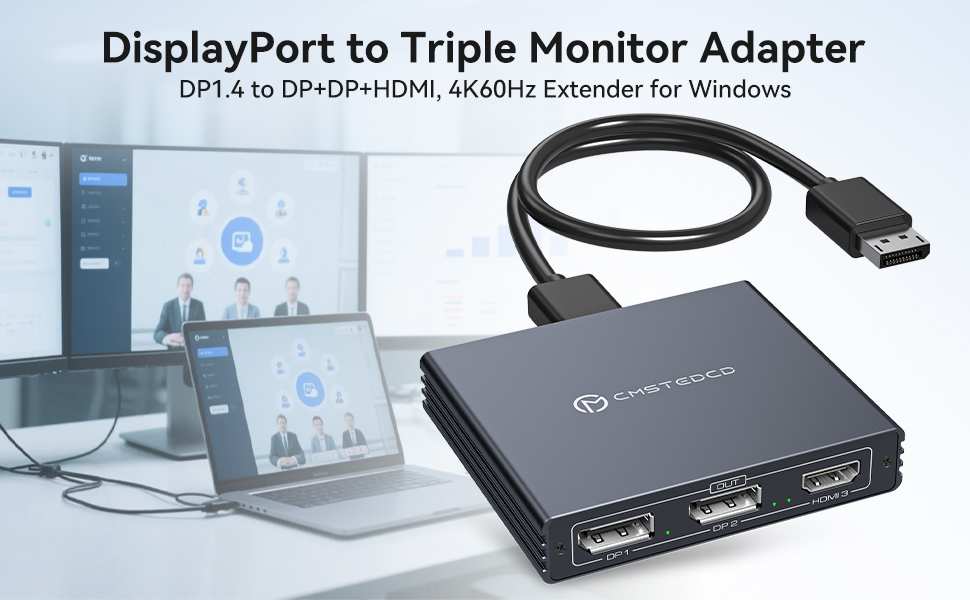
Image source: Bing (Web (fair-use with source credit))
Look for hubs that explicitly support your target resolution and refresh rate. Cheap hubs often cap out at 4K 30Hz, which is unusable for most people.
Direct Multi-Port GPU Connections
The simplest approach is running separate cables from your GPU to each monitor. Most modern GPUs have three or four display outputs. This gives each monitor full bandwidth with no compromises.
The downside is cable management. You're running two or more cables from your PC to your desk instead of one. For some setups that's a dealbreaker, for others it's a non-issue.
USB-C Docking Station Approach
If your OLED monitor supports USB-C with DisplayPort Alt Mode and power delivery, a USB-C docking station can give you a single-cable connection for video, data, and power. This works best with laptops but can work with desktops that have USB-C output.
Not all USB-C docks support dual displays, so check the specs carefully. You need a dock with either dual DisplayPort/HDMI outputs or MST built in.
Thunderbolt Daisy Chaining (If Available)
Some high-end OLED monitors with Thunderbolt 4 ports support Thunderbolt daisy chaining. This is separate from DisplayPort MST and requires Thunderbolt support on both the GPU and monitors.
Thunderbolt chaining tends to be more reliable than DisplayPort MST because the protocol was designed with chaining in mind. But the hardware requirements are stricter, and the cable costs are higher.
Who Should Bother With Daisy Chaining OLED Monitors
Daisy chaining makes sense for a specific type of user. If you're a productivity-focused professional who wants a clean desk with minimal cabling, and you've confirmed your OLED monitors support MST, it's worth setting up. The single-cable-to-PC convenience is real.
If you're a gamer wanting dual OLED panels for an immersive setup, daisy chaining is probably not your best move. The bandwidth compromises will force you to lower refresh rates or resolution, which defeats the purpose of buying high-end OLED panels in the first place. Direct GPU connections give you full performance on both displays.
For most people, the honest recommendation is to skip daisy chaining with OLED monitors unless you specifically bought models that support it. The hassle of troubleshooting chain issues often outweighs the cable management benefit.
Quick Decision Guide: Should You Daisy Chain Your OLED Setup?
Use this to figure out your best path:
- Your OLED monitor has a DP Out port and MST support: Daisy chain if you want a cleaner setup and can accept potential bandwidth limits.
- Your OLED monitor has no DP Out port: You cannot daisy chain. Use an MST hub or direct GPU connections instead.
- You need maximum refresh rate on both displays: Skip daisy chaining. Run separate cables from your GPU.
- You're on a Mac: Don't bother with DisplayPort MST daisy chaining. macOS support is too unreliable.
- You want three or more displays: Use an MST hub or direct connections. Daisy chaining won't scale.
Frequently Asked Questions
Can you daisy chain two OLED monitors with HDMI?
No. HDMI does not support MST daisy chaining. You need DisplayPort 1.2 or higher, or Thunderbolt, for daisy chaining to work.
HDMI connections are point-to-point only.
Does USB-C allow daisy chaining on OLED monitors?
Sometimes. If the USB-C port supports DisplayPort Alt Mode with MST, it can carry a downstream signal. This depends entirely on the specific monitor implementation.
Check the manufacturer's specs for USB-C daisy chain support.
Why does my second OLED monitor show no signal in the chain?
The most common causes are disabled MST in the monitor OSD, a non-certified DisplayPort cable, or a GPU driver issue. Enable MST in the first monitor's settings, swap to DP80-certified cables, and update your GPU drivers.
Can I mix OLED and IPS monitors in a daisy chain?
Yes, as long as the first monitor in the chain has MST support and a DP Out port. The technology is panel-agnostic. Just remember that bandwidth is shared, so the combined resolution and refresh rate of both displays must fit within the DisplayPort connection's limits.
Does daisy chaining add input lag?
The added latency from MST processing is negligible, typically under a millisecond. You won't notice it in practice. The bigger concern is bandwidth limitations forcing you to lower refresh rates, which does affect responsiveness.

Similar Posts