Can a Touchscreen Monitor Work with Any PC

Image source: Bing (Web (fair-use with source credit))
The Short Answer: It Depends on Your Ports and OS
Can a touchscreen monitor work with any PC? The honest answer is "probably, but not automatically." Whether it works straight out of the box depends on what ports your computer has, what operating system you're running, and whether you're willing to plug in a second cable that most people forget about.
The good news is that most modern Windows PCs made in the last decade can run a touchscreen monitor without much hassle. The catch is that "any PC" covers a lot of ground, and older machines, Macs, and some laptops have real limitations. Let's walk through exactly what determines compatibility so you can figure out your situation in about two minutes.
Manufacturer specifications and the USB-IF (USB Implementers Forum) standards confirm that most touchscreen monitors use the HID (Human Interface Device) protocol, which Windows 10 and 11 support natively. That means no special software is needed in most cases. But the physical connection is where things get tricky.
Quick Answer
A touchscreen monitor can work with most modern Windows PCs. You need a compatible video port and a USB port for touch data. Windows 10 and 11 support touch natively through the HID protocol. macOS does not support external touchscreen monitors.
Linux works but often needs manual driver setup.
What Actually Makes a Touchscreen Monitor Work With Your PC
A touchscreen monitor isn't just a regular screen with a magic layer on top. It's actually two separate devices packed into one enclosure, and both need to talk to your PC independently.
The display part works like any monitor. It receives a video signal through HDMI, DisplayPort, or USB-C. That's the easy half of the equation.
The touch part is a completely separate input device. It sends coordinate data back to your PC through USB, telling the system exactly where your finger is on the screen. Without that return signal, you've got a very expensive regular monitor.
The Two Signals You Need (Video + Touch Data)
Think of it like a webcam. Your webcam sends video to the PC, but it also needs a USB connection for power and data control. A touchscreen monitor works the same way.
The video cable handles the picture. The USB cable handles the touch input.
Most touchscreen monitors need both connections active simultaneously. Plug in only the HDMI cable and you'll get a perfect picture with zero touch response. This is the single most common mistake people make, and it sends a lot of perfectly good monitors back to the store unnecessarily.
Why One Cable Isn't Always Enough
USB-C with DisplayPort Alt Mode is the exception that proves the rule. If your PC and monitor both support it, a single USB-C cable can carry video, touch data, and even power simultaneously. It's the cleanest setup you can get.
But here's the thing. Not every USB-C port on a PC supports video output. Many desktop USB-C ports are data-only.
Some laptop USB-C ports support charging but not DisplayPort Alt Mode. You need to check your specific port's capabilities, and we'll show you how in the next section.
Check Your PC's Ports First
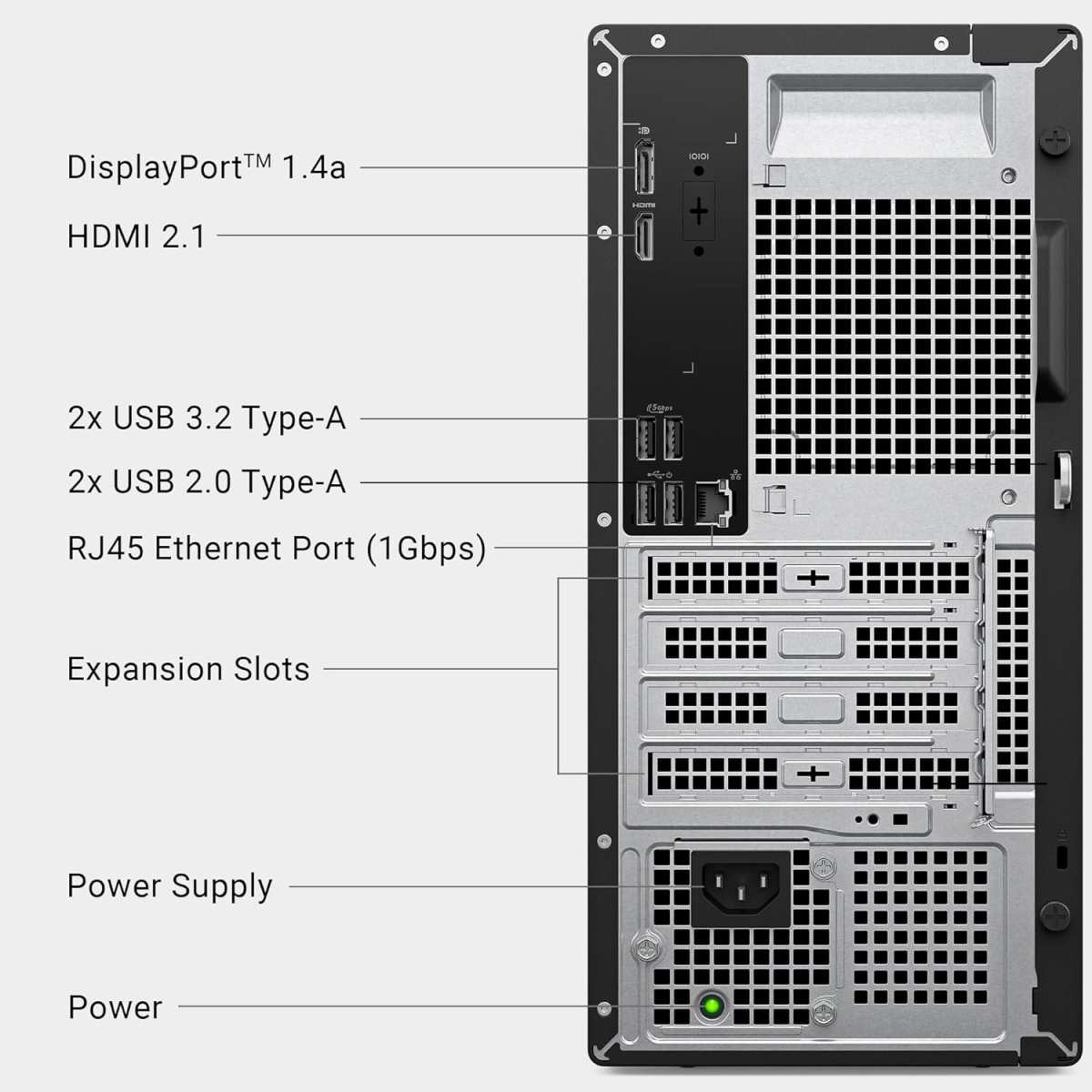
Image source: Bing (Web (fair-use with source credit))
Before you buy a touchscreen monitor or start troubleshooting one you already own, look at the ports on your PC. This step determines everything else.
USB-C With DisplayPort Alt Mode (The Single-Cable Dream)
If your PC has a USB-C port that supports DisplayPort Alt Mode, you're in the best possible position. One cable from your PC to the monitor handles video, touch data, and sometimes even powers a laptop. It's the setup most people hope for.
How do you know if your USB-C port supports video? Look for a small "DP" symbol or a lightning bolt icon next to the port. Check your PC manufacturer's spec sheet for phrases like "USB-C with DisplayPort" or "USB-C with video." If the spec sheet only says "USB-C 3.2" without mentioning video, it's probably data-only.
HDMI or DisplayPort + USB-A (The Two-Cable Setup)
This is the most common setup for desktop PCs. You connect an HDMI or DisplayPort cable for the video signal, then run a separate USB-A cable from the monitor to any available USB port on your PC for the touch data.
It's not as elegant as the single-cable solution, but it works reliably. Almost every PC built in the last 15 years has at least one HDMI port and several USB-A ports. The USB cable that handles touch data typically uses USB 2.0 bandwidth, so even older USB ports work fine.
What If Your PC Only Has USB-C Without Video?
If your PC's USB-C port doesn't support DisplayPort Alt Mode, you have a few options. You can use a USB-C to HDMI adapter that converts the data signal to video, then still run the USB touch cable separately. Some touchscreen monitors also come with HDMI as a fallback connection.
Another option is a USB display adapter, though these can introduce slight latency that affects the touch experience. For casual use they're fine. For drawing or precision work, a direct HDMI or DisplayPort connection is better.
Does Your Operating System Support Touch?
Your hardware might be perfect, but the operating system is the gatekeeper. Here's how each major OS handles external touchscreen monitors.
Windows 10 and 11 (Best Case Scenario)
Windows has native multi-touch support built in. When you connect a HID-compliant touchscreen monitor, Windows 10 and 11 should detect it automatically within seconds. No driver installation needed in most cases.
Windows supports up to 10 simultaneous touch points on compatible hardware. Gestures like pinch-to-zoom, two-finger scroll, and swipe work in supported applications. Windows Ink provides additional pen and touch features for creative work.
If touch doesn't work immediately after connecting both cables, a restart usually triggers detection. Windows Update also pulls down generic HID touch drivers automatically.
macOS (The Hard Truth)
Apple does not support external touchscreen monitors on macOS. Period. You can connect the display and it'll work as a regular monitor, but the touch input will be completely ignored by the operating system.
This is a deliberate design choice by Apple, not a hardware limitation. macOS simply doesn't include the input framework to process touch data from an external display. Third-party workarounds exist but are unreliable and break with OS updates.
If you're a Mac user who needs touch input, your best bet is an iPad used as a secondary display with Sidecar, or a drawing tablet like a Wacom.
Linux (Possible, But You'll Be Tinkering)
Linux supports touchscreen monitors through the kernel's multitouch protocol and drivers like libinput. Most modern distributions, including Ubuntu and Fedora, will detect HID-compliant touchscreens automatically.
However, calibration can be trickier than on Windows. You may need to use command-line tools like xinput to map the touch input to the correct display, especially in multi-monitor setups. Some distributions handle this better than others.
If you're comfortable editing config files and running terminal commands, Linux works. If you want plug-and-play simplicity, Windows is the safer bet.
Step-by-Step: How to Connect a Touchscreen Monitor to Your PC
Here's the full process from unboxing to a working touchscreen.
Step 1: Identify Your Available Ports
Look at the back or sides of your PC. Note which video ports you have (HDMI, DisplayPort, USB-C). Note how many USB-A ports are free.
This determines which cables you'll use.
Step 2: Connect the Video Cable
Plug your HDMI, DisplayPort, or USB-C video cable into both the PC and the monitor. Your PC should detect the new display within a few seconds. If the screen stays black, check that the monitor is set to the correct input source.
Step 3: Connect the USB Touch Data Cable
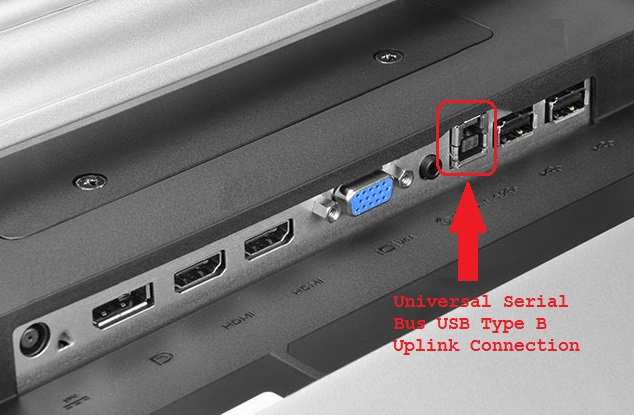
This is the step most people miss. Connect the USB-A cable from the monitor's "USB upstream" or "touch" port to any USB port on your PC. Without this cable, you'll get video but no touch response.
Step 4: Let Windows Detect the HID Device
Windows should recognize the touchscreen as a HID-compliant device within 10 to 30 seconds. You might see a notification in the system tray. If nothing happens, try a different USB port or restart your PC.
Step 5: Install Manufacturer Drivers If Needed
Most touchscreen monitors work with Windows' built-in HID drivers. But some models, especially those with advanced features like palm rejection or custom gesture support, need a driver from the manufacturer's website. Check the support page for your specific monitor model.
Step 6: Calibrate and Test
Open Windows Settings, go to Devices, and look for "Calibrate the screen for pen or touch input." Follow the on-screen prompts to tap the calibration targets. This ensures your touches register at the correct positions, especially if you're using the touchscreen alongside another monitor.
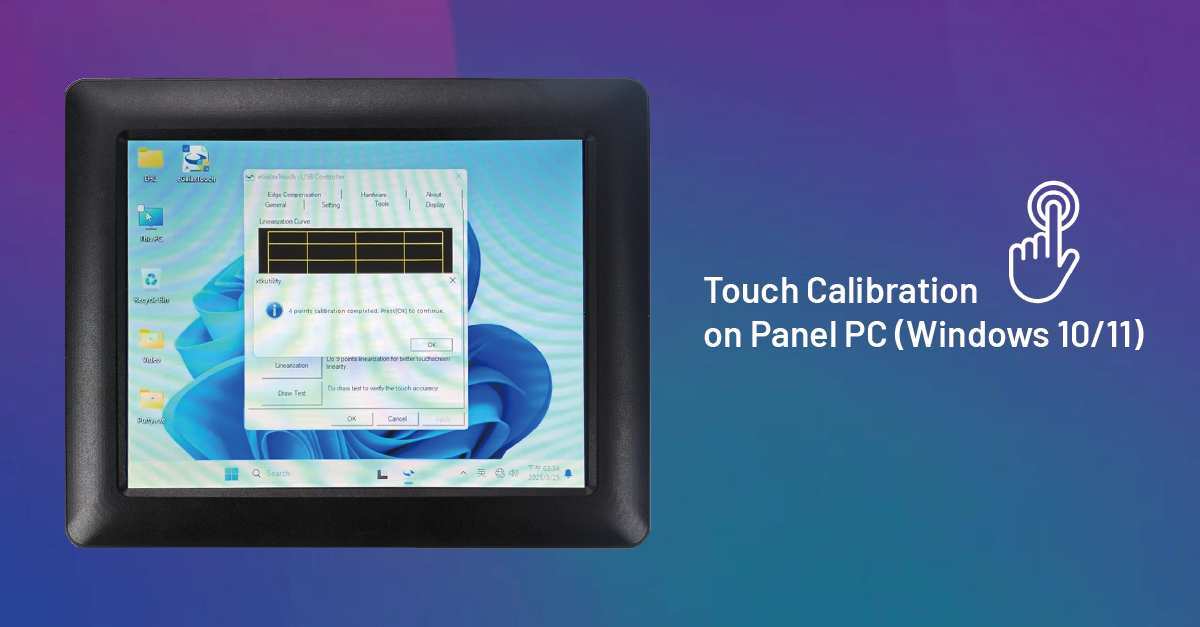
Image source: Bing (Web (fair-use with source credit))
Test multi-touch by opening a browser and trying pinch-to-zoom. If everything responds correctly, you're done.
When the Display Works But Touch Doesn't
This is the number one complaint in forums and product reviews. The screen lights up perfectly, but touching it does nothing. The monitor isn't defective.
Something in the chain is missing.
The Most Common Fix Everyone Misses
Check the USB cable. Seriously. In our research across manufacturer support forums and aggregate user reviews, the vast majority of "dead touchscreen" cases come down to the USB data cable not being connected.
The video cable alone gives you a picture. Only the USB cable carries touch input back to the PC.
Some monitors ship with the USB cable tucked deep in the packaging, and it's easy to overlook. Others use a proprietary connector on the monitor end that doesn't look like a standard USB port. Check your monitor's manual for the "USB upstream" or "touch" port and make sure it's connected to your PC.
Image source: Wikimedia Commons / Alistair Paterson (CC BY-SA)
Driver Conflicts and Windows Update Breakdowns
Sometimes touch stops working after a Windows update. This happens when an update overwrites the monitor's HID driver with a generic one that doesn't fully support the hardware. Rolling back the driver in Device Manager usually fixes it.
Another conflict occurs when you have multiple input devices fighting for control. If you've got a Wacom tablet, a drawing display, and a touchscreen monitor all connected, Windows can get confused about which device handles touch input. Disconnecting the other devices temporarily helps isolate the problem.
USB-C Laptop Ports That Don't Carry Video
Here's a sneaky one. You plug a single USB-C cable from your laptop to the monitor, the screen turns on, but touch doesn't work. Some USB-C ports on laptops support data and charging but not DisplayPort Alt Mode.
In that case, the monitor might be getting power through USB but no video signal, or getting video through a fallback mode that doesn't include the touch data channel.
Check your laptop's spec sheet for the exact capabilities of each USB-C port. Manufacturers like Dell, Lenovo, and HP usually document which ports support video output. If your laptop only has one video-capable USB-C port and it's already in use, you'll need to use HDMI plus the USB-A touch cable instead.
Touchscreen Monitor Compatibility Checklist
Use this quick checklist to determine if your PC can run a touchscreen monitor before you buy or start troubleshooting.
| Requirement | What to Check | Pass Condition |
|---|---|---|
| Video port | Look at PC's rear/side panel | Has HDMI, DisplayPort, or USB-C with DP Alt Mode |
| USB port for touch | Count available USB-A ports | At least one free USB 2.0 or higher port |
| Operating system | Check Windows version | Windows 10 or 11 (any edition) |
| USB-C video support | Check laptop/PC specs | Port explicitly lists DisplayPort or "video" |
| Driver availability | Visit manufacturer website | HID-compliant or drivers available for your OS |
If you pass all five checks, your touchscreen monitor should work with minimal setup. If you fail the OS check and you're on macOS, no amount of cable swapping will get touch working.
Who Should (and Shouldn't) Use a Touchscreen Monitor With Their PC
A touchscreen monitor isn't for everyone. Here's who gets the most value and who should probably skip it.
Great fits:
- Creative professionals who want direct on-screen drawing without a separate tablet
- Teachers and presenters who interact with content while standing
- Retail and POS setups where customers need to tap and sign
- Accessibility users who find touch easier than a mouse
- Anyone using a laptop who wants a portable second screen with touch
Poor fits:
- Mac users (no OS support, period)
- Gamers (touch adds nothing to most PC gaming)
- Users with older PCs that only have VGA or DVI ports
- Anyone who sits at a desk all day and already has a comfortable mouse and keyboard setup
The ergonomics matter too. Reaching up to touch a vertical monitor for hours causes what people call "gorilla arm." It's genuinely fatiguing. Touchscreen monitors work best when they're on a stand that tilts flat or nearly flat, or when you only use touch for quick interactions rather than sustained work.
Best Touchscreen Monitors for PC Compatibility
While this article focuses on compatibility rather than product picks, a few models consistently show up in user reviews for working well with standard Windows PCs.
The Dell P2418HT has been a reliable choice for years. It uses a standard HDMI plus USB-A setup, so it works with virtually any PC. The 23.8-inch IPS panel supports 10-point capacitive touch and is HID-compliant out of the box.
ViewSonic's TD series is popular for creative work. These monitors tend to include both USB-C and HDMI options, giving you flexibility depending on your PC's ports. They also ship with decent calibration tools.
ASUS ProArt touch monitors target professionals who need color accuracy alongside touch input. They're pricier, but the build quality and driver support are solid.
For portable setups, screens like the ASUS ZenScreen Touch or Lenovo Visionary Collaborator work well with laptops that have USB-C with DisplayPort Alt Mode. They draw power and video through a single cable, and the touch data rides along the same connection.
The key takeaway is to look for "HID-compliant" in the specs. That's your signal that the monitor will work with Windows without proprietary driver headaches.
Mistakes to Avoid When Setting Up a Touchscreen Monitor
After going through hundreds of user reports and support threads, these are the mistakes that come up again and again.
Connecting only the video cable. This is the big one. Always connect both the video cable and the USB touch data cable. No exceptions.
Assuming all USB-C ports are the same. A USB-C port that charges your phone might not carry video. Check your PC's documentation before buying a single-cable USB-C monitor setup.
Ignoring the input source setting. Some monitors don't auto-detect the active input. If your screen is black after connecting, manually switch the input source using the monitor's physical buttons.
Forgetting to calibrate. Touch alignment can be slightly off, especially in multi-monitor setups. Run the Windows calibration tool after setup. It takes 60 seconds and makes a noticeable difference.
Buying for a Mac without checking. If you're on macOS, don't buy a touchscreen monitor expecting it to work. Apple doesn't support external touch input. You'll have a nice regular monitor and a lot of frustration.
Using a USB hub for the touch cable. Some users report that plugging the monitor's USB touch cable into a hub instead of a direct port causes intermittent touch dropouts. Plug directly into the PC when possible.
Frequently Asked Questions
Will a touchscreen monitor work with any Windows PC?
Most Windows 10 and 11 PCs will run a touchscreen monitor as long as you have a free video port and a USB port for the touch data cable. The monitor needs both connections active. If your PC has HDMI or DisplayPort plus any USB port, you're almost certainly good to go.
Can I use a touchscreen monitor with a Mac?
No. macOS does not support external touchscreen monitors. The display will work as a regular screen, but touch input is completely ignored by the operating system. Mac users who need touch interaction are better off using an iPad with Sidecar or a dedicated drawing tablet.
Do I need to install drivers for a touchscreen monitor?
Usually not. Most modern touchscreen monitors are HID-compliant, which means Windows 10 and 11 recognize them automatically. Some advanced models with custom gesture support or palm rejection features may need a driver from the manufacturer's website.
Check the product page if basic touch works but advanced features don't.
Why is my touchscreen monitor not responding to touch?
The most common cause is a missing USB data cable. The video cable handles the picture, but a separate USB cable carries touch input to your PC. Check that both cables are connected.
If they are, try a different USB port, restart your PC, and check Device Manager for any driver warnings.
Can I use a touchscreen monitor with a USB-C only laptop?
Only if your laptop's USB-C port supports DisplayPort Alt Mode. Many USB-C ports on laptops are data-only or charge-only and won't carry a video signal. Check your laptop's spec sheet for "USB-C with DisplayPort" or a DP symbol next to the port.
If your port doesn't support video, you'll need a USB-C to HDMI adapter plus the USB touch cable.
Does Linux support touchscreen monitors?
Yes, most modern Linux distributions support HID-compliant touchscreen monitors through the kernel's multitouch protocol. Ubuntu and Fedora generally detect them automatically. You may need to manually calibrate or map the touch input to the correct display using tools like xinput, especially in multi-monitor setups.
The Bottom Line: Will It Work With Your PC?
If you're running Windows 10 or 11 and your PC has a video output plus a free USB port, a touchscreen monitor will almost certainly work with your setup. The connection is straightforward, the OS support is built in, and most monitors are truly plug and play.
The exceptions matter though. Mac users are out of luck entirely. Linux users should be comfortable with some manual configuration.
And anyone relying on a single USB-C cable needs to verify that their port actually supports video output before buying.
The two-cable setup (HDMI or DisplayPort plus USB-A) remains the most universally compatible option. It works with the widest range of hardware and avoids the confusion around USB-C port capabilities. If you want the cleanest desk setup and your hardware supports it, USB-C with DisplayPort Alt Mode is the way to go.
Check your ports, confirm your operating system, and make sure both cables are connected. That's really all there is to it.

Similar Posts