How Does a Touchscreen Monitor Work

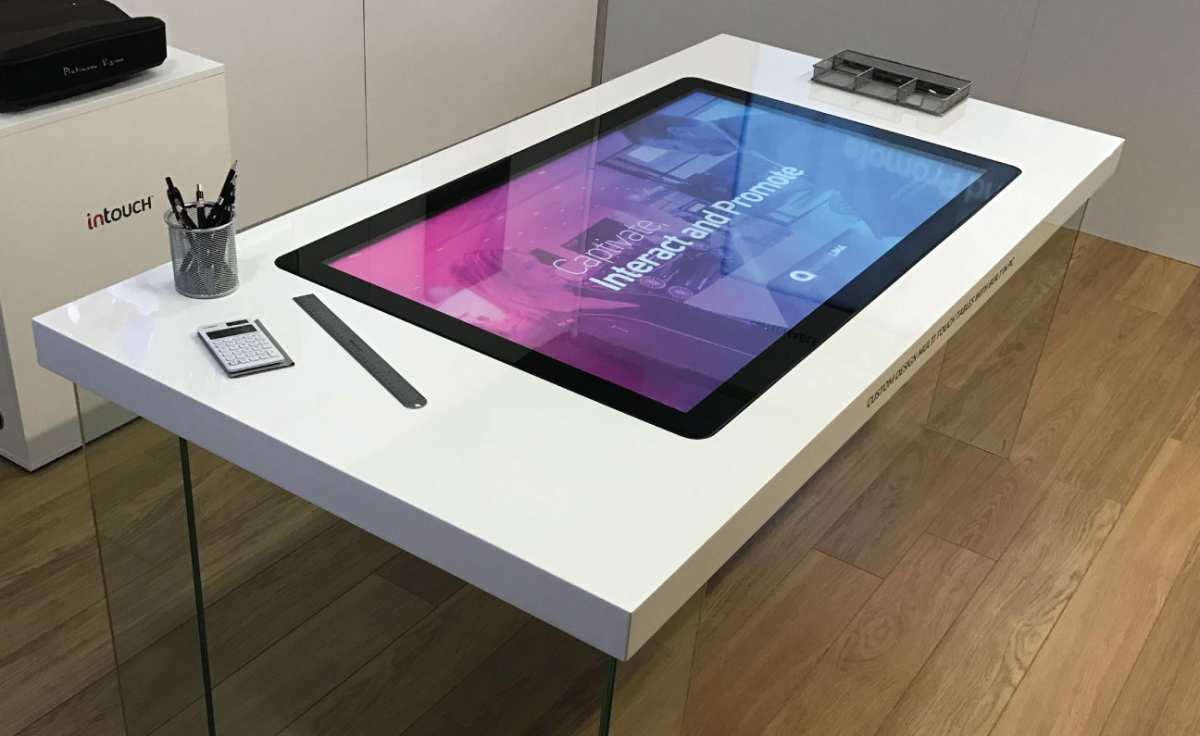
If you've ever wondered how does a touchscreen monitor work, you've probably read an explanation that left you more confused than when you started. Most descriptions jump straight into "capacitive sensing" or "resistive layers" without showing you what's actually sitting inside the screen you're touching. That's a problem, because this topic is fundamentally visual.
You need to see the stack of layers, understand where the sensors sit relative to the display, and picture how a finger on the outside translates to a pixel-perfect coordinate on the inside.
The reason text-only explanations fall short is that a touchscreen monitor isn't one thing. It's a laminated assembly of at least three distinct functional layers, each doing a separate job, bonded together so precisely that the gap between them is measured in microns. Per SID (Society for Information Display) technical papers, the optical bonding layer alone can be as thin as 25 to 75 micrometers.
That's thinner than a sheet of paper. Once you can picture that stack, everything else, from why your finger works but your glove doesn't, to why some screens look hazier than others, starts making sense.
Image source: Bing (Web (fair-use with source credit))
Quick Answer
A touchscreen monitor works by sandwiching a transparent touch sensor layer between the display panel and the cover glass. When you touch the glass, the sensor detects the contact point and sends coordinates to a controller chip. That chip translates the raw signal into a digital input your operating system recognizes as a tap, swipe, or gesture.
The whole chain, from finger to cursor, happens in under 20 milliseconds on most modern screens.
The Physical Stack: What's Inside a Touchscreen Monitor
Think of a touchscreen monitor like a club sandwich where every layer has a job. From the outside in, you've got the cover glass, the touch sensor, the bonding adhesive, and the display panel itself. Each layer is optically transparent, or at least it needs to be, because light from the display has to pass through all of them to reach your eyes.
Here's what a typical stack looks like, top to bottom:
| Layer | Material / Technology | Primary Function |
|---|---|---|
| Cover glass | Chemically strengthened glass (e.g., aluminosilicate) with oleophobic coating | Protects internal layers, provides smooth touch surface |
| Touch sensor | ITO (indium tin oxide) grid on PET film or glass, or metal mesh | Detects touch location via capacitance, resistance, or IR |
| Bonding layer | OCA (optically clear adhesive) or OCR (optically clear resin) | Laminates sensor to display, eliminates air gap |
| Display panel | LCD with LED backlight, or OLED | Produces the image you see |
The order matters. If the touch sensor sits too far from the surface, you get parallax, meaning the point you touch doesn't line up with what you see underneath. That's the number one complaint with cheap aftermarket touch overlays, and it's exactly what proper lamination solves.
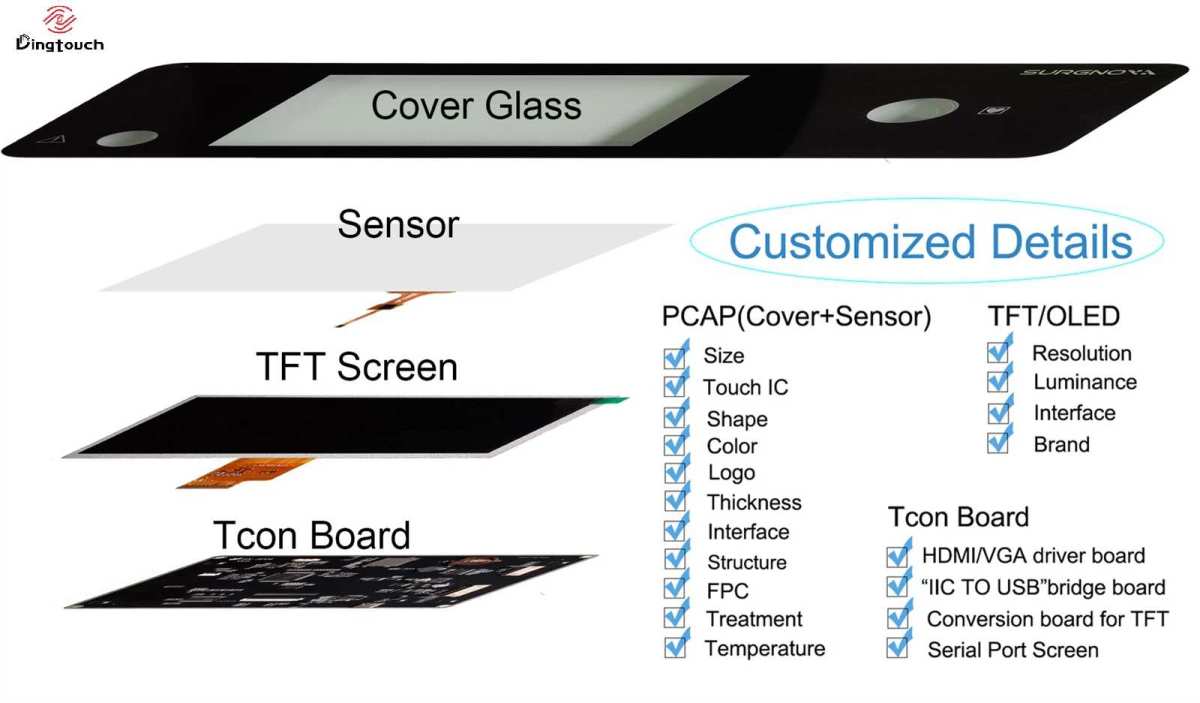
Image source: Bing (Web (fair-use with source credit))
The Display Layer
The display panel at the bottom of the stack is a standard LCD or OLED panel, no different from what you'd find in a non-touch monitor. It's producing the image. In an LCD setup, you've got the backlight unit, diffuser sheets, prism films, liquid crystal layer, color filter, and polarizers.
OLED panels skip the backlight entirely since each pixel emits its own light. Either way, this layer has nothing to do with touch. It's just showing pixels.
What matters for touch integration is the panel's thickness and its surface flatness. Factory-integrated touchscreens use panels specifically designed to be laminated, with tighter tolerances on the top polarizer or encapsulation layer. Aftermarket touch overlays, on the other hand, just sit on top of whatever display you've already got.
The Touch Sensor Layer
This is where the magic happens. The touch sensor is a grid of transparent conductive traces, usually made from indium tin oxide (ITO) deposited on a thin glass or PET (polyethylene terephthalate) substrate. ITO is used because it's both electrically conductive and optically transparent, transmitting roughly 85 to 92 percent of visible light depending on the sheet resistance.
In a projected capacitive (PCAP) design, the grid forms a matrix of electrodes. The controller chip sends a signal down one set of lines (the drive lines) and reads the response on the other set (the sense lines). Where your finger touches, it changes the local capacitance at that intersection.
The chip detects the change and calculates the X-Y coordinate.
The sensor can be built in a few different configurations:
- Film-film (FF): Two separate PET films, one with horizontal traces and one with vertical traces, laminated together. Common in cost-sensitive designs.
- Glass-film (GF): One layer of traces on glass, one on film. Better optical clarity than FF.
- Glass-glass (GG): Traces on two glass substrates. More durable and optically superior, but thicker and heavier.
- On-cell / In-cell: Touch sensors integrated directly into the display panel during manufacturing. Found in smartphones and some high-end monitors. Thinnest possible stack.
The Cover Glass
The outermost layer is the cover glass, and it's doing more than just protecting what's underneath. In PCAP touchscreens, your finger never actually touches the sensor. It touches the cover glass, and the capacitive coupling happens through it.
That means the glass thickness directly affects sensitivity.
Most touchscreen monitors use cover glass between 1mm and 4mm thick. Industrial and outdoor units may go up to 7mm for impact resistance, but thicker glass requires a more sensitive controller and stronger signal processing. The glass is typically chemically strengthened through an ion exchange process, similar to what smartphone manufacturers use, giving it a surface hardness around 7H to 9H on the pencil hardness scale.
You'll also find coatings on the cover glass. An oleophobic coating repels fingerprints. An anti-glare (AG) etching diffuses reflections but slightly softens image clarity.
An anti-reflective (AR) coating reduces glare while preserving sharpness, though it's more expensive.
How the Layers Get Bonded Together
The bonding method is one of the biggest differentiators in touchscreen monitor quality, and it's the thing most generic explanations skip entirely.
Optical bonding uses a liquid or sheet adhesive (OCA or OCR) to laminate the touch sensor directly to the display panel with no air gap between them. This eliminates internal reflections, improves contrast, reduces parallax, and makes the assembly more durable. Per manufacturer specifications from companies like Elo Touch Solutions, optically bonded displays can improve sunlight readability by up to 40 percent compared to air-gap designs.
Air-gap bonding leaves a small pocket of air between the touch sensor and the display. It's cheaper to manufacture and easier to repair, but you pay for it with reduced clarity, more reflections, and visible parallax. The gap also means dust and moisture can get trapped inside over time.
LOCA (liquid optically clear adhesive) and OCA (optically clear adhesive sheet) are the two main adhesive types. LOCA is applied as a liquid and cured with UV light, allowing it to conform to slightly uneven surfaces. OCA comes as a pre-cut sheet and requires a clean-room lamination process.
Both achieve similar optical results when done correctly.
How Your Finger Becomes a Cursor: The Signal Chain
Now that you can picture the physical stack, let's walk through what actually happens from the moment your finger touches the glass to the moment your operating system registers a tap. It's a four-stage chain, and each stage has to work correctly or the whole thing falls apart.
Step 1: Touch Detection
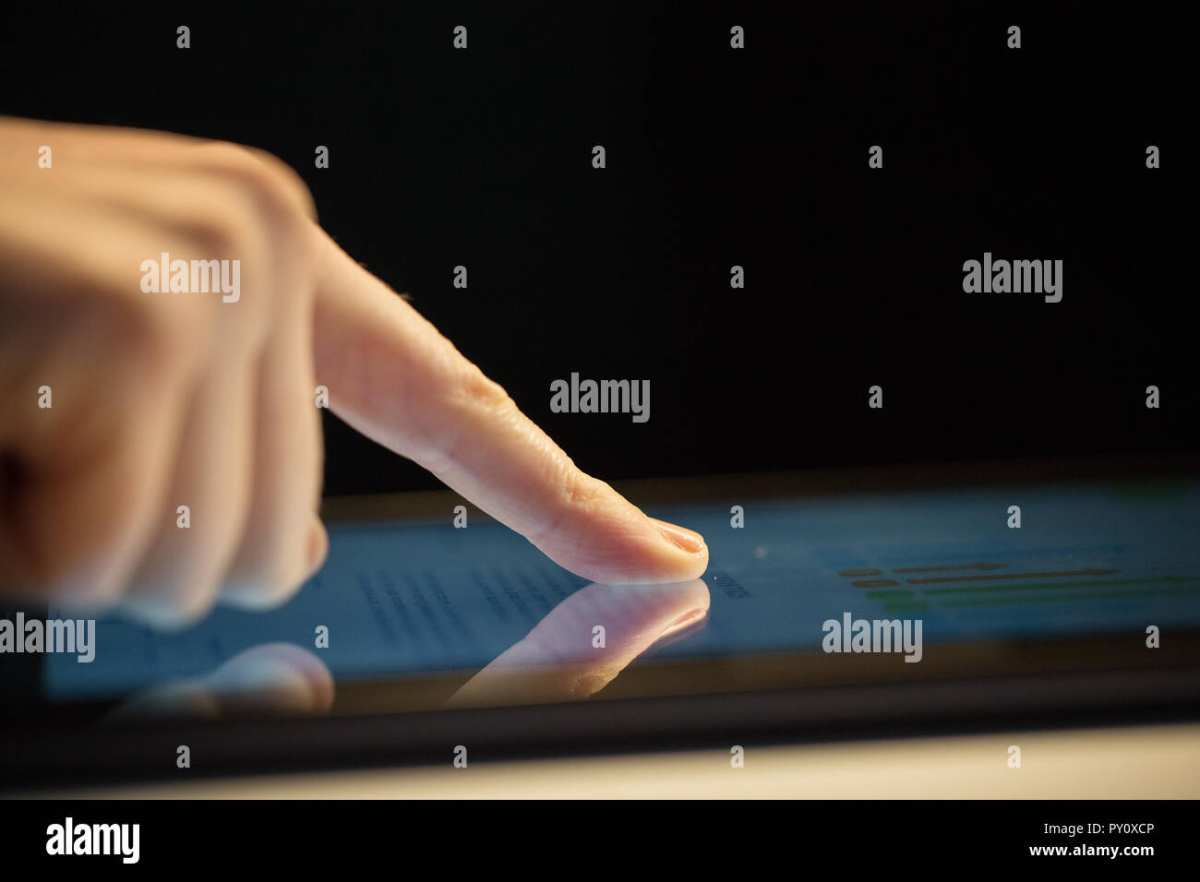
Your finger makes contact with the cover glass. In a PCAP system, your body acts as a conductor. The electric field from the sensor grid couples through the glass and into your finger, changing the capacitance at that specific intersection point.
The controller chip is constantly scanning the grid, typically at rates between 60Hz and 200Hz, looking for these tiny capacitance changes.
The change is small, often in the range of femtofarads (10⁻¹⁵ farads). That's why the controller needs to be extremely sensitive and why electrical noise from the display, power supply, or nearby equipment can cause problems. Good controller designs from manufacturers like Synaptics and Goodix include noise filtering algorithms that distinguish between a real touch and electromagnetic interference.
Step 2: Signal Processing
The raw capacitance data goes through several stages of processing inside the touch controller IC. First, the analog signal is digitized. Then the controller applies baseline tracking, which continuously adjusts for environmental changes like temperature drift and humidity.
Next comes noise filtering, where the chip removes false signals caused by EMI, display noise, or moisture on the surface.
After filtering, the controller identifies touch points by looking for clusters of capacitance change above a threshold. It calculates the centroid of each cluster to determine the precise X-Y coordinate. For multi-touch, it has to do this for multiple simultaneous points and track them across frames so your operating system sees a continuous gesture rather than a series of disconnected taps.
Step 3: Coordinate Mapping
The raw coordinates from the sensor grid don't automatically match your display resolution. The sensor might have a native resolution of 4096×4096, but your display is running at 1920×1080. The controller has to map one coordinate space to another.
This is where calibration comes in. During manufacturing, the touch controller is calibrated so that the sensor's coordinate space aligns precisely with the display's pixel grid. If the calibration drifts, you'll notice that touches register slightly off from where you actually pressed.
Most operating systems include a calibration utility that walks you through tapping specific on-screen targets to realign the mapping.
Step 4: Your Operating System Receives the Input
The touch controller communicates with your computer over a standard interface, almost always USB HID (Human Interface Device). To your operating system, the touchscreen looks like a mouse or digitizer. Windows, macOS, Linux, and Android all have built-in HID touch drivers, which is why most touchscreen monitors work plug-and-play without installing special software.
The OS receives the coordinate data and translates it into input events. A single touch becomes a mouse click or a tap event. Two fingers moving apart become a pinch-to-zoom gesture.
The OS handles the gesture recognition, not the touch controller. The controller just reports raw touch points and let's the OS figure out what they mean.
The total latency through this entire chain, from finger contact to OS event, typically runs between 5ms and 20ms on modern PCAP systems. That's fast enough that it feels instantaneous to most users. Industrial and gaming-focused touchscreens push this lower, with some controllers reporting at 1000Hz for sub-5ms response.
The Main Touchscreen Technologies and How They Differ
Not all touchscreens work the same way. The technology behind the sensor determines everything from what can trigger a touch to how the monitor performs in harsh environments. Here's a breakdown of the four main types you'll encounter in monitors.
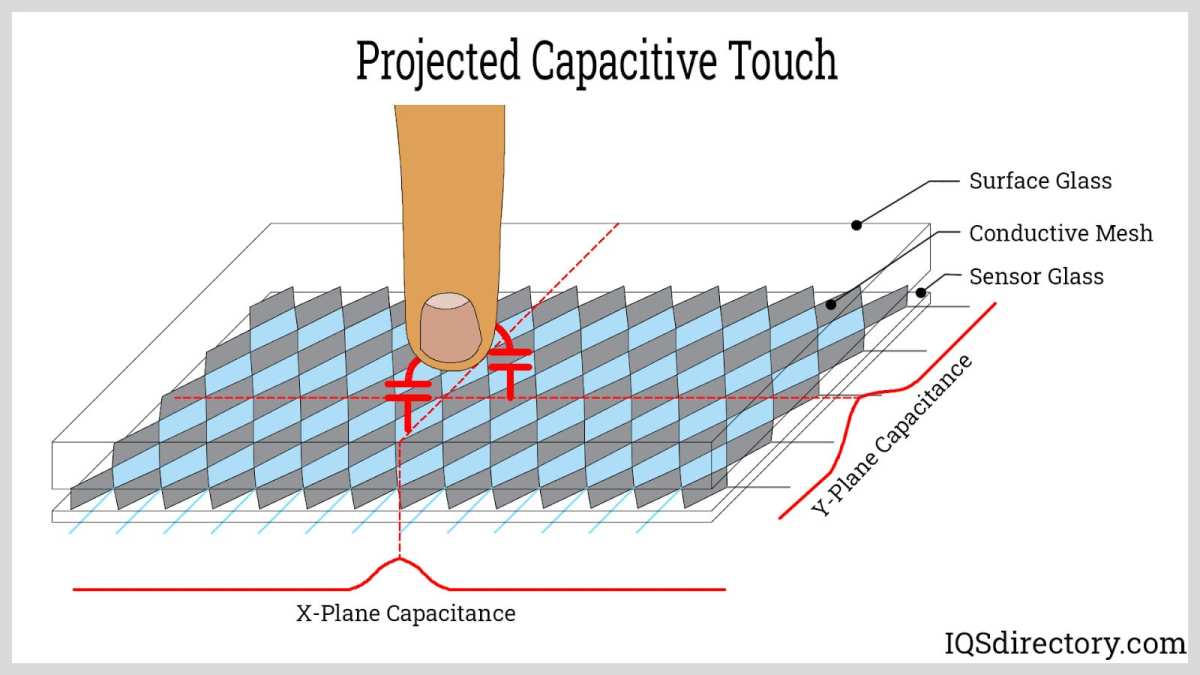
Image source: Bing (Web (fair-use with source credit))
Projected Capacitive (PCAP)
PCAP is the dominant technology in modern touchscreen monitors, and it's what you're using if you've touched any screen built after about 2015. It works by detecting the electrical capacitance of your finger through the cover glass.
How it works: A grid of transparent electrodes creates an electric field that extends through the glass. Your finger disturbs that field at the contact point, and the controller measures the change.
Strengths:
- Excellent optical clarity (no extra layers blocking light)
- Multi-touch support (10 to 40+ simultaneous points)
- Durable glass surface with no moving parts
- Fast response time
- Supports gestures natively
Weaknesses:
- Doesn't work with standard gloves (unless specifically tuned for it)
- Sensitive to water and moisture on the surface
- More expensive than resistive
- Requires a conductive input (finger or special stylus)
PCAP is the default choice for consumer monitors, retail POS systems, medical displays, and most indoor applications. As of 2026, it accounts for the vast majority of touchscreen monitor shipments worldwide.
Resistive Touch
Resistive touchscreens were the standard before PCAP took over, and they're still used in some industrial and legacy applications. They work on a completely different principle.
How it works: Two flexible, electrically conductive layers are separated by tiny spacer dots. When you press the top layer, it makes contact with the bottom layer, creating a voltage divider. The controller measures the voltage to determine the touch position.
Strengths:
- Works with anything: finger, gloved hand, stylus, credit card edge
- Lower cost than PCAP
- Unaffected by water on the surface
- Works through thicker cover materials
Weaknesses:
- Limited to single-touch (or basic two-touch on some designs)
- Lower optical clarity (more layers, more reflections)
- The flexible top layer wears out over time
- Requires physical pressure, which causes fatigue during extended use
- No native gesture support
You'll still find resistive touch in industrial control panels, some medical equipment, and legacy point-of-sale systems. It's a mature technology that does one thing well: register a press from literally anything.
Infrared (IR) Touch
IR touchscreens use a completely different approach. There's no sensor layer on the display at all.
How it works: An array of infrared LEDs and photodetectors is mounted around the bezel of the monitor, creating a grid of invisible light beams across the surface. When your finger interrupts the beams, the controller calculates the touch position from which beams were broken.
Strengths:
- Pure glass surface with no sensor layer (best optical clarity)
- Works with any input object
- Scales to very large sizes (86 inches and beyond)
- No wear on the display surface
Weaknesses:
- Raised bezel required to house the IR sensors (not edge-to-edge)
- Susceptible to false triggers from dirt, debris, or direct sunlight on the sensors
- Parallax can be an issue on thicker cover glass
- Dust and insects can block the beams in outdoor environments
IR touch is popular for large-format interactive displays, digital signage, and outdoor kiosks where size and optical clarity matter more than bezel aesthetics.
Surface Acoustic Wave (SAW)
SAW is the least common of the four, but it has a niche where optical clarity is paramount.
How it works: Ultrasonic waves are transmitted across the surface of the glass by transducers mounted at the edges. A finger touching the glass absorbs part of the acoustic energy at that point, and the controller detects the attenuation to determine position.
Strengths:
- Best optical clarity of any touch technology (pure glass, no coatings or films)
- Excellent durability
- Works with soft-tipped styluses and fingers
Weaknesses:
- Doesn't work well with hard objects (fingernails, pens)
- Extremely sensitive to surface contamination (dirt, water, scratches)
- Limited to smaller screen sizes
- Higher cost than PCAP
SAW is mostly found in specialized applications like high-end gaming displays, certain medical imaging monitors, and some ATMs where image quality can't be compromised.
What Generic Explanations Get Wrong About Touchscreen Monitors
Most articles about touchscreen technology make the same mistakes. They treat the touch sensor as if it's a standalone component, describe the technology types in isolation, or skip the physical construction entirely. Here's what a real expert pays attention to that generic content misses.
The lamination matters as much as the sensor type. A PCAP sensor that's optically bonded to the display will outperform the same sensor in an air-gap configuration in every measurable way: contrast, clarity, parallax, and durability. Yet most explanations never mention bonding at all.
The controller chip is half the story. The sensor grid is just an antenna. The controller IC is what determines accuracy, response time, noise immunity, and multi-touch capability. Two monitors with identical sensor hardware can perform very differently because one uses a better controller with better firmware.
Touch accuracy isn't just about resolution. A controller might report coordinates at 4096×4096, but the actual accuracy, how close the reported point is to where you actually touched, depends on the sensor design, the controller's filtering algorithms, and the calibration. Manufacturer specs typically list accuracy as ±1mm to ±3mm, and that number tells you more than the raw resolution figure.
Parallax is a real-world problem, not a theoretical one. On an air-gap display, the touch plane (top of the cover glass) and the display plane (the LCD surface) are physically separated by several millimeters. At an angle, this creates a visible offset between where you touch and where the pixel is. It's the reason cheap touch overlays feel "off" even when they're technically working correctly.
Environmental factors change everything. A PCAP touchscreen calibrated at room temperature may drift in a cold warehouse or a hot kitchen. Moisture on the surface can cause ghost touches. EMI from nearby motors or power supplies can introduce noise.
Real-world performance depends on the controller's ability to handle these conditions, and that's where industrial-grade monitors justify their higher price.
Visual Cues: How to Identify What Type of Touchscreen You're Looking At
Since this topic is so visual, here's what to look for when you're trying to figure out what kind of touchscreen you're dealing with.
Look at the bezel. If you see a raised frame around the glass with a slight lip, that's a strong indicator of IR touch. The IR emitters and sensors need to sit above the glass surface to create the beam grid. PCAP and resistive monitors typically have a flush or near-flush bezel.
Check for a gap between the glass and the image. Crouch down and look at the screen from a sharp angle. If you can see a visible gap between the glass surface and the pixels underneath, you're looking at an air-gap design. Optically bonded screens look like the image is printed directly on the back of the glass.
Try a gloved finger. Put on a standard cotton or latex glove and touch the screen. If it responds, you've got resistive, IR, or a PCAP system specifically tuned for glove use. If nothing happens, it's almost certainly standard PCAP.
Press lightly versus firmly. Resistive screens require physical pressure. You'll feel the top layer flex slightly before the touch registers. PCAP and IR screens respond to the lightest touch, or in the case of IR, just breaking the beam without any pressure at all.
Look for surface coatings. A matte, slightly textured surface often indicates an anti-glare coating, which is common on industrial and outdoor PCAP displays. A perfectly smooth, glossy surface with no texture could be SAW or a standard PCAP with a polished glass finish.
Common Visual and Physical Mistakes People Make
Even people who work with touchscreen monitors regularly make assumptions based on how things look. Here are the ones that cause the most confusion.
Assuming a thick bezel means old technology. Some modern PCAP monitors have thick bezels for impact protection (IK08 or IK10 rated) or to accommodate sealed gasketing for IP65 enclosures. The bezel thickness alone doesn't tell you the touch technology.
Thinking a hazy screen means a cheap display. Sometimes the haze is intentional. Anti-glare etching diffuses reflections and is standard on outdoor and industrial monitors. It softens the image slightly but dramatically improves usability in bright environments.
Believing all PCAP screens support gloves. Standard PCAP is tuned for bare fingers. Glove support requires a different sensitivity profile in the controller firmware. Some monitors let you toggle between modes, but many don't.
If you need glove compatibility, verify it in the specs rather than assuming.
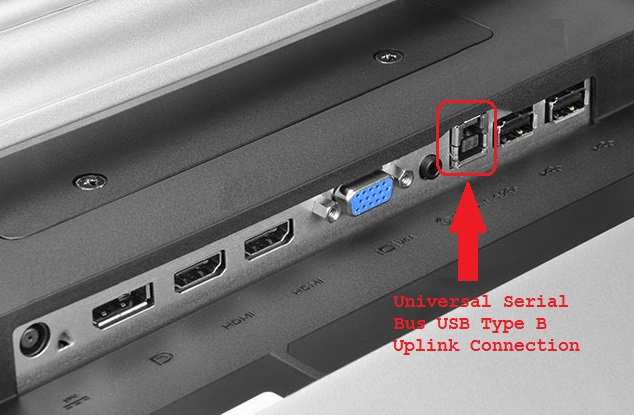
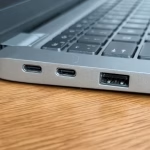
Overlooking the interface cable. Touchscreen monitors have two connections: one for the display signal (HDMI, DisplayPort, or USB-C) and one for the touch data (usually USB-A or USB-B). If the touch isn't working, the display cable might be fine while the touch USB cable is loose or unplugged. It's the most common "broken screen" that isn't actually broken.
Ignoring the operating system's role. The touch controller reports raw coordinates, but the OS handles gesture recognition, palm rejection, and cursor behavior. A monitor that feels sluggish or inaccurate might have a driver issue or an OS setting problem rather than a hardware fault. Always check the software side before assuming the hardware is defective.
Real-World Use Cases: Why the Internal Design Matters
The physical construction of a touchscreen monitor isn't just an academic detail. It directly determines whether the monitor will survive and perform in a given environment.
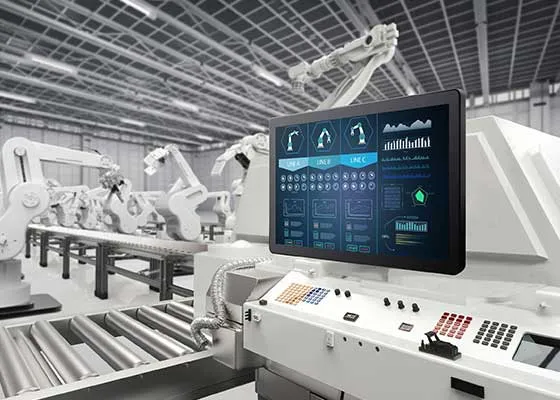
Image source: Bing (Web (fair-use with source credit))
Retail and Point-of-Sale
Retail POS systems need fast, accurate touch with multi-touch gesture support for things like pinch-to-zoom on product images. PCAP with optical bonding is the standard here. The glass surface needs to be easy to clean (think disinfectant wipes every shift) and resistant to fingerprints.
Response time matters because slow touch makes the whole checkout experience feel sluggish.
Most retail touchscreen monitors in 2026 are 15-inch PCAP displays with 10-point multi-touch, USB HID interface, and a VESA mount for attachment to POS stands. Brands like Elo and 3M dominate this space because their controllers handle the electrical noise from nearby receipt printers and barcode scanners without drifting.
Industrial and Medical
Industrial environments introduce challenges that consumer monitors aren't designed for. Electromagnetic interference from motors and drives can swamp a touch controller's signal. Temperature extremes affect both the sensor's baseline capacitance and the adhesive's optical properties.
Dust, oil, and moisture are constant threats.
Industrial touchscreen monitors address this with heavier shielding, wider operating temperature ranges (often -20°C to 70°C), and higher IP ratings on the front panel. Medical displays add requirements for chemical resistance (they need to survive repeated cleaning with harsh disinfectants) and compliance with IEC 60601 standards for electrical safety in clinical environments.
In both cases, optical bonding isn't optional. An air-gap display in a factory or hospital is a reliability problem waiting to happen, because that gap is where moisture condenses, dust settles, and delamination starts.
Creative and Education
Digital artists and educators need something different: pen input accuracy and low latency. Standard PCAP works for finger touch, but drawing requires an active stylus with pressure sensitivity and tilt detection. That's where technologies like EMR (electromagnetic resonance) or USI (Universal Stylus Initiative) come in, often layered on top of or alongside the PCAP sensor.
Education-focused interactive displays tend to be large format, 65 inches and up, and often use IR touch because it scales to those sizes more cost-effectively than PCAP. The trade-off is the raised bezel, which is less of a concern in a classroom than in a retail environment.
Key Specs and Metrics That Actually Tell You Something
When you're comparing touchscreen monitors, most spec sheets are full of marketing fluff. Here are the numbers that actually matter and what they mean in practice.
| Spec | What It Means | What to Look For |
|---|---|---|
| Touch accuracy | How close the reported point is to your actual touch | ±1mm or better for precision work; ±3mm is acceptable for general use |
| Touch reporting rate | How many times per second the controller reports position | 100Hz minimum for smooth tracking; 200Hz+ for drawing or gaming |
| Touch latency | Delay from contact to OS event | Under 20ms for general use; under 10ms for creative work |
| Multi-touch points | Simultaneous touches the controller can track | 10-point minimum for modern gesture support |
| Cover glass hardness | Resistance to scratching | 7H or higher for public-facing or industrial use |
| Optical bonding | Whether the sensor is laminated to the display | Optically bonded for best clarity and durability |
| Operating temperature | Range where the monitor functions correctly | Match to your environment; industrial units go to -20°C to 70°C |
| IP rating | Ingress protection against dust and liquids | IP65 front panel minimum for food service or outdoor use |
One spec that's often misleading is touch resolution. A controller might claim 4096×4096 resolution, but that's the internal coordinate space, not the accuracy. The accuracy spec tells you how close that coordinate is to reality.
A high resolution with poor accuracy just means you're getting a very precise wrong answer.
Troubleshooting Flow: When Touch Stops Working
When a touchscreen monitor stops responding, the problem is rarely the sensor itself. Work through this sequence before assuming hardware failure.
Check the touch USB cable first. Seriously. The display cable and the touch cable are separate, and the touch cable is the one that gets knocked loose. Reseat both ends and try a different USB port.
Restart the monitor and the computer. Power cycling resets the touch controller and clears any firmware glitches. It solves more touch problems than you'd expect.
Check for driver issues. In Windows Device Manager, look under "Human Interface Devices" for the touch controller. If it shows a yellow warning icon, reinstall the driver. Most monitors use the generic HID touch driver, but some industrial units need a specific driver from the manufacturer.
Recalibrate the touch. If touches register in the wrong location, run the OS calibration utility. On Windows, search for "calibrate the screen for pen or touch." On Linux, use xinput_calibrator.
Test in a different environment. If you're in an industrial setting with heavy machinery running, move the monitor to a quiet electrical environment and test again. EMI can cause intermittent touch problems that disappear when the noise source is removed.
Inspect the cover glass. Deep scratches, cracks, or heavy surface contamination can interfere with PCAP sensing. Clean the glass with isopropyl alcohol and a microfiber cloth. If the glass is cracked, the sensor underneath may be damaged too.
Update the controller firmware. Some touch controllers, especially from Synaptics and Goodix, receive firmware updates that fix bugs and improve noise immunity. Check the manufacturer's support page for your specific model.
If none of these steps work, the controller IC or sensor grid may have failed. At that point, replacement is usually more cost-effective than repair, unless it's a high-end industrial monitor where the replacement cost justifies a service call.
Expert Tips for Evaluating Touchscreen Monitors
After looking at hundreds of touchscreen monitors across different applications, here's what actually separates a good one from a headache.
Always ask about the controller chip. The sensor gets all the attention, but the controller determines real-world performance. A monitor using a Synaptics or Goodix controller with mature firmware will outperform a no-name sensor with a generic controller every time. Manufacturers don't always advertise the controller, but it's worth asking.
Demand optical bonding for any permanent installation. Air-gap displays are fine for temporary setups or budget-constrained projects, but they're a compromise you'll notice every day. The improved clarity, reduced parallax, and better durability of optical bonding are worth the price premium.
Test with your actual use case before committing. If you need glove compatibility, bring gloves to the demo. If you're in a bright environment, test under similar lighting. If you're using a specific stylus, verify it works with that exact monitor.
Specs on paper don't always translate to real-world performance.
Check the warranty terms for the touch function specifically. Some manufacturers warranty the display panel for three years but only cover the touch function for one year. That's a red flag. The touch system should be as reliable as the display itself.
Consider the total cable management. A touchscreen monitor has at least two cables running to it. If you're mounting it on a wall or arm, plan for both the display cable and the touch USB cable. Some monitors route the touch signal through USB-C alongside the display signal, which simplifies installation significantly.
Frequently Asked Questions
Can a touchscreen monitor work with any operating system?
Yes, in most cases. Touchscreen monitors use the USB HID protocol, which is natively supported by Windows, macOS, Linux, Android, and ChromeOS. You plug in the USB touch cable and it works without additional drivers.
Some advanced features, like custom gesture mapping or multi-monitor touch assignment, may require manufacturer-specific software that's only available for Windows.
Why doesn't my touchscreen work when I wear gloves?
Standard projected capacitive touchscreens detect the electrical conductivity of your bare finger. Most gloves are insulating, so the sensor can't detect your touch through them. Some monitors have a "glove mode" that increases sensitivity to work with thin gloves, but thick winter gloves usually won't work on any PCAP screen.
If you need reliable glove compatibility, look for resistive or IR touch instead.
What's the difference between a touchscreen monitor and a regular monitor with a touch overlay?
A factory-integrated touchscreen monitor has the touch sensor optically bonded to the display during manufacturing, resulting in better clarity, no parallax, and a thinner profile. An aftermarket touch overlay is a separate frame that sits on top of a regular monitor, creating an air gap, adding bulk, and reducing image quality. Integrated is almost always better if the budget allows.
How long do touchscreen monitors last?
The touch sensor itself has no moving parts (in PCAP and IR designs) and can last 10 million to 100 million touch activations or more. The limiting factor is usually the cover glass, which can scratch or crack, or the backlight in LCD models, which dims over time. In a typical commercial environment, expect 5 to 7 years of reliable service from a quality touchscreen monitor.
Can I add touch to a non-touch monitor?
Yes, using an aftermarket touch overlay or IR touch frame. These attach to the front of your existing monitor and connect via USB. They're a viable solution if you only need touch on one or two monitors and don't want to replace the entire display.
Just be aware of the trade-offs in image quality, parallax, and aesthetics compared to a factory-integrated solution.
Do touchscreen monitors work in direct sunlight?
It depends on the display brightness and the touch technology. High-brightness monitors (1000 nits or more) with optically bonded, anti-glare glass are designed for outdoor and sunlight-readable applications. Standard 250-nit consumer monitors will be washed out in direct sunlight regardless of the touch technology.
IR touch can also struggle in sunlight because the infrared beams compete with ambient IR radiation from the sun.
The Bottom Line: What to Take Away
A touchscreen monitor is more than just a screen that responds to your finger. It's a precision-engineered stack of display, sensor, adhesive, and glass layers, all working together to translate a physical touch into a digital input in milliseconds. The quality of that experience depends on the sensor technology, the controller chip, the bonding method, and the cover glass, not just the display panel itself.
If you're evaluating touchscreen monitors, look past the marketing specs. Ask about the controller, verify the bonding type, and test in your actual environment. The difference between a good touchscreen and a frustrating one usually comes down to details that don't make it into the product headline.
Visual Cues: How to Identify What Type of Touchscreen You're Looking At
Since this topic is so visual, here's what to look for when you're trying to figure out what kind of touchscreen you're dealing with.
Look at the bezel. If you see a raised frame around the glass with a slight lip, that's a strong indicator of IR touch. The IR emitters and sensors need to sit above the glass surface to create the beam grid. PCAP and resistive monitors typically have a flush or near-flush bezel.
Check for a gap between the glass and the image. Crouch down and look at the screen from a sharp angle. If you can see a visible gap between the glass surface and the pixels underneath, you're looking at an air-gap design. Optically bonded screens look like the image is printed directly on the back of the glass.
Try a gloved finger. Put on a standard cotton or latex glove and touch the screen. If it responds, you've got resistive, IR, or a PCAP system specifically tuned for glove use. If nothing happens, it's almost certainly standard PCAP.
Press lightly versus firmly. Resistive screens require physical pressure. You'll feel the top layer flex slightly before the touch registers. PCAP and IR screens respond to the lightest touch, or in the case of IR, just breaking the beam without any pressure at all.
Look for surface coatings. A matte, slightly textured surface often indicates an anti-glare coating, which is common on industrial and outdoor PCAP displays. A perfectly smooth, glossy surface with no texture could be SAW or a standard PCAP with a polished glass finish.
Common Visual and Physical Mistakes People Make
Even people who work with touchscreen monitors regularly make assumptions based on how things look. Here are the ones that cause the most confusion.
Assuming a thick bezel means old technology. Some modern PCAP monitors have thick bezels for impact protection (IK08 or IK10 rated) or to accommodate sealed gasketing for IP65 enclosures. The bezel thickness alone doesn't tell you the touch technology.
Thinking a hazy screen means a cheap display. Sometimes the haze is intentional. Anti-glare etching diffuses reflections and is standard on outdoor and industrial monitors. It softens the image slightly but dramatically improves usability in bright environments.
Believing all PCAP screens support gloves. Standard PCAP is tuned for bare fingers. Glove support requires a different sensitivity profile in the controller firmware. Some monitors let you toggle between modes, but many don't.
If you need glove compatibility, verify it in the specs rather than assuming.
Overlooking the interface cable. Touchscreen monitors have two connections: one for the display signal (HDMI, DisplayPort, or USB-C) and one for the touch data (usually USB-A or USB-B). If the touch isn't working, the display cable might be fine while the touch USB cable is loose or unplugged. It's the most common "broken screen" that isn't actually broken.
Ignoring the operating system's role. The touch controller reports raw coordinates, but the OS handles gesture recognition, palm rejection, and cursor behavior. A monitor that feels sluggish or inaccurate might have a driver issue or an OS setting problem rather than a hardware fault. Always check the software side before assuming the hardware is defective.
Real-World Use Cases: Why the Internal Design Matters
The physical construction of a touchscreen monitor isn't just an academic detail. It directly determines whether the monitor will survive and perform in a given environment.
Image source: Bing (Web (fair-use with source credit))
Retail and Point-of-Sale
Retail POS systems need fast, accurate touch with multi-touch gesture support for things like pinch-to-zoom on product images. PCAP with optical bonding is the standard here. The glass surface needs to be easy to clean (think disinfectant wipes every shift) and resistant to fingerprints.
Response time matters because slow touch makes the whole checkout experience feel sluggish.
Most retail touchscreen monitors in 2026 are 15-inch PCAP displays with 10-point multi-touch, USB HID interface, and a VESA mount for attachment to POS stands. Brands like Elo and 3M dominate this space because their controllers handle the electrical noise from nearby receipt printers and barcode scanners without drifting.
Industrial and Medical
Industrial environments introduce challenges that consumer monitors aren't designed for. Electromagnetic interference from motors and drives can swamp a touch controller's signal. Temperature extremes affect both the sensor's baseline capacitance and the adhesive's optical properties.
Dust, oil, and moisture are constant threats.
Industrial touchscreen monitors address this with heavier shielding, wider operating temperature ranges (often -20°C to 70°C), and higher IP ratings on the front panel. Medical displays add requirements for chemical resistance (they need to survive repeated cleaning with harsh disinfectants) and compliance with IEC 60601 standards for electrical safety in clinical environments.
In both cases, optical bonding isn't optional. An air-gap display in a factory or hospital is a reliability problem waiting to happen, because that gap is where moisture condenses, dust settles, and delamination starts.
Creative and Education
Digital artists and educators need something different: pen input accuracy and low latency. Standard PCAP works for finger touch, but drawing requires an active stylus with pressure sensitivity and tilt detection. That's where technologies like EMR (electromagnetic resonance) or USI (Universal Stylus Initiative) come in, often layered on top of or alongside the PCAP sensor.
Education-focused interactive displays tend to be large format, 65 inches and up, and often use IR touch because it scales to those sizes more cost-effectively than PCAP. The trade-off is the raised bezel, which is less of a concern in a classroom than in a retail environment.
Key Specs and Metrics That Actually Tell You Something
When you're comparing touchscreen monitors, most spec sheets are full of marketing fluff. Here are the numbers that actually matter and what they mean in practice.
| Spec | What It Means | What to Look For |
|---|---|---|
| Touch accuracy | How close the reported point is to your actual touch | ±1mm or better for precision work; ±3mm is acceptable for general use |
| Touch reporting rate | How many times per second the controller reports position | 100Hz minimum for smooth tracking; 200Hz+ for drawing or gaming |
| Touch latency | Delay from contact to OS event | Under 20ms for general use; under 10ms for creative work |
| Multi-touch points | Simultaneous touches the controller can track | 10-point minimum for modern gesture support |
| Cover glass hardness | Resistance to scratching | 7H or higher for public-facing or industrial use |
| Optical bonding | Whether the sensor is laminated to the display | Optically bonded for best clarity and durability |
| Operating temperature | Range where the monitor functions correctly | Match to your environment; industrial units go to -20°C to 70°C |
| IP rating | Ingress protection against dust and liquids | IP65 front panel minimum for food service or outdoor use |
One spec that's often misleading is touch resolution. A controller might claim 4096×4096 resolution, but that's the internal coordinate space, not the accuracy. The accuracy spec tells you how close that coordinate is to reality.
A high resolution with poor accuracy just means you're getting a very precise wrong answer.
Troubleshooting Flow: When Touch Stops Working
When a touchscreen monitor stops responding, the problem is rarely the sensor itself. Work through this sequence before assuming hardware failure.
Check the touch USB cable first. Seriously. The display cable and the touch cable are separate, and the touch cable is the one that gets knocked loose. Reseat both ends and try a different USB port.
Restart the monitor and the computer. Power cycling resets the touch controller and clears any firmware glitches. It solves more touch problems than you'd expect.
Check for driver issues. In Windows Device Manager, look under "Human Interface Devices" for the touch controller. If it shows a yellow warning icon, reinstall the driver. Most monitors use the generic HID touch driver, but some industrial units need a specific driver from the manufacturer.
Recalibrate the touch. If touches register in the wrong location, run the OS calibration utility. On Windows, search for "calibrate the screen for pen or touch." On Linux, use xinput_calibrator.
Test in a different environment. If you're in an industrial setting with heavy machinery running, move the monitor to a quiet electrical environment and test again. EMI can cause intermittent touch problems that disappear when the noise source is removed.
Inspect the cover glass. Deep scratches, cracks, or heavy surface contamination can interfere with PCAP sensing. Clean the glass with isopropyl alcohol and a microfiber cloth. If the glass is cracked, the sensor underneath may be damaged too.
Update the controller firmware. Some touch controllers, especially from Synaptics and Goodix, receive firmware updates that fix bugs and improve noise immunity. Check the manufacturer's support page for your specific model.
If none of these steps work, the controller IC or sensor grid may have failed. At that point, replacement is usually more cost-effective than repair, unless it's a high-end industrial monitor where the replacement cost justifies a service call.
Expert Tips for Evaluating Touchscreen Monitors
After looking at hundreds of touchscreen monitors across different applications, here's what actually separates a good one from a headache.
Always ask about the controller chip. The sensor gets all the attention, but the controller determines real-world performance. A monitor using a Synaptics or Goodix controller with mature firmware will outperform a no-name sensor with a generic controller every time. Manufacturers don't always advertise the controller, but it's worth asking.
Demand optical bonding for any permanent installation. Air-gap displays are fine for temporary setups or budget-constrained projects, but they're a compromise you'll notice every day. The improved clarity, reduced parallax, and better durability of optical bonding are worth the price premium.
Test with your actual use case before committing. If you need glove compatibility, bring gloves to the demo. If you're in a bright environment, test under similar lighting. If you're using a specific stylus, verify it works with that exact monitor.
Specs on paper don't always translate to real-world performance.
Check the warranty terms for the touch function specifically. Some manufacturers warranty the display panel for three years but only cover the touch function for one year. That's a red flag. The touch system should be as reliable as the display itself.
Consider the total cable management. A touchscreen monitor has at least two cables running to it. If you're mounting it on a wall or arm, plan for both the display cable and the touch USB cable. Some monitors route the touch signal through USB-C alongside the display signal, which simplifies installation significantly.
Frequently Asked Questions
Can a touchscreen monitor work with any operating system?
Yes, in most cases. Touchscreen monitors use the USB HID protocol, which is natively supported by Windows, macOS, Linux, Android, and ChromeOS. You plug in the USB touch cable and it works without additional drivers.
Some advanced features, like custom gesture mapping or multi-monitor touch assignment, may require manufacturer-specific software that's only available for Windows.
Why doesn't my touchscreen work when I wear gloves?
Standard projected capacitive touchscreens detect the electrical conductivity of your bare finger. Most gloves are insulating, so the sensor can't detect your touch through them. Some monitors have a "glove mode" that increases sensitivity to work with thin gloves, but thick winter gloves usually won't work on any PCAP screen.
If you need reliable glove compatibility, look for resistive or IR touch instead.
What's the difference between a touchscreen monitor and a regular monitor with a touch overlay?
A factory-integrated touchscreen monitor has the touch sensor optically bonded to the display during manufacturing, resulting in better clarity, no parallax, and a thinner profile. An aftermarket touch overlay is a separate frame that sits on top of a regular monitor, creating an air gap, adding bulk, and reducing image quality. Integrated is almost always better if the budget allows.
How long do touchscreen monitors last?
The touch sensor itself has no moving parts (in PCAP and IR designs) and can last 10 million to 100 million touch activations or more. The limiting factor is usually the cover glass, which can scratch or crack, or the backlight in LCD models, which dims over time. In a typical commercial environment, expect 5 to 7 years of reliable service from a quality touchscreen monitor.
Can I add touch to a non-touch monitor?
Yes, using an aftermarket touch overlay or IR touch frame. These attach to the front of your existing monitor and connect via USB. They're a viable solution if you only need touch on one or two monitors and don't want to replace the entire display.
Just be aware of the trade-offs in image quality, parallax, and aesthetics compared to a factory-integrated solution.
Do touchscreen monitors work in direct sunlight?
It depends on the display brightness and the touch technology. High-brightness monitors (1000 nits or more) with optically bonded, anti-glare glass are designed for outdoor and sunlight-readable applications. Standard 250-nit consumer monitors will be washed out in direct sunlight regardless of the touch technology.
IR touch can also struggle in sunlight because the infrared beams compete with ambient IR radiation from the sun.
The Bottom Line: What to Take Away
A touchscreen monitor is more than just a screen that responds to your finger. It's a precision-engineered stack of display, sensor, adhesive, and glass layers, all working together to translate a physical touch into a digital input in milliseconds. The quality of that experience depends on the sensor technology, the controller chip, the bonding method, and the cover glass, not just the display panel itself.
If you're evaluating touchscreen monitors, look past the marketing specs. Ask about the controller, verify the bonding type, and test in your actual environment. The difference between a good touchscreen and a frustrating one usually comes down to details that don't make it into the product headline.

Similar Posts