What Is a Touchscreen Monitor

So you've seen them everywhere. At the coffee shop checkout, in the doctor's waiting room, mounted on a factory wall. A touchscreen monitor is exactly what it sounds like: a display you can touch to control what's on screen, no mouse required.
Instead of pointing and clicking, you tap, swipe, pin, and drag your fingers directly on the panel. That's the core idea, and honestly, it hasn't changed much since the technology went mainstream. What has changed is how well it works, how much it costs, and where you'll find it.
Underneath that glass surface, though, there's a real difference between a cheap touchscreen overlay and a properly engineered touchscreen monitor. These differences affect clarity, responsiveness, and longevity. We're going to walk through everything that matters: what's physically inside these things, how the different touch technologies compare, what it actually feels like to use one, and who genuinely benefits from spending the extra money.
Quick Answer
A touchscreen monitor is a display panel with an integrated touch-sensitive layer that lets you interact with on-screen content using your finger or a stylus. The most common type today uses projected capacitive (PCAP) technology, which supports multi-touch gestures. Touchscreen monitors range from 15-inch desktop displays to large industrial panels.
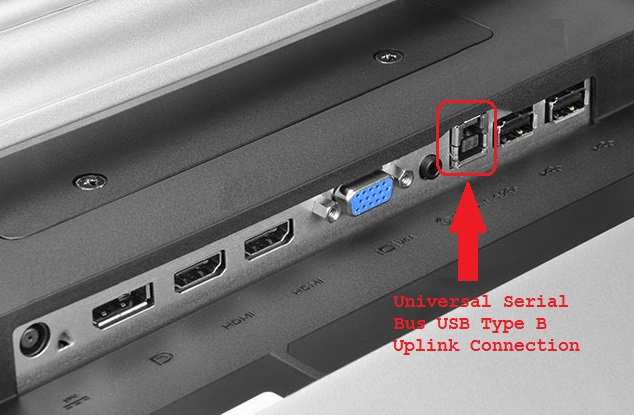
They connect via HDMI or DisplayPort for video and USB for the touch input signal.
What You're Actually Looking At: The Anatomy of a Touchscreen Monitor
Pick up a touchscreen monitor and the first thing you'll notice is that it looks almost identical to a regular monitor. Same bezel. Same stand options.
Same ports on the back, usually HDMI, DisplayPort, and often USB-C. The differences are subtle but important, and most of them are happening at layers you can't see.
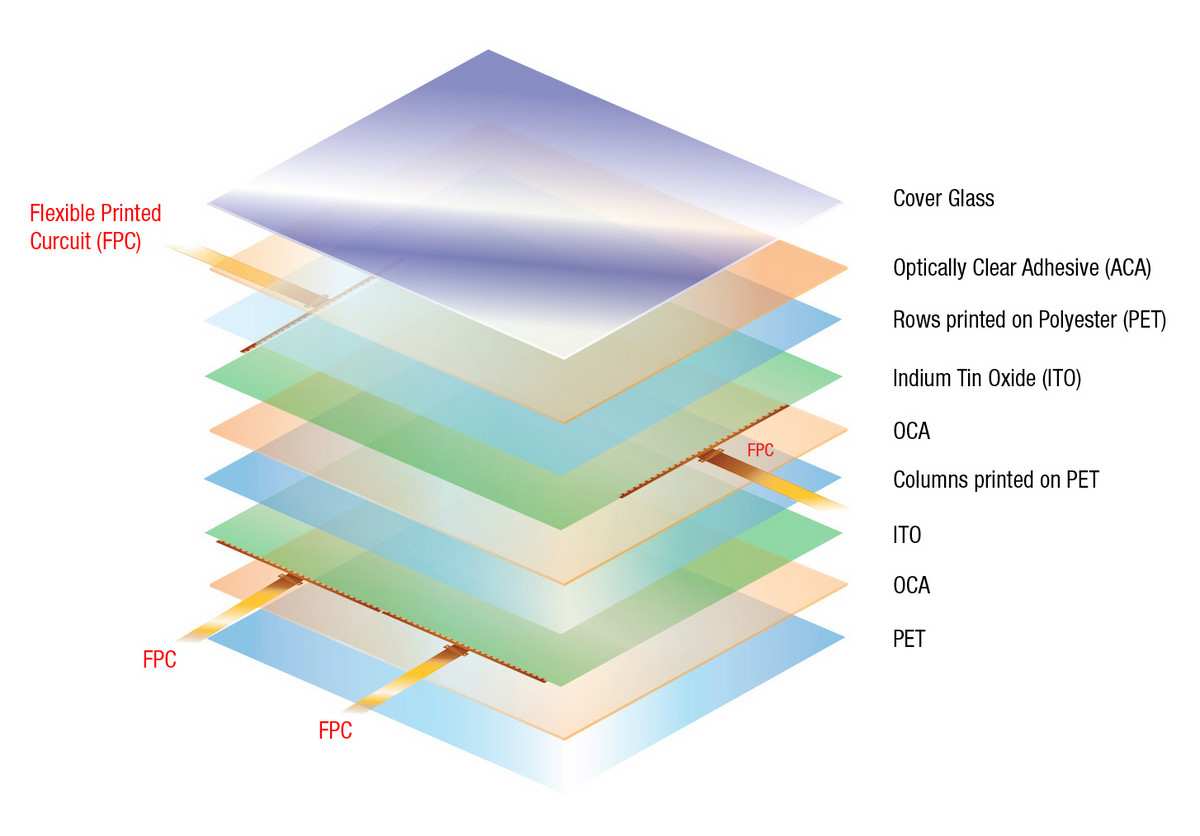
The outer surface, what your finger actually touches, is typically a sheet of tempered glass. Sometimes it's plastic on cheaper or smaller models, but glass is standard for anything you'd buy in 2025 or 2026. Beneath that glass sits the touch sensor layer, which is where the real engineering lives.
Underneath all of that is the actual display panel: an IPS, VA, or TN LCD matrix that produces the image you see. Stack all three together and you get what manufacturers call a "touch display module."
Here's where it matters for everyday use. The thickness and bonding method of these layers determines how far the image appears from your fingertip. A monitor with an air gap between the touch sensor and the display creates a visible offset you can spot easily.
A monitor with optical bonding, where the layers are fused with optically clear adhesive or resin, virtually eliminates that gap. The image looks like it's right on the surface. This distinction alone separates budget touch monitors from the ones worth buying.
The Quick Explanation Most People Need
If you just want the definition without the deep dive: a touchscreen monitor is a display that combines a standard LCD panel with a touch-sensitive overlay. You plug it into your computer like any other monitor for video, and you plug in a separate USB cable for the touch input. Your operating system sees it as a standard HID (Human Interface Device), the same way it sees a mouse or keyboard.
That means on Windows, it typically works plug-and-play with no driver installation. On macOS, touch support is limited since Apple doesn't natively support external touch input on most configurations. Linux support varies by distribution but generally works with open-source touch drivers.
The physical interaction is straightforward. You touch the screen, the touch controller detects the position, and it sends those coordinates to your computer as input data. Everything else, the gestures, the multi-touch behavior, the palm rejection, is handled by the operating system and the touch controller firmware, not by the monitor's display electronics themselves.
How Touchscreens Actually Work: Capacitive, Resistive, IR, and Beyond
Not all touchscreens are built the same, and the underlying technology directly affects how the monitor responds to your touch, what it responds to, and how long it lasts. There are four major technologies you'll encounter when shopping for a touchscreen monitor in 2026, and each has a distinct set of trade-offs.
Capacitive Touch (PCAP): The Standard Today
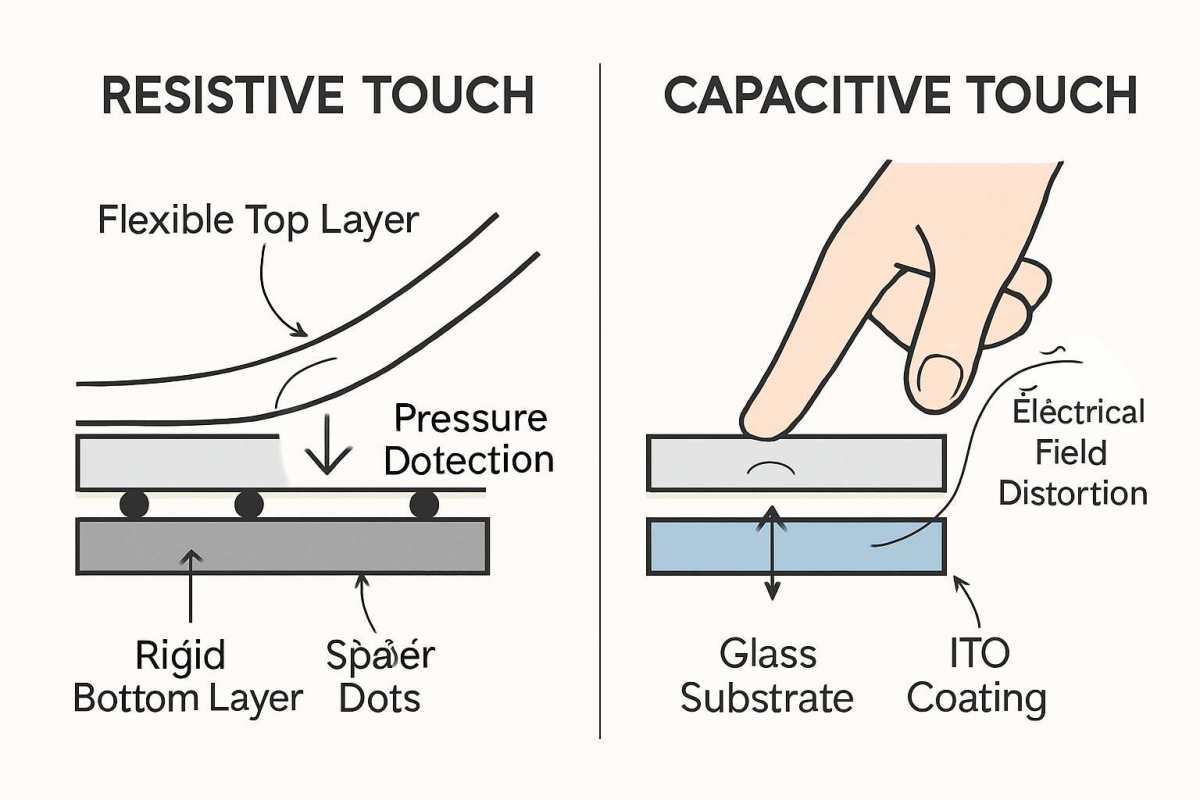
Projected capacitive touch, abbreviated PCAP, is what you'll find on the vast majority of touchscreen monitors sold today. The technology works by sensing the electrical charge in your human body. The glass surface is coated with a grid of transparent electrodes, usually made of indium tin oxide.
When your finger approaches or touches the screen, it alters the local electrostatic field at that intersection of the grid. The controller detects that change and calculates the precise x-y coordinates.
PCAP supports true multi-touch. Ten-point touch is standard on most consumer models, meaning the screen can track ten simultaneous finger positions. Higher-end models offer 20, 32, or even 40-point touch.
The glass surface is durable, typically rated at 7H on the Mohs hardness scale, which resists everyday scratches well. The touch response is fast, usually between 5 and 15 milliseconds of latency.
The downside is that PCAP only responds to conductive input. Your bare finger works. A standard stylus doesn't unless it has a conductive tip.
Thick gloves don't work either, which is a real problem in industrial or medical environments unless the controller firmware is specifically tuned for gloved operation.
Resistive Touch: Old but Not Gone
Resistive touchscreens use a completely different principle. The screen has two thin, flexible layers separated by tiny spacer dots. When you press the screen, the top layer makes contact with the bottom layer, completing a circuit.
The controller measures the resistance at that point and calculates the position.
The advantage is that resistive touch works with anything: your finger, a stylus, a gloved hand, a pen cap, a fingernail. This is why you still see resistive touchscreens on industrial equipment, medical devices, and some point-of-sale terminals where operators wear gloves.
The trade-off is image clarity. The two flexible layers reduce light transmission by around 10 to 15 percent. The surface is softer and more prone to scratches.
And resistive screens typically support only single-touch input. For most consumer and business applications in 2026, PCAP has replaced resistive technology.
Infrared (IR) and Optical Touch
Infrared touch systems use a grid of IR LEDs and photodetectors embedded around the bezel of the screen. When your finger touches the surface, it interrupts specific beams of infrared light. The system identifies which beams are broken and calculates the touch position.
The key benefit is that there's no overlay or film on the display surface. The image quality is essentially identical to the裸 panel. IR touch also works with any object, gloved or not.
Large-format displays, 55 inches and above, often use IR because it scales more cost-effectively than capacitive technology at those sizes.
The vulnerability is foreign objects. Dust, debris, or even direct sunlight hitting the bezel sensors can trigger false touches. IR touch frames also protrude slightly from the display surface, which affects the aesthetic and makes edge-to-edge designs harder to achieve.
Surface Acoustic Wave (SAW) and Other Niche Technologies
Surface acoustic wave touch uses ultrasonic waves across the glass surface. A touch absorbs part of the wave energy, and the controller detects the disruption. SAW offers excellent clarity since the glass itself is the sensor.
It's still used in some specialty applications but has become rare in mainstream touchscreen monitors due to sensitivity to dirt, moisture, and surface damage.
What's Inside a Touchscreen Monitor: The Layer Cake
Understanding the physical construction helps you evaluate quality differences between models, because the layer stack is where manufacturers make or break the user experience.
The Display Panel Itself
The display component is a standard LCD panel, typically IPS for its wide viewing angles and decent color accuracy. Some budget models still use TN panels, which have worse color shift when viewed off-center but offer faster response times. VA panels provide better contrast but can exhibit ghosting on dark content.
Most touchscreen monitors in the 15-to-27-inch range use IPS technology.
Resolution follows the same standards as regular monitors. Full HD (1920×1080) dominates the budget and mid-range segments. 4K UHD (3840×2160) is increasingly common on 27-inch and larger models. QHD (2560×1440) sits in the middle and offers a practical sweet spot for productivity.
The Touch Sensor Layer
In PCAP displays, the sensor is a conductive pattern embedded on a thin glass or film substrate. This substrate is bonded to the front glass or laminated against the LCD panel. The sensor grid pitch, the spacing between electrode lines, determines touch resolution.
Finer pitch gives more precise coordinate detection. Quality controllers achieve sub-millimeter accuracy.
In resistive displays, the sensor consists of two flexible PET film layers with conductive coatings. These layers are separated by insulating spacer dots. The number and distribution of these dots affects touch sensitivity and how much pressure is needed to register contact.
Optical Bonding vs. Air Gap: Why Clarity Changes Everything
This is the single most important quality differentiator most buyers never think about. An air-gap construction leaves a small space between the touch sensor or cover glass and the LCD panel. That gap creates a visible separation between where you touch and where the image appears.
You can see it as a slight shadow or offset, especially when viewing from an angle.
Optical bonding fills that gap with optically clear adhesive (OCA) or optically clear resin (OCR). The result is a display that feels like the image is right on the surface. Light reflection is reduced because there's no air-to-glass interface.
Contrast improves. And parallax, the offset problem, is virtually eliminated.
Manufacturers like Elo Touch Solutions and Planar emphasize optical bonding in their premium product lines. Expect to pay more for optically bonded displays. The difference is immediately visible if you put an air-gap and optically bonded monitor side by side.
The Touch Controller
The touch controller is a small printed circuit board that processes raw sensor data and translates it into standardized touch coordinates. It communicates with the host computer over USB using the HID protocol. Major controller chip manufacturers include eGalax (eMPIA Technology), EETI, Ilitek, and Goodix.
Some touch monitors use controllers from Atmel, now part of Microchip Technology.
Controller quality directly affects touch performance. Better controllers offer higher report rates, which means more frequent position updates to the computer and smoother tracking. They also handle multi-touch recognition, gesture interpretation, and palm rejection at the firmware level.
A quality controller can make a mediocre sensor feel responsive. A poor controller can make a good sensor feel laggy and unreliable.
Cables and Connections
Most touchscreen monitors require two separate connections. The video signal travels over HDMI, DisplayPort, or USB-C, exactly like any other monitor. The touch data travels over a separate USB cable, usually USB-A to USB-B or USB-C, depending on the model.
Some newer monitors consolidate both functions over a single USB-C connection using DisplayPort Alt Mode and USB data simultaneously. This simplifies cable management but requires your computer's USB-C port to support both video output and data transfer.
What It Looks and Feels Like to Actually Use One
The Visual Differences You'll Notice Immediately
Put a touchscreen monitor next to a regular monitor of the same size and panel type. In a dim room you might not spot the difference. In a well-lit office, you will.
The touch layer, especially without optical bonding, adds a slight haze or reflection that reduces perceived contrast. Manufacturer specifications indicate light transmission ratings of 85 to 95 percent for the touch overlay. That means 5 to 15 percent of your display's native brightness is lost before you even adjust settings.
Anti-glare coatings help but introduce a grainy texture visible at close range, particularly on white backgrounds. Anti-reflective coatings preserve clarity better but cost more and show fingerprints more prominently. Most business-oriented touch monitors ship with anti-glare treatment.
Higher-end models, especially those marketed for creative or medical use, opt for anti-reflective or chemically strengthened smooth glass.
Fingerprint smudging is real. If you're touching the screen regularly, you'll be cleaning it frequently. Some manufacturers apply oleophobic coatings to reduce this, but these coatings wear off over time with regular cleaning.
Monitors intended for public kiosk use often ship with anti-microbial screen coatings, particularly those seeking FDA or medical environment compliance.
The Physical Interaction: Touch Latency, Parallax, and Fatigue
Touch latency varies by controller and technology. PCAP monitors typically respond in 5 to 15 milliseconds. Resistive monitors run 20 to 50 milliseconds.
In practice, PCAP feels instant for taps and swipes. Resistive can feel slightly laggy, especially during fast gestures or drag operations.
Parallax is the visible gap between where your finger touches and where the underlying pixel sits. On air-gap monitors, this can be several millimeters. On optically bonded monitors, it's nearly imperceptible.
If you do any precision work, drawing, annotating documents, selecting small interface elements, parallax is the factor that will either make or break your experience.
Extended use of a vertically oriented touchscreen causes arm fatigue, commonly called "gorilla arm." This is a well-documented ergonomic issue per ISO 9241 usability standards. It's tolerable for short interactions, tapping a POS terminal, checking in at a kiosk, but becomes genuinely uncomfortable for sessions lasting more than a few minutes. This is why touchscreen monitors used for productivity work are typically mounted at an angled or tilted position, not fully vertical.
Multi-touch gestures like pinch-to-zoom and two-finger scrolling are intuitive and fast once muscle memory develops. Palm rejection, the ability to rest your hand on the screen while using a stylus or while typing near the display edge, varies significantly between models and controller vendors. Professional art displays from Wacom handle this well.
Budget monitors often fail at it, registering accidental touches from your palm while you're drawing with the stylus in your other hand.
Benefits and Drawbacks: The Honest Version
What You Gain
The obvious benefit is direct manipulation. You tap what you want to interact with. No translating cursor movement into a mental map.
For point-of-sale, self-service kiosks, and digital signage, touch interfaces reduce training time to near zero. Everyone knows how to tap a screen.
Beyond intuitiveness, touch monitors save physical space. There's no keyboard or mouse on the desk when the input surface is the display itself. In retail and restaurant environments, this translates to cleaner countertops and faster customer throughput.
In industrial settings, fewer peripheral devices means fewer failure points.
Multi-touch gestures also speed up certain workflows. Pinch-to-zoom on a 4K touch monitor beats scroll-wheel zooming for image review, CAD drawings, and map annotation. Annotation directly on screen with a stylus feels natural for markups and signatures.
Accessibility improves significantly for users who struggle with traditional mouse-and-keyboard input.
What You Live With
The downsides are real and persistent. Fingerprint accumulation is constant on any surface you touch regularly. Anti-glare coatings, while helpful for visibility, tend to show oil smudges more readily than polished glass.
Budget with it. You'll clean the screen frequently.
"Gorilla arm" is a documented ergonomic concern. Using a vertical touchscreen beyond brief taps causes shoulder and arm fatigue within a few minutes. This is why most productivity-oriented setups tilt the monitor significantly or use articulated arms to angle the display closer to desk height.
Cost is another factor. A comparable non-touch monitor is typically $100 to $300 cheaper than its touch-equipped counterpart in the same size and resolution class. That premium buys the touch sensor, the touch controller, and the bonding process.
Whether it's justified depends entirely on whether you actually need touch input.
Display quality takes a measurable hit on non-optically-bonded models. You're losing 5 to 15 percent brightness and adding a layer of reflection. Side-by-side, a touch variant of the same panel will look slightly hazier than its non-touch equivalent.
Touchscreen Monitor vs. Regular Monitor vs. Tablet vs. Drawing Tablet
Side-by-Side Comparison Table
| Feature | Touchscreen Monitor | Regular Monitor | Tablet (iPad/Surface) | Drawing Tablet (Wacom) |
|---|---|---|---|---|
| Requires host computer | Yes | Yes | No | Yes |
| Built-in operating system | No | No | Yes | No |
| Touch input | Yes | No | Yes (full) | Varies (pen primary) |
| Multi-touch | Up to 40 points | N/A | 10+ points | N/A or limited |
| Pen/stylus support | Select models | No | Apple Pencil, Surface Pen | Standard feature |
| Palm rejection | Varies by model | N/A | Yes | Yes |
| Portability | Low | Low | High | Medium |
| Price range (15-27") | $200–$2,000+ | $100–$800 | $300–$2,000+ | $250–$2,500+ |
| Best for | Kiosks, POS, design, reference | Gaming, general productivity | Mobile computing, art | Dedicated drawing input |
When Each One Makes Sense
Choose a touchscreen monitor when you need a fixed workstation with touch interaction. Retail POS terminals, industrial control panels, reference displays in offices, sign-in stations. The monitor stays connected to a desktop or all-in-one computer and provides interactive screen space for extended periods.
Choose a regular monitor when touch interaction isn't needed. This covers the majority of gaming, office productivity, video editing, and general computing use cases. You get better image quality per dollar, no parallax, and zero gorilla arm risk.
Choose a tablet when you need touch input with full computing capability in a portable package. An iPad with Apple Pencil or a Surface Pro serves as both computer and touch display. The trade-off is smaller screen size and lower raw computing power compared to a desktop setup.
Choose a drawing tablet when your primary need is precise pen input for illustration, photo retouching, or CAD. Wacom displays like the Cintiq series combine pen input with a high-accuracy display, though their touch capabilities vary by model. Some Wacom displays offer both pen and finger touch.
Others are pen-only.
Who Actually Needs One: Use Cases That Justify the Buy
Retail, Hospitality, and Point of Sale
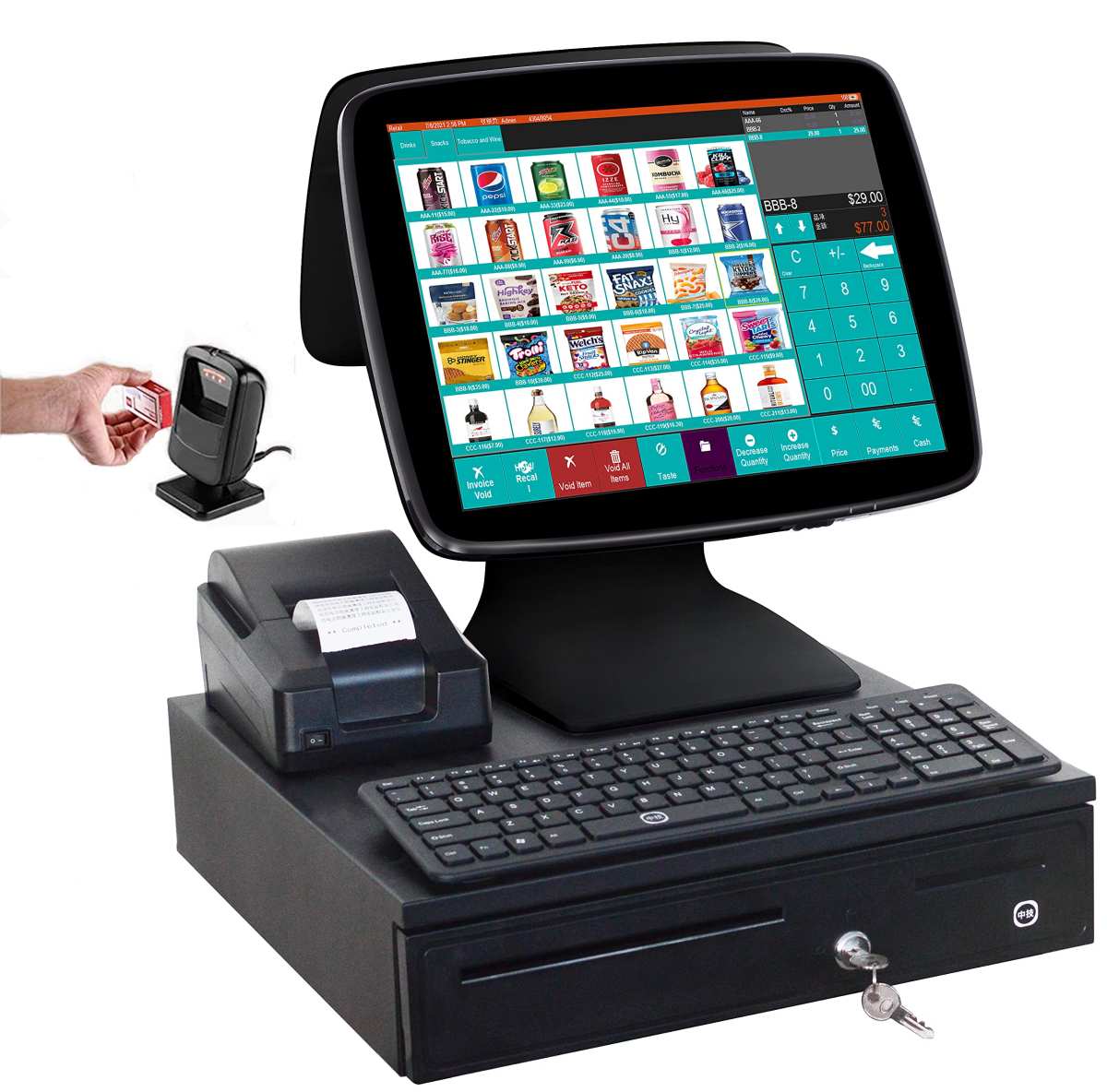
This is the largest market for touchscreen monitors by volume. Countertop touch monitors replace traditional cash registers with compact all-in-one POS stations. Customers interact directly with self-checkout screens.
Restaurant staff tap through order management systems faster than navigating with a trackpad. The technology's value here is throughput and space savings. Elo Touch Solutions and Posiflex dominate this segment with purpose-built POS touch displays rated for continuous operation.
Industrial Control and Factory Floors
Industrial HMIs rely on touchscreens because operators often wear gloves and work in harsh environments. Resistive or specially tuned PCAP panels with gloved-hand support are standard. Panel-mount touch monitors fit into machine enclosures and control cabinets.
IP65-rated front panels resist dust and water washdowns. Wide operating temperature ranges of -20°C to 60°C keep the displays functional in uncontrolled environments.
Healthcare and Medical Environments
Medical-grade touch monitors meet IEC 60601-1 safety standards for electrical isolation and antimicrobial surface requirements. Clinicians interact with patient records, imaging displays, and surgical planning software directly on screen. The benefit is hygiene: a sealed, flat glass surface is far easier to disinfect than a keyboard with crevices.
Radiologists reviewing CT and MRI studies use touch displays for rapid image manipulation, scrolling through slices with a finger swipe instead of scroll-wheel clicks.
Digital Art and Design
Touchscreen monitors with active stylus support, using Wacom EMR or AES technology, give digital artists a direct drawing surface. Models like the Wacom Cintiq and Huion Kamvas series offer pressure sensitivity of 8,192 levels combined with multi-touch gesture support. Color accuracy, measured in Delta E values below 2, matters for professional work.
Touch capability adds gesture controls for canvas rotation and zoom, supplementing the primary pen input.
Education and Classrooms
Interactive touch displays have replaced traditional whiteboards in many classrooms. Students interact directly with lesson content. Teachers annotate on the fly.
Multi-touch support enables collaborative exercises with multiple students touching simultaneously. The technology's value in education is engagement and accessibility, particularly for younger learners and students with motor skill challenges.
Office, Presentations, and Accessibility
In office settings, touchscreen monitors serve as presentation tools. Meeting participants interact with shared content directly. Annotating spreadsheets, signing PDF documents, and navigating complex dashboards all benefit from direct touch input.
For accessibility, touch interfaces can be easier to use for individuals with limited fine motor control. The direct manipulation reduces the cognitive load of translating hand movement through a mouse.
Choosing the Right One: Size, Touch Technology, and Specs That Matter
Size and Resolution
Size drives the first decision. 15 to 17 inches suits POS terminals and compact workstations. 19 to 21.5 inches works well for office productivity and reference displays. 23.8 to 27 inches gives enough screen real estate for extended touch interaction without constant reaching. Screens above 32 inches become physically tiring for standing touch use over time.
Resolution should scale with size. 1080p is acceptable on screens up to 21.5 inches. At 23.8 inches and above, 1080p starts to look soft. QHD or 4K resolution on 27-inch models renders text and interface elements crisply.
Higher resolution also provides more touch targets on screen, reducing mis-taps.
Touch Technology Choice Table
| Technology | Best For | Avoid If |
|---|---|---|
| PCAP (Projected Capacitive) | General use, consumer, office, kiosk | You need gloved-hand operation (unless firmware-tuned) |
| Resistive | Industrial, glove use, harsh environments | Image clarity and multi-touch are priorities |
| Infrared (IR) | Large displays 43"+, digital signage, outdoor | Debris or direct sun exposure is unavoidable |
| SAW | Legacy specialty applications | You need standard consumer pricing or support |
Panel Type and Color Accuracy
IPS panels give the widest viewing angles and most consistent color with touch overlays. This matters because the touch layer can introduce slight color shifting at off-center angles. TN panels, while cheaper, show more pronounced color shift and are harder to interact with touch at viewing angles beyond 30 degrees.
VA panels offer deeper blacks but can exhibit slower response times on touch-heavy interactions.
Ergonomics: Stands, Mounts, and Tilt
Look for monitors with tilt ranges of at least 0 to 35 degrees. Some models offer 0 to 90 degree rotation for table-top use. VESA mount compatibility, 100×100mm being the most common, lets you use articulated monitor arms that position the display at comfortable touch height.
Fixed-stand monitors at eye level cause fatigue after a few minutes of touch use. Adjustable or angled mounting is essential for touchscreen displays in productivity roles.
Connectivity and OS Compatibility
Windows 10 and 11 support HID touch natively with plug-and-play driver installation. macOS on Apple Silicon does not support external touch input through the native OS. Third-party drivers like those from Touch-Base can add limited functionality, but compatibility is inconsistent. Linux support exists through libinput and EVDEV frameworks, though it requires distribution-specific configuration.
Chrome OS supports USB HID touch devices in most cases.
USB-C with DisplayPort Alt Mode is increasingly common on newer monitors. It delivers video, data, and power delivery over a single cable. This simplifies connection to laptops and reduces dock clutter.
Verify your laptop's USB-C port supports DisplayPort Alt Mode before relying on this connection method.
Setting One Up: What the Process Actually Looks Like
Step 1: Physical Connections
Connect your video cable first. HDMI or DisplayPort from your computer to the monitor. If your monitor supports USB-C with DisplayPort Alt Mode and your laptop has a compatible port, a single USB-C cable can carry both video and touch data.
Otherwise, connect the separate USB cable from the monitor to your computer. This USB cable carries the touch input signal only and is essential for touch functionality.
Step 2: Driver Installation
On Windows 10 and 11, the operating system should recognize the touch monitor as an HID-compliant touch screen automatically. You'll see a notification that the device is ready to use. If touch doesn't work, download the specific touch driver from the monitor manufacturer's support page.
Manufacturers like Elo and 3M (now MicroTouch) provide updated driver packages that fix compatibility bugs and enable advanced features like custom gesture mapping. macOS users typically need third-party drivers, as noted earlier. Linux users should check their distribution's package repository for touchscreen firmware and calibration tools.
Step 3: Calibration
Open the calibration utility in your operating system. On Windows, search for "Calibrate the screen for pen or touch input" in the Settings app. You'll tap a series of crosshair targets at the screen corners and center.
This step aligns the touch coordinates with the display pixels. If touch points feel offset from where you tap, calibration usually fixes it. Re-calibrate if you switch between monitors with different resolutions or if you change the display orientation.
Step 4: Gesture Configuration
Windows and some touch controllers support built-in gesture settings. Two-finger scroll, three-finger swipe for task view, four-finger tap to open notification center. Check your touch controller's software panel for configurable gestures.
On Wacom-based displays, the desktop center provides extensive gesture customization. Adjust sensitivity to reduce accidental triggers during normal use.
Common Mistakes People Make When Buying or Using Touchscreen Monitors
Buying a touchscreen monitor without checking OS compatibility is the most common mistake. macOS users often assume touch input works the same as on Windows. It doesn't, without workaround drivers that aren't guaranteed to stay functional across OS updates. Always verify your operating system's level of native touch support before purchasing.
Ignoring the ergonomic setup is second. Placing a touch monitor at standard eye-level viewing height guarantees arm fatigue within minutes. If the monitor will be touched regularly, plan for tilt adjustment or a VESA mount that angles the display closer to horizontal.
Skipping Calibration is the third. Out-of-the-box touch monitors sometimes ship with misaligned touch mapping. Running the calibration utility eliminates most offset issues and costs nothing but 60 seconds of your time.
Cleaning and Maintenance Without Ruining the Screen
Use a soft microfiber cloth for daily cleaning. Lightly dampen it with water or a 50/50 water-and-isopropyl alcohol solution if needed. Never spray liquid directly onto the screen.
Apply the cleaner to the cloth first and then wipe. Avoid window cleaners containing ammonia. They degrade anti-glare and oleophobic coatings over time.
For industrial monitors with sealed front panels, follow the manufacturer's IP-rated cleaning guidelines, which may allow more aggressive washdown procedures depending on the IP rating.
Pricing: What You Get at Each Budget Level
Consumer touch monitors from brands like ASUS and Acer in the 15-to-21.5-inch range start around $200 to $350. Professional and POS-grade monitors from Elo and 3M MicroTouch run $400 to $900 depending on size and feature set. Large-format optically bonded displays for medical, industrial, and creative applications range from $1,000 to $5,000 or more.
Used and refurbished POS monitors are widely available for well under $100 and provide solid value if you're building kiosks or test setups on a tight budget.
Frequently Asked Questions
Do touchscreen monitors work with any computer?
Most USB HID touch monitors work with Windows and Linux out of the box. macOS support is limited and typically requires third-party drivers. Chrome OS supports USB touch in most cases. Always check the manufacturer's compatibility list before buying.
Can I add touch to an existing monitor?
Yes. External touch overlay kits attach to your current display with adhesive or a mounting frame. They connect via USB and include their own touch controller and drivers.
Expect some reduction in image clarity and a visible gap between the overlay and the display surface.
How long do touchscreen monitors last?
The LCD backlight typically lasts 30,000 to 60,000 hours before significant dimming. The touch sensor itself has no moving parts and outlasts the display panel in most cases. Resistive touch layers degrade after 1 to 3 million touches.
PCAP glass sensors essentially last forever under normal use.
Do touch monitors work with gloves?
Standard PCAP touch responds only to conductive input, meaning bare fingers or specially designed conductive-tip gloves. Some PCAP controllers with enhanced sensitivity firmware can detect thin-gloved fingers. For heavy glove use, consider resistive or infrared touch technologies instead.

Similar Posts