Is Touchscreen Monitor Worth It

You've probably seen touchscreen monitors at a colleague's desk or in a store and wondered if you need one. It's a fair question. These displays cost more than standard monitors, and "worth it" means something completely different depending on what you do eight hours a day.
The short answer is that for specific workflows and needs, a touchscreen monitor is absolutely worth the premium. For generic office work and web browsing, it's usually an expensive gimmick. Let's figure out which camp you fall into.
The Quick Answer: It Depends on What You Do All Day
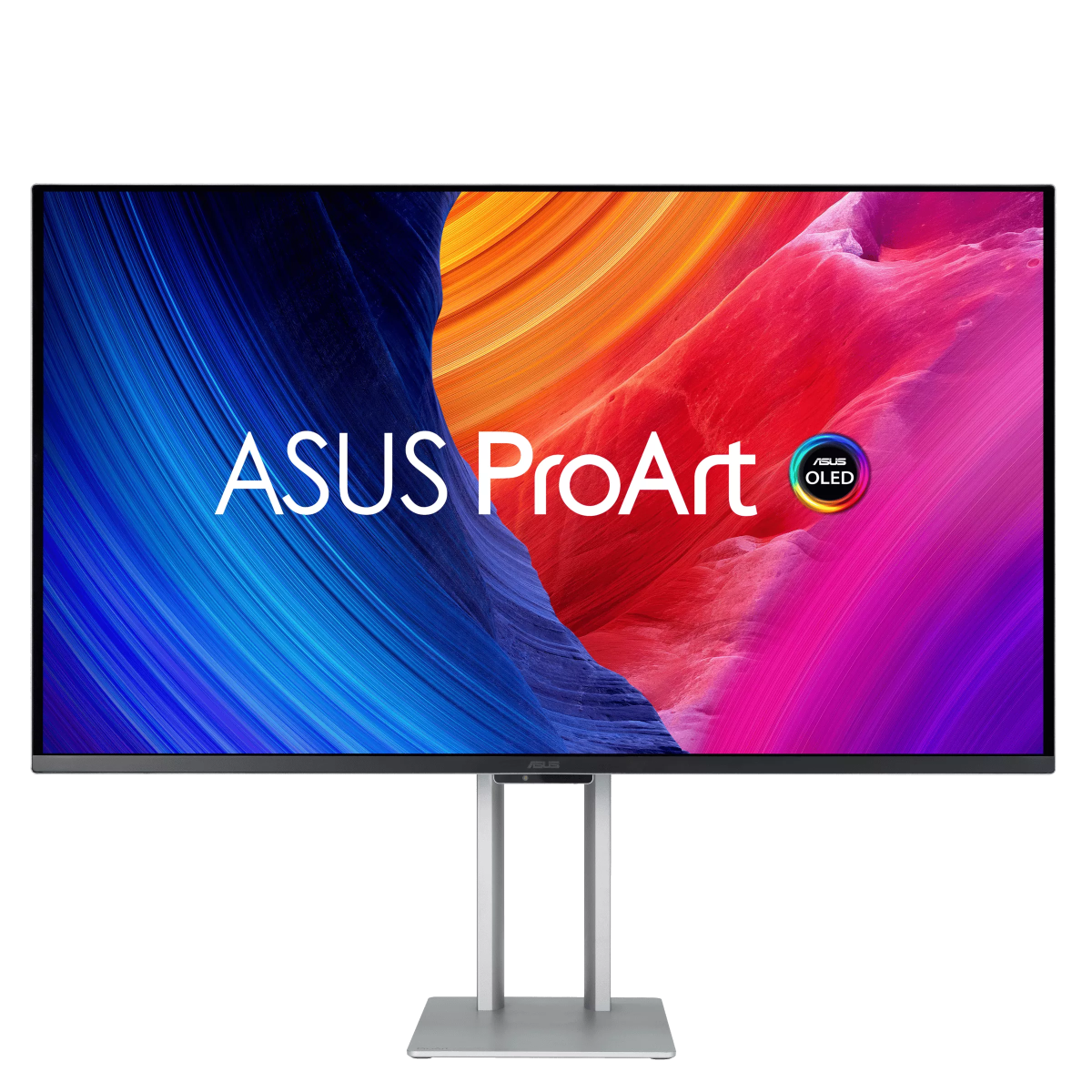
A touchscreen monitor is worth it for creative professionals, educators, retail environments, and accessibility needs. It's not worth it for standard office productivity or casual home use where a mouse handles everything fine. Models like the Dell P2418HT typically cost 30 to 80 percent more than an equivalent non-touch display, based on current pricing data.
How Touch Monitors Actually Work (And Why It Matters for Your Decision)
Image source: Bing (Web (fair-use with source credit))
Before you spend money, it helps to understand what you're actually buying. A touchscreen monitor isn't just a regular screen with a Magic layer stuck on top. The technology underneath determines everything: accuracy, responsiveness, durability, and how much you'll hate using it six months in.
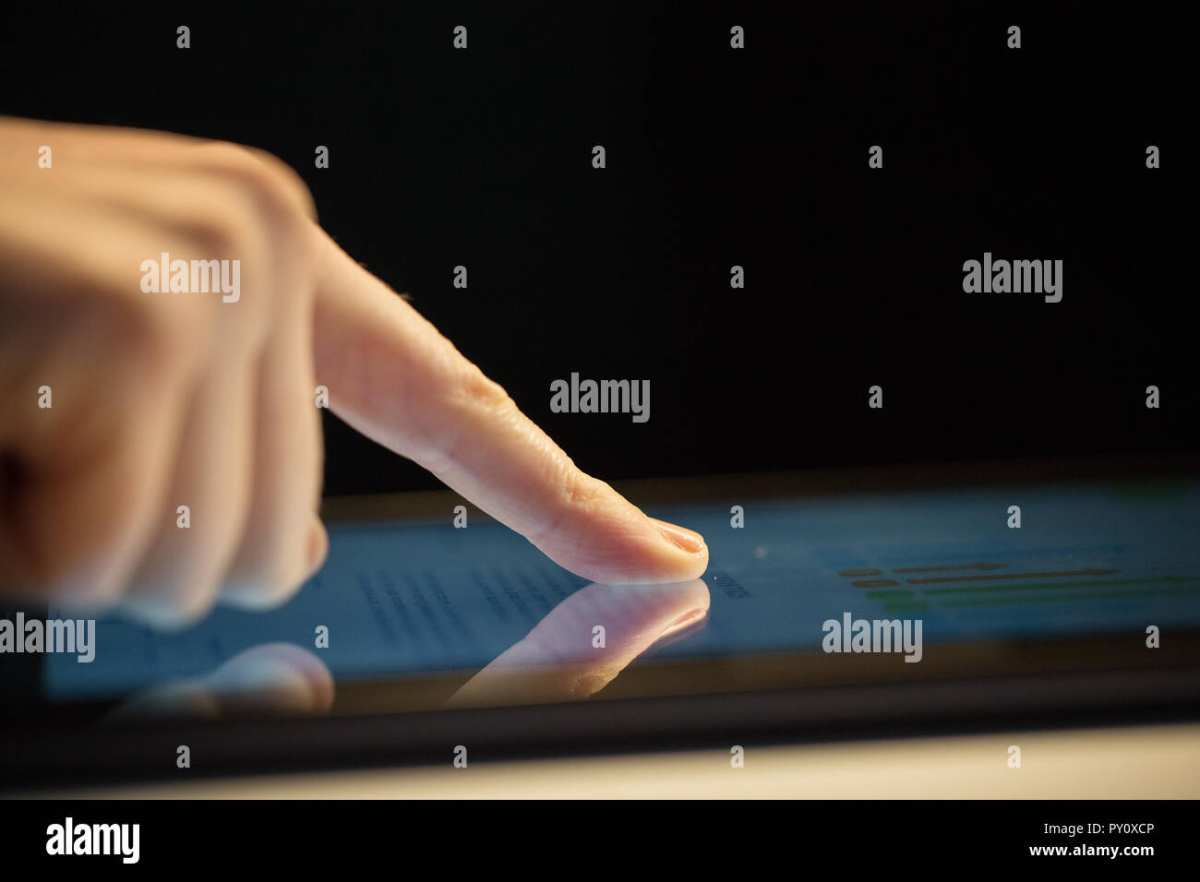
Most consumer touch monitors use projected capacitive (PCAP) technology. This is the same stuff in your smartphone. It detects the electrical charge from your fingertip.
PCAP supports multi-touch natively. It feels smooth and responsive. It also doesn't work with gloves or a standard stylus.
Older or cheaper commercial monitors use resistive touch. Two flexible layers press together when you push on them. It works with anything: a finger, a pen, a gloved hand.
But it feels mushy. The image quality suffers because those layers sit over the display. You won't find this in most consumer products anymore.
Some commercial displays use infrared (IR) touch or optical touch systems. Sensors around the screen detect where your finger interrupts an IR light grid. These work well for large-format displays and kiosks.
They're less common in desktop monitors but worth knowing about if you're looking at commercial-grade hardware from companies like Elo or 3M.
Here's the practical takeaway. If you're buying a consumer touch monitor in 2026, it's almost certainly PCAP. That means great finger touch, stylus support only with active styluses (not your fingernail or a ballpoint pen), and multi-touch gestures that actually work well.
The question is whether your software and operating system will use that input effectively. Windows 10 and 11 have solid touch support built in. macOS does not natively support touch input on external displays. Linux support exists but varies by distribution.
The Real Trade-Offs: What You Gain vs. What You Lose
No product is perfect, and touch monitors come with genuine downsides that get gloss over in marketing copy. Here's what our research and aggregate user reviews consistently show.
What You Gain
- Direct manipulation of on-screen content. Dragging, zooming, and rotating with your fingers feels faster than mouse clicks in many creative workflows. The research on this is well-established in human-computer interaction studies.
- Natural annotation and drawing. Marking up PDFs, sketching ideas, or signing documents feels intuitive without buying a separate tablet.
- Accessibility. For users with motor impairments or conditions that make precise mouse control difficult, touch input can be transformative. It reduces the fine motor demands of cursor control.
- Engagement in presentations. A touch monitor turned toward a client or audience makes presentations interactive in a way a mouse pointer never can.
- Education and collaboration. Teachers and students benefit from direct interaction with lesson materials. Touch-based learning tools show measurable engagement increases in classroom settings.
What You Lose

Image source: Bing (Web (fair-use with source credit))
- The screen gets filthy. This is the number one complaint across every user review aggregate. Your screen will be covered in fingerprints by mid-morning. Anti-fingerprint coatings exist but they aren't magic. Plan to wipe your display at least once a day.
- Gorilla arm fatigue. This is real ergonomic terminology for a real problem. Holding your arm out to touch a vertical screen for extended periods causes shoulder and arm strain. Ergonomic research published under ISO 9241 guidelines consistently flags prolonged vertical surface touch as a fatigue risk. For long work sessions, a tilted pen display or a graphics tablet that sits flat is far more comfortable.
- Higher price for the same image quality. You're paying more for a touch layer, and that touch layer can reduce brightness by 10 to 20 percent. Color accuracy can also shift depending on the bonding method used.
- Glossy screens are the norm. Most touch monitors use glossy glass surfaces because anti-glare coatings interfere with capacitive sensing. In a bright room or near a window, you'll fight reflections.
- Compatibility gaps. macOS users, this is your warning. Apple has not built native touch input support into its desktop operating system. You can get touch drivers working through third-party solutions, but it's far from seamless. Some niche Linux configurations also encounter multi-touch glitches.
- Bulk and weight. A touch monitor is typically 1 to 3 pounds heavier and noticeably thicker than its non-touch counterpart. This matters for portable setups and VESA arm mounting.
Touchscreen Monitor vs. Graphics Tablet vs. Pen Display vs. iPad: Which Setup Wins for Your Workflow
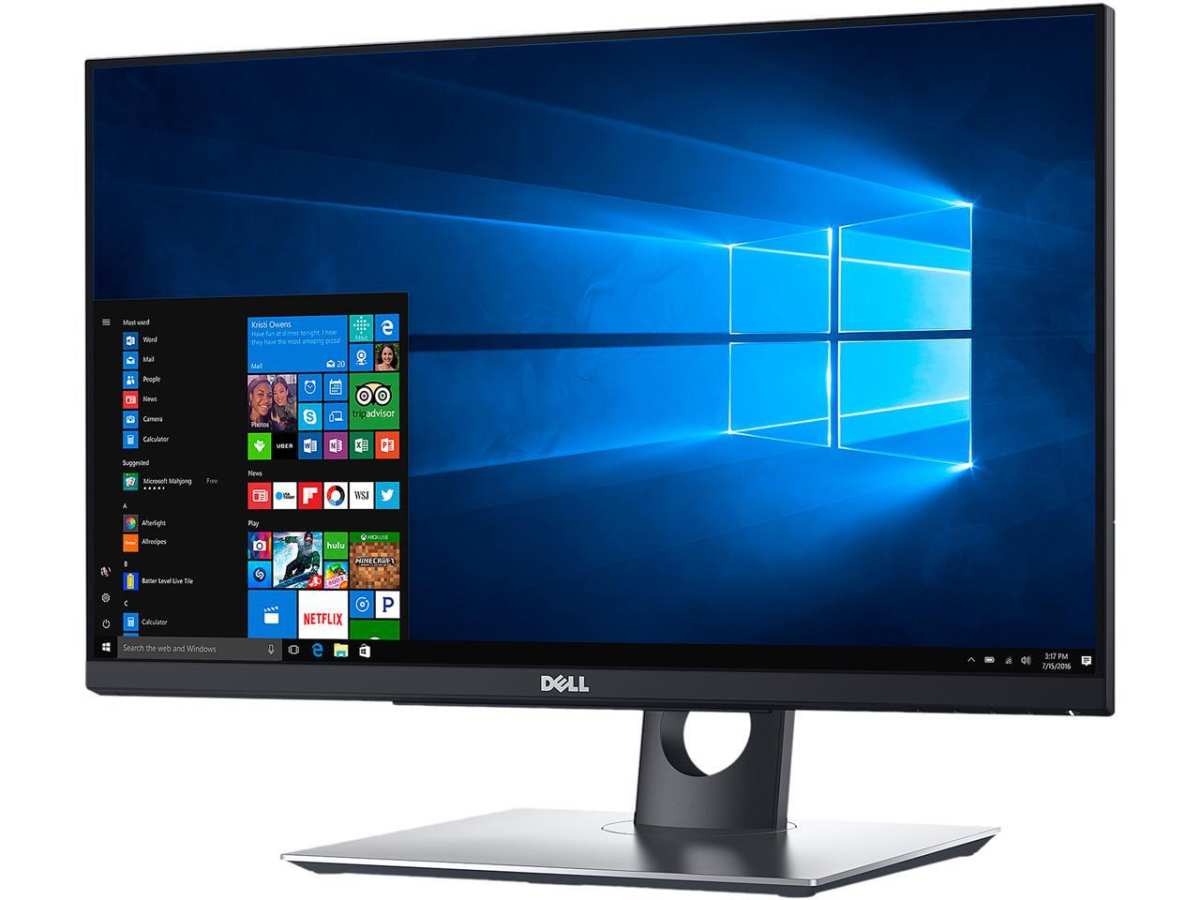
Image source: Bing (Web (fair-use with source credit))
This is where most people get stuck. You don't need to choose one option forever. But understanding what each does well solves the "is it worth it" question for most buyers.
| Option | Best Starting Price | Touch Input | Pen Input | Works Standalone | Portability Poor | Desktop Ergonomics Impact |
|---|---|---|---|---|---|---|
| Touchscreen monitor | ~$320 | Yes | With active stylus | No (needs PC/Mac) | Good | Moderate (if tilt-optimized) |
| Graphics tablet (e.g., Wacom Intuos Pro) | ~$200 | No | Yes, pressure levels | No | Best | Good (flat surface) |
| Pen display (e.g., Wacom Cintiq 16) | ~$650 | No | Yes, best accuracy | No | Good | Good (tilt stand) |
| iPad + Sidecar/Duet | ~$330 | Yes | Yes, Apple Pencil | Yes | Poor | Poor (vertical screen) |
A touchscreen monitor makes sense when you want finger touch for general interaction plus occasional light pen work, and you already have a desktop setup where a vertical screen only adds minimal extra fatigue because it's mounted at a proper angled tilt.
A graphics tablet makes more sense when you primarily create artwork, do photo retouching, or need thousands of pressure sensitivity levels for professional design work. You look at the screen, your hand moves on the flat tablet surface. Most artists prefer this after an adjustment period.
A pen display like a Wacom Cintiq is ideal when you want to draw directly on the screen but don't necessarily need finger touch input. The pen experience is superior to any touch monitor's active stylus support. You're paying for precision, pressure levels up to 8,192 or more, and minimal parallax.
An iPad as an external display works in a pinch for light touch tasks or as a portable creative device. But as a daily driver desktop monitor, the ergonomics are poor, the screen is small, and lag from wireless connections can be frustrating.
One critical point: a touchscreen monitor is a display first and a touch device second. Wacom Cintiq and similar pen displays are input devices first and displays second. That distinction drives everything about which one feels better for sustained professional use.
Your Decision Tree: Are You in One of These Groups?
Rather than give you a blanket answer, let's run through the conditions that make this a clear yes, a clear no, or a "maybe" for you.
Start here: What do you primarily use your computer for?
- Creative work (graphic design, photo editing, illustration, video editing)? → Continue to question 2.
- Office productivity (email, spreadsheets, documents, web browsing)? → Likely not worth it. A mouse and keyboard are faster for these tasks. Save your money.
- Education or teaching? → Likely worth it. Interactive lessons and annotation tools benefit enormously from touch.
- Retail, hospitality, or point-of-sale? → Almost certainly worth it. Purpose-built for this environment.
- Accessibility needs? → Very likely worth it. Touch input reduces the precise motor control required by a mouse.
- Programming or software development? → Generally not worth it. Touch offers minimal benefit for coding workflows.
- Video conferencing and light productivity from home? → Borderline. Only if you value the occasional touch annotation.
If you chose creative work, ask yourself: Do you already own a graphics tablet or pen display?
- Yes, and it works well for me? → A touch monitor adds convenience but isn't essential.
- Yes, but I hate not seeing where I'm drawing? → A pen display will serve you better than a touch monitor.
- No, I'm using a mouse and want something more natural? → A touchscreen monitor is a solid entry point. It's versatile. Try one before investing in a dedicated pen display.
- No, and I'm on a tight budget? → Reconsider. The cost-to-benefit ratio weakens without a clear primary use case.
The practical truth is that most people answering this question fall into one of three groups. The next sections spell out exactly who should buy one and who should walk away.
Who Should Buy a Touchscreen Monitor (Clear Yes Cases)
Some use cases are so clearly suited to touch that the decision is straightforward. If you identify with any of these scenarios, a touch monitor isn't just "nice to have", it's a genuine workflow improvement.
Teachers, trainers, and educators. Writing on a screen while standing in front of a room, annotating documents in real-time, and letting students interact with lesson content through touch are all natural fits. Interactive whiteboards are expensive; a touch monitor is a practical, portable alternative.
Retail and hospitality point-of-sale operators. Commercial-grade touch displays from companies like Elo and 3M are built for this. No mouse to lose, no keyboard to clog with crumbs. Staff training time drops because touch is universally understood.
Designers and illustrators who want a versatile, all-in-one display. If you split your time between mouse-based tasks and hand-drawn or touch-based work, a single touch monitor replaces the need for a separate graphics tablet. The pen experience won't match a Wacom Cintiq, but it's close enough for concept work, rough sketches, and annotation.
Accessibility users. Anyone with conditions like arthritis, carpal tunnel syndrome, or limited fine motor control benefits enormously from touch input. It's not about preference. It's about capability.
Touch reduces the precision required for clicking small interface elements.
Conference room and presentation setups. A touch-enabled display on a shared table makes brainstorming sessions more collaborative. People naturally reach out to interact with content. No need to hand off a mouse.
Image source: Openverse / Shayne O'Neill
Who Should Skip It (Clear No Cases)
General office workers. If your day is email, spreadsheets, documents, web-based tools, and maybe light project management software, a touch monitor adds nothing meaningful. Your hands are on the keyboard and mouse already. Reaching up to touch a vertical screen is slower, not faster.
Ergonomic studies on workstation efficiency consistently favor traditional input for text-heavy and data-heavy tasks.
Dedicated digital artists and retouchers working long hours. If you spend six or eight hours a day drawing, painting, or doing photo retouching, a touch monitor's pen experience will frustrate you. Active stylus support on consumer touch monitors offers around 4,096 pressure levels at best (and often less), noticeable parallax between cursor and pen tip, and limited tilt recognition. A proper pen display like a Wacom Cintiq offers 8,192 pressure levels, virtually no parallax, and excellent tilt response.
You'll feel the difference within 15 minutes. A graphics tablet like the Wacom Intuos Pro, while requiring hand-eye coordination on a flat surface, delivers professional-grade precision at a lower price point and avoids the gorilla arm problem entirely.
macOS power users. Apple's desktop operating system simply isn't designed for touch input. There's no native touch gesture framework. Third-party solutions exist, but they're inconsistent and often break after OS updates.
A touch monitor connected to a Mac works, but you're fighting the system architecture every step of the way.
Anyone on a tight budget who doesn't have a specific need. A 24-inch IPS monitor with good color accuracy costs around $150 to $200. A comparable touch model runs $280 to $400. That's a significant jump for a feature you might use occasionally.
If touch isn't solving a real problem in your workflow, it's an expense you'll regret.
Gamers. Touch input for desktop gaming is a novelty at best. Some casual touch games exist on Windows, but the vast majority of PC gaming relies on mouse and keyboard or a controller. Touch responsiveness on monitors is optimized for UI interaction, not game-grade low latency.
You're paying more for zero gaming benefit.
Who's on the Fence (Conditional Yes — With Caveats)
Some buyers land in the gray area where a touch monitor could be useful but isn't an automatic yes. Here's how to think through it.
Photo editors who do mostly adjustment-based work. If your editing is exposure corrections, color grading, and cropping in Lightroom or Capture One, touch offers limited advantages. If you do heavy retouching with brushes in Photoshop, a pressure-sensitive tablet (flat or pen display) is a better investment than a touch monitor. Consider what percentage of your time involves brush-based editing versus slider-based adjustments.
The higher the brush work percentage, the more a dedicated pen device wins. The more slider-driven your workflow, the less any touch solution helps.
Home users with kids. If your household shares a computer and your children use educational apps or learning software, touch input can be more intuitive for them. Kids who struggle with mouse precision often navigate touch interfaces immediately. The trade-off is the aforementioned smudge factor.
You'll wipe the screen multiple times daily. If that doesn't bother you, it's a reasonable purchase. If it drives you crazy, get a cheap tablet for the kids instead.
People who do a lot of document annotation and review. If your work involves marking up PDFs, reviewing designs, or signing documents regularly, touch annotation is faster than mouse-based tools even when the pen precision isn't professional-grade. A touch monitor lets you scribble comments directly on the screen without any learning curve. For light annotation needs, this is genuinely useful.
For high-precision markups or regulated document workflows that require consistent strokes, a pressure-sensitive tablet gives you better control and repeatability. Paper-like feel and shading variation come from pressure sensitivity that touch monitors simply don't deliver as reliably.
Professionals who travel or work in multiple locations. A touch monitor isn't portable. If you need touch input on the go, a tablet or a touchscreen laptop makes far more sense. A touch monitor only makes sense as a semi-permanent desk fixture.
That said, some touch monitors support USB-C connectivity and can double as a portable display for a laptop when needed, though the extra weight and bulk make them less travel-friendly than a standard portable monitor. If portability matters more than convenience at a fixed desk, stick with separate, lighter devices.
What to Check Before You Buy: Specs, Features, and Compatibility
If you've made it this far and you're still considering one, here's what matters when comparing models. Not all touch monitors are created equal, and the spec sheet tells you a lot about daily satisfaction.
Panel and Display Quality
- Panel type: Most touch monitors use IPS panels for wide viewing angles. Some budget models use VA panels with better contrast but narrower color accuracy from off-center angles. If color accuracy matters for your work, check whether the display is IPS and look for factory-calibrated options. A backing of sRGB coverage data from the manufacturer tells you more than the panel type alone.
- Resolution: 1080p (FHD) is common and fine for 21 to 24 inch screens. At 27 inches and above, 4K gives you sharper text and more workspace. Touch layers can add slight haze at lower resolutions, so higher pixel density helps maintain clarity.
- Brightness: Look for at least 300 nits. The touch layer absorbs some backlight, so a monitor rated at 350 nits might deliver closer to 280 nits in practice. Manufacturer specifications rarely disclose this reduction, so checking independent reviews is worth the time.
- Bonding method: Optically bonded displays (where the glass is fused to the LCD panel) have less air gap, which means less parallax and fewer internal reflections. They look better and feel more responsive. Air-gap bonded displays are cheaper but can feel like you're touching a pane of glass floating above the image. The difference is visible with the naked eye and becomes more pronounced with stylus use.
- Color accuracy claims: Look for factory calibration reports if color-critical work is planned. Many touch monitors prioritize touch performance over color fidelity, and the touch layer itself can introduce slight color shifts. Independent measurement databases provide objective data that supersedes manufacturer claims.
Touch Performance
- Multi-touch points: 10-point touch is the current consumer standard for finger gestures. Some commercial displays support 20 or more points, but for desktop use, 10-point is adequate. Testing quickly reveals if a model registers every touch accurately by opening a touch diagnostic utility.
- Touch latency: This is the delay between touching the screen and the system responding. Under 15 milliseconds feels instantaneous. Over 30 milliseconds feels sluggish. Reviews from sources like RTINGS.com sometimes include touch response time measurements that can guide expectations.
- Active stylus support: Check whether the monitor supports a specific active pen protocol (MPP, AES, or manufacturer-specific) and whether the pen is included or sold separately. Pens are rarely bundled with budget models, so factor an additional $30 to $80 into the total cost if you need one. Pressure level specifications for bundled pens are sometimes optimistic, so verified user feedback on stroke accuracy is valuable.
- Palm rejection: Essential if you rest your hand on the screen while writing or drawing. Weak palm rejection leads to stray marks and phantom inputs. Some monitor implementations handle this far better than others, and hands-on reports are the only reliable way to judge this feature.
Connectivity and Ergonomics
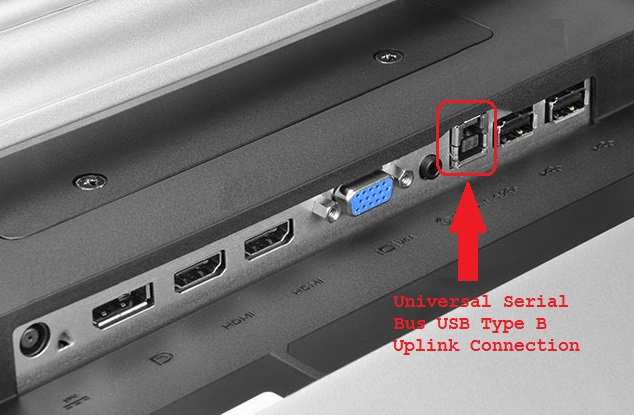
- USB-C with power delivery: A single cable for video, touch data, and charging is ideal for a clean desk setup. Look for at least 65W power delivery if you're connecting a laptop. Not all USB-C ports on monitors supply power, so confirm the specifications explicitly. A touch-only USB-C connection plus a separate power brick defeats the convenience.
- Adjustable stand: Tilt is the most important adjustment for touch use. A monitor that tilts back 20 to 30 degrees reduces arm fatigue significantly. Height and swivel adjustments are welcome for shared workspaces. VESA mount compatibility opens up aftermarket arm options that provide the best ergonomic positioning for touch.
- Weight and footprint: Check the shipping weight. Some touch monitors arrive in packaging that hints at the heft involved. An extra 2 to 3 pounds may not sound like much, but it's noticeable if you move your setup around.
Compatibility Check
This step is frequently skipped and causes the most buyer's remorse.
- Windows 10/11: Full touch support out of the box. Multi-touch gestures, Windows Ink, and stylus integration all work natively.
- macOS: No native touch input. Third-party drivers like TouchBase or gesture-enabling workarounds exist but are inconsistent. Expect occasional post-update breakage.
- Linux: Functional touch support exists on common distributions like Ubuntu and Fedora, but multi-touch gestures often require manual configuration. Kernel support varies with touch controllers, so checking community forums for your specific monitor model is advisable.
- ChromeOS: Well-supported. Chrome has native multi-touch across external displays.
If you use multiple operating systems or plan to switch, test with each before committing. A touch monitor that works flawlessly on Windows might be a frustration on another OS.

Similar Posts