Can OLED Monitors Be Used Vertically

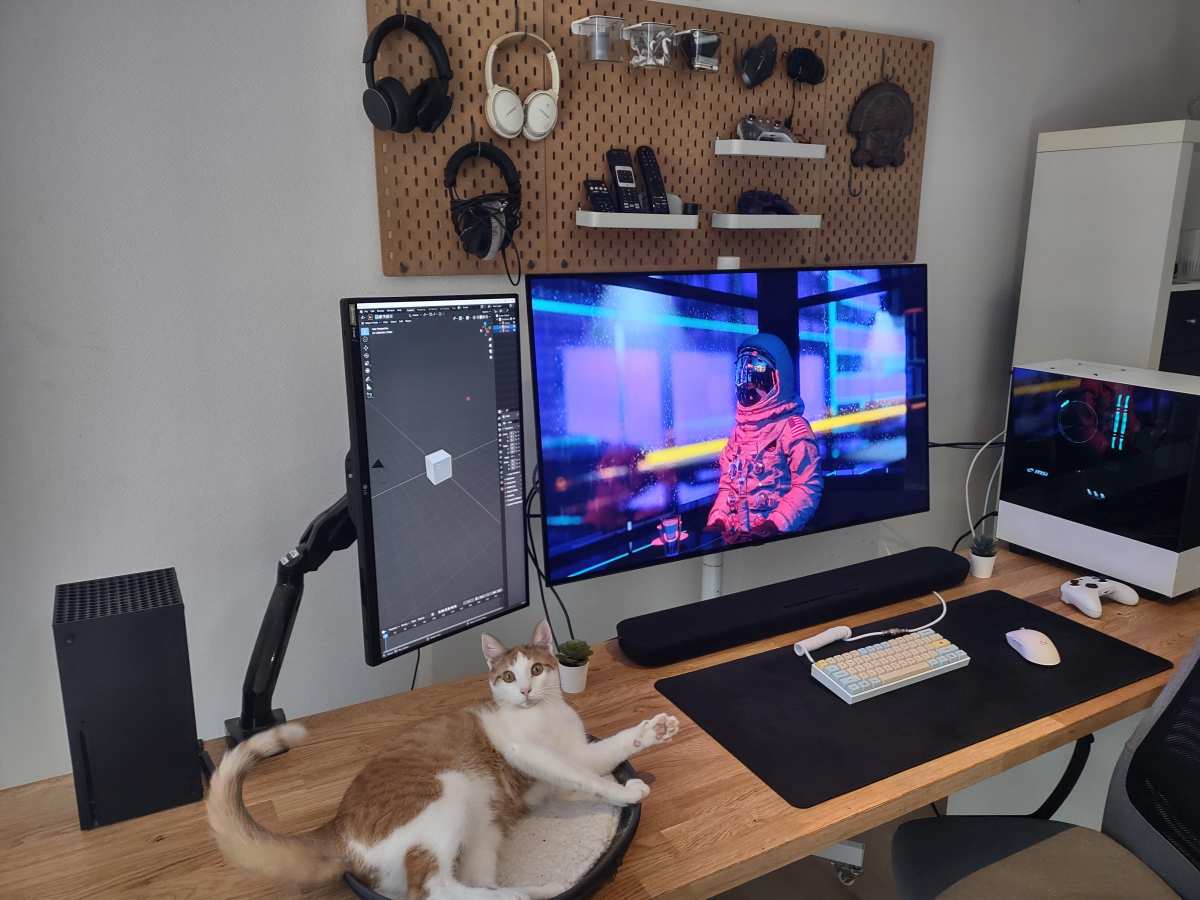
Can OLED monitors be used vertically? Yes, absolutely. The panel doesn't care about orientation.
But whether you should is a more interesting question, and the answer depends entirely on what you plan to display on that screen for hours every day.
OLED technology delivers perfect blacks, incredible contrast, and blazing response times in any direction. The problem is that portrait mode tends to show the same static elements, taskbars, toolbars, status bars, day after day. That's exactly what wears OLED pixels unevenly over time.
Let's break down what's actually happening and how to make a smart decision.
Quick Answer
Yes, you can use an OLED monitor vertically. The display panel works in any orientation. Portrait mode increases burn-in risk from static UI elements.
Modern OLED monitors include built-in protection features. The risk is manageable with proper settings. It requires more care than using IPS or Mini-LED in portrait mode.
Why This Isn't a Simple Yes or No
Here's the thing. When someone asks whether OLED monitors work vertically, they're usually asking two questions at once. The first is mechanical: will the hardware let me rotate it?
The second, the one that actually matters, is: will I regret it six months later when my taskbar is permanently ghosted into the panel?
The mechanical answer is straightforward. If your monitor stand supports pivot, or you're using a VESA monitor arm with rotation capability, you can physically rotate the display 90 degrees. Every modern operating system handles portrait orientation in software.
Windows, macOS, and Linux all rotate the desktop without issue. The GPU doesn't care. The panel doesn't care.
The longevity answer is where things get nuanced. OLED panels degrade with use. Each pixel is an organic compound that loses brightness gradually.
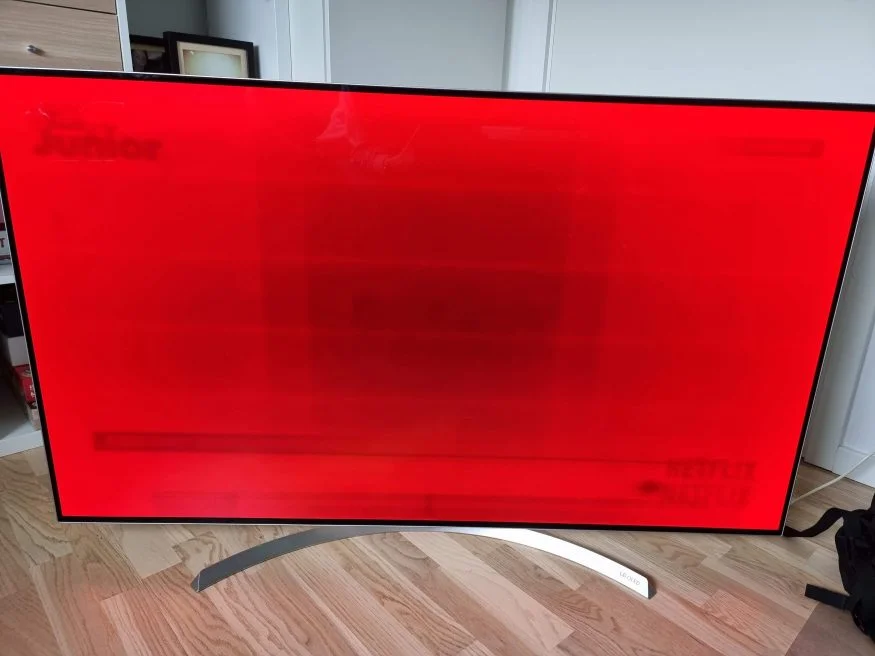
When you display the same static elements in the same position for extended periods, those pixels degrade faster than the surrounding ones. In landscape mode, static elements move around more naturally. In portrait mode, you tend to stack toolbars, status bars, and UI panels vertically, creating bands of uneven wear.
Manufacturer specifications from LG Display and Samsung Display indicate that modern OLED panels are rated for 30,000 to 100,000 hours of use before reaching half brightness. That sounds like a lot. But burn-in can appear much sooner if you're not careful with static content.
We're talking potentially visible image retention within 1,000 to 5,000 hours of heavy static use, depending on brightness settings and content type.
The Burn-In Problem: What Actually Happens in Portrait Mode
Burn-in isn't a myth. It's not something that only happened to old OLED TVs in 2018. It's a real characteristic of OLED technology, and portrait mode makes it more likely to show up sooner rather than later.
Static Elements That Kill OLED Panels Faster in Vertical Orientation
When you rotate a monitor to portrait, your workflow changes. You stack things vertically. That creates distinct horizontal bands of static content that sit in the same pixel rows for hours at a time.
Here are the biggest offenders in portrait mode:
- Taskbar pinned to the side: In portrait, a left or right taskbar becomes a tall, narrow strip of bright pixels running the full height of the screen. That's a burn-in waiting to happen.
- IDE and code editor sidebars: VS Code, IntelliJ, and similar tools have file explorers and line-number gutters that stay static while you scroll content. In portrait, these sidebars are tall and narrow, concentrating wear.
- Web browser address bar and tab bar: Browsers pack a lot of static UI into a thin horizontal band. In portrait, that band sits at the top and never moves.
- Status bars and notification areas: Email clients, Slack, Discord, and trading platforms all have persistent UI elements along one edge.
- Document rulers and toolbars: Photoshop, Illustrator, and word processors have tool panels that stay fixed while you work.
The common thread is that portrait mode encourages a taller, narrower layout. That means more vertical stacking of static UI. Each of those static zones hits the same rows of pixels over and over.
How Bad Is It Really? Real-World Timelines and Risk Factors
Let's put some realistic numbers on this. If you're running an OLED monitor at moderate brightness, say 150 to 200 nits, with a mix of content and you take some basic precautions, burn-in is unlikely to be a major issue for several years of daily use.
But if you're running at high brightness, 300-plus nits, with a bright white IDE theme and a static sidebar that never hides, you could start noticing image retention within 12 to 18 months of full-time work. That's not a worst-case scenario. That's a realistic outcome for heavy productivity use without burn-in mitigation.
The variables that matter most are:
- Brightness level: Higher brightness accelerates organic compound degradation exponentially, not linearly.
- Static content percentage: The more of your screen that stays fixed, the faster uneven wear accumulates.
- Content type: Solid bright colors, especially white, cause more degradation than dark or mixed content.
- Total hours per day: Someone using their monitor 16 hours a day will see wear roughly twice as fast as someone using it 8 hours.
How Modern OLED Monitors Fight Burn-In
Manufacturers know this is a concern. Every OLED monitor released in the last few years ships with a suite of burn-in mitigation features. They're not perfect, but they help significantly.
Pixel Shift and Pixel Refresher
Pixel shift is exactly what it sounds like. The entire image moves by a few pixels periodically, so the same content isn't hitting the exact same subpixel every single frame. You won't notice it happening.
It's subtle by design.
Pixel refresher is a more aggressive maintenance cycle. It runs automatically, usually after every 4 hours of cumulative use, and takes about 5 to 10 minutes. You shouldn't turn off the monitor during this cycle.
There's also a manual deep refresh option that runs for a longer period, typically once a month or when you notice slight image retention.
These features help, but they don't eliminate the underlying physics. They slow uneven wear. They don't prevent it entirely.
ABL (Automatic Brightness Limiter)
ABL kicks in when large portions of the screen display bright content simultaneously. In portrait mode, a full-page document or a white webpage can trigger ABL, reducing overall brightness by 20 to 30 percent. This is actually protective.
It reduces the stress on pixels during heavy bright content.
The downside is that ABL can be annoying. You'll notice brightness fluctuations when switching between dark and bright documents. Some monitors handle this transition more smoothly than others.
Static Element Detection and Panel Care Features
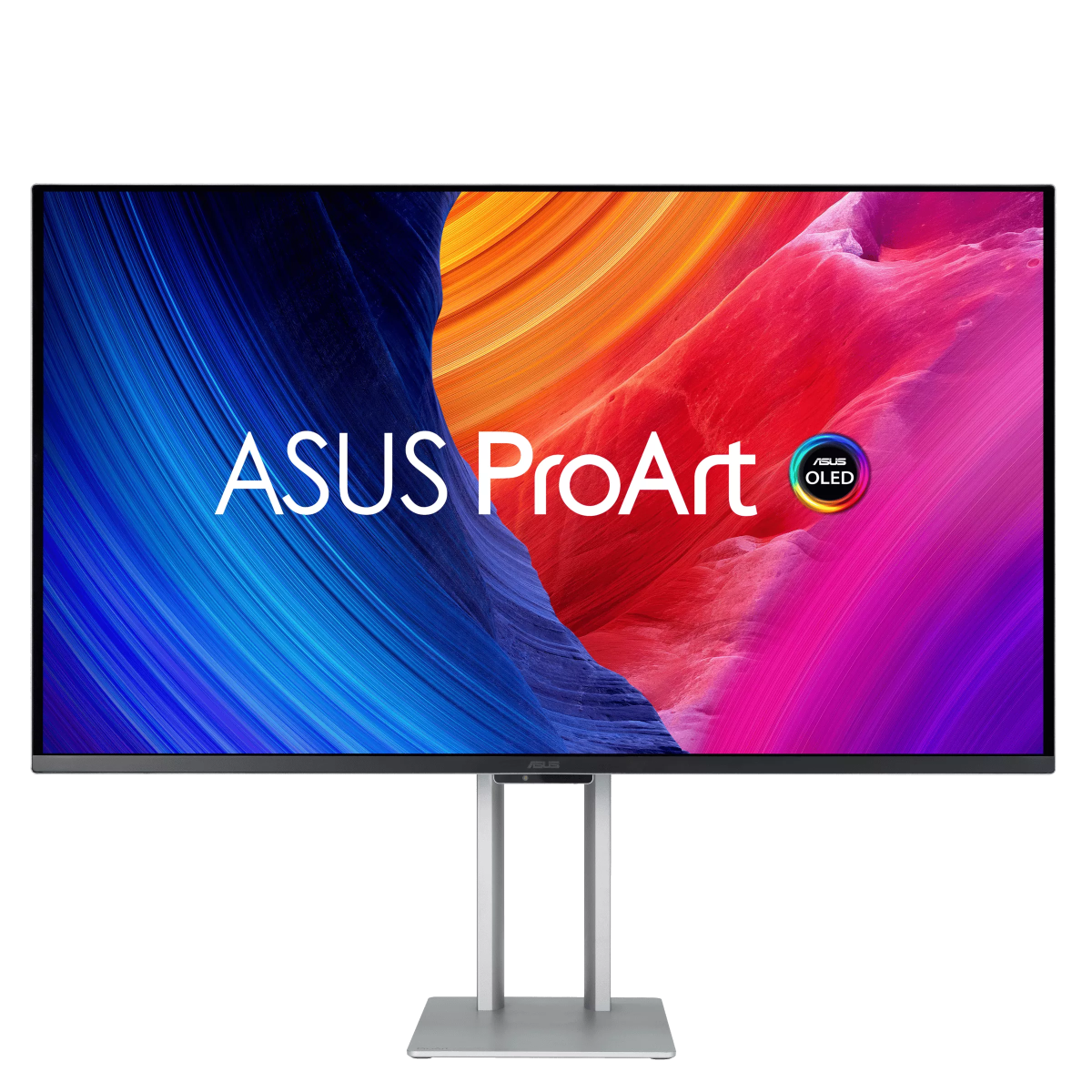
LG's OLED monitors include a feature that detects static elements on screen and reduces their brightness slightly. ASUS ProArt OLED monitors have a similar panel care system. Dell's UltraSharp OLED line includes pixel cleaning and shift utilities through their on-screen display menu.
These are software-level protections. They work in the background. You should still configure your own workflow habits to minimize static content, but these features add a meaningful safety net.
Subpixel Layout: The Hidden Portrait Mode Problem Nobody Talks About
Here's something most guides completely miss. The subpixel layout on an OLED panel affects text clarity, and it affects it differently depending on orientation.
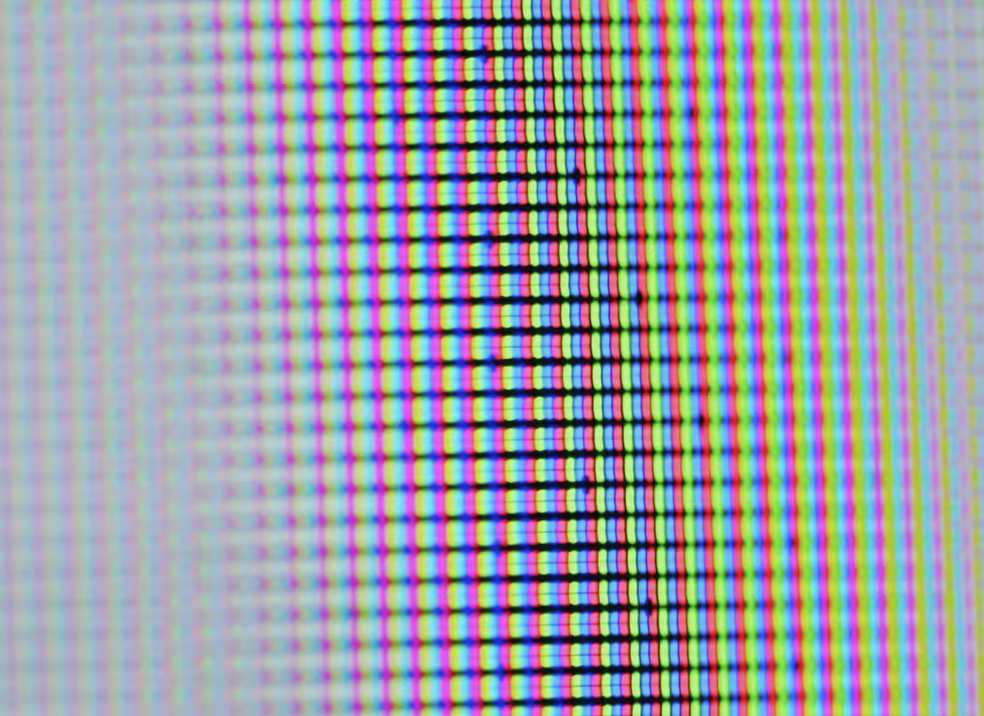
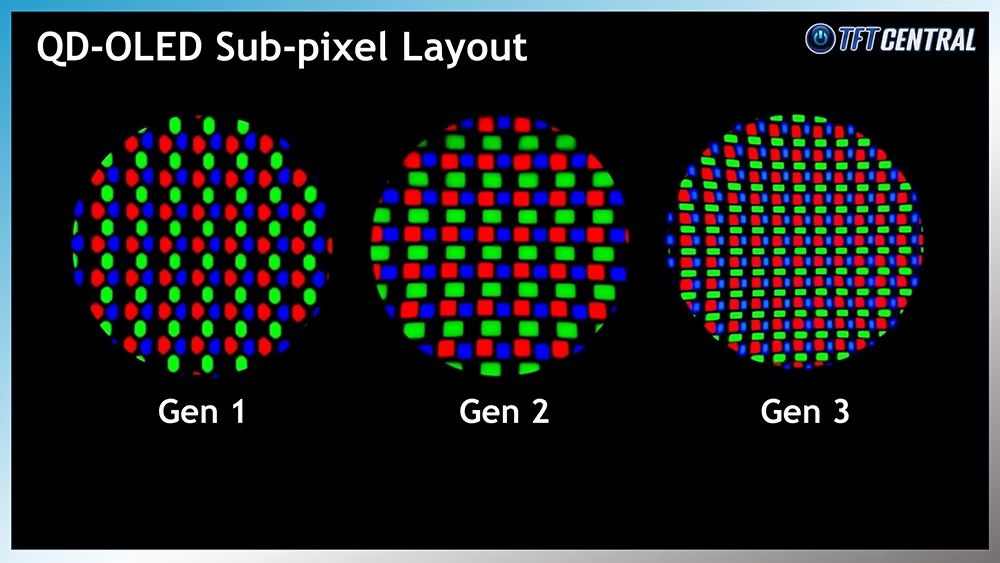
Most OLED monitors don't use a standard RGB stripe subpixel layout like a traditional LCD. QD-OLED panels from Samsung Display use a triangular subpixel arrangement. WOLED panels from LG Display use a WRGB layout with a white subpixel added.
These non-standard layouts can cause color fringing on text and fine details.
In landscape mode, the fringing is usually horizontal, along the edges of text characters. Your eyes tend to filter this out. But when you rotate to portrait, the fringing pattern rotates with it.
Now the color fringing appears along the vertical edges of text, which some people find more noticeable and more distracting.
This isn't a burn-in issue. It's a text clarity issue. It affects how comfortable the monitor is for reading-heavy work in portrait mode.
Why Text Looks Different When You Rotate an OLED
The reason comes down to how ClearType and font rendering engines work. Windows ClearType is optimized for horizontal RGB stripe subpixel layouts. When the subpixel arrangement is different, or when the orientation changes, the rendering engine doesn't always adapt perfectly.
macOS handles this somewhat better because it doesn't rely as heavily on subpixel rendering. Apple dropped subpixel anti-aliasing entirely in recent macOS versions, using grayscale anti-aliasing instead. That means Mac users will notice less text fringing in portrait mode than Windows users.
If you're a Windows user planning to use an OLED monitor in portrait for coding or writing, test the text clarity before committing. Some people don't notice the fringing. Others find it unbearable.
QD-OLED vs. WOLED: Which Handles Portrait Better?
QD-OLED panels tend to have more visible text fringing due to their triangular subpixel layout. The three subpixels aren't arranged in neat rows, so font rendering can show color halos on character edges.
WOLED panels with their WRGB layout are somewhat closer to a traditional stripe pattern, but the addition of a white subpixel means the effective resolution for color content is slightly reduced. Text can look slightly softer compared to a same-resolution IPS panel.
Neither is perfect for portrait text work. Both are usable. But if text clarity in portrait is your primary concern, this is a real factor to weigh.
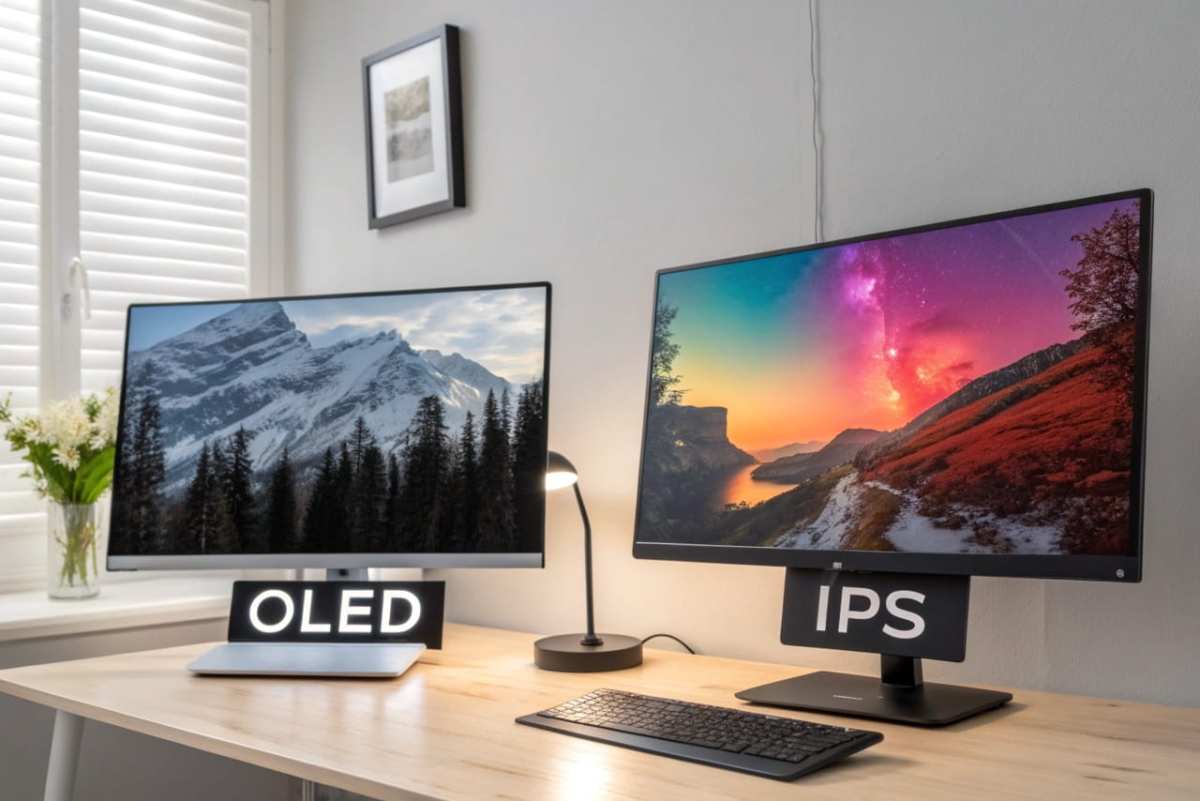
OLED vs. IPS vs. Mini-LED for Vertical Use
If you're set on a portrait monitor setup, it's worth understanding how the three main panel technologies compare for this specific use case.
| Feature | OLED | IPS | Mini-LED |
|---|---|---|---|
| Burn-in risk | Yes | No | No |
| Contrast in portrait | Excellent (infinite) | Decent (~1000:1) | Good (local dimming) |
| Text clarity (portrait) | Varies by subpixel layout | Consistent | Consistent |
| Black uniformity | Perfect blacks | IPS glow visible | Blooming around objects |
| Price | Higher ($800–$1,500+) | Lower ($200–$600) | Mid-to-high ($500–$1,200) |
| Response time | Near-instant | Good to very good | Good |
| Best for portrait reading | With caveats | Safest option | Good middle ground |
| HDR performance | Outstanding | Mediocre to decent | Very good |
OLED wins on pure image quality. Nothing touches it for contrast, color volume, and HDR. But for a portrait productivity monitor that will show static UI elements for hours, the burn-in risk is a genuine tradeoff.
IPS panels have zero burn-in risk. Their text clarity is consistent regardless of orientation. The downside is that blacks look gray in a dark room, and the contrast ratio is a fraction of what OLED delivers.
If you're doing color-critical portrait photo editing, IPS won't give you the same confidence.
Mini-LED sits in the middle. No burn-in risk because the backlight is inorganic LED. Good HDR with local dimming zones.
The catch is that blooming around bright objects on dark backgrounds can be distracting, and the number of dimming zones varies wildly between budget and premium models.
If your portrait use is primarily coding, writing, or document work, IPS is the safest long-term choice. If you need OLED's color accuracy for portrait photo or video editing, OLED is worth the extra care. Mini-LED works well if you want a balance of image quality without burn-in anxiety.
Who Should Actually Run an OLED Monitor Vertically
Not every use case carries the same risk. Let's break down which scenarios make sense and which don't.
Developers and Coders
This is the highest-risk portrait use case. IDEs are full of static UI elements. File explorers, line numbers, terminal panels, and status bars all sit in fixed positions for hours.
If you're running a bright theme, the risk compounds.
If you code in dark mode and use auto-hiding sidebars, it's manageable. If you prefer light themes with persistent panels, you'll likely see uneven wear within a year or two of full-time use.
Writers and Researchers
Lower risk than coding. Word processors and PDF readers tend to have less static UI. Full-screen writing modes eliminate most static elements entirely.
If you write in dark mode or use a distraction-free mode, OLED in portrait is actually a great experience.
Photo and Video Editors
This is where OLED in portrait genuinely shines. Portrait photo editing benefits enormously from the contrast and color accuracy. The risk is moderate because editing interfaces have static panels, but the content you're viewing changes constantly, which helps even out pixel wear.
For vertical video editing, the timeline is static but the preview area changes. It's a reasonable tradeoff.
Traders and Dashboard Users
High risk. Trading dashboards are full of static grids, headers, and data panels that barely change during market hours. Running an OLED in portrait for trading is one of the fastest paths to visible image retention.
Who Should Avoid It
If your workflow involves static dashboards, always-on status displays, or bright themes with fixed UI panels, OLED in portrait will cause you problems sooner rather than later. The same applies if you plan to use the monitor for digital signage in portrait mode with a fixed layout. In those cases, IPS or Mini-LED is the smarter investment.
How to Set Up an OLED Monitor in Portrait Mode Safely
If you've decided OLED in portrait is right for you, here's how to minimize the risk and get the most out of your setup.
Step 1: Check Your Stand or Mount for Pivot Support
Not every monitor stand supports rotation. Check your monitor's specifications for pivot capability. If the built-in stand doesn't rotate, you'll need a VESA monitor arm that supports 90-degree rotation.
Look for arms rated for your monitor's weight with a 100x100mm VESA pattern.
Step 2: Rotate the Display in Your OS
On Windows, right-click the desktop, select Display Settings, and change the orientation to Portrait under Display Orientation. On macOS, go to System Settings, select Displays, and use the rotation dropdown. You can also rotate through your GPU's control panel if the OS option isn't available.
Step 3: Enable Every Burn-In Protection Setting
Dig into your monitor's on-screen display menu. Enable pixel shift, set the pixel refresher to automatic, and turn on any static element detection or logo dimming features. Don't skip this step.
These features exist specifically for your protection.
Step 4: Switch to Dark Mode and Auto-Hide the Taskbar
Dark mode reduces the overall brightness of static UI elements, which directly reduces pixel wear. Auto-hiding the taskbar removes one of the most persistent static elements from the equation. On Windows, this is in Taskbar Settings.
It makes a measurable difference over time.
Step 5: Set Aggressive Screen Sleep Timers
Set your monitor to turn off after 5 to 10 minutes of inactivity. Every minute the screen is off is a minute of zero pixel wear. This is especially important in portrait mode where you might step away while a document stays on screen.
Step 6: Schedule Regular Pixel Refreshes
Most OLED monitors run automatic pixel refreshes after a set number of hours. Check your manual for the schedule and make sure you don't interrupt the process by unplugging the monitor. Also run the manual deep refresh once a month if your monitor supports it.
Common Mistakes That Burn Through OLED Panels in Portrait
These are the mistakes that show up repeatedly in user reports and aggregate feedback from OLED monitor owners.
- Running at maximum brightness in a bright room: You probably don't need 400 nits. Drop to 150-200 nits for indoor use. Your eyes will thank you and your panel will last significantly longer.
- Ignoring the taskbar: A bright taskbar running the full height of a portrait display is one of the fastest ways to get burn-in. Auto-hide it or move it to auto-hide mode immediately.
- Using light themes with static sidebars: Light backgrounds with dark sidebar text create maximum contrast between adjacent pixel zones. This accelerates uneven wear. Dark mode is your friend.
- Skipping pixel refreshes: If you turn off your monitor at the wall instead of letting it enter standby, the automatic pixel refresh cycle never runs. Let the monitor go to sleep properly.
- Leaving the screen on static content overnight: This is obvious but worth stating. If you're not looking at the screen, turn it off. Every hour of unnecessary static display is cumulative wear.
- Not using a screensaver or auto-sleep: Some users disable sleep timers because they find them annoying. In portrait mode, this is a costly convenience.
Warranty Reality: Does Burn-In Actually Get Covered?
This is where things get frustrating. Burn-in warranty coverage varies significantly between manufacturers, and the fine print matters.
LG
LG covers burn-in on their OLED monitors under the standard 3-year warranty for most models. However, the specific terms can vary by region and model. Check your specific product's warranty documentation.
LG has historically been one of the more generous manufacturers on this front.
ASUS
ASUS ProArt OLED monitors come with a 3-year warranty that includes burn-in coverage. They explicitly state this in their warranty terms for models like the ProArt PA32DC and PA32UCG. This is one of the clearest burn-in warranties in the industry.
Dell
Dell's UltraSharp OLED monitors carry a 3-year warranty, and burn-in is covered under their panel warranty. Dell's Premium Panel Guarantee also covers bright pixels. This makes Dell one of the safer choices if burn-in is a concern.
Samsung
Samsung's OLED monitor warranty covers burn-in for 3 years on models like the Odyssey OLED G9. However, Samsung's warranty terms can be more restrictive in practice, with some users reporting difficulty getting claims approved. Read the specific terms for your region.
The bottom line: most major manufacturers cover burn-in for 3 years as of 2026. But warranty claims require shipping the monitor in for evaluation, and the process can take weeks. Prevention is always better than warranty replacement.
Expert Tips to Extend OLED Life in Portrait Orientation
Beyond the basic setup steps, here are the strategies that make the biggest difference over the long term.
- Use a wallpaper that changes or rotates: A static wallpaper in portrait mode is another source of uneven wear. Use a slideshow or a dark solid color.
- Hide persistent UI elements when not needed: Browser bookmarks bars, email preview panes, and chat sidebars should all auto-hide or be toggled off when not actively in use.
- Vary your window layouts: Don't keep the same panel arrangement every single day. Shifting static elements by even a few pixels helps distribute wear.
- Reduce OLED light/brightness to the minimum comfortable level: This is the single most impactful setting. Lower brightness means dramatically slower pixel degradation.
- Use grayscale or reduced-color modes for reading: Some users switch to a grayscale mode when doing extended reading. This reduces the load on colored subpixels and extends overall panel life.
- Keep the room cool: Heat accelerates OLED degradation. Good ventilation around the monitor helps. Don't mount it flush against a wall with no airflow.
- Consider a dual-monitor setup: Use the OLED in landscape for color-critical work and a cheap IPS in portrait for reading and coding. This gives you the best of both worlds without risking your expensive panel.
Frequently Asked Questions
Does portrait mode void my OLED monitor warranty?
No. Portrait mode is a standard display orientation supported by manufacturers. Using your monitor vertically doesn't void the warranty.
Burn-in coverage depends on your specific manufacturer's terms, not the orientation you use.
How long does an OLED monitor last in portrait mode?
With proper care, brightness management, and burn-in prevention settings enabled, an OLED monitor in portrait mode should deliver 4 to 6 years of daily use before noticeable degradation. Without precautions, visible burn-in could appear within 12 to 24 months of heavy static content use.
Is QD-OLED or WOLED better for portrait orientation?
WOLED panels generally handle portrait text rendering slightly better due to their subpixel layout being closer to a traditional stripe pattern. QD-OLED panels can show more visible color fringing on text in portrait mode. Both are usable, but WOLED has a slight edge for text-heavy portrait work.
Can I use an OLED monitor vertically for gaming?
Yes, and it's actually excellent for portrait gaming. Games typically don't have persistent static UI elements in the same way productivity software does. The content changes constantly, which distributes pixel wear evenly.
Portrait gaming on OLED is a great experience with minimal burn-in risk.
Should I worry about burn-in if I only use portrait mode occasionally?
No. Occasional portrait use, a few hours a week, poses negligible burn-in risk. The concern is primarily for users who run their monitor in portrait mode as their primary daily orientation for 8 or more hours.
What brightness should I use for portrait mode on OLED?
Aim for 150 to 200 nits for indoor use. This is comfortable for reading and document work in most lighting conditions. Higher brightness isn't necessary in a typical office or home environment and only accelerates pixel wear.
Final Verdict: Should You Do It?
Here's the honest answer. If your portrait use case involves constantly changing content, dark mode, and you're willing to configure the burn-in protection settings, an OLED monitor works beautifully in portrait orientation. The image quality is unmatched.
The contrast makes text pop in a way IPS simply can't match.
But if your workflow means staring at the same static IDE layout, trading dashboard, or document toolbar for 8-plus hours a day with a bright theme, the burn-in risk is real and measurable. You'll probably be fine for the first year. By year two or three, you may start seeing ghosted outlines of your most-used UI elements.
The smartest approach for most people is a hybrid setup. Keep the OLED in landscape for media, gaming, and color-critical work. Add an affordable IPS panel in portrait for reading, coding, and document work.
You get the best image quality where it matters and zero burn-in anxiety where it doesn't.
If you only have room for one monitor and portrait orientation is non-negotiable, go with a good IPS or Mini-LED. The peace of mind is worth more than the contrast ratio.

Similar Posts