Is OLED Monitor Worth It for Students

You've probably seen those stunning OLED displays in a friend's dorm or at the campus library and wondered if you should make the jump. The short answer to whether an OLED monitor is worth it for students: it depends entirely on what you study, how you use your screen, and what you're willing to spend. For some students it's a genuine upgrade that makes late-night work sessions easier on the eyes.
For others it's a pricey overkill that a solid IPS panel handles just fine.
OLED monitors deliver pixel-level dimming, which means each individual pixel produces its own light and can turn off completely for true blacks. That gives you an effectively infinite contrast ratio, something no traditional IPS or VA panel can match. As of 2026, prices have dropped enough that a decent 27-inch OLED sits around $400 to $600, but that's still a meaningful chunk of a student budget.
Let's walk through the real decision so you can figure out which camp you fall into.
Image source: Bing (Web (fair-use with source credit))
Quick Answer
An OLED monitor is worth it for students in creative fields who work with images, video, or design and spend hours in dark environments. It is not worth it for students who mainly write papers, code, or browse the web on a tight budget. The premium you pay buys better contrast and color accuracy, not raw productivity.
If your coursework involves visual media, the investment pays off. If it does not, a good IPS monitor saves you money.
What Makes OLED Monitor Different from Everything Else
Here's the core difference in plain terms. Traditional LED-backlit monitors, including IPS and VA panels, use a single backlight (or a few dimming zones) behind the whole screen. Even when displaying black, some light bleeds through.
That's why blacks on IPS panels look slightly gray in a dark room.
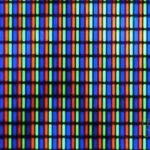
OLED doesn't work that way. Each pixel is its own tiny light source made of organic compounds. When the screen needs to show black, those pixels simply turn off.
No backlight bleed. No IPS glow in the corners. Just pure black.
This pixel-level dimming is what gives OLED its effectively infinite contrast ratio. Manufacturer specs typically cite 1,000,000:1 compared to around 1,000:1 on a standard IPS panel. In practice, that means text pops against dark backgrounds, movies look cinematic, and photos show detail in shadows that IPS panels crush.
But this self-emissive design is also where the trade-offs start. Those organic compounds degrade over time. Blue sub-pixels tend to wear faster than red or green.
And if the same static image sits on screen for hundreds of hours, those pixels age unevenly, which leads to the burn-in concern we'll get to shortly.
For students, the practical takeaway is this. OLED excels in dark or dim environments. If you work with the lights off at 2 AM, the difference is dramatic.
If you study in a bright room with sunlight streaming in, a bright IPS panel might actually look better.
The Real Pros: What OLED Gets Right for Student Life
Let's break down where OLED genuinely shines for students, based on how these displays actually perform.
True blacks and infinite contrast. This is the headline feature and it's not marketing fluff. In a dark dorm room, an IPS panel's backlight glow is immediately noticeable next to an OLED. If you watch lectures, stream content, or work in dark mode, the visual difference is significant.
Color accuracy out of the box. Most OLED monitors ship with factory-calibrated color covering 98 to 99 percent of the DCI-P3 gamut. For design students, photography students, and anyone doing video work, this means you can trust what you see without buying a separate color calibrator first.
Ultra-fast response times. OLED panels typically hit 0.1 milliseconds gray-to-gray response time. That's roughly 50 times faster than a standard IPS panel. For students who game between study sessions, motion clarity in fast-paced games is noticeably better.
Wide viewing angles. Colors and contrast hold up even at extreme angles. This matters in dorm rooms where you might not sit dead center in front of the screen, or when a friend leans over to look at something.
No backlight bleed or IPS glow. If you've ever noticed bright spots in the corners of an IPS panel in a dark room, you know how distracting that gets. OLED eliminates this entirely because there's no backlight.
Excellent for late-night sessions. Dark mode on an OLED actually saves power because black pixels are off. Combined with the lack of backlight glow, it's genuinely more comfortable for extended reading and writing in low light.
Thin, lightweight form factor. OLED panels are physically thinner and lighter than most IPS alternatives. For students who move between dorm, library, and home, that portability factor adds up.
The Real Cons: Where OLED Falls Short for Student Life
Now let's be honest about the downsides, because some of these matter a lot for students specifically.
Price. A quality 27-inch OLED monitor runs $400 to $900 as of 2026. A comparable IPS panel with good color accuracy costs $200 to $400. That $200 to $500 difference is real money when you're paying for textbooks and rent.
Burn-in risk. This is the big one everyone asks about. Static elements like a taskbar, desktop icons, or a spreadsheet toolbar can cause uneven pixel wear over time. We'll cover this in detail shortly, but the risk is real, especially for students who leave the same interface on screen for hours every day.
Lower sustained brightness. OLED monitors typically hit 200 to 250 nits of sustained full-screen brightness. IPS panels can push 350 to 400 nits or more. In a bright room with direct sunlight, an OLED can look dim by comparison.
Glossy coatings on most models. The majority of OLED monitors use a glossy display coating. In a dorm with overhead fluorescents or a window behind you, reflections can be a real problem. Some models offer matte options but they're less common.
Limited size and resolution variety at student prices. The affordable OLED market clusters around 27-inch 4K and 32-inch 4K. If you want ultrawide or a smaller 1440p panel, options are limited or expensive.
Power consumption varies with content. White backgrounds and bright web pages actually draw more power on OLED than on IPS. If you spend all day in Google Docs with white backgrounds, you're not saving energy.
Warranty concerns. Burn-in coverage varies by manufacturer. Some brands cover it for three years, others explicitly exclude it. You need to read the fine print before buying.
Decision Branch 1: What's Your Major and Primary Use Case?
This is where the decision tree starts. Your field of study and what you actually do on your screen every day should drive this choice more than any spec sheet.
If you're a design, photography, film, or art student. OLED is worth serious consideration. Color accuracy, contrast, and HDR support directly benefit your coursework. You're likely already working in dark editing environments where OLED's strengths shine.
Many design programs even recommend or require displays covering at least 98 percent DCI-P3, which most OLED monitors hit natively.
If you're a computer science or coding student. This is a mixed bag. Dark mode on an OLED looks gorgeous and can reduce eye strain during long coding sessions. But you've got static IDE elements on screen for hours: line numbers, file trees, terminal prompts.
That's exactly the kind of usage pattern that increases burn-in risk. A high-quality IPS panel with good dark-room performance might be the smarter play.
If you're a business, finance, or pre-med student. You're probably living in spreadsheets, PDFs, and documents with white backgrounds. OLED doesn't give you much advantage here, and the sustained brightness limitation can actually work against you in well-lit study spaces. Put that $400 toward a good 27-inch 4K IPS panel and keep the savings.
If you're an architecture or engineering student. You're likely running CAD software with complex static toolbars and interface elements. The burn-in concern is real here. But if your work also involves rendering and visualization, OLED's contrast helps you evaluate your output.
Consider a Mini-LED IPS panel as a middle ground, it offers good brightness, decent local dimming, and no burn-in risk.
If you're a general humanities or social science student. You're writing papers, reading articles, maybe watching documentaries. An IPS panel handles all of that beautifully at half the price. OLED is a luxury, not a necessity.
Here's a quick reference table to make this clearer:
| Student Type | Primary Tasks | OLED Worth It? | Better Alternative |
|---|---|---|---|
| Design / Photography | Photo editing, color grading | Yes | QD-OLED for budget boost |
| Film / Video | Video editing, color work | Yes | Mini-LED if budget tight |
| CS / Programming | Coding, IDEs, terminals | Maybe | IPS with matte coating |
| Business / Finance | Spreadsheets, data, docs | No | 4K IPS panel |
| Architecture / Engineering | CAD, 3D modeling | Maybe | Mini-LED IPS |
| General / Humanities | Writing, browsing, media | No | Budget 4K IPS |
The pattern is clear. If your coursework involves evaluating visual content, OLED earns its premium. If your coursework involves producing text and data, it probably doesn't.
Decision Branch 2: What's Your Actual Budget?
Money matters for most students. Let's break down what you'll actually spend.
If your total monitor budget is under $300. Skip OLED entirely. The technology simply isn't available at that price point with any meaningful quality. A 27-inch 4K IPS panel from LG or Dell in this range will serve you well for years.
You're not missing out on anything critical.
If you can spend $300 to $500. This is the decision zone. A decent 27-inch OLED starts around $400 to $450 on sale. But you're also looking at excellent Mini-LED IPS panels in this range that offer higher brightness and zero burn-in risk.
If your work is mostly productivity, the Mini-LED route gives you more for your money.
If you can spend $500 to $800. OLED becomes a strong option. You're in the territory of well-reviewed models like the LG UltraGear or Samsung Odyssey OLED lines. At this price, you're getting a display that will genuinely improve your daily experience if your use case matches OLED's strengths.
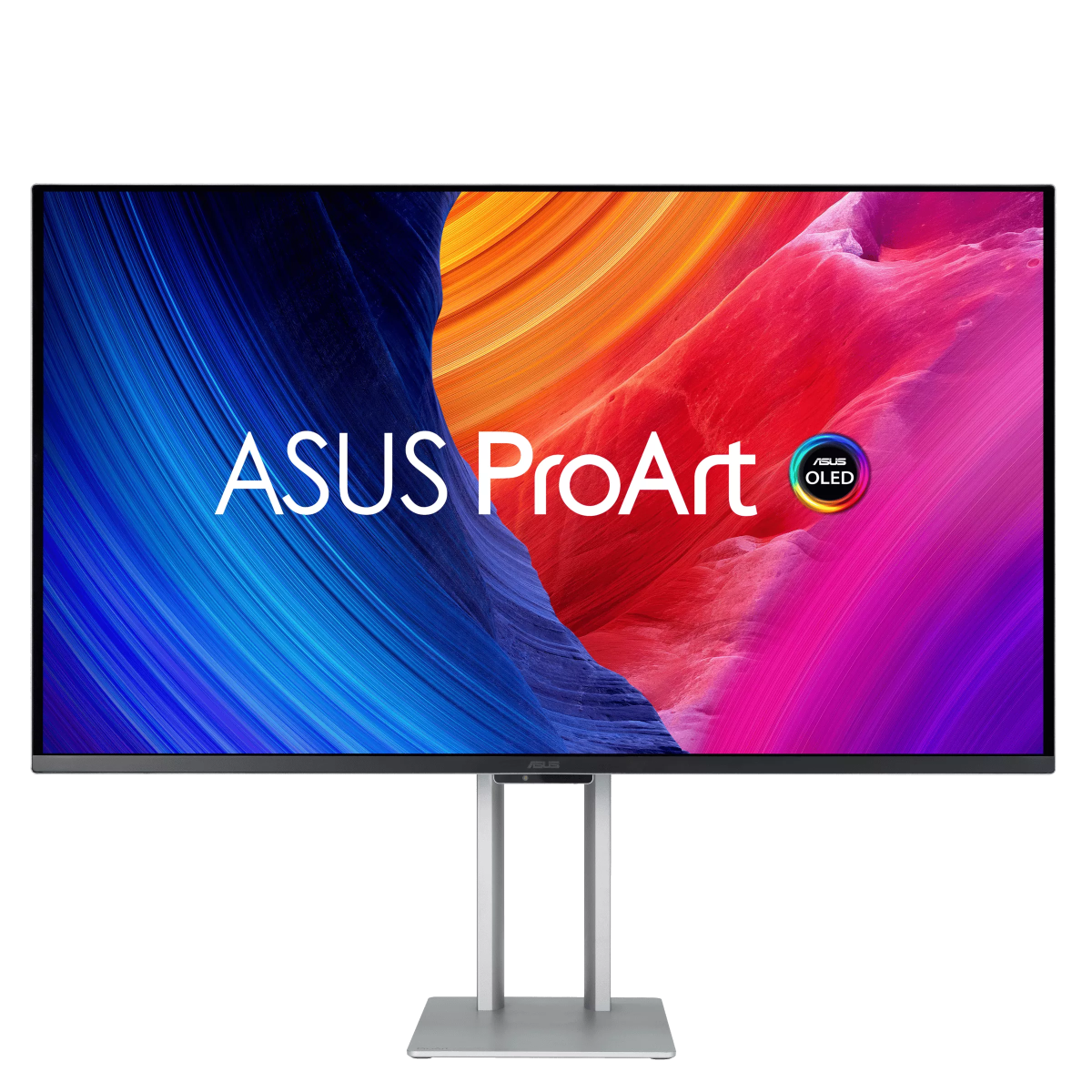
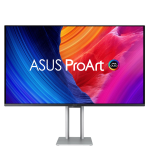
If you can spend $800 or more. You're looking at premium options like the ASUS ProArt OLED or larger 32-inch 4K OLED panels. At this level, you're buying a professional-grade tool. Only go here if your coursework genuinely demands reference-quality color accuracy.
Here's a realistic price comparison for student-relevant monitors as of 2026:
| Display Type | Typical Size | Resolution | Price Range | Best For |
|---|---|---|---|---|
| IPS (budget) | 27" | 4K | $200–$300 | Writing, browsing, general use |
| IPS (quality) | 27" | 4K | $300–$450 | All-around student use |
| Mini-LED IPS | 27"–32" | 4K | $400–$600 | Bright rooms, mixed use |
| OLED (entry) | 27" | 4K | $400–$550 | Dark rooms, creative work |
| OLED (premium) | 32" | 4K | $600–$900 | Design, video, professional use |
| QD-OLED | 27"–32" | 4K | $550–$800 | Best of both worlds, creative + gaming |
The sweet spot for most students who want OLED is the $450 to $550 range during sales. Back-to-school season in late summer and Black Friday in November typically bring the best discounts.
Decision Branch 3: How Do You Use Your Screen at Night?
This question matters more than most people realize. OLED's advantages are most visible in dark or dim environments. Your nighttime study habits directly affect whether the premium pays off.
If you study with the lights off or dimmed. OLED is a clear winner here. True blacks mean dark mode actually looks dark instead of gray. There's no backlight glow creeping from the edges.
Your eyes adjust more comfortably to a screen that matches the ambient light level of the room.
If you study with bright overhead lights. The advantage shrinks. OLED's lower sustained brightness means you're cranking the brightness slider up, which accelerates pixel wear. An IPS panel with 350+ nits handles bright rooms more comfortably.
If you use dark mode for everything. You're already getting the best scenario for OLED. Dark-themed coding editors, dark browser themes, dark document backgrounds. All of those black pixels are literally turned off on an OLED, saving power and reducing eye strain.
If you keep white backgrounds on everything. Google Docs, bright websites, white PDFs. OLED doesn't help you here. In fact, full-white content draws more power on OLED than on IPS.
You're paying for a feature you're actively not using.
If you game late at night. This is where OLED truly pulls ahead. HDR content in a dark room looks stunning on OLED. The combination of infinite contrast and fast response time makes it the best late-night gaming experience you can get without spending over $1,000.

Image source: Bing (Web (fair-use with source credit))
The Burn-In Question: Should You Actually Worry?
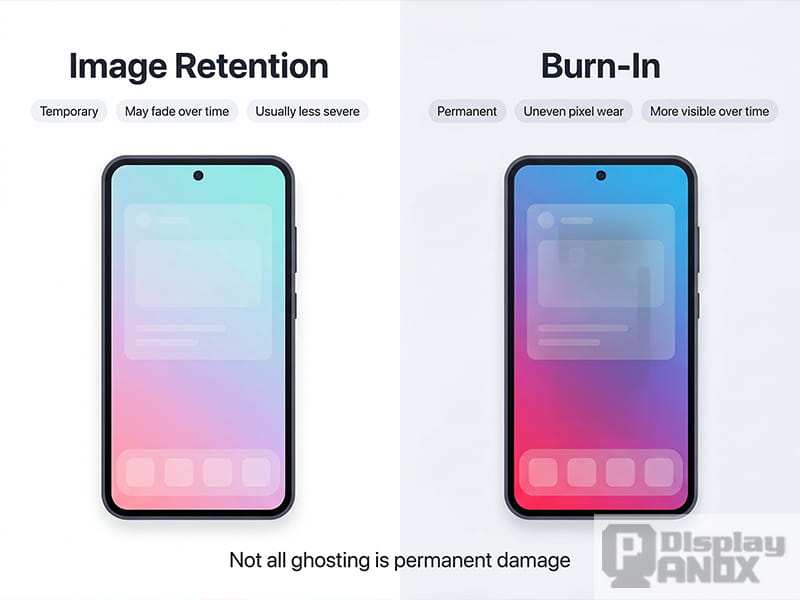
Image source: Bing (Web (fair-use with source credit))
Let's address the elephant in the room. Burn-in is real, but the risk profile for most students is lower than you might think.
Burn-in happens when the same static image stays on screen for hundreds or thousands of hours, causing those pixels to degrade faster than the surrounding ones. You end up with a faint ghost of that image visible on other content. Think of a taskbar outline that's always slightly visible even when you're watching a video.
Modern OLED monitors have several built-in protections. Pixel shift technology slightly moves the image by a few pixels periodically, so no single pixel stays locked on the same content. Pixel cleaning cycles run automatically to even out wear.
Auto brightness limiter (ABL) reduces power to static elements. LG, Samsung, and ASUS all include these features in their current OLED monitor lines.
Aggregate user reviews and long-term tests from outlets like RTINGS suggest that for typical mixed-use patterns, burn-in takes well over 20,000 hours to develop. That's roughly five to seven years of heavy daily use. Most students replace or upgrade their monitors long before that becomes an issue.
The real risk comes from specific usage patterns. If you leave your IDE open with the same static sidebar visible for eight hours a day, every day, those pixels will age faster. If you display the same spreadsheet with fixed headers for hours on end, same issue.
Students who use their monitor as a secondary display showing a static dashboard are also at higher risk.
Here's how to minimize your risk:
- Enable pixel shift in the monitor's settings menu. It's usually on by default but verify.
- Set your taskbar to auto-hide. That removes one of the most common burn-in sources.
- Use dark mode wherever possible. Fewer lit pixels means less wear.
- Set your screen to turn off after 10 to 15 minutes of inactivity.
- Vary your window layouts occasionally. Don't keep the same static elements in the same position for months.
- Run the built-in pixel cleaning cycle monthly if your monitor supports it.
If you follow these practices, burn-in is unlikely to affect you during your time in school. The students who should be most cautious are those in programming or data-heavy fields where static interface elements dominate the screen for hours at a stretch.
OLED vs IPS vs Mini-LED: What Students Need to Know
Understanding the three main display technologies helps you make a smarter choice. Each has a clear strength profile.
OLED wins on contrast, response time, and dark-room performance. It loses on peak brightness and price. Best for creative students and night owls.
IPS wins on price, brightness, and burn-in immunity. It loses on contrast ratio and viewing angles compared to OLED. Best for general-purpose student use on a budget.
Mini-LED IPS is the middle ground. It uses hundreds or thousands of small dimming zones behind the LCD layer. That gives you much better contrast than standard IPS, though not perfect blacks.
It's brighter than OLED and has no burn-in risk. Best for students who want better-than-IPS quality without OLED's trade-offs.
Here's how they stack up on the specs that matter most:
| Feature | OLED | IPS | Mini-LED IPS |
|---|---|---|---|
| Contrast ratio | ~1,000,000:1 | ~1,000:1 | ~10,000:1 to 50,000:1 |
| Response time | ~0.1ms | ~1–5ms | ~1–5ms |
| Peak brightness (sustained) | ~200–250 nits | ~350–450 nits | ~400–600 nits |
| Color gamut (DCI-P3) | 98–99% | 85–95% (varies) | 95–98% |
| Burn-in risk | Yes | No | No |
| Price (27" 4K) | $400–$600 | $200–$400 | $350–$550 |
| Best environment | Dark rooms | Bright rooms | Any room |
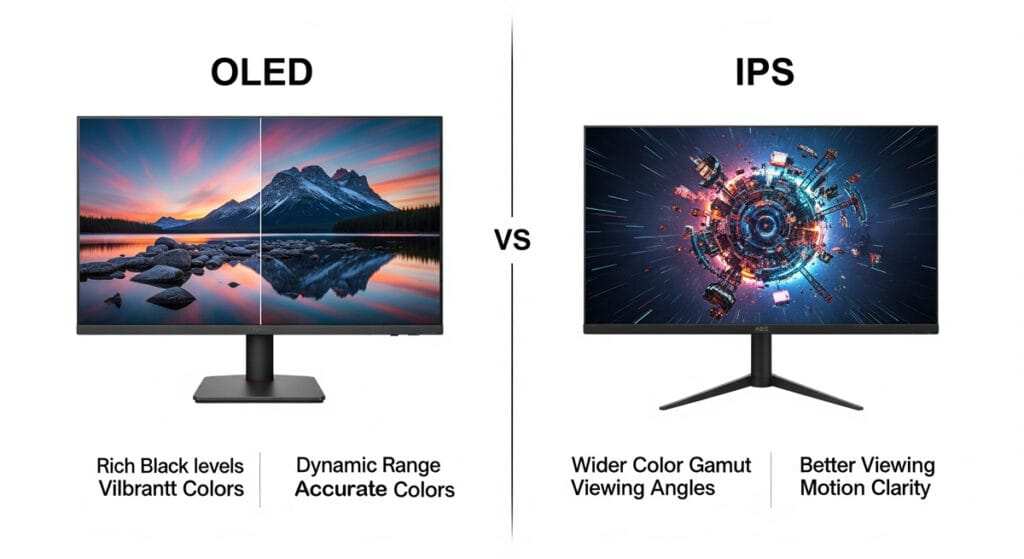
Image source: Bing (Web (fair-use with source credit))
The gap between Mini-LED and OLED has narrowed significantly. For students who want better image quality than IPS but aren't ready to deal with OLED's trade-offs, Mini-LED is increasingly the smart pick. It's especially good for students in mixed environments, like a dorm that's bright during the day and dark at night.
Best OLED Monitors for Students in 2025
The OLED monitor market has matured enough that several models work well for student use without requiring a professional budget. These aren't affiliate picks. They're models that consistently rank well in aggregate reviews and offer strong value for the specific needs we've discussed.
LG UltraGear 27GR95QE-B
A 27-inch 1440p OLED with a 240Hz refresh rate. It's a strong choice for students who split time between creative work and gaming. The 1440p resolution is a good middle ground between sharp text and reasonable GPU requirements.
Street price typically sits around $500 to $600 on sale.
LG UltraGear 27GP950-B
If you want 4K and don't need the highest refresh rate, this 27-inch 4K 160Hz OLED delivers excellent clarity for text and design work. The higher resolution is a genuine productivity benefit when you're working with documents, code, or design layouts.
Samsung Odyssey OLED G8
A 34-inch ultrawide QD-OLED that replaces a dual-monitor setup. The panoramic format is excellent for multitasking, research papers on one side and reference material on the other. It's pricier, usually $700 to $900, but it essentially replaces two displays.
QD-OLED adds quantum dot layering that boosts color volume beyond standard OLED.
ASUS ProArt PA279CRV
A 4K IPS, not OLED, but worth mentioning for students who prioritize color accuracy in a professional context without the OLED premium. If your program requires reference-quality color but your budget has limits, the ProArt line is designed for that sweet spot. It covers 99% DCI-P3 and Calman verified out of the box.
Alienware AW3225QF
The 32-inch 4K QD-OLED offers a more immersive experience than a 27-inch panel without much desk footprint increase. The larger screen real estate benefits creative timelines, coding with many windows, and research. Expect to pay $700 to $850 depending on sales.
When choosing among these, consider desk space first. A 32-inch or ultrawide panel needs a deeper desk, most standard dorm desks work fine for 27-inch models.
Frequently Asked Questions
How many hours does an OLED monitor last before burn-in becomes a risk?
For typical mixed-use patterns, burn-in takes well over 20,000 hours to develop according to aggregate long-term testing from independent reviewers. That's roughly five to seven years of heavy daily use. Modern pixel-shifting and auto-brightness features extend that timeline further.
Most students upgrade well before burn-in becomes a real concern.
Can I use an OLED monitor in a bright dorm room?
You can, but you won't get the full benefit. OLED's sustained brightness of around 200 to 250 nits is noticeably dimmer than a typical IPS panel's 350 to 400 nits. In direct sunlight or bright overhead fluorescent lighting, the OLED can appear washed out.
If your dorm gets strong natural light, a Mini-LED IPS panel is the smarter choice.
Does dark mode actually prevent OLED burn-in?
Dark mode helps by reducing the number of lit pixels, which means less overall wear. It doesn't fully prevent burn-in because the lit pixels are still working and can degrade unevenly. Combined with auto-hide taskbar, pixel shift, and screen timeout settings, dark mode is one effective layer of protection, not a complete solution on its own.
Should I buy an OLED monitor primarily for gaming as a student?
If gaming is a significant part of your daily routine and you play in the evening or in dim conditions, an OLED is a genuine upgrade for that use case. The 0.1ms response time, infinite contrast, and HDR support create a noticeably better experience than IPS. Just weigh that benefit against the price premium and ensure your academic work also benefits from the display.
If your coursework is purely text-based, the gaming benefit alone may not justify the cost.
Are refurbished OLED monitors a good option for students on a budget?
Refurbished units can save you 15 to 30 percent off retail, which is meaningful on a student budget. The main risk is that burn-in or image retention may already be present and not always visible in short demo periods. Buy from manufacturer-refurbished programs that include burn-in checks rather than third-party resellers.
Always verify the warranty terms, some manufacturers offer shorter warranties on refurbished units.
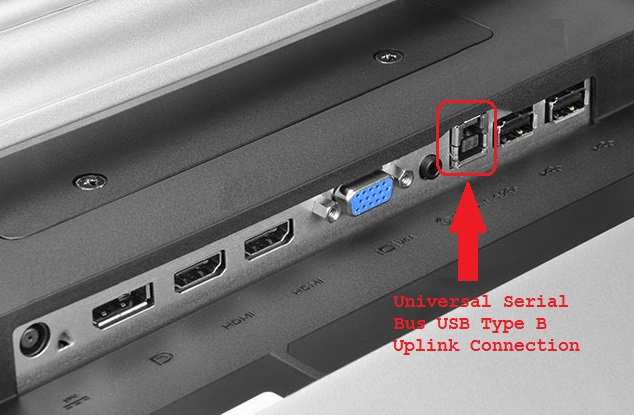
Can I connect an OLED monitor to my laptop via USB-C?
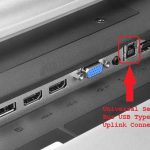
Many current OLED monitors support USB-C with power delivery, which is ideal for students who want a single cable connection. The LG UltraGear and several ASUS ProArt OLED models include USB-C connectivity with 65W to 90W power delivery. That's enough to charge most laptops while driving the display.
Check the specific wattage if you have a power-hungry laptop that requires more than 65W.

Similar Posts