Is USB C Monitor Worth It for Students
So you're staring at your laptop screen in a cramped dorm room, wondering if a USB-C monitor is actually worth the money. It's a fair question, and the answer isn't the same for everyone. Whether a USB-C monitor is worth it for you depends on what laptop you own, how much space you have, and what you're actually studying.
Here's the thing. USB-C monitors can simplify your setup dramatically with a single cable that handles video and charging. But they also cost more than basic HDMI monitors, and not every USB-C port on your laptop can even output video.
Let's walk through this step by step so you can make the right call for your situation.
Quick Answer
A USB-C monitor is worth it for students whose laptops support DisplayPort Alt Mode and power delivery. It simplifies your desk with one cable for video and charging. If your laptop only has basic USB-C or you're on a tight budget, a standard HDMI monitor makes more sense.
Check your laptop specs before buying anything.
First, Check What Your USB-C Port Actually Does
This is where most students get tripped up. Not every USB-C port on a laptop can send a video signal to a monitor. Some USB-C ports are charge-only.
Others handle data but not display output. You need to verify what your specific laptop supports before spending money on a monitor that might not work.
Not all USB-C ports are the same
USB-C is just the shape of the connector. What matters is the protocol running behind it. For a USB-C monitor to work, your laptop's USB-C port needs to support DisplayPort Alt Mode.
This is the feature that lets the port push a video signal through the USB-C connector instead of a dedicated HDMI or DisplayPort jack.
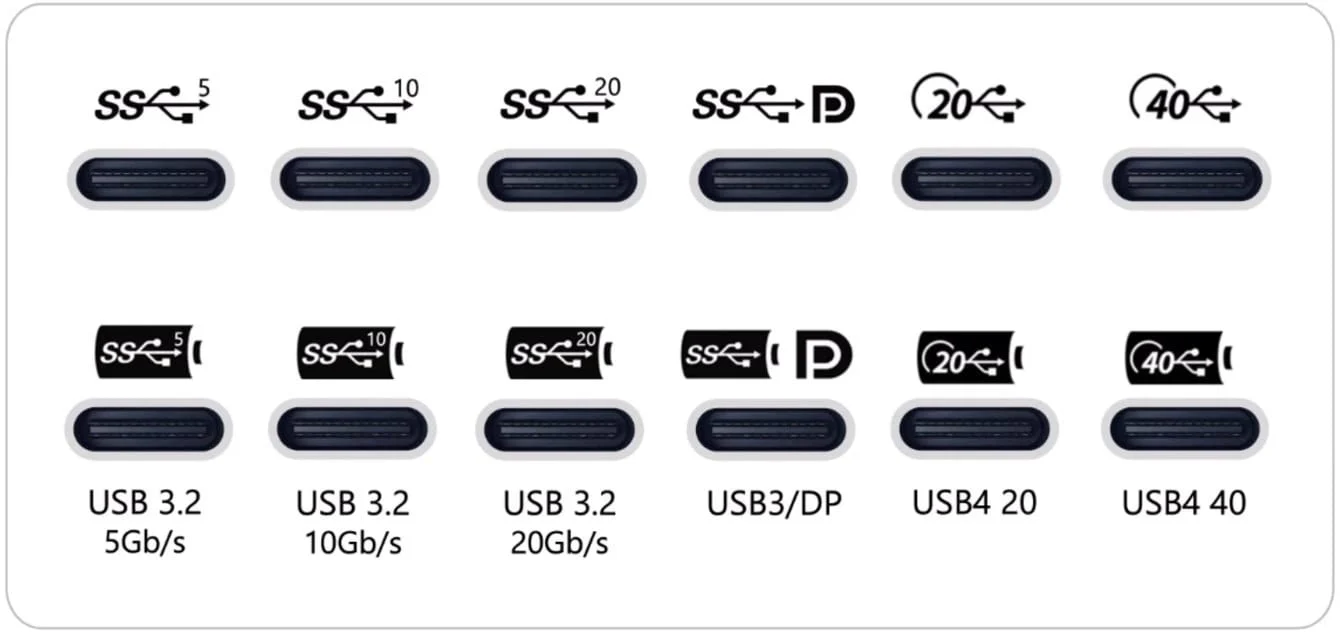
Look for a lightning bolt icon, a "D" symbol, or a Thunderbolt logo next to your USB-C port. Thunderbolt 3 and Thunderbolt 4 ports always support video output. If you see a USB symbol with "SS" (SuperSpeed), that doesn't guarantee video capability.
It might just be a data and charging port.
Here's a quick breakdown of what the common symbols mean for monitor compatibility:
| Symbol / Label | Supports Video Output? | Notes |
|---|---|---|
| Thunderbolt (lightning bolt) | Yes | Full video + data + charging |
| DisplayPort Alt Mode ("D" icon) | Yes | Video + data, charging varies |
| USB SS (SuperSpeed) | Maybe | Check your laptop specs |
| USB with battery icon | No | Charge-only port |
| No symbol | Unlikely | Probably data only |
How to check your laptop's USB-C capabilities in under two minutes
Pull up your laptop's spec sheet on the manufacturer's website. Look for phrases like "DisplayPort over USB-C," "USB-C with DP Alt Mode," or "Thunderbolt 4." If you see any of those, you're good to go. If the spec sheet only mentions "USB-C 3.2" with no mention of display output, assume it won't drive a monitor.
For MacBook users, every MacBook Air and MacBook Pro from 2018 onward supports video output over USB-C. For Windows laptops, it varies wildly by model. Dell XPS models generally support it.
Many budget Acer and ASUS laptops do not. Lenovo ThinkPads vary by generation.
When in doubt, search your exact laptop model plus "USB-C video output" or "DisplayPort Alt Mode." You'll find forum posts or spec breakdowns that give you a clear answer.
What a USB-C Monitor Actually Gives You
A USB-C monitor isn't just a regular monitor with a different plug. The real value is in what that single cable connection can do for your setup. For students working in tight dorm rooms or crowded library desks, the convenience factor is significant.
The single-cable dream: video, audio, and charging
When your laptop supports it, one USB-C cable handles everything. Video signal goes from the monitor to your laptop. Audio can travel over the same connection.
And the monitor sends power back to your laptop, charging it through that same cable.
This means you walk into your dorm, plug in one cable, and you're ready to work. No separate power brick for your laptop. No HDMI cable plus a USB cable plus a charger.
Just one connection. For students who set up and tear down their workspace frequently, this is a genuine quality-of-life improvement.
The power delivery wattage matters here. Most USB-C monitors offer between 65W and 100W of charging power through the USB-C connection. A MacBook Air needs about 30W to charge.
A MacBook Pro 14" wants around 70W. A power-hungry Windows laptop might need 90W or more. Make sure the monitor you're considering delivers enough wattage for your specific laptop.
What you get beyond just a display connection
Many USB-C monitors include a built-in USB hub. This gives you extra USB-A ports for a mouse, keyboard, or external drive. Some models even have ethernet jacks and audio outputs.
Essentially, the monitor becomes a docking station.
For a student, this means fewer dongles and adapters cluttering your desk. You plug the monitor into the wall, connect one USB-C cable to your laptop, and suddenly you have a full desktop setup with charging, extra ports, and a bigger screen.
Here's what a typical USB-C monitor setup looks like for a student:
- One USB-C cable from monitor to laptop (video + power + data)
- Monitor plugs into a wall outlet for its own power
- Laptop charges through the monitor (no separate charger needed)
- USB-A peripherals plug into the monitor's built-in hub
- Clean desk with minimal cable clutter
USB-C Monitor vs. HDMI Monitor: What's the Real Difference?
This is the comparison most students are really trying to make. Both options give you an external screen. The difference is in how they connect, what they charge, and how much they cost.
Side-by-side comparison
| Feature | USB-C Monitor | HDMI Monitor |
|---|---|---|
| Cable needed | 1 (USB-C) | 2+ (HDMI + laptop charger) |
| Charges laptop | Yes (if PD supported) | No |
| Video quality | Up to 4K at 60Hz (DP 1.4) | Up to 4K at 60Hz (HDMI 2.0) |
| Built-in USB hub | Often included | Rarely included |
| Price (24" 1080p) | $150–$250 | $100–$170 |
| Price (27" 4K) | $300–$500 | $220–$350 |
| Works with any laptop | Only USB-C with DP Alt Mode | Any laptop with HDMI port |
| Cable clutter | Minimal | More cables to manage |
The price gap is real but narrowing. As of 2026, USB-C monitors have become more affordable, but you're still paying a premium for the convenience. A solid 24-inch 1080p HDMI monitor can be found for under $130.
The USB-C equivalent typically starts around $160.
When HDMI is actually the better choice for students
If your laptop has an HDMI port and you don't mind plugging in a separate charger, an HDMI monitor gets you the same screen real estate for less money. This is the smarter pick for students on a tight budget who just need a bigger display.
HDMI also makes sense if your laptop's USB-C port doesn't support DisplayPort Alt Mode. In that case, a USB-C monitor simply won't work for video output, and you'd need an adapter anyway, which defeats the purpose.
Here's a simple rule. If your budget is under $150 and you already own an HDMI cable, go HDMI. If you value a clean single-cable setup and your laptop supports it, USB-C is worth the extra cost.
Who Benefits Most from a USB-C Monitor?
Not every student needs the same setup. Your major, your laptop, and your study habits all affect whether a USB-C monitor is a smart investment or an unnecessary expense.
Design, video, and architecture students
If you're working in Adobe Creative Suite, AutoCAD, or any color-sensitive software, you need a monitor with good color accuracy. Many USB-C monitors aimed at creative professionals cover 95% or more of the sRGB color space. The single-cable setup also matters more when you're frequently moving between a desk and a studio or lab.
Look for a 27-inch 4K USB-C monitor with IPS panel technology and at least 95% sRGB coverage. Expect to pay $350 to $500 for a model that meets these specs. Brands like Dell UltraSharp, LG UltraFine, and ASUS ProArt make solid options in this range.
Computer science and coding students
More screen real estate means more code visible at once. A USB-C monitor lets you have your IDE on one screen and documentation or a terminal on the other. The built-in USB hub is handy for connecting a mechanical keyboard, mouse, and external drive without a separate dock.
A 24-inch 1440p (QHD) USB-C monitor hits the sweet spot for coding. You get sharp text rendering without the scaling issues that 4K can introduce on smaller screens. Budget around $200 to $300 for a decent model.
Business, humanities, and general-use students
If your coursework mostly involves writing papers, browsing research databases, and running spreadsheets, you don't need a high-end monitor. A basic 24-inch 1080p USB-C monitor works perfectly. The main benefit here is the single-cable convenience, especially if you're constantly moving your laptop between your dorm and the library.
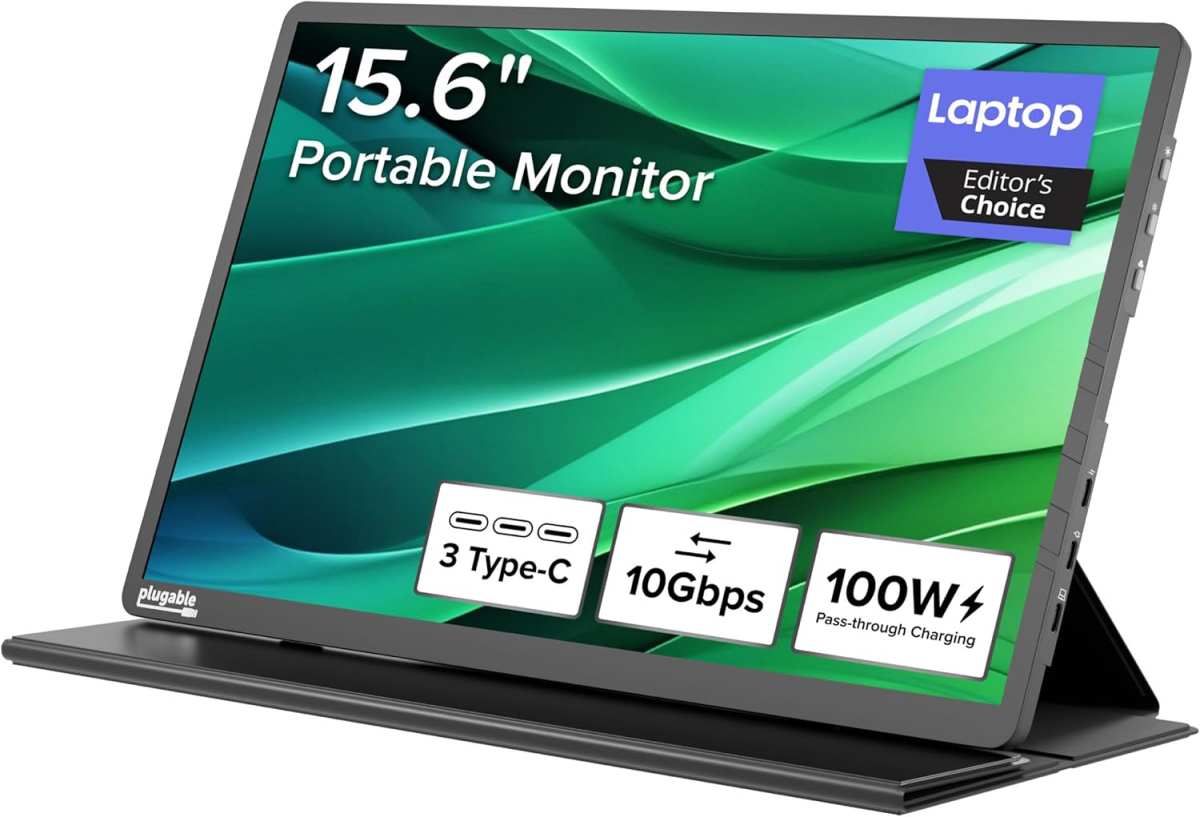
This is also the group that benefits most from portable USB-C monitors. These 15.6-inch screens weigh under 2 pounds, run off your laptop's USB-C port for power, and slip into a backpack. They're perfect for setting up a dual-screen workspace at a coffee shop or library without needing a wall outlet for the monitor.
MacBook users (Air and Pro)
MacBook owners are arguably the best candidates for USB-C monitors. Apple's laptops rely entirely for USB-C and Thunderbolt ports, so a USB-C monitor integrates seamlessly. The monitor charges your MacBook through the same cable, and macOS handles external displays well.
The LG UltraFine 4K and 5K monitors were literally designed in collaboration with Apple. Dell's UltraSharp USB-C monitors also work beautifully with Macs. Just make sure you're buying a monitor with enough wattage.
A MacBook Pro 14" needs at least 67W from the monitor to charge at full speed. The MacBook Air is fine with 30W to 45W.
Chromebook students
This is where it gets tricky. Many Chromebooks have USB-C ports, but not all support DisplayPort Alt Mode. Budget Chromebooks in particular often limit their USB-C ports to charging and data only.
Check your specific model's specs before assuming a USB-C monitor will work.
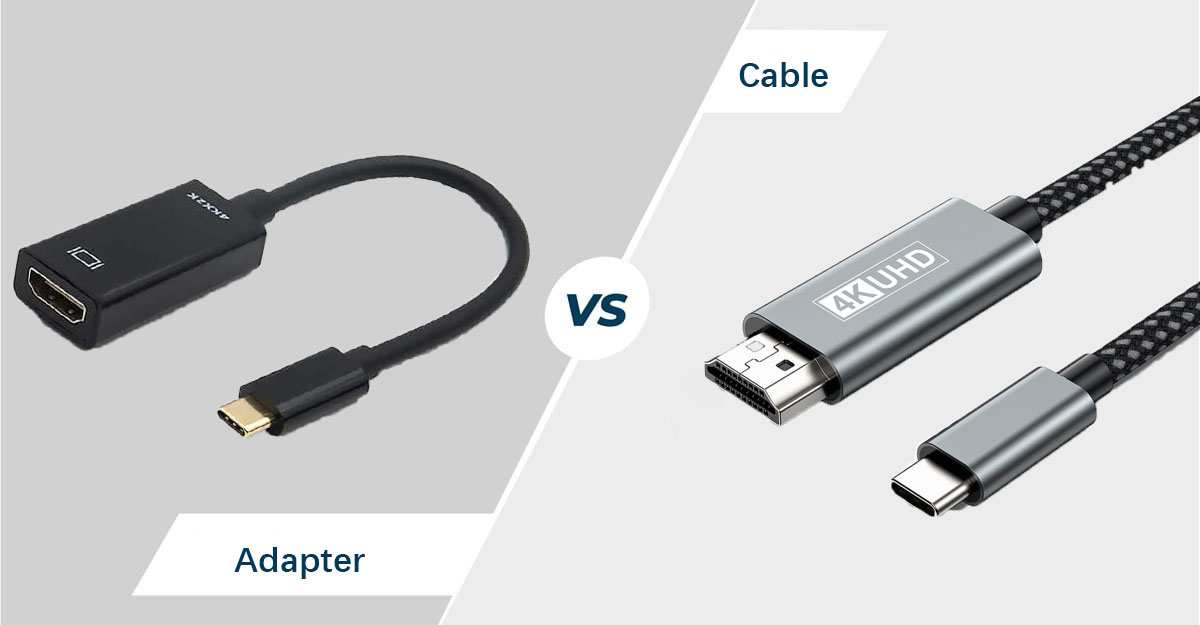
If your Chromebook does support video output over USB-C, a USB-C monitor works great. ChromeOS handles external displays well, and the single-cable setup keeps things simple. If your Chromebook doesn't support it, you'll need a USB-C to HDMI adapter, which adds cost and cable clutter.
Who Should Skip a USB-C Monitor?
Not everyone benefits from going USB-C. In some cases, it's genuinely the wrong choice, and you'd be better off saving your money or going a different route entirely.
When a USB-C monitor doesn't make sense for your setup
If your laptop's USB-C port doesn't support DisplayPort Alt Mode, a USB-C monitor won't output video. Period. You'd need a USB-C to HDMI adapter anyway, which adds cost and cable clutter.
At that point, just buy an HDMI monitor and keep things simple.
Budget USB-C monitors under $130 often cut corners. They might have poor color accuracy, flimsy stands, or limited port selection. A $110 HDMI monitor frequently delivers a better panel than a $130 USB-C model.
The USB-C premium isn't always justified at the low end.
If you already own a docking station with HDMI output, adding a USB-C monitor gives you little extra. Your dock handles the video connection and charging. A USB-C monitor's built-in hub becomes redundant.
Students who game heavily should also think twice. Most USB-C monitors top out at 60Hz or 75Hz. If you have a laptop capable of gaming at 120Hz or higher, you'll want a monitor with HDMI 2.1 or DisplayPort 1.4 at those refresh rates.
USB-C monitors with high refresh rates exist but cost significantly more.
What to Look for When Buying a USB-C Monitor
Once you've decided a USB-C monitor makes sense, you need to pick the right one. Not all USB-C monitors deliver the same experience. A few key specs separate the good ones from the ones you'll regret buying.
Power delivery wattage matters more than you think
This is the spec most students overlook. The monitor's USB-C port sends power back to your laptop. If the wattage is too low, your laptop charges slowly or doesn't charge at all under heavy use.
Here's a quick guide for common student laptops:
| Laptop | Minimum PD Wattage for Full Speed Charging |
|---|---|
| MacBook Air M1/M2 | 30W |
| MacBook Pro 14" | 67W |
| MacBook Pro 16" | 96W |
| Dell XPS 13 | 45W–65W |
| Lenovo ThinkPad X1 Carbon | 65W |
| HP Spectre x360 | 65W |
| ASUS ZenBook | 65W |
Many budget USB-C monitors only deliver 15W to 45W over USB-C. That's fine for a MacBook Air but insufficient for a MacBook Pro 14" or most Windows productivity laptops. Check the monitor's spec sheet for "USB-C PD" or "power delivery" wattage before buying.
Resolution and screen size for student use
For a dorm desk setup, 24 inches is the sweet spot for 1080p. Text is sharp, the screen fits in tight spaces, and prices stay reasonable. If you have a larger desk or need more screen real estate for multitasking, 27 inches at 1440p (QHD) is the next step up.
4K at 27 inches looks stunning but costs more and demands more from your laptop's graphics processor. Some older laptops struggle to drive 4K at 60Hz over USB-C. Unless you're in a design or video program, 1440p gives you the best balance of clarity, performance, and price.
Cable quality and included cables
This catches people off guard. Not every USB-C cable supports video. Some USB-C cables are charge-only.
Others support data but not DisplayPort Alt Mode.
Many USB-C monitors include a capable cable in the box. Verify this before buying. If the monitor doesn't include a full-featured USB-C cable, you'll need to buy one separately.
A proper USB-C 3.1 Gen 2 cable with DisplayPort Alt Mode support costs $15 to $25. Using the wrong cable results in no signal, limited resolution, or no charging.
Look for cables certified by USB-IF. These have been tested to meet the standard. Cheap no-name cables from marketplace sellers often cut corners and cause frustrating connection issues.
Portable vs. desk-based monitors
Portable USB-C monitors are a distinct category. They're typically 15.6 inches, weigh under 2 pounds, and draw power directly from your laptop's USB-C port. They're designed for students who work in libraries, coffee shops, or shared study spaces.
Desk-based USB-C monitors are larger, heavier, and plug into a wall outlet. They stay in one place, usually your dorm room or apartment desk. They offer better image quality, more ports, and higher power delivery.
Portable models from brands like ASUS, Lenovo, and LG run $120 to $250. Desk-based models at 24 inches start around $150 and go up to $500 or more for premium options. Decide which use case fits your study habits before shopping.
Common Mistakes Students Make with USB-C Monitors
These are the errors we see most often. Avoiding them saves money and frustration.
Buying a charge-only USB-C cable
This is the number one mistake. Students grab whatever USB-C cable is lying around, plug it in, and wonder why they get no signal. Charge-only cables have the power pins but lack the data and video pins.
They'll charge your laptop but won't transmit a display signal.
Always use the cable that came with the monitor, or buy a cable explicitly rated for DisplayPort Alt Mode and USB 3.1 data. If the cable supports video and data, it will say so on the packaging or product listing.
Assuming any USB-C port supports video
We covered this earlier, but it bears repeating. Check your laptop's specs. A USB-C port with no DisplayPort Alt Mode or Thunderbolt support cannot output video.
Plugging a USB-C monitor into this port does nothing. You'll need a USB-C to HDMI adapter instead, which costs $15 to $30 and adds another cable to your setup.
Ignoring power delivery wattage
A monitor that only delivers 15W over USB-C won't keep up with a MacBook Pro or most Windows laptops under load. Your laptop might charge slowly while you're using it, or the battery might drain even while plugged in. This defeats one of the main benefits of a USB-C monitor.
Match the monitor's power delivery to your laptop's charging requirements. If your laptop came with a 67W charger, get a USB-C monitor that delivers at least 65W.
Overpaying for features you won't use
HDR400 on a budget USB-C monitor is mostly a marketing term. The display isn't bright enough for true HDR, and you won't notice the difference while writing papers or browsing the web. Built-in speakers on monitors are almost always terrible.
Use headphones or external speakers instead.
Don't pay extra for Thunderbolt 4 support if your laptop only has standard USB-C with DisplayPort Alt Mode. You won't benefit from the additional bandwidth. Save that money for a better panel or a larger screen size.
Real Student Scenarios: What Works and What Doesn't
Let's put this all together with some realistic examples. These scenarios cover the most common student situations we've encountered in our research.
Scenario 1: Small dorm desk, MacBook Air, essay-heavy major
A MacBook Air supports USB-C video output and charges at around 30W. A 24-inch 1080p USB-C monitor with 45W power delivery handles this perfectly. One cable for video and charging.
The small footprint fits on a cramped dorm desk. Total cost: around $160 to $200 for a solid budget USB-C monitor.
This student doesn't need 4K, high refresh rates, or color accuracy. They need screen space and simplicity. A USB-C monitor is a great fit here.
Scenario 2: Shared study spaces, need portability
This student moves between the library, a coffee shop, and a shared study room. A 15.6-inch portable USB-C monitor slips into a backpack and sets up in seconds. It draws power from the laptop, so no wall outlet is needed for the monitor itself.
Models like the ASUS ZenScreen or Lenovo ThinkVision M14 work well here. They cost $130 to $200 and add minimal weight to a backpack. The single USB-C cable keeps setup fast.
This is one of the strongest use cases for USB-C monitors in a student context.
Scenario 3: Architecture student, Dell XPS, needs color accuracy
This student needs a 27-inch 4K monitor with strong color accuracy for CAD work and rendering. A Dell UltraSharp U2723QE or similar model with USB-C, 90W power delivery, and 98% DCI-P3 coverage fits the bill. The price tag is steep at around $450 to $600, but the single-cable workflow and color precision justify it for this use case.
An HDMI monitor with similar specs would cost slightly less but require a separate charger and more cables. For a student who plugs in and unplugs multiple times per day, the USB-C convenience adds real value.
Scenario 4: Budget-conscious student with a basic laptop
This student has a $400 laptop with an HDMI port and a USB-C port that only supports charging. A USB-C monitor makes no sense here. A $110 24-inch HDMI monitor paired with the laptop's included charger is the smarter play.
Total cost stays low, and the setup works reliably.
Spending $180 on a USB-C monitor when the laptop can't even use the video-over-USB-C feature is a waste. Save the money for textbooks or ramen.
Pricing: What Students Actually Pay
USB-C monitor prices have dropped noticeably over the past couple of years. You no longer need to pay a massive premium for the convenience. But there are still clear tiers based on features and build quality.
Budget USB-C monitors ($120–$200)
This tier covers basic 24-inch 1080p panels. They handle video and charging fine for everyday student work. Build quality is acceptable, stands are often basic, and color accuracy is passable but not impressive.
Brands like AOC, Sceptre, and budget ASUS models live here.
These work well for writing papers, web browsing, and video calls. Don't expect great speakers or sleek designs. They get the job done without frills.
Mid-range USB-C monitors ($200–$400)
This is the sweet spot for most students. You get 27-inch panels, 1440p or 4K resolution, better color accuracy, and more reliable power delivery. Dell UltraSharp, LG UltraGear, and ASUS ProArt models occupy this range.
Monitors in this tier often include adjustable stands, built-in USB hubs, and 65W to 90W power delivery. They're a noticeable step up in daily usability and image quality.
Premium USB-C monitors ($400+)
High-end models offer 5K resolution, factory-calibrated color accuracy, Thunderbolt 4 daisy-chaining, and premium build quality. The Apple Studio Display and Dell UltraSharp U3225QE sit in this tier.
These make sense for design, photography, and video students who need color precision. For everyone else, the mid-range tier delivers everything you need at half the price.
Portable USB-C monitors ($100–$250)
Portable models cost less than desk-based monitors but deliver smaller screens. A 15.6-inch portable USB-C monitor runs $100 to $180. Larger 17-inch models with higher resolution reach $200 to $250.
They're a solid investment for students who work in multiple locations. The tradeoff is a smaller screen and fewer adjustment options compared to desk-based monitors.
The Decision Guide: Is a USB-C Monitor Right for You?
Walk through these five questions. Your answers will tell you whether a USB-C monitor is worth your money.
Walk through five questions to get your answer
1. Does your laptop's USB-C port support DisplayPort Alt Mode or Thunderbolt?
If yes, continue. If no, buy an HDMI monitor instead. A USB-C monitor won't work for video output without this support.
2. Do you want a single cable for video and charging?
If yes, a USB-C monitor delivers real value here. If you don't mind plugging in a separate charger, an HDMI monitor saves you money.
3. Is your budget above $150?
USB-C monitors start around $130 to $150 for decent quality. If your budget is below that, a basic HDMI monitor is the better choice. You'll get a comparable display for less money.
4. Do you move your setup frequently?
Students who study in libraries, coffee shops, or shared spaces benefit most from the plug-and-play simplicity. One cable to connect, one cable to disconnect. It adds up over time.
5. Does your laptop need 65W or more for charging?
Check your laptop's included charger wattage. Make sure the USB-C monitor you're considering matches or exceeds that number. A monitor that only delivers 45W won't keep a 67W MacBook Pro charged under load.
If you answered yes to at least three of these questions, a USB-C monitor is worth it for your situation. If you answered yes to one or two, an HDMI monitor probably makes more financial sense.
Frequently Asked Questions
Can I use a USB-C monitor with HDMI?
Not directly. USB-C monitors use a USB-C input. If your laptop only has HDMI output, you'd need a USB-C to HDMI adapter, which often doesn't work in the reverse direction.
Some monitors include both USB-C and HDMI ports, giving you flexibility.
Will a USB-C monitor charge my laptop?
Yes, if the monitor supports USB Power Delivery and your laptop accepts charging over USB-C. Check the monitor's power delivery wattage against your laptop's charging requirements. Insufficient wattage means slow or no charging under heavy use.
Do I need a special cable for a USB-C monitor?
You need a USB-C cable that supports DisplayPort Alt Mode and, ideally, USB 3.1 data. Many monitors include a suitable cable in the box. If buying separately, look for USB-IF certified cables rated for video output.
Can I daisy-chain USB-C monitors?
Only with Thunderbolt 3 or Thunderbolt 4 monitors and a laptop that supports Thunderbolt. Standard USB-C monitors with DisplayPort Alt Mode generally cannot be daisy-chained. You'd need a separate USB-C connection from your laptop to each monitor.
Is a USB-C monitor good for gaming?
Most USB-C monitors offer 60Hz or 75Hz refresh rates, which is fine for casual gaming. Serious gamers will want a monitor with 120Hz or higher over HDMI 2.1 or DisplayPort. High-refresh USB-C monitors exist but cost significantly more.

Similar Posts





















