Do 4K Monitors Need Special Cables
Do 4K monitors need special cables? It's one of those questions that sounds like it should have a simple yes-or-no answer, but it really doesn't. The cable you need depends on what you're trying to do with that monitor and what hardware you're connecting it to.
The good news is you probably don't need to buy anything fancy. A basic cable might already do the job. The trick is understanding what your specific setup requires so you don't overspend or end up stuck at a lower refresh rate than your monitor can handle.
Let's walk through it step by step.
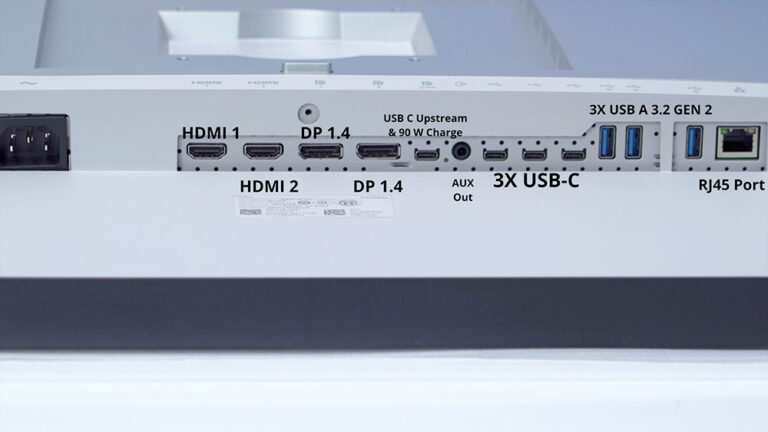
Image source: Bing (Web (fair-use with source credit))
Quick Answer
4K monitors need cables that support enough bandwidth for 3840×2160 resolution. A basic HDMI or DisplayPort cable handles 4K at 60Hz. Higher refresh rates need HDMI 2.1 or DisplayPort 1.4.
Check your GPU and monitor ports first.
What Actually Determines Which Cable You Need
There's no single "4K cable." The right one for you comes down to three things working together. Miss one of these and you'll either waste money or get a worse picture than your monitor can deliver.
Resolution and refresh rate requirements
A 4K signal at 60Hz needs about 12.54 Gbps of bandwidth. Push that to 4K at 120Hz and you're looking at roughly 25.82 Gbps. At 144Hz, you need over 32 Gbps.
That's the core math everything else revolves around. Your cable has to carry that much data from your GPU to your monitor without choking.
Most people running 4K at 60Hz for office work, browsing, or video playback don't need anything special. Gamers and creative professionals pushing higher refresh rates are the ones who need to pay attention to cable specs.
Your GPU's output ports
Your graphics card dictates what type of cable you can even use. An older GPU with only HDMI 1.4 tops out at 4K@30Hz, which feels sluggish just moving the mouse around.
Modern GPUs from NVIDIA and AMD typically ship with DisplayPort 1.4 and either HDMI 2.0 or HDMI 2.1. Check your specific card's specs. The port version on your GPU is your ceiling.
Your monitor's input ports
Here's where people get tripped up. You might have a GPU with HDMI 2.1, but if your monitor only has HDMI 2.0 and DisplayPort 1.2, you're limited by the monitor's lowest spec port.
The chain is only as strong as its weakest link. Your cable, your GPU port, and your monitor port all need to support the resolution and refresh rate you want. One bottleneck anywhere in that chain and you're not getting the full picture.
The Cable Version Cheat Sheet
Cable versioning is genuinely confusing, especially with HDMI. Manufacturers don't always make it easy to figure out what you're actually getting. Here's a straightforward breakdown of what each version can handle at 4K resolution.
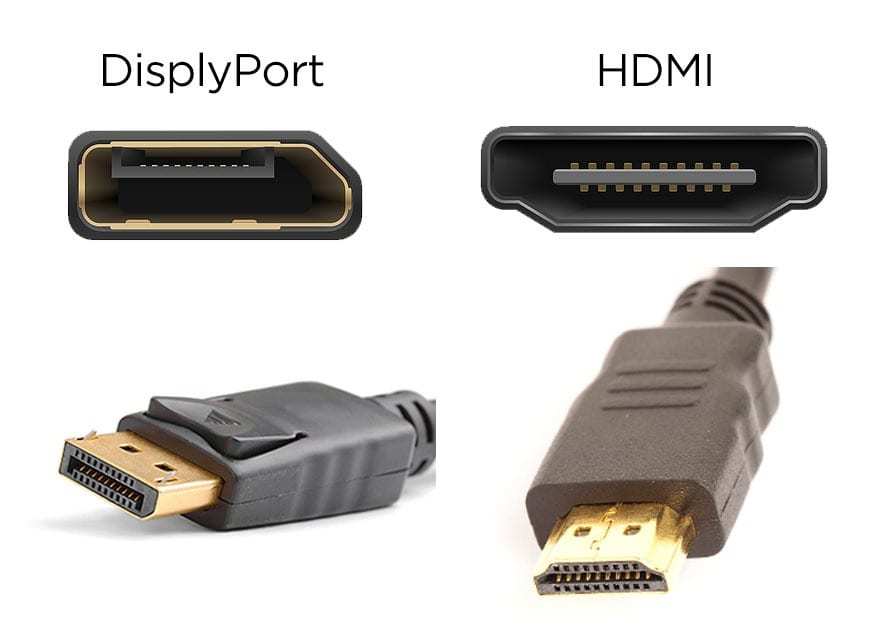
Image source: Bing (Web (fair-use with source credit))
HDMI versions at a glance
HDMI versioning is a mess of marketing names and overlapping specs. Here's what actually matters for 4K:
| HDMI Version | Max 4K Refresh Rate | Max Bandwidth | HDR Support |
|---|---|---|---|
| HDMI 1.4 | 30Hz | 10.2 Gbps | Limited |
| HDMI 2.0 | 60Hz | 18 Gbps | Yes |
| HDMI 2.1 | 120Hz (up to 4K@144Hz with DSC) | 48 Gbps | Yes, full |
HDMI 2.0 is the sweet spot for most 4K@60Hz setups. It's been standard on GPUs and monitors for years. You'll find it on virtually every 4K monitor and most graphics cards made since 2016.
HDMI 2.1 matters if you're gaming at 4K@120Hz or using a PS5 or Xbox Series X at full spec. The full 48 Gbps bandwidth is what makes that possible.
DisplayPort versions at a glance
DisplayPort tends to be the preferred connection for PC monitors, and for good reason. It's been ahead of HDMI on bandwidth for several generations.
| DP Version | Max 4K Refresh Rate | Max Bandwidth | Notes |
|---|---|---|---|
| DP 1.2 | 60Hz | 21.6 Gbps | Common on older monitors |
| DP 1.4 | 120Hz (with DSC) | 32.4 Gbps | Most modern GPUs |
| DP 2.0/2.1 | 240Hz+ | 80 Gbps | Newest standard, limited adoption as of 2026 |
DisplayPort 1.4 with Display Stream Compression is what most current-gen PC gamers are using. DSC is a visually lossless compression technique that lets more data squeeze through the cable without any perceptible quality loss.
Quick comparison table
| Use Case | Minimum Cable Spec | Recommended |
|---|---|---|
| Office / productivity 4K@60Hz | HDMI 2.0 or DP 1.2 | Either works fine |
| Console gaming 4K@60Hz | HDMI 2.0 | HDMI 2.0 |
| Console gaming 4K@120Hz | HDMI 2.1 | HDMI 2.1 (certified) |
| PC gaming 4K@60Hz | DP 1.2 or HDMI 2.0 | DP 1.4 preferred |
| PC gaming 4K@120Hz+ | DP 1.4 with DSC | DP 1.4 certified |
| Video editing HDR 4K@60Hz | DP 1.4 or HDMI 2.0 | DP 1.4 for 4:4:4 chroma |
The Decision Flow: Finding Your Right Cable
Rather than guessing, work through these four steps. By the end, you'll know exactly which cable spec you need and whether you already have one that works.
Step 1 — What refresh rate do you actually need?
This is the most important question. Be honest about how you'll use the monitor.
If you're doing office work, web browsing, photo editing, or watching video content, 4K@60Hz is perfectly smooth. You will not notice a difference between 60Hz and 144Hz when you're scrolling through spreadsheets or editing documents.
If you're gaming, especially fast-paced shooters or racing games, higher refresh rates matter a lot. 4K@120Hz or 4K@144Hz is noticeably smoother. But it also demands more from your cable.
If you're editing video professionally, you probably want 4K@60Hz with full 4:4:4 chroma subsampling for accurate color. That's a different bandwidth consideration than refresh rate alone.
Step 2 — What ports does your GPU have?
Look at the back of your graphics card or check the manufacturer's spec sheet online. You need to know both the port type and the version.
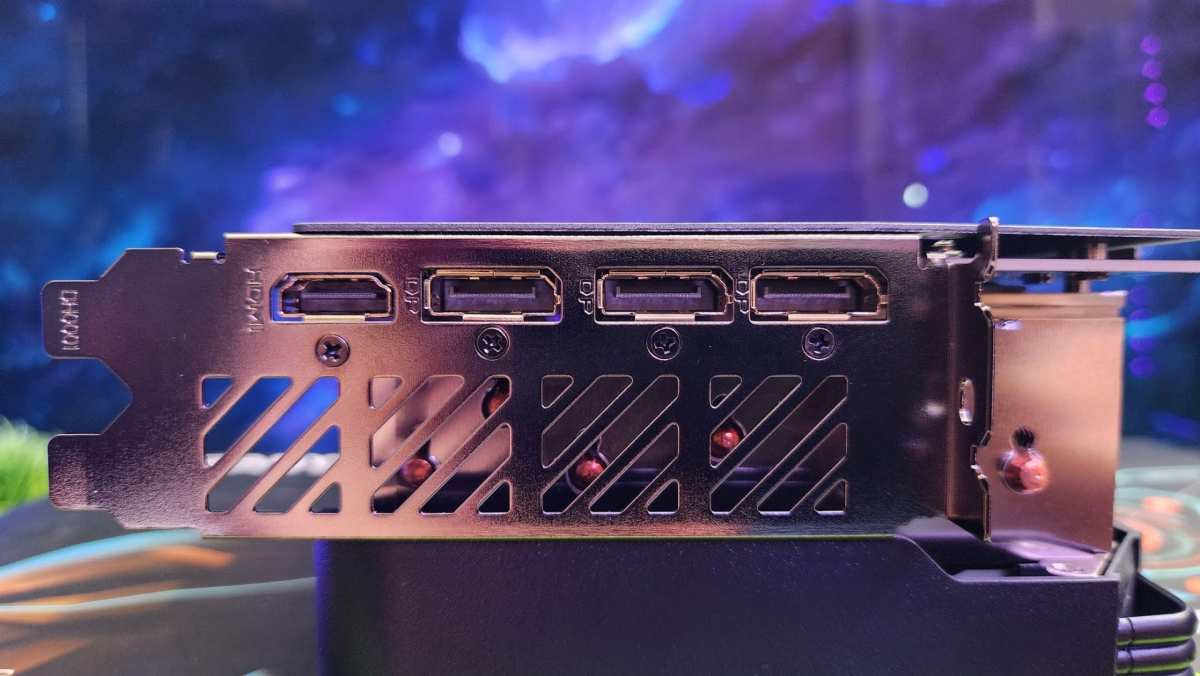
Image source: Bing (Web (fair-use with source credit))
Most modern NVIDIA RTX 30-series and 40-series cards have DisplayPort 1.4a and HDMI 2.1. AMD Radeon RX 6000 and 7000 series cards typically offer the same. Older cards may be limited to HDMI 2.0 or DisplayPort 1.2.
If you're using integrated graphics on an Intel or AMD processor, check your motherboard's output ports. They're often a generation behind discrete GPUs.
Step 3 — What ports does your monitor have?
Flip through your monitor's on-screen display menu or check the spec sheet. Some monitors advertise HDMI 2.1 but only support it at reduced bandwidth. Others have DisplayPort 1.2 on one input and 1.4 on another.
Budget 4K monitors often ship with HDMI 1.4 or 2.0 and DisplayPort 1.2. Mid-range and high-end models tend to include HDMI 2.1 and DisplayPort 1.4.
Write down every port and version your monitor supports. Then do the same for your GPU.
Step 4 — Match the lowest common denominator
Now compare your lists. The highest refresh rate and resolution you can achieve is limited by the lowest spec in the chain.
If your GPU has HDMI 2.1 and DisplayPort 1.4, but your monitor only has HDMI 2.0 and DisplayPort 1.2, you're capped at what the monitor supports. Buying an HDMI 2.1 cable won't help. The monitor's port is the bottleneck.
Conversely, if your monitor supports 4K@144Hz over DisplayPort 1.4 but your GPU only has DisplayPort 1.2, you'll need a GPU upgrade to unlock that performance. No cable fixes that.
The right cable is the one that meets or exceeds the requirements of your target resolution and refresh rate, using the best port available on both devices. You don't need to go beyond that.
Common Situations and the Right Cable for Each
Let's get specific. Here are the most likely scenarios you're dealing with, and exactly what cable each one needs.
Basic office use at 4K@60Hz
If you bought a 4K monitor for spreadsheets, documents, coding, or general productivity, you need a cable that handles 3840×2160 at 60Hz. That's it.
An HDMI 2.0 cable or a DisplayPort 1.2 cable handles this without breaking a sweat. Most monitors in this category ship with a perfectly adequate cable in the box. If you're connecting a laptop, USB-C with DisplayPort Alt Mode also works great.
You don't need to spend more than about $8 to $12 on a cable for this use case. Save your money.
Console gaming at 4K@120Hz
The PS5 and Xbox Series X both support 4K@120Hz, but only over HDMI 2.1. If you want that smooth gameplay on a compatible TV or monitor, you need an Ultra High Speed HDMI cable.
The console typically includes a compatible HDMI 2.1 cable in the box. If you need a longer one, look for cables certified as "Ultra High Speed HDMI" by the HDMI Forum. That certification means the cable has been tested at the full 48 Gbps bandwidth.
Don't grab a random HDMI cable from a bin and expect 120Hz. It either won't work or you'll get flickering and dropouts.
PC gaming at 4K@144Hz or higher
This is where DisplayPort 1.4 with Display Stream Compression comes in. Most high-refresh 4K monitors rely on DP 1.4 and DSC to push 144Hz at full resolution with 4:4:4 chroma.
NVIDIA's RTX 30-series and 40-series GPUs support DSC over DisplayPort 1.4. AMD's RX 6000 and 7000 series do too. Make sure you're using a VESA-certified DisplayPort 1.4 cable, not a generic one that might not handle the full 32.4 Gbps bandwidth.
HDMI 2.1 can also handle 4K@120Hz, but for 144Hz and above on PC, DisplayPort remains the standard choice.
Video editing with HDR and full chroma
Color accuracy matters more than refresh rate here. You want 4K@60Hz with 4:4:4 chroma subsampling and HDR. That means no chroma compression, full color data.
DisplayPort 1.4 handles this comfortably. HDMI 2.0 can do 4K@60Hz at 4:4:4 as well, but it's right at its bandwidth limit. If you're also running HDR, DisplayPort 1.4 gives you more headroom.
For professional color work, many editors prefer DisplayPort because it locks in full chroma without any compromises. Check your monitor's OSD settings to confirm it's receiving a 4:4:4 signal, not 4:2:2.
Laptop connected via USB-C
Many modern laptops output video over USB-C using DisplayPort Alt Mode. A single USB-C cable can carry a 4K@60Hz signal and charge your laptop at the same time.
The catch is that not all USB-C cables support video. You need a cable that explicitly lists DisplayPort Alt Mode or Thunderbolt 3/4 support. A basic charging-only USB-C cable won't carry a video signal.
Thunderbolt 4 cables are the safest bet. They guarantee full DisplayPort 1.4 bandwidth along with power delivery. They cost more, but they eliminate guesswork.
Mistakes People Make When Buying 4K Cables
There are a handful of errors we see over and over. Avoiding them saves money and frustration.
Overspending on specs they'll never use
A $70 "premium" HDMI 2.1 cable won't look any different from a $12 certified one on a 4K@60Hz monitor. You're paying for bandwidth you'll never touch.
Buy the cable that matches your actual resolution and refresh rate needs. Not the maximum spec available.
Assuming all HDMI 2.1 cables are equal
The HDMI Forum has confirmed that some cables marketed as "HDMI 2.1" don't actually meet the full 48 Gbps specification. The "Ultra High Speed HDMI" certification is the only reliable indicator.
Look for the official certification hologram or logo on the packaging. If a cable just says "supports 4K@120Hz" without the Ultra High Speed certification, be cautious.
Ignoring cable length issues
Signal degradation is real, especially at higher bandwidths. Passive copper cables generally work reliably up to about 3 meters for HDMI 2.1 at full 48 Gbps.
Beyond that, you may need an active cable or a fiber optic HDMI cable. For DisplayPort, passive cables are reliable up to about 3 meters for DP 1.4 at full bandwidth. Longer runs need active cables.
If you're running a cable across a room, measure the distance before buying. A 5-meter passive cable might work fine for 4K@60Hz but fail completely at 4K@120Hz.
Checking only the monitor and forgetting the GPU
People often check their monitor's specs, buy the right cable, then wonder why it doesn't work. Their GPU's output port is the bottleneck.
Always check both ends of the chain. Your GPU's port version matters just as much as your monitor's. A DisplayPort 1.2 GPU can't output a 4K@120Hz signal no matter what cable you use.
How to Verify Your Cable Is Working at Full Spec
You've got your cable connected. Now make sure it's actually delivering the resolution and refresh rate you expect.
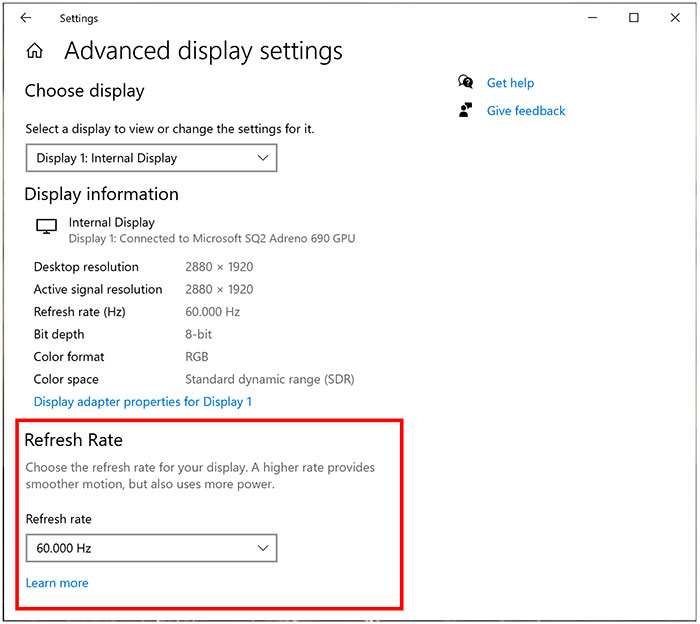
Image source: Bing (Web (fair-use with source credit))
Windows display settings
Right-click your desktop and select Display Settings. Scroll down to Advanced Display Settings. Check the refresh rate listed there.
If your monitor supports 144Hz but Windows only shows 60Hz, your cable is likely the culprit. You're either using a cable that doesn't have enough bandwidth, or you're plugged into a lower-spec port on your GPU or monitor.
NVIDIA and AMD control panels
NVIDIA's control panel and AMD's Radeon Software give you more detailed information than Windows. They show the actual resolution, refresh rate, color depth, and chroma subsampling format.
In NVIDIA Control Panel, go to Change Resolution and check the output color depth and format. In AMD Software, look under Display settings. If you see 4:2:2 chroma instead of 4:4:4, your cable may be forcing compression due to bandwidth limits.
Checking actual refresh rate with a test tool
Windows sometimes reports a refresh rate that isn't quite accurate. Use TestUFO's refresh rate test at testufo.com/refresh. It shows the actual refresh rate your monitor is receiving in real time.
This is a quick way to confirm your cable is truly delivering the spec you paid for. If TestUFO shows 60Hz but your monitor is rated for 144Hz, something in the chain is limiting you.
Frequently Asked Questions
Can I use an old HDMI cable for a 4K monitor?
It depends on the HDMI version of that old cable. An HDMI 1.4 cable will work but only at 4K@30Hz, which feels sluggish. An HDMI 2.0 cable handles 4K@60Hz just fine.
Check the cable's markings or packaging to identify its version.
Do I need DisplayPort or HDMI for 4K gaming?
DisplayPort is generally preferred for PC monitors, especially at high refresh rates. HDMI is the only option for PS5 and Xbox Series X. Both work well when the version matches your needs.
Does cable length matter for 4K signals?
Yes. Longer cables experience more signal degradation. For 4K@60Hz, passive cables up to 5 meters usually work.
For 4K@120Hz and above, keep passive cables under 3 meters. Longer runs need active or fiber optic cables.
Are expensive 4K cables worth it?
Not usually. A certified cable that meets your bandwidth needs is all you require. Cables costing $50 or more offer no performance advantage over $10 to $15 certified cables for the same spec.
The certification matters. The price beyond that does not.
The Bottom Line: A Quick Reference Table
Here's everything in one place. Find your situation and grab the right cable.
| Your Situation | Minimum Cable | Recommended | Approximate Cost |
|---|---|---|---|
| Office work, 4K@60Hz | HDMI 2.0 or DP 1.2 | Either, included with monitor | $0 (in box) to $10 |
| Console gaming, 4K@60Hz | HDMI 2.0 | Included with console | $0 |
| Console gaming, 4K@120Hz | Ultra High Speed HDMI 2.1 | Certified Ultra High Speed | $12 to $20 |
| PC gaming, 4K@60Hz | DP 1.2 or HDMI 2.0 | DP 1.4 for headroom | $8 to $15 |
| PC gaming, 4K@120Hz+ | DP 1.4 with DSC | VESA-certified DP 1.4 | $12 to $20 |
| Video editing HDR 4K@60Hz | DP 1.4 or HDMI 2.0 | DP 1.4 for 4:4:4 chroma | $10 to $15 |
| Laptop via USB-C, 4K@60Hz | USB-C with DP Alt Mode | Thunderbolt 4 cable | $15 to $30 |
The key takeaway is simple. Match your cable to your actual use case, not the maximum spec on the market. Check what your GPU and monitor ports support before buying anything.
And remember that the weakest link in the chain determines your experience, whether that's the cable, the port, or the GPU itself.

Similar Posts





















