Is USB C Monitor Good for Multitasking
Is a USB-C monitor good for multitasking? Yes, absolutely. But only if your specific setup supports the right video protocol and bandwidth.
The answer hinges on what your laptop's USB-C port can actually deliver.
USB-C is just the connector shape. What matters is whether your port supports DisplayPort Alt Mode, Thunderbolt, or USB4. Get that right and you'll run dual displays, charge your laptop, and transfer data through one cable.
Get it wrong and you'll waste money on capabilities you can't use.
Manufacturer specs and VESA standards confirm that Thunderbolt 4 supports dual 4K@60Hz displays through daisy-chaining. Basic DisplayPort Alt Mode often limits you to a single 4K@60Hz display. The difference between a smooth multi-monitor experience and a frustrating one comes down to understanding these protocols.
Quick Answer
A USB-C monitor is excellent for multitasking when your laptop supports Thunderbolt or USB4. You get video, data, and power delivery through one cable. DisplayPort Alt Mode works for single 4K displays at 60Hz.
Bandwidth limits apply if you chain multiple high-resolution monitors.
How USB-C Video Actually Works
Not all USB-C ports are created equal. The connector carries multiple different protocols, and your laptop manufacturer decides which ones to enable. This is where most people get confused.
When you plug in a USB-C monitor, one of four things is happening behind the scenes. Let me break each one down.
DisplayPort Alt Mode
This is the most common video protocol over USB-C. Your laptop's GPU outputs a DisplayPort signal through the USB-C port. It works well for single-monitor setups.
The limitation? Bandwidth gets shared. If you're also transferring data or driving a hub through the same connection, your maximum resolution and refresh rate might drop.
DisplayPort 1.4 Alt Mode supports 4K@60Hz comfortably. Pushing to 4K@120Hz or dual 4K displays usually requires compression or reduced color depth.
Most mid-range USB-C monitors from Dell, LG, and Samsung use this protocol. It's reliable, widely compatible, and doesn't require special drivers.
Thunderbolt 3 and 4
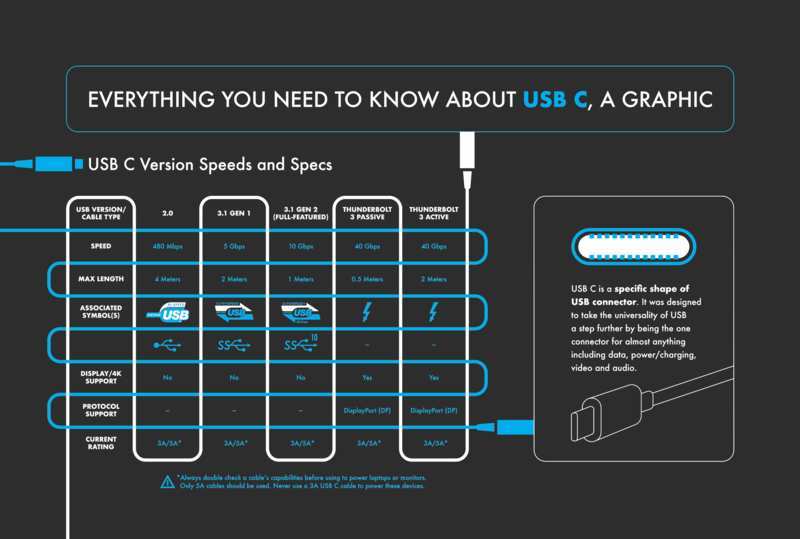
Thunderbolt tunneling is a different beast. Intel's Thunderbolt technology包装 DisplayPort video, PCIe data, and power delivery into one high-bandwidth connection. Thunderbolt 3 runs at 40 Gbps.
Thunderbolt 4 also runs at 40 Gbps but with stricter minimum requirements. Every Thunderbolt 4 port must support dual 4K@60Hz displays.
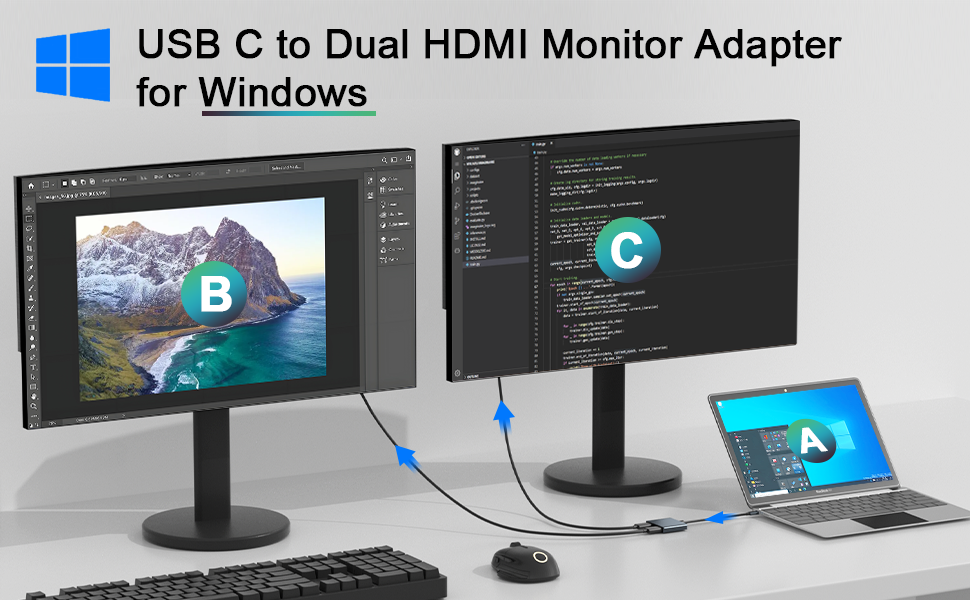
This means you can daisy-chain two monitors from one Thunderbolt port using MST (Multi-Stream Transport). Monitor one connects to your laptop. Monitor two connects to monitor one.
One cable on your desk.
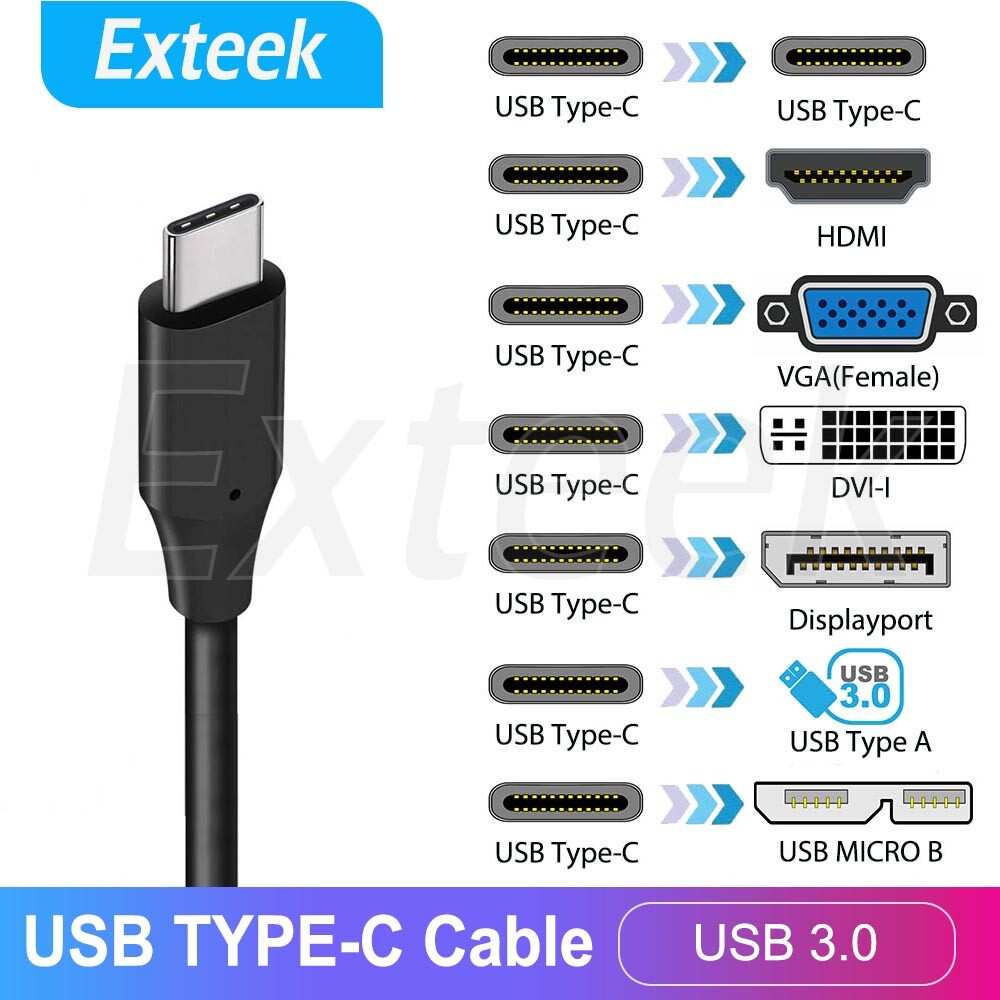
Apple's MacBooks have supported Thunderbolt for years. Most Windows laptops with a lightning bolt icon next to the USB-C port support it too. If you see that icon, you're in good shape.
USB4
USB4 is the newer open standard based on Thunderbolt 3's specification. It's essentially Thunderbolt for everyone, royalty-free. USB4 supports tunneling for DisplayPort video and PCIe data.
USB4 Gen 3 runs at 40 Gbps. USB4 Gen 4, rolling out on newer devices as of 2026, hits 80 Gbps. That's enough bandwidth for a single 4K@144Hz display or dual 4K@60Hz monitors with plenty of headroom for data transfer.
Not all USB4 implementations are equal though. manufacturers can pick and choose which features to include. Always check your laptop's specific USB4 capabilities before buying a monitor.
DisplayLink
Some USB-C monitors and docks use a completely different approach. DisplayLink is a technology that compresses video data and sends it over standard USB data channels. No special video protocol needed from your laptop's port.
This works with almost any USB-C port, even ones that don't support DP Alt Mode. The downside? DisplayLink requires drivers, uses some CPU overhead, and introduces slight latency.
It's fine for spreadsheets and documents. Video editing or fast motion content? You'll notice the lag.
Display-based USB-C monitors are less common now. DisplayLink docks are more popular for adding monitors to locked-down work laptops where you can't install drivers without IT approval.
What You Get With a USB-C Monitor
A USB-C monitor isn't just a display. It's usually a hub, a charger, and sometimes a docking station built into one panel.
What works well
The convenience factor is massive. Here's what you gain with a properly matched setup:
- Single cable for everything. Video signal, data for the built-in USB hub, and laptop charging through one USB-C cable. Walk up to your desk, plug in one wire, and you're working.
- Clean desk setup. No external dock sitting under your desk. No separate power brick for your cable clutter. The monitor handles it all.
- Built-in USB hub. Most USB-C monitors include USB-A and USB-C downstream ports. Keyboard, mouse, webcam, and external drive all plug into the monitor.
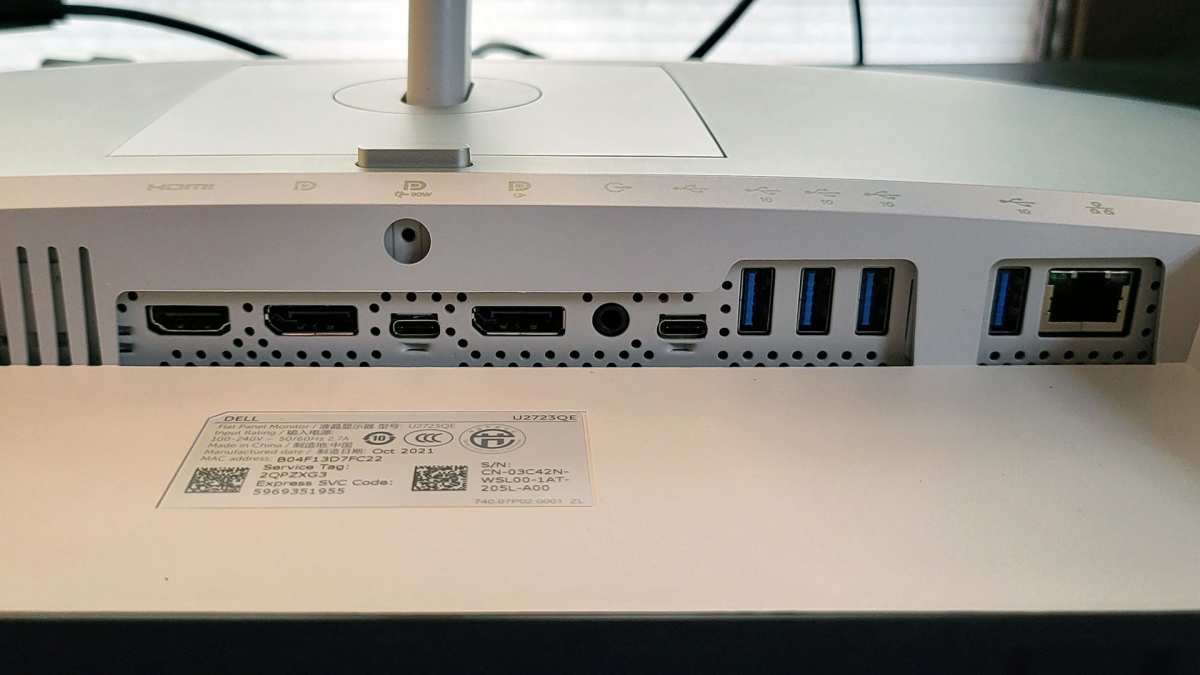
- Power delivery for laptops. Monitors like the Dell U2723QE deliver 90 watts over USB-C. That's enough to charge most ultrabooks and many performance laptops at full speed.
- Daisy-chaining with Thunderbolt. Two monitors from one port. Your laptop only sees one cable. The monitors handle the rest through MST.
- KVM functionality. Some USB-C monitors include built-in KVM switches. Toggle between your work laptop and personal machine with a button press on the monitor.
The Dell UltraSharp line, LG's USB-C monitors, and Samsung's ViewFinity S series all nail this experience. Users on forums and verified reviews consistently praise the simplicity once everything's working.
What doesn't
Let's be honest about the pain points:
- Cable confusion. Not every USB-C cable supports video. A charging-only cable won't carry a display signal. A data-only cable might max out at USB 3.0 speeds without video alt mode.
- macOS hates MST daisy-chaining. Apple doesn't support Multi-Stream Transport. If you're on a Mac, forget about daisy-chaining monitors via USB-C. You need separate cables or a Thunderbolt dock.
- Power delivery mismatch. Some USB-C monitors only deliver 15 to 60 watts. If your laptop needs 100 watts, you'll still need your separate charger. Always check the PD wattage rating before you buy.
- Refresh rate caps over DP Alt Mode. Driving 4K resolution at 144Hz usually requires DisplayPort 1.4 with DSC or HDMI 2.1. USB-C over DP 1.4 alt mode can do it, but cheaper implementations sometimes cap at 60Hz.
- Bandwidth sharing hurts performance. If you're hammering a USB hard drive through the monitor's hub while running a 4K display, you might see slight flickering or the display dropping to a lower resolution.
- Adapter dongle life. If your laptop doesn't support DP Alt Mode, you'll need an adapter or dock. That defeats the single-cable promise entirely and adds cost.
These are solvable problems. But they require checking your specs first.
USB-C vs HDMI vs DisplayPort vs Thunderbolt Dock
Choosing a USB-C monitor means you're also choosing against other connection methods. Here's how they stack up for multitasking.
| Factor | USB-C (DP Alt Mode) | USB-C (Thunderbolt 4) | HDMI 2.1 | DisplayPort 1.4 + Dock |
|---|---|---|---|---|
| Max Resolution / Refresh | 4K@60Hz (typical) | Dual 4K@60Hz | 4K@120Hz | 4K@120Hz |
| Daisy-Chaining | MST (Windows only) | MST (full support) | Not supported | MST supported |
| Laptop Charging | Up to 100W (varies) | Up to 100W | No | Via separate dock |
| Built-in USB Hub | Yes (common) | Yes (common) | No | Yes (via dock) |
| Cable Simplicity | Single cable | Single cable | Video only | Dock + cables |
| macOS Compatibility | Good (single monitor) | Good | Good | Good |
| Typical Cost | $250 to $700 | $400 to $1,200 | $150 to $400 | $200 to $500 (monitor + dock) |
When USB-C wins
You want one cable. You value a clean desk. Your laptop supports DP Alt Mode or Thunderbolt.
You don't need more than two monitors. This is the sweet spot for most remote workers and office professionals.
When HDMI or DisplayPort wins
You need high refresh rates for gaming or video work. You're on a tight budget. You already have monitors without USB-C inputs.
You're running a desktop PC without Thunderbolt ports.
When a Thunderbolt dock beats a USB-C monitor
You need three or more monitors. You want to future-proof your setup. You're connecting and disconnecting multiple devices daily.
A Thunderbolt dock like the CalDigit TS4 gives you more ports and flexibility than any single monitor can offer.
The honest answer? For most people doing knowledge work, a USB-C monitor hits the sweet spot. For power users running multiple high-refresh displays, a dedicated dock with separate monitors still wins.
Best USB-C Monitors for Multitasking (2024)
Here are the monitors that consistently deliver for multitasking workloads. I've focused on models with strong power delivery, reliable USB hubs, and good compatibility across Windows and Mac.
Dell UltraSharp U2723QE
This is the benchmark. 4K resolution at 60Hz. USB-C with 90W power delivery. Built-in Ethernet, USB-A, and USB-C downstream ports.
The IPS Black panel gives you better contrast than standard IPS displays.
It works beautifully with both Windows laptops and MacBooks. The KVM switch lets you control two computers from one keyboard and mouse. Dell's factory calibration means accurate colors out of the box.
LG 27UK850-W
A solid alternative with 4K resolution and 60Hz refresh. USB-C delivers 60 watts of power, enough for most ultrabooks. It supports HDR10 and covers 99% of the sRGB color space.
The on-screen control software makes adjusting settings easier than fumbling with physical buttons. Good pick if you want something slightly cheaper than the Dell without sacrificing much.
Samsung ViewFinity S80A
27-inch 4K panel with USB-C at 90W PD. Includes a built-in KVM switch and LAN port. Samsung's matte display coating reduces glare better than some competitors.
Comfortable for long work sessions. The height, tilt, and pivot adjustments are smooth and hold position well.
Dell U4025QW (Ultrawide)
For serious multitaskers, this 40-inch 5K2K ultrawide with Thunderbolt 4 is hard to beat. 5120×2160 resolution gives you the equivalent of a 27-inch 4K monitor plus extra horizontal space. 120Hz refresh rate. Thunderbolt 4 daisy-chain support.
You can comfortably run three windows side by side without any overlap. The built-in Thunderbolt dock delivers 140W charging. It's expensive, but it replaces a separate monitor, dock, and cable management system.
Budget pick: KTC M27P20
If you want 4K and USB-C without spending $500+, this gets the job done. 4K at 60Hz with 65W power delivery. The panel quality isn't quite at Dell or LG levels, but it's perfectly fine for office work and general productivity.
Good value for students or home office setups where you don't need color-accurate work.

Similar Posts





















