Is 4K Monitor Worth It for Netflix
Is a 4K monitor worth it for Netflix? For some people, absolutely. For most people buying a monitor just for streaming, probably not. The honest answer depends on how close you sit, what Netflix plan you pay for, and whether you'll use the screen for anything else.
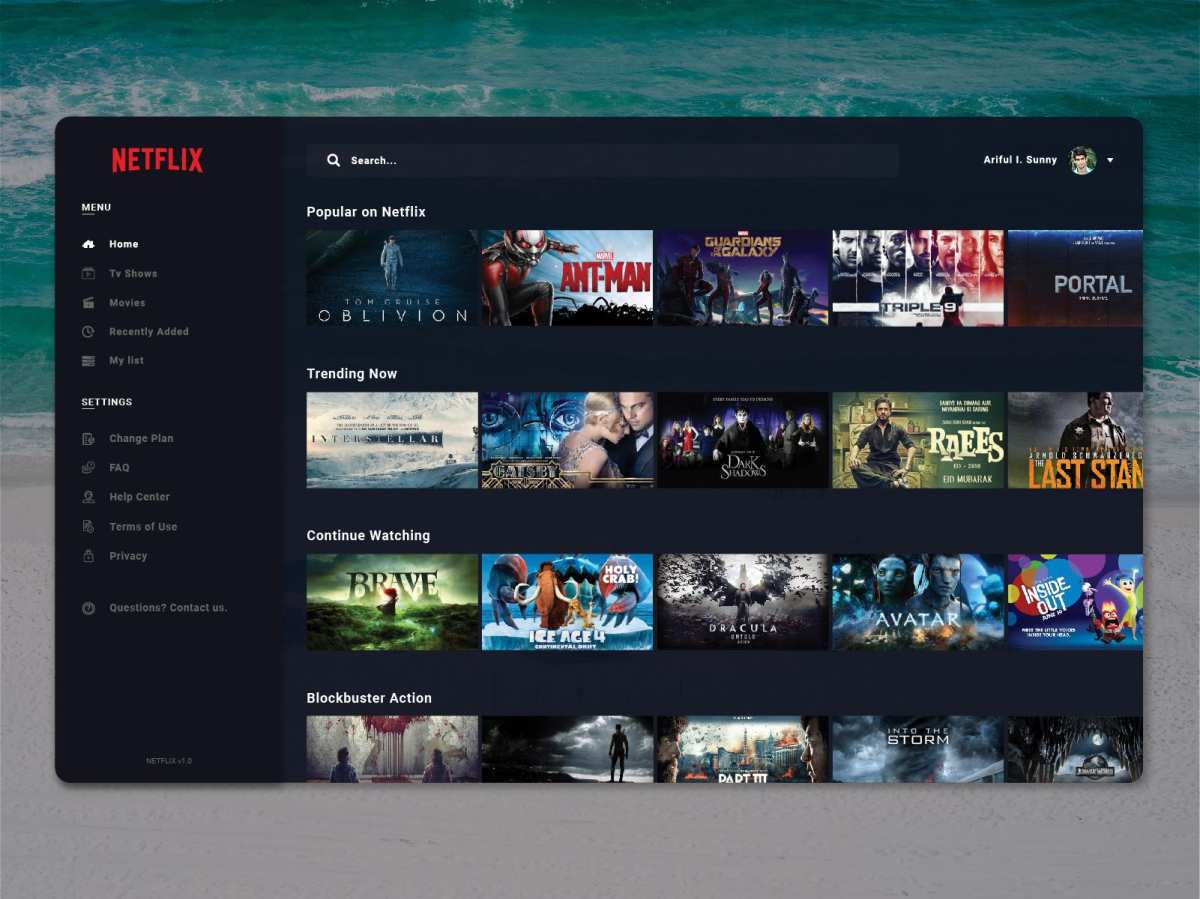
Here's the thing most reviews skip. Netflix's 4K stream runs at roughly 12 to 16 Mbps with heavy compression, so it's not the same as a 4K Blu-ray. And your eyes can only resolve so much detail at a given distance.
Let's break down exactly when it makes sense and when you're wasting money.
Quick Answer
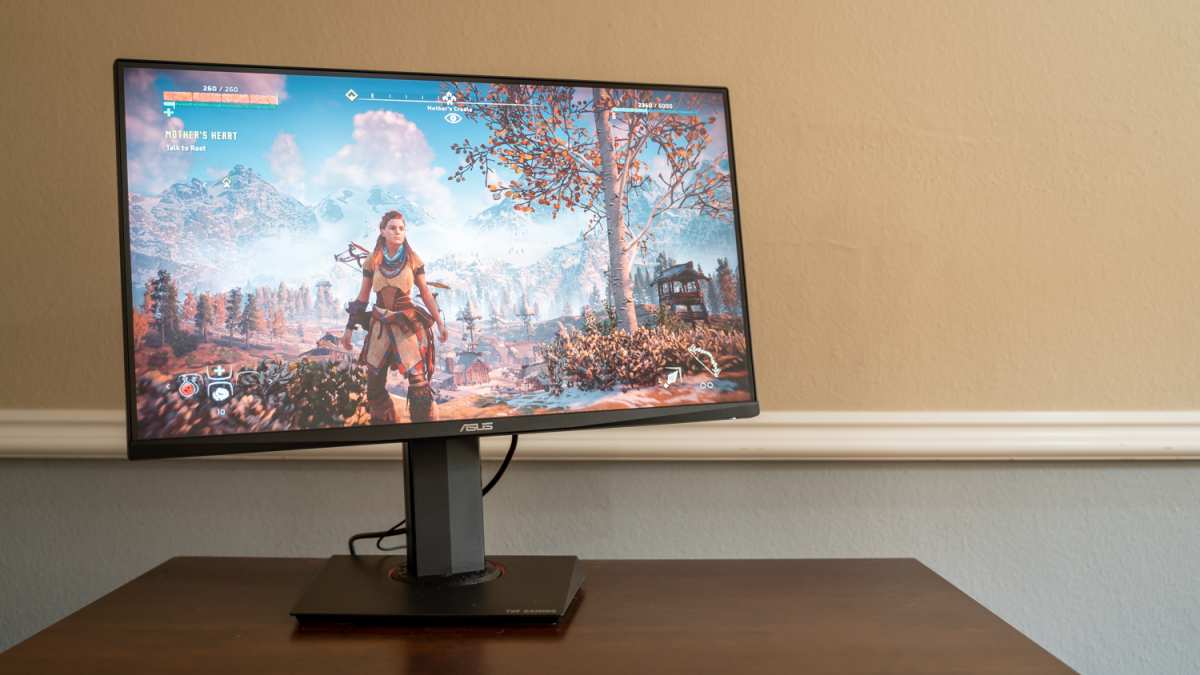
A 4K monitor is worth it for Netflix if you sit within four feet of a 27-inch or larger screen. You also need Netflix's Premium plan at $22.99 per month. If you only watch Netflix and sit farther than five feet away, a 1080p monitor saves you real money.
For mixed work and entertainment use, 4K pays for itself in productivity alone.
Why Most People Don't Actually Need 4K for Netflix
Let's be straight about this. If you're buying a monitor solely to watch Netflix from across the room, you're overspending. The human eye can't distinguish 3840 × 2160 pixels from 1920 × 1080 at distances beyond about five feet on a 27-inch screen.
Period.
Most people use a monitor at a desk. That puts them two to three feet away. At that range, the difference is visible, but it's not dramatic the way a store demo makes it look.
Text will be sharper. Fine detail in dark scenes will be cleaner. But you're not getting a cinematic experience.
You're getting a slightly nicer desktop screen that also plays video.
The real value of a 4K monitor shows up when you're doing other things with it. Spreadsheets with lots of columns. Photo editing.
Code side by side. That's where the resolution earns its keep. Netflix is just a bonus on top.
The Three Things That Actually Determine Whether You'll See a Difference
Forget the marketing specs. Three real-world factors decide whether 4K Netflix looks meaningfully better on your monitor than 1080p.
How Close You're Sitting to the Screen
This is the single biggest factor. Pixel density, measured in pixels per inch (PPI), determines how sharp an image looks at a given distance. Here's how the math works out:
| Screen Size | Resolution | PPI | Sharpness at 2.5 ft | Sharpness at 5 ft |
|---|---|---|---|---|
| 27" | 1080p | ~82 PPI | Noticeably soft | Pixels visible |
| 27" | 4K | ~163 PPI | Very sharp | Sharp enough |
| 32" | 1080p | ~69 PPI | Soft, pixelated | Acceptable |
| 32" | 4K | ~138 PPI | Very sharp | Sharp |
| 43" | 4K | ~102 PPI | Sharp | Good |
At 2.5 feet, a 27-inch 4K monitor looks crisp. A 27-inch 1080p monitor looks like you're watching through a screen door. At five feet, the gap narrows considerably.
Past six feet, most people genuinely can't tell the difference on a monitor-sized display.
What Netflix Plan You're Paying For
This catches people off guard. Netflix restricts 4K streaming to its Premium plan only. As of 2024, that's $22.99 per month in the US.
The Standard plan with ads caps at 1080p. The Standard plan without ads also caps at 1080p.
So if you buy a 4K monitor but subscribe to the Standard plan, you're streaming 1080p content to a 4K screen. The monitor will upscale it, but upscaling doesn't add real detail. It just stretches what's already there.
You need the Premium tier to actually feed the monitor a native 4K signal.
Whether You're Using the App or a Browser
Here's one that frustrates almost everyone. Most web browsers, including Chrome, Edge, and Firefox, cap Netflix playback at 1080p. Even on a 4K monitor with a Premium subscription, you'll get 1080p through the browser.
To get actual 4K Netflix on a computer, you need the native Netflix app. On Windows, that's the Microsoft Store app. On macOS, you'll need to use Safari, which supports 4K Netflix playback.
Other browsers on Mac are limited to 1080p.
This isn't a monitor limitation. It's a DRM and software limitation. But it means your shiny 4K monitor is showing you 1080p Netflix unless you specifically set it up correctly.
When a 4K Monitor Is Genuinely Worth It for Netflix
Not everyone is wasting their money. There are clear scenarios where a 4K monitor makes real sense for Netflix viewing.
You Sit Within 3 to 4 Feet of a 27" to 32" Screen
This is the sweet spot. At desk-viewing distances, 4K on a 27-inch or 32-inch monitor looks noticeably sharper than 1080p. Dark scenes in shows like Stranger Things or The Crown reveal more shadow detail.
Text in documentaries and subtitles is cleaner. It's not a night-and-day difference, but once you see it side by side, you won't want to go back.
You Already Use the Monitor for Work, Creative Tasks, or Gaming
If you're buying a monitor for productivity, photo editing, coding, or gaming, the 4K resolution pays for itself regardless of Netflix. Watching movies becomes a secondary benefit that costs you nothing extra. In this scenario, the question isn't "is 4K worth it for Netflix." It's "is 4K worth it for my desk setup," and the answer is almost always yes.
You Watch a Lot of HDR Content and Have an HDR-Capable Display
Netflix's 4K tier also includes HDR content on supported displays. If your monitor supports HDR10 or has a peak brightness above 400 nits, you'll get better contrast and color range alongside the resolution bump. Budget 4K monitors often have mediocre HDR implementation, so check reviews for actual HDR performance before buying specifically for this feature.
When 4K Doesn't Matter for Netflix
Sometimes the smart money says stick with 1080p. Here's when you should skip 4K.
You're on the Standard or Basic Netflix Plan
If you're not paying for Premium, you're not getting 4K content. A 4K monitor will still display the 1080p stream, but so will a 1080p monitor. You're paying for pixels you can't use.
Stick with a good 1080p display and put the savings toward eventually upgrading your Netflix plan.
You Sit More Than 5 Feet from Your Screen
At typical living room distances, a monitor-sized display at 4K looks very similar to 1080p. If you're mounting a monitor on a wall across the room, you won't see the resolution benefit. You'd be better off with a larger 1080p display or a dedicated TV at that point.
You're Only Buying the Monitor for Streaming
A 4K monitor costs more than a 1080p equivalent. If streaming is the only thing you do, that extra money is better spent on a larger screen, a better sound system, or just keeping the cash. A 32-inch 1080p monitor at a desk or a 43-inch 4K TV across the room will both serve you better than a 27-inch 4K monitor used exclusively for Netflix.
The Hidden Gotchas That Kill 4K Netflix on a Monitor
You bought the monitor. You have the Premium plan. You're sitting two feet away.
And it still doesn't look right. Here's why.
HDCP 2.2 Handshake Failures
HDCP 2.2 is a copy protection standard required for 4K content playback. Every link in your chain, your GPU, your cable, and your monitor, must support it. If any one component doesn't, Netflix drops you to 1080p silently.
No error message. No warning. Just a softer image.
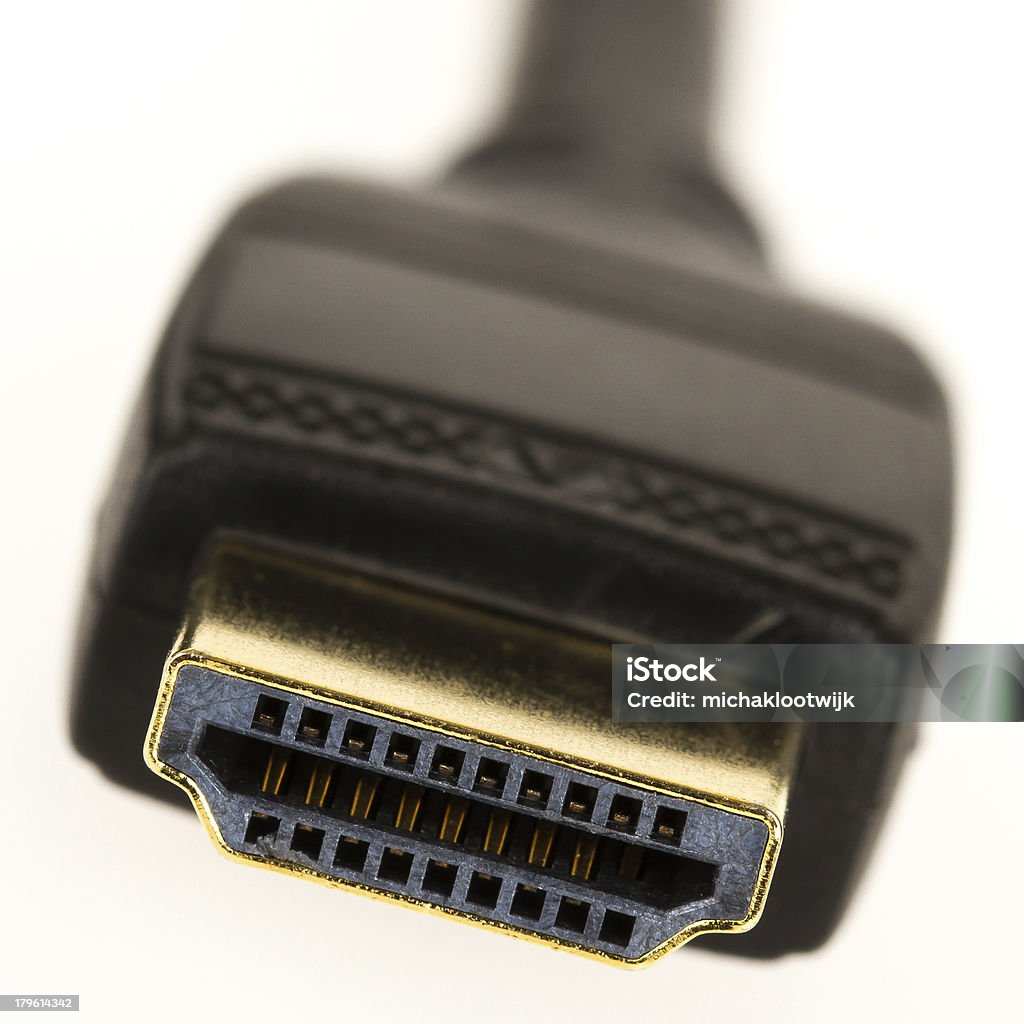
Older GPUs, cheap HDMI cables, and budget monitors sometimes lack full HDCP 2.2 support. Check your GPU manufacturer's specs. Use a certified High Speed HDMI cable or DisplayPort 1.2 or newer.
And make sure your monitor's input specifically lists HDCP 2.2 compliance, not just the panel resolution.
Windows and macOS Scaling Headaches
At 27 inches, 4K gives you about 163 PPI. That's great for sharpness. It also means everything on screen is tiny at native resolution.
Windows and macOS use display scaling to enlarge the interface, but not all apps handle it well.
Windows 10 and 11 default to 150% scaling on a 27-inch 4K display. That works well for most modern apps. Older software, especially legacy desktop applications, can look blurry. macOS handles scaling more gracefully on Retina displays, but non-Retina-optimized apps still suffer.
You'll spend some time tweaking per-app scaling settings. It's manageable, but it's an adjustment if you're coming from 1080p.
Netflix's Compression Means 4K Isn't as Sharp as You'd Expect
Netflix uses aggressive compression to keep bandwidth manageable. Their 4K streams run at about 12 to 16 Mbps using HEVC or AV1 codecs. A 4K Blu-ray runs at 60 to 100 Mbps.
That's a massive difference in data per frame.
In practice, this means fine detail, film grain, and complex textures can look smothered or blocky in dark, fast-moving scenes. Static shots and well-lit content look excellent. Action sequences and dark cinematography reveal the compression.
It's not a monitor problem. It's a streaming limitation that no monitor can fix.
4K Monitor vs. 4K TV for Netflix: Which Makes More Sense?
If your primary goal is watching Netflix, a TV usually wins. Here's the breakdown:
| Factor | 4K Monitor (27"–32") | 4K TV (43"–55"+) |
|---|---|---|
| Best viewing distance | 2 to 4 feet | 5 to 10+ feet |
| Pixel density at typical use | Excellent | Good to adequate |
| Built-in speakers | Usually poor | Usually decent |
| HDR performance | Varies widely | Better on mid-range+ models |
| Price per inch of screen | Higher | Lower |
| Desk-friendly size | Yes | No |
| Input lag for gaming | Typically lower | Varies |
| Multitasking / productivity | Excellent | Not practical |
A 4K monitor makes sense at a desk where you're close to the screen and also working. A 4K TV makes sense in a bedroom, living room, or any setup where you're sitting at a distance and primarily watching content. If you can only have one display and you do both work and streaming, a 32-inch 4K monitor is the more versatile choice.
How to Set Up Your 4K Monitor for the Best Netflix Experience
Getting 4K Netflix working properly on a monitor requires a few specific steps. Skip any of them and you'll silently get 1080p instead.
Step 1: Confirm Your Hardware Chain Supports HDCP 2.2
Check your GPU specs on the manufacturer's website. NVIDIA, AMD, and Intel all list HDCP support per GPU model. Your cable needs to be High Speed HDMI (18 Gbps) or DisplayPort 1.2 or newer.
Your monitor's specs should explicitly mention HDCP 2.2. If any link in this chain is missing, 4K Netflix won't work.
Step 2: Use the Netflix App, Not Your Browser
On Windows, download the Netflix app from the Microsoft Store. On macOS, use Safari. Chrome, Firefox, and Edge are all limited to 1080p Netflix playback regardless of your hardware.
This is the single most common reason people think their 4K monitor isn't working with Netflix.
Step 3: Set Display Scaling to Something Readable
On Windows, go to Settings > System > Display and set scaling to 150% for a 27-inch 4K monitor or 125% for a 32-inch. On macOS, go to System Settings > Displays and choose a scaled resolution. This keeps text readable without sacrificing the 4K resolution for video content.
Step 4: Enable HDR in Windows (If Your Monitor Supports It)
Go to Settings > System > Display > HDR and toggle it on. If your monitor doesn't support HDR, leave this off. Forcing HDR on an SDR panel washes out colors and crushes detail.
Only enable it if reviews confirm your specific monitor handles HDR well.
Step 5: Verify You're Actually Streaming in 4K
While playing a Netflix title, press Ctrl + Shift + Alt + D (Windows app) to bring up the diagnostic overlay. It shows the current playback resolution. If it says 1920 × 1080, something in your chain is limiting you.
If it says 3840 × 2160, you're getting full 4K. This is the only way to know for sure.
What Size and Resolution Actually Make Sense at a Desk
Choosing the right monitor size at a desk isn't just about what looks cool. It's about what your eyes can actually resolve and what your workspace can physically accommodate.
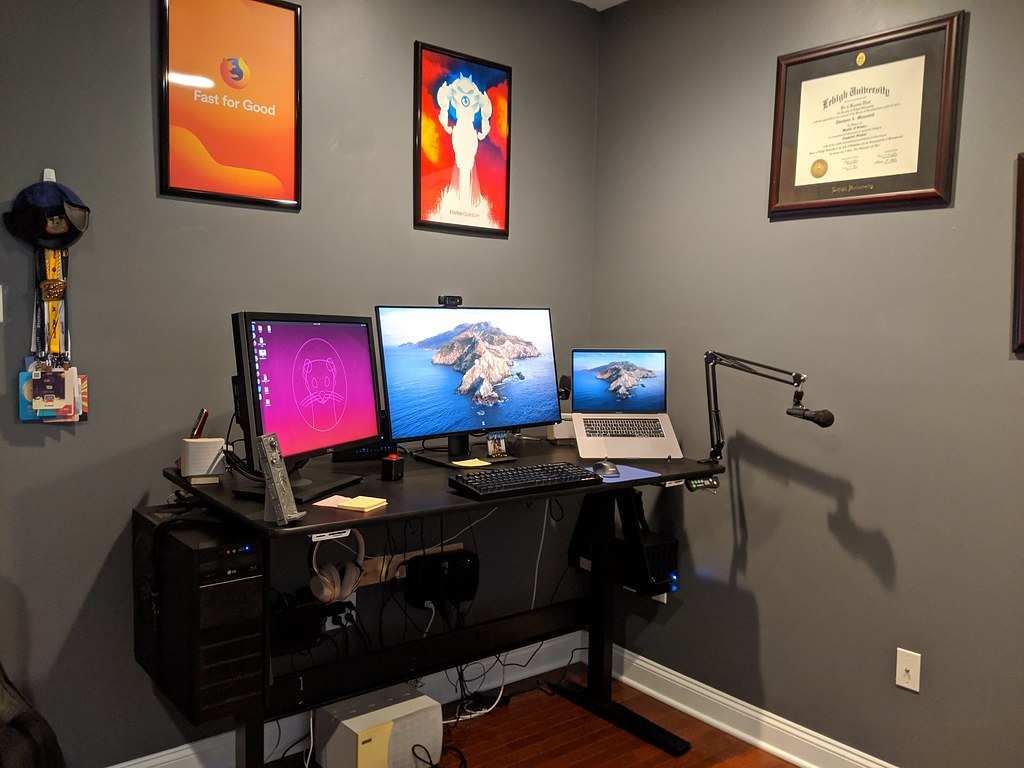
27-inch 4K is the sweet spot for most desks. At 2.5 feet, you get ~163 PPI, which is sharp enough that individual pixels are invisible. Text is crisp.
Video looks detailed. And the physical footprint fits on almost any desk without overwhelming your field of view.
32-inch 4K works if you sit a bit farther back, 3 to 4 feet, or if you want a more immersive viewing experience. The PPI drops to ~138, which is still very sharp at desk distances. The larger screen is better for HDR content and feels more like a TV replacement.
27-inch 1080p is what most people already have. At ~82 PPI, it's fine for general use but visibly soft for text and video. If you're upgrading from this, even a 1440p monitor is a noticeable improvement.
But 4K is the bigger leap.
32-inch 1080p is hard to recommend for any desk use. At ~69 PPI, pixels are visible at normal viewing distances. Text looks rough.
Video looks soft. Avoid this combination unless you're mounting it on a wall at least six feet away.
The Bottom Line: A Simple Decision Guide
Here's how to decide based on your situation:
Get a 4K monitor if:
- You sit within 4 feet of your screen and want the sharpest image possible
- You also use your monitor for work, creative tasks, or gaming
- You're already on Netflix's Premium plan or willing to upgrade
- You're buying a 27-inch or 32-inch display for a desk setup
Stick with 1080p if:
- You're on Netflix's Basic or Standard plan
- You sit more than 5 feet from your screen
- You're buying a monitor exclusively for streaming and nothing else
- The price difference matters more than the resolution bump
Consider a 4K TV instead if:
- You primarily watch content from across a room
- You want better built-in speakers and HDR performance
- You don't need the monitor for productivity work
The honest truth is that 4K Netflix on a monitor is a nice-to-have, not a must-have. If your budget and setup support it, go for it. If not, a good 1080p or 1440p monitor with a solid Netflix Premium subscription will serve you well without the extra cost and complexity.
Frequently Asked Questions
Can I watch 4K Netflix on a 1080p monitor?
No. A 1080p monitor can only display 1080p. Netflix will stream at the highest resolution the display supports.
You need a 4K-capable monitor to see 4K content.
Does Netflix 4K work on Chrome?
No. Chrome caps Netflix at 1080p. Use the Netflix app on Windows or Safari on macOS for 4K playback.
Is Netflix 4K better than 1080p?
Yes, but the difference is smaller than you'd expect due to compression. Static, well-lit scenes show the biggest improvement. Dark, fast-moving scenes show less benefit.
Do I need a special HDMI cable for 4K Netflix?
You need a High Speed HDMI cable (18 Gbps) or DisplayPort 1.2 or newer. Most cables sold after 2018 meet this standard. Look for "Premium High Speed" or "Ultra High Speed" HDMI labeling.
Is a 4K monitor worth it just for watching movies?
Probably not. If movies are all you do, a 4K TV at 43 inches or larger gives you more screen for less money at typical viewing distances. A 4K monitor makes more sense when you're also working at a desk.
The Hidden Gotchas That Kill 4K Netflix on a Monitor
You bought the monitor. You have the Premium plan. You're sitting two feet away.
And it still doesn't look right. Here's why.
HDCP 2.2 Handshake Failures
HDCP 2.2 is a copy protection standard required for 4K content playback. Every link in your chain, your GPU, your cable, and your monitor, must support it. If any one component doesn't, Netflix drops you to 1080p silently.
No error message. No warning. Just a softer image.
Older GPUs, cheap HDMI cables, and budget monitors sometimes lack full HDCP 2.2 support. Check your GPU manufacturer's specs. Use a certified High Speed HDMI cable or DisplayPort 1.2 or newer.
And make sure your monitor's input specifically lists HDCP 2.2 compliance, not just the panel resolution.
Windows and macOS Scaling Headaches
At 27 inches, 4K gives you about 163 PPI. That's great for sharpness. It also means everything on screen is tiny at native resolution.
Windows and macOS use display scaling to enlarge the interface, but not all apps handle it well.
Windows 10 and 11 default to 150% scaling on a 27-inch 4K display. That works well for most modern apps. Older software, especially legacy desktop applications, can look blurry. macOS handles scaling more gracefully on Retina displays, but non-Retina-optimized apps still suffer.
You'll spend some time tweaking per-app scaling settings. It's manageable, but it's an adjustment if you're coming from 1080p.
Netflix's Compression Means 4K Isn't as Sharp as You'd Expect
Netflix uses aggressive compression to keep bandwidth manageable. Their 4K streams run at about 12 to 16 Mbps using HEVC or AV1 codecs. A 4K Blu-ray runs at 60 to 100 Mbps.
That's a massive difference in data per frame.
In practice, this means fine detail, film grain, and complex textures can look smothered or blocky in dark, fast-moving scenes. Static shots and well-lit content look excellent. Action sequences and dark cinematography reveal the compression.
It's not a monitor problem. It's a streaming limitation that no monitor can fix.
4K Monitor vs. 4K TV for Netflix: Which Makes More Sense?
If your primary goal is watching Netflix, a TV usually wins. Here's the breakdown:
| Factor | 4K Monitor (27"–32") | 4K TV (43"–55"+) |
|---|---|---|
| Best viewing distance | 2 to 4 feet | 5 to 10+ feet |
| Pixel density at typical use | Excellent | Good to adequate |
| Built-in speakers | Usually poor | Usually decent |
| HDR performance | Varies widely | Better on mid-range+ models |
| Price per inch of screen | Higher | Lower |
| Desk-friendly size | Yes | No |
| Input lag for gaming | Typically lower | Varies |
| Multitasking / productivity | Excellent | Not practical |
A 4K monitor makes sense at a desk where you're close to the screen and also working. A 4K TV makes sense in a bedroom, living room, or any setup where you're sitting at a distance and primarily watching content. If you can only have one display and you do both work and streaming, a 32-inch 4K monitor is the more versatile choice.
How to Set Up Your 4K Monitor for the Best Netflix Experience
Getting 4K Netflix working properly on a monitor requires a few specific steps. Skip any of them and you'll silently get 1080p instead.
Step 1: Confirm Your Hardware Chain Supports HDCP 2.2
Check your GPU specs on the manufacturer's website. NVIDIA, AMD, and Intel all list HDCP support per GPU model. Your cable needs to be High Speed HDMI (18 Gbps) or DisplayPort 1.2 or newer.
Your monitor's specs should explicitly mention HDCP 2.2. If any link in this chain is missing, 4K Netflix won't work.
Step 2: Use the Netflix App, Not Your Browser
On Windows, download the Netflix app from the Microsoft Store. On macOS, use Safari. Chrome, Firefox, and Edge are all limited to 1080p Netflix playback regardless of your hardware.
This is the single most common reason people think their 4K monitor isn't working with Netflix.
Step 3: Set Display Scaling to Something Readable
On Windows, go to Settings > System > Display and set scaling to 150% for a 27-inch 4K monitor or 125% for a 32-inch. On macOS, go to System Settings > Displays and choose a scaled resolution. This keeps text readable without sacrificing the 4K resolution for video content.
Step 4: Enable HDR in Windows (If Your Monitor Supports It)
Go to Settings > System > Display > HDR and toggle it on. If your monitor doesn't support HDR, leave this off. Forcing HDR on an SDR panel washes out colors and crushes detail.
Only enable it if reviews confirm your specific monitor handles HDR well.
Step 5: Verify You're Actually Streaming in 4K
While playing a Netflix title, press Ctrl + Shift + Alt + D (Windows app) to bring up the diagnostic overlay. It shows the current playback resolution. If it says 1920 × 1080, something in your chain is limiting you.
If it says 3840 × 2160, you're getting full 4K. This is the only way to know for sure.
What Size and Resolution Actually Make Sense at a Desk
Choosing the right monitor size at a desk isn't just about what looks cool. It's about what your eyes can actually resolve and what your workspace can physically accommodate.
27-inch 4K is the sweet spot for most desks. At 2.5 feet, you get ~163 PPI, which is sharp enough that individual pixels are invisible. Text is crisp.
Video looks detailed. And the physical footprint fits on almost any desk without overwhelming your field of view.
32-inch 4K works if you sit a bit farther back, 3 to 4 feet, or if you want a more immersive viewing experience. The PPI drops to ~138, which is still very sharp at desk distances. The larger screen is better for HDR content and feels more like a TV replacement.
27-inch 1080p is what most people already have. At ~82 PPI, it's fine for general use but visibly soft for text and video. If you're upgrading from this, even a 1440p monitor is a noticeable improvement.
But 4K is the bigger leap.
32-inch 1080p is hard to recommend for any desk use. At ~69 PPI, pixels are visible at normal viewing distances. Text looks rough.
Video looks soft. Avoid this combination unless you're mounting it on a wall at least six feet away.
The Bottom Line: A Simple Decision Guide
Here's how to decide based on your situation:
Get a 4K monitor if:
- You sit within 4 feet of your screen and want the sharpest image possible
- You also use your monitor for work, creative tasks, or gaming
- You're already on Netflix's Premium plan or willing to upgrade
- You're buying a 27-inch or 32-inch display for a desk setup
Stick with 1080p if:
- You're on Netflix's Basic or Standard plan
- You sit more than 5 feet from your screen
- You're buying a monitor exclusively for streaming and nothing else
- The price difference matters more than the resolution bump
Consider a 4K TV instead if:
- You primarily watch content from across a room
- You want better built-in speakers and HDR performance
- You don't need the monitor for productivity work
The honest truth is that 4K Netflix on a monitor is a nice-to-have, not a must-have. If your budget and setup support it, go for it. If not, a good 1080p or 1440p monitor with a solid Netflix Premium subscription will serve you well without the extra cost and complexity.
Frequently Asked Questions
Can I watch 4K Netflix on a 1080p monitor?
No. A 1080p monitor can only display 1080p. Netflix will stream at the highest resolution the display supports.
You need a 4K-capable monitor to see 4K content.
Does Netflix 4K work on Chrome?
No. Chrome caps Netflix at 1080p. Use the Netflix app on Windows or Safari on macOS for 4K playback.
Is Netflix 4K better than 1080p?
Yes, but the difference is smaller than you'd expect due to compression. Static, well-lit scenes show the biggest improvement. Dark, fast-moving scenes show less benefit.
Do I need a special HDMI cable for 4K Netflix?
You need a High Speed HDMI cable (18 Gbps) or DisplayPort 1.2 or newer. Most cables sold after 2018 meet this standard. Look for "Premium High Speed" or "Ultra High Speed" HDMI labeling.
Is a 4K monitor worth it just for watching movies?
Probably not. If movies are all you do, a 4K TV at 43 inches or larger gives you more screen for less money at typical viewing distances. A 4K monitor makes more sense when you're also working at a desk.

Similar Posts





















