What Resolution Is After 4K Monitor
If you're wondering what resolution is after 4K monitor options, the short answer is 5K at 5120×2880 pixels. That's the next standard step up in the consumer and professional display world. But the full picture gets more interesting once you dig in.
4K UHD packs about 8.3 million pixels, and 5K pushes that to 14.7 million, a 77% jump in raw pixel count. As of 2026, several resolutions sit above 4K, each targeting different users and workflows. Let's break down what's actually available, what it's good for, and whether stepping up makes sense for you.
Quick Answer
The next resolution after 4K is 5K at 5120×2880 pixels. That's 77% more pixels than 4K UHD. There's also a 5K2K ultrawide variant at 5120×2160.
Beyond that sits 6K and 8K for professional and niche use. Each step up trades cost and hardware demands for more screen real estate and sharper detail.
The Resolution Ladder Above 4K: 5K, 5K2K, 6K, and 8K Explained
The jump from 1080p to 4K was massive. The jumps above 4K are more incremental but still meaningful, especially at larger screen sizes or closer viewing distances.
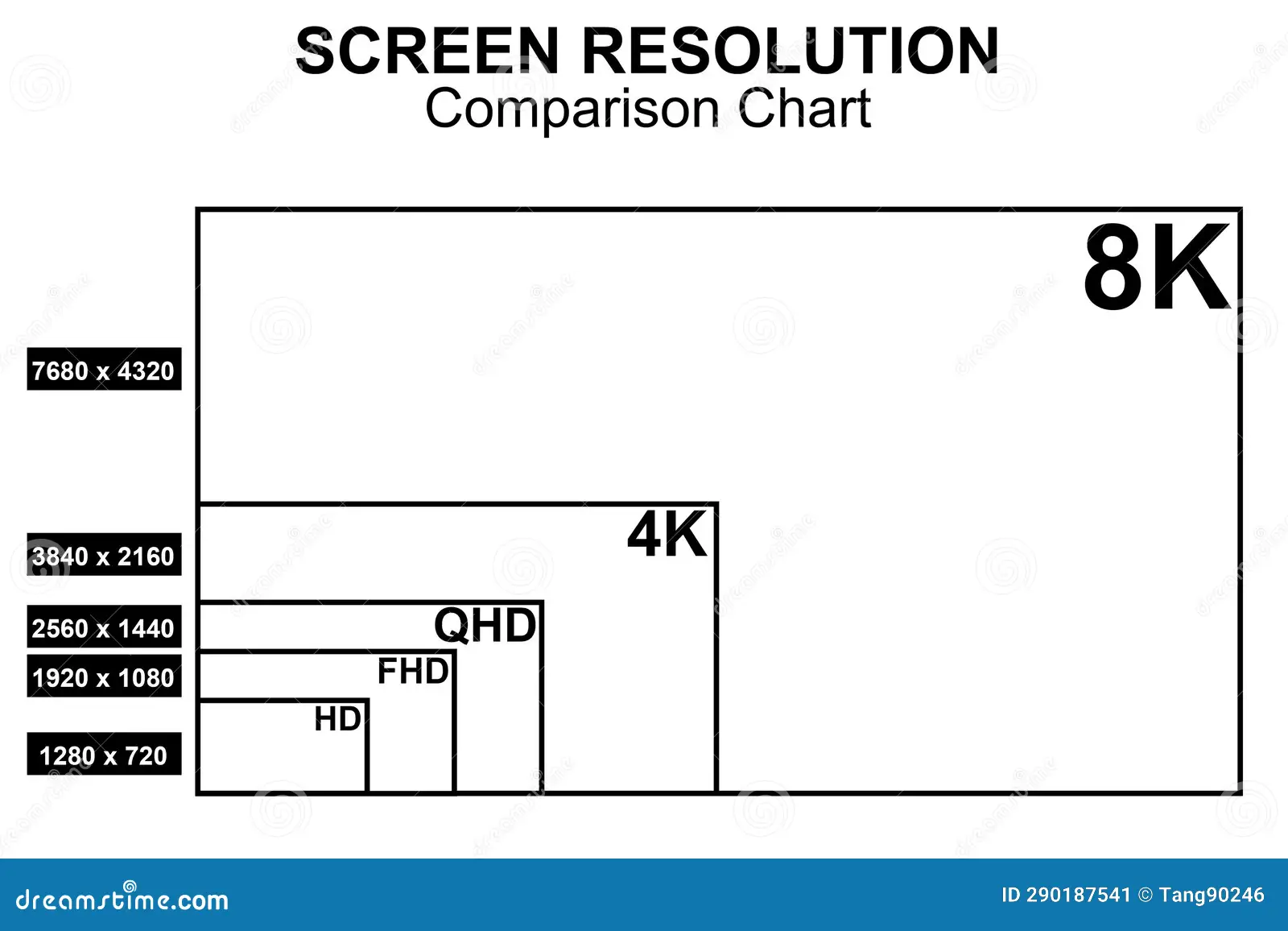
Here's how the main contenders stack up in terms of raw pixel count:
- 4K UHD (3840×2160), 8.3 million pixels. The current mainstream standard for monitors, TVs, and content.
- 5K2K Ultrawide (5120×2160), 11.1 million pixels. A wider format that matches cinematic 21:9 content. Think of it as a 4K display stretched horizontally.
- 5K (5120×2880), 14.7 million pixels. The true successor to 4K in a standard 16:9 aspect ratio. This is Apple's target resolution for Retina-class Mac displays.
- 6K (6016×3384), 20.4 million pixels. Found almost exclusively in Apple's Pro Display XDR. It's a niche professional tier.
- 8K UHD (7680×4320), 33.2 million pixels. Four times the pixel count of 4K. Defined by the ITU's Rec. 2020 standard but still rare in actual monitor form.
The naming convention here follows the same logic as 4K and 8K in the TV world, where the number roughly corresponds to horizontal pixel count in thousands. 5K means roughly 5,000 pixels across. Simple enough.
What matters more than the name is pixel density. A 27-inch 5K display hits about 218 PPI (pixels per inch), compared to 163 PPI for a 27-inch 4K panel. That's a noticeable jump in text clarity and fine detail.
At 32 inches, 8K reaches around 275 PPI, which is sharper than most print magazines at normal reading distance.
Side-by-Side Comparison: 4K vs. 5K vs. 5K2K Ultrawide vs. 8K
| Resolution | Pixel Count | PPI at 27" | PPI at 32" | Best For | Typical Price Range |
|---|---|---|---|---|---|
| 4K UHD (3840×2160) | 8.3M | 163 | 138 | General use, gaming, content | $250–$600 |
| 5K2K Ultrawide (5120×2160) | 11.1M | — | — | Video editing, productivity | $700–$1,300 |
| 5K (5120×2880) | 14.7M | 218 | 178 | Mac users, photo editing, sharp text | $800–$1,600 |
| 6K (6016×3384) | 20.4M | — | — | Professional video/photo | $3,000–$5,000 |
| 8K (7680×4320) | 33.2M | — | 275 | Niche professional, future-proofing | $2,500–$5,000+ |
The table above tells the story at a glance. Each step up roughly doubles the pixel count from the previous tier. But price doesn't scale linearly. 5K monitors have become relatively affordable, while 8K panels still carry a massive premium.
5K (5120×2880): The Sweet Spot Most People Actually Want
If you're looking at what comes after 4K for everyday use, 5K is where most of the action is right now. It's the resolution that Apple designed its entire modern display strategy around, and for good reason.
At 27 inches, a 5K panel delivers 218 PPI. That's the threshold Apple uses for its Retina display standard, where individual pixels become indistinguishable at a normal viewing distance of about 20 to 24 inches. Text looks like print.
Photos look crisp without any scaling tricks.
The practical benefit over 4K is real but subtle. You're not getting a dramatically different experience. You're getting a refined one.
UI elements are sharper. Code looks cleaner. Photo editing at 1:1 zoom is more accurate because you can see fine details without interpolation.
The catch? You need a GPU and cable setup that can actually drive 5K. On the Mac side, Apple handles this natively.
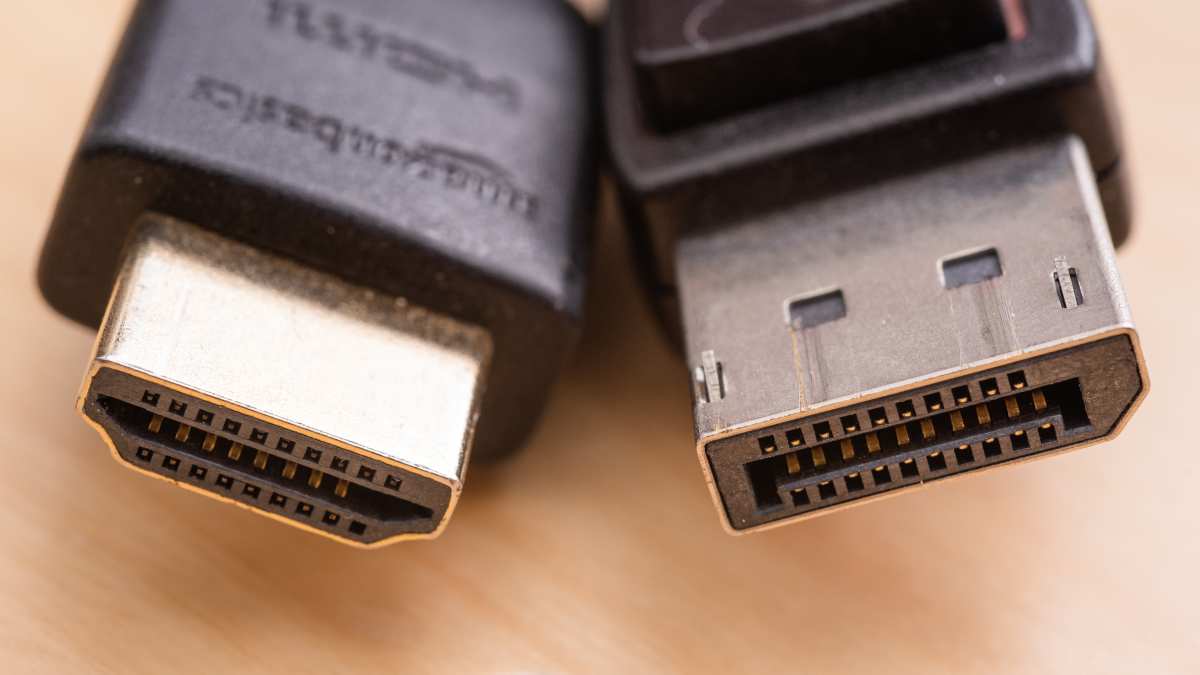
On the PC side, you'll want DisplayPort 1.4 with DSC (Display Stream Compression) or DisplayPort 2.1. HDMI 2.1 can also handle 5K but typically at reduced refresh rates depending on the implementation.

5K2K Ultrawide (5120×2160): The Productivity and Video Editing Pick
The 5K2K ultrawide format is a different animal. It takes the horizontal pixel count of 5K but uses the vertical resolution of 4K, giving you a 21:9 (or roughly 2.39:1) aspect ratio. This is the format that's gained serious traction since around 2023.
Why? Because it solves a real problem. Video editors working with cinematic content constantly deal with black bars on a 16:9 timeline.
A 5K2K ultrawide lets you view a full 2.39:1 frame at native resolution while still having room for your editing tools on the same screen. That's a workflow improvement, not just a spec bump.
For productivity users, the ultrawide format replaces a dual-monitor setup with a single panel. You can comfortably place three or four windows side by side without the bezel gap in the middle. Developers, financial analysts, and anyone who lives in spreadsheets tend to love this format.
The downside is content compatibility. Most streaming video, games, and web content are designed for 16:9. You'll see black bars on the sides when watching Netflix or YouTube.
Some people don't mind this. Others find it annoying enough to prefer a standard 16:9 panel.
8K (7680×4320): Impressive on Paper, Complicated in Practice
8K is the resolution that sounds amazing in a spec sheet and creates real headaches in actual use. With 33.2 million pixels, it's four times the resolution of 4K and sixteen times that of 1080p. On paper, it's the future.
In practice, it's complicated.
The first problem is content. Native 8K content barely exists outside of some professional video production, certain broadcasts in Japan via NHK's 8K channel, and demo reels. Most 8K content you'll watch is upscaled from 4K or lower sources.
The improvement from upscaling is marginal at best.
The second problem is hardware. Driving 8K at 60Hz requires serious bandwidth. You need DisplayPort 2.1 with UHBR20 signaling (80 Gbps) or HDMI 2.1 with DSC compression.
For gaming at 8K, even an RTX 4090 struggles to maintain playable frame rates in demanding titles without significant quality compromises.
The third problem is scaling. At 32 inches, an 8K panel has around 275 PPI. That sounds great until you realize that Windows scaling at that density makes UI elements tiny unless you crank scaling to 200% or 250%.
At that point, you're effectively using the screen real estate of a 4K display but with sharper rendering. The benefit is real for photo and video work but less noticeable for general desktop use.
Where 8K does make sense is in professional workflows where pixel-level accuracy matters. Medical imaging, satellite imagery analysis, high-end retouching for large-format print, and certain scientific visualization tasks benefit from the extra resolution. For everyone else, it's overkill in 2026.
Which Higher Resolution Is Right for You? A Use-Case Breakdown
Not every user benefits from stepping above 4K. Here's a practical breakdown based on what you actually do with your monitor.
- Photo and print designers → 5K at 27" (218 PPI, sharp text, accurate pixel preview without scaling artifacts)
- Video editors working in 4K → 5K2K ultrawide (native timeline layout plus cinematic aspect ratio on one screen)
- Mac users wanting Retina clarity → 5K (Apple's native HiDPI scaling target, no blur at integer scaling ratios)
- Developers and multitaskers → 5K or 5K2K ultrawide (screen real estate without the headaches of mixed-DPI dual monitor setups)
- Gamers → Stick with 4K high-refresh or 1440p ultrawide (8K gaming demands a GPU that costs more than most entire PCs)
- Medical imaging, CAD, niche professional → 8K (where pixel-level detail is a job requirement, not a luxury)
The honest truth is that for most people, a well-calibrated 4K monitor at the right size is still the best value play. The jump to 5K is nice but not transformative. The jump to 8K is transformative only in specific professional contexts.
The Hidden Costs Nobody Talks About: GPU, Cables, and Scaling
Buying a high-resolution monitor is only part of the equation. The hidden costs catch a lot of people off guard.
GPU requirements scale directly with pixel count. Driving a 5K desktop at 60Hz is manageable on most modern GPUs. But if you want high refresh rates at 5K or any gaming at 8K, you're looking at flagship-tier hardware.
An RTX 4090 or RX 7900 XTX is the practical minimum for 8K gaming, and even those cards struggle in newer titles.
Cable and port compatibility is another pain point. Not all HDMI 2.1 ports are created equal. Some implementations support the full 48 Gbps bandwidth.
Others are capped at 24 Gbps or lower. DisplayPort 2.1 is the safer bet for PC-to-monitor connections at high resolutions, but you need both the monitor and the GPU to support it. Certified cables matter here.
Cheap cables that claim high bandwidth often can't sustain it reliably.
Scaling issues are the most frustrating hidden cost, especially on Windows. macOS handles high-DPI scaling beautifully because Apple controls both the hardware and the software. Windows has improved significantly since the early days of 4K, but you'll still encounter blurry apps, inconsistent scaling across mixed-DPI multi-monitor setups, and legacy software that simply doesn't scale properly.
Common Mistakes When Buying a Monitor Above 4K
People make the same handful of mistakes when stepping up from 4K. Here's what to watch for:
- Buying 5K for a Mac without checking scaling options. macOS looks great at 5K with 2x Retina scaling (effective 2560×1440). But if you need more screen real estate, running at native 5K without scaling makes everything tiny. Some third-party scaling tools help, but it's not always smooth.
- Assuming HDMI 2.1 is enough for everything. Full-bandwidth HDMI 2.1 can handle 4K at 1280Hz or 8K at 60Hz with DSC. But many monitors and GPUs implement HDMI 2.1 with reduced bandwidth. Check the actual specs, not just the label.
- Ignoring DSC (Display Stream Compression). DSC is a visually lossless compression standard that lets you push higher resolutions through existing cable bandwidth. It's supported by VESA's DisplayPort standard and is essential for 5K and 8K at higher refresh rates. Make sure your GPU and monitor both support it.
- Expecting 8K to look dramatically better than 4K at normal viewing distances. At 27 to 32 inches and typical desk viewing distances, the difference between 4K and 8K is subtle. You need to sit close or go to 40+ inches for the difference to be obvious.
- Forgetting about VRAM. High-resolution desktop use eats VRAM. A single 8K framebuffer at 32-bit color depth consumes about 132 MB. Multiple displays and compositing push that higher. If your GPU is already VRAM-constrained, a higher-resolution monitor can make performance worse in unexpected ways.
Expert Tips Before You Spend the Money
Here's what experienced display reviewers and IT professionals consistently recommend:
- Match resolution to viewing distance. At 2 feet, 5K at 27" is visibly sharper than 4K. At 4 feet, the difference shrinks. At 6 feet, you'd need 8K to notice. Buy for how you actually sit at your desk.
- Prioritize panel quality over raw resolution. A good 4K IPS or OLED panel with accurate color and decent contrast will serve you better than a mediocre 5K panel with poor color accuracy. Resolution is one spec among many.
- Check your GPU's maximum output resolution and refresh rate. Manufacturer specs list these clearly. Don't assume your card can drive 5K at 144Hz just because it has the right port. Bandwidth and DSC support matter.
- Consider a dual 4K setup before jumping to a single 5K+ panel. Two 27-inch 4K monitors give you 16.6 million pixels total and flexible arrangement. A single 5K gives you 14.7 million pixels in one screen. The dual setup costs about the same and offers more flexibility for most workflows.
- Wait for OLED at higher resolutions if you can. As of 2026, OLED panels at 5K resolution are still rare. The combination of high resolution and OLED contrast is the real endgame for most professionals, and it's coming.
Frequently Asked Questions
Is 5K better than 4K for everyday use?
Yes, but the difference is refinement rather than revolution. Text is sharper, fine details are clearer, and photo work benefits from the extra pixels. For general browsing, office work, and media consumption, 4K is still excellent and the money might be better spent on a higher-quality 4K panel.
Can my computer run a 5K monitor?
Most modern computers can drive a 5K display at 60Hz. You need a GPU with DisplayPort 1.4 (with DSC) or DisplayPort 2.1, or HDMI 2.1 with sufficient bandwidth. Integrated graphics on recent Intel and AMD processors typically support 5K output, but check your specific model's specs.
Is 8K worth it in 2026?
For most people, no. The hardware costs are extreme, native content is scarce, and the visible benefit over 4K at typical monitor sizes is minimal. For professional workflows in medical imaging, large-format print, or specialized video production, 8K has legitimate value.
What's the difference between 5K and 5K2K?
5K (5120×2880) is a 16:9 display, the same shape as 4K but sharper. 5K2K (5120×2160) is an ultrawide 21:9 display that gives you more horizontal space for multitasking and video editing. Choose based on whether you want a taller screen or a wider one.
Do I need special cables for 5K or 8K?
For 5K at 60Hz, a quality DisplayPort 1.4 cable with DSC support works fine. For 5K at higher refresh rates or 8K at any refresh rate, you'll want DisplayPort 2.1 or certified Ultra High Speed HDMI cables. Cable quality matters more than most people realize at these bandwidths.
How does Windows scaling work on 5K monitors?
Windows recommends 200% scaling on a 27-inch 5K display, which gives you an effective workspace of 2560×1440 with razor-sharp rendering. Most modern apps handle this well. Some older or poorly maintained apps may appear blurry, and mixed-DPI multi-monitor setups can still cause occasional issues.
Final Verdict: What Should You Actually Buy?
If you've read this far, you know the answer depends on your situation. But here's the bottom line.
For most people stepping up from 4K in 2026, 5K at 27 inches is the right call. It's sharp enough to be visibly better, affordable enough to not require a second mortgage, and well-supported by current hardware and operating systems. The Apple Studio Display and Dell UltraSharp U2725K are solid options in this space.
If you do video editing or heavy multitasking, 5K2K ultrawide gives you a workflow advantage that a standard 5K panel can't match. The extra horizontal space is genuinely useful for timeline-based work.
8K remains a niche choice. Unless you have a specific professional need and the budget to match, your money is better spent on a premium 5K or a dual 4K setup.
The resolution ladder above 4K is real and accessible. Just make sure you're climbing it for the right reasons.
8K (7680×4320): Impressive on Paper, Complicated in Practice
We covered this briefly in the comparison table, but 8K deserves its own honest assessment. The pixel count is staggering at 33.2 million. That's four times 4K and sixteen times 1080p.
On a spec sheet, it looks like the obvious future.
The reality is messier. Native 8K content remains scarce outside professional production environments. NHK broadcasts 8K in Japan, and some demo footage exists, but mainstream streaming platforms don't offer 8K libraries.
Most of what you'll watch on an 8K monitor is upscaled from lower resolutions.
Hardware demands are brutal. Driving 8K at 60Hz with full 4:4:4 chroma requires DisplayPort 2.1 with DSC or HDMI 2.1 at its absolute bandwidth limit. For gaming, even flagship GPUs struggle.
An RTX 4090 can handle some titles at 8K with DLSS, but native 8K gaming without upscaling remains out of reach for practical builds.
Scaling is the hidden frustration. At 32 inches, 8K hits 275 PPI. Without scaling, everything on screen is microscopic.
With 200% scaling, you get the effective workspace of a 4K display but with sharper rendering. The benefit is real for pixel-level work but invisible for general use.
Which Higher Resolution Is Right for You? A Use-Case Breakdown
We touched on this earlier, but let's make it concrete. Your workflow should dictate your resolution, not the other way around.
Photo and print designers should look at 5K at 27 inches. The 218 PPI gives you accurate pixel-level preview without scaling tricks. Colors and fine detail render cleanly.
Video editors working in 4K timelines benefit most from 5K2K ultrawide. You get a native 21:9 viewing area plus horizontal space for your editing tools. No more squishing your timeline into a 16:9 panel.
Mac users who want Retina-class clarity should target 5K. Apple's HiDPI scaling is built around the 5K2 ratio. Everything renders at perfect integer multiples.
Text looks like printed paper.
Developers and heavy multitaskers have two good options. A 5K gives you sharp text and room for multiple code windows. A 5K2K ultrawide replaces a dual-monitor setup with a single panel and no center bezel.
Gamers should stay at 4K high-refresh or consider 1440p ultrawide. 8K gaming requires GPU power that costs more than most entire systems. The visual benefit at typical desk distances doesn't justify the hardware investment.
Medical imaging, CAD, and scientific visualization professionals are the real audience for 8K. When you need to see sub-pixel details in an X-ray or satellite image, no amount of 4K scaling helps. You need the raw pixel count.
The Hidden Costs Nobody Talks About: GPU, Cables, and Scaling
We mentioned these briefly in the comparison section, but the hidden costs deserve more attention. They catch people off guard every time.
GPU requirements scale with pixel count. A 5K desktop at 60Hz is manageable on most modern discrete GPUs and even some recent integrated graphics. But 5K at 120Hz or 8K at 60Hz demands serious hardware.
Check your GPU's maximum output specs before buying.
Cable bandwidth is the most common gotcha. Not all DisplayPort cables support DSC. Not all HDMI 2.1 ports deliver full 48 Gbps.
Manufacturer specs vary wildly. A cable that works fine for 4K 60Hz might not handle 5K at all. Look for VESA-certified DisplayPort cables or Ultra High Speed HDMI certification.
Scaling headaches vary by operating system. macOS handles high-DPI beautifully at native Retina ratios. Windows has improved dramatically but still has edge cases. Some older apps render blurry at non-standard scaling percentages.
Mixed-DPI multi-monitor setups on Windows can cause window positioning glitches and inconsistent scaling across screens.
VRAM consumption increases with resolution. High-resolution framebuffers eat VRAM even during desktop use. If your GPU is already VRAM-constrained for your workload, a higher-resolution monitor can degrade performance in unexpected ways.
Common Mistakes When Buying a Monitor Above 4K
Aggregate user reviews and professional display analysis point to the same recurring mistakes. Here's what to avoid.
Buying 8K expecting a dramatic visual upgrade. At normal desk viewing distances on a 27 to 32-inch panel, the difference between 4K and 8K is subtle. You need larger screens or closer viewing to see the benefit clearly.
Assuming your GPU can handle it. Check the actual maximum resolution and refresh rate specs for your specific GPU model. Don't assume because it has a DisplayPort or HDMI output that it supports every resolution.
Ignoring DSC support. Display Stream Compression is visually lossless and essential for high resolutions at higher refresh rates. Both your GPU and monitor need to support it. Verify this before purchasing.
Overlooking panel quality in favor of resolution. A mediocre 5K panel with poor color accuracy and low contrast will frustrate you more than a great 4K IPS or OLED panel. Resolution is one spec among many that matter.
Forgetting about warranty and return policy. High-res monitors have higher pixel defect rates. Dead pixels are more noticeable at higher densities. Make sure you can return or exchange if you get a panel with uniformity issues or stuck pixels.
Expert Tips Before You Spend the Money
Here's what experienced display professionals consistently recommend before upgrading above 4K.
Match resolution to your actual viewing distance. At 2 feet, 5K at 27 inches is visibly sharper than 4K. At 4 feet, the difference shrinks considerably. At 6 feet or more, you'd need 8K to notice any improvement.
Buy for how you actually sit.
Prioritize panel technology over raw resolution. A 4K OLED with perfect blacks and wide color gamut serves most creative professionals better than a mediocre 5K IPS panel. Contrast, color accuracy, and viewing angles matter more than pixel count for most workflows.
Check your GPU's actual output specifications. Manufacturer product pages list maximum supported resolution and refresh rate. These vary by port and by GPU model. Don't guess.
Verify.
Consider a dual 4K setup before jumping to a single high-res panel. Two 27-inch 4K monitors give you more total pixels and more flexible arrangement than a single 5K. The cost is similar, and the workflow benefits are often greater.
Wait for OLED at higher resolutions if your timeline allows. As of 2026, OLED panels at 5K and above are still emerging. The combination of high resolution and OLED contrast is the real endgame for display quality. If you can wait 12 to 18 months, the market will offer more options.
FAQs
Is 5K better than 4K for everyday use?
Yes, but the difference is refinement rather than revolution. Text is sharper, fine details are clearer, and photo work benefits from the extra pixels. For general browsing, office work, and media consumption, 4K is still excellent and the money might be better spent on a higher-quality 4K panel.
Can my computer run a 5K monitor?
Most modern computers can drive a 5K display at 60Hz. You need a GPU with DisplayPort 1.4 (with DSC) or DisplayPort 2.1, or HDMI 2.1 with sufficient bandwidth. Integrated graphics on recent Intel and AMD processors typically support 5K output, but check your specific model's specs.
Is 8K worth it in 2026?
For most people, no. The hardware costs are extreme, native content is scarce, and the visible benefit over 4K at typical monitor sizes is minimal. For professional workflows in medical imaging, large-format print, or specialized video production, 8K has legitimate value.
What's the difference between 5K and 5K2K?
5K (5120×2880) is a 16:9 display, the same shape as 4K but sharper. 5K2K (5120×2160) is an ultrawide 21:9 display that gives you more horizontal space for multitasking and video editing. Choose based on whether you want a taller screen or a wider one.
Do I need special cables for 5K or 8K?
For 5K at 60Hz, a quality DisplayPort 1.4 cable with DSC support works fine. For 5K at higher refresh rates or 8K at any refresh rate, you'll want DisplayPort 2.1 or certified Ultra High Speed HDMI cables. Cable quality matters more than most people realize at these bandwidths.
How does Windows scaling work on 5K monitors?
Windows recommends 200% scaling on a 27-inch 5K display, which gives you an effective workspace of 2560×1440 with razor-sharp rendering. Most modern apps handle this well. Some older or poorly maintained apps may appear blurry, and mixed-DPI multi-monitor setups can still cause occasional issues.
Final Verdict: What Should You Actually Buy?
If you've read this far, you know the answer depends on your situation. But here's the bottom line.
For most people stepping up from 4K in 2026, 5K at 27 inches is the right call. It's sharp enough to be visibly better, affordable enough to not require a second mortgage, and well-supported by current hardware and operating systems. The Apple Studio Display and Dell UltraSharp U2725K are solid options in this space.
If you do video editing or heavy multitasking, 5K2K ultrawide gives you a workflow advantage that a standard 5K panel can't match. The extra horizontal space is genuinely useful for timeline-based work.
8K remains a niche choice. Unless you have a specific professional need and the budget to match, your money is better spent on a premium 5K or a dual 4K setup.
The resolution ladder above 4K is real and accessible. Just make sure you're climbing it for the right reasons.

Similar Posts





















