Can Touchscreen Monitors Replace Laptops
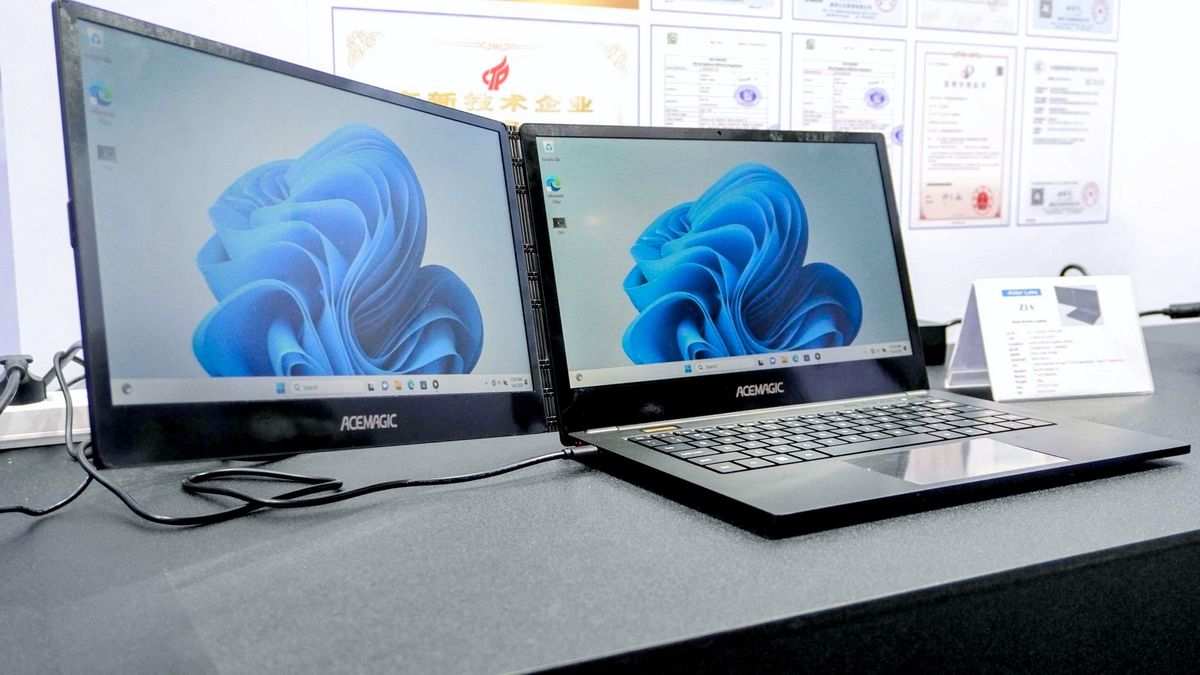
Can touchscreen monitors replace laptops? The honest answer is yes, but only if you pair them with a separate computing device and your workflow actually benefits from touch or pen input. A standalone touchscreen monitor is just a display.
It has no processor, no RAM, no operating system. You're essentially buying a screen that happens to respond to your finger.
So the real question isn't whether a touchscreen monitor can replace a laptop. It's whether a touchscreen monitor plus a mini PC, tablet, or docked laptop serves you better than a single traditional laptop. That answer changes depending on what you do all day, where you work, and how much you value having a touch-enabled surface.
Let's break it down properly.
The Short Answer: It Depends on What You're Actually Doing
A touchscreen monitor cannot function alone. It needs a separate computer to drive it. If you pair one with a mini PC or a docked laptop, the combined setup can replace a traditional laptop for desk-based work.
It won't match a laptop's portability.
The trade-off comes down to screen size, input flexibility, and ergonomics versus all-in-one convenience. For artists, presenters, and multi-screen professionals, a touchscreen monitor setup often wins. For frequent travelers and students, a laptop or 2-in-1 convertible remains the better choice.
What a Touchscreen Monitor Actually Is (And Isn't)
A touchscreen monitor is a display panel with a built-in touch sensor layer. It connects to a computer via USB-C, HDMI, or DisplayPort. The touch signal travels back through the USB connection.
The monitor itself does zero computing.
There are two main categories you'll encounter.
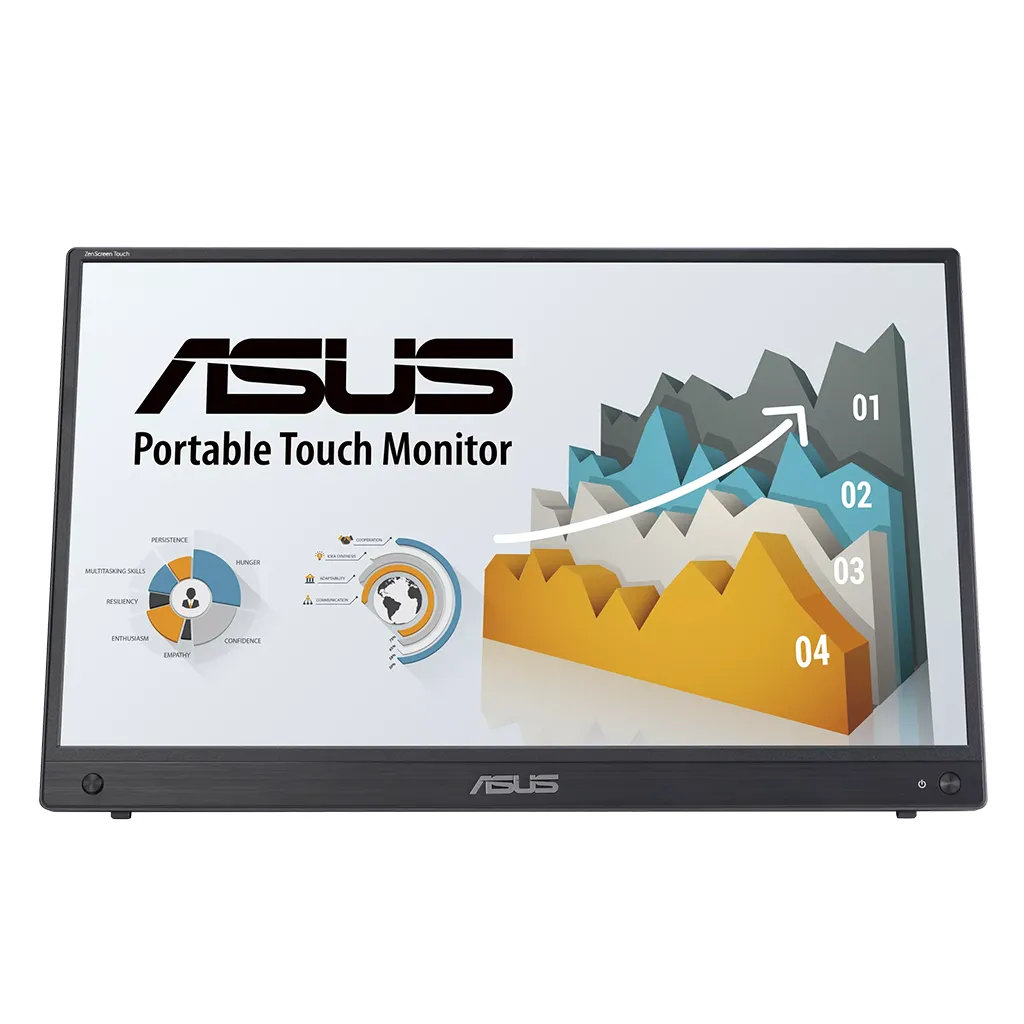
Portable touchscreen monitors are typically 14 to 17 inches, weigh between 1.3 and 3.5 pounds, and draw power over USB-C. Models like the ASUS ZenScreen Touch M148UMA and Lenovo ThinkVision M14t fall here. They're designed to travel alongside a laptop as a second screen or to pair with a mini PC for a compact desktop setup.
Desktop pen displays are larger, usually 16 to 32 inches, and sit on your desk. Products like the Wacom Cintiq 16, XP-Pen Artist Pro 16, and ViewSonic TD2455 belong in this category. Many support active pen input with 8,192 levels of pressure sensitivity.
These are purpose-built for creative professionals who need direct on-screen drawing.
Here's the critical distinction. A portable touchscreen monitor is a display with touch. A pen display is a drawing tool with computing passthrough.
Neither replaces a laptop on its own. Both need a host machine.
The confusion happens because some all-in-one PCs and 2-in-1 laptops have touchscreens built in. Those are complete computers. A standalone touchscreen monitor is not.
Touchscreen Monitor vs. Laptop: The Core Trade-Offs
Let's walk through the actual differences that matter when you're deciding between these setups.
Portability and Where You Work
A laptop is a self-contained unit. You open it, it boots, you work. A touchscreen monitor setup requires at least two components: the monitor and a computing source.
Even the most portable configuration, a 15.6-inch USB-C touch monitor plus a compact mini PC, means carrying two devices, cables, and a power adapter.
If you work from coffee shops, co-working spaces, or client sites regularly, a laptop wins hands down. If you work primarily from a single desk and occasionally move between rooms or home and office, a touchscreen monitor setup becomes more practical.
One middle ground exists. Some portable touchscreen monitors like the Lenovo M14t can connect directly to a smartphone via USB-C. Samsung DeX on Galaxy phones and Motorola Ready For on certain Android devices can drive a desktop-style interface through the monitor.
This gives you a touchscreen workstation that fits in a small bag, though you're still limited by mobile-class processing power.
Input Methods: Touch, Pen, Keyboard, and Mouse
This is where touchscreen monitors pull ahead for specific users. A traditional laptop without a touchscreen forces you to rely on a trackpad and keyboard for all input. A touchscreen monitor lets you tap, swipe, pinch, and draw directly on the content.
For digital artists, this is transformable. Drawing on a Wacom Cintiq with a Pro Pen 2 feels natural. The pen has 8,192 pressure levels and tilt recognition.
You see your strokes appear exactly where the pen touches the screen. No parallax guessing, no hand-eye coordination gap like you'd get with a pen tablet that has no screen.
For educators and presenters, touch input makes annotation effortless. You can mark up slides, draw diagrams live, or let students interact with content directly on the display. A laptop with a trackpad makes this clunky by comparison.
For general office work, touch input is a nice-to-have, not a necessity. Most productivity software still prioritizes mouse and keyboard workflows. Windows 11 has improved touch gestures, but many desktop applications remain stubbornly mouse-centric.
Computing Power: The Hidden Requirement
Here's what trips people up. A touchscreen monitor has no processor. You need to supply the computing hardware separately.
Your options are:
- A mini PC like an Intel NUC, Mac Mini, or Beelink SER5. These are compact, powerful, and can sit behind your monitor on a VESA mount.
- A laptop used in docked mode. You connect your laptop to the touchscreen monitor via USB-C or HDMI. The laptop acts as the brain, the monitor becomes your primary touch-enabled display.
- A smartphone with desktop mode support. Limited but functional for light tasks.
Each option adds cost and complexity. A decent mini PC runs $400 to $800. A quality portable touchscreen monitor costs $200 to $400.
You're looking at $600 to $1,200 total before you add a keyboard, mouse, and stand. A solid laptop with comparable performance costs $800 to $1,500 and includes everything in one package.
Display Quality and Size
Touchscreen monitors often deliver better displays than similarly priced laptops. A $300 portable touch monitor typically offers an IPS panel with full sRGB coverage and decent brightness around 250 to 300 nits. Many laptops at that price point still ship with dim, low-color-accuracy TN or IPS panels.
Desktop pen displays go further. The Wacom Cintiq 22 offers 1920×1080 resolution with 99% Adobe RGB coverage. The ViewSonic TD3207 is a 32-inch 4K touch display.
These are screen sizes and quality levels that laptops simply can't match at reasonable prices.
For anyone who spends hours reading, editing photos, or reviewing detailed documents, the size and quality advantage is real. A 24-inch touchscreen on your desk beats a 15-inch laptop screen for sustained work sessions.
Total Cost of Ownership
Let's compare realistic setups as of 2026 pricing.
| Setup | Monitor/Display | Computing Source | Input Devices | Total Estimated Cost |
|---|---|---|---|---|
| Mid-range laptop (15.6", touch) | Built-in | Built-in | Built-in | $900–$1,400 |
| 2-in-1 convertible laptop | Built-in | Built-in | Built-in | $1,000–$2,200 |
| Portable touch monitor + mini PC | $250–$400 | $400–$800 | $50–$150 | $700–$1,350 |
| Desktop pen display + desktop PC | $400–$2,500 | $600–$1,500 | $50–$150 | $1,050–$4,150 |
| iPad Pro + Magic Keyboard | Built-in | Built-in | Included | $1,300–$2,000 |
The touchscreen monitor route isn't automatically cheaper. It's competitive when you already own a computing device and just need a better display. If you're starting from scratch, a laptop often delivers more value per dollar.
Side-by-Side Comparison: Every Major Setup
Let's put the most realistic options next to each other. This is what you're actually choosing between.
| Factor | Traditional Laptop | 2-in-1 Convertible | Portable Touch Monitor + Mini PC | Desktop Pen Display + Desktop | iPad Pro Setup |
|---|---|---|---|---|---|
| Portability | Excellent | Excellent | Moderate | Poor | Excellent |
| Touch Input | No (unless touch model) | Yes | Yes | Yes (pen + touch) | Yes |
| Pen Support | Rarely | Some models | Varies by model | Excellent (EMR/Wacom) | Apple Pencil (excellent) |
| Computing Built-In | Yes | Yes | No | No | Yes |
| Screen Size Range | 13"–18" | 12"–17" | 14"–17" (portable) | 16"–32" | 11"–13" |
| Upgradeability | Low | Low | Moderate | High | None |
| Best For | General use, travel | Artists, students, hybrid | Desk workers, dual-screen | Professional artists | Mobile creators |
| Starting Price | $500 | $700 | $700 | $1,050 | $1,300 |
The pattern is clear. If portability matters most, stick with a laptop or 2-in-1. If screen quality and pen input matter most, a pen display or touch monitor setup wins.
If you need a balance, a 2-in-1 convertible laptop gives you touch and pen capability without sacrificing the all-in-one form factor.
Who Should Actually Make the Switch
Not everyone benefits from a touchscreen monitor setup. Here's who genuinely gains from making the move.

Digital Artists and Illustrators
If you draw, paint, or illustrate professionally, a pen display connected to a desktop or mini PC is the standard setup for good reason. The Wacom Cintiq line, XP-Pen Artist displays, and Huion Kamvas series all exist because drawing directly on screen is fundamentally better than drawing on a tablet while looking at a separate monitor.
A touchscreen monitor without pen support won't cut it here. You need active pen technology with pressure sensitivity, tilt recognition, and low latency. Capacitive touch screens that respond to your finger don't offer the precision required for serious illustration work.
For artists who also need portability, a 2-in-1 convertible laptop like the HP Spectre x360 or Lenovo Yoga 9i with an active stylus gives you a compromise. You get pen input in a laptop form factor, though the drawing experience isn't as refined as a dedicated pen display.
Educators and Presenters
Teachers, trainers, and presenters benefit enormously from touch-enabled displays. Annotating slides in real time, solving math problems by hand on a virtual whiteboard, or letting students interact with content directly on screen changes the dynamic of a classroom or meeting room.
A large touchscreen monitor on a stand works well here. Pair it with a small mini PC mounted behind the display and you've got an interactive workstation. This is essentially what many modern smart boards do, but a touchscreen monitor gives you more flexibility at a lower price point.
Office Professionals and Developers
This is where the decision gets nuanced. If your work revolves around spreadsheets, email, documents, and code, a touchscreen monitor adds less value. You'll spend most of your time typing.
The touch capability becomes secondary.
That said, a touchscreen monitor as a secondary display alongside your laptop can boost productivity. Use your laptop screen for active work and the touch monitor for reference material, dashboards, or communication apps. Touch makes scrolling through long documents and navigating dashboards faster than using a trackpad.
Developers who work with design tools or need to test touch interfaces will find a touch monitor genuinely useful. Testing a web app's touch responsiveness on a real touchscreen beats simulating it in a browser tool.
Students
Students face a unique constraint: budget. A portable touchscreen monitor plus a used mini PC can be cheaper than a good laptop, but it's less convenient. You need to set up both devices every time you study.
You can't just flip open a laptop and start typing in a lecture hall.
For note-taking specifically, a touch-enabled device shines. Handwritten notes on a touchscreen with a stylus improve retention for many students compared to typing. But a 2-in-1 laptop or iPad with a keyboard case serves this need better than a standalone touch monitor setup.
Content Creators and Video Editors
Video editors benefit from large, color-accurate displays. A 27-inch 4K touchscreen monitor gives you a bigger timeline, larger preview area, and the ability to scrub through footage with touch gestures. Pair it with a powerful desktop or mini PC and you've got a strong editing workstation.
However, most professional editing software like DaVinci Resolve and Adobe Premiere Pro is optimized for keyboard shortcuts and mouse input. Touch support exists but isn't deeply integrated. You'll still rely heavily on your keyboard and mouse for editing work.
Who's Better Off Sticking With a Laptop
Some users genuinely don't benefit from a touchscreen monitor setup. If any of these describe you, a traditional laptop or 2-in-1 convertible is the smarter choice.
- Frequent travelers. Carrying a touchscreen monitor, mini PC, cables, and accessories defeats the purpose of mobility. A single laptop is simpler.
- People who work from multiple locations daily. Setting up a two-device workflow at every stop isn't practical.
- Budget-conscious buyers starting from scratch. A $1,000 laptop gives you everything. A $1,000 touch monitor setup still needs a computing source.
- Users who primarily type. If your workflow is 90% keyboard-based, touch input adds little value.
- Anyone who values simplicity. Fewer devices means fewer points of failure, fewer cables, fewer drivers to manage.
Common Mistakes People Make When Switching
Based on aggregate user reviews and forum discussions, these are the most frequent pitfalls.
Assuming the touchscreen monitor is a computer. This is the number one mistake. A touchscreen monitor is a peripheral. It needs a host.
Budget for both the monitor and the computing source.
Ignoring pen compatibility. Not all touchscreen monitors support active pens. Many only support capacitive touch (your finger or a basic stylus). If you need pressure sensitivity for drawing or handwriting, verify the monitor supports an active pen protocol like Wacom EMR, Microsoft Pen Protocol, or USI before buying.
Underestimating cable clutter. A clean laptop setup has zero cables when you're mobile. A touch monitor setup needs at minimum a video cable (USB-C or HDMI), a USB cable for touch signal, and power. Plan your cable management.
Choosing the wrong size. A 14-inch portable touch monitor sounds portable, but it's small for sustained productivity. A 15.6-inch or 17-inch model gives you more usable workspace while still being reasonably portable.
Expecting macOS touch support. Apple does not make a touchscreen Mac, and macOS has limited touch input support. If you're in the Apple ecosystem, an iPad Pro or a 2-in-1 Windows laptop is a better path for touch workflows.
Overlooking ergonomics. Touching a vertical screen for hours causes fatigue. This is sometimes called "gorilla arm." If you plan to use touch extensively, get a monitor with an adjustable stand that can tilt to a near-flat angle, or use a VESA arm for positioning flexibility.
What You'll Actually Spend: Real Pricing Breakdown
Here's realistic pricing across the options as of 2026.
Portable touchscreen monitors:
- Budget 1080p models (14", 15.6"): $150, $250
- Mid-range with good color accuracy: $250, $400
- Premium models with pen support: $400, $600
Desktop pen displays:
- Entry-level (15.6", 16", Wacom Cintiq 16): $400, $700
- Mid-range (21", 24", Wacom Cintiq Pro 24): $1,200, $1,900
- Professional (27", 32", Wacom Cintiq Pro 32): $2,500, $3,500
Computing sources:
- Budget mini PC (Beelink, GMKtec): $200, $400
- Mid-range mini PC (Intel NUC, Mac Mini): $500, $900
- Desktop workstation: $600, $1,500
Accessories you'll need:
- Adjustable stand or VESA mount: $30, $100
- Quality keyboard and mouse: $50, $150
- USB-C hub or docking station: $40, $100
- Active stylus/pen (if not included): $30, $100
The total for a functional touchscreen monitor workstation typically lands between $700 and $1,500 for a portable setup, or $1,200 to $3,000 for a desktop pen display setup. Compare that to $800, $1,500 for a quality laptop with similar performance.
How to Set Up a Touchscreen Monitor as Your Main Display
If you've decided a touchscreen monitor setup makes sense for your workflow, here's how to get it running properly.
Step 1: Choose your computing source. A mini PC is the cleanest option for a dedicated touchscreen workstation. If you already own a laptop, you can use it in docked mode. Make sure your computing source has a USB-C port with DisplayPort Alt Mode or an HDMI port plus a spare USB-A port.
Step 2: Connect the display. For the simplest setup, use a single USB-C cable that carries both video and touch signal. Most portable touchscreen monitors support this. If your monitor requires separate connections, plug in HDMI for video and USB-A for touch input.
Step 3: Install drivers and configure touch. Windows 11 and most Linux distributions will recognize basic touch input automatically. For pen pressure support and advanced features, install the manufacturer's driver software. Calibrate the touch input through your OS settings if the cursor doesn't align with your touch point.
Step 4: Adjust display settings. Set the resolution to the monitor's native resolution. Configure scaling if text appears too small at 100%. For a 15.6-inch 1080p display, 125% scaling is usually comfortable.
Arrange the display relative to any secondary monitors in your OS display settings.
Step 5: Optimize for touch use. Enable tablet mode in Windows if available. Adjust your monitor's tilt angle to reduce arm fatigue. Install touch-friendly apps where possible.
Configure palm rejection settings in your pen driver software.
Step 6: Set up your input devices. Pair a Bluetooth keyboard and mouse, or use a USB receiver to minimize cables. If you're using a pen, pair it via Bluetooth and customize the button shortcuts in the pen driver utility.
Can an iPad or Tablet Fill the Gap Instead?
For many people asking whether a touchscreen monitor can replace a laptop, the real answer might be a tablet. The iPad Pro with an M4 chip and Magic Keyboard is a legitimate laptop alternative for a lot of users.
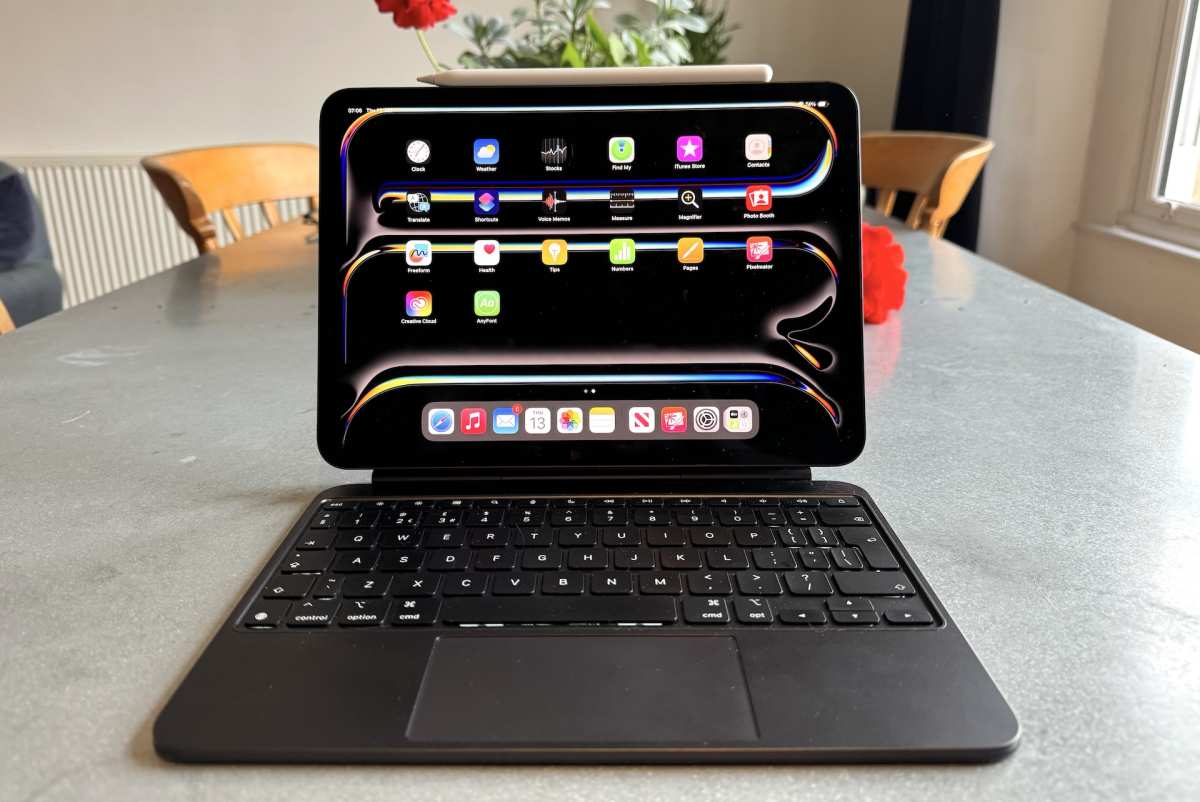
A tablet gives you touch and pen input, a built-in computer, a battery, and a single device to carry. The iPad Pro supports the Apple Pencil Pro with hover detection and squeeze gestures. Samsung's Galaxy Tab S9 series offers similar functionality in the Android ecosystem.
The limitation is software. iPadOS is improving with Stage Manager and external display support, but it still doesn't match the full desktop application ecosystem of Windows or macOS. If you rely on specific desktop software like full Adobe Creative Cloud apps, development tools, or specialized business applications, a tablet may not meet your needs.
For users whose work revolves around web apps, note-taking, media consumption, and light creative work, a tablet can absolutely replace a laptop. It also eliminates the need for a separate touchscreen monitor entirely since the tablet itself is the touchscreen computer.
Microsoft's Surface Pro line sits in the middle. It runs full Windows 11, supports the Surface Pen and Surface Keyboard, and functions as both a tablet and a laptop replacement. It's essentially a 2-in-1 in a tablet form factor.
The trade-off is that it's expensive, starting around $1,000 for a well-configured model.
Frequently Asked Questions
Can I use a touchscreen monitor without a computer?
No. A touchscreen monitor is a display peripheral. It requires a host computer such as a mini PC, laptop, desktop, or in some cases a smartphone with desktop mode support to function.
Do touchscreen monitors work with Macs?
Macs can output video to touchscreen monitors via USB-C or HDMI. However, macOS has limited native touch input support. The display will work, but touch functionality may be restricted or non-functional depending on the monitor and macOS version.
Is a pen display the same as a touchscreen monitor?
Not exactly. A pen display is a specialized touchscreen monitor with active pen support, high pressure sensitivity, and low latency designed for creative work. A general touchscreen monitor may only support basic capacitive touch without pen pressure levels.
What size touchscreen monitor is best for productivity?
For portable setups, 15.6 inches is the sweet spot. It's large enough to work on comfortably and still reasonably portable. For desk-based setups, 24 to 27 inches gives you ample workspace without overwhelming your desk.
Will a touchscreen monitor drain my laptop's battery faster?
Yes. Driving an external display increases power consumption. Expect 10 to 20 percent faster battery drain when connected to an external touchscreen monitor, depending on the laptop and usage.
Can I use a touchscreen monitor for gaming?
You can, but touchscreen monitors aren't designed for gaming. They typically have 60Hz refresh rates and higher input latency than gaming monitors. For competitive gaming, a dedicated gaming monitor is the better choice.
The Verdict: Making Your Decision
Here's the framework that actually works. Ask yourself three questions.
First, do you need touch or pen input for your primary work? If yes, a touchscreen monitor or pen display setup is worth considering. If no, a traditional laptop serves you better.
Second, do you work from a fixed location most of the time? If yes, the two-device setup is manageable and you'll benefit from the larger screen and better ergonomics. If you move frequently, stick with a laptop or 2-in-1.
Third, do you already own a computing device? If you have a laptop or desktop that's performing well, adding a touchscreen monitor is a straightforward upgrade. If you're starting from scratch, a laptop gives you more complete value.
The touchscreen monitor market has matured significantly as of 2026. The hardware is good. The question was never about the technology.
It's about whether your specific workflow benefits enough from touch and pen input to justify the added complexity of a multi-device setup. For artists, educators, and certain professionals, the answer is a clear yes. For everyone else, a good laptop or 2-in-1 remains the more practical choice.
Who's Better Off Sticking With a Laptop
Some users genuinely don't benefit from a touchscreen monitor setup. If any of these describe you, a traditional laptop or 2-in-1 convertible is the smarter choice.
- Frequent travelers. Carrying a touchscreen monitor, mini PC, cables, and accessories defeats the purpose of mobility. A single laptop is simpler.
- People who work from multiple locations daily. Setting up a two-device workflow at every stop isn't practical.
- Budget-conscious buyers starting from scratch. A $1,000 laptop gives you everything. A $1,000 touch monitor setup still needs a computing source.
- Users who primarily type. If your workflow is 90% keyboard-based, touch input adds little value.
- Anyone who values simplicity. Fewer devices means fewer points of failure, fewer cables, fewer drivers to manage.
Common Mistakes People Make When Switching
Based on aggregate user reviews and forum discussions, these are the most frequent pitfalls.
Assuming the touchscreen monitor is a computer. This is the number one mistake. A touchscreen monitor is a peripheral. It needs a host.
Budget for both the monitor and the computing source.
Ignoring pen compatibility. Not all touchscreen monitors support active pens. Many only support capacitive touch (your finger or a basic stylus). If you need pressure sensitivity for drawing or handwriting, verify the monitor supports an active pen protocol like Wacom EMR, Microsoft Pen Protocol, or USI before buying.
Underestimating cable clutter. A clean laptop setup has zero cables when you're mobile. A touch monitor setup needs at least a video cable (USB-C or HDMI), a USB cable for touch signal, and power. Plan your cable management.
Choosing the wrong size. A 14-inch portable touch monitor sounds portable, but it's small for sustained productivity. A 15.6-inch or 17-inch model gives you more usable workspace while still being reasonably portable.
Expecting macOS touch support. Apple does not make a touchscreen Mac, and macOS has limited touch input support. If you're in the Apple ecosystem, an iPad Pro or a 2-in-1 Windows laptop is a better path for touch workflows.
Overlooking ergonomics. Touching a vertical screen for hours causes fatigue. This is sometimes called "gorilla arm." If you plan to use touch extensively, get a monitor with an adjustable stand that can tilt to a near-flat angle, or use a VESA arm for positioning flexibility.
What You'll Actually Spend: Real Pricing Breakdown
Here's realistic pricing across the options as of 2026.
Portable touchscreen monitors:
- Budget 1080p models (14", 15.6"): $150, $250
- Mid-range with good color accuracy: $250, $400
- Premium models with pen support: $400, $600
Desktop pen displays:
- Entry-level (15.6", 16", Wacom Cintiq 16): $400, $700
- Mid-range (21", 24", Wacom Cintiq Pro 24): $1,200, $1,900
- Professional (27", 32", Wacom Cintiq Pro 32): $2,500, $3,500
Computing sources:
- Budget mini PC (Beelink, GMKtec): $200, $400
- Mid-range mini PC (Intel NUC, Mac Mini): $500, $900
- Desktop workstation: $600, $1,500
Accessories you'll need:
- Adjustable stand or VESA mount: $30, $100
- Quality keyboard and mouse: $50, $150
- USB-C hub or docking station: $40, $100
- Active stylus/pen (if not included): $30, $100
The total for a functional touchscreen monitor workstation typically lands between $700 and $1,500 for a portable setup, or $1,200 to $3,000 for a desktop pen display setup. Compare that to $800, $1,500 for a quality laptop with similar performance.
How to Set Up a Touchscreen Monitor as Your Main Display
If you've decided a touchscreen monitor setup makes sense for your workflow, here's how to get it running properly.
Step 1: Choose your computing source. A mini PC is the cleanest option for a dedicated touchscreen workstation. If you already own a laptop, you can use it in docked mode. Make sure your computing source has a USB-C port with DisplayPort Alt Mode or an HDMI port plus a spare USB-A port.
Step 2: Connect the display. For the simplest setup, use a single USB-C cable that carries both video and touch signal. Most portable touchscreen monitors support this. If your monitor requires separate connections, plug in HDMI for video and USB-A for touch input.
Step 3: Install drivers and configure touch. Windows 11 and most Linux distributions will recognize basic touch input automatically. For pen pressure support and advanced features, install the manufacturer's driver software. Calibrate the touch input through your OS settings if the cursor doesn't align with your touch point.
Step 4: Adjust display settings. Set the resolution to the monitor's native resolution. Configure scaling if text appears too small at 100%. For a 15.6-inch 1080p display, 125% scaling is usually comfortable.
Arrange the display relative to any secondary monitors in your OS display settings.
Step 5: Optimize for touch use. Enable tablet mode in Windows if available. Adjust your monitor's tilt angle to reduce arm fatigue. Install touch-friendly apps where possible.
Configure palm rejection settings in your pen driver software.
Step 6: Set up your input devices. Pair a Bluetooth keyboard and mouse, or use a USB receiver to minimize cables. If you're using a pen, pair it via Bluetooth and customize the button shortcuts in the pen driver utility.
Can an iPad or Tablet Fill the Gap Instead?
For many people asking whether a touchscreen monitor can replace a laptop, the real answer might be a tablet. The iPad Pro with an M4 chip and Magic Keyboard is a legitimate laptop alternative for a lot of users.
A tablet gives you touch and pen input, a built-in computer, a battery, and a single device to carry. The iPad Pro supports the Apple Pencil Pro with hover detection and squeeze gestures. Samsung's Galaxy Tab S9 series offers similar functionality in the Android ecosystem.
The limitation is software. iPadOS is improving with Stage Manager and external display support, but it still doesn't match the full desktop application ecosystem of Windows or macOS. If you rely on specific desktop software like full Adobe Creative Cloud apps, development tools, or specialized business applications, a tablet may not meet your needs.
For users whose work revolves around web apps, note-taking, media consumption, and light creative work, a tablet can absolutely replace a laptop. It also eliminates the need for a separate touchscreen monitor entirely since the tablet itself is the touchscreen computer.
Microsoft's Surface Pro line sits in the middle. It runs full Windows 11, supports the Surface Pen and Surface Keyboard, and functions as both a tablet and a laptop replacement. It's essentially a 2-in-1 in a tablet form factor.
The trade-off is that it's expensive, starting around $1,000 for a well-configured model.
Frequently Asked Questions
Can I use a touchscreen monitor without a computer?
No. A touchscreen monitor is a display peripheral. It requires a host computer such as a mini PC, laptop, desktop, or in some cases a smartphone with desktop mode support to function.
Do touchscreen monitors work with Macs?
Macs can output video to touchscreen monitors via USB-C or HDMI. However, macOS has limited native touch input support. The display will work, but touch functionality may be restricted or non-functional depending on the monitor and macOS version.
Is a pen display the same as a touchscreen monitor?
Not exactly. A pen display is a specialized touchscreen monitor with active pen support, high pressure sensitivity, and low latency designed for creative work. A general touchscreen monitor may only support basic capacitive touch without pen pressure levels.
What size touchscreen monitor is best for productivity?
For portable setups, 15.6 inches is the sweet spot. It's large enough to work on comfortably and still reasonably portable. For desk-based setups, 24 to 27 inches gives you ample workspace without overwhelming your desk.
Will a touchscreen monitor drain my laptop's battery faster?
Yes. Driving an external display increases power consumption. Expect 10 to 20 percent faster battery drain when connected to an external touchscreen monitor, depending on the laptop and usage.
Can I use a touchscreen monitor for gaming?
You can, but touchscreen monitors aren't designed for gaming. They typically have 60Hz refresh rates and higher input latency than gaming monitors. For competitive gaming, a dedicated gaming monitor is the better choice.
The Verdict: Making Your Decision
Here's the framework that actually works. Ask yourself three questions.
First, do you need touch or pen input for your primary work? If yes, a touchscreen monitor or pen display setup is worth considering. If no, a traditional laptop serves you better.
Second, do you work from a fixed location most of the time? If yes, the two-device setup is manageable and you'll benefit from the larger screen and better ergonomics. If you move frequently, stick with a laptop or 2-in-1.
Third, do you already own a computing device? If you have a laptop or desktop that's performing well, adding a touchscreen monitor is a straightforward upgrade. If you're starting from scratch, a laptop gives you more complete value.
The touchscreen monitor market has matured significantly as of 2026. The hardware is good. The question was never about the technology.
It's about whether your specific workflow benefits enough from touch and pen input to justify the added complexity of a multi-device setup. For artists, educators, and certain professionals, the answer is a clear yes. For everyone else, a good laptop or 2-in-1 remains the more practical choice.

Similar Posts





















