Why Are Touchscreen Monitors Trending Now
If you've been shopping for a monitor lately, you've probably noticed something: touchscreen options are showing up everywhere, and they're not just for specialty kiosks anymore. Understanding why are touchscreen monitors trending now comes down to a mix of better technology, shifting work habits, and prices that finally make sense for regular consumers.
The hardware has genuinely improved. Modern projected capacitive (PCAP) touch panels support 10-point multi-touch, respond in under 10 milliseconds, and connect over a single USB-C cable that carries video, touch data, and power simultaneously. That combination of affordability, performance, and plug-and-play simplicity is what's pushing touch displays out of commercial-only spaces and onto everyday desks.
Quick Answer
Touchscreen monitors are trending because prices have dropped sharply while USB-C connectivity has simplified setup. Remote and hybrid work created demand for more intuitive annotation and collaboration tools. Touch panel manufacturers have improved latency, accuracy, and palm rejection significantly since 2020.
Major operating systems, especially Windows 11, now prioritize touch-friendly interfaces. Education and retail sectors continue driving volume, which keeps consumer costs falling.
The Real Reasons Behind the Trend
Several forces are converging right now, and they reinforce each other in ways that weren't possible even five years ago.
Price collapse on touch panels. Manufacturing volume driven by automotive dashboards, interactive kiosks, and educational tablets has brought the cost of PCAP touch layers down significantly. A 23.8-inch 1080p touchscreen monitor that would have cost $500 or more in 2019 now sits in the $200 to $350 range from major OEMs like Dell, LG, and ViewSonic. That price compression is the single biggest factor making touch viable for home offices.
USB-C single-cable setup. This sounds minor, but it's a game-changer. Older touch monitors required a separate HDMI cable for video plus a USB cable just for the touch signal. Modern USB-C touch monitors carry everything over one cable, including up to 90 watts of power delivery.
The result is a clean desk with fewer cables and zero friction to get touch working.
Windows 11 touch optimization. Microsoft redesigned Windows 11 with touch-first gestures, larger touch targets, and improved on-screen keyboard behavior. The OS finally feels usable without a mouse in a way that Windows 10 never quite achieved. This matters because most touchscreen monitors are used on Windows machines.
Hybrid work and collaboration. Annotation during video calls, whiteboarding in real time, and marking up documents directly on screen became standard workflows after 2020. Touchscreen monitors serve that need without requiring a separate tablet or interactive whiteboard.
Ecosystem expansion. ChromeOS now supports external touch displays natively. Apple's Stage Manager on iPadOS encourages external monitor use, though macOS touch support remains limited. The broader ecosystem is slowly moving toward touch as a standard input method rather than a niche feature.
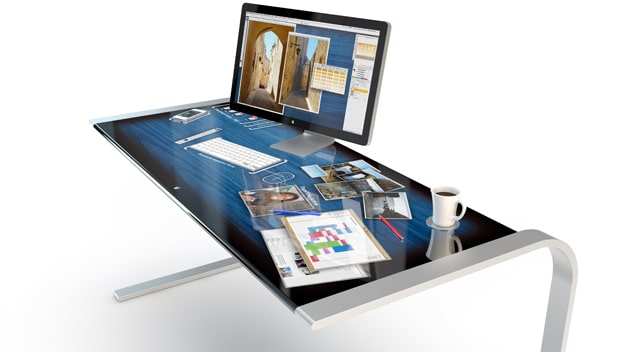
Touchscreen vs. Non-Touch Monitors: What Actually Changed
The gap between touch and non-touch monitors has narrowed in some areas while widening in others. Here's what matters.
What's Improved in Touch Monitors
- Touch latency dropped from 30-50ms in budget panels to 6-12ms in current models
- Palm rejection algorithms now work reliably for writing and drawing
- Brightness loss through the touch layer decreased from 25-30% to roughly 10-15%
- Anti-smudge coatings have improved, reducing visible fingerprints
- Pen support with active stylus protocols (MPP, AES) is now common on mid-range models
What Hasn't Changed
- Touch monitors still cost 30-60% more than equivalent non-touch panels
- Glossy touch surfaces still produce more reflections than matte non-touch screens
- The touch layer still adds 0.5 to 1.5 kilograms of weight
- macOS still lacks native touch input support for external displays
Side-by-Side Comparison
| Factor | Touch Monitor | Non-Touch Monitor |
|---|---|---|
| Price (23.8" 1080p) | $220-$400 | $120-$200 |
| Setup complexity | Single USB-C cable | Single video cable |
| Creative workflow | Direct manipulation | Mouse/keyboard or tablet |
| Long-session comfort | Arm fatigue risk | No ergonomic penalty |
| Fingerprint visibility | High | Low |
| Best for | Annotation, drawing, POS | General productivity, coding |
The practical takeaway is straightforward. If your work involves any direct manipulation, markup, or visual collaboration, the price premium for touch pays for itself quickly. If you're primarily writing code, managing spreadsheets, or reading documents, a non-touch monitor remains the better value.
Where Touchscreen Monitors Make Sense (And Where They Don't)
Not every desk benefits from touch. The value depends entirely on what you actually do for hours each day.
Strong Use Cases
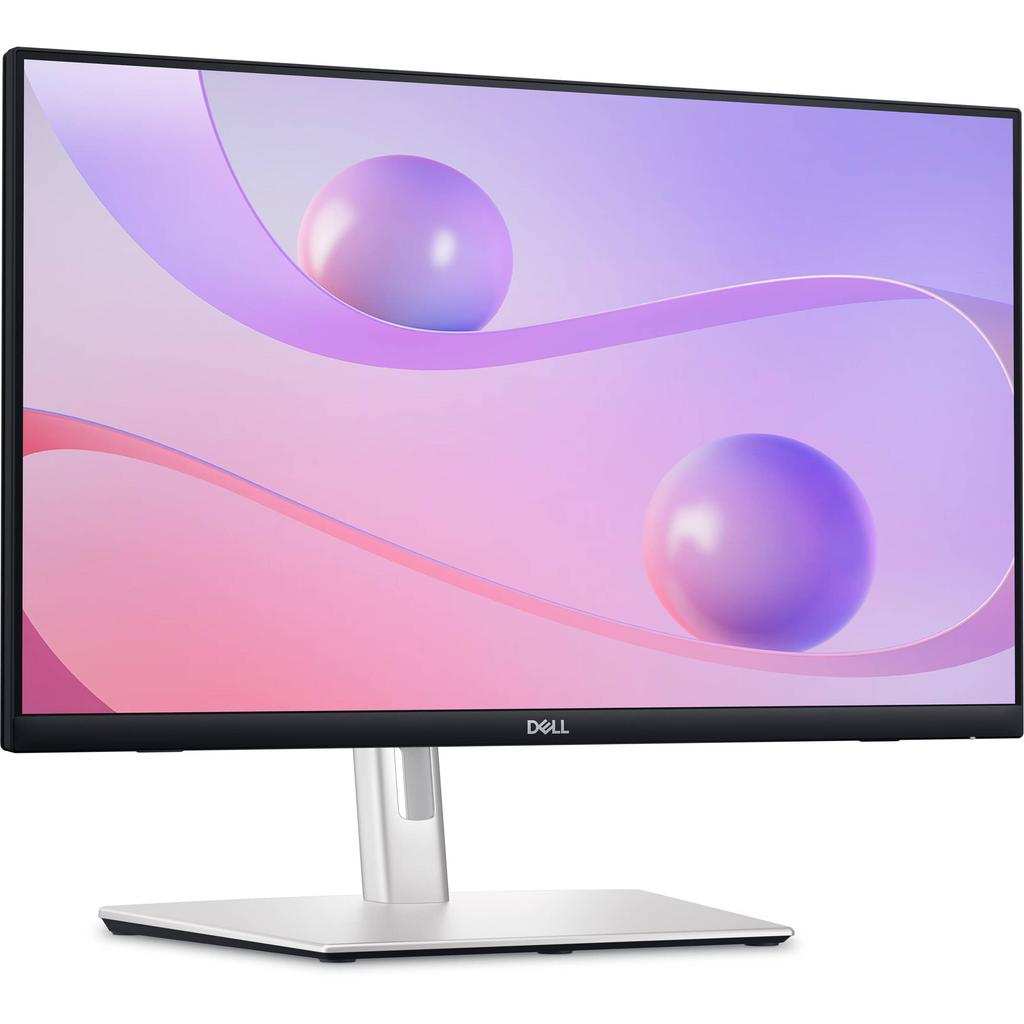
Creative professionals. Graphic designers, illustrators, and video editors who annotate directly on the canvas gain real speed. Marking up a layout at 1:1 scale beats clicking through toolbar menus. Models with active pen support and at least 10-point touch, like the ASUS ProArt PA248CTV or Dell P2224HT, target this group specifically.
Education and training. Teachers who annotate diagrams, mark up student work, or run interactive lessons benefit enormously. Schools have been major buyers of touch displays since 2020, and that volume has driven consumer prices down.
Hybrid meeting rooms. Conference rooms equipped with touch displays let participants annotate shared screens in real time. This replaced the old workflow of "can you move that box a little to the left" with direct manipulation.
Retail and hospitality. Point-of-sale systems, self-service kiosks, and digital signage represent the commercial backbone of touch display adoption. This segment accounts for a huge share of total unit shipments.
Accessibility users. People with certain motor or cognitive conditions find touch more intuitive than mouse-and-keyboard navigation. A touchscreen monitor can be an assistive technology, not just a convenience.
Weak Use Cases
Software developers. Writing and reviewing code doesn't benefit from touch. The precision of a mouse and the speed of keyboard shortcuts are hard to beat here. A touchscreen monitor adds cost without improving workflow.
Long-form reading and writing. Staring at a vertical screen and reaching forward to touch it for hours causes genuine arm fatigue, sometimes called "gorilla arm." For reading documents or writing emails, touch adds friction rather than removing it.
Color-critical work without calibration. Some touch panels reduce color accuracy slightly compared to their non-touch counterparts. If you're doing professional color grading, verify the specific model's Delta E ratings before committing.
Mac users. macOS does not support touch input on external displays. You can connect a touchscreen monitor to a Mac, but touch input simply won't work in the operating system. This is a dealbreaker unless you're running Windows via Boot Camp or Parallels.
The Hidden Trade-Offs Nobody Talks About
Marketing materials focus on the benefits. Here are the drawbacks that actually affect daily use.
Glare is real. Touchscreen monitors almost universally use glossy glass surfaces. If your desk faces a window or you work under bright overhead lighting, you'll see reflections constantly. Matte screen protectors help but reduce touch sensitivity and clarity.
Fingerprints are constant. Even with oleophobic coatings, a touch monitor shows smudges within minutes of use. If you're particular about a clean display, you'll be wiping it daily.
Arm fatigue accumulates. Short bursts of touch interaction feel natural. Reaching forward to a vertical screen for extended periods strains your shoulder and forearm. Tilting the monitor to a 20 to 30 degree angle helps significantly, which is why stands with full tilt adjustment matter.
Touch isn't equally good in every app. Windows 11's core interface handles touch well. Many third-party applications still have tiny touch targets, hover-dependent tooltips, or right-click workflows that assume a mouse. The experience varies wildly from app to app.
Driver and calibration headaches. Most touch monitors work plug-and-play on Windows. Some require specific driver installations for full multi-touch support. Calibration can drift over time, especially on cheaper models, requiring periodic recalibration through the monitor's on-screen display menu.
Durability concerns. The touch layer is essentially a sheet of glass on top of your display. It won't shatter under normal use, but it's more vulnerable to scratches and impacts than a standard monitor bezel. Replacement cost for the touch layer often approaches the cost of a new monitor.
Power consumption increases. The touch controller draws additional power, typically 2 to 5 watts. Over a year of daily use, that's a small but measurable addition to your electricity cost, and it generates slightly more heat.
The honest assessment is that touchscreen monitors are excellent for specific workflows and unnecessary for others. The trend is real, but it doesn't mean every desk needs one.
Touchscreen Monitors vs. Graphics Tablets vs. iPad Setups
If you're considering touch input for creative or annotation work, you have three main options. Each wins in different scenarios.
Touchscreen Monitor
A touchscreen monitor replaces or supplements your existing display. You interact directly on the screen you're already looking at. The best models offer 1080p or 4K resolution, USB-C connectivity, and active pen support with at least 2048 levels of pressure sensitivity.
Best for: Professionals who want direct on-screen interaction without adding another device to their desk. Ideal for annotation, light drawing, and collaborative markup.
Advantages: Single display for everything. No parallax offset between where you draw and where the cursor appears. Works with full desktop applications natively.
Limitations: Screen size is fixed. Larger touch monitors (27" and above) get expensive. You still need a separate computer.
Graphics Tablet
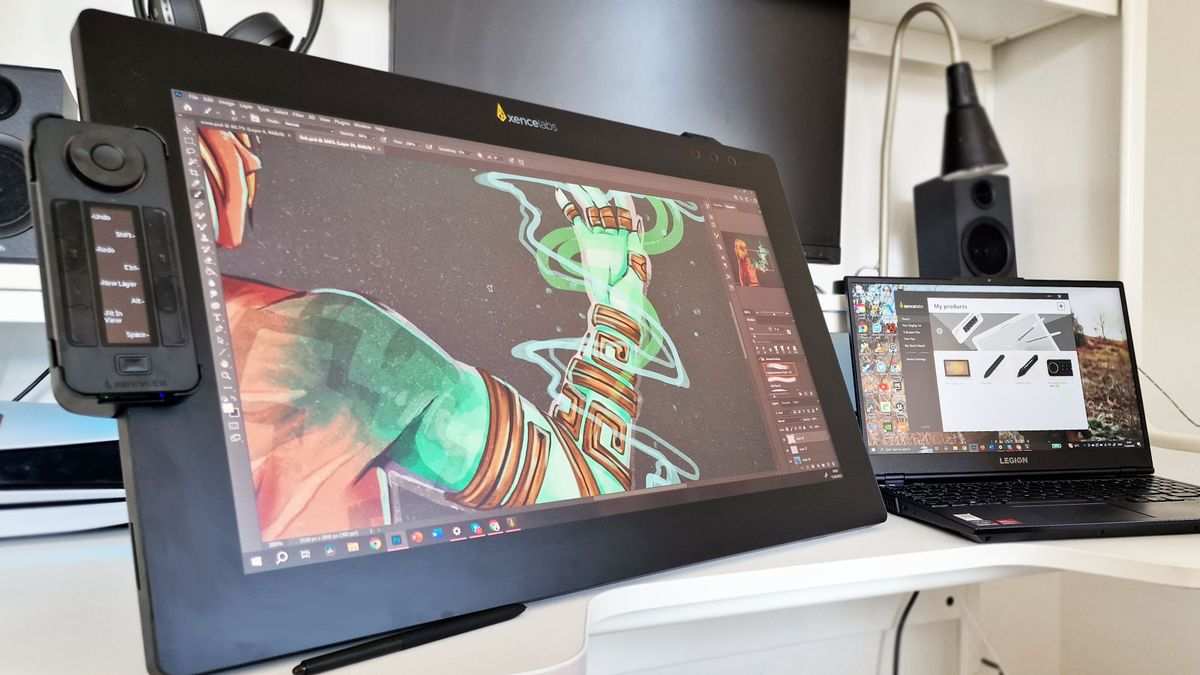
A graphics tablet like the Wacom Intuos or Huion Inspiroy provides a dedicated drawing surface that connects to your existing monitor. You draw on the tablet while looking at your screen. Screen-based pen displays like the Wacom Cintiq combine both concepts.
Best for: Illustrators, photo editors, and designers who need pressure sensitivity, tilt recognition, and precise control for extended sessions.
Advantages: Superior pen technology with 8192+ pressure levels. More comfortable for long sessions since you draw on a flat or slightly angled surface. Better value per dollar for pure drawing work.
Limitations: Hand-eye coordination takes practice on non-screen tablets. Screen-based pen displays (Cintiq, XP-Pen Artist) cost significantly more than touchscreen monitors. Takes up additional desk space.
iPad with External Display
An iPad connected to an external monitor (via Stage Manager on iPadOS 16+) gives you Apple Pencil input on a portable device, with the option to mirror or extend to a larger screen.
Best for: People already in the Apple ecosystem who want a single device for portable and desk use. Good for light annotation, sketching, and markup.
Advantages: Apple Pencil offers excellent latency and pressure sensitivity. iPad is portable. No additional computer needed for iPad-native apps.
Limitations: Stage Manager's external display support still has limitations. You can't use Apple Pencil to control the external display directly. macOS touch input is not available. Not all desktop-class apps exist on iPadOS.
Comparison Table
| Factor | Touchscreen Monitor | Graphics Tablet | iPad + Display |
|---|---|---|---|
| Price range | $220-$800 | $50-$2,000+ | $400-$1,100+ |
| Pen pressure levels | 2048-8192 | 8192-16384 | Apple Pencil: excellent |
| Parallax | None | Varies by model | None on iPad screen |
| Desktop app support | Full | Full | Limited |
| Portability | None | Moderate | High |
| Setup complexity | Low | Moderate | Moderate |
| Best for | Annotation, light drawing | Professional illustration | Apple ecosystem users |
The right choice depends on your existing setup and primary use case. If you need full desktop application support with direct on-screen touch, a touchscreen monitor is the cleanest solution. If drawing is your primary work, a dedicated graphics tablet or pen display outperforms any general-purpose touch monitor.
If you're already carrying an iPad, that might be the most cost-effective path.

Similar Posts





















