Are Touchscreen Monitors Good for Office Use
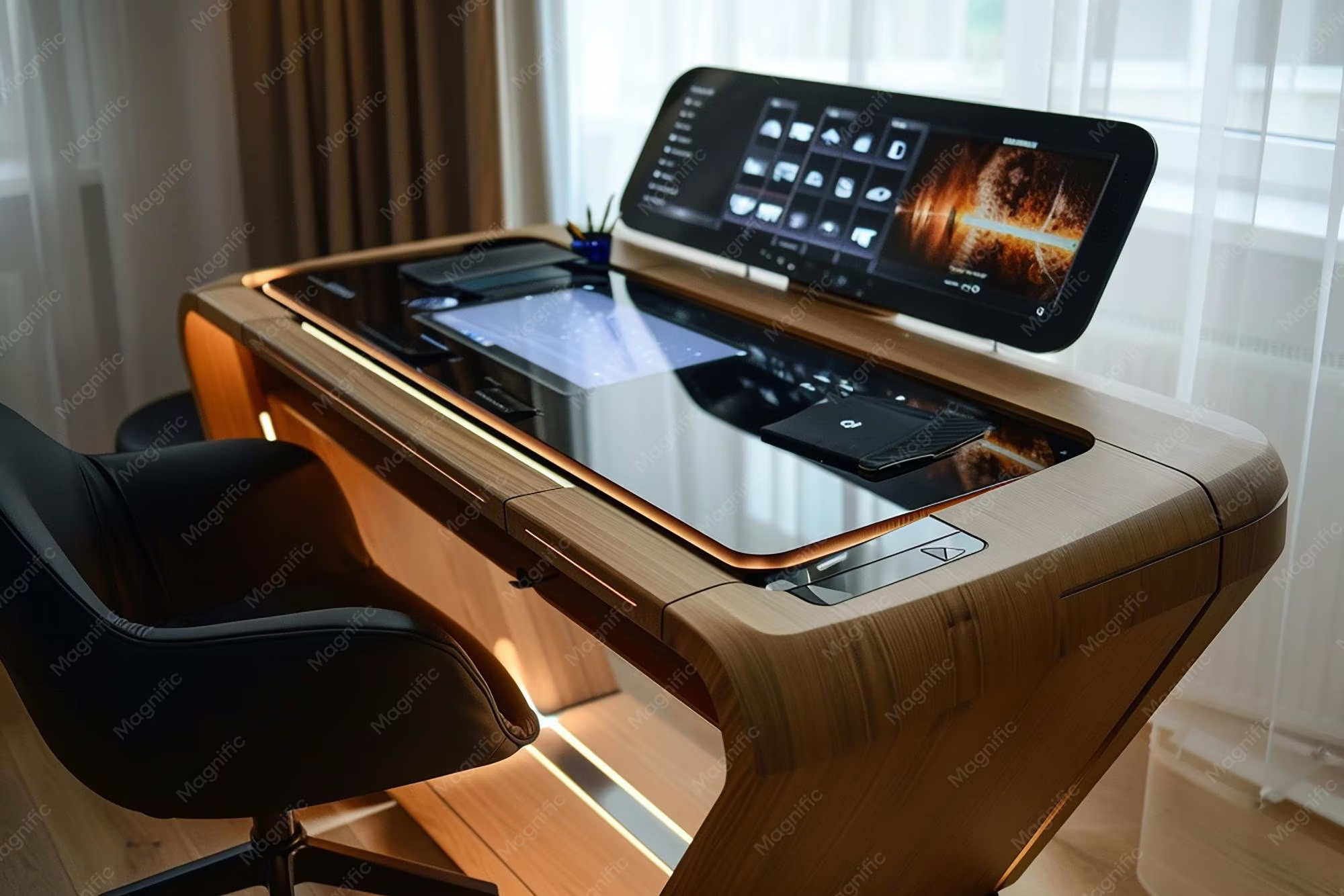
Are Touchscreen Monitors Good for Office Use? A Decision Guide
Are touchscreen monitors good for office use? The honest answer is that it depends entirely on what you do at your desk every day. For some workflows, a touchscreen monitor is a genuine productivity boost.
For others, it's an expensive feature you'll never use.
The tricky part is that most reviews treat touch as a simple yes-or-no spec. It's not. What matters is how your specific tasks, desk setup, and operating system interact with touch input. For more background on real-world performance, read our breakdown of whether oled monitors good for professional use.
Let's walk through it step by step so you can figure out whether this upgrade actually makes sense for you.
Quick Answer
Touchscreen monitors are good for office use in specific situations. They help with presentations, annotation, and collaborative work. They offer little benefit for heavy typing, coding, or spreadsheet tasks.
The value depends on your workflow, not the spec sheet. Test touch interaction before committing to a purchase. To see how this holds up against alternate models, explore whether touchscreen monitors good for education.
The Real Question: What Does Your Workday Look Like?
Before you even look at specs or prices, you need to get honest about how you actually spend your time. Touch isn't universally better. It's better for specific things and worse for others.
You're mostly typing, reading, and clicking through spreadsheets
If your day revolves around email, documents, Excel, or coding, a touchscreen monitor probably won't change your life. The mouse and keyboard are still faster for precise cursor work. You're clicking small buttons, highlighting cells, and navigating dense interfaces.
Touch doesn't improve any of that.
In fact, it can slow you down. Trying to tap a tiny checkbox with your finger is less precise than a mouse click. You'll end up switching between mouse and touch constantly, which breaks flow.
That said, there are small wins. Scrolling through long documents with a swipe feels natural. Zooming into a PDF with a pinch gesture is quicker than keyboard shortcuts if you're not a shortcut power user.
But these are conveniences, not game-changers.
You're presenting, collaborating, or annotating daily
This is where touchscreen monitors genuinely earn their keep. If you present to clients, run training sessions, or collaborate with colleagues around a screen, touch changes the dynamic.
Imagine pulling up a project timeline and drawing a circle around a milestone with your finger. Or letting three people mark up a document on the same screen during a meeting. That's faster and more intuitive than handing someone a mouse or trackpad.
Annotation workflows benefit too. Marking up PDFs, signing documents, sketching quick diagrams. These tasks feel more natural with direct touch input than with a mouse trying to emulate a pen.
You're a creative professional or work with visual content
Designers, illustrators, and video editors have a more nuanced decision. Touch plus pen input can speed up certain tasks like sketching, masking, or retouching. But there's a trade-off you need to know about.
Most touchscreen monitors use a touch layer on top of the display. This can slightly reduce color accuracy and brightness compared to a non-touch panel of the same quality. If color-critical work is your priority, you might lose something by going touch.
The better option for creatives is often a dedicated pen display like a Wacom Cintiq or an iPad used as a secondary touchscreen via Sidecar. These offer pressure sensitivity and color accuracy that most touch-focused monitors can't match.
What Actually Happens When You Touch an Office Monitor All Day
Here's what the spec sheets don't tell you. Using touch for an eight-hour workday feels different than the five-minute demo at the store.
The gorilla arm problem is real
Touching a vertical screen means holding your arm out in front of you. Your shoulder has to support the weight of your entire arm. After an hour or two, that gets uncomfortable.
After four hours, it can be genuinely painful.
This isn't a minor annoyance. It's a well-documented ergonomic issue. The effect gets worse the further you lean forward and the larger the screen is.
A 27-inch touch monitor at arm's length is asking for trouble if you're touching it constantly all day.
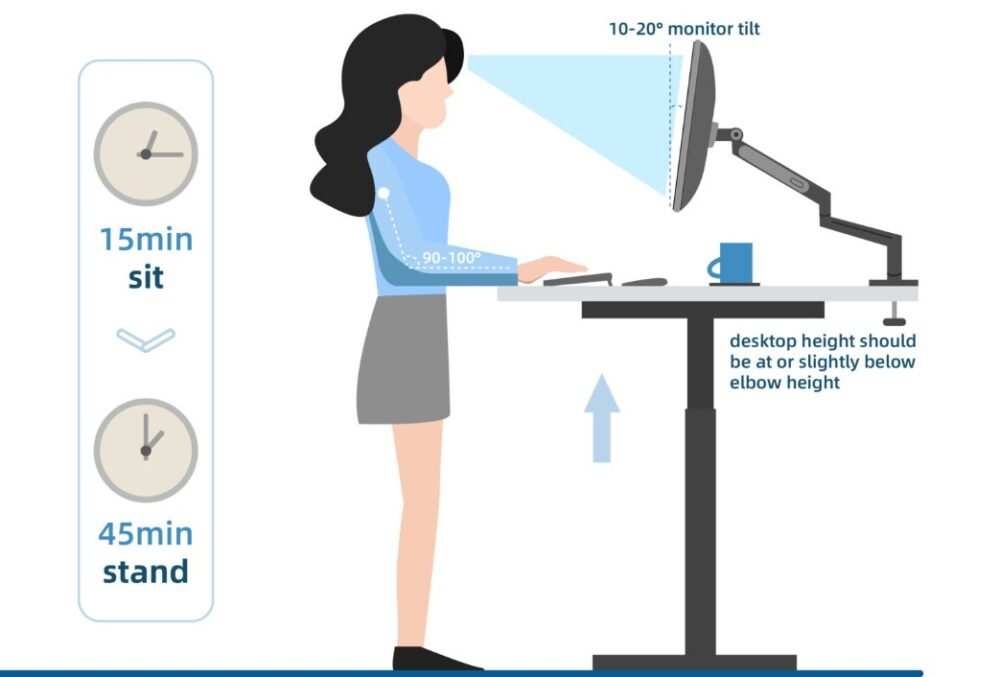
The fix is positioning. You want the monitor close enough that you're not reaching, angled slightly back, and at a height where your arm stays roughly parallel to the floor. Even with perfect posture, though, touch works best for short bursts, not continuous all-day use.
Fingerprints, smudges, and other daily annoyances
Every time you touch the screen, you leave oil and fingerprints behind. On a monitor you're staring at for eight hours, this gets annoying fast. Especially under bright office lighting where every smudge catches the light.
Most modern touch monitors have anti-fingerprint coatings, and they do help. But they don't eliminate the problem. You'll still be wiping the screen down regularly.
If that kind of maintenance bothers you, factor it in.
There's also a small brightness penalty. The touch layer sits on top of the display and absorbs a little light. Manufacturer specifications typically show touch models running 5 to 10 percent dimmer than their non-touch equivalents at the same settings.
It's not huge, but it's there.
Touchscreen Monitor vs. Standard Monitor: The Honest Comparison
Let's put them side by side and look at what you actually gain and what you give up.
| Factor | Touchscreen Monitor | Standard Monitor |
|---|---|---|
| Price | $200 to $800 and up | $150 to $500 typical |
| Weight | Heavier, 3 to 8 kg | Lighter by 1 to 3 kg |
| Power consumption | Plus 5 to 10 watts | Lower baseline |
| Color accuracy | Slight reduction possible | Generally better out of the box |
| Ergonomic risk | Higher, reaching forward | Lower, no need to touch |
| Best use case | Collaboration, annotation, presentations | Long typing, reading, coding sessions |
| Durability | Glass layer can scratch | No touch layer to damage |
| Setup complexity | Needs USB or USB-C for touch signal | Single cable, plug and play |
When the extra cost is worth it
If you present to clients weekly, the ability to interact directly with your screen during meetings justifies the price. If you annotate documents or mark up plans as part of your daily workflow, touch saves real time. If you work in education or training, engagement goes up when people can touch the content.
For collaborative spaces like conference rooms, a touchscreen display often replaces a whiteboard and projector setup. That consolidation can save money overall even if the monitor itself costs more.
When you're better off spending that money elsewhere
If you're a writer, developer, or data analyst who lives in text-based applications, that $200 to $400 premium buys more value elsewhere. A better non-touch panel with higher resolution, better color, or a more adjustable stand will improve your daily experience more than touch ever would.
The same money could go toward a quality webcam, a better chair, or a second standard monitor. A dual-monitor setup without touch often delivers more productivity gain than a single touchscreen monitor for knowledge workers.
What to Check Before You Buy
If you've decided touch might be right for your workflow, don't just grab the first model you see. A few specs and compatibility points make or break the experience.
Operating system touch support
This is the big one most people overlook. Not all operating systems handle touch equally.
Windows 11 has decent touch support. Gestures work system-wide, the on-screen keyboard pops up when needed, and Microsoft's own apps handle touch well. Third-party apps vary.
Older desktop software designed for mouse input can be frustrating to use with touch because the tap targets are too small.
macOS is the awkward one. Apple doesn't make a touchscreen Mac, and macOS isn't designed for touch. You can use an iPad as a touchscreen display via Sidecar or apps like Duet Display, but you can't buy a standalone touch monitor and expect macOS to feel touch-native.
It works, but it's clunky.
Linux support depends heavily on your desktop environment. GNOME and KDE have made strides in touch support, but it's still hit or miss compared to Windows. If you're a Linux user, check your specific distro and desktop environment before assuming touch will work well.
Connection types and setup
Touch requires two signals: video and touch data. How those get to your computer matters for cable management and simplicity.
USB-C with DisplayPort Alt Mode is the cleanest option. One cable carries video, touch data, and power. This is the setup you want if your laptop supports it.
It's plug-and-play simple.
HDMI plus USB-A is the more common alternative. HDMI carries video, and a separate USB cable carries touch data. It works fine, but you're dealing with two cables.
Some monitors include a USB hub, which helps if you want to plug in other peripherals too.
Thunderbolt 4 ports carry video, data, and power through a single connector. Monitors with Thunderbolt input tend to cost more, but the connection is clean and future-proof.
Touch technology differences
Not all touch screens feel the same. The two main technologies used in office monitors are capacitive and infrared.
Capacitive touch is what your phone uses. It's responsive, supports multi-touch gestures, and feels smooth under your finger. It only works with a bare finger or a capacitive stylus.
Most consumer touch monitors use PCAP because it's the most common and affordable option.
Infrared touch uses a grid of sensors around the screen bezel. It works with a finger, gloved hand, or any object. It's more common in enterprise and kiosk displays.
IR touch can be slightly less precise at the edges but is more durable in high-traffic environments.
For most office users, capacitive is the better choice. It feels more natural and responsive. IR matters more for shared conference room displays or industrial settings.
Size, resolution, and panel considerations
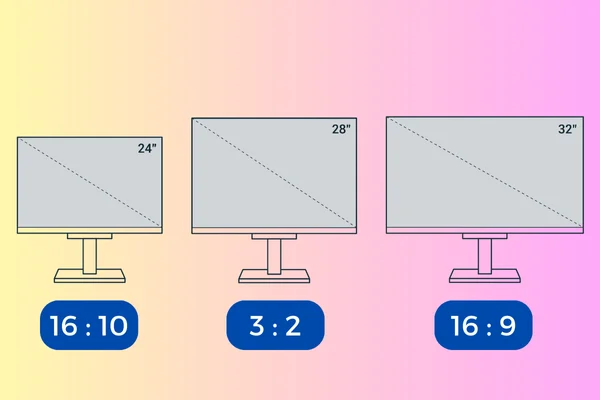
Size affects comfort more than you might think with touch. A 21.5-inch monitor is manageable for touch at a normal desk distance. A 32-inch monitor means a lot more reaching.
The sweet spot for most desk-based touch use is 23.8 to 27 inches.
Resolution matters for sharpness and workspace. 1080p is fine at 23.8 inches but looks soft at 27 inches. 1440p is a good middle ground. 4K gives you the sharpest text and the most screen real estate, but it requires more from your graphics card and may need display scaling, which can sometimes interfere with touch accuracy.
IPS panels are the standard for touch monitors because of their wide viewing angles. When you're touching a screen from slightly different angles throughout the day, you don't want colors shifting. VA panels offer better contrast but narrower viewing angles.
OLED is rare in touch monitors and expensive, but it delivers the best image quality if budget isn't a concern.

Who Should Actually Buy a Touchscreen Monitor for the Office
Let's get specific. Here's who benefits most, who should skip it, and who falls in the middle.
Strong yes: roles and workflows that benefit
Educators and trainers get immediate value. Being able to annotate slides, draw diagrams in real time, and let students interact with content directly on screen changes the dynamic of a classroom or training room.
Sales professionals who present to clients regularly benefit too. Pulling up a proposal and circling key numbers with your finger during a meeting is more engaging than clicking a mouse. It feels more conversational.
Architects, engineers, and construction professionals who review plans on screen save real time with touch. Zooming, panning, and marking up blueprints with a finger or stylus is faster than mouse-based CAD navigation for quick reviews.
Medical professionals viewing imaging often prefer touch for manipulating scans. Pinching to zoom on an MRI or rotating a 3D model feels more intuitive with direct manipulation.
Accessibility users benefit significantly. For people with motor impairments that make mouse use difficult, touch can be a more accessible input method. It's also helpful for users with certain cognitive disabilities who find direct manipulation easier than abstract pointer-based interaction.
Probably not: roles that won't see much benefit
Data entry specialists and heavy spreadsheet users won't gain much. The precision of a mouse for selecting cells and the speed of keyboard shortcuts in Excel far outweigh any touch advantage.
Software developers spend most of their time in code editors and terminals. These are text-dense, cursor-heavy environments where touch adds nothing. Some developers like a touch monitor for the secondary display showing documentation or dashboards, but it's a luxury, not a necessity.
Writers and content creators focused on long-form text work are better served by a comfortable keyboard and a sharp non-touch display. Touch doesn't improve the writing process.
Anyone using a standing desk at arm's length should think twice. Touch requires reaching forward, which is harder to sustain when you're standing and further from the desk.
The middle ground: it's nice but not essential
Project managers who annotate Gantt charts and project plans occasionally benefit, but it's not a daily need. HR teams conducting training sessions might use touch for interactive onboarding materials. General office workers who want the flexibility of touch for occasional use won't regret buying one, but they also won't use it as much as they expect.
Common Mistakes People Make When Buying a Touchscreen Monitor for Office Use
The most common mistake is buying based on specs alone. Touch feel varies between models, and you can't judge it from a product page. If possible, test a touch monitor in person before committing.
Visit a store and actually use it. How does the touch response feel? Is there noticeable lag?
How does the coating affect the image?
Ignoring ergonomics is another big one. People buy a 27-inch touch monitor, put it on a standard stand at the back of their desk, and wonder why their arm hurts after a week. You need the monitor closer and more angled than you would for a non-touch display.
An adjustable stand with tilt and height options is almost mandatory for touch use.
Assuming all operating systems handle touch equally catches people off guard. If you're on a Mac expecting a touch-native experience, you'll be disappointed. If you're on Linux expecting plug-and-play, you might spend an afternoon configuring drivers.
Check your OS compatibility before buying.
Overlooking driver and software compatibility causes headaches too. Some touch monitors require specific drivers for full multi-touch support. Some enterprise environments lock down USB device installation, which can prevent the touch interface from working at all.
Check with your IT department if you're on a corporate machine.
Choosing touch over color accuracy when color matters more is a mistake creatives make. If you're doing photo editing, design work, or video color grading, a non-touch monitor with better panel specifications will serve you better. Touch is a convenience feature, not an image quality upgrade.
Not accounting for the learning curve is the final common pitfall. Touch changes how you interact with your computer. It takes a week or two to build the muscle memory for gestures and to figure out when touch is faster than mouse.
Some people never fully adapt and end up disabling touch entirely.
Real-World Scenarios: Three Office Workers, Three Decisions
Let's look at how this plays out for three different people.
Scenario 1: The accountant who thought touch would speed up Excel
A senior accountant bought a 24-inch touch monitor hoping it would make spreadsheet work faster. After two weeks, they went back to their old monitor. Tapping small cells was less precise than clicking.
The on-screen keyboard got in the way when they wanted to type numbers. Scrolling with touch was nice, but they could do the same with a scroll wheel. The touch features added nothing to their core workflow and the slightly dimmer display was annoying in their brightly lit office.
Scenario 2: The sales director who presents to clients daily
A sales director at a consulting firm invested in a 27-inch touch monitor for their office. It paid for itself within a month. Client meetings became more interactive.
They could pull up data visualizations and highlight trends with a finger. Clients started asking to come to their office specifically because the presentations were more engaging. The monitor also doubled as a shared display for team strategy sessions, replacing a whiteboard.
Scenario 3: The remote developer working from a home office
A software developer bought a portable touch monitor to use as a second screen while working from home. They liked it for the first week, using touch to scroll documentation and manage Slack. After the novelty wore off, they found themselves reaching for the mouse for anything precise.
The touch monitor now sits as a standard second display. They occasionally use touch for quick gestures, but it's maybe five percent of their interaction. They say they'd probably buy it again for the flexibility, but they wouldn't call it essential.
Quick Decision Guide: Should You Get One?
Here's a simple way to think through it.
The 5-question checklist
Ask yourself these five questions honestly.
- Do you present or annotate more than twice a week?
- Is your desk deep enough for comfortable arm-length touch?
- Does your operating system support touch well?
- Will you use pen input or just finger touch?
- Can you test one before committing?
Your answer path
If you answered yes to questions one through three and at least one of four or five, a touchscreen monitor is likely worth it for your workflow. You'll use it regularly and it will improve your daily experience.
If you answered no to most of these, save your money. Invest in a better non-touch monitor, a second standard display, or a quality graphics tablet if you need pen input for creative work.
If your answers are mixed, consider a portable touch monitor as a middle ground. These smaller displays, typically 13 to 16 inches, can be used when you want touch and set aside when you don't. They're also useful if you travel and want touch capability on the go.
Frequently Asked Questions
Do touchscreen monitors work with all computers?
Most touchscreen monitors work with Windows PCs via USB-C or HDMI plus USB. Mac support is limited because macOS isn't designed for touch. Linux support varies by distribution and desktop environment.
Always check your specific OS before buying.
How much more do touchscreen monitors cost compared to standard ones?
Expect to pay $100 to $300 more for a touchscreen monitor compared to a similar non-touch model. The premium varies by size, resolution, and brand. Enterprise-grade touch displays with additional features can cost significantly more.
Can I use a stylus with a touchscreen monitor?
Many touchscreen monitors support capacitive stylus input. Some higher-end models support active pens with pressure sensitivity. Check the specific monitor's specifications for pen compatibility if drawing or handwriting is important to your workflow.
Do touchscreen monitors use more power than regular monitors?
Yes, touchscreen monitors consume slightly more power due to the touch sensor layer. The difference is typically 5 to 10 watts under normal use. It's not enough to significantly impact your electricity bill, but it's measurable.
Will a touchscreen monitor work with my standing desk?
It can, but ergonomics become more challenging. Standing often means you're further from the desk, which increases the reach needed for touch. If you use a standing desk and want touch, consider a monitor arm that can bring the screen closer and adjust the angle for comfortable touch at different heights.
How long do touchscreen monitors last?
The touch layer itself is generally rated for millions of touch interactions. The monitor's backlight is usually the first component to degrade, typically rated for 30,000 to 50,000 hours. With normal office use, a touchscreen monitor should last five to eight years before needing replacement.
Final Verdict: Touchscreen Monitors in the Office
Touchscreen monitors are not a universal upgrade. They're a situational tool that excels in specific workflows and adds little value in others.
If you present, annotate, or collaborate around a screen regularly, touch is a genuine productivity boost. If you spend your day typing, coding, or working in spreadsheets, that money is better spent on a higher-quality non-touch display or a second standard monitor.
The smartest move is to test before you buy. Visit a store, use a touch monitor for ten minutes, and see how it feels. Your workflow and your shoulder will tell you everything the spec sheet can't.

Similar Posts





















