How to Connect USB C Monitor to Laptop

Learning how to connect a USB-C monitor to your laptop sounds like it should be simple. Plug in the cable, done, right? Not always.
Plenty of folks grab a USB-C cable, hook everything up, and get absolutely nothing on screen. For more background on real-world performance, read our breakdown of how to connect touchscreen monitor to laptop.
The problem usually isn't the monitor or the laptop. It's that not every USB-C setup works the same way. The port on your machine, the cable in your hand, and the monitor on your desk all need to speak the same language.
Here's what's actually going on, and how to get your display working without losing your mind.
Quick Answer
Connect your USB-C monitor to your laptop using a USB-C to USB-C cable that supports DisplayPort Alt Mode. Make sure your laptop's USB-C port carries video output. Some don't. To see how this holds up against alternate models, explore how to charge laptop with usb c monitor.
Select the correct input source on your monitor. If nothing shows up, check your cable first. That's usually the culprit.
Why Your USB-C Monitor Might Not Be Working (And How to Fix It)
The number one reason a USB-C monitor won't display anything comes down to a mismatch somewhere in the chain. Your laptop's port might not support video. Your cable might only handle charging.
Or your monitor might be set to the wrong input.
Here's how to narrow it down fast:
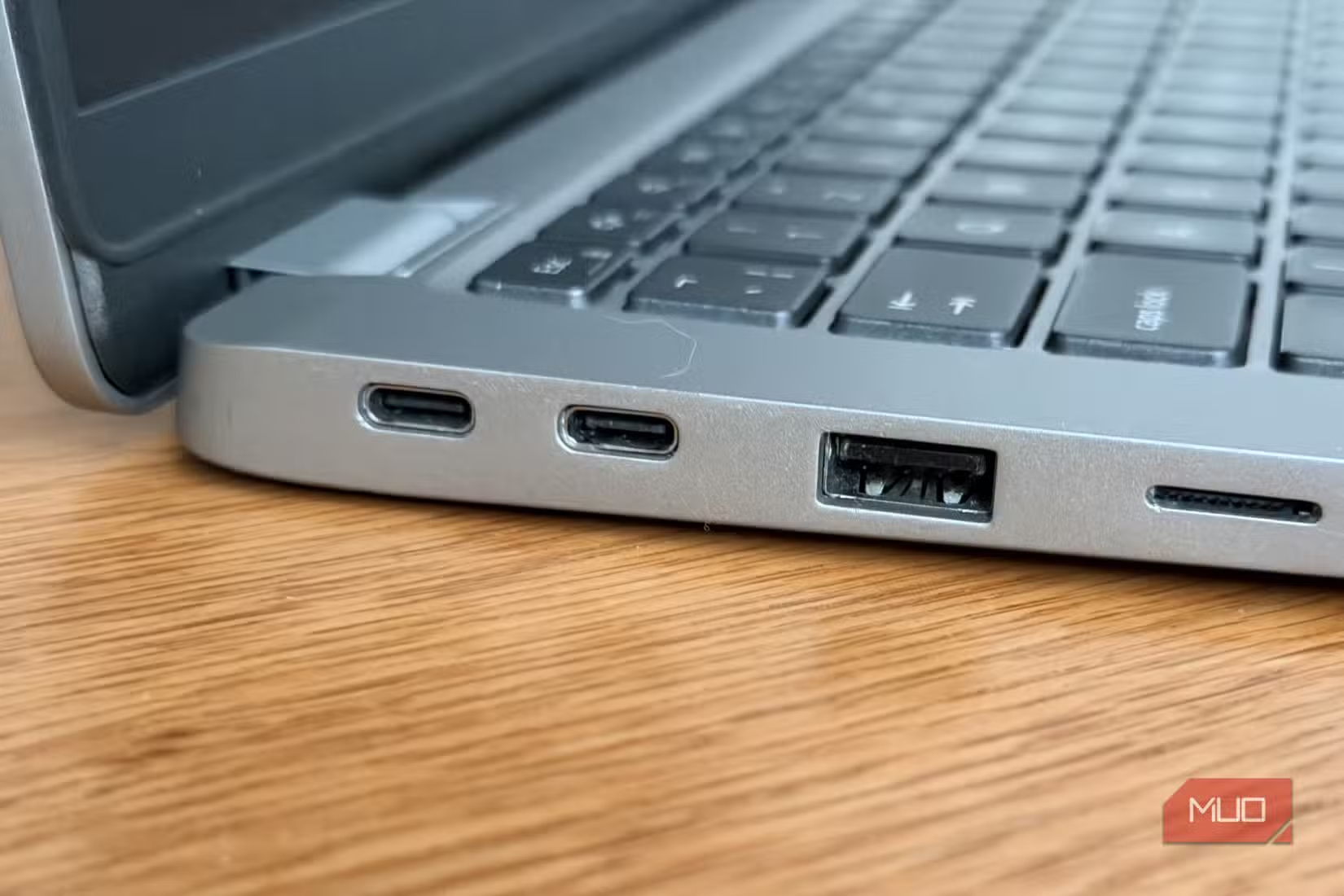
- Check your laptop's USB-C port specs. Look for a lightning bolt icon (Thunderbolt) or a "D" shaped icon (DisplayPort). No symbol usually means data and charging only.
- Inspect the cable. If the cable came free with a phone charger, it's probably power-only. You need a cable rated for video signal.
- Cycle the input source. Use the monitor's on-screen display (OSD) menu to manually switch to the USB-C input.
- Restart with everything connected. Some laptops only detect the monitor during boot-up.
- Try a different cable or port. Eliminate variables one at a time.
If you've gone through that list and still see nothing, your laptop might not support video output over USB-C at all. That's more common than you'd think, especially on budget models.
Understanding What Your USB-C Port Can Actually Do
This is where most of the confusion lives. You see the oval-shaped port and assume it does everything. Not necessarily.
Not All USB-C Ports Are Created Equal
USB-C describes the physical shape of the connector. That's it. The actual capabilities behind that port depend entirely on what the manufacturer decided to wire into it.
Your laptop's USB-C port might support:
- Data transfer only (USB 3.1 or USB 3.2)
- Data plus charging (USB Power Delivery)
- Data plus video (DisplayPort Alt Mode)
- Data plus video plus charging (full-featured USB-C or Thunderbolt)
- All of the above at once
Budget and mid-range laptops often ship with USB-C ports that handle charging and data but skip video output entirely. Manufacturer spec sheets list this clearly. Every USB-C port supports power delivery.
That's the baseline. Whether it pushes a video signal depends on your laptop's specific model and chipset.
How to check? Grab your laptop's exact model number, pull up the official spec sheet on the manufacturer's website, and look for phrases like "DisplayPort over USB-C" or "Thunderbolt 3/4." If those aren't listed, your port won't drive an external monitor directly.
DisplayPort Alt Mode vs. Thunderbolt: What's the Difference?
These two terms come up constantly when researching this topic. They're related but not interchangeable.
DisplayPort Alt Mode is a standard that lets a USB-C port carry a DisplayPort video signal. It's baked into the USB-C specification itself. When a laptop supports DP Alt Mode, you can run a single USB-C cable from the machine to a compatible monitor and get full video output.
Many monitors with USB-C inputs support this.
Thunderbolt 3 and Thunderbolt 4 (developed by Intel, now integrated into the USB4 standard) are more powerful protocols that also use the USB-Cconnector. Thunderbolt doesn't just carry video. It delivers up to 40 gigabits per second of total bandwidth for data, video, and device daisy-chaining all at once.
Every Thunderbolt port supports DP Alt Mode video. And Thunderbolt 4 additionally mandates support for USB4, PCIe tunneling, and dual 4K display output, making it the most capable option in a USB-C form factor.
The key distinction: every Thunderbolt port can output video. Not every USB-C port that outputs video is Thunderbolt. Thunderbolt ports are typically marked with a small lightning bolt icon.
If you don't see that symbol, check what your laptop's documentation says.
The Cable Problem Nobody Talks About
Here's a truth that trips people up constantly. A USB-C cable is not just a USB-C cable.
The USB-C cable standard allows for different configurations. Some cables are wired for charging only. Some handle data at USB 2.0 speeds.
And only certain cables include the wiring needed for DisplayPort Alt Mode video or Thunderbolt signaling.
The cable that ships with your monitor is usually the right one for that monitor. Third-party cables need to be explicitly rated for video output. Look for packaging that mentions "DisplayPort Alt Mode," "Thunderbolt 3/4," "4K@60Hz," or "USB4." If a cable's specs only talk about charging wattage and data transfer, it likely won't carry a video signal.
Price matters here, but not in the way you might expect. A premium braided cable from a known brand runs about $20 to $30 and typically supports video and charging whether it's labeled specifically or not. The cheapest option might not cut it.
And on the high end, a certified Thunderbolt 4 cable runs even higher and guarantees full 40Gbps bandwidth along with video support.
Wattage rating is another factor. USB-C monitors often deliver power back to your laptop through the same cable that carries video. The connector handles power delivery.
A cable rated for that wattage and supporting video will keep your laptop charged while the display runs. If you don't see voltage and current ratings listed on the packaging, think twice before buying.
Step-by-Step: How to Connect Your USB-C Monitor to Your Laptop
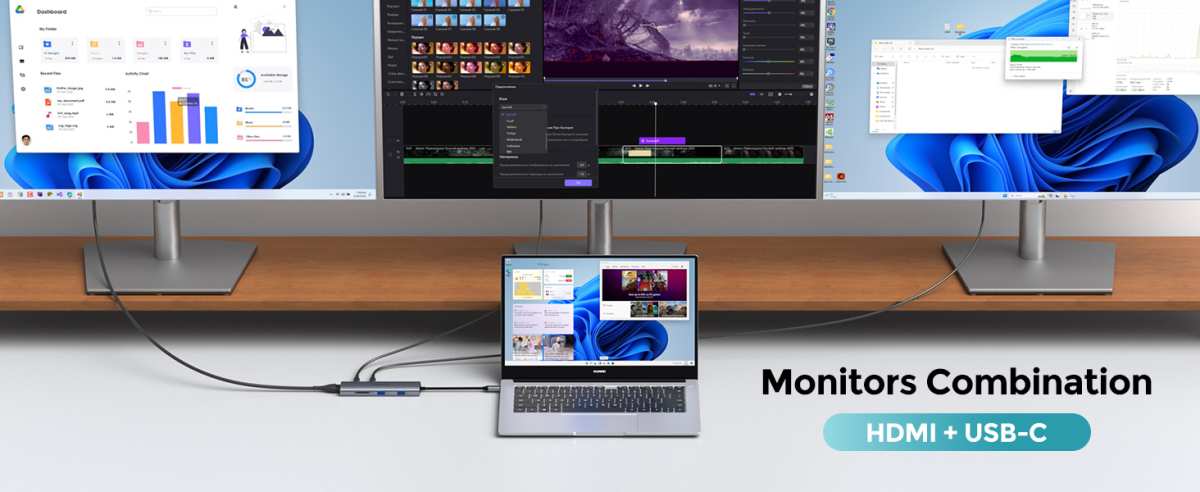
Let's walk through the entire process from unboxing to a working display.
Step 1: Check What Your Laptop's USB-C Port Supports
Before touching any cables, confirm your laptop can actually output video over USB-C. Look at the symbols printed near the port on your laptop. A Thunderbolt symbol (lightning bolt) or DisplayPort symbol (a "D" shape with a "P" inside) confirms video support.
No symbol? Check your laptop's official specs online. Search for your exact model plus "USB-C DisplayPort" or "Thunderbolt." The answer you find there is the ground truth.
If your port doesn't support video, you'll need an alternative connection method. More on that in the comparison section below.
Step 2: Verify Your Monitor's Input Options
Most USB-C monitors also include HDMI and sometimes DisplayPort inputs. Check the back or underside of your monitor for available ports. Knowing what you have gives you options if the USB-C connection doesn't work or if your laptop lacks video-capable USB-C.
Also check your monitor's maximum resolution and refresh rate over USB-C versus other inputs. The manual or manufacturer's spec sheet typically lists these capabilities per input type.
Step 3: Choose the Right Cable or Adapter
If your laptop and monitor both have USB-C ports, and at least the laptop supports video output, use a USB-C to USB-C cable rated for DisplayPort Alt Mode, Thunderbolt, or USB4. The cable that came with your monitor is your safest bet.
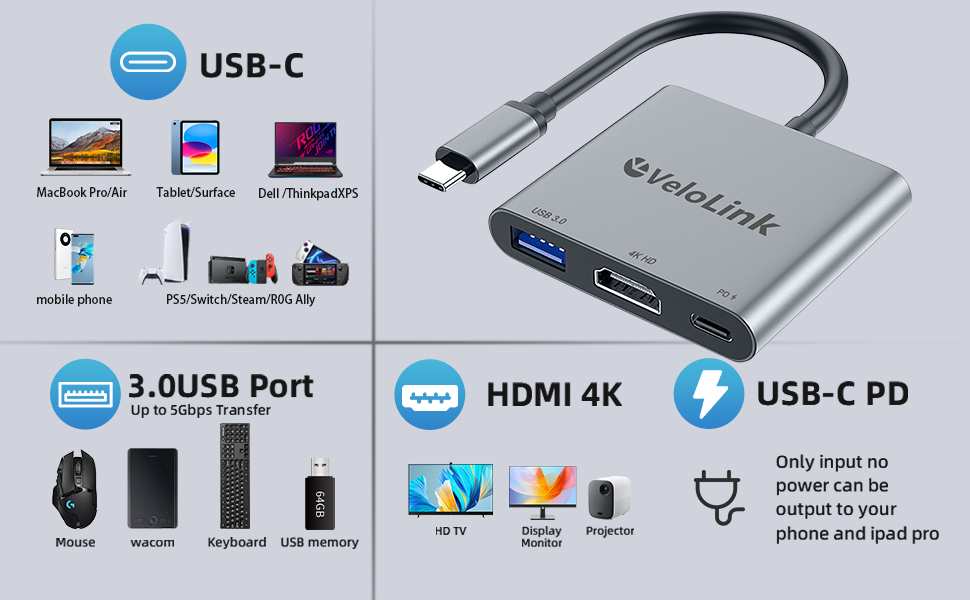
If your laptop has USB-C but your monitor doesn't (or vice versa), you'll need an adapter or a different cable. Common options include USB-C to HDMI, USB-C to DisplayPort, or a USB-C hub with video output. We'll cover these alternatives in the comparison section.
Step 4: Connect and Configure Your Display
- Plug the cable into your laptop's USB-C port (the one that supports video).
- Connect the other end to your monitor's USB-C input.
- Power on your monitor and make sure it's set to the correct input source. Most monitors auto-detect, but some require manual selection through the on-screen display menu.
- Wait a few seconds for your laptop to detect the external display.
- Adjust display settings: , Windows: Right-click the desktop > Display Settings. Choose "Extend" or "Duplicate" your display. Set the resolution and refresh rate under "Advanced Display Settings."
, macOS: Open System Settings > Displays. Arrange your screens and set the resolution. Note that base model M1 and M2 MacBooks officially support only one external display natively, though DisplayLink adapters can work around this with some trade-offs.
- Confirm charging is working. If your monitor supports power delivery, your laptop should charge through the same cable. Check the battery indicator to verify.
Step 5: Troubleshoot If Nothing Shows Up
If your screen stays black after connecting:
- Swap the cable. This fixes more problems than anything else.
- Try a different USB-C port on your laptop if you have more than one.
- Unplug and replug the cable to trigger re-detection.
- Restart your laptop with the monitor connected and powered on.
- Update your graphics drivers. Outdated GPU drivers can block external display detection on some machines.
- Check for firmware updates on your monitor. Some early USB-C monitors shipped with bugs that required patches.
- Test the monitor with a different device. This isolates whether the problem is the monitor, the cable, or the laptop.
USB-C vs. Thunderbolt vs. HDMI: Which Connection Should You Use?
Sometimes the best connection isn't USB-C at all. Here's a breakdown of when each option makes sense.
Side-by-Side Comparison Table
| Feature | USB-C (DP Alt Mode) | Thunderbolt 3/4 | HDMI 2.0 | DisplayPort 1.4 |
|---|---|---|---|---|
| Max Resolution | 4K@60Hz (typical) | 4K@60Hz or dual 4K@60Hz (TB4) | 4K@60Hz | 4K@120Hz or 8K@60Hz |
| Charging Laptop | Up to monitor's PD output | Up to 140W | No | No |
| Cable Complexity | Single cable | Single cable | Separate cable needed | Separate cable needed |
| Data Transfer | Up to monitor spec | Up to 40 Gbps (TB4) | Separate data path | Separate data path |
| Daisy Chaining | Possible via MST or TB | Yes | No | Yes |
| Typical Use Case | Clean desk setup | Power users, docks | Universal compatibility | Gaming, high refresh |
When USB-C Is the Best Choice
USB-C shines when you want a clean, single-cable setup. One cord handles video, audio, data, and charging all at once. This is ideal for:
- Home office setups where you plug in and unplug frequently
- Students and travelers who value simplicity
- Professionals who present from their laptop and need quick connect/disconnect
- Anyone who hates cable clutter
If your monitor supports power delivery at 65 watts or higher, you might even be able to ditch your laptop's dedicated charger entirely.
When You're Better Off Using HDMI or DisplayPort
Not every situation calls for USB-C. You might be better off with HDMI or DisplayPort when:
- Your laptop's USB-C port doesn't support video. No cable or adapter can fix a hardware limitation.
- You need the highest possible refresh rate for gaming. DisplayPort 1.4 supports 4K at 120Hz, a capability that early Thunderbolt implementations typically don't carry. You're using your laptop for professional color work and need the widest color gamut support. DisplayPort often provides better bandwidth for high-resolution, high-refresh content.
- You're connecting to an older monitor that only has HDMI or DisplayPort inputs. A simple USB-C to HDMI adapter is cheap and reliable.
- You're already using a docking station. Many Thunderbolt and USB-C docks offer multiple display outputs through HDMI and DisplayPort, which can be more flexible than running everything through a single USB-C monitor.
Common Mistakes That Waste Time and Money
Using a Charging-Only USB-C Cable
This is the single most common mistake. That thin USB-C cable bundled with a phone charger or power bank? It almost certainly doesn't carry video.
Charging-only cables have fewer internal wires. They'll power your device but won't transmit a single pixel to your monitor.
Always check the cable packaging or specs for video support language. If it only mentions watts and data speed without referencing DisplayPort, Thunderbolt, or video resolution, assume it won't work for display output.
Assuming Every USB-C Port Carries Video
We've covered this already, but it bears repeating because it causes so many headaches. Plugging a video-capable monitor into a data-only USB-C port will never work, no matter what cable you use. Check your laptop's specs first.
Save yourself the frustration.
Ignoring Power Delivery Wattage
Your monitor might support power delivery back to your laptop. But the wattage varies. Some monitors deliver only 15W or 25W, enough to slow-charge a tablet but barely keeping a laptop alive under load.
Others push 65W, 90W, or even 100W, which is plenty for most ultrabooks and even some performance laptops.
Check both your laptop's power requirement and the monitor's power delivery output. If your laptop needs 65W and the monitor only delivers 25W, your battery might still drain during heavy use even while plugged in. You'll need to keep your original charger connected separately.
Forgetting to Select the Right Input on the Monitor
Sounds obvious. Happens all the time. Many USB-C monitors have multiple inputs and don't always auto-switch to the active one.
If your monitor shows "No Signal" after connecting, grab the monitor's buttons or joystick and manually select the USB-C input from the on-screen display menu.
Real-World Scenarios: What Actually Works
Scenario 1: MacBook Air/Pro to USB-C Monitor
Apple's M-series MacBook Pro models with Thunderbolt 3 or Thunderbolt 4 support work seamlessly with USB-C monitors. Connect via a Thunderbolt or USB-C cable that supports DisplayPort Alt Mode. The MacBook Pro drives the display and charges through a single cable if the monitor supports power delivery.
Base model M1 and M2 MacBook Air officially support only one external display natively. If you need multiple external monitors on these chips, you'll need a DisplayLink adapter or dock, which uses software drivers rather than native video output. DisplayLink works but adds a small CPU overhead and slight latency compared to native connections.
Scenario 2: Windows Laptop to USB-C Monitor
Most modern Windows ultrabooks with Thunderbolt 4 (Dell XPS, Lenovo ThinkPad, ASUS ZenBook, HP Spectre) connect to USB-C monitors without issues. Use the cable that came with the monitor or a certified Thunderbolt 4 cable.
Budget Windows laptops are the wild card. Many ship with USB-C ports that support charging and data but not video. If that's your situation, a USB-C to HDMI adapter connected to your monitor's HDMI port is the simplest workaround.
These adapters are widely available and typically cost $15 to $25.
Scenario 3: Using a USB-C Hub or Docking Station
If your laptop has limited ports or you want to connect multiple peripherals, a USB-C hub or Thunderbolt docking station makes sense. A good dock provides video output, charging, USB-A ports, and sometimes Ethernet through a single connection to your laptop.
Thunderbolt docks offer the most bandwidth and features. They support dual 4K displays, higher power delivery, and faster data transfer. USB-C hubs are more affordable but may limit you to a single external display at lower resolution.
Match the dock to your laptop's capabilities. A Thunderbolt dock connected to a USB-C port that doesn't support Thunderbolt will fall back to basic USB speeds and may not output video at all.
Scenario 4: Connecting Multiple Monitors
Daisy-chaining two monitors from a single laptop USB-C port is possible with Thunderbolt 3 or 4 and monitors that support MST (Multi-Stream Transport). The first monitor passes the signal through to the second. This keeps your desk clean with fewer cables running back to the laptop.
Not all monitors support MST pass-through. Check the monitor's specs for "MST" or "daisy chain" support. If your monitors don't support it, a Thunderbolt dock with multiple video outputs is the better solution.
USB-C Monitor Setup: Costs, Cables, and Gear You Actually Need
Cable Price vs. What You Get
| Cable Type | Typical Price | Supports Video | Supports Charging | Notes |
|---|---|---|---|---|
| Basic USB-C charging cable | $5–$10 | No | Yes (varies) | Phone and tablet cables |
| USB-C to USB-C (USB 3.1) | $10–$20 | Depends on cable | Yes | Check for DP Alt Mode |
| Certified Thunderbolt 4 cable | $25–$45 | Yes | Yes (up to 100W) | Full bandwidth, future-proof |
| USB-C to HDMI adapter | $15–$25 | Yes (via HDMI) | No | Good fallback option |
| USB-C to DisplayPort cable | $15–$30 | Yes | No | For DP-only monitors |
Do You Need a Docking Station?
If you only need one external monitor and your laptop has a video-capable USB-C port, you don't need a dock. A direct cable connection is simpler and cheaper.
Docking stations make sense when you need to connect multiple monitors, several USB peripherals, Ethernet, and charging all through one cable. Thunderbolt docks typically run $150 to $300. Basic USB-C hubs with HDMI output start around $30 to $50 but offer fewer features and lower bandwidth.
Frequently Asked Questions
Can I use any USB-C cable to connect my monitor?
No. Many USB-C cables only support charging and basic data. You need a cable that explicitly supports DisplayPort Alt Mode, Thunderbolt, or USB4 for video output.
The cable that came with your monitor is usually the safest choice.
Why is my USB-C monitor not being detected?
The most common causes are a charging-only cable, a laptop USB-C port that doesn't support video, or the monitor being set to the wrong input. Work through each possibility one at a time. Cable swaps solve the majority of detection issues.
Does USB-C monitor charging work with all laptops?
It depends on both the monitor's power delivery output and the laptop's power requirements. The monitor must support USB Power Delivery. The wattage it delivers needs to meet or exceed what your laptop draws.
Check both specs before relying on single-cable charging.
Can I connect two USB-C monitors to one laptop?
Yes, if your laptop supports it. Thunderbolt 3 and 4 laptops can drive multiple displays through daisy-chaining or a docking station. Base model M1 and M2 MacBooks are limited to one external display natively.
Some Windows laptops with multiple Thunderbolt ports can drive a display from each one.
Is Thunderbolt the same as USB-C?
No. Thunderbolt 3 and 4 use the USB-C connector shape but offer significantly more bandwidth and features. Every Thunderbolt port supports video output over USB-C.
Not every USB-C port supports Thunderbolt. Look for the lightning bolt symbol on your laptop to confirm.
Do I need to install drivers for a USB-C monitor?
Most USB-C monitors work plug-and-play without additional drivers. If you're using a DisplayLink adapter or dock for multi-monitor setups on limited hardware, you'll need to install DisplayLink software. Check the adapter manufacturer's website for the latest driver.
Final Decision Guide: Your Quick Reference Flowchart
Here's a quick way to figure out your best connection path:
- Laptop has Thunderbolt or USB-C with DP Alt Mode, monitor has USB-C: Use a USB-C to USB-C cable. Single cable handles video and charging. Simplest setup.
- Laptop has USB-C with DP Alt Mode, monitor only has HDMI or DisplayPort: Use a USB-C to HDMI or USB-C to DisplayPort cable or adapter. Reliable and affordable.
- Laptop's USB-C port doesn't support video: Use a USB-C to HDMI adapter connected to the HDMI port, or use the laptop's built-in HDMI port if it has one. You can't force video from a port that doesn't support it.
- You need multiple external monitors: Get a Thunderbolt docking station with multiple video outputs, or use DisplayLink adapters if your laptop supports them.
- You want the cleanest desk setup with one cable: Make sure your monitor supports power delivery and use a quality USB-C cable rated for video. Confirm the wattage meets your laptop's needs.
When in doubt, check your laptop's spec sheet first. That one step prevents most problems before you even unbox the cable.

Similar Posts





















