How to Charge Laptop with USB C Monitor
Figuring out how to charge laptop with USB-C monitor isn't as straightforward as plugging in a cable. I wish it were. The truth is, whether it works depends on three things: your laptop's port, your monitor's power delivery capability, and the cable connecting them.
Get all three right and you'll love the single-cable simplicity.
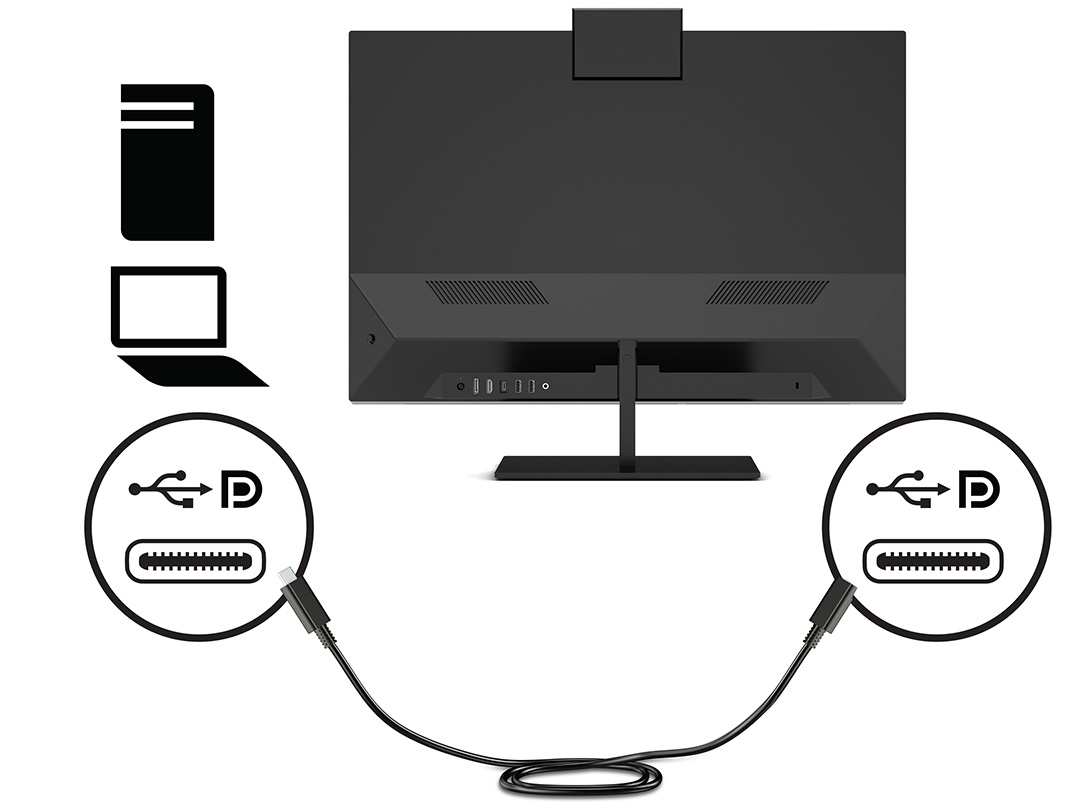
USB Power Delivery (PD) is the standard that makes this possible. It's governed by the USB-IF and allows up to 240 watts over a single USB-C cable with the PD 3.1 spec as of 2026. Let's walk through each requirement so you know exactly where you stand. If you are exploring similar hardware setups, see our detailed guide on how to connect usb c monitor to laptop.
Quick Answer
You can charge your laptop through a USB-C monitor. The monitor must support USB Power Delivery output. Your laptop's USB-C port must accept charging input.
Your cable must handle the correct wattage. Check all three before relying on it. If any requirement falls short, charging either won't work or will be painfully slow.
How USB-C Power Delivery Actually Works With Monitors
Here's the basic idea. Your monitor plugs into the wall. It powers its own display panel. To see how this holds up against alternate models, explore whether usb c monitor charge macbook pro.
If the monitor supports USB Power Delivery, it sends remaining power back through its USB-C upstream port to your laptop. One cable handles video signal, data transfer, and charging all at once. That's the dream setup.
But here's where people get tripped up. Not every USB-C port on a monitor does this. Some USB-C ports only handle video and data.
They'll display your screen just fine but won't send a single watt to your battery. You need to check the specific port's PD output rating in your monitor's specs sheet.
The power negotiation happens automatically when you connect. Your laptop and monitor exchange information through the USB PD protocol. They agree on a voltage and wattage level both sides support.
If your monitor offers 60 watts but your laptop can accept up to 100 watts, the laptop will charge at 60 watts. It won't overload. It just charges slower than its maximum capability.
The Three Things That Determine Whether Charging Will Work
Your Laptop's USB-C Port Has to Support Charging
This is the one people assume is always true. It's not. Many laptops have USB-C ports that only handle data and video output.
They can't accept a charge through that port at all. You'll sometimes see a battery icon with a slash or just no charging indicator when you plug in.
How to check your laptop's specs?
- Look up your exact laptop model's technical specifications on the manufacturer's website.
- Search for terms like "USB-C charging," "Power Delivery," or "PD charging" in the specs.
- Check if there's a charging symbol (lightning bolt or battery icon) next to the USB-C port itself.
- If your laptop came with a barrel-plug charger only, the USB-C port likely doesn't accept charging.
Most modern ultrabooks support USB-C PD charging. Think Dell XPS, Lenovo ThinkPad X1 Carbon, ASUS ZenBook, Acer Swift, HP Spectre, and Apple Silicon MacBooks. Gaming laptops and workstations less often.
They typically need more power than USB-C PD comfortably delivers.
Your Monitor Has to Actually Send Power (Not All Do)
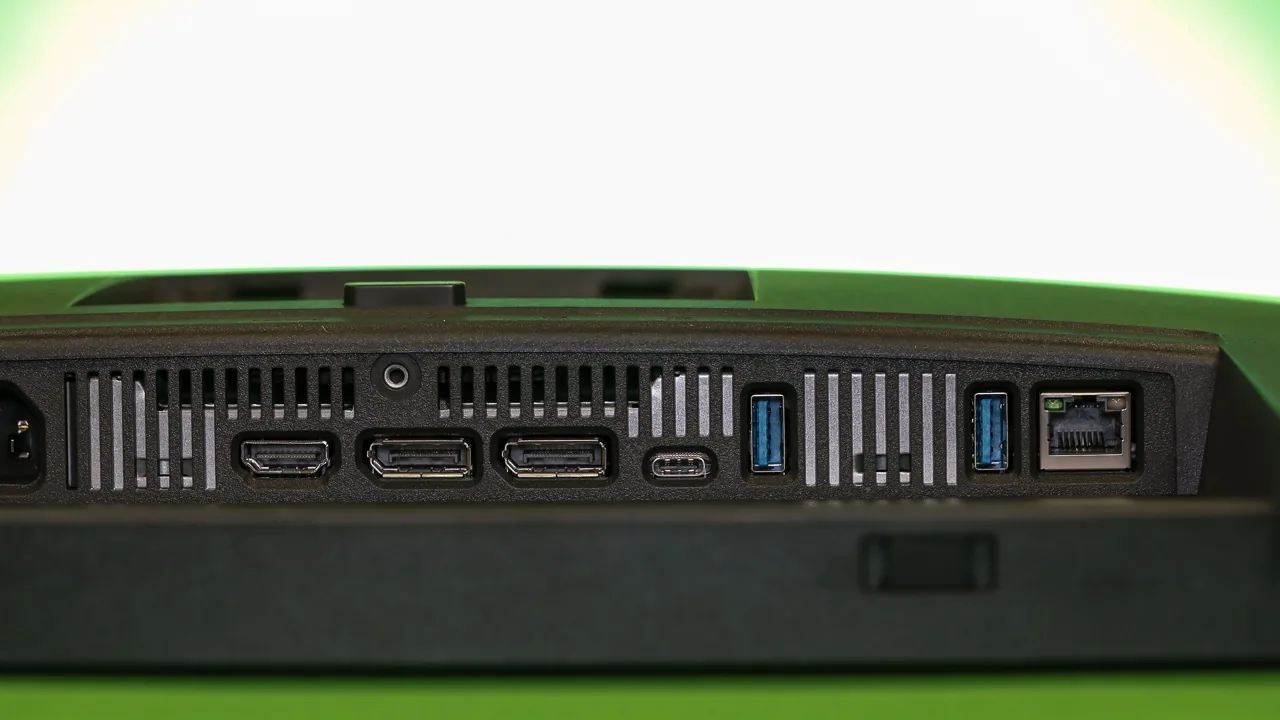
This is where most confusion lives. A USB-C port on your monitor doesn't automatically mean it charges your laptop. Manufacturers differentiate their port capabilities, and the labeling matters.
Look for these indicators on your monitor or its specs page:
| What to Look For | What It Means |
|---|---|
| "USB-C PD 65W" or similar wattage listed | Monitor sends up to that wattage to your laptop |
| "USB-C (DP + PD)" | DisplayPort Alt Mode plus Power Delivery |
| "USB-C upstream" only | Data and video only, no power delivery specified |
| "USB-C 5Gbps" or "USB 3.2" listed alone | Likely data and video, check if PD is separately mentioned |
| No PD wattage listed at all | Assume no charging capability |
Check your monitor's user manual or product page. Look specifically in the "Connectivity" or "Interfaces" section. If the PD wattage isn't explicitly stated, the port probably doesn't deliver power.
When in doubt, find your exact model number. Search it on the manufacturer's support page.
Your Cable Has to Be Rated for the Right Wattage

Here's something most people don't think about until nothing works. That random USB-C cable in your drawer might only handle 15 watts. Or 60 watts.
Or it might be a charging-only cable that has no data lines at all.
USB-C cables come in different capability tiers:
- Standard USB-C cable (no E-Marker chip): Handles up to 60 watts. Fine for most monitor-to-laptop charging under 60W.
- USB-C cable with E-Marker chip: Required for 100 watts and above. The chip tells both devices the cable can safely handle higher power.
- Thunderbolt 4 cable: Supports up to 100 watts PD (some newer ones up to 240W with PD 3.1).
- USB4 cable: Varies by manufacturer rating, typically 60W to 100W.
If your monitor delivers 90 watts but your cable is only rated for 60 watts, one of two things happens. The PD negotiation caps at 60 watts. Or in a worst case with a non-compliant cable, you risk overheating.
Stick with cables rated at or above your monitor's PD output.
How to Check If Your Setup Will Work (Step by Step)
Step 1: Look Up Your Laptop's USB-C PD Specs
Find your exact laptop model number. It's usually on a sticker on the bottom or in Settings > System > About. Go to the manufacturer's product page.
Look under "Ports," "Connectivity," or "Power."
What you're looking for: Does the USB-C port list "Power Delivery" or "PD charging"? What wattage does the laptop accept? A MacBook Air M2 accepts 30W via USB-C.
A Dell XPS 15 typically accepts 65W to 100W. A ThinkPad X1 Carbon accepts 65W.
If your laptop specs don't mention USB-C charging at all, stop here. Your setup won't work for charging through the monitor.
Step 2: Check Your Monitor's USB-C PD Wattage
Same process. Find your monitor's exact model. Check the manufacturer's specs page.
Look for the USB-C port's power delivery rating.
Common monitor PD outputs you'll see:
- 15W to 30W (common on budget USB-C monitors, often insufficient for charging most laptops under load)
- 45W (some mid-range displays)
- 60W (common on mainstream office monitors like Dell U-series)
- 65W (Dell, LG, and others)
- 90W (higher-end models like Dell UltraSharp U-series with 90W PD)
- 96W (Apple Studio Display)
- 100W (premium monitors and Thunderbolt docks)
Compare the monitor's PD output against your laptop's power requirement. If the monitor outputs less than the laptop needs, it'll still charge in many cases. Just slowly, and possibly not at all under heavy workloads.
Step 3: Verify Your Cable Can Handle the Power
Check your cable's packaging or product listing. Look for the wattage rating. If you bought the cable in the box with your monitor, it's usually rated correctly.
If you're using a random cable, verify it.
Quick rule of thumb: If your monitor outputs 60W or less, most decent USB-C cables work. Above 60W, you need a cable with an E-Marker chip rated for 100W or higher. Thunderbolt cables are a safe bet for higher wattages.
Step 4: Connect and Confirm Charging Is Happening
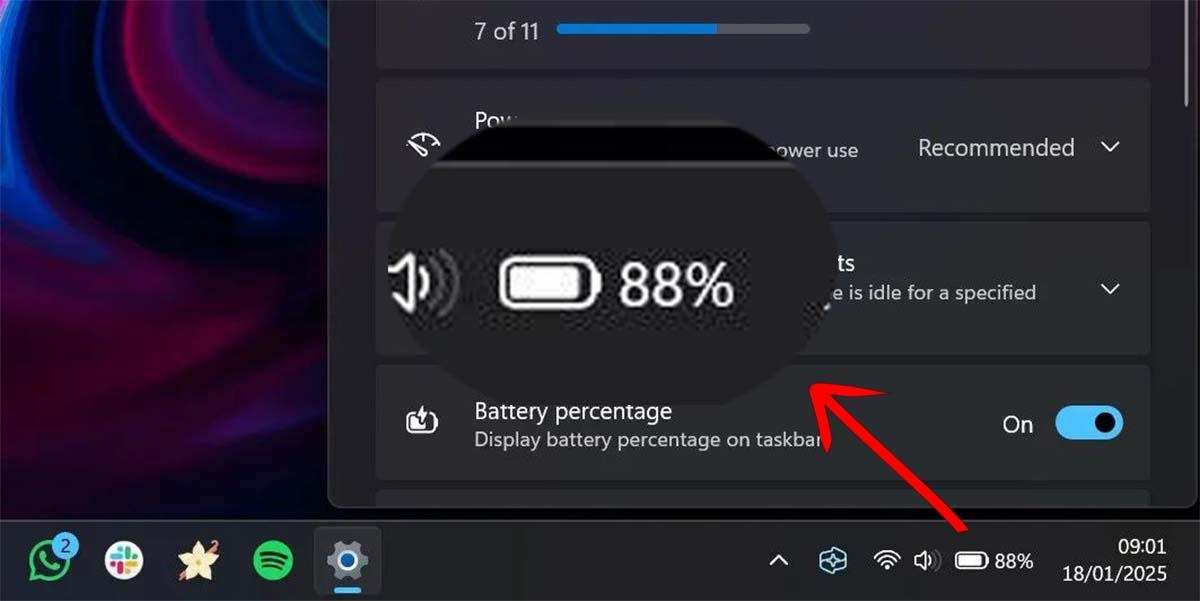
Plug the USB-C cable into your monitor's upstream USB-C port. Connect the other end to your laptop's USB-C port. Watch for the charging indicator.
On Windows: Check the battery icon in the taskbar. It should show a plug icon and "Plugged in, charging." On macOS: Click the battery icon in the menu bar. It should say "Power Adapter" rather than "Battery."
If you see no charging indicator, try these steps:
- Make sure you're using the correct USB-C port on the monitor (usually labeled "upstream").
- Try a different cable rated for higher wattage.
- Restart your laptop with the cable connected.
- Check for firmware updates for both your monitor and laptop BIOS.
- Test the cable with another PD-capable device if possible.
What Happens When the Wattage Doesn't Match
Monitor Sends Less Power Than Your Laptop Needs
This is the most common scenario. Say your monitor outputs 65 watts. Your laptop's original charger is 90 watts.
What happens?
Your laptop charges at 65 watts. It's slower than with the original charger, but it works. Under light workloads (browsing, documents, email), you'll likely charge normally or maintain battery level.
Under heavy workloads (video editing, compiling code, gaming), your laptop might drain the battery even while plugged in. It just drains slower than it would with no charger at all.
This isn't harmful. Your laptop draws what it needs. The monitor provides what it can.
The PD protocol handles the negotiation. You just won't get peak charging speed.
Monitor Sends More Power Than Your Laptop Needs
This is the safe direction. Your monitor outputs 100 watts. Your laptop only accepts 65 watts.
The PD protocol ensures your laptop only draws 65 watts. No damage. No risk.
The extra capacity just sits unused.
Think of it like a water pipe. The pipe can carry more water than your cup holds. Your cup just fills to its own limit.
Common Reasons Charging Fails (And How to Fix Them)
Wrong port on the monitor. Many monitors have multiple USB-C ports. Only one (usually the upstream port) delivers PD. The downstream ports are for connecting peripherals like keyboards and mice.
Check your monitor's manual to identify which port is upstream.
Cable doesn't support PD. Some USB-C cables are data and video only. They handle DisplayPort Alt Mode but have no power delivery lines. Swap for a cable explicitly rated for PD at your needed wattage.
Laptop USB-C port doesn't charge. As covered earlier, verify your laptop's port supports PD charging. If it doesn't, no cable or monitor will fix that.
PD negotiation failure. Sometimes the handshake between devices fails silently. Try disconnecting and reconnecting. Try a different cable.
Update your monitor's firmware. Update your laptop's BIOS and chipset drivers.
Monitor firmware bug. Some monitors shipped with firmware that had PD issues. Check the manufacturer's support site for firmware updates. Dell, LG, and others have released updates specifically for USB-C PD problems.
Laptop power requirement exceeds monitor PD output under load. Your laptop needs 65 watts. Your monitor provides 65 watts. But under heavy load, your laptop briefly spikes above 65 watts.
The battery makes up the difference. This is normal behavior, not a fault.
USB-C Monitor Charging vs. Other Setup Options
| Setup | Charging | Video | Data | Cable Count | Best For |
|---|---|---|---|---|---|
| USB-C PD monitor (single cable) | Yes | Yes | Yes | 1 | Clean desk, portability |
| USB-C monitor without PD + separate charger | No (monitor only) | Yes | Yes | 2 | Budget monitors, high-power laptops |
| Thunderbolt dock + separate monitor | Yes (via dock) | Yes | Yes | 2 to 3 | Multi-monitor setups, maximum flexibility |
| Traditional monitor + USB-C hub + charger | Yes (via hub) | Yes | Yes | 3+ | Existing monitor, adding USB-C convenience |
| USB-C PD monitor + laptop with no PD charging | No | Yes | Yes | 1 (video/data only) | Laptops that only charge via barrel plug or MagSafe |
The single-cable USB-C PD monitor setup wins on simplicity. It loses on raw power for high-wattage laptops. If you're running a workstation that needs 140 watts or more, you'll still want your dedicated charger.
The Apple MacBook Pro 16" is a good example. It charges at 140 watts via MagSafe. USB-C PD tops out at 100 watts for that model, which works but charges noticeably slower.
Who This Works Best For (And Who Needs a Different Solution)
Ideal for:
- Remote workers and home office users who want a clean, minimal desk
- Business travelers who hate carrying multiple chargers
- MacBook Air and MacBook Pro 14" users (Apple Silicon models charge perfectly via USB-C PD)
- Users with ultrabooks that draw 45 watts or less
- Hot-desking environments where plug-and-play simplicity matters
- Anyone using a monitor with 65W or higher PD output
Not ideal for:
- Gaming laptops that need 130 watts or more
- Mobile workstations with high power demands
- Users whose monitors only offer 15W to 30W PD (too slow for most laptops)
- Setups where the laptop runs at full CPU/GPU load for hours
Quick Reference: Common Laptop Power Requirements
| Laptop Category | Typical Wattage | USB-C PD Monitor Sufficiency |
|---|---|---|
| Ultraportable (MacBook Air, Dell XPS 13, ThinkPad X1 Nano) | 28W to 45W | Excellent. Even 45W monitor PD works well. |
| Mainstream (MacBook Pro 14", Dell XPS 15, ThinkPad T14) | 45W to 65W | Good. 65W monitor PD handles this well. |
| Performance (ThinkPad P-series, Dell Precision, ASUS ProArt) | 65W to 100W | Adequate. 90W or 100W monitor PD needed. |
| Gaming / Mobile Workstation (Alienware, Razer Blade, MSI) | 130W to 240W | Insufficient. Use dedicated charger. |
Frequently Asked Questions
Can any USB-C monitor charge a laptop?
No. Only monitors with USB Power Delivery output on their USB-C port can charge a laptop. Many USB-C monitors only support data and video.
Always check the PD wattage rating in the monitor's specifications before assuming it charges.
Does USB-C monitor charging damage my laptop battery?
No. The USB Power Delivery protocol includes negotiation between devices. Your laptop only draws the wattage it's designed to accept.
The PD standard includes overcurrent, overvoltage, and overtemperature protections.
Why is my laptop not charging through the USB-C monitor?
The most common causes are: wrong USB-C port on the monitor (using a downstream port instead of upstream), a cable that doesn't support PD, a laptop USB-C port that doesn't accept charging, or a monitor that lacks PD output entirely. Check each of these systematically.
Can I use a USB-C monitor and still charge with my regular charger simultaneously?
Generally no. Most laptops have one USB-C charging port. If it's connected to the monitor for video and charging, you can't also plug in a separate charger to the same port.
Some laptops with multiple USB-C ports can accept charge from one while using the other for video.
Is Thunderbolt better than USB-C for monitor charging?
Thunderbolt 3 and 4 support up to 100 watts PD. Standard USB-C with PD 3.1 supports up to 240 watts. For most current laptops, Thunderbolt's 100W is sufficient.
USB-C PD 3.1 offers more headroom for future high-power devices. Both handle video and data equally well for single-monitor setups.
How do I know what wattage my USB-C cable supports?
Check the cable's packaging or product listing. Cables rated for 60 watts or below typically have no E-Marker chip. Cables rated for 100 watts or above include an E-Marker chip that communicates the cable's capabilities to connected devices.
If the cable has no markings, assume it's a basic 60W cable.
Who This Works Best For (And Who Needs a Different Solution)
If you use an ultrabook or a thin-and-light laptop that draws 65 watts or less, a USB-C PD monitor is ideal. You plug in one cable and your desk is clean. Your laptop charges.
Your screen extends. Your peripherals connect through the monitor's built-in hub. It's the setup most people are hoping for when they ask this question.
This also works well for business travelers. Hotel desks and co-working spaces feel less cluttered with one cable instead of three. Hot-desking environments benefit too.
You walk up, plug in one cable, and you're working in seconds.
Gaming laptop owners, this isn't for you. Not yet. Your machine likely needs 130 watts or more under load.
USB-C PD monitors can't deliver that. You'll still need your dedicated power brick. Same goes for mobile workstation users running sustained CPU-heavy workloads like 3D rendering or machine learning training.
Quick Reference: Common Laptop Power Requirements
Knowing where your laptop falls helps set expectations. Here's a breakdown by category.
Ultraportables like the MacBook Air M2, Dell XPS 13, or ThinkPad X1 Nano typically draw 28 to 45 watts. Even a 45 watt PD monitor handles these with room to spare. Mainstream laptops like the MacBook Pro 14", Dell XPS 15, or ThinkPad T14 sit in the 45 to 65 watt range.
A 65 watt PD monitor works well here.
Performance laptops like the ThinkPad P-series or Dell Precision need 65 to 100 watts. You'll want a monitor with 90 watt or 100 watt PD output. Gaming laptops and high-end mobile workstations need 130 to 240 watts.
USB-C PD monitors can't touch that. Stick with your OEM charger.
Final Checklist Before You Ditch Your Laptop Charger
Before you box up that original power adapter, run through this quick checklist.
- Confirm your laptop's USB-C port supports PD charging (check manufacturer specs).
- Verify your monitor's USB-C port lists a specific PD wattage output.
- Make sure your USB-C cable is rated at or above the monitor's PD wattage.
- Connect and check that your laptop shows a charging indicator.
- Test under your normal workload. Does the battery hold or charge slowly?
- Keep your original charger as backup for high-demand days.
If everything checks out, you can confidently run on the single-cable setup. If your battery drains during heavy workloads, no harm done. Just plug your dedicated charger back in on those days.
The USB-C monitor setup is a convenience, not a compromise, as long as the wattage lines up.

Similar Posts





















