Can USB C Monitor Charge MacBook Pro
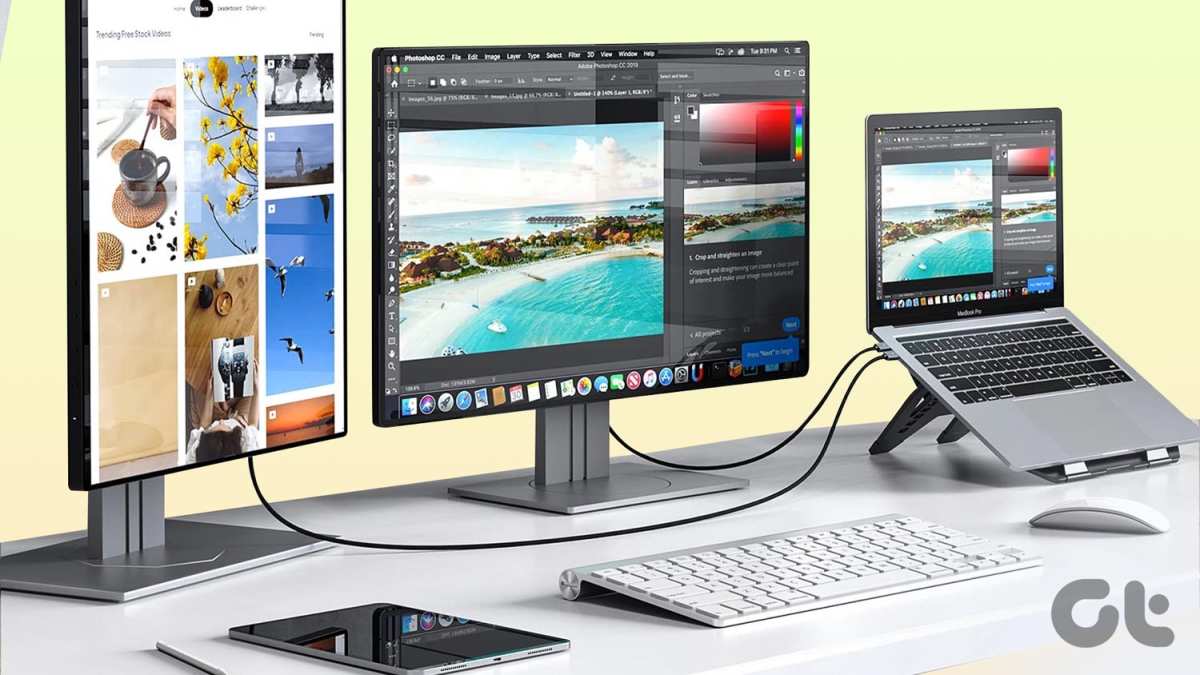
You've probably wondered whether that USB-C monitor on your desk can pull double duty and charge your MacBook Pro. It's a fair question, and the answer saves you from carrying a separate power adapter everywhere. The short version is yes, a USB-C monitor can charge your MacBook Pro, but whether it charges well enough to actually replace your power adapter is a different story.
The real answer depends on three things: what your MacBook Pro needs, what your monitor delivers, and what cable connects them. USB-C Power Delivery (USB-C PD) is the protocol that makes this work, and it's been standard on MacBooks since 2015. As of 2026, most mid-range and high-end USB-C monitors support PD output, but the wattage varies wildly, and that's where most people get tripped up.
The Short Answer: Yes, But It Depends on Your Setup
A USB-C monitor can charge your MacBook Pro if it supports USB-C Power Delivery. The monitor must output enough wattage to meet or exceed your MacBook Pro's power draw. Your USB-C cable must also support the required wattage.
If any of these three pieces falls short, charging will be slow or nonexistent under load.
Why This Isn't a Simple Yes or No
Here's the thing that trips most people up. A USB-C monitor might charge your MacBook Pro just fine when it's idling or doing light work. The moment you fire up Final Cut Pro or run a compile, the power draw spikes, and that same monitor can't keep up.
Your battery starts draining even though it's plugged in.
Manufacturer specifications tell part of the story. A monitor might advertise "USB-C with 90W Power Delivery," which sounds great until you realize your 16-inch MacBook Pro with an M3 Max chip ships with a 140W adapter. That 90W monitor will charge your MacBook slowly during light use, but under heavy load, you're running a deficit.
The other wrinkle is that not all USB-C ports on a monitor deliver power. Some monitors have one upstream USB-C port that handles both video and charging, while other USB-C ports are downstream data-only. Plugging into the wrong port means no charging at all, and the monitor won't always make this obvious.
How USB-C Monitor Charging Actually Works
USB-C Power Delivery is a negotiation. When you plug your MacBook Pro into a USB-C monitor, the two devices communicate over the CC (Configuration Channel) pin in the USB-C connector. The monitor advertises what power profiles it supports, and the MacBook Pro requests the highest profile both devices can handle.
This negotiation happens in milliseconds. The monitor might support 20V at 5A (100W), but if your cable is only rated for 60W, the MacBook will cap its draw at 60W. The system is designed to be safe, not fast.
It will always default to the lowest common denominator among the three components: monitor output, cable rating, and MacBook input.
DisplayPort Alt Mode is what carries the video signal over the same USB-C cable. The power delivery runs alongside it. That's why a single cable can handle your display output, charge your laptop, and even pass data to the monitor's built-in USB hub.
It's elegant when it works, but it means a problem with any one function can affect the others.
What Your MacBook Pro Actually Needs
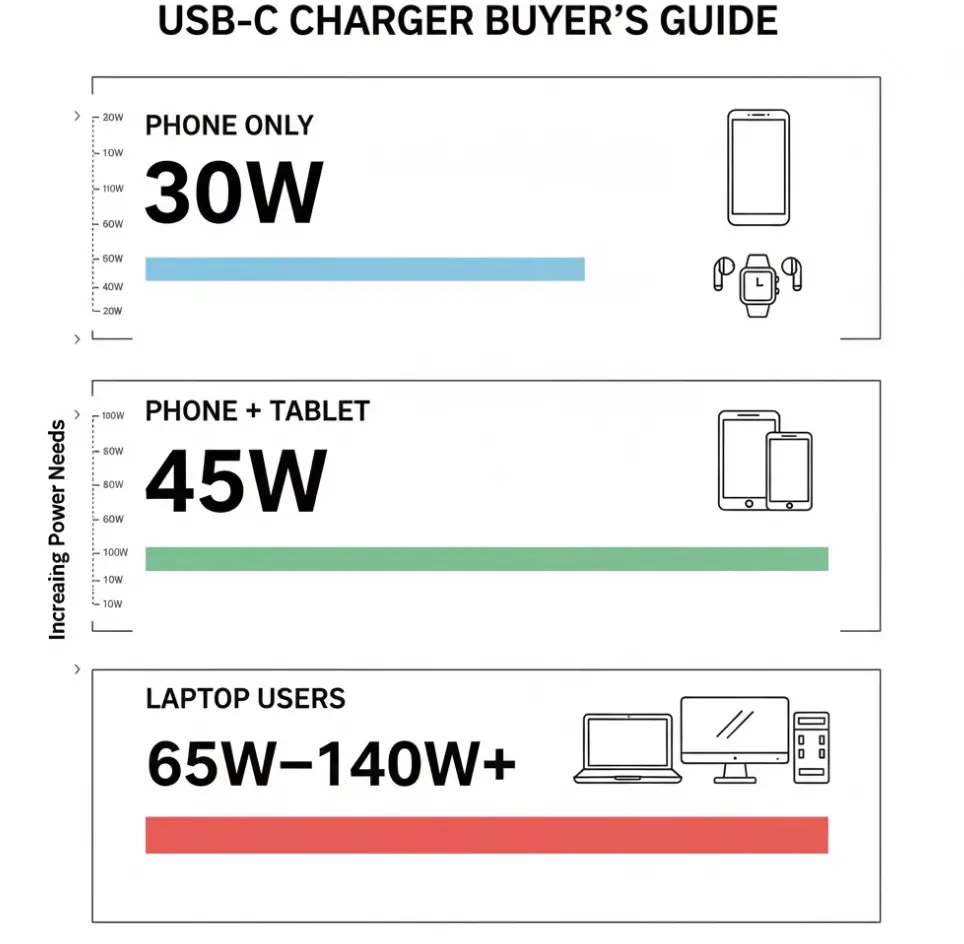
Not all MacBook Pro models are created equal when it comes to power requirements. Apple ships different adapters depending on the chip and screen size, and that adapter wattage is your baseline for what the machine needs at full tilt.
13-inch MacBook Pro (M1 / M2)
The 13-inch MacBook Pro with M1 or M2 chip ships with a 67W USB-C power adapter. This is the easiest model to charge from a USB-C monitor. A monitor delivering 65W or more will handle it comfortably, even under moderate load.
A 60W monitor will work for most tasks, though you might see the battery creep down during sustained heavy workloads.
14-inch MacBook Pro (Pro and Max chips)
This is where it gets more complicated. The 14-inch MacBook Pro with a Pro chip ships with a 67W or 70W adapter depending on configuration. The Max chip variant ships with a 96W adapter.
A 90W USB-C monitor will keep a Pro model happy but will barely keep up with a Max model under full load. You'll likely see slow charging or maintenance-level power during demanding tasks.
16-inch MacBook Pro (Pro and Max chips)
The 16-inch models are the power hungry ones. The base Pro configuration ships with a 96W adapter, while the Max chip models require a 140W adapter. Very few USB-C monitors on the market deliver 140W over USB-C PD.
As of 2026, USB-C PD 3.1 supports up to 240W, but monitors implementing this higher wattage are still rare and expensive. Most 16-inch MacBook Pro Max owners will find that even a 100W monitor can't fully replace their adapter during heavy use.
What Your Monitor Actually Delivers
Monitor manufacturers don't always make the PD wattage easy to find. It's often buried in the spec sheet or listed as a footnote. Some monitors advertise USB-C connectivity without mentioning power delivery at all, which means they might only deliver 15W or nothing usable for charging a laptop.
Common USB-C Monitor Power Outputs
Here's what you'll typically find across the market:
| Monitor PD Output | What It Can Handle |
|---|---|
| 15W–30W | MacBook Air light use only. Not enough for any MacBook Pro under load. |
| 45W–60W | MacBook Air full speed. 13-inch MacBook Pro light use. 14-inch/16-inch will drain under load. |
| 65W–75W | MacBook Air and 13-inch MacBook Pro comfortably. 14-inch Pro okay. Max models and 16-inch will struggle. |
| 90W–100W | MacBook Air and 13-inch MacBook Pro easily. 14-inch Pro and 16-inch Pro mostly fine. 14-inch/16-inch Max will still drain under sustained heavy load. |
| 140W+ | Full-speed charging for all current MacBook Pro models. Rare in monitors as of 2026. |
The Cable Problem Nobody Talks About
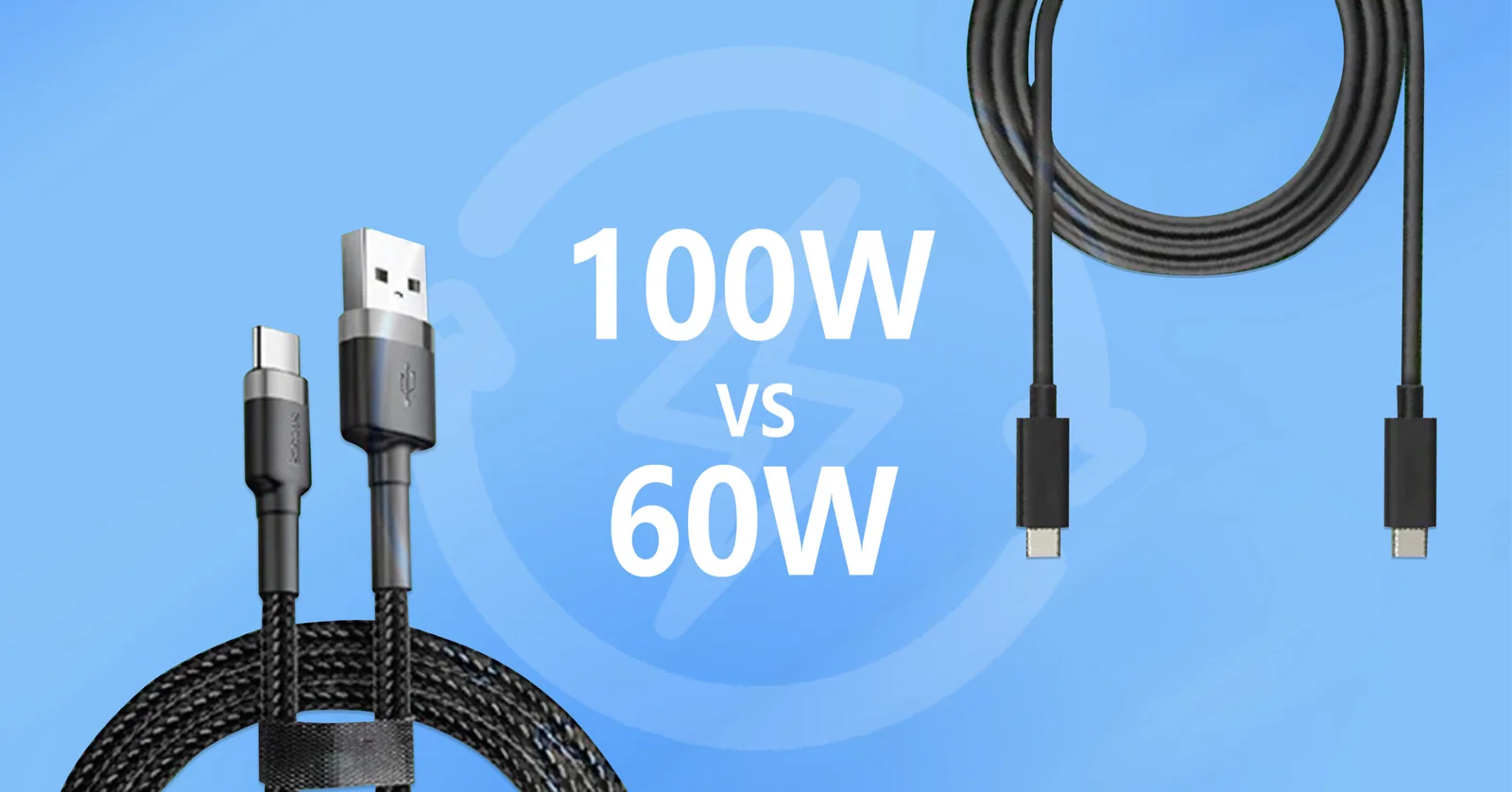
Your cable is the weakest link that nobody checks. A standard USB-C cable without an e-marker chip is typically limited to 60W (20V at 3A). To deliver 100W or more, the cable needs an e-marker chip that identifies its capabilities to both devices.
Many monitors ship with a capable cable, but if you're using an old cable from a phone charger or a random cable from your drawer, you might be capping yourself at 60W without knowing it.
Look for cables labeled "100W" or "240W" or "5A" on the packaging. Thunderbolt 4 cables from reputable brands generally support 100W PD. Cheap unbranded cables are a gamble.
If your MacBook Pro isn't charging at the expected speed, swap the cable first before blaming the monitor.
The Decision Tree: Will Your Setup Work?
This is where we cut through the noise. Walk through these branches based on your specific gear.
Branch 1: Monitor PD ≥ MacBook Pro Adapter Wattage
If your monitor delivers equal or more watts than your MacBook Pro's included adapter, you're golden. A 100W monitor powering a 13-inch MacBook Pro with its 67W adapter will charge at full speed and handle any workload. This is the ideal single-cable setup.
Branch 2: Monitor PD Is Lower Than Your Adapter
This is the most common scenario. Your monitor delivers less than your MacBook Pro's adapter rating, but it's still in a usable range. Here's what happens: the MacBook will charge slowly during light use and maintain or slowly drain the battery during heavy use.
A 65W monitor connected to a 14-inch MacBook Pro with a 96W adapter will keep the machine running during web browsing and document editing, but a 4K video export will slowly pull the battery down.
Branch 3: Monitor PD Is Way Lower Than Your Adapter
If your monitor delivers 30W or less and you're running a 14-inch or 16-inch MacBook Pro, you're in trouble territory. The MacBook might show "Not Charging" in macOS, or it might trickle charge so slowly that the battery still drops during use. In this case, you need a separate power adapter or a different charging strategy.
Real-World Scenarios: What Actually Happens
Let's put some concrete numbers on this so you know what to expect.
Scenario A: 13-inch MacBook Pro + 65W USB-C Monitor
This works well. The 13-inch MacBook Pro draws around 20W to 35W during typical productivity work. A 65W monitor has plenty of headroom.
You'll charge at near full speed and can handle moderate creative work without the battery draining. This is the sweet spot for single-cable setups.
Scenario B: 14-inch MacBook Pro Max + 90W USB-C Monitor
This is borderline. The 14-inch Max can pull 70W to 90W under sustained all-core workloads. A 90W monitor will keep up during light and moderate use, but during a long render or compile, the MacBook will start pulling from the battery to supplement.
You might lose 5% to 10% battery over an hour of heavy work. Annoying, but not catastrophic.
Scenario C: 16-inch MacBook Pro Max + 60W USB-C Monitor
This doesn't work well enough to rely on. The 16-inch Max can pull over 100W under full load. A 60W monitor leaves a massive gap.
The MacBook will drain the battery even while plugged in, and it'll drain fast during demanding tasks. You'd need to keep the 140W adapter connected for anything beyond basic use.
How to Check If Your Monitor Will Charge Your MacBook Pro
Here's a practical step-by-step to figure out your specific situation.
Step 1: Find Your MacBook Pro's Power Requirement
Go to Apple Menu > About This Mac. Note your chip and screen size. Cross-reference with Apple's technical specifications page to find your included adapter wattage.
That number is your target.
Step 2: Find Your Monitor's USB-C PD Output
Check the monitor's spec sheet, the product page, or the manual. Look specifically for "USB-C Power Delivery," "PD output," or "upstream USB-C wattage." If you can't find it, the monitor might not charge laptops at all.
Step 3: Check Your Cable's Power Rating
Look at the cable itself or its packaging. If it says "100W," "5A," or "E-Marked," you're good for up to 100W. If there's no rating printed, assume 60W maximum.
When in doubt, use the cable that came with the monitor.
Step 4: Test It and Watch the Battery Behavior
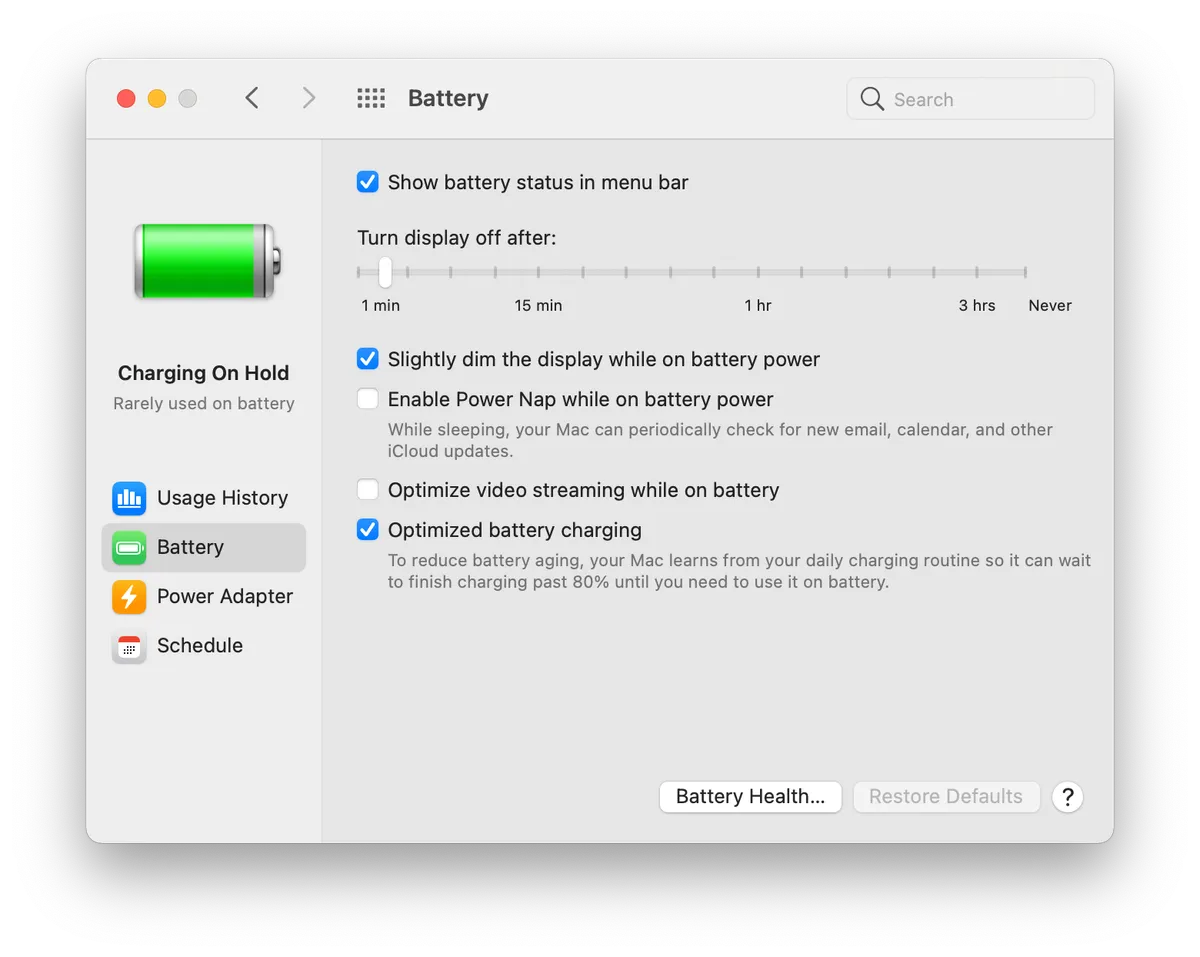
Plug everything in and open System Settings > Battery on macOS. You'll see whether the Mac is charging and the power source. Then run your typical workload for 30 minutes and check the battery percentage.
If it's holding steady or climbing, your setup works. If it's dropping, the monitor can't keep up with your workload.
When USB-C Monitor Charging Falls Short
Even when everything is technically working, there are situations where USB-C monitor charging just isn't enough.
Heavy Workloads Drain the Battery Anyway
Video editing, 3D rendering, software compilation, and machine learning tasks can push a MacBook Pro Max well beyond what most USB-C monitors deliver. If your work regularly hits these workloads, plan on keeping your adapter handy or choosing a monitor with 100W or higher PD output.
The "Not Charging" Message
macOS will display "Not Charging" when the power input is insufficient to both run the machine and charge the battery. This is normal behavior, not a defect. It means the MacBook is using the monitor's power to run itself but has nothing left over for the battery.
Plug in your adapter and the message disappears.
Slow Charging Is Still Charging (Sometimes)
A 60W monitor connected to a 14-inch MacBook Pro might add 1% to 2% battery per hour during light use. That's slow, but it's better than nothing. If you're mostly doing email, writing, and web browsing, you might never fully drain the battery during a workday.
Just don't expect it to recover from an overnight drain without help.
Better Alternatives When the Monitor Isn't Enough
If your monitor's PD output falls short, you have options that still keep your setup clean.
MagSafe 3 + USB-C Monitor for Video Only
On MacBook Pro models from 2021 onward, you can use MagSafe 3 for charging and a separate USB-C or Thunderbolt cable for the display. This gives you full-speed charging while still connecting to the monitor. It's two cables instead of one, but it's the most reliable approach for power-hungry models.
Thunderbolt Dock with Power Pass-Through
A Thunderbolt dock like those from CalDigit or OWC can accept a power adapter on its input side and pass power through to the MacBook while also driving the display and peripherals. This gives you a single cable from dock to MacBook, with the power adapter connected to the dock rather than the laptop.
USB-C Hub with PD Passthrough
Some USB-C hubs accept power input and pass it through to the laptop while splitting out display and data. These are cheaper than Thunderbolt docks but may limit your display resolution or refresh rate. Check the hub's display output specs before buying.
Common Mistakes That Cause Charging Problems
People run into the same issues over and over. Here's what to watch for.
- Plugging into the wrong USB-C port on the monitor. Only the upstream port (usually marked with a laptop icon or "USB-C IN") delivers power. Downstream ports are for peripherals.
- Using a charge-only USB-C cable. Some cables handle power but not data or video. You need a full-featured USB-C cable that supports both DisplayPort Alt Mode and PD.
- Assuming all USB-C cables are equal. A cable rated for 30W charging won't magically deliver 100W because the monitor supports it. The cable's rating is the ceiling.
- Ignoring monitor firmware updates. Some monitors had PD negotiation bugs that were fixed via firmware. Check the manufacturer's support page.
- Expecting a Thunderbolt dock to charge at full speed. Most Thunderbolt 4 docks only deliver 15W to 90W to the host, and many cap at 60W or 85W. Read the fine print.
Quick Reference: Monitor Wattage vs. MacBook Pro Model
| MacBook Pro Model | Included Adapter | Minimum Monitor PD for Full Speed | Comfortable Single-Cable Setup |
|---|---|---|---|
| 13-inch (M1/M2) | 67W | 67W+ | 65W+ |
| 14-inch Pro (M1/M2/M3 Pro) | 67W–70W | 70W+ | 65W+ |
| 14-inch Max (M1/M2/M3 Max) | 96W | 96W+ | 90W+ |
| 16-inch Pro (M1/M2/M3 Pro) | 96W–140W | 140W | 100W+ (light use) |
| 16-inch Max (M1/M2/M3 Max) | 140W | 140W | 100W+ (light use only) |
Expert Tips for a Reliable Single-Cable Setup
After looking at hundreds of user reports and manufacturer specs, a few patterns stand out.
Buy a monitor with at least 90W PD output if you're running any MacBook Pro with a Pro or Max chip. The extra headroom makes a noticeable difference during sustained workloads. Monitors in the 60W to 75W range are fine for the 13-inch model but leave the larger machines wanting more.
Always use the cable that ships with the monitor for the initial setup. Manufacturers test their monitors with that specific cable. Once everything works, you can experiment with third-party cables if needed, but start with the known-good option.
If you're buying a new monitor specifically for this purpose, look for models that explicitly advertise laptop charging in their marketing. Monitors that treat PD as an afterthought often deliver inconsistent results. Dell's UltraSharp U-series, LG's UltraFine line, and BenQ's PD series are known for reliable USB-C PD implementation.
For 16-inch MacBook Pro Max owners, accept that a single USB-C cable from a monitor won't fully replace your 140W adapter during heavy use. Use the monitor for charging during light work and keep your adapter connected for demanding sessions. MagSafe 3 makes this swap seamless since you can have both connected simultaneously.
Frequently Asked Questions
Can any USB-C monitor charge a MacBook Pro?
No. The monitor must specifically support USB-C Power Delivery with sufficient wattage. Monitors that only support USB-C data or DisplayPort Alt Mode without PD won't charge your MacBook Pro at all.
Will a 60W USB-C monitor damage my MacBook Pro?
No. USB-C PD is designed to be safe. The MacBook will only draw what it needs, and the system negotiates power delivery to prevent damage.
The worst that happens is slow charging or no charging under load.
Does the USB-C cable affect charging speed?
Absolutely. A cable rated for 60W will cap your charging at 60W even if the monitor supports 100W. Use a cable rated for at least the wattage your monitor delivers.
Look for "100W" or "5A" on the cable or packaging.
Can I use a USB-C monitor and MagSafe at the same time?
Yes. On MacBook Pro models from 2021 onward with MagSafe 3, you can connect both simultaneously. macOS will prefer MagSafe for charging, which gives you full-speed charging while the monitor handles display and data.
Why does my MacBook say "Not Charging" when connected to a USB-C monitor?
This means the monitor's power output is enough to run the MacBook but not enough to also charge the battery. It's common with lower-wattage monitors connected to higher-wattage MacBook Pro models. The MacBook is still running off the monitor's power, so it's not draining the battery either.
Do Thunderbolt monitors charge MacBook Pro?
Most Thunderbolt monitors deliver some power, but the wattage varies. Apple's Studio Display provides 96W to MacBooks, which covers most models except the 16-inch Max at full load. Always check the specific monitor's PD rating rather than assuming Thunderbolt means full-power charging.
The Bottom Line: Should You Rely on USB-C Monitor Charging?
For a 13-inch MacBook Pro or a 14-inch MacBook Pro with a Pro chip, a good USB-C monitor with 65W to 90W PD output is a genuinely great single-cable solution. You can leave your adapter in the bag and work comfortably all day.
For MacBook Pro Max models and the 16-inch variants, USB-C monitor charging works as a convenience for light use but won't fully replace your adapter during demanding work. Plan on a hybrid approach: monitor charging for everyday tasks, your adapter for heavy sessions.
The key is knowing your numbers. Check your MacBook Pro's adapter wattage, check your monitor's PD output, and check your cable's rating. When all three align, the single-cable dream is real.
When they don't, you'll know exactly why and can plan accordingly.
When USB-C Monitor Charging Falls Short
Even when everything is technically working, there are situations where USB-C monitor charging just isn't enough.
Heavy Workloads Drain the Battery Anyway
Video editing, 3D rendering, software compilation, and machine learning tasks can push a MacBook Pro Max well beyond what most USB-C monitors deliver. If your work regularly hits these workloads, plan on keeping your adapter handy or choosing a monitor with 100W or higher PD output.
The "Not Charging" Message
macOS will display "Not Charging" when the power input is insufficient to both run the machine and charge the battery. This is normal behavior, not a defect. It means the MacBook is using the monitor's power to run itself but has nothing left over for the battery.
Plug in your adapter and the message disappears.
Slow Charging Is Still Charging (Sometimes)
A 60W monitor connected to a 14-inch MacBook Pro might add 1% to 2% battery per hour during light use. That's slow, but it's better than nothing. If you're mostly doing email, writing, and web browsing, you might never fully drain the battery during a workday.
Just don't expect it to recover from an overnight drain without help.
Better Alternatives When the Monitor Isn't Enough
If your monitor's PD output falls short, you have options that still keep your setup clean.
MagSafe 3 + USB-C Monitor for Video Only
On MacBook Pro models from 2021 onward, you can use MagSafe 3 for charging and a separate USB-C or Thunderbolt cable for the display. This gives you full-speed charging while still connecting to the monitor. It's two cables instead of one, but it's the most reliable approach for power-hungry models.
Thunderbolt Dock with Power Pass-Through
A Thunderbolt dock like those from CalDigit or OWC can accept a power adapter on its input side and pass power through to the MacBook while also driving the display and peripherals. This gives you a single cable from dock to MacBook, with the power adapter connected to the dock rather than the laptop.
USB-C Hub with PD Passthrough
Some USB-C hubs accept power input and pass it through to the laptop while splitting out display and data. These are cheaper than Thunderbolt docks but may limit your display resolution or refresh rate. Check the hub's display output specs before buying.
Common Mistakes That Cause Charging Problems
People run into the same issues over and over. Here's what to watch for.
- Plugging into the wrong USB-C port on the monitor. Only the upstream port (usually marked with a laptop icon or "USB-C IN") delivers power. Downstream ports are for peripherals.
- Using a charge-only USB-C cable. Some cables handle power but not data or video. You need a full-featured USB-C cable that supports both DisplayPort Alt Mode and PD.
- Assuming all USB-C cables are equal. A cable rated for 30W charging won't magically deliver 100W because the monitor supports it. The cable's rating is the ceiling.
- Ignoring monitor firmware updates. Some monitors had PD negotiation bugs that were fixed via firmware. Check the manufacturer's support page.
- Expecting a Thunderbolt dock to charge at full speed. Most Thunderbolt 4 docks only deliver 15W to 90W to the host, and many cap at 60W or 85W. Read the fine print.
Quick Reference: Monitor Wattage vs. MacBook Pro Model
| MacBook Pro Model | Included Adapter | Minimum Monitor PD for Full Speed | Comfortable Single-Cable Setup |
|---|---|---|---|
| 13-inch (M1/M2) | 67W | 67W+ | 65W+ |
| 14-inch Pro (M1/M2/M3 Pro) | 67W–70W | 70W+ | 65W+ |
| 14-inch Max (M1/M2/M3 Max) | 96W | 96W+ | 90W+ |
| 16-inch Pro (M1/M2/M3 Pro) | 96W–140W | 140W | 100W+ (light use) |
| 16-inch Max (M1/M2/M3 Max) | 140W | 140W | 100W+ (light use only) |
Expert Tips for a Reliable Single-Cable Setup
After looking at hundreds of user reports and manufacturer specs, a few patterns stand out.
Buy a monitor with at least 90W PD output if you're running any MacBook Pro with a Pro or Max chip. The extra headroom makes a noticeable difference during sustained workloads. Monitors in the 60W to 75W range are fine for the 13-inch model but leave the larger machines wanting more.
Always use the cable that ships with the monitor for the initial setup. Manufacturers test their monitors with that specific cable. Once everything works, you can experiment with third-party cables if needed, but start with the known-good option.
If you're buying a new monitor specifically for this purpose, look for models that explicitly advertise laptop charging in their marketing. Monitors that treat PD as an afterthought often deliver inconsistent results. Dell's UltraSharp U-series, LG's UltraFine line, and BenQ's PD series are known for reliable USB-C PD implementation.
For 16-inch MacBook Pro Max owners, accept that a single USB-C cable from a monitor won't fully replace your 140W adapter during heavy use. Use the monitor for charging during light work and keep your adapter connected for demanding sessions. MagSafe 3 makes this swap seamless since you can have both connected simultaneously.
Frequently Asked Questions
Can any USB-C monitor charge a MacBook Pro?
No. The monitor must specifically support USB-C Power Delivery with sufficient wattage. Monitors that only support USB-C data or DisplayPort Alt Mode without PD won't charge your MacBook Pro at all.
Will a 60W USB-C monitor damage my MacBook Pro?
No. USB-C PD is designed to be safe. The MacBook will only draw what it needs, and the system negotiates power delivery to prevent damage.
The worst that happens is slow charging or no charging under load.
Does the USB-C cable affect charging speed?
Absolutely. A cable rated for 60W will cap your charging at 60W even if the monitor supports 100W. Use a cable rated for at least the wattage your monitor delivers.
Look for "100W" or "5A" on the cable or packaging.
Can I use a USB-C monitor and MagSafe at the same time?
Yes. On MacBook Pro models from 2021 onward with MagSafe 3, you can connect both simultaneously. macOS will prefer MagSafe for charging, which gives you full-speed charging while the monitor handles display and data.
Why does my MacBook say "Not Charging" when connected to a USB-C monitor?
This means the monitor's power output is enough to run the MacBook but not enough to also charge the battery. It's common with lower-wattage monitors connected to higher-wattage MacBook Pro models. The MacBook is still running off the monitor's power, so it's not draining the battery either.
Do Thunderbolt monitors charge MacBook Pro?
Most Thunderbolt monitors deliver some power, but the wattage varies. Apple's Studio Display provides 96W to MacBooks, which covers most models except the 16-inch Max at full load. Always check the specific monitor's PD rating rather than assuming Thunderbolt means full-power charging.
The Bottom Line: Should You Rely on USB-C Monitor Charging?
For a 13-inch MacBook Pro or a 14-inch MacBook Pro with a Pro chip, a good USB-C monitor with 65W to 90W PD output is a genuinely great single-cable solution. You can leave your adapter in the bag and work comfortably all day.
For MacBook Pro Max models and the 16-inch variants, USB-C monitor charging works as a convenience for light use but won't fully replace your adapter during demanding work. Plan on a hybrid approach: monitor charging for everyday tasks, your adapter for heavy sessions.
The key is knowing your numbers. Check your MacBook Pro's adapter wattage, check your monitor's PD output, and check your cable's rating. When all three align, the single-cable dream is real.
When they don't, you'll know exactly why and can plan accordingly.

Similar Posts





















