Is USB C Monitor Necessary for Work from Home
Does a USB-C monitor make sense for work from home. It depends entirely on your laptop, your tolerance for cable clutter, and how much you value plugging in just one thing when you sit down to work. For some people it's a genuine upgrade.
For others it's an unnecessary expense.
The good news is you don't need to guess. A few quick checks on your current setup will tell you whether a USB-C monitor solves a real problem or just a manufactured one. Let's walk through it step by step.
The Quick Answer
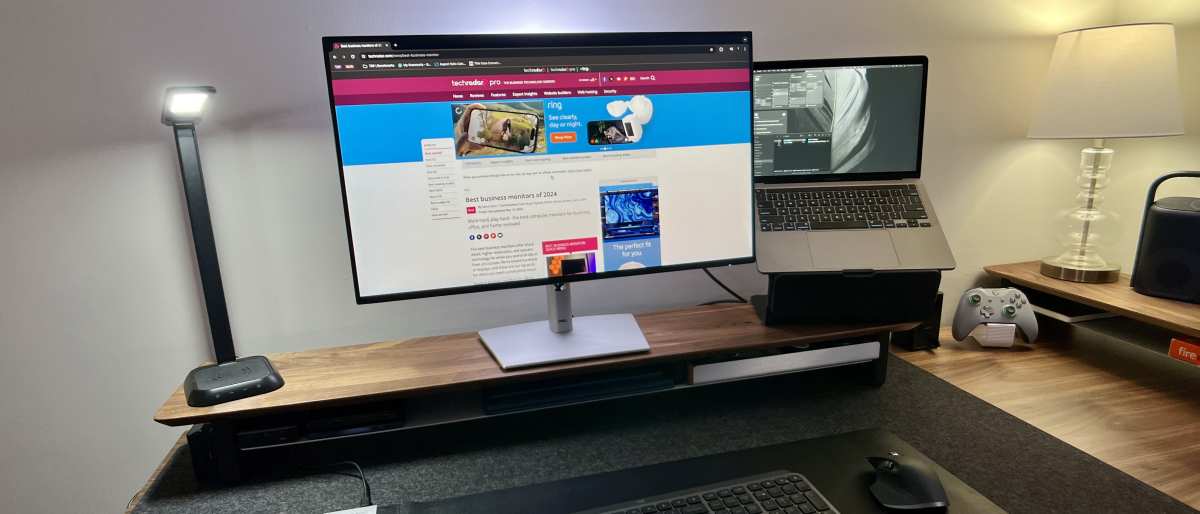
No, a USB-C monitor is not universally necessary for remote work. It's highly valuable if your laptop supports USB-C with DisplayPort Alt Mode and you hate cable clutter. It's unnecessary if your laptop lacks USB-C video output already.
Check your ports first before spending money.
What a USB-C Monitor Actually Does
A USB-C monitor connects to your laptop over a single USB-C cable. That one cable carries video signal, data, and power simultaneously. Your screen displays, your peripherals connect, and your laptop charges.
All through one port.
This works because of a feature called DisplayPort Alt Mode. It's a protocol within the USB-C standard that lets the connector transmit video signals alongside data and power. Not every USB-C port supports this.
Some USB-C ports handle only data and charging but not video. That distinction matters enormously when deciding whether one of these monitors is worth your money.
The power delivery piece varies by monitor. Some monitors push 65 watts through USB-C, enough to charge most ultrabooks at full speed. Others offer 90 or even 100 watts, sufficient for larger workstations like a 16-inch MacBook Pro.
Cheaper models might only deliver 15 to 30 watts, which trickle charges at best. You need to match the monitor's power output against your laptop's charging requirement.
Here's what a USB-C monitor typically replaces in a traditional setup.
| Component | Traditional Setup | USB-C Monitor Setup |
|---|---|---|
| Video cable | HDMI or DisplayPort cable | Single USB-C cable |
| Charger | Separate power adapter | Monitor provides power |
| USB hub | External dock or hub | Built into monitor |
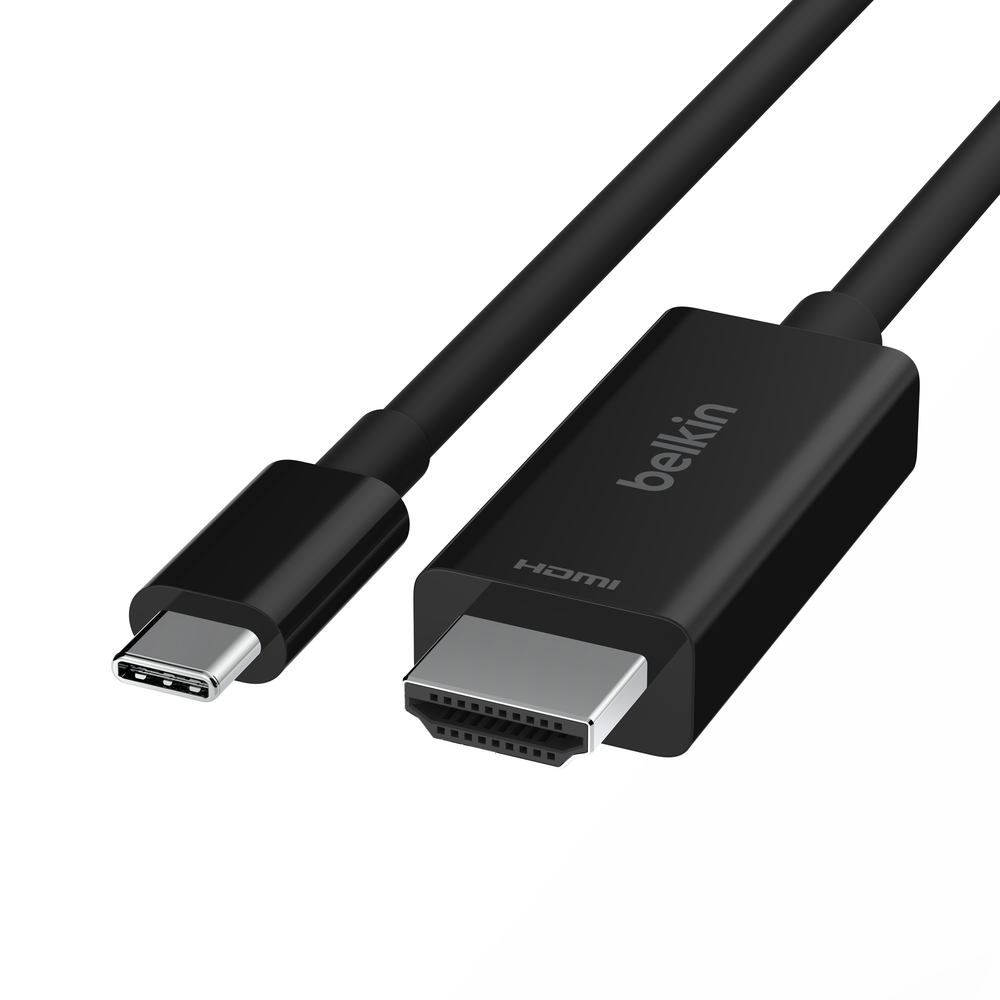
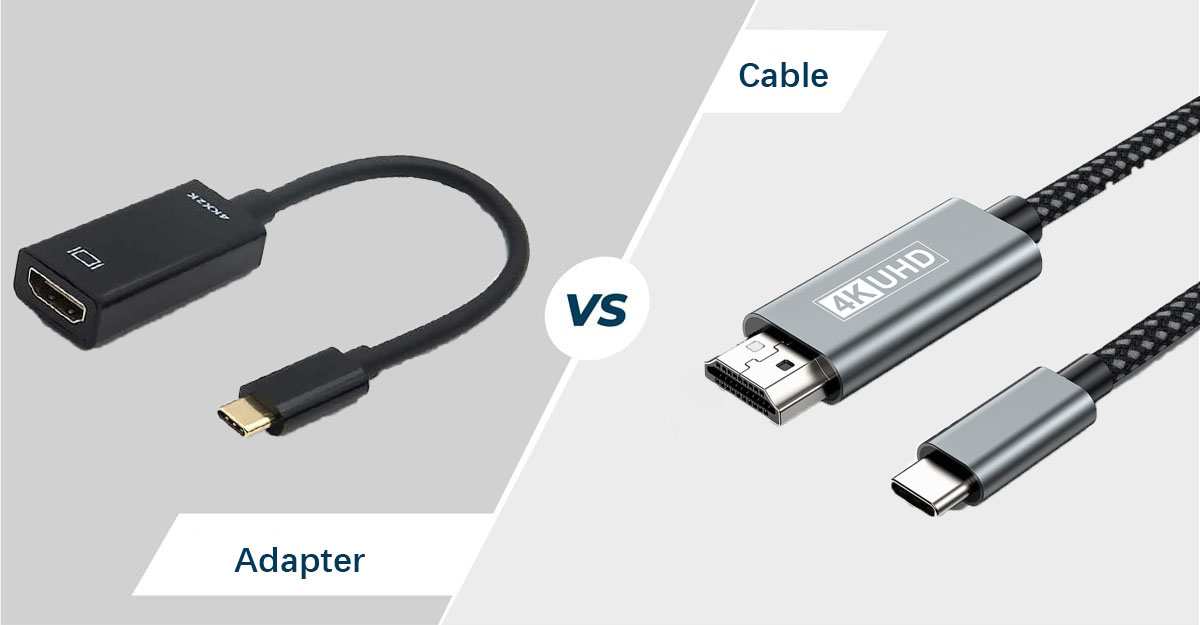
| Dongles | USB-C to HDMI adapter often | Not needed |
The real benefit is consolidation. fewer cables on your desk, fewer things to plug in when you start work, fewer things to unplug when you're done.
The Decision: Do You Actually Need One?
Rather than give you a blanket yes, let's run through four quick checks. These will tell you definitively whether a USB-C monitor is worth your money.
Check One: What Ports Does Your Laptop Have?
This is the gate. If your laptop doesn't have a USB-C port that supports video output, a USB-C monitor won't work as a display at all. Not all USB-C ports are equal.
Some handle only data and charging.
Look at the symbols next to your USB-C port. A lightning bolt icon means Thunderbolt 3 or 4 and that definitely supports video. A "D" shaped symbol inside a "P" indicates DisplayPort Alt Mode but unfortunately.
No symbol often means data and charging only, unfortunately.
Common laptops that universally support USB-C video include Apple MacBook Air and Pro models from 2018 onward, Dell XPS 13 and 15, Lenovo ThinkPad X1 Carbon and T-series, HP Spectre and EliteBook models, and most modern ultrabooks. Older laptops and many budget models may lack this capability.
If you're not sure, check your laptop's technical specifications on the manufacturer's website. Look specifically for "DisplayPort over USB-C" or "Thunderbolt" in the port description.
Check Two: How Annoying Is Your Current Cable Situation?
Be honest here. If you're running an HDMI cable plus a separate charger plus a USB hub and it doesn't bother you, a USB-C monitor is a want not a need. The cable consolidation benefit is real but it's not life-changing for everyone.
If you plug and unplug your laptop multiple times a day, say you move between rooms or take your laptop to meetings, a USB-C monitor saves genuine friction. One click to connect everything. One click to disconnect.
That small moment repeated daily adds up.
People who share a desk with a partner or who hot-desk at a coworking space benefit the most here. The speed of docking and undocking outweighs the price premium especially in those scenarios.
Check Three: Does Your Laptop Need More Than 65W to Charge?
This is where a lot of people get tripped up. They buy a USB-C monitor expecting it to charge their laptop, only to discover it trickle charges or barely keeps up under load. The culprit is wattage mismatch.
Here are some common laptops and their charging requirements along with what monitors typically provide.
| Laptop | Charging Need | Minimum Monitor PD Required |
|---|---|---|
| MacBook Air M2/M3 | 35W (slow), 70W (fast) | 65W minimum recommended |
| MacBook Pro 14" | 96W | 90W monitor ideal |
| MacBook Pro 16" | 140W | 96W USB-C minimum, MagSafe better |
| Dell XPS 13 | 45W | 65W comfortable |
| ThinkPad X1 Carbon | 65W | 65W sufficient |
| HP Spectre x360 | 65W to 90W | 65W minimum, 90W preferred |
| Gaming laptops (most) | 150W to 240W | USB-C monitor won't suffice |
If your laptop demands more than 90 watts, a USB-C monitor probably won't charge it adequately. The MacBook Pro 16" is the obvious example here. Apple themselves still recommend MagSafe for full-speed charging on that machine.
The USB Power Delivery specification as of 2024 caps at 240W over USB-C, but most monitors shipping today top out at 90 to 100 watts because higher wattage requires thicker cables and generates more heat. Very few work-from-home users actually have laptops that exceed what a good USB-C monitor can provide.
Check Four: Are You Using a Dongle or Dock Already?
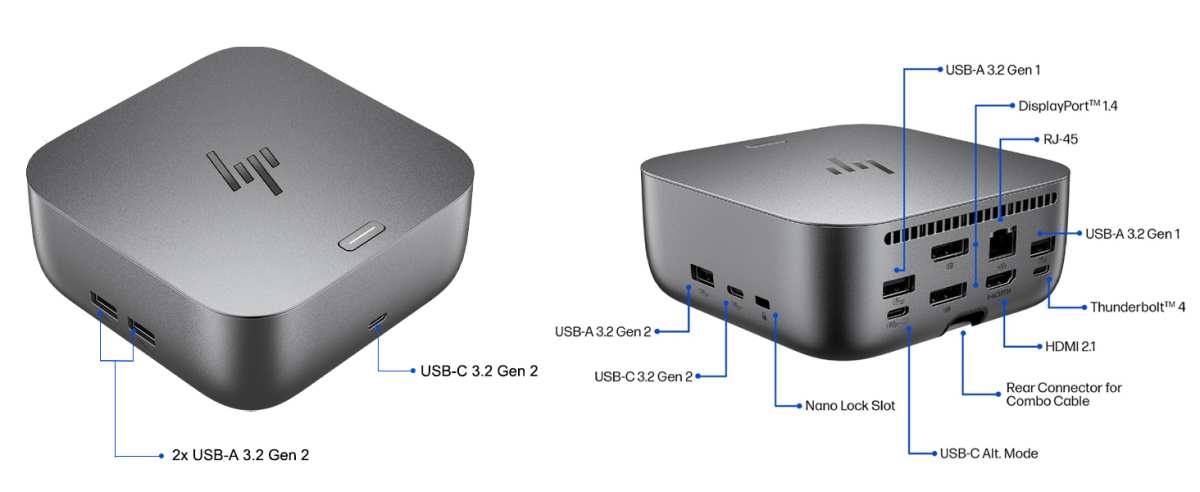
This is the practical question. If you already own a Thunderbolt dock or a USB-C hub that handles video, power, and peripherals, a USB-C monitor adds little extra convenience. Your current setup already solves the problem.
A USB-C monitor essentially combines a monitor and a dock into one device. If you're paying for both already, consolidating saves a bit of desk space and probably $50 to $100. That's nice but it's not transformative if everything already works.
People who benefit most here are those running directly from laptop to display with no dock yet. They're dealing with the laptop charger and usually fiddling with a USB-C to HDMI adapter for the monitor. A single USB-C cable replaces that entire mess straight away.
The situation where a new USB-C monitor shines brightest is setting up a home office from scratch with no existing dock or adapter collection. The simplicity of one cable is immediately apparent and absolutely no dongles need applying.
Who Benefits Most from a USB-C Monitor
After those four checks, certain user profiles stand out as clear winners. If you fit any person USB-C monitor is likely a worthwhile investment. More hesitant if you don't.
These are the profiles where USB-C monitor makes strong sense, some being remote workers with USB-C laptops who dock and undock daily, hybrid employees who alternate between office and home setups, and people with limited desk space who want to minimize clutter. Freelancers who move between coworking spaces and home also benefit, as do anyone setting up a home office fresh and wanting fewer components from the start. IT departments standardizing equipment across employees rank high too because simpler setups mean fewer support tickets.
Let's look at the user types in more detail. Hot-desking employees win dramatically here. Connection time per session matters and if they're plugging in three cables every time they reattach the laptop or working off adapters for a month, a USB-C dock would have paid for itself before lunch.
Hybrid workers gain meaningful time savings and the extreme convenience of identical connectivity for home and office. Freelancers working from a dozen locations actually bring a USB-C monitor as their second screen, and some portable USB-C displays double as travel monitors at home. IT departments benefit from uniformity when they ship say 500 identical monitors home with employees, since a single cable mean fewer calls to the help desk just for monitor issues.
Creative professionals tend to benefit extremely less because their external displays demand full resolution and accurate color. When say they're using an LG UltraFine or ASUS ProArt, those units provide USB-C with power delivery. High-end displays anyway.
Video editors often still favor DisplayPort however because refresh rates and color bandwidth remain at top spec.
Developers who use multiple external displays can benefit from daisy chaining say two monitors via Thunderbolt 4. That's a step beyond basic USB-C docking.
On the other hand, some users are better off skipping it. People without a USB-C video port on their laptop should not force the issue. Desktop tower users who already have a DisplayPort or HDMI connection to a standalone monitor won't gain much.
And if you're on a very tight budget, the USB-C monitor premium may instead be better allocated to say an ultrawide display or a higher-resolution panel.
In a home office a u shaped desk monitor placement allows visual harmony and a 27 inch USB-C screen at center flanked by two side monitors remains clean. All in all, the broad answer is: yes USB-C monitors are worth it when convenience and priorities rank high for the user, except when compatibility or budget prevent it.
USB-C Monitor vs. Regular Monitor + Separate Dock
This is the real comparison to make. Not USB-C monitor versus no monitor. The question is whether an all-in-one USB-C monitor edges out a standard display paired with a separate dock or cable setup.
Cost breaks down as follows. A good 27-inch 4K USB-C monitor runs around $350 to $550. An equivalent panel without USB-C runs about $250 to $400.
A separate USB-C dock costs roughly $80 to $200 depending on features. So dock plus regular monitor totals say $330 to $600 say with cables included which largely matches the USB-C range sometimes even more.
Cable count favors USB-C monitor. With a standard monitor you typically run a HDMI cable, your laptop charger, and potentially up to three USB peripherals heading toward the dock. With a USB-C monitor, one video plus data plus power cable replaces everything directly.
Simplicity favors USB-C for most people. Dock quality and cable compatibility all add friction. Worst case the dock may not support the monitor's full resolution.
USB-C display sidesteps that entirely.
The flexibility aspect is where options differ. A regular monitor plus dock handles mixed sources easily, like a work laptop and a personal desktop over HDMI switch with USB sharing. A USB-C monitor locks you heavily into that single cable and makes more gadget switching less comfortable.
Common Mistakes People Making Before Buying
Several blunders recur with USB-C monitor shopping, especially when buyers assume that all USB-C ports do video. A significant chunk of returns stems exactly from this. Many budget laptops and older machines use data-only USB-C connectors and only manuals spell this out.
Another pitfall is ignoring charging wattage when picking a monitor. Underpowered 30W charging looks fine on paper but barely charges a Pro laptop. Too many people base resolution buying on specs alone while ignoring panel accuracy, color gamut, brightness, and whether the USB-C generation is 3.1 gen2 or 3.2 gen2x2.
Cables matter immensely too since a poor USB-C cable that doesn't support full bandwidth kills picture stability due to dropped refresh data. Naming every spec on a box doesn't guarantee true compatibility.
Finally there's the trap of paying the premium for USB-C when no actual benefit reaches the buyer, like owning a laptop that supports only HDMI video or running say only a browser and word processor where existing monitor and adapter work perfectly. The true USB-C monitor benefit emerges only if you will actually use that unified docking capability in practice and not just add desk decoration.
What Real USB-C Monitors Cost in 2024
Pricing has improved quickly meaning decision now is much easier than even two years ago. Budget options emerging, mid-range is strong, and high-end is where Thunderbolt dominates. As of mid-2024 they break down like under $250: basic 24-inch panels such as the Sceptre E248W or KTC M27P10 with USB-C but limited maybe 60W to 90W PD.
From $300 to $450 you find excellent 27-inch 4K IPS models like the Dell P2723QE or LG 27UN850-W with 90W to 96W PD and accurate sRGB color. Premier tier runs $500 to $1,000 for Dell UltraSharp U2723QE or Apple Studio Display or ASUS ProArt PA279CRV, delivering Thunderbolt 4 or great color and USB-C 90W finally.
Premium segment passes the $1000 mark with larger panels such as the Samsung ViewFinity S80PB or Dell UltraSharp 40 CurThunderbolt. In terms of rough rule: every dollar over $300 brings huge gains in color accuracy, build quality, and power delivery whereas below $250 a standard monitor plus cable wins easily. The sweet spot per our research is $350 to $450 for most remote workers, a 27-inch 4K with a solid IPS panel and at least 90W USB-C power.
My Honest Recommendation Based on Your Situation
After digesting the information above and considering the recommendations, an outline for a direct suggestion boils down to. When your laptop has a USB-C port with video output capability and you dock and undock a few of times daily or you are putting together a brand-new workspace from scratch, the USB-C monitor is especially well worth it. The simplicity pays itself in time and mind peace.
If your laptop has no USB-C video already installed or its power needs exceed what monitors give out however, a regular monitor paired with a dock will do the same task cheaper right now.
For the vast majority of remote workers using say a MacBook Air or a recent ThinkPad, XPS, EliteBook left standing on a basic laptop stand, a USB-C monitor in that $250 to $500 range is a buy recommendation. It makes the home office feel noticeably tidier and a small daily improvement to press work.
The tricky case is the budget already owned monitor. Many of us have some basic 1080p or 4K screen lying around. In that case grab a simple USB-C hub instead.
Spending under $100 on a compact USB-C hub that conveniently handles video, power, and USB peripherals sidesteps replacing the monitor entirely with it. This half step saves a ton of money and comes close enough to justify keeping a few favorite cables. Think of it as admitting that current screen is functional yet adding a smarter connection layer.
For the budget already owned monitor crowd, a basic USB-C hub costs $50 to $100 instead of buying a new monitor. A few current-as-of-2024 options: Anker 555 USB-C Hub (8-in-1) with HDMI and 100W pass-through charging, or the CalDigit SOHO Dock which handles DisplayPort or HDMI plus 100W charging in a compact form good for travel.
Last edge case, working with a gaming or workstation laptop that pulls say 150 watts. In that corner a USB-C monitor just can't cut the power. Instead keep the dedicated charger and use a regular monitor with an HDMI connection alongside a USB hub for peripherals.
It's a bit less elegant yet keeps everything humming.
Frequently Asked Questions
Can any USB-C monitor charge my laptop?
No. Only monitors with USB Power Delivery over USB-C can charge a laptop. Many budget models charge extremely slowly or simultaneously display and underpowered.
Always fully reliably check monitor specs for exact PD wattage listed but not all sellers make this clear.
Do you need a special cable for a USB-C monitor?
Yes. A full-featured USB-C 3.1 Gen 2 cable or Thunderbolt cable is required to reliably carry video, data, and adequate power together. A cheap charge-only USB-C cable will not work.
If the monitor ships with a cable in the box, that's the safest choice because it's guaranteed wired for full bandwidth.
Is a USB-C monitor better than an HDMI monitor for display quality?
No. The panel itself determines color accuracy, resolution, and contrast, not the connection type. A 4K IPS panel looks identical whether you feed it HDMI or USB-C in real use per side-by-side comparisons.
The USB-C advantage is convenience and consolidation, not image quality.
Can I daisy-chain two USB-C monitors from one laptop?
Only when your laptop supports Thunderbolt 3 or 4. Standard USB-C with DisplayPort Alt Mode can daisy-chain monitors on newer laptops that support MST. Thunderbolt is the most reliable daisy-chain option.
Read your laptop specs carefully, and do not attempt this without Thunderbolt unless you know your exact laptop's capabilities.

Similar Posts





















