Can 4K Monitor Run on Integrated Graphics
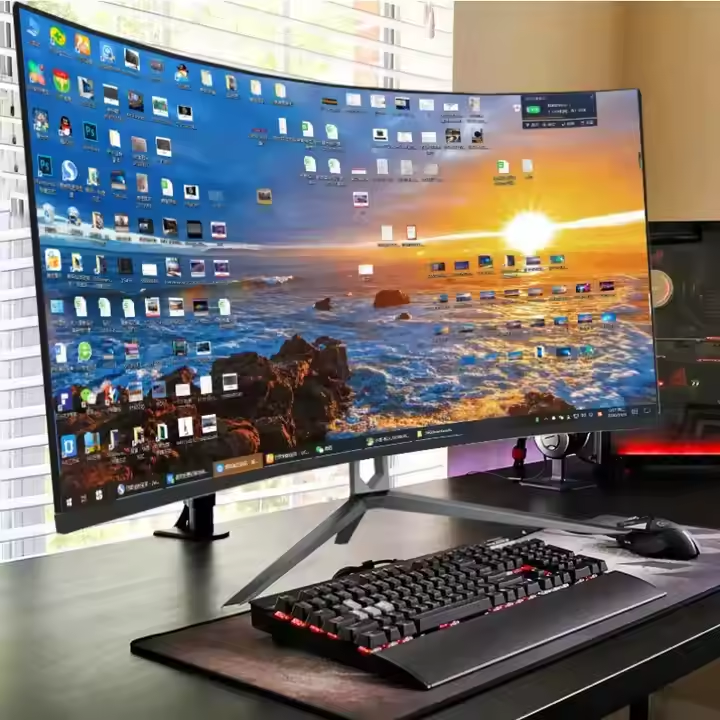
So you've picked up a 4K monitor, or you're thinking about it, and now you're wondering if your processor's built-in graphics can actually handle it. It's a fair question. Plenty of people assume you need a dedicated graphics card just to push that many pixels.
The short answer is yes, in most cases a 4K monitor can run on integrated graphics. But the real answer depends on which specific CPU you have, what ports your motherboard offers, and what you plan to do with that 4K display once it's connected. Let's walk through it step by step so you can figure out exactly where you stand.
Quick Answer
Yes, most modern integrated graphics can run a 4K monitor. Intel UHD 630 and newer chips support 4K output. AMD Ryzen APUs with Radeon graphics also handle 4K.
The catch is the refresh rate. You may be limited to 30Hz over HDMI. DisplayPort usually gives you 60Hz at 4K resolution.
What Integrated Graphics Can Actually Do at 4K
Integrated graphics are built directly into your CPU. They share your system memory instead of having their own dedicated video RAM. That's the key difference from a discrete graphics card, and it shapes everything about what they can and can't do at 4K.
For basic desktop use, browsing, office work, and video playback, integrated graphics handle 4K just fine. The desktop renders smoothly, text looks crisp, and you get the full benefit of that high-resolution display. Video streaming at 4K also works well because modern iGPUs include hardware decode blocks specifically designed for codecs like H.264, HEVC, and VP9.
Where things get tight is anything that requires heavy GPU rendering. Gaming at 4K is basically out of the question on current integrated graphics unless you're playing very old or very simple titles. Video editing timelines can stutter. 3D modeling and machine learning workloads will feel painfully slow.
The important thing to understand is that "can it output 4K" and "can it do everything at 4K" are two very different questions. For most productivity and media consumption use cases, integrated graphics are more than enough.
The 30Hz vs 60Hz Problem Nobody Warns You About
Here's where most people get tripped up. Your integrated graphics might technically support 4K, but that doesn't mean it supports 4K at a refresh rate that feels good to use.
At 30Hz, your screen only updates 30 times per second. Moving the mouse feels sluggish. Scrolling web pages looks choppy.
Dragging windows around the desktop introduces visible motion blur. It's usable, but once you've experienced 60Hz, going back to 30Hz feels like something is broken.
At 60Hz, everything feels smooth and responsive. This is what you want. And whether you get 30Hz or 60Hz depends almost entirely on which port and cable you're using.
Here's the breakdown:
| Connection Type | Max 4K Refresh Rate | Notes |
|---|---|---|
| HDMI 1.4 | 30Hz | Common on older motherboards and budget boards |
| HDMI 2.0 | 60Hz | Found on most boards from 2017 onward |
| DisplayPort 1.2 | 60Hz | Common on mid-range and higher motherboards |
| DisplayPort 1.4 | 60Hz+ | Supports HDR and higher bit depths at 4K |
If your motherboard only has HDMI 1.4, you're stuck at 30Hz for now. If it has DisplayPort 1.2 or higher, or HDMI 2.0, you can get 60Hz at 4K. This single detail makes the biggest difference in your day-to-day experience.
How to Check If YOUR CPU and Motherboard Support 4K
This is where we get specific. You need to check two things: your CPU's integrated graphics capabilities and your motherboard's physical video outputs. Both matter.
One without the other won't work.
Step 1: Look Up Your CPU's Integrated Graphics Specs
Go to the manufacturer's website and look up your exact CPU model. Intel's ARK database and AMD's product pages both list maximum supported resolution and the specific integrated graphics unit.
For Intel, search for your processor on ark.intel.com. Look for "Max Resolution" under the graphics section. For AMD, check the product page for your Ryzen APU.
If your CPU doesn't have integrated graphics at all (like Intel's "F" series or most Ryzen chips without a "G" suffix), you'll need a discrete GPU no matter what.
Step 2: Check Your Motherboard's Video Output Ports
Having a capable CPU doesn't help if your motherboard doesn't expose the video signal. Look at the back I/O panel. You need either an HDMI port or a DisplayPort connector.
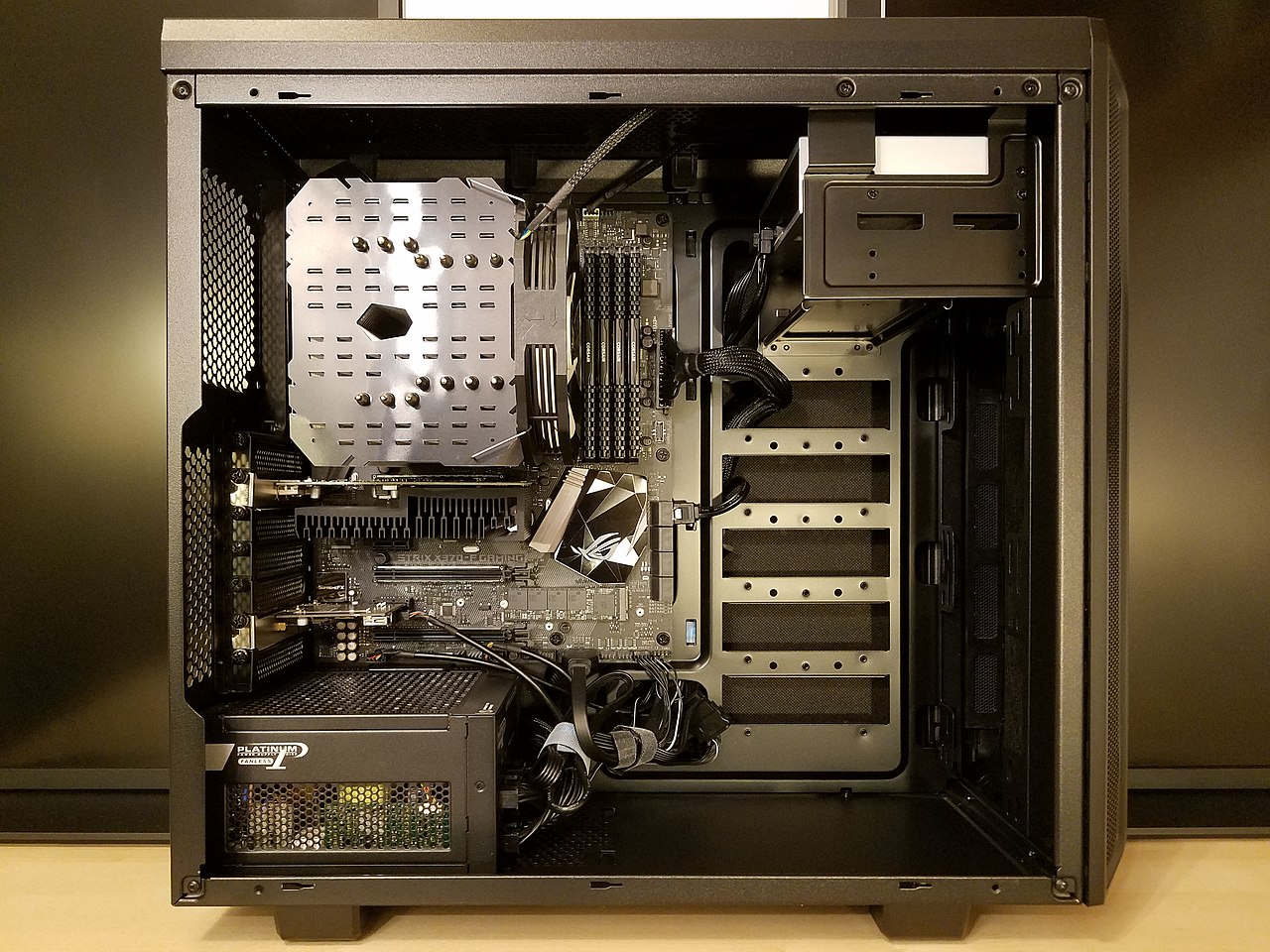
Check your motherboard manual or spec sheet to see which version of HDMI or DisplayPort it supports. This determines your maximum refresh rate at 4K. A board with only HDMI 1.4 will cap you at 30Hz even if your CPU can do more.
Step 3: Make Sure the iGPU Is Enabled in BIOS
Some motherboards disable integrated graphics automatically when they detect a discrete GPU. If you're building a new system or just plugging in a monitor to the motherboard for the first time, enter the BIOS and look for an option like "Integrated Graphics" or "IGD Multi-Monitor." Enable it if it's disabled.
Step 4: Use the Right Cable
A standard HDMI cable might not have enough bandwidth for 4K at 60Hz. You need a High-Speed HDMI cable (sometimes labeled "Premium High Speed") or a DisplayPort cable rated for the version your port supports. Cheap cables that came bundled with older devices are often the culprit behind mysterious resolution and refresh rate limitations.
Intel Integrated Graphics: Which Chips Handle 4K and How
Intel has been including integrated graphics in most of their consumer processors for years, but the capabilities vary significantly between generations.
Intel UHD Graphics 630 (8th-10th Gen Core)
This is the most common iGPU you'll encounter in systems from the last several years. It supports 4K output at 60Hz via DisplayPort 1.2. Over HDMI, many motherboard implementations are limited to HDMI 1.4, which means 4K at 30Hz.
Some boards with HDMI 2.0 support 60Hz, but you need to check the specific board.
Intel UHD Graphics 750 (11th Gen Core)
Found on Rocket Lake processors. Supports 4K at 60Hz over both HDMI 2.0 and DisplayPort 1.4. A solid step up in terms of output flexibility.
Intel UHD Graphics 770 (12th-14th Gen Core)
The current generation. Supports 4K at 60Hz over HDMI 2.0b and DisplayPort 1.4a. Also supports AV1 decode, which matters for future-proofing your streaming setup.
Intel Core Ultra (Meteor Lake)
Found in newer laptop processors and some NUC-style desktops. These include Intel Arc-based integrated graphics with improved performance and full HDMI 2.1 and DisplayPort 2.0 support in some configurations.
The key takeaway: if you have an 8th-gen Intel Core processor or newer, your integrated graphics can output 4K. The question is whether your motherboard gives you the right port to do it at 60Hz.
AMD Integrated Graphics: Ryzen APU Capabilities at 4K
AMD's approach to integrated graphics is a bit different. Not every Ryzen processor has integrated graphics. You need one with a "G" suffix, like the Ryzen 5 5600G or Ryzen 7 5700G.
These are APUs, which means they have Radeon graphics built into the chip.
Ryzen 5000G Series (Cezanne)
The Ryzen 5 5600G and Ryzen 7 5700G are the most popular APUs for desktop builds. They support 4K at 60Hz over both HDMI 2.0 and DisplayPort 1.4. The integrated Vega graphics are also noticeably better for light gaming than Intel's UHD graphics, though still not suitable for serious 4K gaming.
Ryzen 7000 Series (Raphael)
All Ryzen 7000 processors include a basic RDNA 2 integrated graphics unit. It's not as powerful as the 5700G's Vega graphics for gaming, but it does support 4K output at 60Hz over HDMI 2.1 and DisplayPort 1.4. This is more than enough for desktop use and media playback.
Ryzen 8000G Series (Hawk Point)
The latest APUs as of 2026, featuring RDNA 3 integrated graphics. These offer the best integrated graphics performance available on a desktop, with full 4K 60Hz support and even some capability for 4K gaming at reduced settings.
One important note: if you're using a Ryzen processor without a "G" suffix, like the Ryzen 5 5600X or Ryzen 7 5800X, it does not have integrated graphics. You'll need a discrete GPU to get any display output at all.
HDMI vs DisplayPort: The Cable Choice That Makes or Breaks 4K
This section matters more than most people realize. The port and cable you choose directly determines whether your 4K experience feels smooth or frustrating.

When DisplayPort Is the Better Choice
DisplayPort 1.2 and higher supports 4K at 60Hz natively. Most motherboards that include a DisplayPort are at least DP 1.2. If your board has a DisplayPort output, use it.
It's the most reliable way to get 4K at 60Hz from integrated graphics.
DisplayPort also handles multi-monitor setups more gracefully through daisy-chaining, though that's a less common use case with integrated graphics.
When HDMI Works Fine
If your motherboard has HDMI 2.0 or higher, HDMI will give you 4K at 60Hz just as well as DisplayPort. The problem is that many budget and older boards only have HDMI 1.4, which caps 4K at 30Hz.
The Cable Matters More Than You Think
Even with the right port, a substandard cable can cause problems. For 4K at 60Hz over HDMI, you need a High-Speed HDMI cable or better. For DisplayPort, make sure the cable matches the version of your port.
Cables that shipped with older 1080p monitors often don't have the bandwidth for 4K at 60Hz.
If you're experiencing flickering, intermittent signal drops, or the resolution dropping to 1080p randomly, the cable is the first thing to check.
What Happens When You Actually Use 4K on Integrated Graphics
Let's talk about the real-world experience once you've got everything connected and running.
Desktop Use and Productivity
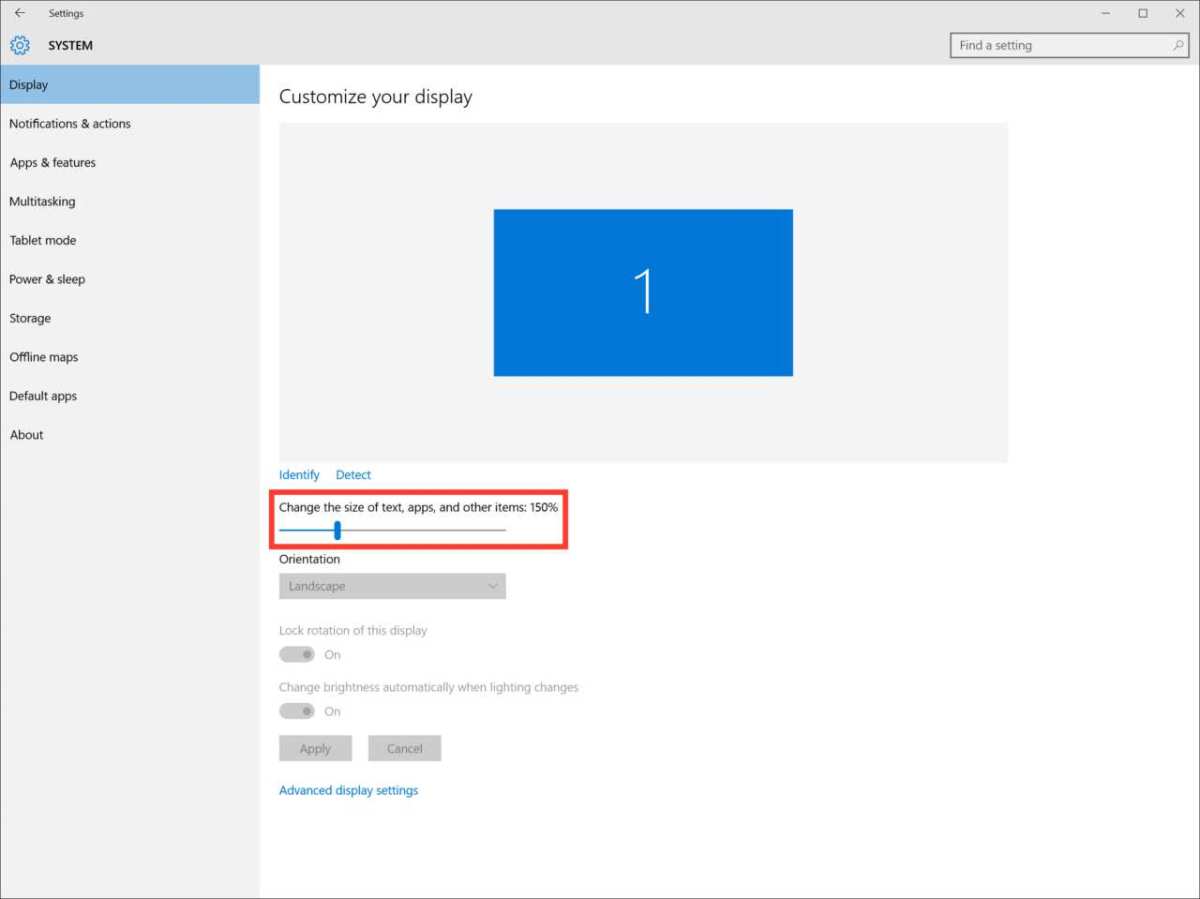
This is where integrated graphics at 4K shines. Windows and macOS both scale well at 4K, and the iGPU handles the desktop compositor without breaking a sweat. You get sharp text, plenty of screen real estate, and smooth window management at 60Hz.
Running a browser with 20 tabs, a code editor, and a terminal window all at once works fine.
Video Playback
Streaming 4K content from YouTube, Netflix, or other services works well because modern iGPUs have dedicated hardware for decoding video. The CPU usage stays low, and playback is smooth. Just make sure your setup supports HDCP 2.2 if you want 4K from Netflix and similar services.
Without it, those apps will drop you to 1080p.
Gaming
This is where expectations need to come down to earth. Integrated graphics can technically output a game at 4K, but the frame rates will be unplayable in most modern titles. Older games and simple 2D titles run fine.
Anything graphically demanding will struggle even at low settings.
If gaming matters to you at all, even casually, a discrete GPU is worth considering. Even a budget card like an NVIDIA GTX 1650 or AMD RX 6400 will transform the experience.
System Memory Impact
Remember that integrated graphics share your system RAM. If you have 16 GB of RAM and the iGPU reserves 1 GB or 2 GB of it, that's memory no longer available for your applications. On systems with only 8 GB of RAM, this can be a real constraint.
Upgrading to 16 GB or more helps compensate.
Common Mistakes That Cause Black Screens and Frustration
People run into the same handful of issues over and over when trying to run 4K on integrated graphics. Here's what to watch for.
Plugging the monitor into the wrong port. If you have a discrete GPU installed, the motherboard's video outputs might be disabled. Make sure you're plugging into the motherboard's I/O panel, not the GPU's ports, when you want to use integrated graphics.
Using an old or cheap cable. That HDMI cable from your old 1080p monitor might not have the bandwidth for 4K. Swap it out for a certified High-Speed HDMI or DisplayPort cable.
Forgetting to enable the iGPU in BIOS. Some boards disable integrated graphics by default when a GPU card is present. Enter the BIOS and look for "Integrated Graphics" or "Multi-Monitor" support under advanced settings.
Assuming all HDMI ports are the same. HDMI 1.4 and HDMI 2.0 look identical but have very different capabilities. Check your motherboard's spec sheet to see which version each port supports.
Not updating graphics drivers. Outdated drivers can limit resolution options or cause stability issues. Download the latest driver package from Intel or AMD's website.
Ignoring HDCP requirements. If Netflix or Disney+ won't play in 4K, your cable, port, or software might not support HDCP 2.2. This is a common and easily overlooked requirement.
When You Actually Need a Discrete GPU Instead
Integrated graphics handle 4K for productivity and media just fine. But there are situations where a dedicated graphics card is the right call.
You need a discrete GPU if you plan to game at 4K, even at low settings. You also need one for professional video editing, 3D rendering, or machine learning work at 4K. If you're running multiple 4K monitors simultaneously, a discrete GPU will handle the load much more comfortably.
For everyone else, a single 4K monitor used for work, browsing, streaming, and light photo editing, integrated graphics are perfectly adequate. Save the GPU money or put it toward more RAM or a faster SSD instead.
Quick Decision Guide: Should You Run 4K on Integrated Graphics?
Here's a simple way to figure out your situation.
Yes, go for it if:
- You have an Intel Core processor from 8th gen or newer, or an AMD Ryzen G-series APU
- Your motherboard has DisplayPort 1.2 or HDMI 2.0 (or higher)
- Your use case is office work, browsing, coding, or video streaming
- You use a High-Speed HDMI or proper DisplayPort cable
You'll need a discrete GPU if:
- Your CPU doesn't have integrated graphics (Intel F-series, AMD Ryzen non-G chips)
- You want to game at 4K
- You do professional video editing, 3D work, or GPU compute tasks
- Your motherboard only has HDMI 1.4 and no DisplayPort
You might be stuck at 30Hz if:
- Your motherboard only has HDMI 1.4
- You're using an old or low-quality cable
- Your monitor's HDMI input is limited to 1.4
In that last case, check if your monitor has a DisplayPort input. Switching to DisplayPort often solves the problem immediately.
Frequently Asked Questions
Can I run 4K at 60Hz with integrated graphics?
Yes, if your motherboard has DisplayPort 1.2 or HDMI 2.0 or higher, and you use a cable that supports the required bandwidth. Many boards with only HDMI 1.4 are limited to 4K at 30Hz.
Do I need a dedicated GPU for a 4K monitor?
No, not for typical desktop use, browsing, office work, or video streaming. A dedicated GPU is only necessary for gaming, professional content creation, or multi-monitor 4K setups.
Will integrated graphics work with any 4K monitor?
Yes, as long as you have a compatible port and cable. The monitor itself doesn't care whether the signal comes from integrated graphics or a discrete GPU. It just needs a compatible input.
Can Intel UHD 630 handle 4K?
Yes. Intel UHD 630 supports 4K output at 60Hz via DisplayPort and at 30Hz via HDMI 1.4. Many motherboards with this chip can run a 4K monitor without any issues for everyday use.
Why is my 4K monitor stuck at 30Hz?
The most common cause is using an HDMI 1.4 port or a cable that doesn't support higher bandwidth. Switch to DisplayPort or use a High-Speed HDMI cable connected to an HDMI 2.0 port.
Does using integrated graphics for 4K reduce my system RAM?
Yes. Integrated graphics reserve a portion of your system memory as video RAM, typically 512 MB to 2 GB depending on your BIOS settings. On systems with 8 GB or less, this can impact multitasking performance.

Similar Posts





















