Can Mini LED Monitors Run on Integrated Graphics
If you've been eyeing a mini LED monitor but your PC or laptop doesn't have a dedicated graphics card, you're probably wondering whether it'll even work. The short answer is yes, mini LED monitors can run on integrated graphics, but whether you get the full experience depends on what hardware you already have. Not every setup is created equal, and a few specific details determine whether you'll get a crisp 4K image, smooth refresh rates, or HDR that actually looks right.
Mini LED monitors aren't fundamentally different from standard LED displays when it comes to the signal they accept. They use the same HDMI and DisplayPort connections, and the same protocols carry the image data. The real question is whether your integrated GPU, your ports, and your cable can deliver enough bandwidth for the resolution and refresh rate you want.
As of 2026, most modern integrated graphics handle 4K at 60Hz without breaking a sweat, but pushing beyond that is where things get interesting.
Quick Answer
Yes, mini LED monitors can run on integrated graphics. Your CPU must have an integrated GPU, not an F-series Intel or X-series AMD chip. Your motherboard or laptop needs a compatible video output port.
The port version and cable determine your maximum resolution and refresh rate. Most modern iGPUs handle 4K at 60Hz, but higher refresh rates need newer ports.
What Makes a Mini LED Monitor Different From a Regular Display
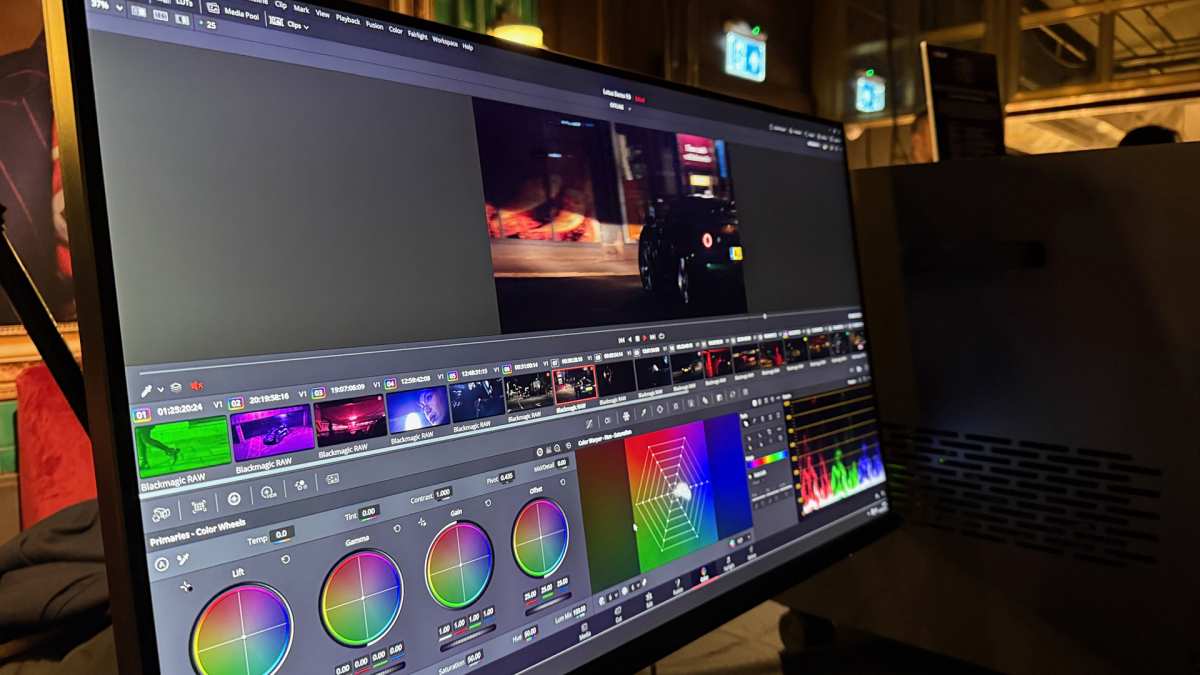
Mini LED refers to the backlighting technology, not the signal or connection type. These monitors use thousands of tiny LED zones behind the panel to deliver deeper blacks, higher peak brightness, and better HDR performance than standard edge-lit displays. A mini LED monitor with DisplayHDR 1000 certification might hit 1,000 nits of peak brightness, while a typical SDR panel tops out around 300 to 350 nits.
From a connectivity standpoint, a mini LED monitor is just another display. It accepts HDMI or DisplayPort input like any other screen. The mini LED backlight doesn't change what kind of GPU you need.
What changes is the experience you're expecting. If you bought a mini LED monitor for its HDR capabilities, you'll want to make sure your integrated graphics setup can actually output an HDR signal at the monitor's native resolution and refresh rate.
The panel technology underneath the mini LED backlight is usually IPS or VA, sometimes with quantum dot enhancement. That doesn't affect compatibility either. What matters is the combination of resolution, refresh rate, color depth, and HDR metadata your iGPU can push through the available port.
First Things First: Does Your CPU Actually Have Integrated Graphics?
This is the step people skip, and it's the one that causes the most frustration. Not every processor comes with integrated graphics built in. Assuming yours does is a mistake that leads to a blank screen and a lot of head-scratching.
Intel's naming convention gives you a clue. Processors with an "F" suffix, like the Core i5-14400F or Core i7-14700KF, do not have integrated graphics. They're cheaper because Intel disables the iGPU, and they require a discrete graphics card to output any video at all.
If you have an F-series chip and no dedicated GPU, you won't get a picture on any monitor.
On the AMD side, most Ryzen 7000 and 8000 series desktop processors actually include a basic RDNA 2 integrated GPU, even the non-G models. The exception is that AMD doesn't use a suffix to indicate missing graphics the way Intel does with F. Instead, you need to check the specific model.
For example, Ryzen 9 7950X3D does include a basic iGPU for display output, while some embedded or Threadripper chips do not.
Here's a quick breakdown:
| Processor Line | Has iGPU? | Notes |
|---|---|---|
| Intel Core non-F (e.g., i5-14400) | Yes | UHD 730/770 depending on model |
| Intel Core F-series (e.g., i5-14400F) | No | Requires discrete GPU |
| Intel Core Ultra (Meteor Lake) | Yes | Newer Arc-based iGPU |
| AMD Ryzen 7000/8000 (most models) | Yes | Basic RDNA 2 iGPU |
| AMD Ryzen G-series (e.g., Ryzen 7 8700G) | Yes | Powerful RDNA 3 iGPU |
| AMD Threadripper | No | Requires discrete GPU |
If you're on a laptop, you almost certainly have integrated graphics. Nearly every laptop processor includes an iGPU because running a display without one would be impractical. The only exceptions are some high-end gaming laptops that ship with the iGPU disabled in favor of a dGPU-only configuration, though this is rare.
What Your Motherboard or Laptop Ports Tell You
Having an iGPU in your CPU is only half the equation. You also need a physical video output port that's wired to that iGPU. On a desktop, those ports live on the motherboard's rear I/O panel.
On a laptop, they're along the sides.
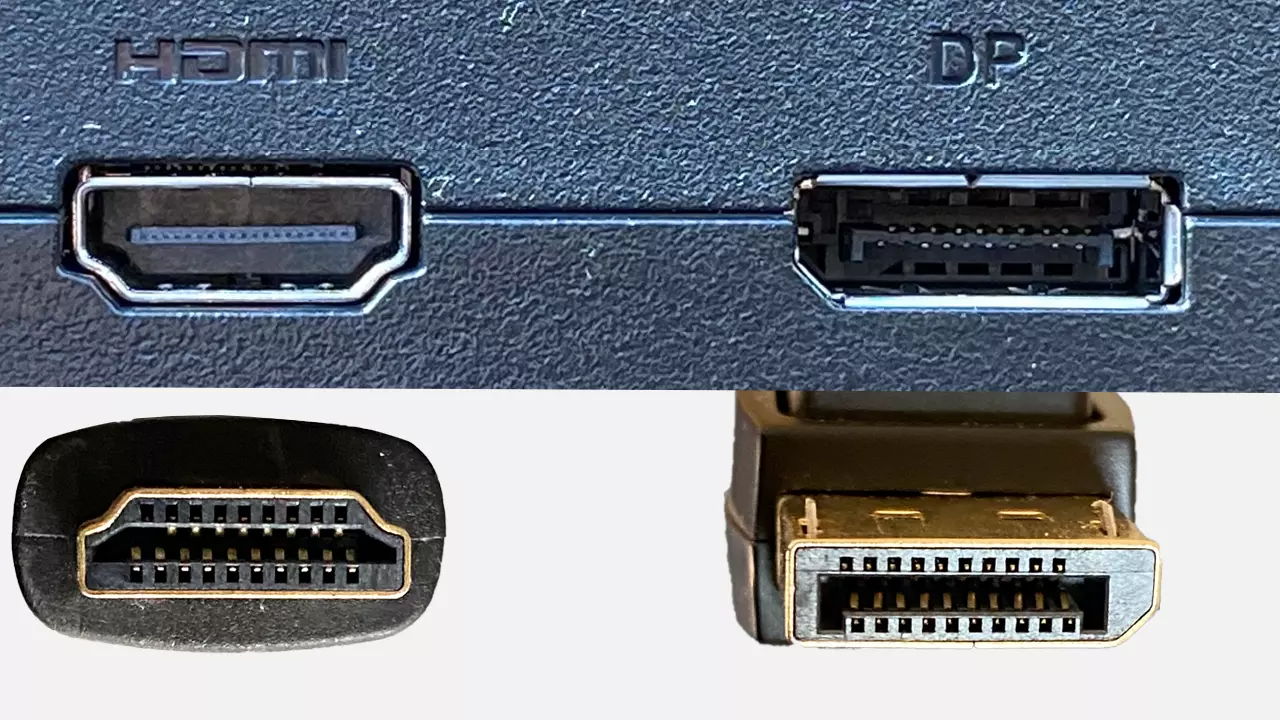
The most common ports you'll encounter are HDMI and DisplayPort. Some laptops also offer USB-C with DisplayPort Alt Mode, which carries a DisplayPort signal through the USB-C connector. A few newer laptops and motherboards include Thunderbolt 4 or USB4, which also support video output.
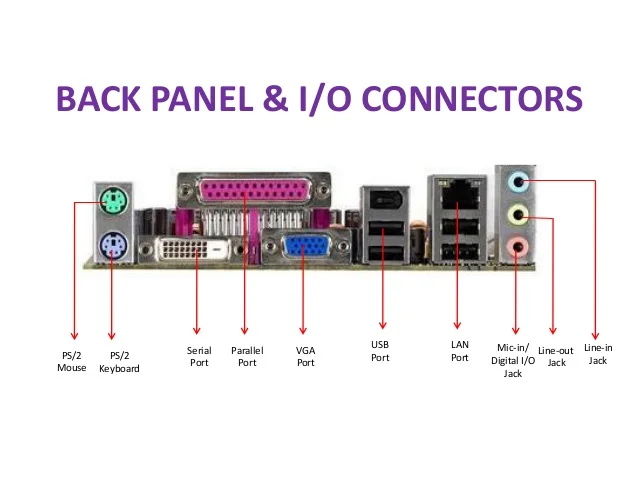
Here's where it gets tricky. Not every motherboard includes video output ports. Many high-end boards aimed at enthusiasts who'll use a discrete GPU omit HDMI and DisplayPort connectors entirely to save cost and board space.
If your motherboard has no video outputs, your iGPU has nowhere to send its signal, and you'll need a discrete graphics card regardless of whether your CPU has integrated graphics.
On laptops, the situation is more straightforward. If your laptop has an HDMI port or a USB-C port with a DisplayPort icon next to it, that port is connected to the iGPU and can drive an external monitor. The catch is that some laptops route their video outputs through the discrete GPU when one is present, which can cause compatibility quirks.
For pure iGPU output, look for ports that are active even when the dGPU is disabled.
The Cable and Connection Bottleneck Most People Miss
You've confirmed your CPU has integrated graphics. Your motherboard or laptop has a video output port. Now the cable and port version become the deciding factors.
This is where most people hit a wall without realizing it.
Every version of HDMI and DisplayPort has a maximum bandwidth. If your monitor needs more bandwidth than your port can provide, you'll be stuck at a lower resolution, a lower refresh rate, or both. The monitor won't break, but you won't get what you paid for.
Here's what each common port version can handle:
| Port Version | Max Bandwidth | 4K @ 60Hz | 4K @ 120Hz | 4K @ 144Hz |
|---|---|---|---|---|
| HDMI 1.4 | 10.2 Gbps | Yes (8-bit, 4:2:0 chroma) | No | No |
| HDMI 2.0 | 18 Gbps | Yes (8-bit, 4:4:4) | No | No |
| HDMI 2.1 | 48 Gbps | Yes | Yes (with DSC) | Yes (with DSC) |
| DisplayPort 1.2 | 17.28 Gbps | Yes (8-bit) | No | No |
| DisplayPort 1.4 | 25.92 Gbps | Yes (10-bit HDR) | Yes (with DSC) | Yes (with DSC) |
| DisplayPort 2.1 | 77.37 Gbps | Yes | Yes | Yes |
DSC, or Display Stream Compression, is a visually lossless compression standard that lets you push higher resolutions and refresh rates through a port that wouldn't otherwise have enough bandwidth. Most modern mini LED monitors and iGPUs support DSC, but older hardware might not. If DSC isn't available on both ends, you're limited to the raw bandwidth of the port.
The cable matters too. A cheap HDMI cable that came with a soundbar might only be rated for HDMI 1.4 speeds. For 4K at 60Hz over HDMI, you need at least a High Speed HDMI cable (HDMI 2.0).
For 4K at 120Hz or higher, you need an Ultra High Speed HDMI cable (HDMI 2.1). DisplayPort cables are similarly tiered, with DP 1.4 requiring a DP8K or DP40 certified cable for full bandwidth.
What Resolution and Refresh Rate Can Your iGPU Actually Push?
Now let's put it all together. Your iGPU's capabilities, combined with your port version and cable, determine what you'll actually get on screen. Here's what the most common integrated graphics solutions can output as of 2026:
Intel UHD 770 (12th/13th/14th Gen non-F)
- Max output: 4K at 60Hz via HDMI 2.0b or DisplayPort 1.4a
- Supports HDR10 output
- DSC supported over DisplayPort
- Can drive 4K at 120Hz over DP 1.4 with DSC
Intel Iris Xe (11th/12th Gen mobile)
- Max output: 4K at 60Hz via HDMI 2.0b
- Some configurations support DP 1.4 over USB-C for 4K at 120Hz
- HDR10 supported
Intel Arc iGPU (Core Ultra / Meteor Lake)
- Max output: 4K at 60Hz via HDMI 2.1, up to 4K at 144Hz via DP 2.1
- Full HDR10 and Dolby Vision support
- DSC and advanced color depth support
AMD Radeon 680M (RDNA 2, Ryzen 6000 mobile)
- Max output: 4K at 60Hz via HDMI 2.0, 4K at 120Hz+ via DP 1.4
- HDR10 supported
- Strong iGPU performance for the class
AMD Radeon 780M (RDNA 3, Ryzen 7040/8040 mobile)
- Max output: 4K at 60Hz via HDMI 2.1, higher via DP 1.4
- Full HDR support
- Comparable to Intel Arc iGPU for display output
For a typical 4K 60Hz mini LED monitor, any of these iGPUs will work fine. The monitor will display a full-resolution image, and you'll get the benefit of the mini LED backlight for contrast and brightness. Where you might feel limited is if your mini LED monitor is a high-refresh model, like a 4K 144Hz or 165Hz panel.
In that case, you'll need either DisplayPort 1.4 with DSC or HDMI 2.1 to hit the monitor's maximum refresh rate, and not every iGPU or motherboard port supports those standards.
If your setup maxes out at 4K 60Hz but your monitor does 144Hz, the monitor will still work. It'll just run at 60Hz. That's perfectly fine for productivity, media consumption, and casual use.
You only need the higher refresh rate if you're gaming or doing motion-sensitive work, and in those scenarios, integrated graphics would struggle with frame rates anyway.
HDR Over Integrated Graphics: What Works and What Doesn't
HDR is one of the main reasons people buy mini LED monitors, and this is where integrated graphics can get finicky. Your iGPU needs to support HDR output, your port needs to carry the HDR metadata, and your operating system needs to have HDR enabled. Miss any one of those and you'll get a standard dynamic range image on a very capable HDR panel.
Intel's UHD 770 and newer iGPUs support HDR10 output. AMD's RDNA 2 and RDNA 3 integrated graphics also support HDR10. The Intel Arc iGPU in Core Ultra processors goes further with Dolby Vision support in some configurations.
On paper, that sounds great. In practice, HDR over integrated graphics often looks washed out or overly dim if the OS and application aren't configured correctly.
Windows HDR handling has improved significantly since Windows 11 22H2, but it's still not seamless. You'll need to enable HDR in the Windows display settings, and you may need to adjust the HDR/SDR brightness balance slider to get a natural-looking image. Some users report that HDR content looks fine in fullscreen video but desaturated on the desktop.
This is a Windows limitation, not an iGPU limitation.
The port matters for HDR too. HDR10 at 4K 60Hz with 10-bit color requires more bandwidth than standard 8-bit SDR. HDMI 2.0 can handle it, but only just.
DisplayPort 1.4 has more comfortable headroom. If you're trying to run HDR at 4K 120Hz, you'll need HDMI 2.1 or DP 1.4 with DSC.
Step-by-Step: How to Check If Your Setup Will Work
Before you buy a mini LED monitor or start troubleshooting a connection that isn't working, run through this checklist. It'll save you time and guesswork.
Step 1: Identify your CPU model.
On Windows, open Task Manager, go to the Performance tab, and look at the CPU name. On a Mac, click the Apple menu and select About This Write. Look up your CPU on Intel ARK or AMD's product page to confirm whether it includes integrated graphics.
Step 2: Check your video output ports.
Look at the back of your desktop or the sides of your laptop. Note whether you have HDMI, DisplayPort, or USB-C with DisplayPort Alt Mode. If you have a desktop with no video ports on the motherboard, you'll need a discrete GPU.
Step 3: Find your port version.
This is the hardest step because it's not always labeled. Check your motherboard or laptop manual, or look up the specifications on the manufacturer's website. For Intel 12th through 14th Gen desktops, the HDMI port is typically HDMI 2.0b and the DisplayPort is 1.4a.
For AMD AM5 boards, HDMI is often 2.1.
Step 4: Check your monitor's input requirements.
Look at the monitor's spec sheet. What resolution and refresh rate does it support over each input? Some monitors only support their maximum refresh rate over DisplayPort, not HDMI.
Others require HDMI 2.1 for full bandwidth.
Step 5: Use the right cable.
Match your cable to the port version. Don't use an old HDMI 1.4 cable with an HDMI 2.1 port and expect 4K 120Hz. Look for certification labels on the cable packaging or the cable itself.
Step 6: Configure your display settings.
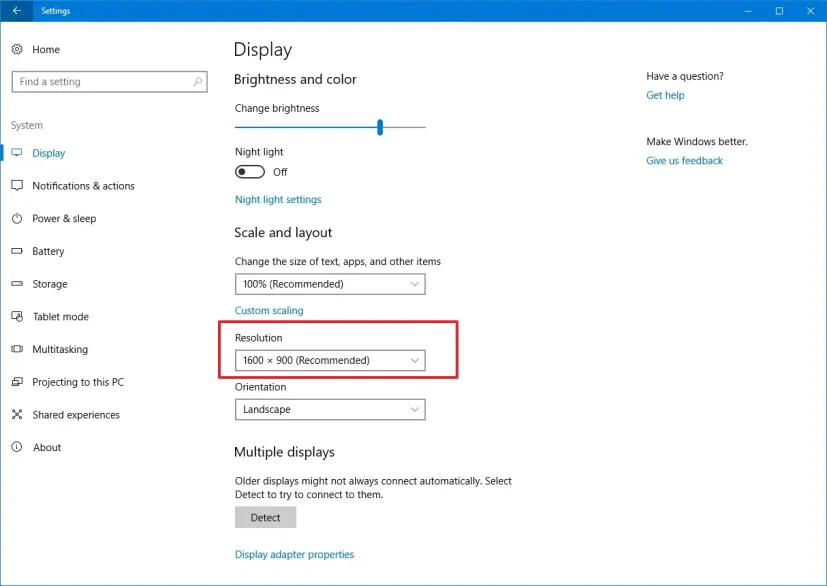
After connecting the monitor, go to your OS display settings and verify the resolution and refresh rate are set correctly. On Windows, go to Settings > System > Display > Advanced display. On macOS, go to System Settings > Displays.
If the resolution or refresh rate looks wrong, update your iGPU drivers.
Step 7: Test HDR if applicable.
Enable HDR in your OS settings and test with actual HDR content. YouTube has HDR test videos, and Windows includes an HDR calibration app. If the image looks off, toggle HDR off and on again, and check that your cable and port support the required bandwidth.
Real-World Scenarios: What to Expect in Practice
Let's walk through a few common setups and what you can realistically expect.
Scenario 1: Office desktop with Intel Core i5-14400 and a 4K 60Hz mini LED monitor.
This works without any issues. The i5-14400 has UHD 770 graphics, and most B760 or Z790 motherboards include at least one HDMI 2.0 and one DisplayPort 1.4 output. Connect the monitor via DisplayPort, set it to 4K 60Hz, and you're done.
HDR will work for video playback, though desktop HDR may need some tweaking in Windows settings.
Scenario 2: Laptop with AMD Ryzen 7 7840U and a 4K 144Hz mini LED monitor.
The Ryzen 7 7840U has a Radeon 780M iGPU, which is quite capable. If your laptop has a USB-C port with DisplayPort Alt Mode, connect the monitor via a USB-C to DisplayPort cable. You should get 4K at up to 120Hz, possibly 144Hz with DSC depending on the laptop's port implementation.
HDMI on laptops is often limited to 2.0, so prefer USB-C or Thunderbolt for high refresh rates.
Scenario 3: Desktop with Intel Core i5-14400F and no discrete GPU.
This won't work. The F-series processor has no integrated graphics, and without a dedicated GPU, there's no video output at all. You'd need to either swap to a non-F processor or add a discrete graphics card.
Scenario 4: Older laptop with Intel 10th Gen i7 and a 4K mini LED monitor.
Intel's 10th Gen UHD Graphics can output 4K at 60Hz over DisplayPort 1.2 or HDMI 2.0. If your laptop has either of those ports, you'll get a solid 4K image. Don't expect HDR to work well, as 10th Gen's HDR support is limited.
The mini LED backlight will still improve contrast and brightness compared to a standard monitor, even in SDR mode.
Common Mistakes That Cause "No Signal" or Limited Output
The most common mistake is assuming all video ports are created equal. Plugging a 4K 144Hz monitor into an HDMI 1.4 port and wondering why you're stuck at 1080p 60Hz is a rite of passage. Always verify your port version before blaming the monitor or the cable.
Another frequent issue is using the wrong cable. That old HDMI cable from your PS3 isn't going to carry a 4K HDR signal. Cables don't last forever either.
A damaged or low-quality cable can cause flickering, dropouts, or a complete loss of signal, especially at higher bandwidths.
Driver problems are surprisingly common. If your display is stuck at a low resolution or the refresh rate options are limited, update your iGPU drivers. Intel's Driver & Support Assistant and AMD's Auto-Detect Tool make this straightforward.
On Windows, generic Microsoft display drivers sometimes get installed instead of the manufacturer's drivers, which limits functionality.
On desktops, a subtle mistake is plugging the monitor into the motherboard's video port when a discrete GPU is also installed. Some motherboards automatically disable the iGPU when a dGPU is detected. If you want to use the iGPU for a secondary monitor, you may need to enable "iGPU Multi-Monitor" or a similar option in the BIOS.
Finally, don't overlook the monitor's own settings. Some monitors have separate modes for different HDMI versions or require you to enable high-refresh-rate mode in the on-screen display menu. Check the monitor's manual if something isn't working as expected.
When You'll Need a Discrete GPU Instead
Integrated graphics are great for productivity and media, but there are clear scenarios where a discrete GPU becomes necessary.
If you want to game on a mini LED monitor at its native resolution and refresh rate, integrated graphics won't cut it. Even the best iGPUs struggle to push modern games at 4K, and high-refresh-rate gaming at 1440p or 1080p is also beyond their reach for demanding titles. A discrete GPU gives you the rendering power and the display output headroom.
Professional color work is another area where a dGPU helps. While iGPUs can drive a mini LED monitor for photo and video editing, some professional applications leverage GPU acceleration for rendering, effects, and real-time playback. A discrete GPU also ensures consistent 10-bit color output, which some iGPUs handle inconsistently.
If you're running multiple high-resolution monitors, the iGPU's limited display pipeline can become a bottleneck. Most iGPUs support two or three displays simultaneously, but driving multiple 4K panels at high refresh rates may exceed their bandwidth or display count limits. A discrete GPU typically offers more display outputs and higher total bandwidth.
Lastly, if your CPU simply doesn't have integrated graphics, there's no way around it. You need a discrete GPU for any video output at all.
Quick Reference: iGPU Output Capabilities at a Glance
Here's a summary of what each major integrated graphics solution can deliver for mini LED monitor connectivity:
| iGPU | Max Resolution | Max Refresh at 4K | HDR | Best Port |
|---|---|---|---|---|
| Intel UHD 730/770 | 4K | 60Hz (120Hz with DSC) | HDR10 | DP 1.4 |
| Intel Iris Xe (11th/12th Gen) | 4K | 60Hz (120Hz via USB-C DP) | HDR10 | DP over USB-C |
| Intel Arc (Core Ultra) | 4K | 144Hz+ | HDR10, Dolby Vision | DP 2.1 / HDMI 2.1 |
| AMD Radeon 680M | 4K | 60Hz (120Hz via DP 1.4) | HDR10 | DP 1.4 |
| AMD Radeon 780M | 4K | 60Hz (120Hz+ via DP) | HDR10 | DP 1.4 / HDMI 2.1 |
Final Verdict: Should You Run a Mini LED Monitor on Integrated Graphics?
For most people using a mini LED monitor for productivity, media, and general computing, integrated graphics work perfectly well. You get the full benefit of the mini LED backlight, local dimming, and high resolution without needing a discrete GPU. The key is matching your port version and cable to the monitor's requirements.
If your mini LED monitor is a standard 4K 60Hz panel, any modern iGPU handles it comfortably. If you have a high-refresh mini LED display, verify your port and cable can deliver the bandwidth you need. HDR works on recent iGPUs but requires proper OS configuration.
Skip the discrete GPU if you're not gaming or doing GPU-intensive creative work.
The only hard stop is if your CPU lacks integrated graphics entirely. In that case, no amount of cable swapping or driver updates will produce a picture. Confirm your CPU has an iGPU, check your ports, use the right cable, and you'll be set.
Frequently Asked Questions
Will a mini LED monitor work with Intel UHD Graphics?
Yes. Intel UHD 730 and 770 graphics can drive a mini LED monitor at 4K 60Hz through HDMI 2.0 or DisplayPort 1.4. You'll get full resolution and the benefit of the mini LED backlight.
HDR10 output is supported but requires proper Windows settings configuration.
Do I need a dedicated GPU for a 4K mini LED monitor?
No, not for standard 4K 60Hz use. Modern integrated graphics from Intel and AMD handle 4K 60Hz output without issue. You only need a discrete GPU if you're gaming at high frame rates, doing GPU-accelerated professional work, or driving multiple high-resolution displays.
Why is my mini LED monitor stuck at 30Hz?
You're likely using an HDMI 1.4 cable or port, which limits 4K output to 30Hz. Switch to a High Speed HDMI cable (HDMI 2.0) or use a DisplayPort connection. Check your cable certification and port version in your motherboard or laptop specifications.
Can I get HDR on a mini LED monitor with integrated graphics?
Yes, if your iGPU is Intel 10th Gen or newer or AMD Ryzen 6000 series or newer. Enable HDR in your operating system display settings and use a cable that supports the required bandwidth. Some tweaking of the HDR brightness balance may be needed for the best picture.
Does USB-C work for connecting a mini LED monitor to integrated graphics?
Yes, if your USB-C port supports DisplayPort Alt Mode. Most modern laptops with USB-C video output connect directly to the iGPU. Use a USB-C to DisplayPort cable for the best results, especially at higher refresh rates.

Similar Posts





















