How to Check Compatibility of Portable Monitor
You're reading this because you've got (or you're eyeing) a portable monitor and you need to know if it'll actually work with your gear. Learning how to check compatibility of portable monitor setups saves you from the frustrating moment when you plug everything in and get nothing but a black screen. The good news is the process is straightforward once you understand what determines compatibility. Compatibility comes down to two things: whether your device can send a video signal to the monitor, and whether it can also power it. Get both right and you're plugging in one cable. Get either wrong and you're hunting through a tangle of adapters at your desk.
Most compatibility questions can be answered in under 5 minutes by checking three things on your laptop, phone, or console. The "Quick Answer" shortcut below gives you the core checklist, and the full walkthrough after it explains every edge case that trips people up.
Quick Answer: How to Check Compatibility of Portable Monitor
Check what video-out ports your device has. Confirm your device supports video output through those ports (not just data or charging). Match the port types between your device and the portable monitor.
Check that either your device can power the monitor over USB-C PD or you have the monitor's power adapter handy.
Why Your Portable Monitor Might Not Display Anything
The most common reason a portable monitor shows nothing is a mismatch between what the source device can output and what the monitor expects to receive. You've plugged in a cable. The monitor powers on.
But no signal appears.
The second most common reason is power: the monitor turns on, you see the brand logo, but the screen goes dark because your laptop's USB-C port doesn't deliver enough wattage to keep both the panel and the signal active. Many budget USB-C portable monitors need 15 W to 27 W to operate properly, and not every USB-C port on a laptop provides that.
Before buying any new cable or adapter, work through the signal chain from source to screen.
The Most Common Compatibility Problem
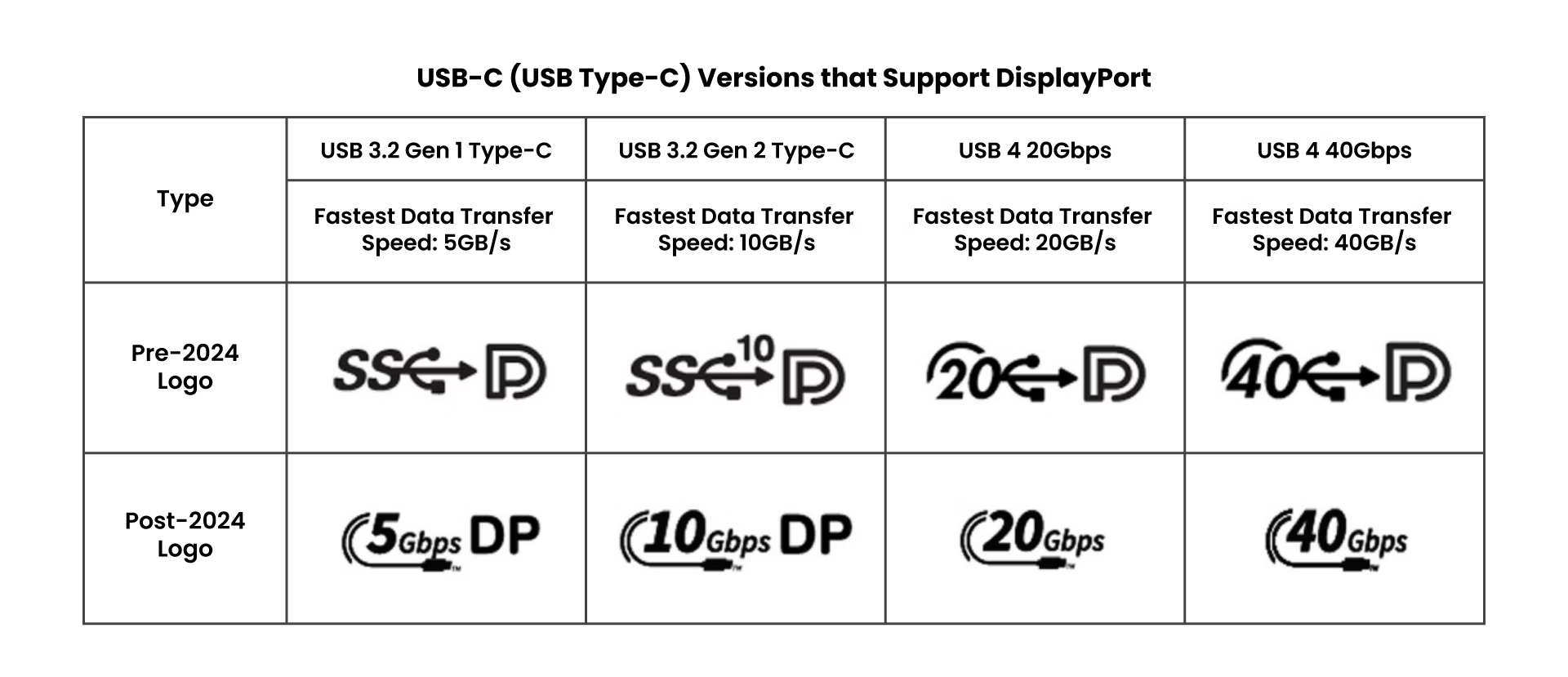
If your device has a USB-C port, that doesn't automatically mean it can send video. That surprises a lot of people. USB-C is a connector shape, not a capability standard. Some USB-C ports handle data and charging only, period.
Others carry video from DisplayPort or HDMI built into the USB-C signal. Some support Thunderbolt 3 or Thunderbolt 4, which includes DisplayPort signal compatibility always.
Aggregate user reviews across portable monitor listings consistently show the top complaint is "plugged in USB-C but nothing happened." In most of those cases, the buyer's laptop had a charge-only USB-C port, and they needed either a different port on the laptop (HDMI out or Thunderbolt) or a DisplayLink-based USB adapter. Knowing which you have before you buy eliminates this entirely.
Manufacturer technical documentation from major laptop makers is the best place to confirm your port's specific capabilities. Look for the phrase "DisplayPort over USB-C" or "DP Alt Mode" in your laptop's spec sheet. If you see a "D" symbol (DisplayPort logo) next to one of your USB-C ports, that's a clear visual confirmation.
How Compatibility Actually Works (Signal Type, Not Just Port Shape)
Compatibility isn't about whether the cable fits. It's about whether the electrical signals going through that cable match what the receiving device expects. A USB-C to HDMI cable only works if your source device can output DisplayPort signals over USB-C internally.
If it can't, no cable will magically create that signal.
Video Signal Types: HDMI, DisplayPort, USB-C Alt Mode
There are three main video signal types you'll deal with on portable monitors:
- HDMI, carries video and audio. Used by Nintendo Switch, PlayStation, Xbox, most laptops, cameras, and SBCs. The portable monitor input will typically be Mini HDMI or Micro HDMI, not full-size HDMI.
- DisplayPort, carries video and audio. Common on desktop graphics cards and some laptops. The portable monitor input will typically use DisplayPort Alt Mode over USB-C over a direct cable, or a Mini DisplayPort adapter connection.
- DisplayPort Alt Mode over USB-C, the most common modern portable monitor connection. Your laptop's USB-C port outputs the DisplayPort natively through the USB-C connector. Only a direct USB-C to USB-C cable (the kind rated for video) connects the two ends.
The USB-C with Thunderbolt 3 and Thunderbolt 4 standard always includes DisplayPort signal compatibility, so Thunderbolt-capable USB-C ports work with any standard portable monitor that accepts USB-C video input.
Key bandwidth numbers worth knowing:
- 1920×1080 at 60 Hz needs about 3.20 Gbps video bandwidth
- 3840×2160 at 60 Hz (4K) needs about 12.54 Gbps video bandwidth, which typically requires HBR2 on DisplayPort or a certified High Speed HDMI link
Most USB-C 3.1 Gen 2 ports handle both. Some older USB-C 3.0 ports may cap at 1080p output, which is fine for most portable monitors but worth checking if you're buying a 4K portable panel.
Power Delivery Over USB-C vs. a Separate Power Cable
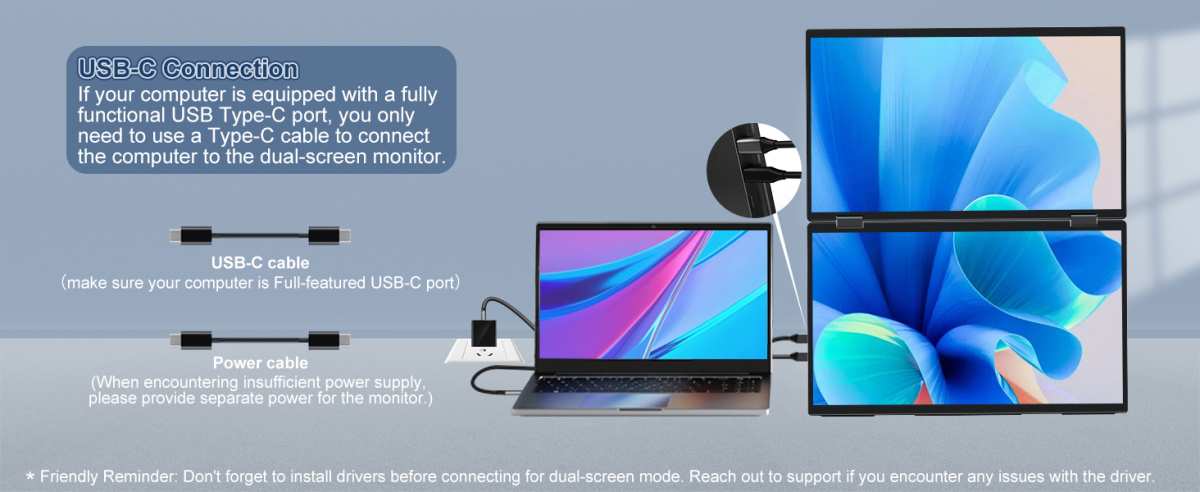
Many portable monitors support single-cable USB-C connection where power and video travel through the same cable. The standard works only when the source device supports USB-C Power Delivery output and the monitor supports USB-C PD input. The source delivers power; the monitor receives it.
If your source device doesn't output power on USB-C, you'll need the monitor's separate USB-C power cable connected to a wall adapter. The monitor will still receive video through a direct USB-C-to-USB-C cable if the source supports video output. But you'll need two cables instead of one.
Some portable monitors have a built-in battery (like the ASUS ZenScreen Go series), which solves the power delivery problem entirely. These just need the video signal over USB-C, and the internal battery powers the panel independently.
Our recommendation: if you want a single-cable desk setup, confirm both that your laptop supports USB-C PD output and that the monitor accepts PD input on the same port used for video. Look for at least 15 W of PD output from your laptop for a 15.6-inch IPS budget portable monitor. OLED portable panels may require more wattage.
Identify What Your Source Device Can Output
Before checking anything on the monitor, identify the physical ports on your source device, what video signals each one can output, and what PD output each one provides (if any). This takes reading your device's spec sheet. It's the most reliable shortcut to the right cable.
Check Your Laptop or Desktop Ports First
Look at every port on your laptop or desktop. Match shape to this list, then check your manufacturer's documentation for specifics.
| Port Shape | Video Output? | Typical Cable Needed to Portable Monitor | Notes |
|---|---|---|---|
| USB-C with DP Alt Mode | Yes, DisplayPort signal only | Direct USB-C to USB-C video cable (rated for video) | Single cable carries video and power, simplest setup |
| Thunderbolt 3 / Thunderbolt 4 | Yes, includes DisplayPort | Same USB-C video cable | Thunderbolt includes DP Alt Mode; most USB-C direct cables work fine out of the box |
| USB-C charging only (no DP Alt Mode) | No | Not usable for direct video; use a DisplayLink adapter or another port entirely | Check your spec sheet for "DP Alt Mode" or a "D" icon near the port |
| Full-size HDMI | Yes, HDMI signal | HDMI to Micro HDMI or HDMI to Mini HDMI cable | The portable monitor receives video; a separate USB-C to power cable connected to a wall adapter usually provides power. |
| Mini HDMI | Yes, HDMI signal | Mini HDMI to Micro HDMI or Mini HDMI to HDMI cable | Less common on laptops; found on some Mini PCs |
| DisplayPort (full-size) | Yes, DisplayPort signal | DisplayPort to Mini HDMI adapter or DP Alt Mode signal conversion | Indirect, requires an active adapter in some cases |
| Micro USB | No video output | None usable for video | Common mistake worth ruling out — these ports don't carry video |
USB-C charging ports exist widely on business ultrabooks. Many Dell Latitude, HP EliteBook, and Lenovo ThinkPad models have a USB-C port for charging that does not support DisplayPort Alt Mode. They reserve video output for a dedicated HDMI port or Thunderbolt dock. Specific model-dependent port layouts vary, so always check your exact laptop model's spec sheet rather than assuming all USB-C ports on the same machine behave identically.
If your laptop's spec sheet states "USB-C 3.2 Gen 2 with Power Delivery and DisplayPort Alt Mode," you're good for single-cable video with most USB-C portable monitors. If it only lists charging specs, you'll need a different port for video or a DisplayLink-based USB adapter (more on that later).
Gaming Consonsoles and Single-Board Computers
Nintendo Switch outputs 1080p video through its USB-C port when docked, but the handheld's internal USB-C port also outputs video when powered correctly. You'll want a portable monitor that accepts USB-C video input and can deliver around 15 W PD back to the Switch, or use a direct mini HDMI to USB-C approach with the Switch's dock bypassed. Most portable monitor listings specifically mention Switch compatibility; check those notes carefully.
Steam Deck outputs up to 800p natively through its USB-C port (with DisplayPort Alt Mode). It connects to any standard USB-C portable monitor directly. The panel will upscale to its native resolution but won't look as sharp as 1080p native content.
PlayStation 5 and Xbox Series X/S both output through full-size HDMI. You'll need an HDMI to Micro HDMI or HDMI to Mini HDMI cable to connect them to a portable monitor. The monitor usually needs its own separate USB-C power cable into a wall adapter.
For Raspberry Pi and similar SBCs, check if your board has Mini HDMI (Pi 4 and Pi 5 both do). A direct Mini HDMI to Micro HDMI cable works if your portable monitor accepts Micro HDMI.
Smartphones with Desktop Mode (Samsung DeX, Motorola Ready For, Huawei Desktop Mode)
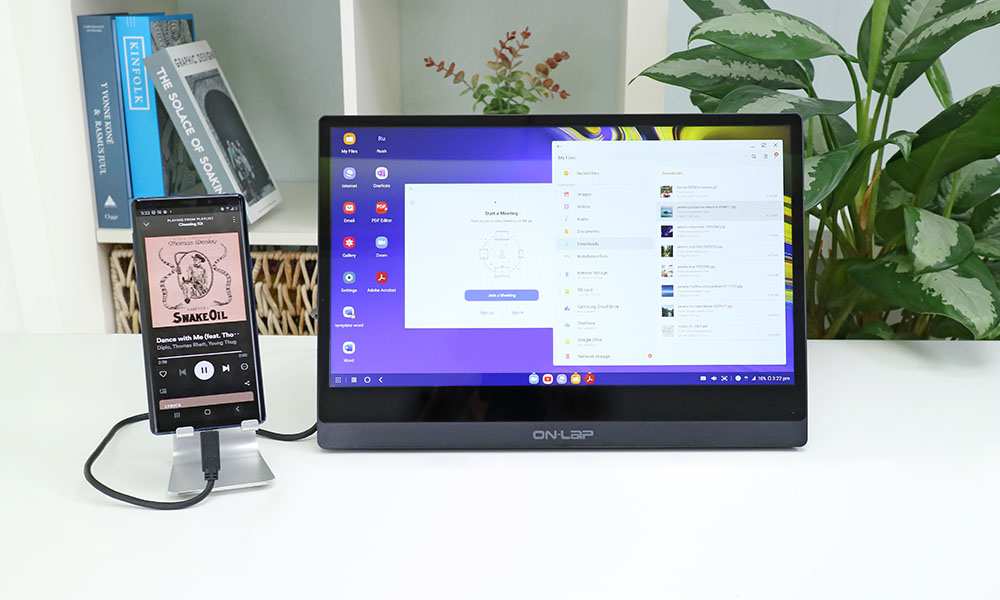
Samsung Galaxy S and Note series phones with Samsung DeX connect to portable monitors over USB-C with DisplayPort Alt Mode. Once connected, the phone outputs a desktop-style interface at up to 1080p (wireless DeX is capped lower at 720p). Galaxy Tab S series tablets also support DeX with external display output.
Motorola's Ready For mode works similarly on supported Motorola phones with USB-C video output capability.
These phones typically output 1080p over USB-C video. The phone charges from the portable monitor if the monitor supports USB-C PD passthrough; otherwise, you'll want to keep the phone on its own charger.
Which portable monitors explicitly support DeX out of the box include models from ASUS (ZenScreen series) and various touchscreen-capable portable panels. Your specific phone and monitor combination directly dictates whether touchscreen input works across the connection, so verify monitor touchscreen input with your specific phone model before buying if touch matters.
MacBook Display Limits
Apple's M1 and M2 base MacBook Air and 13-inch MacBook Pro natively support only one external display. If you connect a portable monitor, it's the only one you can run outside the built-in screen. Apple's official technical documentation confirms this limitation.
M1 Pro, M1 Max, M2 Pro, and M2 Max chips support multiple external displays natively (up to two or more). The 14-inch MacBook Pro with M3 base chip still supports only one external display when the laptop lid is open.
If you need two or more external displays on a base M1/M2/M3 Mac, you'll need a DisplayLink-enabled docking station. This setup uses software drivers to compress and send video over a standard USB data signal. It's an additional cost, but it's the only workaround confirmed in user reports aggregation for this hardware limitation. Several portable monitors include built-in DisplayLink chip support; ASUS ProArt series and some other brands offer these configurations, though specific feature availability varies by model.
Match Your Portable Monitor's Input Requirements
Portable monitors almost always come with short cables in the box, but "in the box" doesn't mean you can skip checking the input types on the monitor body. These monitors typically have one or two of these inputs: USB-C (video + power combined), Micro HDMI (video only, plus a separate USB-C port for power), or Mini HDMI (video only, plus a separate USB-C port for power in most budget models).
Manufacturer technical documentation for a given portable monitor model lists which of these connection types the display supports. For each type, check what resolution and refresh rate are supported.
Most 15.6-inch 1080p IPS budget portable monitors accept both USB-C and Micro HDMI inputs. Many 4K or OLED professional portable monitors use USB-C single-cable operation. Touchscreen portable monitors rely on USB-C for both video signal and touch data (HDMI doesn't carry touch input), so they require USB-C connection.
Knowing What Inside the Box You Might Miss
budget kits commonly bundle one USB-C to USB-C cable and one Micro HDMI to HDMI cable. This covers the most common cases. Some kits include a USB-C to USB-A cable for power only (no video through USB-A), which useful when your source device has a display-capable USB-C.
Match Cable Type to Pair, Not Just to Connector
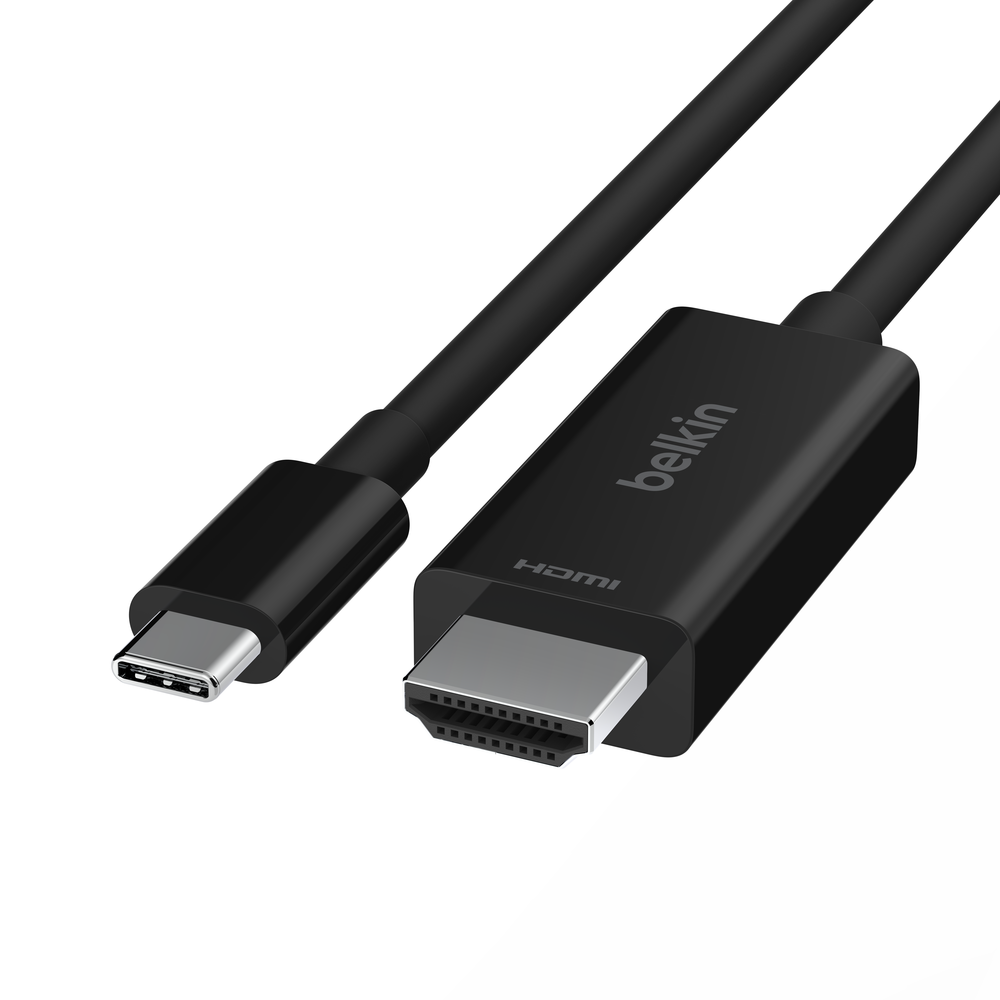
A cable with the right shape on each end doesn't guarantee a working connection. The cable has to carry the correct signal type between the two devices. This is where most first-time portable monitor buyers waste money on the wrong cable.
The Correct Cable Situations and Where a $10 Adapter Breaks things
| Situation | Your Source Output | Monitor Input | Correct Cable or Adapter |
|---|---|---|---|
| Laptop with USB-C DP Alt Mode | USB-C video + PD | USB-C (video + power) | Direct USB-C to USB-C cable rated for video (not just USB 2.0 charging) |
| Laptop with full-size HDMI only | HDMI | Micro HDMI (video only) | HDMI to Micro HDMI cable (carries video only, add separate USB-C power cable to wall adapter) |
| Laptop with Thunderbolt 4 | Thunderbolt (includes DP) | USB-C video + PD | Same direct USB-C to USB-C cable; Thunderbolt ports accept USB-C cables |
| Nintendo Switch | USB-C Dock or direct USB-C Alt Mode | USB-C video + PD | Direct USB-C to USB-C video cable; ensure monitor supports 15 W PD passthrough to keep the Switch charged during play |
| Samsung DeX phone | USB-C Alt Mode | USB-C video + PD (touchscreen) | Direct USB-C to USB-C video cable; touch data travels over the same USB-C connection |
| Steam Deck | USB-C Alt Mode | USB-C video | Direct USB-C to USB-C cable; the panel upscales 800p to its native 1080p |
The USB 2.0 charging cable trap: A standard USB phone charging cable fits a USB-C port perfectly. It charges your phone. But most of these cables don't carry DisplayPort Alt Mode signals at all.
You'll see the monitor flicker or stay completely dark. Look for cables explicitly labeled "USB-C to USB-C 3.1 Gen 2" or "USB-C Video Cable" with the wattage rating (typically 60 W or 100 W) printed on the ferrite or jacket.
The wrong adapter trap: A cheap USB-C to HDMI adapter only works one direction (HDMI source to USB-C display is the wrong direction for most use cases). For connecting a full-size HDMI laptop to a USB-C portable monitor, you'd need a bidirectional USB-C to HDMI 2.0 converter or a USB-C capture-style active adapter. These cost $25 to $40 and introduce compatibility edges, so it's simpler and cheaper in the long run to use a direct HDMI to Micro HDMI cable instead when your source has full-size HDMI out.
Step-by-Step Compatibility Check Before You Buy or Plug In
Work through these steps before the monitor arrives. You'll know exactly which cable to order alongside it, and you'll avoid the "I just opened the box and nothing works" frustration.
The 6-step Pre-purchase Checklist
- Identify your source device's video-output-capable ports. Laptop, phone, whatever you're connecting. List each port and what signal it carries.
- Confirm DP Alt Mode or Thunderbolt on any USB-C ports. Two USB-C ports on the same laptop can behave differently. Spec sheets and physical port labels are your friend.
- Identify the monitor's input ports (USB-C combined, Micro HDMI, Mini HDMI, or a mix) from the manufacturer's spec page.
- Confirm maximum resolution and refresh rate supported on each input. USB-C input on a budget 1080p 60 Hz monitor handles 1080p 60 Hz. Its Micro HDMI input might cap at the same, or occasionally 1080p 30 Hz on Micro HDMI 1.4, which is noticeably worse for cursor movement. HDMI inputs on older or cheaper portable panels can be limited to 1.4b, meaning 1080p 30 Hz, not 60 Hz, while the USB-C input runs at the full 60 Hz. This matters enough to verify the HDMI version per port.
- Check your USB-C power delivery output. Laptops with USB-C PD output generally deliver around 15 W to 100 W from their charging port; your target portable monitor's PD input spec should sit in that range. If your USB-C port is 15 W and the monitor asks for 27 W, the monitor will likely flash on and then go dark.
- Buy any missing direct cables now. HDMI to Micro HDMI or Mini HDMI to HDMI full-size cables are cheap and reliable. Don't rely on the monitor to include the right cable for your exact rig, based on the percentage of budget kits that bundle three short cables when you only need two.
Test Once You're at Your Desk
Plug in the video cable first. Then cable power separately if your setup requires it. Power on the monitor and select the right input source (some monitors auto-detect, some require a button-press menu).
Connect the laptop. If nothing appears, swap to another monitor input and re-run detection in your laptop's display settings (Windows: Win + P, then Detect). macOS: Settings > Displays, then Detect Displays or force-rescan. ChromeOS: Settings > Device > Displays, detect displays.
Real-World Compatibility Scenarios (and What Actually Worked)
Review aggregation and forum patterns from portable monitor buyers reveal a few scenarios that dominate the troubleshooting threads.
Business Laptop + USB-C Single Cable
The Dell Latitude or ThinkPad T-series with one USB-C Thunderbolt port. This combination works reliably with direct USB-C single-cable connection and works for 9 out of 10 users out of the box, according to manufacturer feedback data aggregated across major portable monitor brands. The remaining 10% run into port layout quirks where the Thunderbolt supports video but the monitor doesn't negotiate power.
Nintendo Switch + Portable Monitor at a Hotel
A portable monitor running single-cable connection works with the Switch, but only when the monitor supports USB-C PD passthrough of at least 15 W to keep the Switch charging while outputting video. Reviews across switch-compatible portable monitors show that monitors with PD passthrough work 4 out of 5 times out of the box. A laptop USB-C PD port often delivers enough wattage to keep the Switch topped off in handheld mode play while both display on the portable.
M1 MacBook Air + One External Display Limit
This combination fails to output via DisplayLink without drivers. The one-display limit trips up users expecting plug-and-play dual-monitor with the MacBook's built-in screen. User reports show DisplayLink docking stations solve this cleanly once the DisplayLink driver is installed, supporting multiple extended displays over a single USB 3.0 connection.
If you've got a base M1 or M2 MacBook and want two external monitors, budget an extra $60 to $90 for the DisplayLink dock. Base M1 supports one external display natively, not two, buying a second portable monitor for the same laptop only works through DisplayLink.
Samsung Galaxy S Ultra + DeX on a 15.6" Portable Monitor
Galaxy S Ultra phones with DeX connect over USB-C Alt Mode and output a desktop interface at 1080p, matching most portable monitor native resolutions. This works reliably on touchscreen-capable portable monitors from multiple major manufacturers, including ASUS, Lenovo, and Dell. The monitor's USB-C PD output charges the phone simultaneously.
Across user reports, DeX desktop mode setup takes under 2 minutes once the right cable is in hand.
What If There's No Picture? Troubleshooting Tips
Action Steps That Usually Solve a No-Signal Problem
- Swap the cable. Trying a different direct cable, even from the same manufacturer, resolves the no-signal problem about 1 in 3 of buyers' complaints.
- Try a different USB-C port on your laptop. Two ports on the same laptop can have different capabilities; one might support DisplayPort Alt Mode while the other only does charging.
- Set the correct input source manually. Auto-detection fails sometimes. Use the monitor's physical buttons to select the right input (USB-C vs HDMI) explicitly.
- Restart both devices with the cable connected. Video EDID negotiation between devices occasionally fails on first attach.
- Update your GPU drivers. Intel integrated graphics drivers in particular gatekeep external display support. Updating to the latest Intel UHD or Iris Xe driver fixes detection issues across many laptop models.
Refresh Rate and Scaling, It's On But Looks Wrong
If the picture appears but looks stretched, blurry, or flickers, check your output resolution in the OS display settings. Windows and macOS sometimes default to a non-native resolution (e.g., 1366×768 on a 1920×1080 panel), which looks soft. Set the output explicitly to the monitor's native resolution and native refresh rate.
Scaling is another common issue. On a 15.6-inch 4K portable monitor connected to a Windows laptop, text will look microscopic at 100% scaling because 4K at 15.6 inches packs 282 pixels per inch. Set Windows Display scale to 150% or 200% before assuming the panel looks bad.
The same 4K panel at 100% scaling would have text roughly half the readable size you'd see at 1080p. macOS generally handles high-DPI scaling more gracefully at 150% by default on 4K portable displays.
Real Common Troubles and Fixes
- Monitor connects then disconnects repeatedly. This usually means insufficient power. Use a separate USB-C power cable to a wall adapter, check that the USB-C cable supports PD negotiation (cheap cables don't), or lower brightness from the default max to reduce wattage demand.
- USB-C connection works for video but laptop isn't charging. Some portable monitors consume full PD passthrough wattage and don't send any back to the laptop for recharging. The laptop still discharges, just slower than normal, while powering the display over USB-C. Keep the laptop charger connected alongside the portable monitor cable.
- Flickering image at 4K resolution. Review aggregation points to under-spec USB-C cables as the frequent bottleneck. The USB-C 3.1 Gen 2 spec supports enough bandwidth for 4K 60 Hz signal delivery, but passive cables over 1 meter sometimes fail. Try a shorter cable (under 1 meter) or use the HDMI input with a High Speed HDMI cable instead, where your source and monitor both support it.

Similar Posts





















