How to Check USB C Monitor Compatibility
You've got the monitor, you've got the cable, and you've got that little USB-C plug that's supposed to make everything just work. But your screen is black, or your laptop isn't charging, or both. Learning how to check USB-C monitor compatibility before you plug anything in saves you the headache altogether.
The problem isn't that USB-C is broken, it's that the connector does so many different things that nobody told you which version lives inside your specific laptop. Three laptops can all have USB-C ports and handle video output in three completely different ways. We'll walk you through it step by step so you can figure out exactly what your setup can do.
Quick Answer
Check your laptop's specs sheet for "DisplayPort Alt Mode" or "Thunderbolt" support on its USB-C port. Verify your cable carries video (not just power and data). Match the monitor's power delivery output to your laptop's charging requirements.
Confirm your resolution and refresh rate fit within the bandwidth your connection supports.
Why Your USB-C Monitor Might Not Be Working (And How to Fix It)
Here's the core issue: USB-C is a connector shape, not a feature set. Just because a port is USB-C doesn't mean it carries video, and just because it carries video doesn't mean it charges your laptop. Every device manufacturer makes different choices about which capabilities to include.
A USB-C port might support any combination of these:
- Data transfer only (USB 2.0 or USB 3.2 with no video)
- Data plus DisplayPort Alt Mode (video output but limited charging)
- Data plus DisplayPort Alt Mode plus USB Power Delivery (video and meaningful charging)
- Thunderbolt 3 or 4 (everything above plus 40 Gbps bandwidth)
If your port only does data, no cable swap on earth will fix that. You'd need a different port on your laptop or a docking station that uses DisplayLink (a completely different technology that compresses video over USB data). The most common fix, though, is simply using a different USB-C port on your laptop, because many laptops ship one video-capable port and one data-only port.
The 30-Second Compatibility Check
This is the fastest way to figure out if your setup has a shot. Run through these four steps in order. If any one of them fails, that's your answer.
Step 1: Does Your Laptop's USB-C Port Actually Support Video?
This is where most people hit a wall. Look up your exact laptop model on the manufacturer's spec sheet and search for one of these terms:
- "DisplayPort over USB-C" or "DP Alt Mode"
- "Thunderbolt 3" or "Thunderbolt 4"
- "USB4"
- "Video output via USB-C"
If the spec sheet lists none of these and only mentions "USB-C" with data transfer speeds and charging wattage, that port cannot output video. Period. A classic example is the 13-inch Dell Inspiron 13 5000 series from 2019-2020, which shipped with a USB-C 3.1 Gen 1 port that supports charging and data only, with no video output available.
That port looks identical to a fully capable one, and it won't say "no video" on the outside of the laptop.
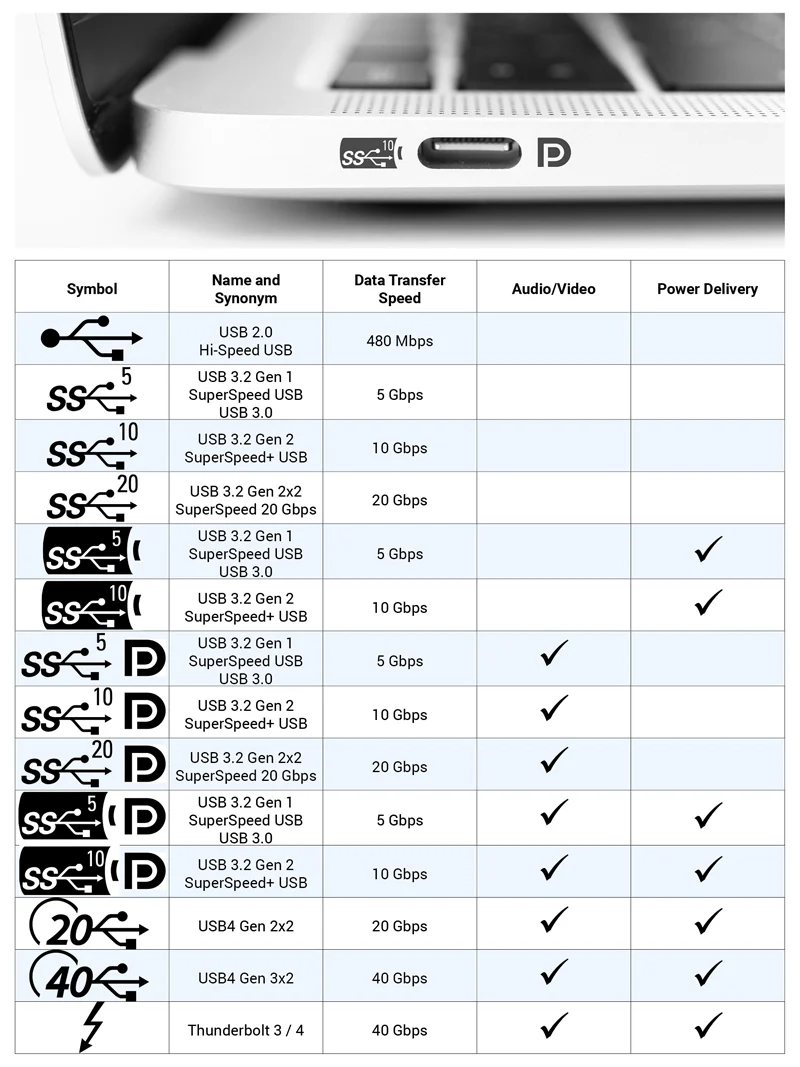
Now, if you see a Thunderbolt logo (a small lightning bolt) next to the port, you're good. Thunderbolt 3 and 4 always support DisplayPort Alt Mode video output. If you see a "DP" symbol or a DisplayPort icon, same thing.
If there's no symbol at all, assume the worst until you check.
You can also use this table as a quick reference for how to decode laptop USB-C capabilities from naming conventions alone:
| What It Says on the Specs Sheet | What It Means for Monitor Output |
|---|---|
| "USB-C 3.2 Gen 1 / Gen 2" | Data likely only; check explicitly |
| "USB-C with DisplayPort 1.4 Alt Mode" | Yes, video supported |
| "Thunderbolt 3" | Yes, video + 40 Gbps bandwidth |
| "Thunderbolt 4" | Yes, guaranteed video + dual 4K |
| "USB4" | Yes, video supported (check version) |
| "USB-C (power delivery only)" | Definitely no video |
After you confirm your port supports video, there's a sneaky detail lurking in the fine print: even a video-capable port can be limited by what version of DisplayPort it implements. A port built to DisplayPort 1.2 spec tops out at 4K at 60Hz, which is fine for office work but cuts it close for anything beyond that. The more common DP 1.4 (often bundled with Thunderbolt 3 or 4) handles 4K at 120Hz and even 8K at 60Hz when DSC compression is in play.
The takeaway is that "supports video" isn't the end of the story; you need to know the flavor of DP behind it, too. So head to Step 2.
Step 2: Does Your Cable Carry a Video Signal or Just Power?
This is the second most common failure point, and it's maddening because all USB-C cables look the same from the outside. The USB-C cable that came with your phone charger might only wire up the power pins. The one bundled with a portable SSD might only handle USB 3.2 data.
Neither will carry a video signal.
To work for video output, a USB-C cable must specifically support DisplayPort Alt Mode. Look for one of these markings on the cable or its packaging:
- "Supports DisplayPort" or "DP Alt Mode"
- "USB-C to USB-C (3.1 Gen 2, Video)", the "video" keyword matters
- Thunderbolt 3 or Thunderbolt 4 certified cables (these always carry video)
- "USB4" rated cable
Cheap Amazon or gas station USB-C cables frequently skip video support entirely. A cable rated only for "USB 2.0 charging and data" at 480 Mbps cannot output video; the physical wiring simply isn't there. You need at minimum a full-featured USB-C 3.1 cable that explicitly calls out video support, or a certified Thunderbolt cable.
Even then, watch out for length, passive cables beyond 2 meters (about 6.5 feet) can start dropping signal integrity on high-speed video, so active cables are a safer bet for longer runs. One last tip that trips up a lot of people: if your cable has a permanently attached USB-A connector on the other end, it's almost certainly USB 2.0-only and won't work for DisplayPort output.
Step 3: Does Your Monitor Give Your Laptop Enough Power?
This won't stop your display from working, but it'll make you furious when you realize your laptop is slowly draining while plugged into a brand-new monitor. USB Power Delivery negotiation happens automatically when you connect, and the monitor offers a fixed power profile that your laptop either accepts or rejects. What matters is whether the monitor's offered wattage meets or exceeds what your laptop needs under load.
Many portable monitors and some 27-inch panels only deliver 15 to 27 watts, which can't keep up with a 45-watt or 65-watt laptop. That puts you in a situation where the screen works perfectly, but your battery percentage drops instead of rising.
Ignore the marketing. Look at the rear label or spec sheet of the monitor under "Power Delivery via USB-C" or "PD Output." Compare the watts listed to your laptop's power adapter rating. Your MacBook Pro 14-inch ships with a 70-watt charger.
If your monitor only delivers 45 watts, the laptop will throttle performance and may drain battery under heavy use. Here's a rough cheat sheet:
| Your Laptop's Power Adapter | Minimum Monitor PD You Should Look For |
|---|---|
| 30W or less (ultrabooks, Chromebooks) | 30W PD is acceptable |
| 45W (some Dell XPS, Lenovo ThinkPad) | 45W or higher |
| 61W / 65W (13-inch MacBook Pro, many laptops) | 60W or higher |
| 87W / 96W / 140W (15/16-inch MacBook Pro, mobile workstations) | 90W or higher |
Also worth noting: some monitors with USB-C, like the Dell S2221HS, don't actually charge your laptop at all. Their USB-C port outputs power for data only. Don't assume every USB-C monitor delivers meaningful watts.
Step 4: Does Your Setup Match What You're Trying to Display?
Even if your port, cable, and power delivery all check out, the resolution and refresh rate you're asking for can exceed what the connection offers. Bandwidth is finite, and higher resolutions with high refresh rates eat it up fast. If your USB-C port is DisplayPort 1.2, you can run 2560×1440 at 60Hz easily, but not 4K at 60Hz without compromise.
Here's the cheat sheet for what fits on a DP 1.4 connection, which is what Thunderbolt 3/4 ports carry:
- 1920×1080 at 144 Hz: fine
- 2560×1440 at 144 Hz: fine
- 3840×2160 (4K) at 60 Hz: fine, but close to the bandwidth ceiling
- 3840×2160 at 120 Hz: requires Display Stream Compression or drops 4:2:0 chroma
If your monitor is 4K 144 Hz, and your port only speaks DisplayPort 1.2, you'll need to lower the refresh rate or resolution in your OS display settings. Over Thunderbolt 4 or USB4, these limits largely go away because the total pipe is wide enough.
What Most People Get Wrong About USB-C and Monitors
The frustration isn't that USB-C is a bad standard, it's genuinely capable. The problem is that the industry has done a terrible job communicating what each port can actually do. Let's clear up the four myths that cause the most confusion.
Scenario 1: "It Should Just Work" Disappointment
You bought a USB-C monitor. Your laptop has a USB-C port. So it should work, right?
Not necessarily. As we covered in Step 1, many laptops ship a USB-C port that's data-only. It charges.
It transfers files. It does not output video.
This isn't a defect. It's a product decision. Manufacturers use cheaper controller chips on budget and mid-range laptops that don't include DisplayPort Alt Mode support.
The port looks identical, the connector is the same, but the wiring behind it doesn't include the pins needed for video.
The fix: Use an HDMI or DisplayPort connection instead, or buy a USB-C dock that uses DisplayLink technology. DisplayLink compresses video over USB data, so it works on any USB-C port regardless of DP Alt Mode support. Plugable and StarTek make reliable DisplayLink docks.
Scenario 2: The Charging Trap
Your monitor works. The picture is great. But your laptop battery is going down instead of up.
This is a power delivery mismatch. Many USB-C monitors, especially portable ones, only deliver 15 to 27 watts through their USB-C port. That's enough to trickle-charge a phone but nowhere near enough for a laptop under load.
The fix: Use your laptop's original power adapter plugged into the wall separately, and let the USB-C cable handle only video. Some docks and monitors let you choose a "high power" mode in their on-screen display settings, but it still might not match your laptop's requirements. Alternatively, if you have a Thunderbolt 4 dock, those commonly push 90W or more to the laptop, which covers most models.
Scenario 3: Daisy-Chain Dreams vs. Reality
You want two monitors off one USB-C cable. The monitor has a USB-C out port. So you should be able to chain them, right?
Maybe, depending on three things. Your laptop's DisplayPort version needs to be 1.2 or higher with MST support. Both monitors need MST (Multi-Stream Transport) in their hardware.
And then the platform matters. macOS does not support MST daisy-chaining. Period. It's a long-standing Apple limitation. Windows and Linux do support it, and it works well if both monitors implement MST correctly (most pro displays do, consumer displays less often).
On a Mac, you'd need a Thunderbolt dock with dual video outputs instead, and that's a different setup entirely, not a simple daisy-chain.
Scenario 4: macOS vs. Windows — Different Rules
macOS handles external displays differently from Windows. Apple's M-series chip base models (M1, M2, M3, non-Pro) support only one external display natively over USB-C/Thunderbolt. You want two?
You need to use a DisplayLink adapter or a Thunderbolt dock that uses a separate chip. M1 Pro/Max/Ultra and M2/M3 Pro/Max chips support two or more external displays natively.
Windows laptops with Thunderbolt 4 can typically support two 4K 60 Hz displays from a single Thunderbolt port via MST or daisy-chaining, though some laptop manufacturers artificially limit this in firmware. Always check your specific model's Thunderbolt capabilities, not just the Thunderbolt spec itself.
Quick Comparison: How Different Laptops Handle USB-C Video Output
Not all laptops with USB-C are created equal. Here's a realistic look at how common laptop categories stack up:
| Laptop Type | Typical USB-C Port Capability | Video Output | Max External Resolution |
|---|---|---|---|
| Budget Windows (Chromebooks, entry-level Inspiron) | USB 3.2 only | Often none | HDMI 1.4 only |
| Mid-range Windows (Dell XPS 13, ThinkPad T-series) | USB-C with DP Alt Mode | Yes, one display | 4K 60 Hz |
| Premium Windows (ThinkPad X1, Spectre, Latitude) | USB-C DP Alt Mode + Thunderbolt 4 | Yes, typically 2 displays | Dual 4K 60 Hz |
| MacBook Air (M1/M2/M3) | Thunderbolt 3/USB4 | 1 external display (no MST) | 6K 60 Hz (single) |
| MacBook Pro (M1/M2/M3 Pro/Max) | Thunderbolt 4 | 2+ external displays natively | 6K 60 Hz per display |
| Gaming laptops (Zephyrus, Legion, etc.) | Varies; often DP Alt Mode + sometimes Thunderbolt | Yes, 1-2 displays | 4K 60 Hz+, depends on model |
The big takeaway: always verify your exact model, not just the brand or series. A Dell XPS 13 from 2020 might have a different port configuration than a 2023 model.
Cables — The Most Common Failure Point
We already talked about cables in Step 2, but it deserves its own section because this is where most people waste money and patience. The USB-C cable ecosystem is a mess of hidden capability tiers, and manufacturers don't make it easy to tell them apart at a glance.
What to look for in a cable that carries video
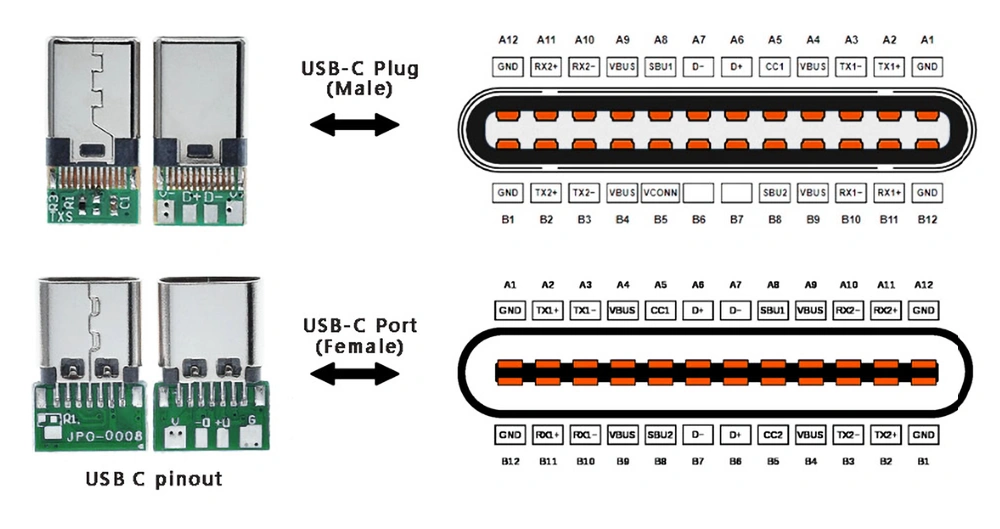
A proper video-capable USB-C cable needs to wire all 24 pins in the USB-C connector. Budget cables often only connect the minimal pins needed for USB 2.0 data (4 pins) and power (4 pins). That leaves 16 pins unconnected, and those 16 pins carry the high-speed data and Alternate Mode signals your monitor needs.
| Cable Type | USB 2.0 Data | USB 3.2 Data | DisplayPort Alt Mode | Thunderbolt |
|---|---|---|---|---|
| Basic charging cable | Yes | No | No | No |
| USB 3.1 Gen 1 cable (cheap) | Yes | Yes (5 Gbps) | Sometimes | No |
| USB 3.2 Gen 2 cable (full-featured) | Yes | Yes (10 Gbps) | Usually | No |
| USB4 cable (20 Gbps) | Yes | Yes | Yes | No (unless TB-rated) |
| Thunderbolt 4 cable | Yes | Yes | Yes | Yes (40 Gbps) |
The cheapest USB-C cables sold in multi-packs almost never support video. They're designed for charging phones and transferring photos. Expect to pay $15 to $25 for a quality 2-meter USB-C cable that explicitly supports DisplayPort Alt Mode.
Certified Thunderbolt 4 cables run $25 to $40 but guarantee full capability.
The "it works for my phone" trap
People frequently test a cable by plugging their phone into their laptop. It charges. It transfers files.
So they assume the cable is "good." But their phone doesn't use DisplayPort Alt Mode. Neither does a portable SSD. The cable can be working perfectly for those uses while being completely incapable of carrying a video signal.
Test your cable with the actual monitor setup. If you get "no signal," try a different cable before you assume your laptop or monitor is the problem. In practice, the cable is the culprit more often than people think.
When a Dock or Hub Changes the Equation
Some laptops don't directly support the monitor you want to run. Maybe your port is data-only. Maybe you need two monitors and your laptop only supports one.
Enter the dock or hub.
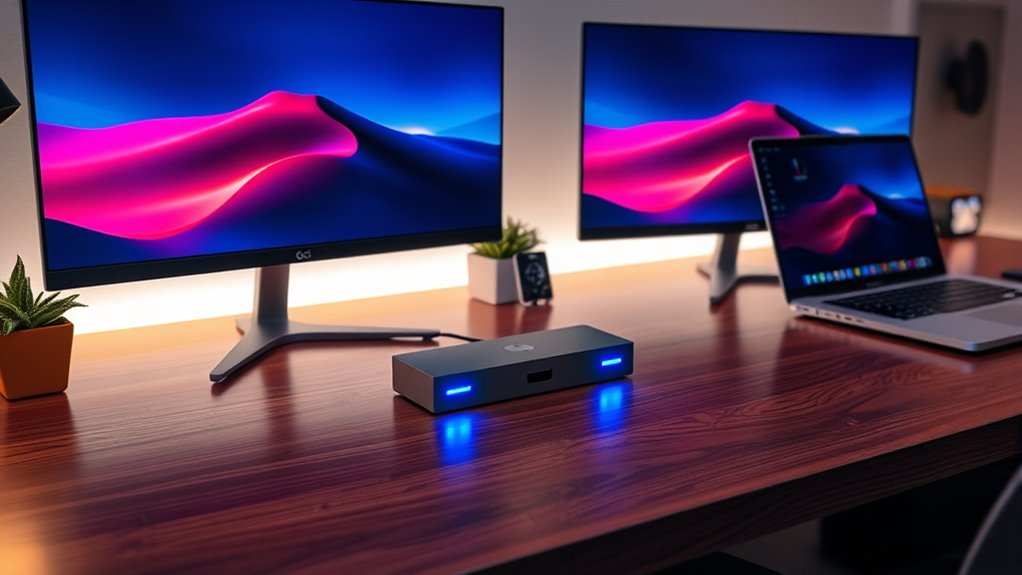
There are two fundamentally different technologies here, and understanding the difference saves real money:
DisplayPort Alt Mode Hub
This is the cheaper, more common type. It takes the video signal from your laptop's DP Alt Mode port and splits it to multiple outputs. It requires your laptop port to already support DP Alt Mode.
No DP Alt Mode port means no video out of this type of hub.
- Works with most USB-C Windows laptops that support video out
- Typically supports dual 4K 30 Hz or single 4K 60 Hz
- Budget-friendly, usually $30-$60
- Brands like Anker, Uni, and Satechi make reliable options
DisplayLink Dock
This is the "works on anything" solution. DisplayLink is a technology that compresses video output into standard USB data. It works over USB 2.0, 3.0, doesn't matter.
If your laptop has any USB port at all (even USB-A with an adapter), DisplayLink can push video to a monitor.
- Works on any USB-C or USB-A port, regardless of DP Alt Mode
- Requires a DisplayLink driver (downloadable from Synaptics)
- Caps at 4K 60 Hz typically, with slight latency from compression
- Slightly more expensive, $50-$100
- Ideal for laptops with data-only USB-C ports and for M1/M2/M3 base MacBooks that can't natively output to more than one external monitor
The trade-off with DisplayLink is latency. It's not suited for fast-paced gaming or color-critical video editing, but for office work and general use it's indistinguishable from a native connection.
Final Decision Tree: Will Your Setup Work?
Here's a simple yes/no flowchart summary. Start at the top and work down:
- Does your laptop's USB-C port support DP Alt Mode or Thunderbolt? No → Use DisplayLink dock or HDMI instead. Stop here.
- Yes. Does your cable support video? No → Buy a USB-C cable labeled for video or Thunderbolt. Stop here.
- Yes. Does your monitor provide enough watts to charge your laptop? No → Monitor will still display. Use your laptop's wall charger for power. Stop here.
- Yes. Does your desired resolution and refresh rate fit within your port's DisplayPort version bandwidth? No → Lower the resolution or refresh rate. Stop here.
- Yes. ✅ Your setup should work. Connect everything and check your OS display settings if needed.
Frequently Asked Questions
How do I know if my USB-C port supports video output?
Check your laptop manufacturer's spec sheet for your exact model. Look for "DisplayPort over USB-C," "DP Alt Mode," "Thunderbolt," or "USB4." You can also check the physical port, a lightning bolt icon (Thunderbolt), a "DP" symbol, or a battery icon next to the port tells you what it does.
Can I use a USB-C cable to connect my monitor to my laptop?
Only if the cable specifically supports DisplayPort Alt Mode or Thunderbolt. Basic USB-C charging cables often lack the wiring needed for video, and they won't say "video" on the packaging. If you've got a cable that isn't explicitly rated for video, swap it for one that is before you start troubleshooting.
Why is my USB-C monitor not charging my laptop?
This comes down to power delivery (PD) wattage. Your monitor may offer only 15 to 27 watts, but your laptop probably needs 45 watts or more. Check the monitor's spec sheet for "USB PD Output" and compare it to your laptop's original charger wattage.
If it's too low, run your laptop on its wall charger and let the cable handle just video.
Can I daisy-chain two USB-C monitors?
It depends. Your laptop needs DisplayPort 1.2 or higher with MST support, your monitors need MST, and your operating system has to play along. Windows and Linux support MST daisy-chaining. macOS does not support it at all, so Mac users need a Thunderbolt dock with dual video ports instead if they want two screens from one cable.
Do I need a Thunderbolt cable for USB-C monitor connection?
Not strictly. A cable labeled "USB-C 3.2 Gen 2" or "USB4" that explicitly calls out DisplayPort Alt Mode support will work. But Thunderbolt cables guarantee full capability and are the safest bet, especially for higher resolutions and refresh rates.
Why does my USB-C monitor work on one laptop but not another?
One of the two laptops likely doesn't support DisplayPort Alt Mode on its USB-C port. This is extremely common with budget laptops. Plug the non-working laptop into the monitor's HDMI port instead.
If the picture comes up through HDMI, you've just confirmed that its USB-C port is data-only.
Common Mistakes to Avoid
Assuming all USB-C ports on the same laptop are identical
Many laptops give you two or three USB-C ports, but only one carries video. The other might be data-only or limited to charging. Check each port's capability individually rather than assuming symmetry.
A label or a small icon might be the only difference, so it's easy to grab the wrong one.
Quick-Reference Compatibility Table
Here's the situation most people actually face when they ask about USB-C monitoring compatibility: they have a monitor and a laptop, they plug in a cable, and nothing works. This table shows why, broken down by what might be failing:
| What You See | Likely Cause | Fix |
|---|---|---|
| No signal, laptop charges | Cable has no video pins, or port lacks DP Alt Mode | Try a different cable, or try the laptop's other USB-C port |
| Signal works, laptop drains battery | Monitor PD wattage is too low | Use laptop's wall charger and let cable handle only video |
| Signal works at wrong resolution | Cable or port can't push enough bandwidth | Shorten the cable, upgrade to TB4, or lower the resolution |
| Flickering or dropouts | Poor quality cable or excessive length | Swap for a certified Thunderbolt cable, 2m or shorter |
| One monitor only, even though you want two | DRM or lack of MST support (common on Mac models) | Use a DisplayLink dock, or a Thunderbolt dock with dual video |
Expert Tips
Update your firmware first. Seriously.
Manufacturers regularly fix USB-C display bugs via BIOS, GPU driver, or Thunderbolt firmware updates. An outdated Thunderbolt controller can fail to negotiate a perfectly fine DP Alt Mode connection, leaving you thinking the monitor is incompatible when a firmware flash would solve it. Before blaming the hardware, install the latest BIOS and graphics driver, then run Windows Update or check for driver updates.
If your laptop has a Thunderbolt port, grab the Intel Thunderbolt Controller update from the manufacturer's support page.
When to call it and use a dock instead
If you've confirmed your port supports video, tried two different cables, and the display still refuses to come up, the next step is to skip the direct USB-C connection altogether. Grab a USB-C hub or a DisplayLink dock (whether it connects via USB-C or USB-A) and feed the monitor through HDMI or DisplayPort from the dock. This adds one extra box to your desk and costs $40 to $80 for a decent unit, but it's an instant path to a working screen without further troubleshooting.
Many people keep one of these docks on their desk permanently, especially if they plug multiple laptops into the same monitor.

Similar Posts





















