Is 4K Monitor Necessary for Video Editing
Is 4K monitor necessary for video editing? Not for most editors, honestly. The answer depends on what footage you're working with, what you're delivering, and what your current setup can actually handle.
If you're cutting 1080p content for social media, a 4K display might just be money better spent elsewhere.
That said, there are real situations where 4K earns its place on your desk. Let's walk through exactly when it helps, when it doesn't, and what actually matters more than raw pixel count.
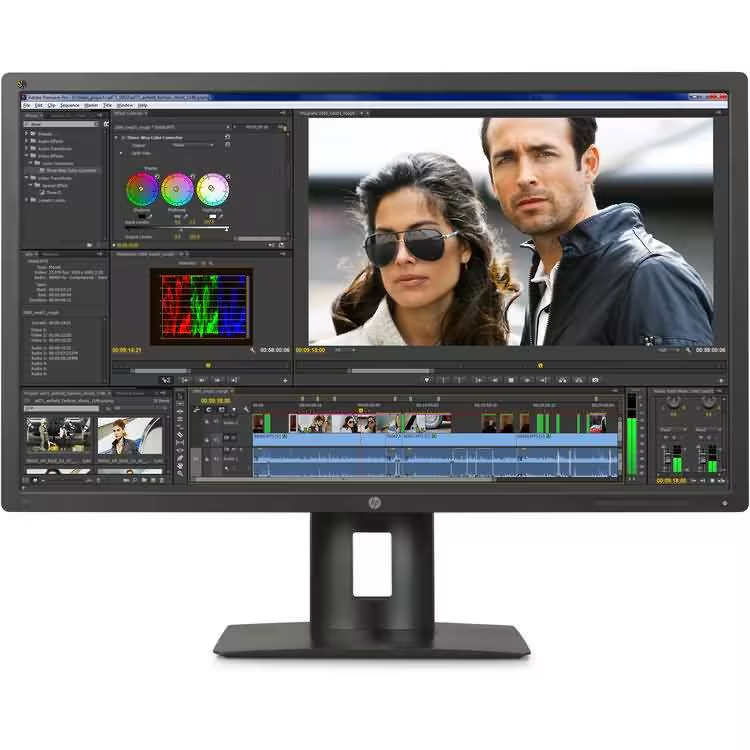
Quick Answer
No, a 4K monitor is not necessary for most video editors. Your source footage resolution and final delivery spec matter more. Color accuracy and panel quality often outweigh resolution.
A 1440p monitor suits many editing workflows well. Professional 4K delivery work is where 4K displays become worthwhile.
Does every editor actually need one?
Here's the thing. Most video editors don't need a 4K monitor to do solid work. If your final output is 1080p for YouTube or social media, you're not seeing the full benefit of that extra pixel count.
What you do need is a display with accurate colors, decent brightness, and proper calibration support. A good 1440p IPS panel with 95% sRGB coverage will serve you better than a cheap 4K monitor with washed-out colors.
The exception? If you're editing 4K or 6K footage for 4K delivery, you'll want to see your work at native resolution. That's where a 4K display stops being a luxury and starts being a practical tool.
When 4K feels like overkill
Let's be blunt. If you're delivering 1080p content, a 4K monitor gives you zero visible improvement in your final product. You're just pushing more pixels for no practical gain.
Here's where 4K can actually hurt you:
- UI scaling issues. At 27 inches, 4K without scaling makes everything tiny. With scaling, some older apps look blurry.
- Performance hit. Your GPU works harder to drive 4K playback plus your timeline. On mid-range hardware, this means dropped frames.
- Higher cost. You're paying more for resolution you might not need. That money could go toward a better panel or more storage.
- Storage demands. Working with 4K proxies or full-res files eats drive space fast.
If your workflow is fast-paced, deadline-driven, and output is 1080p, save your money. Put it toward a color-accurate 1440p display instead.
Why Resolution Isn't the Whole Story
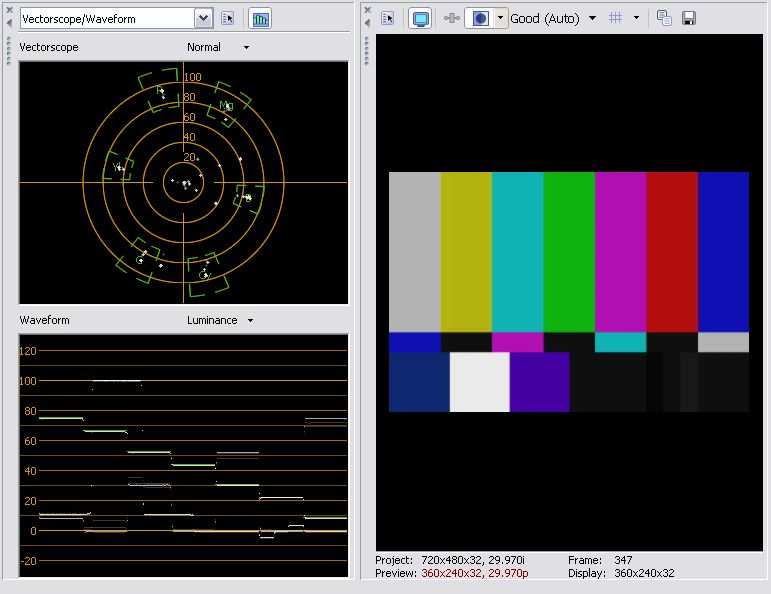
Resolution gets all the marketing attention. But in professional video work, color accuracy matters far more than pixel count. A monitor that displays colors correctly is non-negotiable for any serious editing or grading work.
Color accuracy often matters more than pixel count
Think about it this way. Would you rather see your footage sharp but with wrong colors, or slightly less detailed but with accurate skin tones and proper gamma? Every time, accuracy wins.
Professional color work requires displays that meet specific standards. Rec. 709 is the standard for HD broadcast and most web content. DCI-P3 covers digital cinema.
A monitor covering 95% of DCI-P3 with a Delta E under 2 is doing real professional work. Resolution is secondary to that.
Panel type and calibration: the hidden priorities
The panel technology underneath determines what your monitor can actually do. Here's a quick breakdown:
| Panel Type | Strengths | Weaknesses | Best For |
|---|---|---|---|
| IPS | Wide viewing angles, good color | Lower contrast, IPS glow | General editing, color work |
| VA | High contrast, deep blacks | Color shift at angles | Grading in dark rooms |
| OLED | Perfect blacks, infinite contrast | Burn-in risk, higher cost | HDR grading, high-end work |
| Mini-LED | High brightness, good HDR | Blooming around bright objects | HDR mastering |
Calibration is where many people trip up. A monitor out of the box is almost never accurate. You need a hardware colorimeter and regular calibration sessions.
Without that, even a 4K display is showing you guesses, not truth.
HDR and bit depth in real editing workflows
HDR content is becoming more common. If you're working with HDR footage, you need a display that can actually show it. That means high brightness (1,000 nits or more for true HDR), wide color gamut, and 10-bit color depth.
An 8-bit 4K monitor can't properly display HDR content. A 10-bit 1440p display with HDR support is more useful for that work than a basic 4K screen. Bit depth and color gamut coverage are what make HDR look right.
The Five Conditions That Change Everything
Your specific situation determines whether 4K makes sense. Let's break down the five key factors that should guide your decision.
What resolution is your source footage?
This is the big one. If you're shooting in 4K or higher, you benefit from seeing that footage at native resolution during editing. You can check focus, spot artifacts, and evaluate detail without guessing.
If your source is 1080p, a 4K monitor just upscales that content. You're not gaining detail. You're just making the pixels bigger.
What's your final delivery spec?
Match your monitor to your output, not your input. Here's a simple framework:
- Delivering 1080p for web/social: 1080p or 1440p monitor is fine
- Delivering 4K for web: 4K monitor recommended but not mandatory
- Delivering 4K for broadcast/cinema: 4K monitor with proper color space is expected
- Delivering HDR: HDR-capable monitor with 10-bit depth required
What does your timeline actually look like?
Complex timelines with multiple tracks, effects, and layers benefit from screen real estate. A 4K display gives you more room to see everything at once. But so does a dual-monitor setup or an ultrawide.
If your work is straightforward, cuts-only editing, extra resolution just means more empty space around your preview window.
How powerful is your current hardware?
Driving a 4K display while editing takes GPU power. If your machine is already struggling with 1080p timelines, adding a 4K monitor will make things worse. You'll see dropped frames and sluggish playback.
Minimum specs for comfortable 4K editing:
- 8 GB GPU VRAM (12 GB+ recommended)
- Modern multi-core processor
- Fast SSD storage for media
- 16 GB system RAM minimum (32 GB preferred)
How far do you sit from your screen?
This one surprises people. At normal desk distances, 27 to 32 inches, the difference between 1440p and 4K is visible but not dramatic. You need to sit close or go bigger to really see the benefit.
At 3 feet from a 27-inch display, 4K gives you about 163 PPI. 1440p at the same size is around 109 PPI. Both look sharp. The jump from 1080p to 1440p is more noticeable than 1440p to 4K at typical viewing distances.
When a 4K Monitor Actually Makes Sense
There are clear scenarios where 4K earns its keep. Let's look at them honestly.
Editing and grading 4K+ source material for 4K delivery
If you're working with 4K, 6K, or 8K footage and delivering in 4K, you need to see what you're working with. A 4K monitor lets you view your footage at native resolution in the preview window. No downscaling, no guessing about focus or detail.
This matters most for:
- Checking sharpness and focus accuracy
- Spotting compression artifacts or noise
- Evaluating fine detail in textures and backgrounds
- Making precise cropping or reframing decisions
Professional colorists and finishing artists
Color grading demands seeing exactly what's in the footage. A 4K display with proper color accuracy gives you both resolution and precision. You're seeing every pixel the audience will see, with colors that match the reference standard.
In professional environments, the monitor is often a dedicated reference display costing $3,000 to $30,000. Consumer 4K monitors serve as more affordable alternatives for independent colorists.
Cinematic and broadcast work with client review
When clients sit behind you during a session, a 4K display shows your work at the quality they'll receive. It builds confidence. It also means you're not scaling down your preview and missing issues that will show up in the final deliverable.
Broadcast work often requires viewing in the target color space and resolution. A 4K monitor that covers DCI-P3 and Rec. 709 gives you that capability without switching displays.
Multi-panel workspaces on a single screen
One 4K display can replace two 1080p monitors. You get the same screen real estate with fewer bezels and less desktop clutter. For editors who rely on multi-panel layouts (bins, timeline, preview, scopes), this is genuinely useful.
A 32-inch 4K display with good scaling gives you roughly the same workspace as two 24-inch 1080p monitors. Cleaner setup, fewer cables, simpler workflow.
When 1440p Is the Smarter Choice
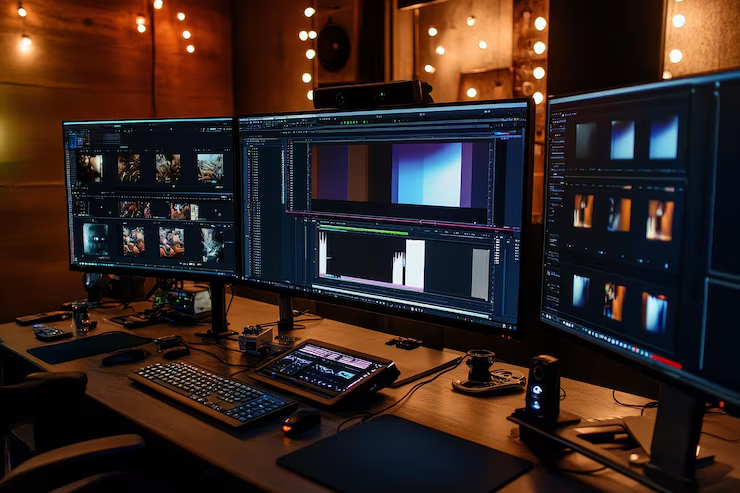
For a lot of editors, 1440p hits the sweet spot between cost, performance, and visual quality. Let's talk about who should lean this direction.
Social media and short-form content creators
If your output is Instagram Reels, TikTok, or YouTube Shorts, you're delivering vertical or square content at resolutions well below 4K. A 1440p monitor gives you plenty of screen space without the overhead of 4K.
Your viewers are watching on phones. They're not seeing 4K detail. Your monitor doesn't need to show it either.
Mid-range hardware setups
Not everyone is running a top-tier editing rig. If your GPU is mid-range, driving a 4K display plus your timeline can cause performance issues. 1440p is easier to drive and still looks sharp.
You'll get smoother playback, faster rendering previews, and less frustration. That matters more than extra pixels when you're on a deadline.
Budget-conscious freelancers
Money is real. A good 1440p monitor costs $250 to $400. A good 4K monitor runs $400 to $800.
A professional 4K display starts around $1,000 and climbs fast.
If you're building your setup, that $300 to $500 difference could go toward:
- A colorimeter for calibration
- More RAM for smoother editing
- Faster storage for your media
- A better chair for long sessions
The 27" vs. 32" pixel density sweet spot
At 27 inches, 1440p gives you about 109 PPI. At 32 inches, 4K gives you about 138 PPI. Both look good at normal desk distances.
The practical difference comes down to scaling. 1440p at 27 inches needs minimal scaling. Text and UI elements are readable out of the box. 4K at 27 inches needs 150% scaling to be comfortable, which can cause issues with some applications.
Many editors find 32-inch 4K or 27-inch 1440p to be the most comfortable options without scaling headaches.
Common Mistakes People Making When Choosing an Editing Monitor
People get this wrong more often than you'd think. Here are the most common pitfalls.
Buying 4K without checking scaling compatibility
Windows scaling has improved, but it's still inconsistent across applications. Some older NLE plugins and tools don't scale well. You end up with tiny text in some panels and blurry interfaces in others.
macOS handles high-DPI scaling better overall, but not every third-party app is optimized. Check your specific software before committing to a high-resolution display.
Ignoring color accuracy and gamut coverage
A 4K monitor with poor color accuracy is just a sharp display of wrong colors. That's worse than a slightly lower-resolution monitor that shows accurate colors.
Look for:
- Factory calibration reports
- Delta E specifications under 2
- sRGB and DCI-P3 coverage percentages
- Hardware calibration support
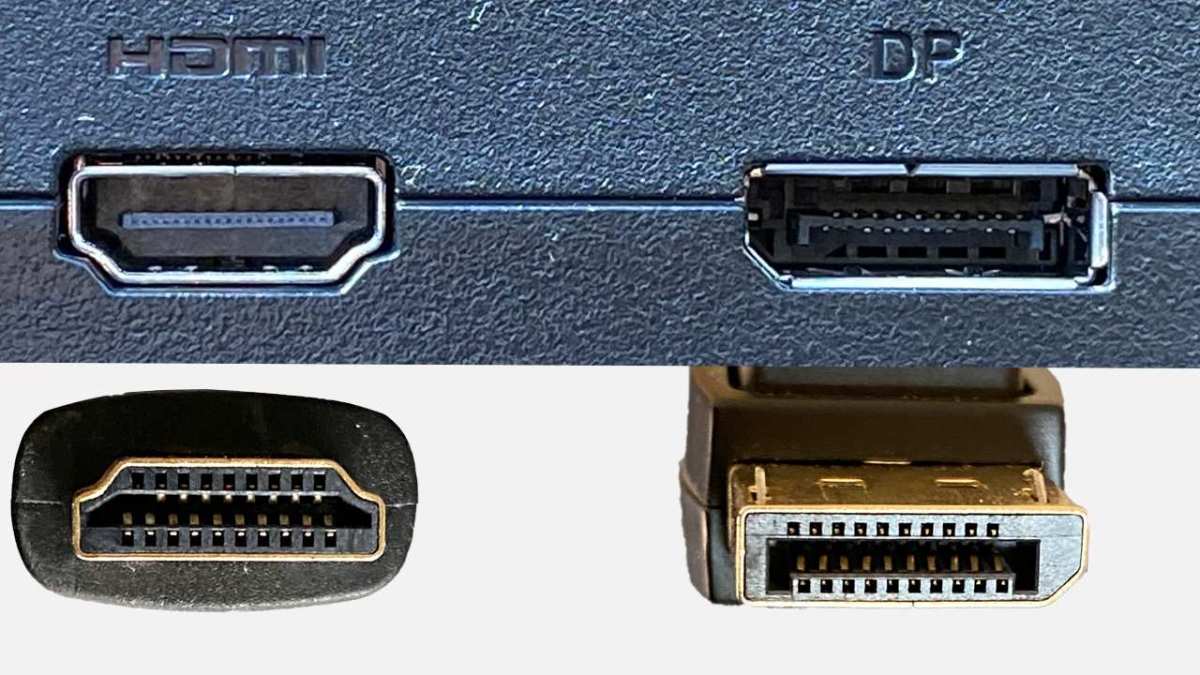
Overlooking connectivity and cable bandwidth
Not every cable or port can drive 4K at 60 Hz with full color. You need HDMI 2.0 or DisplayPort 1.2 minimum for 4K 60 Hz. For 4K with HDR or higher refresh rates, you need HDMI 2.1 or DisplayPort 1.4.
Check your GPU outputs and your monitor inputs. Mismatched connections mean compromised performance.
Assuming bigger resolution always means better editing
More pixels don't make you a better editor. They give you more screen space and sharper previews. Your skills, your color management, and your monitoring environment matter far more.
A well-calibrated 1080p display in a properly treated room will produce better work than an uncalibrated 4K monitor in a bright, uncontrolled space.
Real World Scenarios: What Different Editors Actually Need
Let's put this into practical context. Here's what different types of editors actually need.
The YouTube creator editing 4K footage for 1080p delivery
You shoot in 4K for flexibility, but you export at 1080p. A 1440p monitor gives you enough resolution to view your 4K footage at half-quality preview without scaling issues. You save money and get smooth performance.
The wedding videographer on a deadline
Speed matters more than pixel count. You're culling hours of footage, making quick cuts, and delivering fast. A responsive 1080p or 1440p display with good color accuracy gets you to the finish line faster than a 4K monitor that slows down your workflow.
The colorist finishing for broadcast
You need to see exactly what the audience will see. A 4K monitor with DCI-P3 coverage, 10-bit color depth, and hardware calibration capability is essential. This is professional work where accuracy is non-negotiable.
The hobbyist learning the craft
You're building skills. A decent 1080p or 1440p monitor is perfectly fine. Spend your budget on learning resources, better lenses, or lighting.
Upgrade your display when your work demands it, not before.
What to Look For Beyond Resolution
Resolution is one spec among many. Here's what else deserves your attention.
Connectivity: HDMI, DisplayPort, and USB-C
Your monitor needs to connect to your computer reliably. Check what outputs your GPU has and what inputs the monitor offers.
| Connection | Max Resolution/Refresh | Notes |
|---|---|---|
| HDMI 2.0 | 4K at 60 Hz | Common, works for most editing |
| HDMI 2.1 | 4K at 120 Hz, 8K | Needed for high refresh HDR |
| DisplayPort 1.4 | 4K at 120 Hz with DSC | Preferred for PC setups |
| USB-C/Thunderbolt | Varies by version | Single cable for laptop users |
Built-in calibration and hardware LUT support
Professional monitors often include hardware calibration support. This means the monitor itself stores calibration data, not just your graphics card. It's more accurate and consistent across different computers.
Look for monitors compatible with CalMAN, DisplayCAL, or the manufacturer's own calibration software.
Scaling quality: macOS vs. Windows
macOS generally handles high-DPI displays better. Retina displays have been standard since 2012, and most apps scale cleanly. Windows has improved significantly, but some applications still struggle.
If you're on Windows, test your specific software at the resolution you're considering. Some NLEs and plugins handle scaling better than others.
Frequently Asked Questions
Is 4K necessary for professional video editing?
Not always. Professional video editing depends on your deliverables. If you're outputting 1080p content, a 4K monitor adds little value.
For 4K delivery work, it becomes more important. Color accuracy and calibration matter more than resolution alone.
Can I edit 4K video on a 1080p monitor?
Yes, you can. Your editing software will downscale the preview to fit your screen. You won't see full detail in the preview window, but your timeline and edits remain accurate.
Proxy workflows also let you edit smoothly on lower-resolution displays.
Is 1440p good enough for video editing?
For most editors, yes. 1440p provides sharp visuals, comfortable scaling, and lower hardware demands than 4K. It's a practical choice for content creators, freelancers, and anyone delivering 1080p or light 4K content.
Should I prioritize resolution or color accuracy?
Prioritize color accuracy. A color-accurate 1440p monitor produces better work than a color-inaccurate 4K display. Resolution affects sharpness and workspace.
Color accuracy affects everything your audience actually sees.
What size monitor is best for 4K video editing?
32 inches is the sweet spot for 4K. At this size, pixel density is high enough for sharp detail without requiring aggressive UI scaling. 27-inch 4K works but needs 150% scaling, which can cause compatibility issues with some software.
Do I need a 4K monitor for color grading?
For professional color grading, yes. You need to see your footage at native resolution with accurate colors. A 4K display with wide color gamut coverage and 10-bit depth is standard for serious grading work.
Hobbyists can grade on lower-resolution displays with good calibration.
Final Decision Guide
You've seen the tradeoffs. Now let's land on what makes sense for you.
Is a 4K monitor right for you? A quick checklist
Run through these questions honestly:
- Are you delivering 4K content to clients or platforms?
- Does your source footage exceed 1080p?
- Is color grading part of your regular work?
- Can your GPU handle 4K playback smoothly?
- Do you have budget for a quality 4K display, not just a cheap one?
If you answered yes to three or more, a 4K monitor is worth considering. If not, you're likely better served by a high-quality 1440p display and putting the savings elsewhere.
Best next steps based on your situation
For hobbyists and learners: Start with what you have. Learn color management and calibration first. Upgrade when your skills and work demand it.
For content creators delivering 1080p: Get a color-accurate 1440p monitor. Spend the savings on a colorimeter and calibration software.
For professionals delivering 4K: Invest in a 4K monitor with wide color gamut coverage and hardware calibration. This is a business expense that pays for itself in accurate deliverables.
For colorists and finishing artists: You already know you need 4K. Prioritize panel quality and calibration support over raw specs. A professional reference display is the goal.
The monitor is a tool. Match it to the work, not the marketing. Good displays make good editors better.
They don't make bad editors good. Focus on your craft first, then upgrade when the tool is what's holding you back.

Similar Posts





















