What Is the Difference Between 4K and Full Hd Monitor
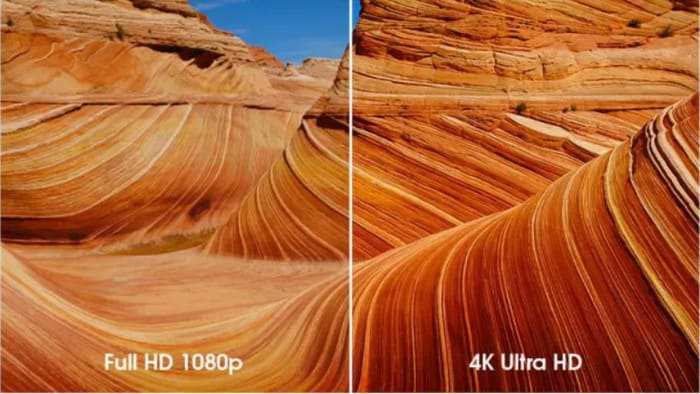
When you're trying to figure out what is the difference between 4k and full hd monitor, it really comes down to one thing: pixel count. A 4K UHD display packs 8.3 million pixels on screen, while Full HD fits just over 2 million. That's four times the detail, but it also means your hardware has four times the work to do.
The Consumer Technology Association officially defines 4K UHD as 3840 × 2160 resolution, and Full HD as 1920 × 1080. Both share the same 16:9 aspect ratio, so the shape of your screen doesn't change. What changes is how sharp everything looks, how much you can fit on screen, and what kind of graphics card you'll need to run it all smoothly.
The Real Difference in One Sentence
A 4K monitor displays four times as many pixels as a Full HD monitor, giving you sharper text, finer detail, and more usable screen space, but it also demands significantly more from your graphics card and your wallet.
Side-by-Head Comparison at a Glance
Here's the quick breakdown of what separates these two resolutions in practical terms.
| Spec | Full HD (1080p) | 4K UHD |
|---|---|---|
| Resolution | 1920 × 1080 | 3840 × 2160 |
| Total pixels | 2,073,600 | 8,294,400 |
| PPI at 27" | ~81.6 PPI | ~163.2 PPI |
| Typical price (27") | $120 – $250 | $250 – $600+ |
| GPU needed for 60fps gaming | GTX 1660 / RX 6500 XT | RTX 3070 / RX 6800 or better |
| Best for | Budget builds, competitive gaming, office work | Content creation, multitasking, console gaming |
The jump in pixel density is where you'll notice the difference most. Text looks crisper, images hold up better when you zoom in, and you can fit more windows side by side without everything feeling cramped.
How Your GPU Decides What Resolution You Can Actually Use
Your monitor's resolution is only half the story. The other half is whether your graphics card can actually push that many pixels at the frame rates you want.
For everyday tasks like browsing, streaming, and office work, almost any modern GPU handles 4K without breaking a sweat. Integrated graphics on recent Intel and AMD processors can output a 4K desktop at 60Hz through HDMI 2.0 or DisplayPort 1.2. You don't need a powerhouse for productivity.
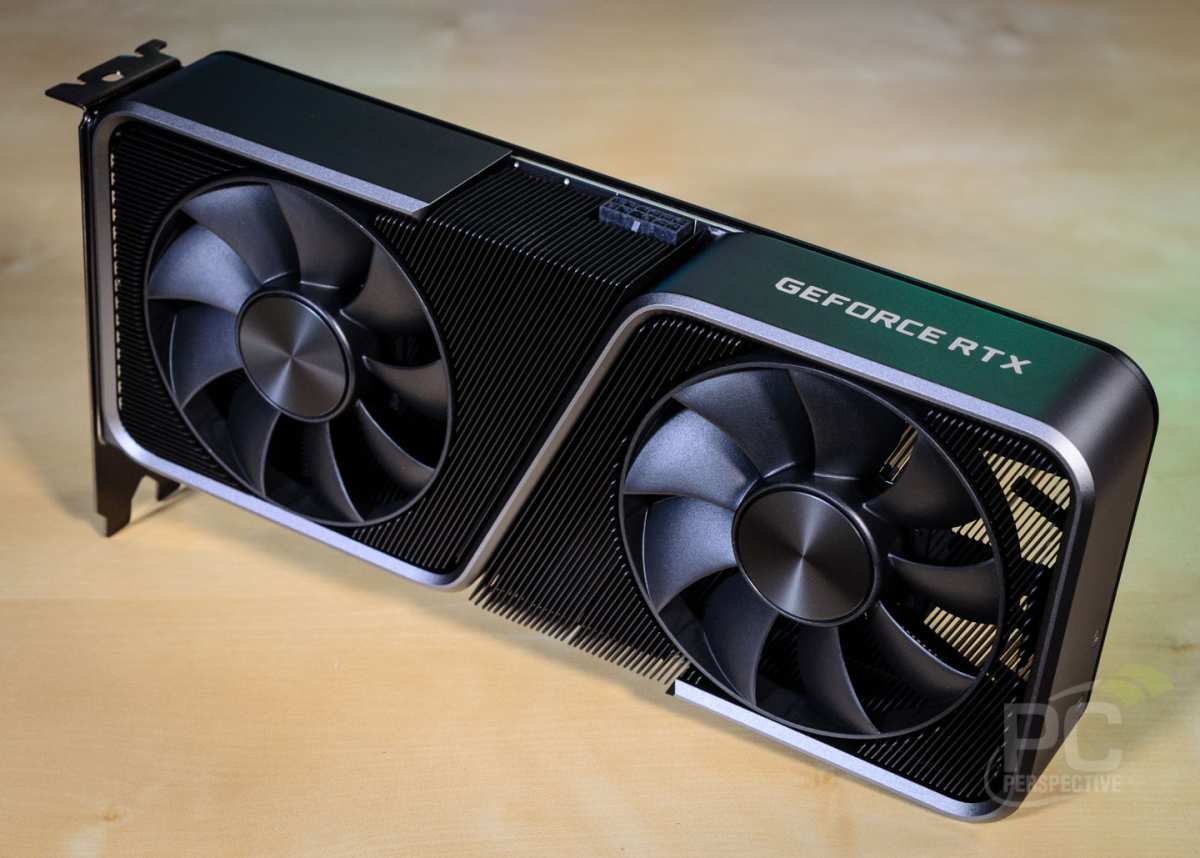
Gaming is a completely different story. Running a modern AAA title at native 4K with high settings and stable 60 frames per second requires serious hardware. An NVIDIA RTX 3070 or AMD RX 6800 is roughly the entry point for a good experience.
If you want 120fps or higher at 4K, you're looking at an RTX 4080 or RTX 4090 class card.
Here's a rough guide to what you'll need:
- 1080p 60fps (medium settings): GTX 1650 or RX 6400
- 1080p 144fps (high settings): RTX 3060 or RX 6600 XT
- 4K 60fps (high settings): RTX 3070 or RX 6800
- 4K 120fps (high settings): RTX 4080 or RX 7900 XTX
If you buy a 4K monitor but your GPU can't keep up, you'll either drop settings or accept lower frame rates. For competitive gaming where responsiveness matters, many players actually prefer running 1080p at 240Hz over 4K at 60Hz.
Cable bandwidth matters too. HDMI 1.4 tops out at 4K at 30Hz, which feels sluggish on a desktop. You want HDMI 2.0 minimum for 4K at 60Hz, or DisplayPort 1.2 and above.
For 4K at 120Hz or higher, you'll need HDMI 2.1 or DisplayPort 1.4 with Display Stream Compression.
Screen Size and Viewing Distance: Where the Difference Becomes Visible
Resolution alone doesn't tell you the full story. Pixel density, which depends on screen size, is what determines how sharp the image actually looks to your eyes.
A 24-inch Full HD monitor gives you about 91.8 pixels per inch. That's sharp enough for most people at a normal desk viewing distance of 24 to 30 inches. Step up to a 27-inch Full HD screen and that drops to about 81.6 PPI.
Some people start to notice softness there, especially with text.
Now put a 27-inch 4K panel in the same spot and you're looking at 163.2 PPI. That's a massive jump. Text looks like it was printed on paper.
Fine details in photos and videos hold up under close inspection. This is where 4K earns its keep.
The general sweet spots look like this:
- 24 inches: Full HD looks fine. 4K is overkill unless you sit very close.
- 27 inches: 4K is the sweet spot. Full HD starts to look a bit soft.
- 32 inches and above: 4K is strongly recommended. Full HD at this size looks noticeably pixelated.
Viewing distance matters too. If you're sitting three feet or more from a 27-inch screen, the difference between Full HD and 4K becomes harder to spot. But at normal desk distances, the improvement is immediately obvious.
Full HD Monitors: Who Still Should Buy One in 2025
Full HD isn't dead. Not everyone needs 4K, and buying more resolution than you'll use is just throwing money away.
Full HD makes sense if you're building on a budget. A solid 24-inch 1080p IPS panel with good color accuracy can be found for under $150. That's a lot of monitor for the money, especially if you're a student or setting up a home office.
Competitive gamers should pay attention here. If you play fast-paced shooters or esports titles, frame rate matters more than resolution. A 24-inch 1080p monitor running at 240Hz or 360Hz gives you a real competitive edge over a 4K panel stuck at 60Hz or 144Hz.
Your GPU will also push those high frame rates at 1080p without breaking a sweat.
Office and productivity users who stick to documents, spreadsheets, and email won't gain much from 4K. The extra sharpness is nice, but it's not worth the premium if your workflow doesn't benefit from the additional screen real estate.
Here's who should stick with Full HD:
- Budget-conscious buyers under $200
- Competitive gamers prioritizing frame rate
- Users with 24-inch or smaller screens
- Office workers doing standard productivity tasks
- Anyone with a mid-range or older GPU
4K Monitors: Who Actually Needs the Extra Pixels
Four times the pixels isn't just a spec bump. It changes how you work and what you can see on screen at once.
Content creators are the most obvious fit. If you edit photos, work with video timelines, or do any kind of design work, 4K gives you room to see your work at native resolution while keeping toolbars and panels visible. A 1080p timeline in Premiere Pro or DaVinci Resolve feels cramped.
At 4K, you can see your full sequence without constantly scrolling.
Software developers and data analysts benefit too. More screen real estate means more code, more terminal windows, and more data visible at the same time. A 27-inch 4K monitor can comfortably display four code windows side by side.
That's a real productivity boost.
Console gamers on PS5 and Xbox Series X should strongly consider 4K. Both consoles output natively at 3840 × 2160, and playing on a matching display gives you the sharpest image possible. A 1080p monitor can't display the full detail those consoles are producing.
Here's who should go 4K:
- Photo and video editors
- Graphic designers and illustrators
- Software developers and power users
- Console gamers on PS5 or Xbox Series X
- Anyone using a 27-inch or larger screen
- Multitaskers who keep many windows open
The Money Talk: What Each Resolution Actually Costs You
The monitor itself is only part of the cost. You need to think about the full picture before you buy.
A decent 27-inch Full HD IPS monitor runs between $130 and $220 in 2025. You can get a great panel with good color accuracy, 75Hz or 144Hz refresh, and solid build quality without spending more than that.
A comparable 27-inch 4K monitor starts around $250 for budget options and climbs to $400 or $500 for models with better color accuracy, higher refresh rates, and HDR support. Premium 4K displays with true HDR600 or HDR1000, wide gamut coverage, and factory calibration can hit $600 to $1,000.
But the monitor isn't the only expense. If your current GPU can't handle 4K, you might need to upgrade that too. A capable 4K gaming card starts around $500 and goes up quickly.
That's a significant investment on top of the monitor itself.
Don't forget cables either. If you're running 4K at 60Hz with full chroma, you need at least HDMI 2.0 or DisplayPort 1.2. For 4K at 120Hz, you'll want HDMI 2.1 or DisplayPort 1.4 with DSC.
Quality cables cost $10 to $20, which isn't much, but it's still something to factor in.
Here's a rough total cost comparison for a full setup:
| Setup | Monitor | GPU (if upgrading) | Cable | Total |
|---|---|---|---|---|
| Full HD 27" office | $150 | $0 (integrated works) | $10 | ~$160 |
| 4K 27" office | $300 | $0 (integrated works) | $15 | ~$315 |
| Full HD 24" gaming | $180 | $200 (GTX 1660 tier) | $10 | ~$390 |
| 4K 27" gaming | $400 | $550 (RTX 4070 tier) | $20 | ~$970 |
The gap is real. Make sure you're spending money on things you'll actually notice.
The Middle Ground Most People Skip: 1440p (QHD) as a Smarter Pick
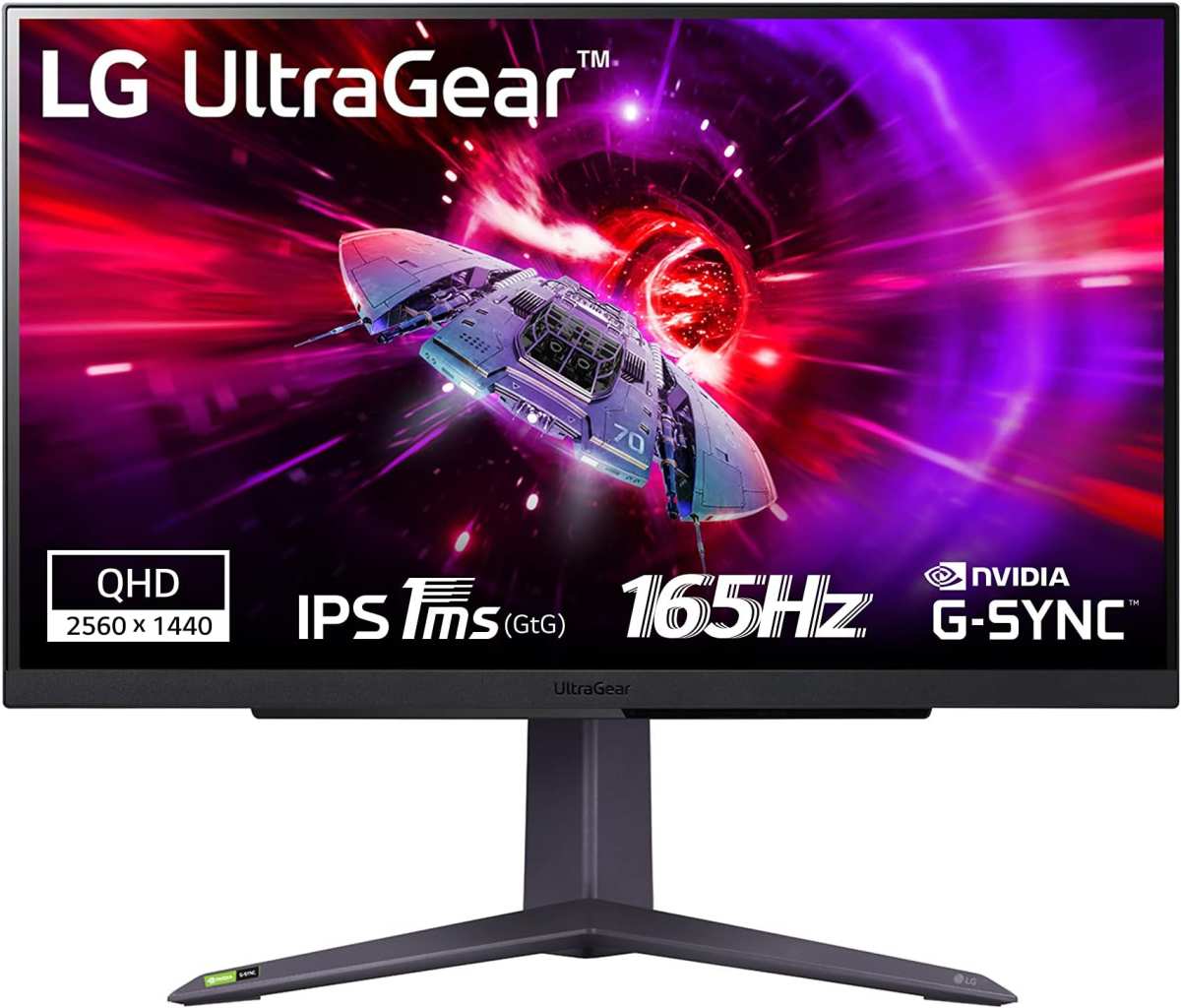
There's a resolution sitting right between Full HD and 4K that a lot of people overlook. 2560 × 1440, often called QHD or 1440p, might be the smartest choice for a lot of users.
At 27 inches, a 1440p panel delivers about 108.8 PPI. That's noticeably sharper than Full HD without the heavy GPU demands of 4K. Text looks clean, games look detailed, and you get about 78% more screen space than 1080p.
For gaming, 1440p is widely considered the current sweet spot. A mid-range card like an RTX 4060 Ti or RX 7700 XT can push high frame rates at this resolution without requiring a flagship GPU. You get a visible improvement over 1080p without the performance hit of 4K.
Productivity users who find Full HD cramped but don't want to deal with 4K scaling issues should look at 1440p seriously. It's a meaningful upgrade in workspace without requiring you to crank up display scaling, which can cause compatibility headaches with older software.
The case for 1440p:
- Noticeably sharper than Full HD at 27"
- Easier to drive than 4K for gaming
- Less UI scaling trouble than 4K on Windows
- Good middle-ground pricing, typically $200 to $350
- Works well with mid-range GPUs
If you're torn between Full HD and 4K, 1440p deserves a spot on your shortlist. It splits the difference in a way that makes practical sense for a lot of people.
Common Mistakes People Make When Choosing Between 4K and Full HD
The most common mistake is buying 4K because it sounds better. Higher number, better product, right? Not always.
If you're sitting three feet from a 24-inch screen doing spreadsheets, you're paying for pixels you won't see.
Ignoring GPU compatibility is another big one. Plugging a 4K monitor into a GTX 1060 and expecting smooth gaming at high settings isn't going to work. You'll either drop resolution back to 1080p, which defeats the purpose, or you'll deal with stuttering frame rates.
People also underestimate how much UI scaling can annoy them. At 27 inches, a 4K display at native scaling makes text tiny. Bumping Windows scaling to 150% fixes that, but some older applications don't handle scaling well.
You'll get blurry text in certain programs, and that drives some users crazy.
Paying for fake HDR is another trap. A lot of budget 4K monitors advertise "HDR support" but only meet VESA DisplayHDR 400. That's barely HDR at all.
You're better off with a good SDR panel than a mediocre HDR one.
Here's what to watch out for:
- Buying 4K for a screen smaller than 27 inches
- Not checking if your GPU can actually drive the resolution
- Ignoring UI scaling issues on Windows
- Paying extra for HDR400 that doesn't look good
- Assuming all 4K panels have the same color quality
- Forgetting to check port compatibility on your PC
Quick Decision Guide: Which Resolution Fits Your Situation
If you're still on the fence, here's a straightforward way to figure out which resolution makes sense for you.
Go with Full HD if:
- You're spending under $200 on the monitor
- Your screen is 24 inches or smaller
- You play competitive games and want high frame rates
- Your GPU is mid-range or older
- You mainly do office work, browsing, and streaming
Go with 4K if:
- You're buying a 27-inch or larger screen
- You do photo editing, video editing, or design work
- You game on a PS5 or Xbox Series X
- You have a capable GPU (RTX 3070 or better)
- You want the sharpest text possible for reading and coding
Go with 1440p if:
- You want a balance of sharpness and performance
- You game on a mid-range GPU
- You find Full HD too cramped at 27 inches
- You don't want to deal with 4K scaling issues
- You want to spend between $200 and $350
There's no universally "better" resolution. It depends entirely on what you're doing, what hardware you have, and how much you're willing to spend.
Frequently Asked Questions
Can my computer run a 4K monitor?
Almost any computer made in the last five years can output a 4K desktop for everyday tasks. You need HDMI 2.0 or DisplayPort 1.2 minimum. For gaming, you'll want a dedicated GPU like an RTX 3070 or better.
Is 4K good for gaming, or will it hurt my frame rates?
4K gaming looks stunning, but it demands a lot from your GPU. Expect frame rates to drop roughly 40 to 50% compared to 1080p with the same settings. You need a high-end card for smooth 4K gaming.
Do I need special cables for 4K?
For 4K at 60Hz, you need HDMI 2.0 or DisplayPort 1.2. For 4K at 120Hz or higher, you'll need HDMI 2.1 or DisplayPort 1.4 with DSC. Older cables will limit you to 4K at 30Hz.
Is a 4K monitor worth it for office work?
If you're on a 27-inch or larger screen, yes. The extra sharpness and screen space make a real difference for multitasking, reading, and working with spreadsheets or documents.
Can console gamers tell the difference?
Absolutely. The PS5 and Xbox Series X both output native 4K. Playing on a 1080p monitor means you're not seeing the full detail those consoles can produce.
A 4K display is a noticeable upgrade.
At what screen size does Full HD look bad?
Full HD looks fine up to about 24 inches. At 27 inches, it starts to look a bit soft. At 32 inches and above, the pixel structure becomes visible and the image looks noticeably less sharp.

Similar Posts





















