Is Touchscreen Monitor Better Than Tablet
Is touchscreen monitor better than tablet? That's the wrong question to start with, honestly. The real question is which one solves your specific problem right now. Because these two devices overlap in some interesting ways, but they're built for fundamentally different workflows.
Touchscreen monitors give you a large, touch-enabled display that connects to your existing computer. Tablets pack everything into one portable device with their own processor and battery. As of 2026, both categories have matured significantly, so the choice comes down to how you actually work.
Let's break it down properly.
The Quick Answer: It Depends on Your Setup
Neither device is universally better. Touchscreen monitors excel when you need a large touch workspace connected to full desktop software. Tablets win on portability and all-in-one convenience.
Your existing gear matters a lot here. If you already own a capable laptop, a touchscreen monitor often makes more sense than buying a tablet you don't need.
Touchscreen Monitor vs. Tablet: What Each One Actually Is
Let's get clear on what we're actually comparing here, because the marketing around both categories gets muddy fast.
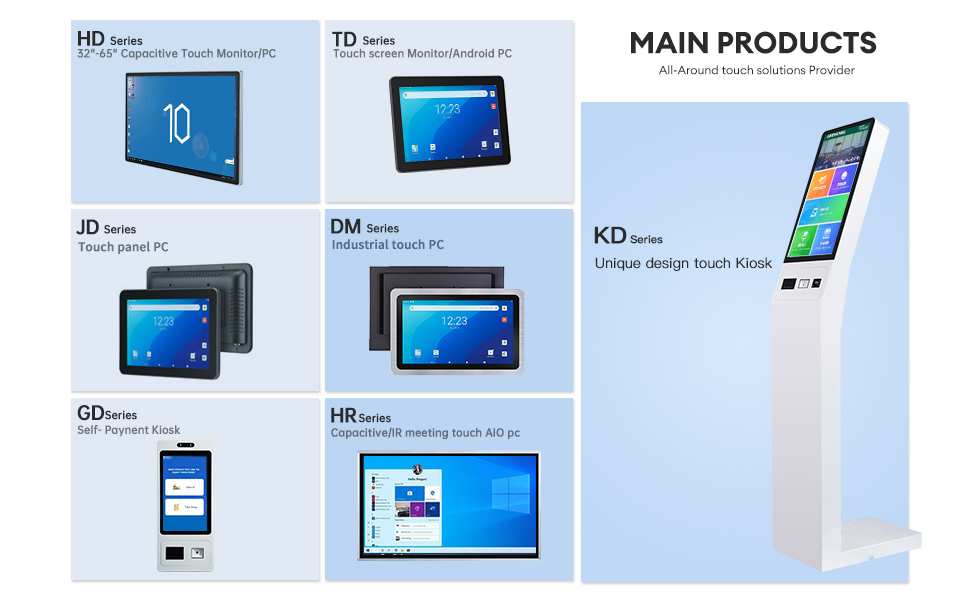
A touchscreen monitor is a display with built-in touch sensing that connects to a computer. It doesn't have its own processor, RAM, or operating system. Think of it as your regular monitor, but you can now tap, swipe, and draw directly on the screen.
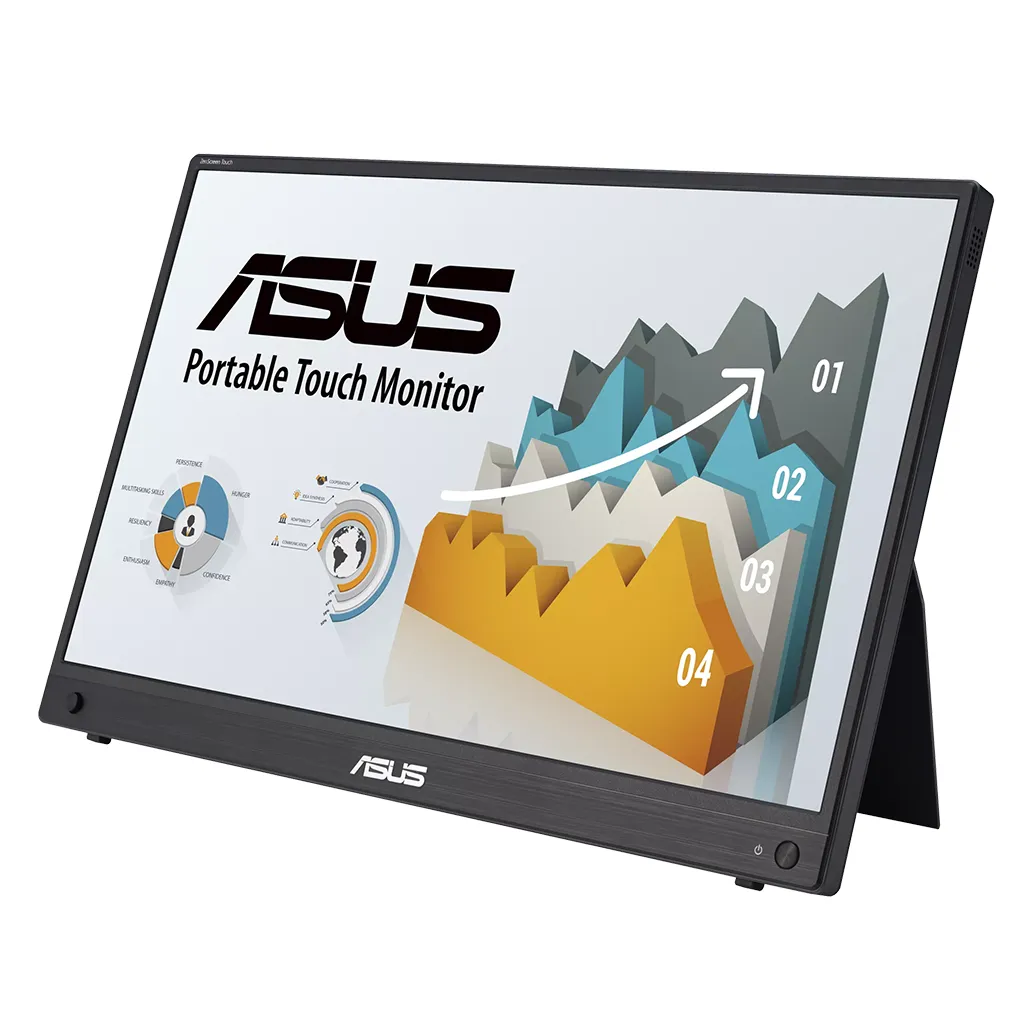
Popular options include the ASUS ZenScreen touch series, Dell's touch-enabled monitors, and portable units from ViewSonic and Lenovo.
A tablet is a self-contained computer with a touchscreen, battery, processor, and operating system all built in. The Apple iPad Pro, Samsung Galaxy Tab S9, and Microsoft Surface Pro all fall here. Some run mobile operating systems (iPadOS, Android), while others run full Windows.
Here's where it gets interesting. Devices like the Microsoft Surface Pro blur the line. It's technically a tablet form factor, but it runs full Windows 11 and works just as well with a keyboard attached as any laptop.
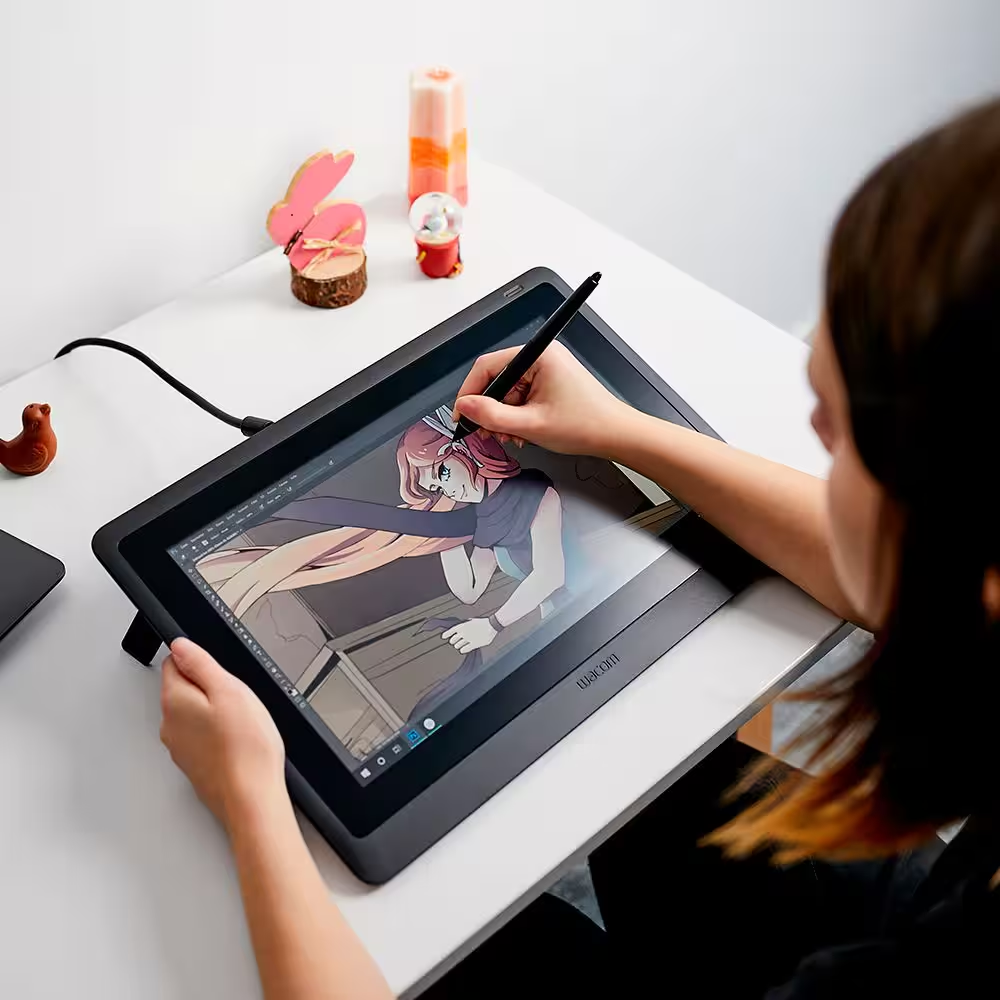
Meanwhile, pen displays like the Wacom Cintiq are technically touchscreen monitors designed specifically for creative professionals, but they cost significantly more than general-purpose touch monitors.
The key distinction comes down to this. A touchscreen monitor is an input device and display. A tablet is a complete computer.
That single difference affects everything else.
Side-by-Side Breakdown: Key Differences That Affect Your Decision
Let's walk through the factors that actually matter when you're choosing between these two.
Display Size and Workspace
Touchscreen monitors typically range from 15 to 32 inches. That's a massive workspace compared to tablets, which top out around 13 inches for the iPad Pro and 14.6 inches for the Samsung Galaxy Tab S9 Ultra.
For creative work, screen real estate matters enormously. A 22-inch touch monitor gives you room to have your reference image on one side and your canvas on the other. On a tablet, you're constantly zooming and panning around a much smaller area.
Tablets do offer high pixel density. The iPad Pro's Liquid Retina XDR display hits 264 pixels per inch and supports ProMotion at 120Hz. But touchscreen monitors have caught up significantly.
Many 4K portable touch monitors now deliver sharp text and smooth refresh rates at competitive prices.
Processing Power and Operating System
This is the biggest differentiator, and it's not even close.
Tablets run their own operating system and processor. The iPad Pro uses Apple's M4 chip, which outperforms many laptops. Samsung's Galaxy Tab S9 series runs Snapdragon 8 Gen 2 for Galaxy.
These are powerful devices, but they run mobile apps or tablet-optimized software.
Touchscreen monitors rely on whatever computer you plug them into. That means you get full access to desktop applications like Adobe Photoshop with all features, full Chrome with all extensions, professional CAD software, and development environments. The trade-off is you're tethered to a computer.
If you need to run specific desktop software for work, a touchscreen monitor is really your only option. Tablets can't run full desktop applications, no matter how powerful their processors get.
Touch and Stylus Experience
Both device types support touch and stylus input, but the experience differs in important ways.
Most modern touchscreen monitors support 10-point capacitive touch, which means they recognize ten simultaneous touch points. That's plenty for multi-finger gestures and standard touch interaction. Stylus support varies.
Some monitors support AES (Active Electrostatic) pen protocols, while others work with USI (Universal Stylus Initiative) pens.
Tablets generally offer a more refined stylus experience out of the box. The Apple Pencil Pro supports tilt detection, pressure sensitivity with 16,384 levels, and hover gestures on M4 iPad Pros. Samsung's S Pen comes included with Galaxy Tabs and offers similar precision.
Palm rejection is also typically better on tablets since the hardware and software are designed together.
For professional illustration and photo editing, tablets (especially iPad Pro with Apple Pencil Pro or Wacom Cintiq pen displays) still lead in stylus responsiveness. But for annotation, navigation, and general touch interaction, a touchscreen monitor works perfectly well.
Portability and Flexibility
Tablets win this category without question. An iPad Pro weighs about 1.3 pounds and slips into any bag. You can use it on a couch, in bed, on a plane, or standing at a counter.
Battery life ranges from 8 to 18 hours depending on the model and workload.
Portable touchscreen monitors have gotten lighter and thinner. The ASUS ZenScreen MB16AMT weighs around 1.7 pounds and runs on battery for about 4 hours. But most touch monitors need external power and a computer connection.
They're portable in the sense that you can move them between desks, but they're not standalone devices.
If your workflow requires you to work from different locations throughout the day, a tablet makes far more sense. If you primarily work at one desk but occasionally want touch capability, a touchscreen monitor is the better fit.
Connectivity and Expandability
Touchscreen monitors connect via USB-C, HDMI, or DisplayPort. Many modern portable units use a single USB-C cable that carries video, touch data, and power simultaneously. That's clean and simple.
Tablets offer limited connectivity. Most have a single USB-C port. You can connect external displays, storage, and accessories, but you're working within the constraints of a mobile operating system.
File management and peripheral support vary significantly between iPadOS and Android.
Windows tablets like the Surface Pro offer more traditional connectivity, including USB-A ports, Surface Connect, and microSD slots. They function more like laptops in tablet form.
Here's a quick comparison table to summarize the key differences:
| Feature | Touchscreen Monitor | Tablet |
|---|---|---|
| Screen Size | 15–32 inches | 10–14.6 inches |
| Standalone Operation | No (needs computer) | Yes |
| Operating System | None (uses host computer) | iPadOS, Android, Windows |
| Stylus Support | Varies by model | Excellent (Apple Pencil, S Pen) |
| Portability | Moderate (portable models) | Excellent |
| Desktop Software Access | Full access | Limited or none |
| Price Range | $150–$800+ | $200–$2,000+ |
| Battery Life | 0–4 hours (portable units) | 8–18 hours |
| Best For | Desktop productivity, annotation | Portability, all-in-one use |
Best for Each Use Case: Matching Your Situation to the Right Device
Now let's get practical. Your specific situation determines which device actually makes sense.
Digital Artists and Illustrators
If you're doing professional illustration, photo retouching, or digital painting, the answer depends on your software needs.
Choose a tablet (iPad Pro or Wacom Cintiq) if:
- You use Procreate, Clip Studio Paint, or similar tablet-optimized apps
- You want the best possible stylus feel with minimal latency
- You need to work away from your desk regularly
Choose a touchscreen monitor if:
- You rely on full desktop software like Adobe Photoshop with all plugins
- You need a larger canvas area for detailed work
- You already have a powerful computer and just need touch input
Many professional illustrators actually use both. They do rough sketches and ideation on an iPad, then refine and finalize work on a desktop setup with a pen display.
Students and Note-Takers
Students have unique needs that lean heavily toward tablets in most cases.
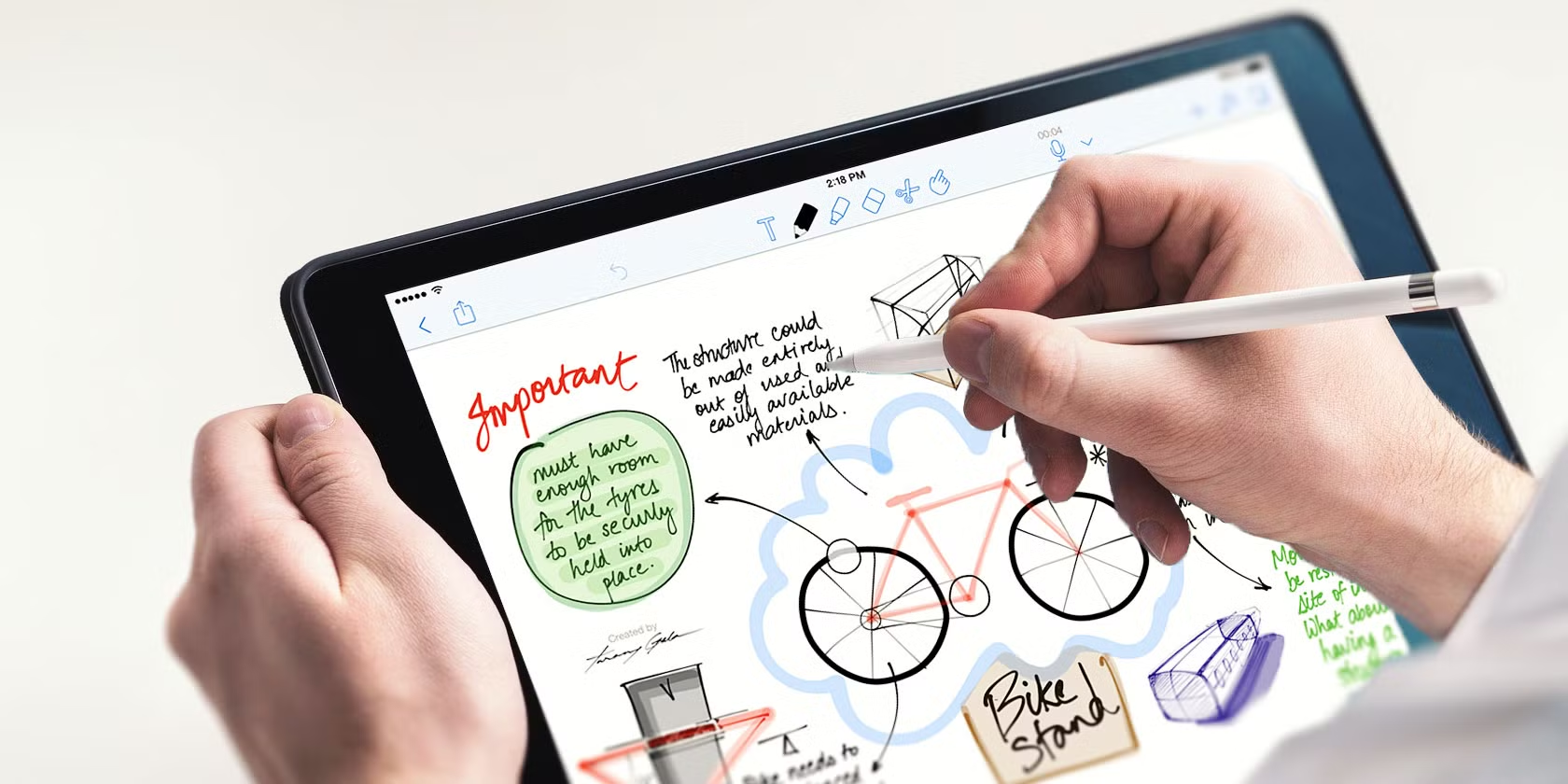
Tablets with stylus support are excellent for handwritten notes, annotating PDFs, and studying. Apps like GoodNotes and Notability on iPad, or Samsung Notes on Galaxy Tabs, are purpose-built for this. The portability factor matters here since students move between classrooms, libraries, and study spaces constantly.
A touchscreen monitor only makes sense for students if they already have a laptop and want a second touch-enabled screen at their dorm or home desk. It's not a portable solution by any stretch.
The verdict for students: Get a tablet unless you specifically need a larger touch display for a fixed workstation.
Business Professionals and Presentations
For business use, touchscreen monitors have a strong case. Presenting directly on a touchscreen, annotating documents in real time, and collaborating on a large display all work well with a touch monitor connected to your laptop.
Tablets work for presentations too, especially when connected to a projector or external display. But you're often limited to mobile versions of presentation software with fewer features.
If your work involves a lot of document review, spreadsheet work, or multitasking between applications, a touchscreen monitor paired with a full desktop operating system is significantly more capable.
Remote Workers and Digital Nomads
This is where the decision gets genuinely tricky. If you travel frequently and need a single device that handles everything, a tablet with a keyboard case might be your only realistic option.
But if you work from a home office most days and occasionally travel, consider this setup. Use a touchscreen monitor at your primary desk for the large touch workspace, and use a tablet or laptop when you're on the road. The touch monitor stays at home where it belongs.
Some portable touchscreen monitors like the ASUS ZenScreen MB16AMT are designed for travel. They're slim, battery-powered, and connect via USB-C. But they still need a host computer, so you're carrying at least two devices either way.
Casual Home Users
For browsing, streaming, light email, and social media, a tablet is simpler and more enjoyable. You can use it on the couch, in bed, or at the kitchen table without needing to boot up a computer or manage cables.
A touchscreen monitor for casual home use only makes sense if you want to add touch capability to an existing desktop setup. It's not a replacement for a computer. It's an enhancement to one.
Real-World Setups: How People Actually Use These Devices
Let's look at how these devices fit into actual daily workflows, not just spec sheets.
The designer's dual setup: Many professional illustrators use an iPad Pro with Apple Pencil for sketching and ideation. Then they move to a desktop with a pen display like the Wacom Cintiq Pro 27 for final artwork. The tablet handles the creative brainstorming phase.
The pen display handles production work where full Photoshop feature access matters.
The professor's classroom rig: A common setup at universities involves a portable touchscreen monitor connected to a laptop during lectures. Professors annotate slides in real time, mark up diagrams, and let students come up and interact with the display. A tablet would work for personal annotation, but a 22-inch touch monitor gives an entire room full of students a clear view.
The remote worker's home office: Aggregate reviews on tech forums suggest a growing trend. Workers pair a 15.6-inch portable touch monitor with their laptop as a second screen. They use the touchscreen for scrolling documents, navigating timelines in video editing software, and quick annotations.
The laptop handles the heavy processing. The touch monitor adds a layer of interaction that a mouse alone can't match.
The student's all-in-one solution: A single iPad Air or iPad Pro replaces a laptop plus notebooks for many students. Handwritten notes, PDF textbooks, research, and email all happen on one device. No need to manage files between a tablet and a computer.
Everything lives in one place.
Common Mistakes People Make When Choosing
People get this choice wrong more often than you'd think. Here are the most frequent missteps.
Buying a touchscreen monitor when they need a computer. This catches people who want a tablet-like experience but already own a decent laptop. They see a touch monitor, think "great, I'll have a tablet," and then realize they still need to plug it into their computer every time. If you want standalone functionality, buy a tablet.
Buying a tablet when they need desktop software. Someone picks up an iPad Pro thinking it'll replace their laptop for professional work. Then they discover their specific plugin doesn't exist on iPadOS, or their file management workflow breaks down, or their external hardware doesn't connect. Tablets are powerful, but they're not full desktop replacements for everyone.
Ignoring ergonomics on large touch monitors. Touchscreen monitors 20 inches and larger create a real problem called "gorilla arm." That's the fatigue you get from reaching up and out to touch a vertical screen for extended periods. If you plan to use touch input for hours at a time, you need a monitor with an adjustable stand that tilts to a comfortable angle. Flat on a desk works well.
Vertical at eye level does not.
Overlooking driver and compatibility issues. Not every touchscreen monitor plays nicely with every operating system. Windows has robust touch support. macOS has limited native touch support since Apple never released a touch-enabled Mac. Linux support varies by manufacturer.
Always check compatibility before buying.
Assuming all stylus experiences are equal. A $30 capacitive stylus from a generic brand feels nothing like an Apple Pencil Pro or Samsung S Pen. Pressure sensitivity, tilt detection, palm rejection, and latency vary enormously. If stylus quality matters for your work, research the specific stylus ecosystem, not just the device.
Pricing Reality Check: What You'll Actually Spend
Let's talk money, because the price ranges for these two categories overlap in confusing ways.
Touchscreen monitors:
- Budget portable (15.6-inch, 1080p): $150, $250
- Mid-range portable (15.6-inch, 4K, 10-point touch): $300, $450
- Desktop touch monitors (21, 27-inch): $350, $700
- Professional pen displays (Wacom Cintiq, Huion Kamvas): $500, $2,500+
Tablets:
- Budget Android tablets: $150, $300
- iPad Air: $599
- iPad Pro 11-inch: $999
- iPad Pro 13-inch: $1,299
- Samsung Galaxy Tab S9 Ultra: $1,199
- Microsoft Surface Pro: $999, $1,899
Here's what jumps out. A capable touchscreen monitor costs less than a flagship tablet in most cases. But a touchscreen monitor needs a computer to function.
If you don't already own a computer, the total cost of a touch monitor setup is significantly higher.
A $300 portable touch monitor plus a $600 laptop equals $900. That's comparable to a $999 iPad Pro, but you get a full desktop operating system and a larger combined workspace. The iPad Pro gives you better build quality, longer battery life, and a more polished stylus experience.
Professional pen displays like the Wacom Cintiq Pro 27 cost $2,000 or more. At that price point, you're paying for color accuracy, stylus precision, and build quality that consumer tablets can't match. These are specialized tools for working professionals.
Expert Tips Before You Buy
Before you pull the trigger on either device, consider these practical points.
Check your existing ports. If your laptop only has HDMI and USB-A, you'll need an adapter for many USB-C touch monitors. Some monitors require Thunderbolt 4 for full touch and video over a single cable. Verify your computer's output capabilities first.
Consider a touch monitor with built-in battery. Portable touch monitors like the ASUS ZenScreen MB16AMT and ViewSonic TD1655 include internal batteries. They run for 3 to 4 hours on a charge. This makes them genuinely portable without needing a wall outlet nearby.
Think about your software workflow. List the five applications you use most. Check whether they support touch input well. Some desktop applications have tiny touch targets that are frustrating to tap.
Others, like Adobe Lightroom and Microsoft Office, have touch-optimized interfaces.
Try before you buy if possible. Touch feel is subjective. Some people prefer the slick glass surface of an iPad. Others like the slight texture of a matte touch monitor.
Visit a store and actually touch both devices before committing.
Don't forget the stand or mount. Touchscreen monitors need proper positioning. A flimsy included stand won't cut it for daily use. Budget an extra $30 to $80 for a VESA mount or an adjustable monitor arm.
This matters more for touch than for regular displays because you're physically interacting with the screen.
Factor in the stylus cost. Many touchscreen monitors don't include a stylus. Apple Pencil Pro costs $129. Samsung S Pen is included with Galaxy Tabs.
Wacom Pro Pen 3 costs around $109. Add this to your total budget.
Look at warranty and support. Touch screens can develop dead zones or calibration drift over time. Check the manufacturer's warranty policy specifically for the touch layer. Some brands cover touch issues under standard warranty.
Others treat it as a separate component with different terms.
Final Decision Guide: Which One Should You Get?
Here's a straightforward way to think about this.
Get a touchscreen monitor if:
- You already own a capable computer
- You need a large touch-enabled workspace at a fixed desk
- Your workflow depends on full desktop software
- You want touch input without replacing your current setup
- Budget matters and you want the most screen for your money
Get a tablet if:
- You need a standalone device with its own battery
- Portability is a priority
- You primarily consume content or do light productivity
- You want the best stylus experience for creative work
- You prefer a simpler, all-in-one device without cables
Get both if:
- You're a creative professional who sketches on the go and produces at a desk
- Your budget allows for a tablet plus a pen display
- You want maximum flexibility across different work contexts
The honest answer is that most people need one or the other, not both. Figure out where you do most of your work. That's where you should invest.
A touchscreen monitor is an upgrade to an existing computer. A tablet is a replacement for one. Knowing which situation you're in makes the choice obvious.

Similar Posts





















