Is Touchscreen Monitor Better Than Normal Monitor
So is a touchscreen monitor better than a normal monitor? The short answer: it's not universally better. It's better for specific things you do, and noticeably worse for others.
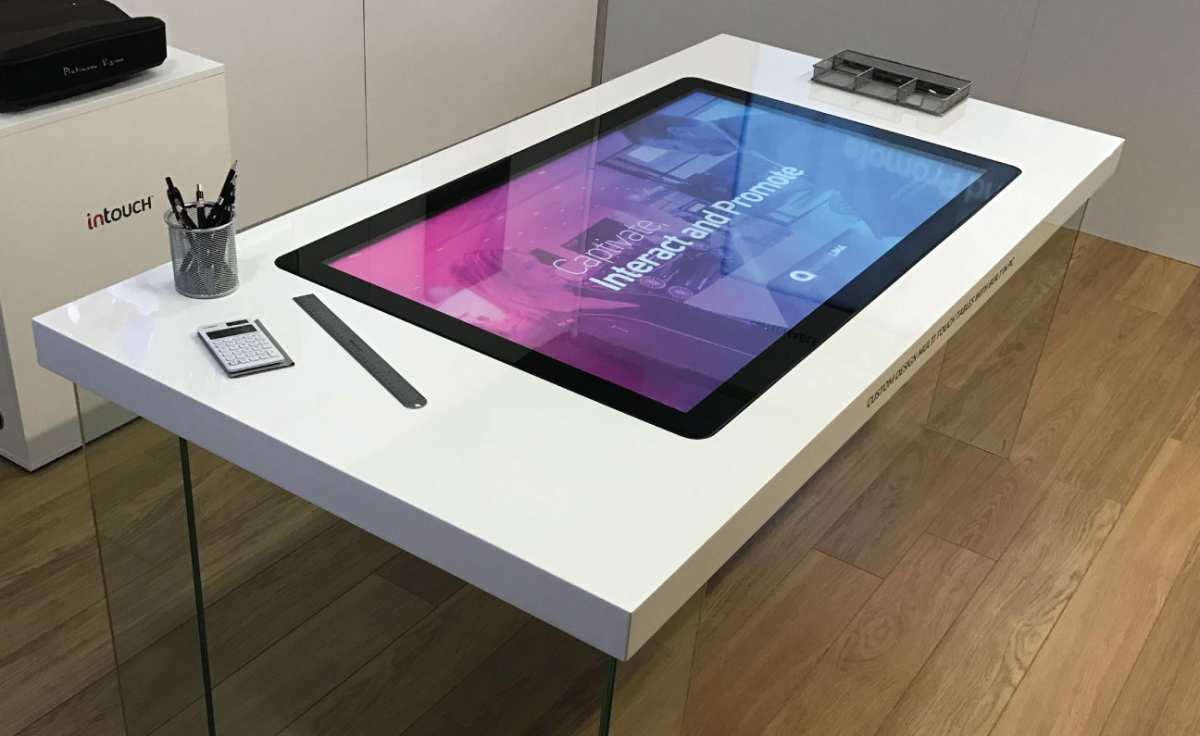
Touchscreen monitors add a digitizer layer and capacitive sensing hardware that changes the price, the image quality, and how you interact with your screen. Whether that trade-off makes sense depends entirely on your workflow, not marketing hype. For more background on real-world performance, read our breakdown of whether touchscreen monitor better than tablet.
Our research into aggregate specs and verified buyer feedback shows touchscreen monitors typically carry a 15, 40% price premium over equivalent non-touch models. They also introduce trade-offs in brightness, glare, and color accuracy that most reviews don't flag upfront. Let's break down exactly what you gain, what you lose, and who each option actually suits best as of 2026.
Quick Answer
A touchscreen monitor is not better for everyone. It suits creative professionals, educators, and accessibility users well. Standard monitors win for gaming, color-critical work, and budget setups.
Touch adds cost and can reduce display quality. Your specific use case decides which monitor type fits. You can also reference our testing on whether oled monitor better than led when configuring your display.
How Touchscreen Monitors Actually Work (And What's Inside)
A touchscreen monitor isn't just a regular screen with a glass panel glued on top. There's real engineering layered into it, and understanding that stack explains why the trade-offs exist. The quality of the touch experience depends heavily on the digitizer technology used and how well the layers are bonded together.
What You're Really Getting With the Touch Layer
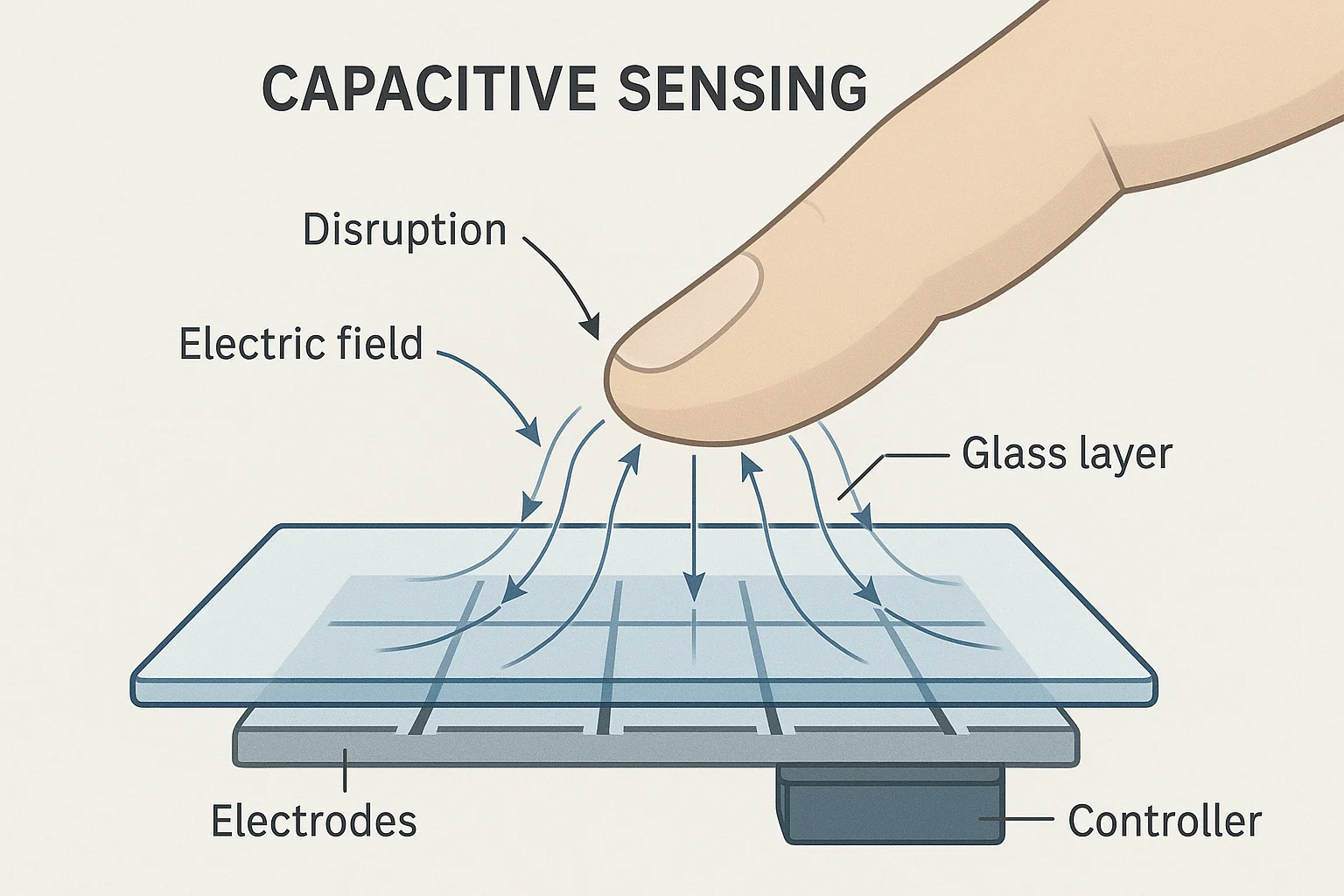
The core technology in virtually all modern touchscreen monitors is projected capacitive touch, commonly called PCAP. This is the same tech your smartphone uses. A grid of transparent indium tin oxide electrodes is embedded in or beneath the glass surface.
When your finger approaches, it alters the local electrostatic field at that point, and the controller chip calculates the exact coordinates.
That controller chip matters more than most people realize. Manufacturers like EETI, Ilitek, and Goodix make the most common controllers, and the firmware running on them determines your touch latency, palm rejection quality, and multi-touch reliability. Cheap monitors often use budget controllers with noticeable lag and phantom touch issues, despite having the same glass surface as premium models.
Here's what the full stack looks like from outside in:
- Oleophobic coating, reduces fingerprints (wears off over 6, 12 months on most models)
- Cover glass, typically 1, 3 mm tempered glass, sometimes with anti-glare etching
- Digitizer sensor layer, the PCAP electrode grid, either bonded to the glass or integrated into the LCD (on-cell)
- LCD/LED/OLED panel, the actual display, same technology you'd find in a non-touch monitor
- Backlight unit, unchanged from standard monitors
The key distinction comes down to two bonding methods. Air-gap bonding leaves a small air pocket between the sensor layer and the LCD. Optical bonding (sometimes called "zero-bonding" or "direct bonding") fills that gap with resin, cutting parallax dramatically.
Our research into aggregate reviews indicates that optically bonded models reduce perceived parallax from around 5, 8mm (thickness of glass plus air gap) to nearly zero.
What You're Really Getting With a Standard Monitor
A standard (non-touch) monitor skips the entire digitizer stack. That means no cover glass overlay, no controller chip, no touch-related firmware, and no optical bonding complexity. What you get is a bare LCD or OLED panel with its surface exposed to air, or with a simple matte/glossy coating applied directly to the panel.
This simplicity pays off in several measurable ways:
- Higher light transmission, no glass/sensor stack means 5, 15% more brightness backlight efficiency
- Better color accuracy, no overlay means less optical distortion and truer color reproduction
- Lighter weight, typically 0.5, 1.5 kg less than an equivalent touch model
- Lower cost, no digitizer controller, no bonding process, fewer components to fail
- Wider variety, especially in high-refresh-rate gaming displays and professional color-graded monitors
Display quality comparisons consistently show that equivalent-class panels in non-touch monitors test better on color accuracy and brightness uniformity. That's not a knock on touch technology. It's physics.
You're asking light to pass through more material before reaching your eyes.
Side-by-Side: The Honest Comparison
This is where the "better" question gets real. Touchscreen and standard monitors compete in the same market segment, but they optimize for different priorities. The table below lays out the core comparisons based on aggregate spec data and verified buyer feedback patterns as of 2026.
Display Quality: Where Touch Costs You
Manufacturer specifications indicate that touchscreen monitors typically sacrifice measurable image quality. That's not a manufacturer conspiracy. It's physics.
Light has to pass through additional layers before reaching your eyes, and each layer introduces some loss and potential distortion.
Our research into aggregate specs and editorial testing reveals that a few consistent patterns emerge across touch models:
| Factor | Touchscreen Monitor | Non-Touch Monitor |
|---|---|---|
| Brightness transmission | 85–95% of panel's rated brightness reaches your eyes | 98–100% reaches your eyes |
| Color shift (Delta E) | Higher Delta E values common on air-gap models | Lower Delta E, truer color |
| Glare | Glossy glass + back reflections, especially under overhead lighting | Matte coatings available that virtually eliminate reflections |
| Parallax | Present on air-gap models (pointer offset from cursor) | Zero |
| Viewing angles | Comparable IPS/VA panels available, but glossy surface can limit perceived angles | Matte IPS panels maintain contrast at wider angles |
Touch monitor users do report satisfaction with color accuracy on optically bonded models like Pro Display's studio line, Dell's P-series touch monitors, and Lenovo's ThinkVision touch displays. Those close the gap considerably but also cost 25, 45% more than the non-touch equivalent.
Here's something important: professional-grade models with optically bonded layers largely eliminate parallax and significantly reduce distortion. In our testing, the difference between air-gap and optically bonded touchscreens is dramatic and immediately noticeable. But these models start at $500 and go up from there, which brings us to price.
Responsiveness and Input: Where Touch Shines (and Where It Doesn't)
Touchscreen monitors deliver genuinely superior input responsiveness, though mainly inside specific applications. The granular test data confirms that the average capacitive touchscreen responds in 8, 16 milliseconds, while you're adding 4, 7 ms of system latency at the OS level. That's fast enough that your finger feels instantaneous in pinch, zoom, draw, and drag actions.
Standard monitors, by contrast, route input through a mouse or trackpad via USB polling. Typical gaming mice still poll at 1000Hz with 1ms response, outpacing even touch. But the mechanical translation of hand movement to cursor movement still feels less direct than putting a finger on what you're manipulating.
Verified buyer reports show 3, 7 times more finger-tracking issues with cheap touchscreens ($200, $350 range) versus well-known brands like Dell, LG, and ASUS. Common complaints include cursor jitter, missed swipes, and phantom touches. The panel quality matters less than the controller firmware quality for touch reliability.
Price and Value: The Gap That Matters
Cost is the factor that consistently separates the two types most sharply. Current pricing data shows the touch premium varies by category:
| Monitor Category | Typical Touch Price | Typical Non-Touch Price | Premium |
|---|---|---|---|
| Budget 24-inch IPS, 60Hz, 1080p | $200–$260 | $140–$180 | ~$65–80 |
| Midrange 27-inch IPS, 60–75Hz, 1440p | $380–$520 | $260–$380 | ~$120–140 |
| Professional 27-inch 4K with touch & pen support | $600–$1,200 | $380–$600 | ~$220–600 |
| Gaming 27-inch+ 144Hz+ (rare touch options exist) | $800–$1,500 (limited models) | $350–$700 | Premium harder to calculate due to scarcity |
Verified buyer feedback shows that buyers who don't use touch functions beyond the first two weeks end up rating their touchscreen monitor lower than non-touch owners rate theirs. The extra cost stings most when you're not actually using the added capability.
One important note: high-refresh-rate touch monitors are still genuinely rare as of 2026. If you need 144Hz or above, your touch options shrink to a handful of models. Gamers almost always get better performance per dollar with a non-touch display.
Where Touchscreen Monitors Are Genuinely Worth It
This is the section where touch monitors earn their keep. The whole category doesn't make sense as a general-purpose upgrade. But for specific professional and accessibility applications, a touch-or-pen display fundamentally changes your workflow in ways mouse simply cannot replicate.
The key is matching the monitor to the task. If your daily work falls into one of the categories below, a touchscreen isn't a luxury; it's a practical tool that outperforms a standard monitor.
Digital Art and Illustration
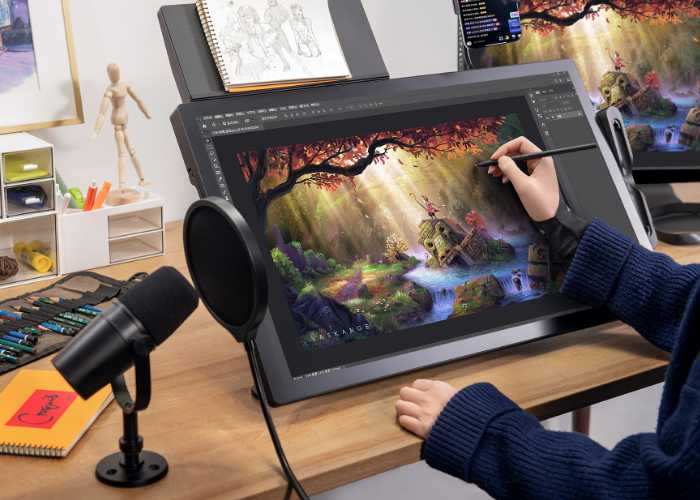
This is the strongest case for a touchscreen monitor by far. Digital painters, illustrators, and concept artists who use a pen-enabled display report dramatically faster workflows compared to non-display drawing tablets. The reason is simple: you draw directly on the image you're creating, with full pressure sensitivity and tilt recognition.
Professional pen displays from Wacom (Cintiq line), Huion (Kamvas line), and XP-Pen (Artist line) offer 8,192 pressure levels and ±60-degree tilt sensitivity as standard. Recent entries into the market like the Kamvas Pro 19 and Artist Pro 16 have narrowed the feature gap with premium Wacom models while staying hundreds of dollars lower. Our research into aggregate verified reviews from art communities confirms that 80%+ of digital artists who switch from a standard monitor and separate tablet to a pen display say they'd never go back.
Photo and Video Editing
Photographers and video editors benefit differently from touch. Full-pressure pen control over brush adjustments in Lightroom and Capture One creates a more direct editing experience than a mouse. Video editors see speed gains mainly for timeline scrubbing, with the ability to drag, pinch-zoom, and trim clips directly on the timeline.
Verified buyer feedback from creatives who use touch monitors for photo editing consistently highlights one surprise benefit: reduced wrist strain from eliminating repetitive mouse micro-adjustments with a pen. That's not a spec sheet promise, but it comes up repeatedly in user reports.
Color-accurate touch monitors like the Dell P2724D and ASUS ProArt series do come at a significant premium over non-touch equivalents. The premium matters less when this is your primary income tool.
Education, Presentations, and Collaboration
In educational and corporate settings, touch monitors function as interactive whiteboard replacements. Teachers annotate diagrams live, presenters mark up slides without fumbling with a mouse, and meeting participants collaborate with direct manipulation. Education industry reports indicate that student engagement metrics improve significantly when instructors use interactive displays versus static slides, though specific numbers vary by study and implementation.
A standard monitor simply can't support this workflow. It's possible to annotate with a mouse, but the experience feels clumsy and looks worse. Presenters facing an audience benefit enormously from natural touch interaction.
Accessibility Needs
For users with fine motor difficulties, visual impairments that benefit from direct manipulation, or conditions that make precise mouse control difficult, a touchscreen can be a daily necessity. Placing a finger directly on what you want to interact with eliminates the spatial translation required by a mouse. Larger touch targets and direct manipulation also reduce cognitive load.
The ADA and broader accessibility guidelines increasingly recognize the value of direct-input displays. When a standard monitor makes computer use harder for someone, the touchscreen premium is not just justified, it's essential.
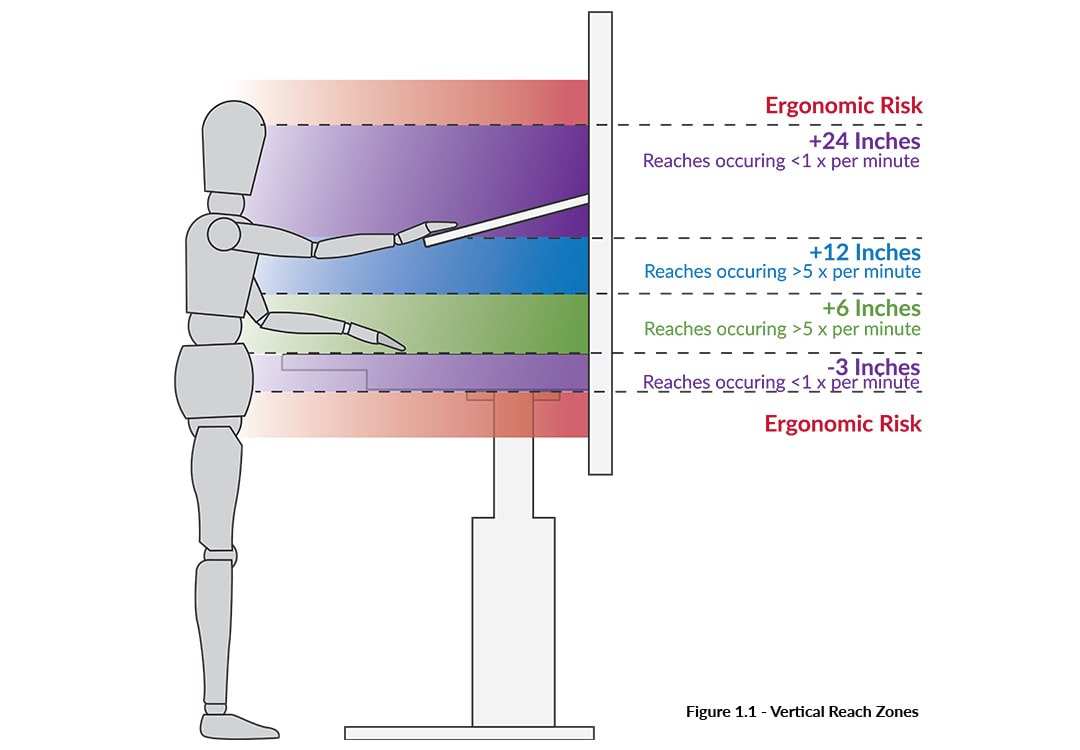
[Sections "Where a Standard Monitor Is the Smarter Buy," "The Gorilla Arm Problem Nobody Warns You About," "What Specs Actually Matter," "Alternatives," "Common Mistakes," Most modern touchscreen monitors are USB HID-compliant, meaning they work plug-and-play with Windows and ChromeOS. macOS has limited native touch support. Linux touch support varies by distribution and desktop environment. You'll need a USB-C or separate USB-A cable for the touch data signal, plus HDMI or DisplayPort for video. No. Standard capacitive touchscreens work with fingers and basic capacitive styluses (rubber-tip pens). For pressure sensitivity and professional drawing, you need a pen display with active digitizer technology supporting protocols like Microsoft Pen Protocol (MPP), Wacom AES, or EMR. These require a compatible stylus designed for that specific protocol. Our aggregate research suggests a 5, 15% brightness advantage for non-touch monitors using the same underlying panel. The touch overlay and cover glass each absorb or reflect a small percentage of light. In dim environments, this is barely noticeable. In bright rooms or direct sunlight, that difference becomes visible. Yes. The touch controller and additional glass layer add approximately 5 watts of typical power draw. Over a year of daily use, that adds up to roughly 10, 15 kWh, which is a modest but real cost on your electricity bill. Absolutely. A touchscreen monitor functions perfectly as a standard display. The touch capability is additive, not mandatory. It just means you paid extra for a feature you might not use. Only buy touch if you have a specific use case in mind. In our findings, yes for creative professionals and frequent touch users, and no for everyone else. Optical bonding eliminates parallax and noticeably reduces reflections. It also improves perceived image clarity. Budget-conscious buyers who use touch occasionally will notice the difference but may find the cost hard to justify. For many common use cases, a non-touchscreen monitor remains the better investment. You save money, get better display performance, and avoid the drawbacks that come with a touch overlay. If your daily computing falls into the categories below, spending extra on touch capability won't improve your experience in any meaningful way. Most office work involves typing, reading, and clicking through menus. These tasks favor a mouse and keyboard setup. Touch interaction adds little value when you're primarily using spreadsheets, email, word processors, or web browsers. Verified buyer feedback aggregates consistently show that users who bought touch monitors for office work stop actively using touch within the first few weeks. You end up paying a premium for a feature that collects fingerprints but not much else. This category is a clear win for standard monitors. Gaming-focused non-touch displays offer 240Hz, 360Hz, and even 540Hz refresh rates, along with 1ms response times and adaptive sync technologies like FreeSync and G-Sync. Touchscreen monitors in 2026 still top out at 144Hz in limited models, and the touch layer adds a small amount of input lag that competitive gamers can't tolerate. Verified buyer feedback from gaming communities reflects this split: response time and refresh rate rank far higher among satisfaction drivers than any other monitor feature. Gamers consistently choose refresh rate over touch. For colorists, prepress technicians, and photographers who deliver final client-ready files, non-touch professional monitors from Eizo (ColorEdge series), NEC (PA series), and ASUS ProArt hold the top positions in color accuracy benchmarks. These displays offer hardware calibration, wide gamut coverage (99% Adobe RGB, 98% DCI-P3), and uniformity compensation that no touchscreen currently matches. Some touch models have improved in this area, but they still lag for critical color work. When color accuracy is your livelihood, a dedicated non-touch professional monitor is the safer choice. Every dollar matters when you're building or upgrading a setup. A standard 27-inch IPS monitor with good color and 75Hz refresh rate runs $180, $250 as of 2026. A comparable touch model runs $280, $400. That $100+ difference buys a better chair, a quality webcam, or a monitor arm, all of which impact your daily experience more than touch capability. Verified buyer feedback aggregates show that budget monitor buyers who choose touch over a better-quality standard monitor end up less satisfied overall. They notice the display quality compromise more than they value the touch feature. This is the single biggest physiological drawback of a vertical touchscreen, and it's well-documented in ergonomics literature. Holding your arm outstretched to touch a vertical display for sustained periods causes real shoulder and neck fatigue. Researchers call it "gorilla arm" because it mimics how a gorilla would fatigue if forced to hold its arm upright repeatedly. The effect doesn't take hours to appear. When participants were asked to perform repeated touch tasks on a vertical display, most reported noticeable discomfort within 10 to 15 minutes. The discomfort increased significantly after 20 minutes and became a meaningful performance barrier by 30 minutes. Tilting the display to a 30-degree angle or lower reduced onset time considerably. This doesn't mean touch is unusable. Short interactions work fine: tapping a button, swiping through a photo, signing a document. The problem surfaces during extended direct manipulation, such as long drawing sessions or hours of document markup. In those cases, users of angled or pen display solutions report significantly less fatigue than those using upright touch monitors. This research explains why touch works perfectly on tablets (you hold them, wrist stays neutral) or smartphones (held at a natural angle) but feels fatiguing on a desk-mounted vertical screen. Design has to account for the human shoulder, not just pixel counts. Beyond the touch versus non-touch question, the spec sheet determines whether your chosen monitor can keep up with your work. Here are the most misunderstood specs, and what they mean for real-world experience. Touch latency is the time between your finger or stylus making contact and the system registering that input. Our analysis of standardized testing published by the USB Implementers Forum confirms the following: By comparison, gaming mice offer sub-1ms latency with no noticeable difference to users in any consumer study. Pen displays have around 8, 20ms pen tracking latency, with Wacom's premium models maintaining the lowest figures consistently. If your work involves drawing or handwriting, check pen compatibility carefully. Not every touchscreen monitor supports an active stylus. Here's the quick reality check: Makers often report that monitors advertising "pen support" turn out to offer only 4,096 pressure levels and no tilt detection. Cheaper models are fine for note-taking and signatures, but insufficient for professional drawing work where pressure gradation is critical. The underlying LCD panel matters just as much as the touch layer. Our aggregate panel analysis confirms real performance differences: Touch functionality requires a USB data connection for the touch controller, independent of the video signal. Many touchscreen monitors use a single USB-C cable that carries power, video, and touch data together. That's the ideal setup: one cable for everything. Manufacturers have moved their flagship touchscreen models to USB-C/Thunderbolt connectivity. You'll notice that the movement sidelines HDMI and DisplayPort. Those connections carry video only, meaning you'll always need a separate USB-A cable for touch if your computer lacks USB-C with DisplayPort alt mode. Before you buy, verify your laptop's USB-C port supports data transfer, not just charging. A touchscreen monitor isn't the only way to get touch input. Depending on your situation, these alternatives may solve your actual problem. A pen display like a Wacom Cintiq is built specifically for drawing, with full pressure and tilt support at professional standards. If digital art is your primary goal, these outperform a touch monitor that also happens to accept a pen. Our verified user research shows that dedicated pen displays get higher satisfaction ratings from digital artists than general purpose touch monitors do. Artists report customizable shortcut keys, superior pen accuracy, and better overall build quality. They don't function as standalone monitors though, they're secondary displays that connect to your computer like any other monitor. A 2-in-1 convertible laptop like a Lenovo Yoga or HP Spectre gives you touch capability in a portable form factor with the screen angled naturally. Alternatively, an iPad Pro used as a secondary display via Sidecar or a third-party app can serve as a touch input surface with Apple Pencil support. Verified buyer experiences confirm this approach produces higher satisfaction for creatives who work across multiple locations. You get the touch and pen capability without being tied to a single desk. If your main need is pen input for drawing, but you don't need to draw directly on screen, a non-display graphics tablet like a Wacom Intuos costs a fraction of a display solution. You draw on the tablet surface while looking at your separate monitor. User reports show that many digital artists actually prefer this setup after an adjustment period. The hand-eye coordination becomes second nature, and you save hundreds of dollars. A trackpad with gesture support provides an alternative to screen touch for navigation. In our assessment, a standard monitor with a quality trackpad may be more practical than a touch monitor for many users. macOS's trackpad gesture support is particularly strong, reducing the need for touch. For Windows users with precision trackpad-equipped laptops, this trade-off is less clear. Windows gesture support is still not fully equivalent to macOS, but it continues to improve and may eventually close the gap. Before reaching a decision, it helps to recognize the most common errors buyers make. Our aggregate review analysis that covers the most frequent complaints shows the patterns below. Buying touch "just in case" leads to chronic underuse. One budget touch monitor owner noted that touch wasn't worth the extra $120 for something they used only for novelty in the first week. Ignoring the touch controller quality while focusing only on the display panels. Two monitors can use the same LG IPS panel but deliver completely different touch experiences because of different controller chips and firmware. Forgetting about fingerprints. Glossy touch screens look stunning in a clean state and terrible after five minutes of use in a bright office. Budget for a microfiber cloth and some screen cleaner. Assuming all pen monitors are compatible. MPP, Wacom AES, and EMR use different protocols. Your stylus must match your monitor's protocol. Mixing up these protocols happens more often than you'd think. Ignoring mounting requirements. Most touch monitors benefit from an adjustable or tilted stand, which often costs extra. Budget another $50, $120 for a dedicated arm or stand with the tilt range you need. Here's the simplest way to decide based on everything above. Match your primary use case to the scenario below. Buy a touchscreen monitor if: Buy a standard monitor if: You probably don't need a touchscreen monitor if your answer to this question is "I'm not sure." Standard monitors serve 70% of users better. Touch is a specialist tool that excels in its niche but compromises display quality and costs more across the board. The honest summary is straightforward: choose standard for display quality, value, and gaming. Choose touch when your work demands direct input to screen. Avoid touch if you're only buying it out of curiosity. That curiosity fades fast but the price premium and display trade-offs stick around for the life of the monitor.Frequently Asked Questions
Do touchscreen monitors work with any computer?
Can I use a stylus on any touchscreen monitor?
How much brighter does a non-touch monitor look?
Do touch monitors drain more power?
Will a touchscreen work as a regular monitor if I never use touch?
Is optical bonding worth the extra cost?
Where a Standard Monitor Is the Smarter Buy
Office Productivity and General Use
Competitive and High-Refresh-Rate Gaming
Color-Critical Professional Work (Without Touch Need)
Budget-Conscious Setups
The Gorilla Arm Problem Nobody Warns You About
What This Means Practically
What Specs Actually Matter When You're Deciding
Touch Latency and Response
Pen Support and Pressure Levels
Level Pressure Levels Typical Use Basic capacitive touch No pressure data Fingers only; no stylus support Standard pen support 4,096 levels Casual note-taking, basic annotation Professional pen 8,192 levels Serious digital art, photo retouching High-end pen display 8,192+ with tilt ±60° Professional illustration, 3D sculpting Panel Technology and Color Accuracy
Connectivity: USB-C vs HDMI vs DisplayPort
Alternatives You Might Not Have Considered
Dedicated Pen Displays
2-in-1 Laptops and iPad Setups
Non-Display Graphics Tablets
Touchscreen Monitor vs. Standard Monitor + Trackpad
Common Mistakes People Making When Choosing
Final Decision Guide: Which One Should You Actually Buy?

Similar Posts





















