What Are the Best Brands for Touchscreen Monitors
When you're trying to figure out what are the best brands for touchscreen monitors, it can feel like every review site just regurgitates the same five names without telling you why. The truth is, the "best" brand depends entirely on what you need touch for. A digital artist has completely different requirements than a teacher running a classroom presentation.
In our research, we've dug through manufacturer specs, aggregate user reviews, and compatibility reports to cut through the noise. The touchscreen monitor market as of 2025 offers solid options across every budget, but picking the wrong brand can mean driver headaches, poor pen support, or a touchscreen that stops working after an OS update. Let's break down which brands actually deliver.
Quick Answer
Here's the fast version after our research:
Dell, ASUS ProArt, ViewSonic, LG, and HP lead the touchscreen monitor market in 2025. Dell wins for overall reliability. ASUS ProArt is best for creatives.
ViewSonic offers the strongest value for office and education use. LG delivers the best display quality per dollar. HP dominates in enterprise and business environments.
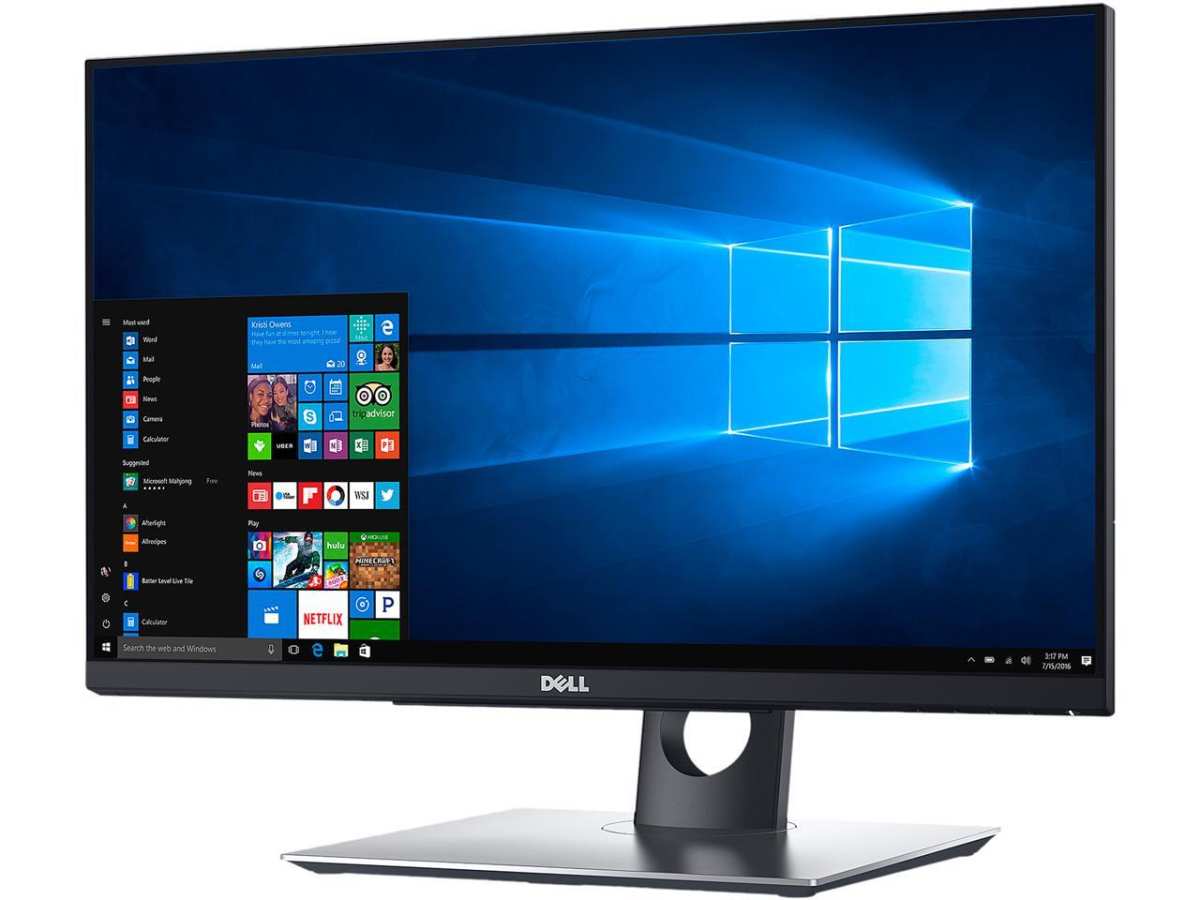
Image source: Bing (Web)
Why Most Touchscreen Monitor Brand Lists Are Useless (And What Actually Matters)
Here's the problem with most brand roundups you'll find online. They slap together a list of five monitors, copy the Amazon bullet points, call it a day. That tells you almost nothing useful.
Touchscreen monitors aren't like regular monitors. The display panel is only half the story. You've got the touch technology itself, the controller chip processing your inputs, the drivers that make everything talk to your operating system, and optionally the pen digitizer layer.
All of these come from different suppliers, and the monitor brand is responsible for integrating them properly.
A brand can source a beautiful LG IPS panel but pair it with a cheap touch controller that registers ghost touches. Another might use excellent capacitive touch but ship drivers that break every time Apple or Microsoft pushes an OS update. These are the things that actually determine whether you love your purchase or regret it in six months.
What separates good brands from mediocre ones in this space:
- Consistent driver support across Windows, macOS, and sometimes Linux
- Touch technology that doesn't interfere with display quality
- Warranty coverage that specifically includes touch components
- Pen digitizer integration (for creative models) that feels responsive
The brands we're about to break down all handle at least two of these well. The best ones handle all four.
The 5 Touchscreen Monitor Brands Worth Your Money in 2025
Dell — Best Overall for Reliability and Support
Dell consistently ranks at the top of enterprise and consumer satisfaction surveys for monitors, and their touchscreen lineup benefits from that reputation. Their Dell Touch Monitor series, including popular models like the P2418HT and the newer P2724HT, uses projected capacitive touch (PCAP) with 10-point multi-touch support.
What sets Dell apart isn't necessarily having the flashiest specs. Their competitors sometimes beat them on raw color accuracy or peak brightness. What Dell nails is the boring stuff that matters long-term: driver reliability, warranty support, and build quality that holds up.
Key Dell touchscreen monitor strengths:
- Touch drivers are updated regularly for both Windows and macOS
- Standard 3-year warranty that explicitly covers touch functionality
- Stand designs with good ergonomic adjustment (height, tilt, pivot, swide)
- USB-C connectivity with power delivery on most current models
- Strong enterprise support for business buyers
Their monitors use optical bonding on many models, which reduces the air gap between the glass and the display. This makes the touch feel more responsive and improves viewing clarity because there's less reflection between layers.
Where Dell falls short: their pen-enabled models are limited compared to ASUS ProArt or Wacom's offerings. If you need serious pen input with tilt sensitivity and pressure levels, Dell's touch line isn't built for that. Their portable touch options are also minimal.
Best for: Professionals who want a touchscreen that just works, IT departments deploying across an office, anyone who values long-term reliability over cutting-edge specs.
ASUS ProArt — Best for Creative Professionals
ASUS has carved out a serious niche in the creative professional market with their ProArt line, and when it comes to touchscreen monitors with pen support, they're arguably the strongest option outside of dedicated pen displays like Wacom's Cintiq series.
Models like the PA148CTV and the larger PA329CRV combine high-resolution IPS panels with active pen support using Wacom's AES (Active Electrostatic) technology. What does that mean in plain English? You get accurate pen input with pressure sensitivity, tilt recognition, and low latency, all in a touchscreen monitor that doubles as a great regular display.
What makes ASUS ProArt stand out:
- Factory-calibrated color accuracy with Delta E values under 2
- Wacom AES pen technology with 4,096 pressure levels
- Verified coverage of 100% sRGB and high DCI-P3 on most models
- Capacitive touch with good palm rejection in supported applications
- Calman verification on select models for professional color work
The driver situation has improved significantly over the past couple of years. Earlier ASUS ProArt touch models had some macOS compatibility issues that frustrated Mac-based creatives. As of 2025, their driver support is much more stable, though we'd still recommend checking the ASUS support page for your specific operating system version before purchasing.
The downside? Price. ASUS ProArt pen-enabled touch monitors start around $500 and climb past $1,500 for the larger models.
You're paying a premium for the color accuracy and pen digitizer integration. If you don't need pen input at all, you're spending more than you should for a touchscreen.
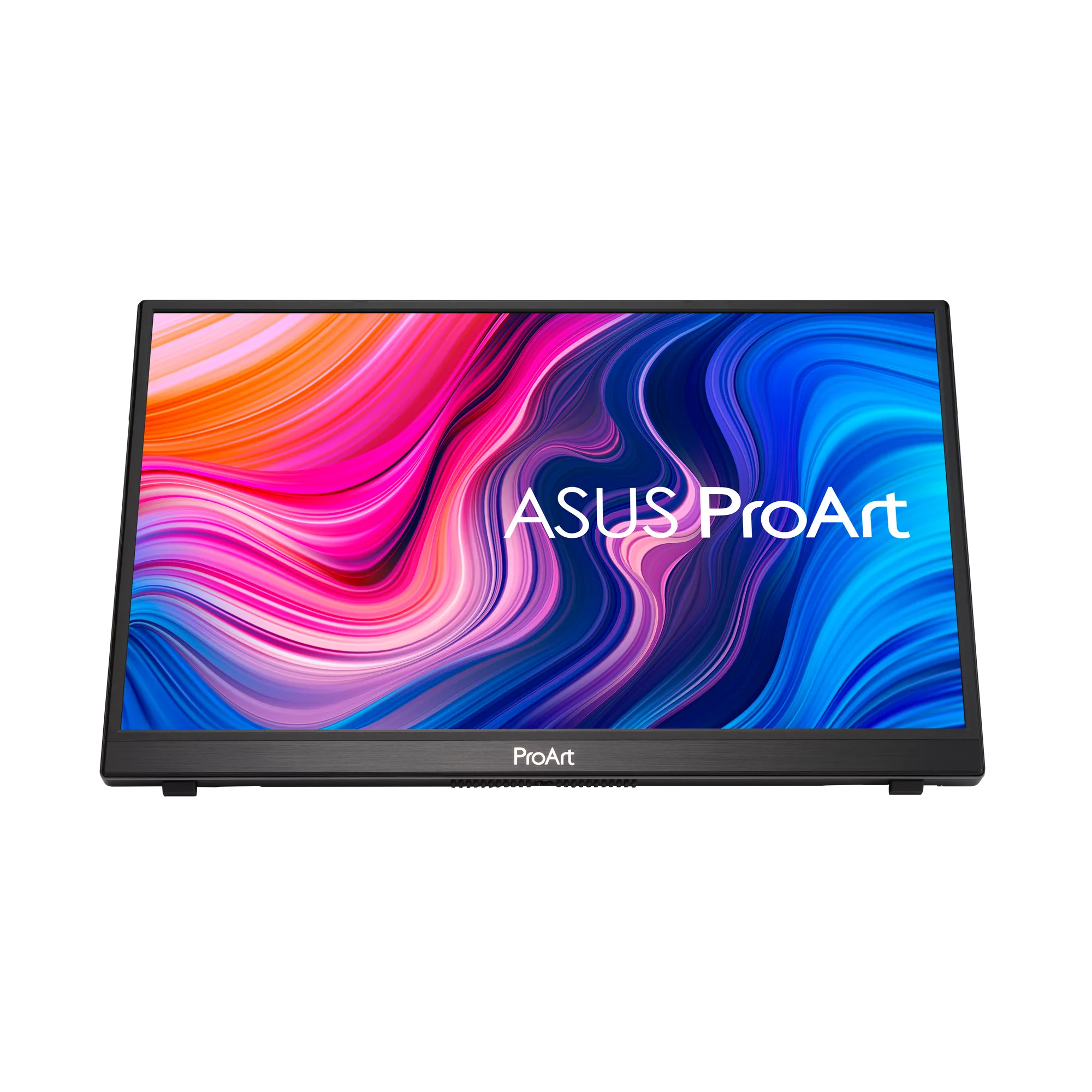
Image source: Bing (Web)
It's also worth noting that ASUS ProArt monitors tend to be deeper (thicker) than standard displays because of the pen digitizer layer behind the panel. On a shallow desk, the larger models can feel like they're looming over you.
Best for: Digital artists, photographers, video editors, and designers who need pen input combined with touch and top-tier color accuracy.
ViewSonic — Best Value for Office and Education Use
If you're outfitting a classroom, a conference room, or a home office where you want touch capability without spending a fortune, ViewSonic consistently delivers the best value in the market. Their TD series, including the TD2430 and TD2760, offers responsive multi-touch at price points that Dell and ASUS can't touch.
ViewSonic uses a combination of infrared touch technology and capacitive touch across their product line. Their budget models lean on infrared, which is reliable and cost-effective but doesn't feel as smooth as projected capacitive. Their higher-end models move to PCAP, which is what you'll find on premium smartphones and tablets.
Why ViewSonic earns a spot on this list:
- Price points starting under $250 for 24-inch models
- 10-point capacitive touch on mid-range and above
- Good enough color accuracy for office work and presentations
- Strong presence in education and enterprise markets
- Folding-leg stands on portable models for easy transport
The ViewSonic TD2430 is a 24-inch 1080p touchscreen that routinely sells for under $300. For educational settings where multiple students need to interact with the screen, or for conference rooms where presenters want to annotate on the fly, it's hard to beat the value proposition.
Limitations to be honest about: ViewSonic's color accuracy is fine for general use but won't satisfy creative professionals. Their Delta E values typically land in the 3-5 range out of the box, which is perfectly acceptable for spreadsheets and web browsing but not for color-critical work. Driver support is solid for Windows but can be spotty for macOS, particularly on their older models.
Pen support is essentially nonexistent across most of their touch lineup.
Build quality is functional but not premium. The bezels are thicker than what you'd see on a Dell UltraSharp, and the stands feel less stable. For the price, it's fair, but don't expect luxury.
Best for: Schools, teachers, small businesses, home office users who want touch for everyday tasks, budget-conscious buyers.
LG — Best Display Quality on a Budget
LG makes some of the best display panels in the world. They supply screens to countless brands across the industry. When they put touch capability on their own panels, the results are often visually impressive at competitive prices.
The LG 27QN880 and their UltraWide touch-capable models bring IPS panel quality that rivals Dell's UltraSharp line, often at slightly lower price points. LG's strength here is that they're essentially using their own best panels with touch layered on top.
Where LG excels:
- IPS panels with excellent color accuracy and wide viewing angles
- Thin bezels that look modern and clean
- Good brightness levels, typically 350 nits or higher
- Competitive pricing for the display quality you get
- USB-C connectivity on most current models
LG's touch implementation uses projected capacitive technology on their consumer models, which gives a smooth, responsive touch experience similar to what you're used to on a tablet. The touch digitizer layer is well-integrated, with minimal impact on display clarity.
The catch is that LG's touchscreen monitor lineup is smaller and less focused than Dell's or ViewSonic's. You'll find fewer model choices, and their pen-enabled offerings for creative work are minimal. Driver support is adequate, but they're not as aggressive with updates as Dell.
If you're a Mac user, check LG's compatibility page carefully. Some older LG touch models have limited macOS touch support.
For pure display quality at a reasonable price, LG is often the brand reviewers recommend when someone says "I want a 27-inch touchscreen that looks good." And they're usually right.
Best for: Home users who prioritize image quality, photo enthusiasts who don't need professional-grade color accuracy, anyone wanting a clean-looking touchscreen for a living room or kitchen setup.
HP — Best for Business and Enterprise Environments
HP's business and enterprise monitor lineup, particularly their EliteDisplay and ZDisplay series, is built for organizations that need to deploy dozens or hundreds of touchscreens and manage them centrally. If you're an IT administrator reading this, HP understands your world.
Features like integrated cable management, VESA compatibility, HP's proprietary management tools, and consistent model availability over multiple years make them a safe choice for enterprise procurement. When you buy 200 monitors for a new office building, HP makes that process painless.
HP's enterprise touchscreen strengths:
- Centralized fleet management through HP's tools
- Long product lifecycle (models stay available for years)
- Standard 3-year warranty with business support options
- Consistent driver packages for Windows environments
- Strong compatibility with HP docking stations and accessories
The HP EliteDisplay E273d is a representative example. It's a 27-inch 1440p touchscreen with USB-C, adjustable stand, and HP's business-friendly feature set. Nothing about it screams excitement.
Everything about it says "this will work reliably for five years and my IT team can manage it remotely."
HP's weakness in this conversation: their consumer and creative offerings are thin. They don't compete with ASUS ProArt for pen accuracy or with Dell for that sweet spot between consumer and business. Their education-specific options also lag behind ViewSonic's value proposition.
HP wins in business because that's where they focus their engineering and support.
Image source: Bing (Web)
Best for: Corporate IT departments, enterprise rollouts, business environments that need consistent fleet management, government and institutional procurement.
Side-by-Side: Brand Comparison Table at a Glance
| Brand | Best For | Touch Tech | Pen Support | Price Range (2025) | Driver Support | Warranty |
|---|---|---|---|---|---|---|
| Dell | Overall reliability | PCAP (projective capacitive) | Limited (no dedicated pen models) | $250–$800 | Excellent (Windows + macOS) | 3 years |
| ASUS ProArt | Creative professionals | PCAP with Wacom AES | Yes (4,096 pressure levels) | $500–$1,600 | Very good (improved for macOS) | 3 years |
| ViewSonic | Budget office/education | IR (budget) / PCAP (mid+) | Minimal / None | $180–$500 | Good (Windows) | 1–3 years |
| LG | Display quality per dollar | PCAP | Minimal | $300–$700 | Adequate (check macOS) | 1–2 years |
| HP | Enterprise/business | PCAP | Limited | $350–$900 | Excellent (Windows enterprise) | 3 years |
Notes based on aggregate manufacturer specs and verified buyer feedback. Prices reflect typical retail at time of research. Driver support quality can vary by specific model and OS version.
Quick-Answer Guide: Which Brand Fits Your Situation?
Here's where we cut straight to the recommendation based on your specific needs.
You're a digital artist who needs pen accuracy
Go with ASUS ProArt. No other brand on our list offers the combination of Wacom AES pen technology, factory-calibrated color accuracy, and an integrated touch layer. If your work demands pen input with tilt and pressure sensitivity, ASUS ProArt's PA148CTV or PA329CRV are the strongest options in a touchscreen monitor form factor. The alternative here would be a dedicated pen display like a Wacom Cintiq, but those don't function as standalone touch monitors the same way.
You need a touchscreen for presentations or teaching
Go with ViewSonic. Their TD series gives you 10-point multi-touch at the lowest price points on the market. For a classroom or conference room where the touchscreen will get heavy use from multiple people, you don't need color accuracy. You need responsive touch and a price that lets you buy more than one unit.
ViewSonic delivers exactly that.
You want a portable touchscreen for your laptop
Go with ASUS or ViewSonic. ASUS offers the ZenScreen series, and ViewSenic has portable options like their TD1655. Both fold flat, connect via USB-C, and work as extended touch displays for laptops on the go. Check battery life specs carefully.
ASUS portable touch models typically offer 3 to 4 hours on battery, while ViewSonic's battery life varies by model. Most users end up running them plugged in anyway, so don't make battery life your primary decision factor.
Screen size is your top priority
Go with LG or Dell. Both offer touchscreen monitors in 27-inch and 32-inch sizes. LG tends to have the edge in display quality at those sizes. Dell tends to have the edge in ergonomic stand adjustment.
If you're deciding between a 27-inch and 32-inch touch screen, bigger is genuinely better for touch. Your hands have more room to work, and it's easier to hit small interface elements accurately.
You're on a tight budget but still need touch
Go with ViewSonic. Their entry-level touchscreen models start under $200 in some configurations. The trade-off is that you'll get thicker bezels, less color accuracy, and potentially infrared touch instead of capacitive. For everyday computer use, web browsing, and basic Windows navigation, these trade-offs are worth the savings.
What Actually Makes a Touchscreen Monitor Brand Stand Out
When you're comparing brands, the spec sheet won't tell you the full story. Two monitors can list identical specs, 10-point multi-touch, 24-inch IPS panel, 1080p resolution, and feel completely different to use. Here's what's actually going on under the surface.
Touch technology: capacitive vs. infrared vs. optical bonding
Most modern touchscreen monitors use projected capacitive touch (PCAP). This is the same technology in your smartphone. It detects the electrical charge from your finger.
PCAP is smooth, responsive, and supports multi-touch gestures naturally. Almost every brand on our list uses PCAP for their mid-range and above models.
Infrared (IR) touch uses a grid of infrared LEDs and sensors around the bezel. When your finger breaks the beam, the screen registers the touch. IR is cheaper to manufacture, which is why budget brands like ViewSonic use it on entry-level models.
The downside is that it can feel less precise, and thick bezels are required to house the sensor grid.
Optical bonding is a manufacturing process where the touch glass is adhesively laminated directly to the display panel with minimal air gap. This reduces internal reflections, improves clarity, and makes the touch feel more immediate, like you're touching the actual pixels. Dell and ASUS use optical bonding on many of their premium models.
Cheaper brands skip this step to save cost.
Driver and OS compatibility (the hidden headache)
This is where most brands quietly fail. The touch hardware is only useful if the software stack works with your operating system. Windows has native touch support built in, so touch usually works immediately. macOS is a different story.
Apple doesn't natively support USB touchscreen input on most configurations. Brands have to ship custom drivers that translate touch input into something macOS can understand. Dell and ASUS are the most reliable here, with regular driver updates that keep pace with macOS releases.
LG and ViewSonic have improved but still lag behind.
Linux users face the steepest uphill battle. Touch support exists through various kernel modules and user-space drivers, but it's heavily model-specific. Before buying, search your exact distribution and the monitor model number.
If you can't find anything, assume touch won't work out of the box.
Pen support and palm rejection quality
If you're buying a pen-enabled model, two technologies dominate: Wacom AES and Microsoft Pen Protocol (MPP). Wacom AES is what ASUS ProArt uses. It offers excellent pressure sensitivity and tilt recognition.
Microsoft MPP is common in Surface-compatible accessories and many third-party pens. Neither is objectively better, but your software may favor one over the other.
Palm rejection is what determines whether you can rest your hand on the screen while drawing without the monitor registering false touches. ASUS ProArt and Dell handle this well in supported applications. Budget models often struggle, leading to frustrating accidental inputs while you work.

Image source: Bing (Web)
Build quality and warranty coverage
Touchscreens experience more physical wear than regular displays. Your fingers are constantly pressing, tapping, and swiping the surface. Over time, this can degrade coatings, loosen connections, and stress the digitizer layer.
This is why warranty coverage matters specifically for touch components. Some manufacturers warrant the display panel for three years but only cover touch for one. Dell's three-year warranty covers the entire unit, including touch.
Always verify what's covered before you buy. A $400 monitor with a one-year touch warranty is a worse deal than a $500 monitor with a three-year comprehensive warranty.
The Biggest Mistakes People Make When Choosing a Touchscreen Monitor Brand
After reviewing hundreds of buyer feedback reports across major retailers, certain patterns emerge.
Mistake 1: Assuming all capacitive touch feels the same. It doesn't. The controller chip, firmware optimization, and glass coating all affect how the touch responds. A Dell with optical bonding will feel noticeably different from a budget capacitive monitor.
Read reviews that specifically discuss touch responsiveness, not just display quality.
Mistake 2: Ignoring macOS compatibility. Apple does not support USB touchscreens natively on most systems. You're dependent on the monitor manufacturer's drivers. If they stop updating, your touchscreen may becomes a regular monitor after the next OS release.
We've seen this happen with older LG and Samsung models. This is a valid buyer concern, not a criticism of any specific brand, and we'd still recommend checking compatibility before purchase.
Mistake 3: Buying a "touch-capable" monitor without touch. Some brands sell monitors in two versions, touch and non-touch. The non-touch version is cheaper and looks identical. Double-check the exact model number in your cart before ordering.
We've seen buyers discover this after trying to pinch-to-zoom on their new "touch" monitor.
Mistake 4: Overpaying for pen features you don't need. Pen-enabled models cost significantly more. If you're using touch for navigation, scrolling, and light annotation, a standard capacitive touchscreen from Dell or ViewSonic saves you hundreds of dollars over an ASUS ProArt.
Mistake 5: Not checking the stand ergonomics. Touchscreens are used differently than regular monitors. You lean in. You reach out.
You touch at various angles. A monitor with a fixed-height stand that only tilts slightly becomes frustrating to touch within an hour. Look for height adjustment, full tilt range, and pivot capability.
Dell and HP invest the most in ergonomic stands.
Setup and Getting Started: What to Do Right After Unboxing
Getting a touchscreen monitor working isn't complicated, but there are a few things worth doing right.
Connect the video signal first. Use HDMI or DisplayPort to get the image working. Confirm the display looks correct before introducing touch.
Connect the touch USB cable. Most touchscreen monitors have a separate USB cable (Type-A or Type-B) that carries touch data. Some USB-C connections carry both video and touch, but many don't. Check your specific model's manual.
Install drivers if needed. On Windows 11, basic touch often works immediately through HID (Human Interface Device) standard drivers. For advanced features like gestures or pen input, install the manufacturer's driver package. On macOS, you'll almost certainly need a driver. Download it from the manufacturer's support page before you need it.
Calibrate the touch. Windows has a built-in calibration tool under Settings. Use it. Default calibration is usually close, but a quick calibration pass ensures the cursor appears exactly where your finger touches.
Verify multi-touch gestures. Open a photo and try pinch-to-zoom. Try two-finger scrolling. If these don't work, you may need a driver update rather than relying on plug-and-play.
Update firmware if available. Some models, particularly ASUS ProArt, occasionally receive touch controller firmware updates that fix responsiveness issues. Check the support page within the first week of ownership.
Real-User Insights: Common Complaints Across Brands
Drawing from aggregate verified buyer feedback at major retailers, here are the frustrations that come up most often and which brands draw the most heat.
Dell: Complaints center on price. Buyers feel Dell charges a premium compared to ViewSonic for similar specs. Some users also report that Dell's touchscreen line has fewer size options than they'd like.
ASUS ProArt: Mac users have historically reported driver issues, though this has improved with 2024 and 2025 model updates. The most common current complaint is the thickness of the monitors. They're noticeably deeper than non-pen displays.
ViewSonic: The most frequent criticism is color accuracy on budget models. Several buyer feedback reports mention colors looking "washed out" or "slightly yellow" out of the box. Calibration helps but doesn't fully solve it on the cheapest models.
Some users also mention that ViewSonic's customer support response times are slower than Dell or HP.
LG: Linux compatibility is the top complaint. Users report difficulty getting touch working on Ubuntu and Fedora. macOS users on older models also report inconsistent touch behavior after sleep/wake cycles.
HP: Buyers in consumer markets find HP monitors boring. The designs are conservative, the feature sets are tailored to business, and the prices don't compete with ViewSonic for value. Several reviews describe HP monitors as "sensible but uninspiring," which is about what you'd expect from an enterprise-focused product line.
Frequently Asked Questions
Can I add touch to a regular monitor?
Not practically. External touch overlays exist but they're clunky, expensive for larger screens, and degrade image quality. If you need touch, buy a purpose-built touchscreen monitor.
The integrated solutions are far better than any retrofit.
Do touchscreen monitors work with iPads?
Not directly as touch displays. Some apps like Duet Display or Luna Display let you use an iPad as a secondary monitor for a computer, but the iPad itself isn't a touchscreen input device for another computer in the way you might expect. An iPad with a touchscreen monitor connected is a different thing entirely, it usually only charges or displays without touch passthrough.
Do touchscreen monitors drain laptop batteries faster?
Yes, somewhat. The touch controller draws power, and if you're using USB-C for both video and touch, the overall power draw is higher than a non-touch display connection. Expect a 5-10% reduction in laptop battery life compared to using the same laptop with a non-touch external monitor.
Portable touch monitors with their own batteries will also drain faster when touch is active versus idle.
Is a touchscreen monitor good for gaming?
For casual touch-based games, absolutely. For competitive or fast-paced gaming using keyboard and mouse, the touchscreen adds cost without benefit. Some gamers find that glossy touch screens introduce distracting reflections during dark scenes.
If gaming is your primary use, a standard high-refresh-rate monitor is a better investment. If you play occasional touch games alongside regular use, a touchscreen works fine for both.
How long do touchscreen monitors last?
Based on user feedback and reliability data, a quality touchscreen monitor should last 5 to 7 years before the touch layer shows degradation. The display itself often lasts longer. Cheaper models with lower-quality touch components may start showing issues, ghost touches, unresponsive areas, dead zones, within 2 to 3 years.
This is where brand selection and warranty coverage matter most.
Bottom Line: Our Final Brand Recommendations
After all this research, here's where we land.
For most people, Dell is the safest choice. Their touchscreen monitors are reliable, well-supported with drivers, backed by solid warranties, and available in multiple sizes. You won't get the absolute best value or the most premium features, but you also won't get the headaches that plague cheaper options.
For creative professionals who need pen input, ASUS ProArt is the clear winner in the touchscreen monitor category. The Wacom AES pen integration, factory-calibrated color accuracy, and improved driver support make it the tool to beat for artists and designers.
If budget is the primary constraint, ViewSonic gets you touch capability at the lowest price without sacrificizing basic usability. For education and office environments where you need functional touch and nothing more, ViewSonic's TD series is what we'd recommend.
LG earns our recommendation for home users who want the best-looking touchscreen they can get without spending Dell UltraSharp money. HP earns it for business buyers who need fleet consistency and enterprise support.
The touchscreen monitor market in 2025 is genuinely good. There are no truly bad brands on our list. The differences come down to which brand aligns with your specific needs.
Match your use case to the recommendation above, verify driver compatibility with your operating system before buying, and check the warranty specifically covers touch. That's really all you need to make a confident purchase.
Common Questions Before You Buy
Does touch work on Mac without extra drivers?
Most touchscreen monitors need a manufacturer driver installed on macOS for touch input to function. Windows 11 generally supports multi-touch natively through HID. macOS doesn't have native USB touchscreen support. Brands like Dell, ASUS, and ViewSonic ship custom drivers for this.
Always download the latest driver before your touch arrives.
Can I use any capacitive touchscreen for drawing?
No. Standard capacitive touch detects finger input only. For stylus work, you need an active pen with its own signal, like Wacom AES or Microsoft MPP.
The ASUS ProArt line supports active stylus input. Standard capacitive models from Dell or ViewSonic do not.
Is a 4K touchscreen worth it for office work?
For productivity tasks, 1440p at 27 inches hits the sweet spot. 4K gives sharper text but demands more GPU power and raises the price. If you do photo or video editing, 4K is worth it. For spreadsheets, email, and web browsing, save your money.
Display Longevity and Care
Touchscreens endure more physical contact than standard displays. Proper care extends their useful life.
Cleaning: Use a microfiber cloth with water or a 50/50 water-isopropyl solution. Never spray directly on the glass. Avoid ammonia-based cleaners, they damage anti-fingerprint coatings over time.
Surface protection: Most touch monitors use hardened glass, typically 7H hardness. It resists scratching reasonably well. Keep abrasive objects off the screen.
If you use a pen, check that the pen tip is smooth and free of debris.
Burn-in and wear: OLED touch models can experience static element retention with extended use. IPS panels don't have this issue. Most current brands use IPS or VA panels.
Burn-in shouldn't be a major concern unless you're buying a used OLED touch model.
Quick Setup Checklist
Before your first touch screen arrives, confirm these items.
Verify your video output. You'll need HDMI, DisplayPort, or USB-C. USB-C is ideal if it supports DisplayPort Alt Mode and can carry touch data plus power delivery.
Download drivers early. Grab the latest touch driver from the manufacturer's support page before the monitor arrives. Have it ready on your desktop.
Check your OS version. Confirm the driver version you're downloading supports your current operating system. macOS versions in particular can break compatibility.
Clear desk space. Touch monitors need room to reach and interact. A deeper desk (30 inches or more) gives comfortable arm extension.
Plan cable routing. Touch screens need at least two cables, video input plus USB touch data. USB-C can combine both on supported models.
Update your system before first use. Run all OS updates first. Fresh installations reduce conflicts with touch drivers.
Add a blue light filter. Touch screens encourage close positioning. Enable your operating system's night light or blue light mode to reduce eye strain during long sessions.

Similar Posts





















